Send Email Verifications with Verify and Twilio SendGrid
In this guide, you'll learn how to set up and send email verifications using Twilio Verify and SendGrid. You'll configure your SendGrid account, create an email integration in Verify and send verification emails to your users.
Create a SendGrid account or log in to your existing account. Email verifications use the SendGrid transactional email API.
Next, Create a SendGrid API key by using the API or the SendGrid dashboard.
Warning
We strongly recommend generating SendGrid API keys with limited scopes.
Create an API key in one of two ways:
- Option 1: Create an API key with the SendGrid API.
- Option 2: Create an API key in the SendGrid UI. For permissions, select "Restricted Access" and choose the following limited scopes:
| Access details | Access level |
|---|---|
| Mail Send (nested under Mail Send category) | Full Access |
| Scheduled Send (nested under Mail Send category) | No Access |
| Template Engine | Read Access |
Info
Save your SendGrid API key. You'll need it to set up your verification email integration.
Domain authentication lets you send email from your company's domain without "via sendgrid.net". See Configure domain authentication, and then authenticate your domain in the SendGrid dashboard.
Warning
It can take up to 48 hours for the records to verify after you upload them into your DNS host. You can still continue setup and testing while domain authentication is pending by using Single Sender Verification. Single sender verification allows you to send from a single email address that you confirm ownership of by clicking a verification link in the email's inbox. For more information on the differences between domain authentication and single sender verification, see Sender Identity.
Go to the SendGrid Dynamic Templates page and create a new template. In this process, you'll name and create or select a design for your template. Learn more about how to send email with dynamic templates.
Use at least one of the first three variables below to include the verify code in your email template.
| Available variables | Description |
|---|---|
twilio_code | The 4-10 digit numeric One Time Passcode. OTP only, no descriptive text. |
twilio_message | Contains both internationalized descriptive text and the OTP. For example, "Your MyServiceName verification code is: 123456" or "Su codigo de verificación para MyServiceName es: 123456". Default language is English, override language using the Locale parameter. |
twilio_message_without_code | Contains the internationalized descriptive text only. For example, "Your MyServiceName verification code is" or "Su codigo de verificacion para MyServiceName es". |
twilio_service_name | (Optional) the Friendly Name of the Service. |
You can find a list of your templates and their unique IDs on the SendGrid Dynamic Templates page. A template ID is 64 characters with one dash (d-uuid) and is required for creating a Verify email integration.
Info
Need template design help? Check out SendGrid's free and open source library of transactional email templates for robust and responsive designs.
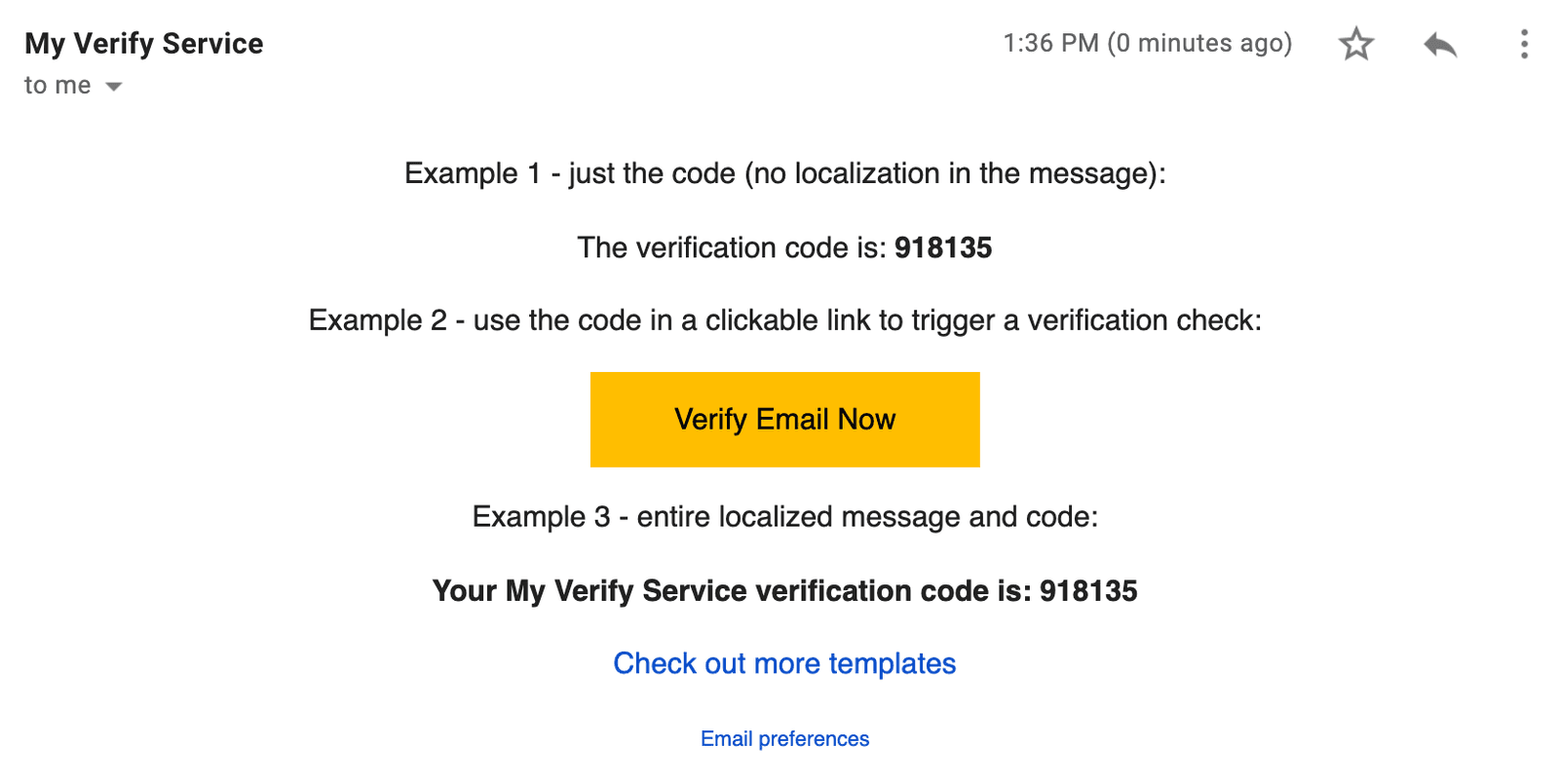
1<html>2<head>3<style type="text/css">4body, p, div {5font-family: Helvetica, Arial, sans-serif;6font-size: 14px;7}8a {9text-decoration: none;10}11</style>12<title></title>13</head>14<body>15<center>16<p>17Example 1 - just the code (no localization in the message):18</p>19<p>20The verification code is: <strong>{{twilio_code}}</strong>21</p>22<p>23Example 2 - use the code in a clickable link to trigger a verification check:24</p>25<p>26<a href="https://example.com/signup/email/verify?token={{twilio_code}}"27style="background-color:#ffbe00; color:#000000; display:inline-block; padding:12px 40px 12px 40px; text-align:center; text-decoration:none;"28target="_blank">Verify Email Now</a>29</p>30<p>31Example 3 - entire localized message and code:32</p>33<p>34<strong>{{twilio_message}}</strong>35</p>36<p><a href="https://sendgrid.com/blog/open-source-transactional-email-templates/">Check out more templates</a></p>37<span style="font-size: 10px;"><a href=".">Email preferences</a></span>38</center>39</body>40</html>
This will produce an email that resembles the following:
Info
We recommend using Email preferences instead of Unsubscribe for transactional emails like these. See Should you include an unsubscribe link in your transactional email messages?
To learn more about email deliverability, check out the following links:
Go to the Email Integration section of the Verify Console to create a new integration. Name your integration; you can change the name later.
Fill in the following required fields:
- SendGrid API Key
- Default Template ID
- Default From Email (see Domain Authentication)
- Default From Name (see Domain Authentication)
Connect your email integration to your Verify service in one of two ways:
Option 1: From Email Integration, check the service or services you want to associate with that email integration. A single email integration can be used for multiple services.
or
Option 2: From Verify Services, select your service and navigate to the Email tab to select an email integration. Each service can only have one email integration.
Send your first email verification:
1// Download the helper library from https://www.twilio.com/docs/node/install2const twilio = require("twilio"); // Or, for ESM: import twilio from "twilio";34// Find your Account SID and Auth Token at twilio.com/console5// and set the environment variables. See http://twil.io/secure6const accountSid = process.env.TWILIO_ACCOUNT_SID;7const authToken = process.env.TWILIO_AUTH_TOKEN;8const client = twilio(accountSid, authToken);910async function createVerification() {11const verification = await client.verify.v212.services("VAaaaaaaaaaaaaaaaaaaaaaaaaaaaaaaaa")13.verifications.create({14channel: "email",15to: "recipient@foo.com",16});1718console.log(verification.sid);19}2021createVerification();
Response
1{2"sid": "VEaaaaaaaaaaaaaaaaaaaaaaaaaaaaaaaa",3"service_sid": "VAaaaaaaaaaaaaaaaaaaaaaaaaaaaaaaaa",4"account_sid": "ACaaaaaaaaaaaaaaaaaaaaaaaaaaaaaaaa",5"to": "recipient@foo.com",6"channel": "email",7"status": "pending",8"valid": false,9"date_created": "2015-07-30T20:00:00Z",10"date_updated": "2015-07-30T20:00:00Z",11"lookup": {},12"amount": null,13"payee": null,14"send_code_attempts": [15{16"time": "2015-07-30T20:00:00Z",17"channel": "SMS",18"attempt_sid": "VLaaaaaaaaaaaaaaaaaaaaaaaaaaaaaaaa"19}20],21"sna": null,22"url": "https://verify.twilio.com/v2/Services/VAaaaaaaaaaaaaaaaaaaaaaaaaaaaaaaaa/Verifications/VEaaaaaaaaaaaaaaaaaaaaaaaaaaaaaaaa"23}
You can override the default template ID, default from name, or default from email with a channel configuration:
1// Download the helper library from https://www.twilio.com/docs/node/install2const twilio = require("twilio"); // Or, for ESM: import twilio from "twilio";34// Find your Account SID and Auth Token at twilio.com/console5// and set the environment variables. See http://twil.io/secure6const accountSid = process.env.TWILIO_ACCOUNT_SID;7const authToken = process.env.TWILIO_AUTH_TOKEN;8const client = twilio(accountSid, authToken);910async function createVerification() {11const verification = await client.verify.v212.services("VAaaaaaaaaaaaaaaaaaaaaaaaaaaaaaaaa")13.verifications.create({14channel: "email",15channelConfiguration: {16template_id: "d-4f7abxxxxxxxxxxxx",17from: "override@example.com",18from_name: "Override Name",19},20to: "recipient@foo.com",21});2223console.log(verification.sid);24}2526createVerification();
Response
1{2"sid": "VEaaaaaaaaaaaaaaaaaaaaaaaaaaaaaaaa",3"service_sid": "VAaaaaaaaaaaaaaaaaaaaaaaaaaaaaaaaa",4"account_sid": "ACaaaaaaaaaaaaaaaaaaaaaaaaaaaaaaaa",5"to": "recipient@foo.com",6"channel": "email",7"status": "pending",8"valid": false,9"date_created": "2015-07-30T20:00:00Z",10"date_updated": "2015-07-30T20:00:00Z",11"lookup": {},12"amount": null,13"payee": null,14"send_code_attempts": [15{16"time": "2015-07-30T20:00:00Z",17"channel": "SMS",18"attempt_sid": "VLaaaaaaaaaaaaaaaaaaaaaaaaaaaaaaaa"19}20],21"sna": null,22"url": "https://verify.twilio.com/v2/Services/VAaaaaaaaaaaaaaaaaaaaaaaaaaaaaaaaa/Verifications/VEaaaaaaaaaaaaaaaaaaaaaaaaaaaaaaaa"23}
Channel configuration also supports SendGrid substitutions.
1// Download the helper library from https://www.twilio.com/docs/node/install2const twilio = require("twilio"); // Or, for ESM: import twilio from "twilio";34// Find your Account SID and Auth Token at twilio.com/console5// and set the environment variables. See http://twil.io/secure6const accountSid = process.env.TWILIO_ACCOUNT_SID;7const authToken = process.env.TWILIO_AUTH_TOKEN;8const client = twilio(accountSid, authToken);910async function createVerification() {11const verification = await client.verify.v212.services("VAaaaaaaaaaaaaaaaaaaaaaaaaaaaaaaaa")13.verifications.create({14channel: "email",15channelConfiguration: {16substitutions: {17username: "Foo Bar",18},19},20to: "recipient@foo.com",21});2223console.log(verification.sid);24}2526createVerification();
Response
1{2"sid": "VEaaaaaaaaaaaaaaaaaaaaaaaaaaaaaaaa",3"service_sid": "VAaaaaaaaaaaaaaaaaaaaaaaaaaaaaaaaa",4"account_sid": "ACaaaaaaaaaaaaaaaaaaaaaaaaaaaaaaaa",5"to": "recipient@foo.com",6"channel": "email",7"status": "pending",8"valid": false,9"date_created": "2015-07-30T20:00:00Z",10"date_updated": "2015-07-30T20:00:00Z",11"lookup": {},12"amount": null,13"payee": null,14"send_code_attempts": [15{16"time": "2015-07-30T20:00:00Z",17"channel": "SMS",18"attempt_sid": "VLaaaaaaaaaaaaaaaaaaaaaaaaaaaaaaaa"19}20],21"sna": null,22"url": "https://verify.twilio.com/v2/Services/VAaaaaaaaaaaaaaaaaaaaaaaaaaaaaaaaa/Verifications/VEaaaaaaaaaaaaaaaaaaaaaaaaaaaaaaaa"23}
Checking an email verification token uses the same code as other channels, such as SMS or voice.
1// Download the helper library from https://www.twilio.com/docs/node/install2const twilio = require("twilio"); // Or, for ESM: import twilio from "twilio";34// Find your Account SID and Auth Token at twilio.com/console5// and set the environment variables. See http://twil.io/secure6const accountSid = process.env.TWILIO_ACCOUNT_SID;7const authToken = process.env.TWILIO_AUTH_TOKEN;8const client = twilio(accountSid, authToken);910async function createVerificationCheck() {11const verificationCheck = await client.verify.v212.services("VAaaaaaaaaaaaaaaaaaaaaaaaaaaaaaaaa")13.verificationChecks.create({14code: "123456",15to: "recipient@foo.com",16});1718console.log(verificationCheck.sid);19}2021createVerificationCheck();