Analytics-Swift Destination Filters
Info
Destination filters are available to Business Tier customers.
Destination filters on mobile device-mode destinations are in beta and only supports Analytics Swift, Analytics-Kotlin, and Analytics-React-Native 2.0.
Use Analytics Swift to set up destination filters on your mobile device-mode destinations.
To get started with destination filters using Swift:
-
Add the Swift package
git@github.com:segmentio/DestinationFilters-Swift.gitas a dependency through either of these 2 options:- Your
package.swiftfile - Xcode
- Xcode 12: File > Swift Packages > Add Package Dependency
- Xcode 13: File > Add Packages...
After you install the package, import the package with
import AnalyticsFiltersto reference the Destination Filters plugin. - Your
-
Add the plugin.
analytics.add(plugin: DestinationFilters())
- Enable the Destination Filters toggle in your Segment workspace.
- Navigate to the iOS source.
- Click Settings and select Advanced.
- Enable the Destination Filters toggle.
Use destination filters to prevent certain data from flowing into a destination. You can conditionally filter out event properties, traits, and fields, or even filter out the event itself.
You can configure destination filters on cloud-mode, mobile, web device-mode, and actions-based destinations. With device-mode destinations, you can use the same user interface or API mechanism that you use for your cloud-mode destinations, and have those filters acted upon for device-mode destinations on web and mobile.
Common use cases for destination filters include:
- Managing PII (personally identifiable information) by blocking fields from reaching certain destinations
- Controlling event volume by sampling or dropping unnecessary events for specific destinations
- Increasing data relevance in your destinations by removing unused or unwanted data
- Preventing test or internally-generated events from reaching your production tools
Keep the following limitations in mind when you use destination filters:
- Segment applies destination filters one at a time, in the order that they appear in your workspace.
- You can't apply destination filters to Warehouses or S3 destinations.
- Each filter can only apply to one source-destination pair.
- (For device-mode) Destination filters don't apply to items that are added to the payload server-side like IP addresses.
- (For device-mode) Destination filters don't filter on native events that the destination SDK collects. Instead, you can use the load option to conditionally load relevant bundled JavaScript on the page. See the docs for load options.
- (For device-mode) Destination filters don't filter some fields that are collected by the destination SDK outside of Segment like
page.urlandpage.referrer. - (For web device-mode) Destination filters for web device-mode only support the Analytics.js 2.0 source. You need to enable device mode destination filters for your Analytics.js source. To do this, go to your Javascript source and navigate to Settings > Analytics.js and turn the toggle on for Destination Filters.
Contact Segment if these limitations impact your use case.
To create a destination filter:
- Go to Connections > Destinations and select your destination.
- Click on the Filters tab of your destination.
- Click + New Filter.
- Configure the rules for your filter.
- (Optional) Click Load Sample Event to see if the event passes through your filter.
- Click Next Step.
- Name your filter and click the toggle to enable it.
- Click Save.
The destination filters API provides more power than Segment's dashboard destination filters settings. With the API, you can create complex filters that are conditionally applied using Segment's Filter Query Language (FQL).
The destination filters API offers four different filter types:
| Filter | Details |
|---|---|
drop_event | Doesn't send matched events to the destination. |
sample_event | Sends only a percentage of events through to the destination. |
whitelist_fields | Only sends whitelisted properties to the destination. |
blocklist_fields | Doesn't send blocklisted properties to the destination. |
To learn more, read Segment's Destination Filters API docs.
The following examples illustrate common destinations filters use cases:
Example: Remove email addresses from context and properties objects:
Property-level allowlisting is available with Segment's API. Using destination filters, you can configure a rule that removes email addresses from context and properties. As a result, Segment only sends traits without PII to the destination.
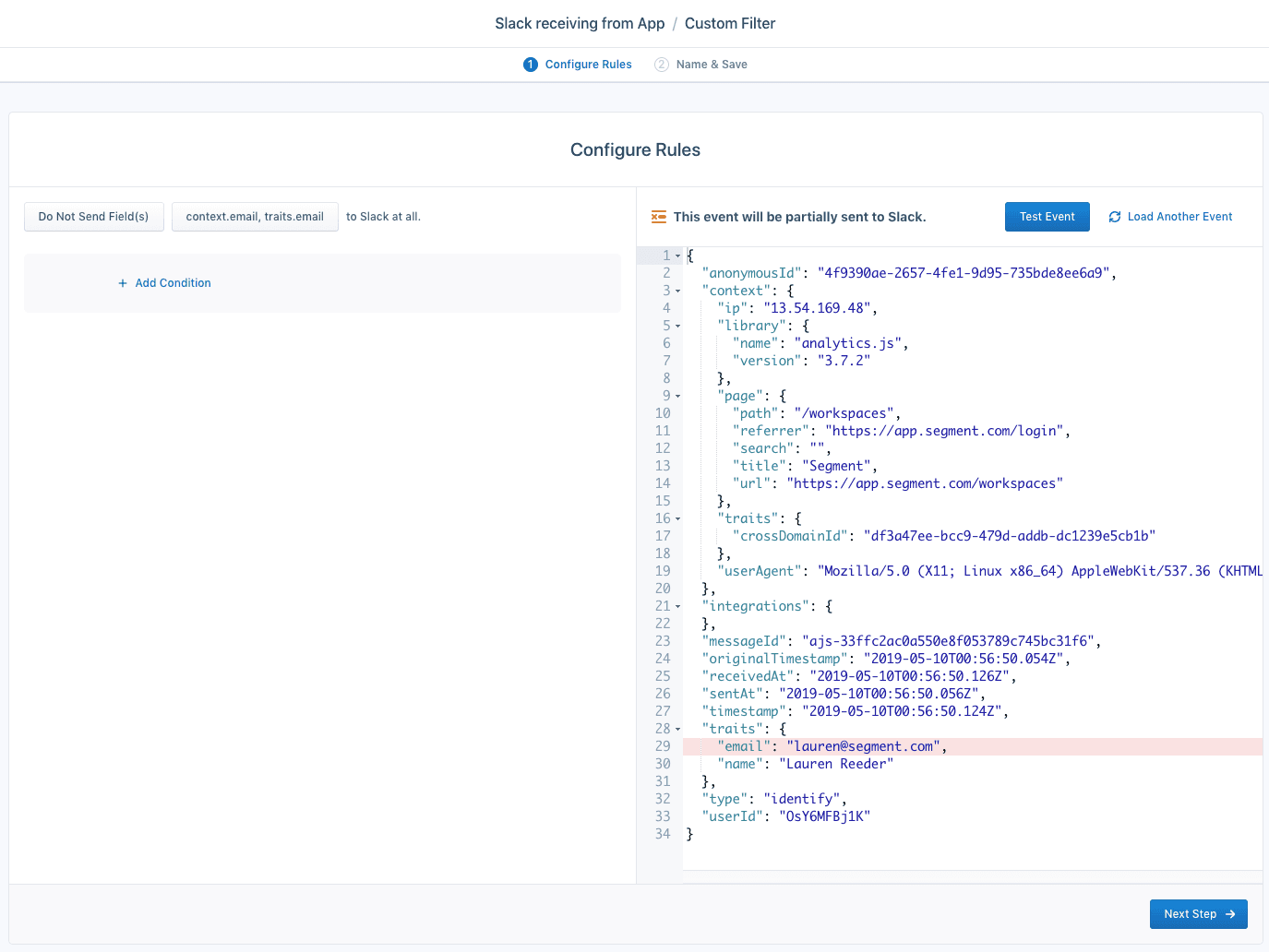
This example shows a filter that controls event volume by only sending User Signed Up and Demo Requested events.
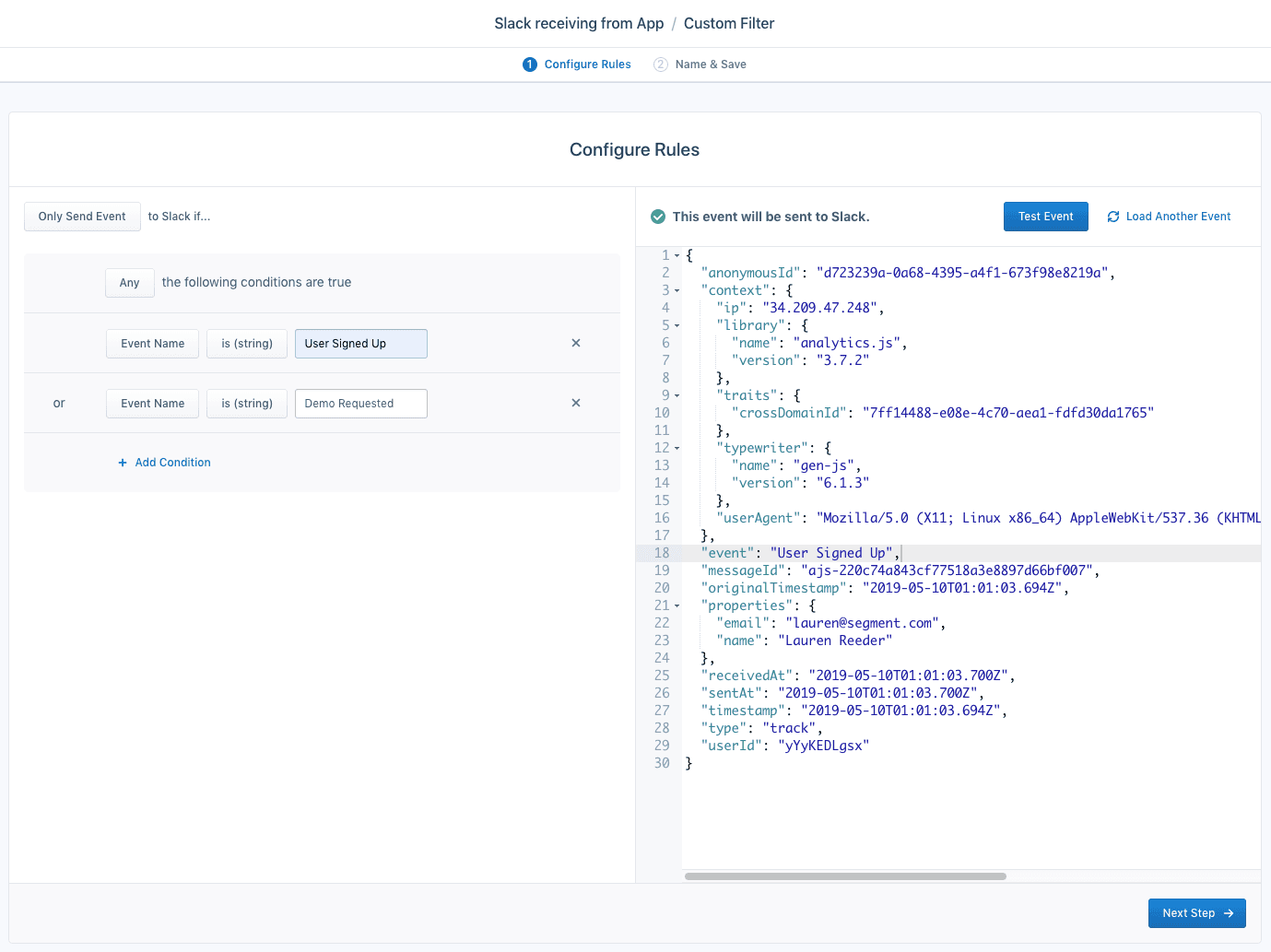
This example shows a rule that only sends Track calls to Google Analytics.
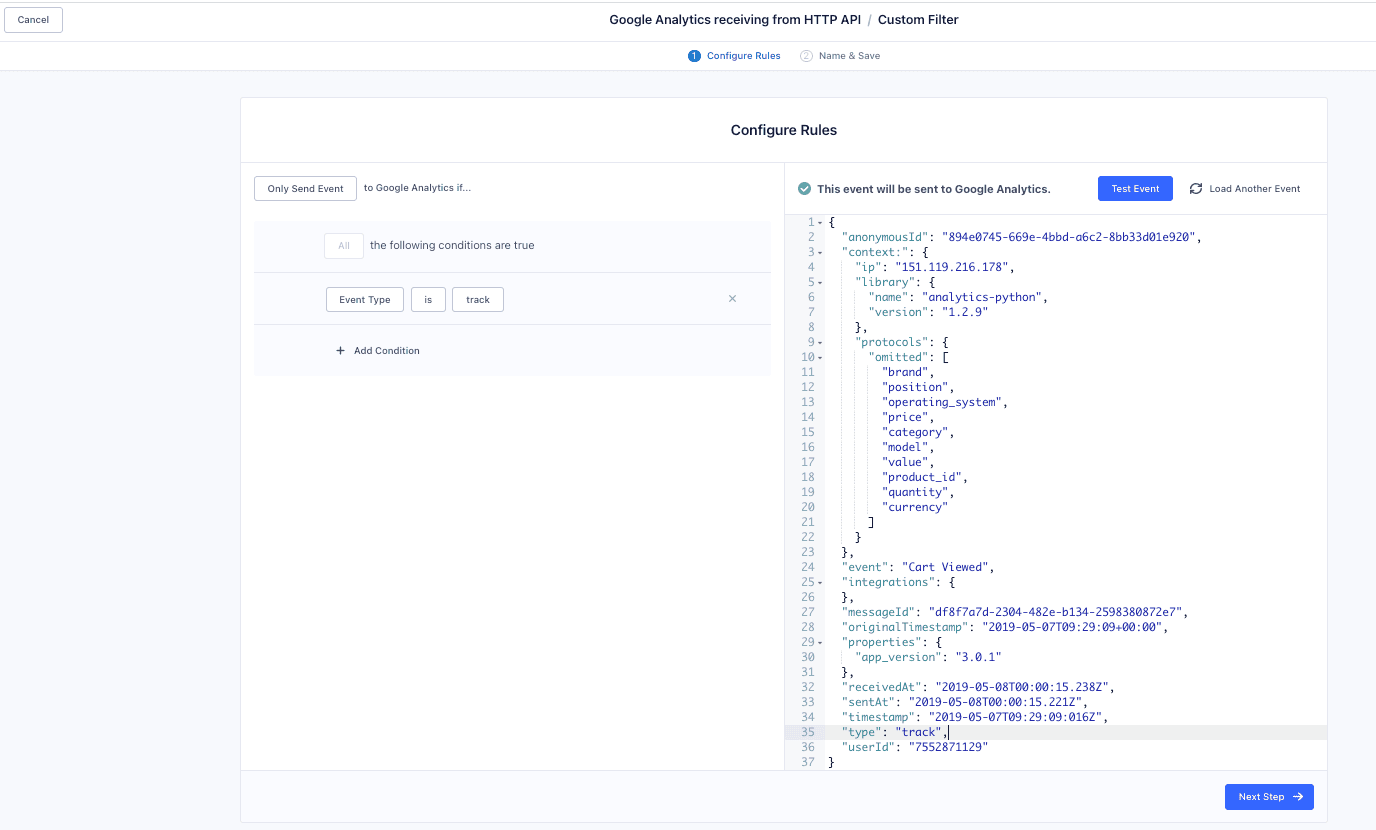
In the example below, the rule targets email addresses with internal domains to stop test events from reaching Destinations.
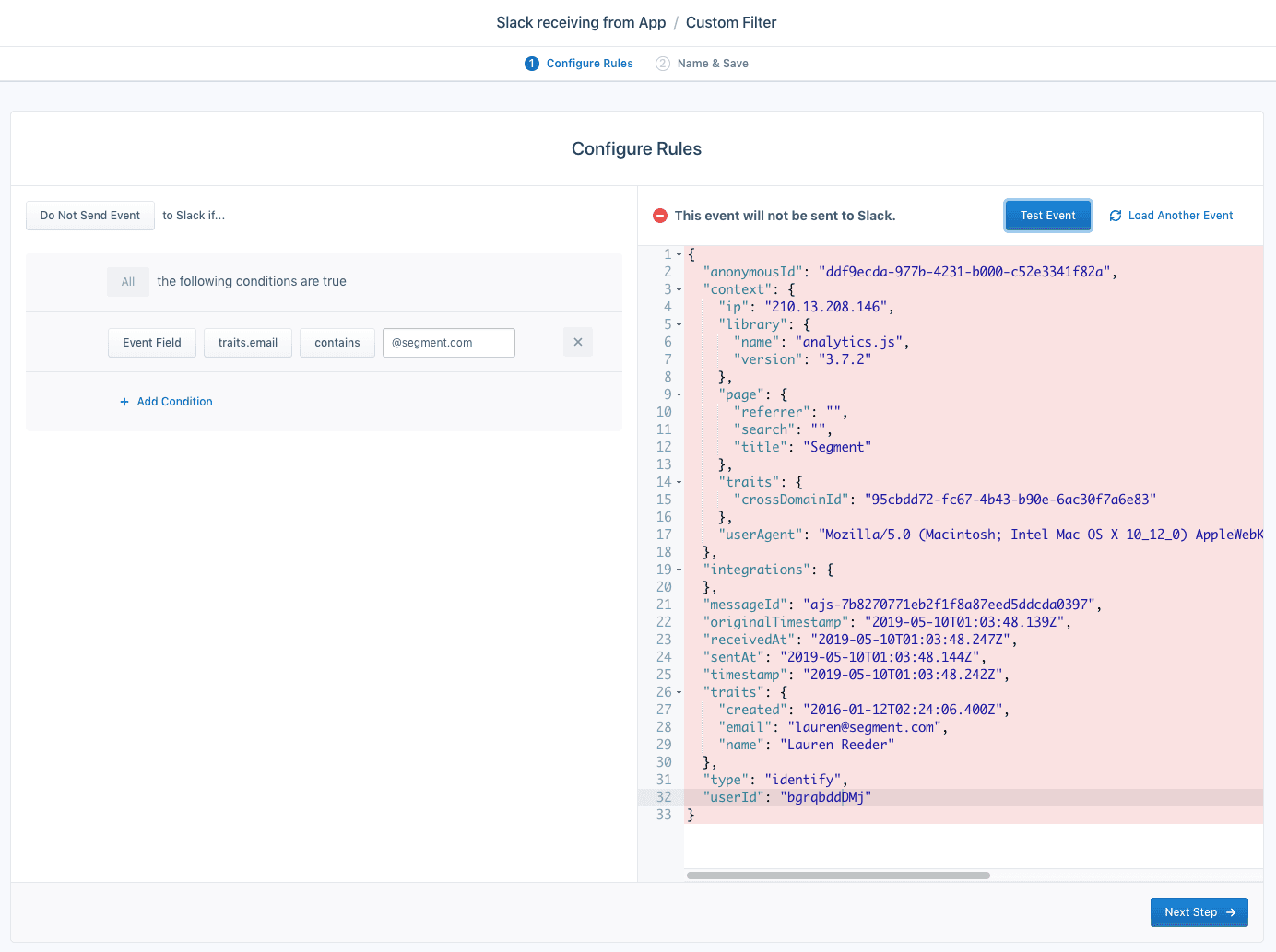
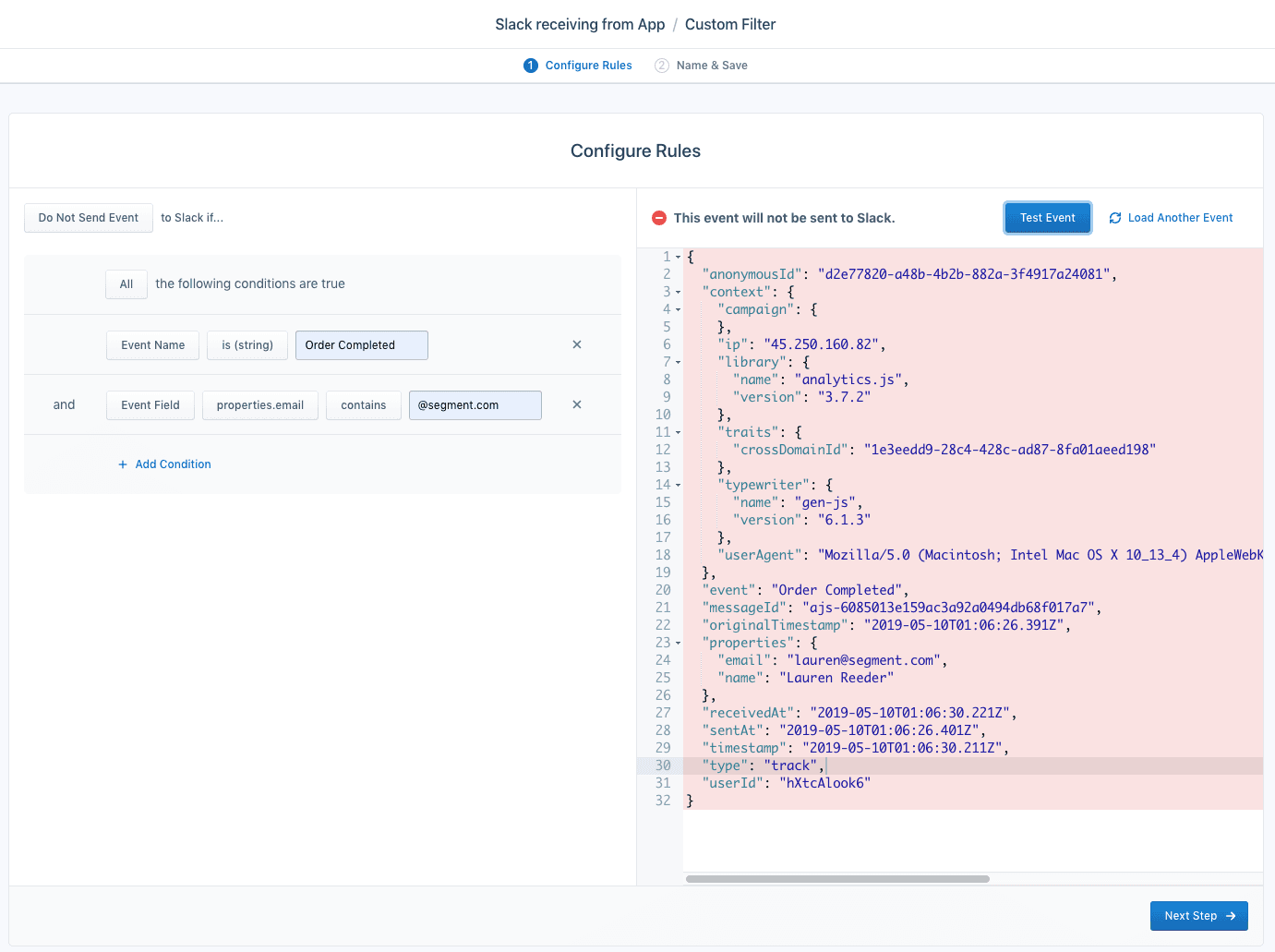
In the example below, the rule prevents an event from sending if Order Completed and properties.email contain an internal @segment.com email address.
Using the destination filters API, you can create a rule to randomly sample video heartbeat events.
Watch this destination filters walkthrough to learn how to use event names to filter events sent to destinations.
Use the Public API to only send events to your destination if they contain a userId. Here's an example of how you might format this request:
1{2"sourceId": "<SOURCE_ID>",3"destinationId": "<DESTIANTION_ID>",4"title": "Don't send event if userId is null",5"description": "Drop event if there is no userId on the request",6"if": "length( userId ) < 1 or typeof( userId ) != 'string'",7"actions": [8{9"type": "DROP"10}11],12"enabled": true13}
Some destinations offer settings that also allow you to filter data. For example, the Facebook App Events destination allows you to map Screen events to Track events. Because destination filters are evaluated and applied before the destination settings are applied, they can conflict with your settings.
For example, if you have a destination filter that filters Track events and you have the Use Screen Events as Track Events setting enabled, Track events drop, but Screen events still process. The destination settings transform it into a Track event after the filters.
Segment makes effort to ensure that destination filters can handle unexpected situations. For example, if you use the contains() FQL function on the null field, Segment returns false instead of returning an error. If Segment can't infer your intent, Segment logs an internal error and drops the event. Segment defaults to this behavior to prevent sensitive information, like a PII filter, from getting through.
Errors aren't exposed in your Destination's Event Deliverability tab. For help diagnosing missing destination filter events, contact Segment.
Destination filters can filter properties out of objects nested in an array. For example, you can filter out the price property of every object in an array at properties.products. You can also filter out an entire array from the payload. However, you can't drop nested objects in an array or filter properties out of a single object in an array.
To block a specific property from all of the objects within a properties array, set the filter using the following the format: <propertyType>.<arrayName>.<arrayElementLabel>.
For example, the properties.products.newElement filter blocks all newElement property fields from each products object of an array within the properties object of a Track event.
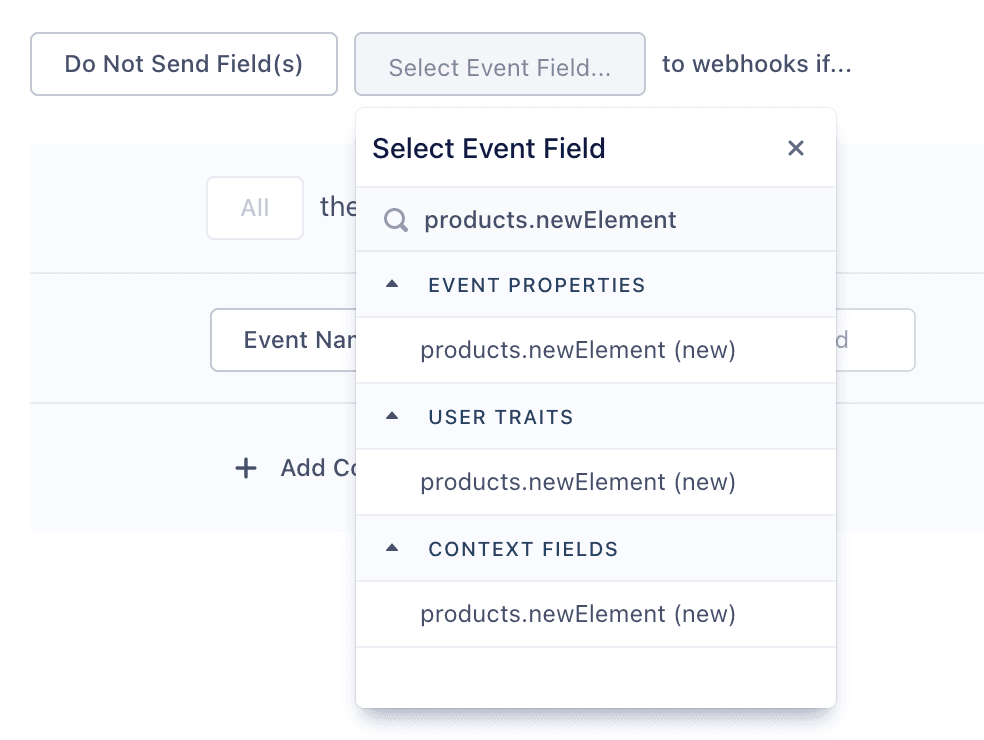
To block the Identify event trait products.newElement, select the option under the User Traits list instead. To block the context object field products.newElement, select it from the Context Fields list.
Segment supports 10 filters per destination. If you need help consolidating filters or would like to discuss your use case, contact Segment.
Segment evaluates multiple Only Send filters against each other and resolves destination filters in order. If multiple Only Send filters conflict with each other, Segment won't send information downstream.
Segment displays the most recent 15,000 properties. To find a property not in the filter dropdown, enter the property manually.
To filter out events from warehouses, use Selective Sync.
Generally, only Track calls have name properties, which correspond to the event field in an event.
The Activity Feed shows the action, date, and user who performed the action when a destination filter is created, modified, enabled, disabled, or deleted. You can also subscribe to notifications for any of these changes in the Activity Feed settings page.
You must have write access to save and edit filters. Read permission access only allows viewing and testing access.
Use the destination filter tester during setup to verify that you're filtering out the right events. Filtered events show up on the schema page but aren't counted in event deliverability graphs.