Snowflake Destination
Snowflake is a data warehouse, built for the cloud, that delivers performance, simplicity, concurrency and affordability.
Info
Segment has a Terraform provider, powered by the Public API, that you can use to create a Snowflake warehouse. See the segment_warehouse (Resource) documentation for more information.
There are six steps to get started using Snowflake with Segment.
- Create a virtual warehouse
- Create a database
- Create a role for Segment
- Create a user for Segment
- Test the user and credentials
- Connect Snowflake to Segment
View observability metrics with Delivery Overview
Delivery Overview, Segment's built-in observability tool, is now in public beta for storage destinations. For more information, see the Delivery Overview documentation.
To set up the virtual warehouse, database, role, and user in Snowflake for Segment's Snowflake destination, you must have the ACCOUNTADMIN role, or, a custom role with the following Snowflake privileges:
- CREATE WAREHOUSE: Used to create a Segment-specific virtual warehouses
- CREATE DATABASE: Used to create a Segment-specific database
- CREATE ROLE: Used to create the role that the Segment user assumes in your Snowflake instance
- CREATE USER: Used to create the Segment user in your Snowflake instance
To set up the Snowflake storage destination in Segment, you must have either a role in the Segment app of Workspace Owner or, for Business Tier users, Warehouse Destination Admin.
Segment's Snowflake destination requires you to first create a Snowflake virtual warehouse.
To avoid conflicts with other operations in your cluster, Segment recommends that you create a new warehouse just for Segment loads. An X-Small warehouse is large enough for most Segment customers when they first create their Snowflake destination.
To create a new virtual warehouse, go to Warehouses > Create in Snowflake's Classic Console or execute the following SQL command:
1CREATE WAREHOUSE "SEGMENT_WAREHOUSE"2WITH WAREHOUSE_SIZE = 'XSMALL'3WAREHOUSE_TYPE = 'STANDARD'4AUTO_SUSPEND = 1805AUTO_RESUME = TRUE;
Success!
Set AUTO_SUSPEND to 1 to 3 minutes in the UI (or 60–180 seconds if using SQL) as a starting point, and enable AUTO_RESUME to avoid extra costs, as Snowflake uses per-second billing.
Segment recommends creating a new database just for Segment information, as the Segment Snowflake destination creates its own schemas and tables and could create name conflicts with your existing data.
To create a new database, execute the following SQL command:
CREATE DATABASE "SEGMENT_EVENTS";
You need to run these SQL commands rather than creating a role with the "Create Role" dialog in the Classic Console UI.
This role gives Segment just enough permission to load data into your database. Segment recommends that you don't reuse this role for other operations.
- Click on Worksheets
- Select SEGMENT_EVENTS under database objects
- Change the role to
ACCOUNTADMIN - Create a new role by executing the following command:
CREATE ROLE "SEGMENT";
- Grant access to the virtual warehouse by executing the following SQL command:
GRANT USAGE ON WAREHOUSE "SEGMENT_WAREHOUSE" TO ROLE "SEGMENT";
- Grant access to the database by executing the following SQL command:
1GRANT USAGE ON DATABASE "SEGMENT_EVENTS" TO ROLE "SEGMENT";2GRANT CREATE SCHEMA ON DATABASE "SEGMENT_EVENTS" TO ROLE "SEGMENT";
Create the user that Segment uses to connect to your warehouse. You can create a user that authenticates with a key pair.
Info
Snowflake plans to deprecate password-only authentication starting August 2026. Learn more in the Snowflake docs.
To create a user that authenticates with a key pair:
- Create the user and assign it a key pair by following the instructions in the Snowflake docs.
- Create a new user by executing the following SQL command, replacing the public key value with the key you previously generated.
1CREATE USER SEGMENT_USER2DEFAULT_ROLE = SEGMENT3RSA_PUBLIC_KEY = 'enter your public key';4GRANT ROLE "SEGMENT" TO USER "SEGMENT_USER";
Before you continue, test and validate the new user and credentials. After you verify the new credentials, you can connect Snowflake to Segment.
Segment uses SnowSQL to run these verification steps. To install SnowSQL and verify your accounts:
- Download SnowSQL
- Open the Installer and follow instructions.
- When the installation is complete, run the following command, replacing "account", "username", and "path_to_the_rsa_key_encrypted.p8" with your Snowflake Account ID, username, and path to your private RSA key:
snowsql -a segment -u <username> -d <Database> -w <warehouse> --private-key-path <path_to_the_rsa_key_encrypted.p8>
For accounts outside the US, the account ID includes the region. You can find your account name from the browser address string.
For example, if your web address is https://myaccountname.snowflakecomputing.com/console#/internal/worksheet, your account name would be myaccountname.
Unified warehouse credentials in public beta
With unified warehouse credentials you can create warehouse credentials and use them across Segment warehouse products. Some functionality may change before this feature becomes generally available.
To connect Snowflake to Segment:
- Navigate to your product area:
- For Storage destinations, navigate to Connections > Destinations and select the Storage tab. Click + Add storage destination.
- For Profiles Sync, navigate to Unify > Profiles Sync.
- Select Snowflake as your warehouse.
- Select an existing warehouse credential or create a new warehouse credential by completing the following fields for your Snowflake instance.
- Account ID: The Snowflake account ID that uniquely identifies your organization account, including a region suffix if applicable.
- Database name: The database that Segment uses in order to sync data
- Warehouse: The warehouse in your Snowflake account that Segment uses to run SQL
- Username: The Snowflake user that Segment uses to run in your warehouse
- Authentication: Snowflake only supports authentication using a key pair.
- Private key: View Snowflake's key pair set up doc. You can upload in .p8 file format. Key length must be at least 2048-bit. An encrypted key is recommended but not required. You need to first create the user and assign it a key pair following the instructions in the Snowflake docs. Then, set the
segment_connections_usernamevariable in the SQL script to the user you just created.
- Private key: View Snowflake's key pair set up doc. You can upload in .p8 file format. Key length must be at least 2048-bit. An encrypted key is recommended but not required. You need to first create the user and assign it a key pair following the instructions in the Snowflake docs. Then, set the
- Test your connection.
- Click Save.
Segment supports uploading one key at a time
Although you can create up to two keys in Snowflake, Segment only supports authenticating with one key at a time. To change the key that is in Segment, return to your Snowflake destination's settings and upload a new key in the Private Key field.
After you connect Snowflake, you can add a Snowflake Activation from Engage. Linked Audiences writes audience enter/exit events to your warehouse, and Event-Triggered Journeys writes journey step events.
Segment recommends key-pair authentication for the Snowflake user. For more information, see create a user that authenticates with a key pair.
When you create a Snowflake Activation from Engage, choose the schema and either select an existing table or enter a new table name. Engage writes to exactly what you specify.
For Engage writebacks, Segment starts a warehouse sync after each run completes (for example, when an audience run finishes).
Warning
Changing the Snowflake destination's general sync schedule does not affect Engage writebacks. Engage controls when these writes occur.
Engage writebacks use Track events. The full event payload is stored in a single stringified JSON column in the target table.
If you create a network policy with Snowflake and are located in the US, add 52.25.130.38/32 and 34.223.203.0/28 to the "Allowed IP Addresses" list.
If you create a network policy with Snowflake and are located in the EU, add 3.251.148.96/29 to your "Allowed IP Addresses" list.
The Segment Snowflake destination isn't compatible with Snowflake's Multi-Factor Authentication (MFA) or Single Sign-On (SSO) settings. If your connected user has MFA or SSO enabled, disable it for syncs to run correctly.
Segment recommends that you authenticate with your Snowflake warehouse using an encrypted key pair. Key-pair authentication uses PKCS#8 private keys, which are typically exchanged in the PEM base64-encoded format.
Although you can create up to two keys in Snowflake, Segment only supports authenticating with one key at a time. To change the key that's used to authenticate with Segment, return to your Snowflake destination's settings and upload a new key in the Private Key field.
Set AUTO_SUSPEND based on your warehouse sync workload—typically 60 to 180 seconds (1 to 3 minutes in the UI) as an initial baseline to eliminate unintended credit consumption by the Segment Snowflake destination. Because Segment operations (such as Warehouse Sync, Profiles Sync, RETL, SQL Traits, and Linked Audiences) run in rapid, short query bursts, not enabling AUTO_SUSPEND or setting a long timeout like 600 seconds (10 minutes) causes warehouses to remain awake and consume credits while sitting idle between sync cycles.
DBAs should observe query interval gaps in QUERY_HISTORY and tune AUTO_SUSPEND based on actual usage:
- 60 seconds: Recommended for warehouses with brief query bursts followed by long idle intervals.
- 90 to 180 seconds: Recommended for warehouses running back-to-back, complex operations (such as heavy
MERGEcycles) to prevent unnecessary suspend and resume overhead.
If you enable AUTO_SUSPEND, ensure that AUTO_RESUME is also enabled. This allows your Snowflake warehouse to automatically resume when Segment loads data. Otherwise, Segment will fail to load data unless the warehouse is manually resumed.
Segment recommends creating a unique Warehouse, Database, and Role for the Segment Snowflake connection to your Snowflake instance to avoid conflicts with other operations happening in your cluster.
Make sure you created the role and assigned the proper permissions with the account SYSADMIN or ACCOUNTADMIN. Other non-system accounts don't assign the right permissions.
If you have used all your credits, you must contact Snowflake to purchase more.
Also, verify your warehouse's AUTO_SUSPEND configuration. Set AUTO_SUSPEND to 60–180 seconds and confirm AUTO_RESUME is enabled to eliminate unintended credit consumption by the Segment Snowflake destination.
This complaint is most often due to not using a separate Warehouse specifically for Segment.
If you're already doing so, see this section of the Snowflake docs to learn how to handle slow running processes.
This error means a collection has more than 4,096 enabled columns. Segment loads data with Snowflake's COPY INTO command, which can write at most 4,096 columns in a single query. To reduce the number of columns in the collection, see Column limits. For other sync errors, see Warehouse Errors.
This error usually means a password policy is still applied to the user, even though you are using key pair authentication. In Snowflake, make sure your authentication policy allows key pair authentication only. The Specified password has expired error can occur if a password policy is active, even when passwords are not used.
Most customers have the best luck starting with a X-Small instance.
A rollback is issued at the end of each session to make sure there's no "in-flight" processes hanging out that could block other processes later.
Segment doesn't open transactions explicitly because that would lock resources. However, if autocommit is enabled, each statement functions as its own transaction, and a silent commit is issued after each.
You shouldn't need to grant any additional privileges. However, you may need to confirm that the USAGE privilege on those schemas is granted to the same role granted to the user connecting to Snowflake through Databricks.
Run these statements in Snowflake UI or CLI, and check the output to verify the permissions.
SHOW GRANTS ON SCHEMA <schema_name>;Look in the output to see if USAGE privilege is granted to the role you're using.SHOW GRANTS TO USER <username>;Replace "username" with the login ID, and verify the correct role is assigned to that login.
Also, if the user has more than one role, make sure the role you use when doing the data pull has USAGE for the schema - and not just the default role. If your organization uses role inheritance (for example, role apples is granted to role gravensteins), then make sure that the role is being assigned and inherited correctly.
Queuing - you can use a different Warehouse for Segment, or use the recommendations from the Snowflake docs.
Your data will be available in Warehouses between 24 and 48 hours from your first sync. Your warehouse then syncs once or twice a day depending on your Segment Plan.
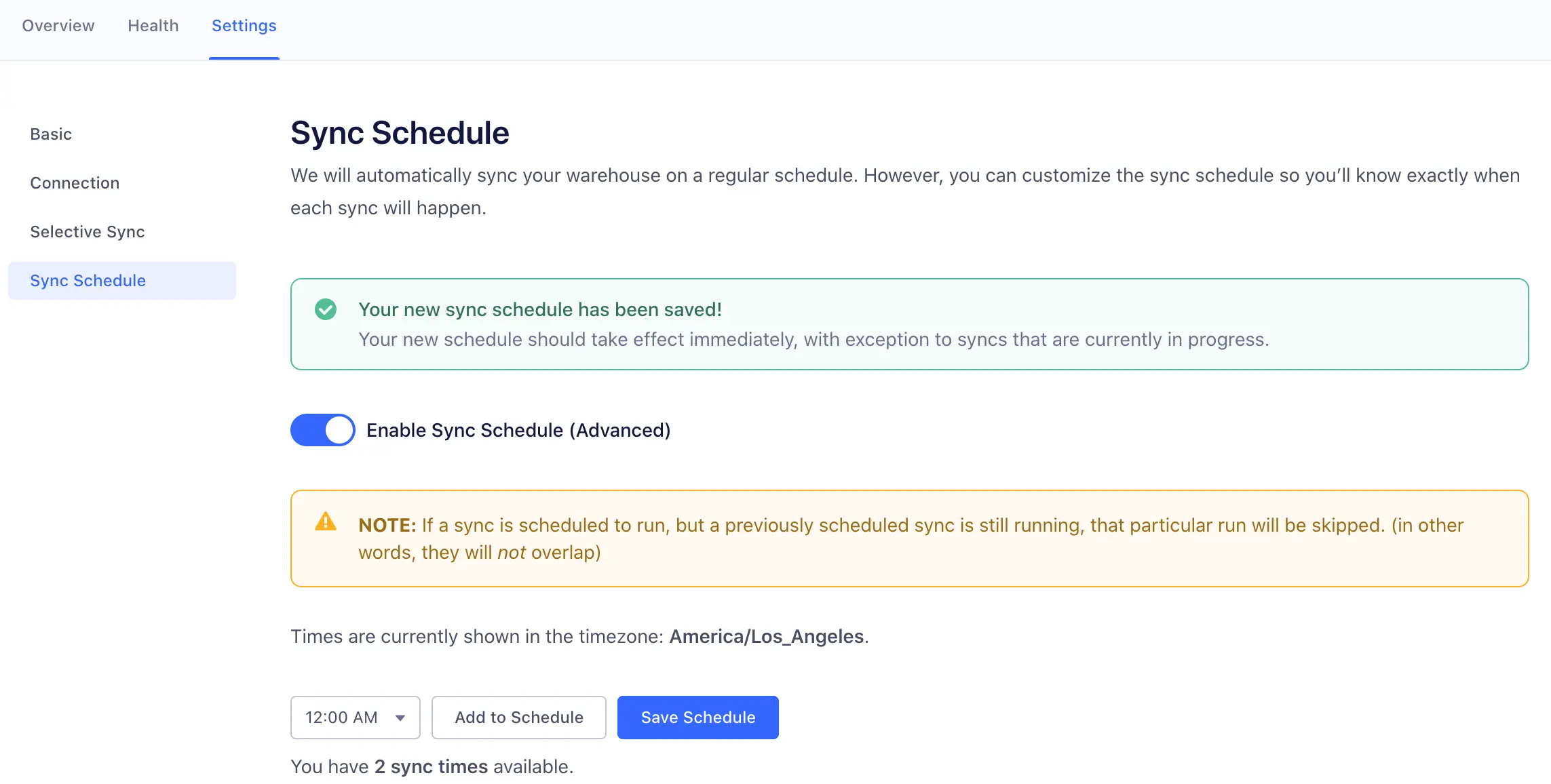
Segment allows Business Tier (BT) customers to schedule the time and frequency of warehouse data syncs.
If you are on a BT plan, you can schedule warehouse syncs by going to Warehouse > Settings > Sync Schedule in the Segment web app. You can schedule up to the number of syncs allowed on your billing plan.
Info
Engage writebacks (Journeys and Linked Audiences) start a sync when an Engage run completes. The schedule controls, shown in the screenshot, apply to Connections, Profiles Sync and other warehouse deliveries, not to Engage-triggered writebacks.
To learn how to troubleshoot a JWT token is invalid error, see Snowflake's Key Pair Authentication: Troubleshooting documentation.