Conversation Intelligence (classic) onboarding guide
Legal notice
Conversation Intelligence (classic) uses artificial intelligence and machine learning technologies. By enabling or using any of the features or functionalities within Programmable Voice that are identified as using artificial intelligence or machine learning technology, you acknowledge and agree that your use of these features or functionalities is subject to the terms of the Predictive and Generative AI/ML Features Addendum.
Conversation Intelligence (classic) isn't PCI compliant and shouldn't be used in workflows that are subject to PCI. Conversation Intelligence (classic) for Messaging (Private Beta) isn't a HIPAA Eligible Service and shouldn't be used in workflows that are subject to HIPAA.
Conversation Intelligence (classic) helps you analyze and collect useful data insights from customer conversations through artificial intelligence (AI) technologies.
In this guide, you'll learn the key concepts of Conversation Intelligence (classic), including:
- What types of conversations are supported
- An introduction to transcription, both real-time and post-interaction
- An explanation of Language Operators
- The definition and settings of an Intelligence Service
Then, you'll be guided through the steps required to set up and use Conversation Intelligence (classic). For each step, instructions are provided for using both the Twilio Console and the Conversation Intelligence (classic) API.
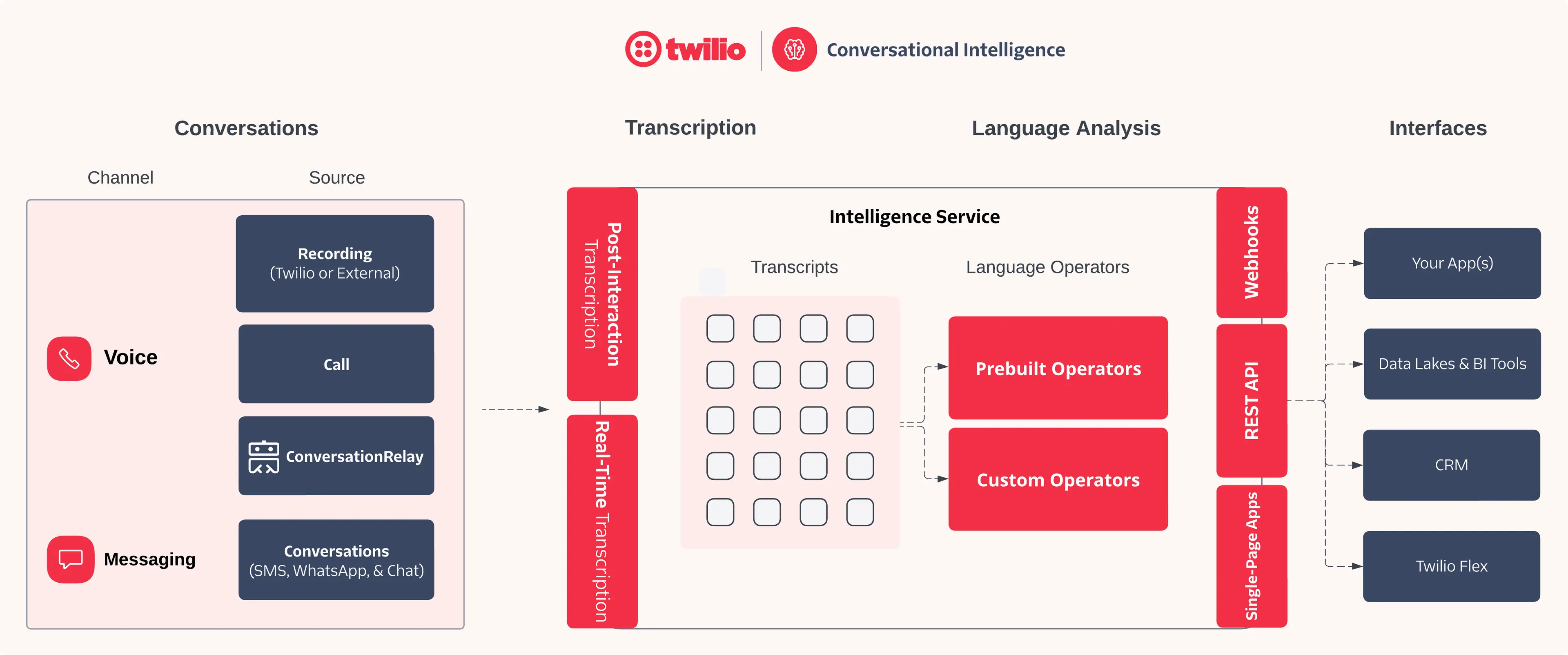
To help explain the components of the diagram above, this section outlines the key concepts of Conversation Intelligence (classic).
Conversations are interactions between two or more parties. With Conversation Intelligence (classic), conversations can be transcribed, analyzed with Language Operators, or both.
Conversation Intelligence (classic) supports a variety of different conversation types, defined by their channel and source as illustrated in the table below:
| Channel | Source | Status | Transcription | Language Operators |
|---|---|---|---|---|
| Voice | Twilio Recordings | ✅ Available | Post-interaction | Post-interaction |
| External Recordings | ✅ Available | Post-interaction | Post-interaction | |
| Calls | ✅ Available | Real-time | Post-interaction | |
| Conversation Relay | ✅ Available | Imported | Post-interaction | |
| Messaging | Conversations | 🔒 Private beta Request access | Imported | Post-interaction |
To get started with Conversation Intelligence (classic), you will first need to identify which conversation type(s) you would like to transcribe and analyze. Depending on the conversation channel and source, you will need to take different actions to configure Conversation Intelligence (classic) successfully.
A Conversation Intelligence (classic) Transcript resource represents a transcribed conversation that is stored in the Conversation Intelligence (classic) historical log. Conversation Intelligence (classic) can perform the transcription itself – as in the case for Recordings and Calls – and it can also import previously generated transcripts from other sources, such as Conversation Relay. Regardless of the source, all transcripts can be analyzed with Language Operators.
There are two transcription types:
- Post-interaction transcription [Recordings]: Transforms a voice recording into text after the conversation has ended. You can transcribe both Twilio and externally hosted recordings.
- Real-time transcription [Calls]: Transform live audio utterances from a Twilio call into text during the conversation.
Language Operators are AI-powered natural language understanding tasks. Language Operators are the core of Conversation Intelligence (classic), allowing you to extract insights from your conversations tailored to your business' unique needs. They can be used to analyze transcripts and provide valuable information about the conversation, such as sentiment analysis, call scoring, topic detection, and more. All Language Operators are executed post-interaction (after the call, virtual agent session, etc.).
Generative Custom Operators now available in public beta
Use LLM-powered Language Operators for sophisticated and flexible natural language understanding tasks. For more information, see the Generative Custom Operators docs.
Conversation Intelligence (classic) supports two types of Language Operators:
- Pre-built Language Operators: Operators created by Twilio or trained using third-party AI models.
- Custom Operators: Operators you create on your account.
You can add and configure Language Operators to a Service using the Twilio Console or the Conversation Intelligence (classic) API. For more detailed information, see Language Operators.
An Intelligence Service represents an individual configuration for Transcripts and Language Operators. Intelligence Services help you organize and centralize the settings needed to efficiently manage transcription (if applicable) and analysis tasks.
Twilio's Intelligence Service allows you to:
- Add one or more Language Operators to run against stored Transcripts to gain insights.
- Control and configure the processing of recordings into Transcripts.
- Elect whether you will redact PII from conversational data.
You can create multiple Services within a single Account to suit your needs. To learn more about the different configuration options for an Intelligence Service, see Creating an Intelligence Service.
You must create at least one Service before you can transcribe a recording or add Language Operators to your Transcripts. For Real-Time Transcription, Conversation Relay, and Messaging Conversations, an Intelligence Service is a prerequisite to storing transcripts and running Language Operators.
Regardless of which conversation type you choose, you will need to create an Intelligence Service. This Service will be used to configure the Language Operator and transcription (if applicable) settings for your conversations.
Info
The Intelligence Service exposes configurable transcription settings that determine how post-interaction transcription is performed for Recordings (Twilio & External). Please see the section on post-interaction transcription for more details on how to set these options.
The easiest way to create an Intelligence Service is through the Twilio Console:
- Log in to the Twilio Console.
- Navigate to Conversation Intelligence (classic) > Services.
- Click Create new Service. A pop-up window will appear asking you to:
- Provide a Unique Name for your Service, such as CustomerSupportTranscription.
- Add a Friendly Name, a brief description of your Service.
- Select the transcription language code that best fits your needs. more info
- Accept the Predictive and Generative AI/ML Features Addendum.
- (Optional) Select one or more of the following options:
- Click Create to complete the setup. Your new Service is ready for use.
For most customers, using the Twilio Console is recommended for creating and managing your Intelligence Service. If preferred, you may also use the API for creating a Service.
PII redaction removes personally identifiable information from text transcriptions or media recordings to help protect sensitive data. Conversation Intelligence (classic) allows you to redact PII from your conversations. PII redaction utilizes artificial intelligence and machine learning technologies.
You can redact the following fields by enabling this feature:
- Address
- CVV
- City
- Country
- CreditCard
- CreditCardExpiration
- DOB
- Date
- Name
- PhoneNumber
- SSN
- ZipCode
Note that at this time, all of these PII fields will be redacted if PII redaction is enabled on an Intelligence Service.
Other important notes:
- PII redaction from transcript text is available for all supported Transcription languages.
- PII redaction from media recordings (removing the PII utterances in the audio itself) is available only in
en-US.
Warning
If you change the PII redaction or auto-transcribe setting on an existing Intelligence Service, it may take up to 10 minutes to take effect.
Optionally, you can consent to allow Twilio and its affiliates to use the data or other information disclosed or provided to Twilio through your use of Twilio Conversation Intelligence (classic) to develop and improve Twilio's products and services, including Twilio's artificial intelligence or machine learning technology, subject to the terms of the Twilio Conversation Intelligence (classic): Data Use Addendum
Conversation Intelligence (classic) provides transcription-as-a-service for the voice channel, converting raw voice call audio into text. This is a prerequisite to insight extraction via Language Operators. There are two types of transcription offered through Conversation Intelligence (classic):
- Post-interaction transcription [Recordings]: Transforms a voice recording into text after the conversation has ended. You can transcribe both Twilio and externally hosted recordings.
- Real-time transcription [Calls]: Transform live audio utterances from a Twilio call into text during the conversation.
As mentioned above, Conversation Intelligence (classic) can perform the transcription itself – as in the case for Recordings and Calls – and it can also import previously generated transcripts from other sources, such as Conversation Relay. This is summarized in the table below:
| Channel | Source | Transcript Generated by Conversation Intelligence (classic)? | Conversation Intelligence (classic) Transcript Method |
|---|---|---|---|
| Voice | Twilio Recordings | ✅ Yes | Post-interaction |
| External Recordings | ✅ Yes | Post-interaction | |
| Call | ✅ Yes | Real-Time | |
| Conversation Relay | ❌ No – generated via Conversation Relay | Imported | |
| Messaging | Conversations | ❌ No – already in text format | Imported |
Conversation Intelligence (classic) supports post-interaction transcription of voice call recordings. This includes both Twilio Recordings and External Recordings.
Warning
Conversation Intelligence (classic) can't transcribe encrypted recordings or recordings of PCI-compliant accounts.
The following table lists the language support for Conversation Intelligence (classic) post-interaction transcription. Each Intelligence Service will be tagged with one language code it will use for post-interaction transcription. For Operator language support, see the Multilanguage support section of the Language Operators page.
| Supported language | Language code |
|---|---|
| Danish - Denmark | da-DK |
| Dutch - Netherlands | nl-NL |
| English - Australia | en-AU |
| English - United Kingdom | en-GB |
| English - United States | en-US |
| French - France | fr-FR |
| German - Germany | de-DE |
| Italian - Italy | it-IT |
| Norwegian - Norway | no-NO |
| Polish - Poland | pl-PL |
| Portuguese - Brazil | pt-BR |
| Portuguese - Portugal | pt-PT |
| Spanish - Mexico | es-MX |
| Spanish - Spain | es-ES |
| Spanish - United States | es-US |
| Swedish - Sweden | sv-SE |
The LanguageCode set during Intelligence Service creation determines the post-interaction transcription language for all voice call recordings processed by that Service. The default is en-US if no LanguageCode is set.
Info
A Service supports only one LanguageCode, which can't be updated once set. To transcribe voice call recordings in multiple languages, create a separate Service for each language.
You can choose between two methods for handling transcriptions:
- Auto Transcribe: Configure your Intelligence Service to automatically transcribe all new Voice call recordings. While this option offers convenience by processing recordings automatically, it doesn't provide fine-grained control over transcript attributes. Only available for Twilio Recordings.
- Create Transcripts via API: Use the Transcript REST API to trigger transcription for specific recordings. This method allows for more detailed configuration of transcript attributes by referencing the Twilio Recording SID.
Whether you enabled Auto Transcribe on your Intelligence Service or not will determine what actions you need to take to trigger these recordings to be sent to Conversation Intelligence (classic).
Enabling automatic transcription lets you transcribe Voice call recordings without needing to call the Create Transcript Resource endpoint. Enable auto_transcribe through the Service Resource or via the Console by navigating to Conversation Intelligence (classic) > Services > Settings. You can enable this option at any time during and after the initial Service creation.
If you enabled Auto Transcribe on your Intelligence Service, all new Twilio Recordings will be automatically sent to Conversation Intelligence (classic) for transcription. You don't need to take any further action.
While the auto_transcribe feature provides simplicity and convenience by automatically sharing recordings with Conversation Intelligence (classic), it doesn't offer fine-grained control for setting transcript attributes—such as participant settings and media information—that may be useful when viewing transcript and Language Operator results. For complete transcript attribute control, we recommend creating transcripts using the Create Transcription API Endpoint.
Warning
Enabling auto_transcribe in more than one Service results in multiple transcriptions and charges.
The auto_transcribe property doesn't function as expected under these conditions:
- If the Account is PCI-compliant.
- If the recordings are encrypted with a client key.
- If the recordings use external storage.
Conversation Intelligence (classic) supports transcribing Twilio Recordings. Twilio Recordings can be transcribed with Conversation Intelligence (classic) either through Auto Transcribe or via the Transcripts API.
Using the Transcripts API supports more fine-grained control of setting transcript metadata when compared to auto transcribe, including setting participant information and channel information.
See specific API doc examples for:
If you did not enable Auto Transcribe, you must call the Create Transcript API endpoint to generate a transcript from a recording in Conversation Intelligence (classic). Please see the API docs for more details on how to use the Transcripts API to upload a Twilio Recording.
Conversation Intelligence (classic) supports third-party media recordings. Please see the API docs for more details on how to use the Transcripts API to upload an External Recording.
Info
Uploading External Recordings to Conversation Intelligence (classic) can only be done through the Transcripts API. Auto Transcribe is not supported for External Recordings.
Conversation Intelligence (classic) automatically transcribes and analyzes dual-channel media files of voice recordings when available. For a dual-channel recording, Twilio stores the audio from the recording on two different tracks in the same media file.
Using dual-channel recordings with Conversation Intelligence (classic) provides the following benefits:
- Higher accuracy when generating data insights from your conversations.
- Added ability to map and override participants with additional metadata. This metadata is useful for search and business reporting.
Twilio two-party Voice call recordings are dual-channel by default.
For two-party calls, one channel contains the audio from one call leg, and the other channel contains the audio from the other call leg.
By default, Voice Intelligence treats channel 1 of a dual-channel recording as the "agent" audio and channel 2 as the "customer" audio. If this doesn't match your application's implementation of recordings, you can do one of the following:
- Update your application's logic so that the "agent" is always on the first channel. For two-party calls, the first channel is the first call leg.
- If your application logic has all of your "agents" on channel 2 and all of your "customers" on channel 1, contact Twilio Support to invert the agent/customer Conversation Intelligence (classic) labeling at the account level. This affects all recordings within that account.
- If the first two options aren't possible with your application,specify participant information in the request to create a transcript.
For conference recordings, you can turn on dual-channel conference recordings on the Voice Settings page in the Twilio Console.
For conference recordings, the audio from the first participant that joined the conference is on one channel, and the rest of the audio from the conference is mixed together on the second channel.
By default, Conversation Intelligence (classic) treats channel 1 of a dual-channel recording as the "agent" audio and channel 2 as the "customer" audio. If this doesn't match your application's implementation of recordings, you can do one of the following:
- Update your application's logic so that the "agent" is always on the first channel. For conferences, the first channel is the first participant that joined the recorded conference.
- If your application logic has all of your "agents" on channel 2 and all of your "customers" on channel 1, contact Twilio Support to invert the agent/customer Conversation Intelligence (classic) labeling at the account level. This affects all recordings within that account.
- If the first two options aren't possible with your application,specify participant information in the request to create a transcript.
If you are a Twilio Flex user, you can turn on dual-channel recordings with Flex.
- For two-party calls, one channel contains the audio from one call leg, and the other channel contains the audio from the other call leg.
- For Conferences, the audio from the first Participant that joined the Conference is on one channel, and the rest of the audio from the Conference is mixed together and is contained on the second channel.
Warning
By default, Conversation Intelligence (classic) treats channel 1 of a dual-channel recording as the "Agent" audio and channel 2 as the "Customer" audio. This is true for two-party calls and Conferences.
If this doesn't match your application's implementation of Recordings, you can do one of the following:
- Update your application's logic so that the "Agent" is always on the first channel. For two-party calls, that is the first call leg. For Conferences, that is the first Participant that joined the recorded Conference.
- If your application logic has all of your "Agents" on channel 2 and all of your "Customers" on channel 1, reach out to Twilio Support to invert the Agent/Customer Voice Intelligence labeling at the Account level. This affects all Recordings within that Account.
- Specify Participant information in the request to create a Transcript. This should be used only if the first two options are not possible with your application.
Initiating a Real-Time Transcription must be done in one of two ways:
- via the
<Transcription>TwiML noun - via the Calls Transcriptions subresource
These methods will allow you to start a real-time transcription session and attach it to a live Twilio call. The Real-Time Transcription service allows you to configure various aspects of the transcription, including the language, the status callback URL to consume utterance results, and the speech-to-text provider. Please consult the docs above for more details on getting started with Real-Time Transcription.
Customers generating a Real-Time Transcript for Voice calls can optionally send these transcripts to Twilio Conversation Intelligence (classic) for integrated post-call processing. This feature enables you to store and analyze transcripts initially generated in real-time.
To store your transcripts with Conversation Intelligence (classic) and run Language Operators after the call, add the intelligenceService attribute when starting a Real-Time Transcription session.
1<?xml version="1.0" encoding="UTF-8"?>2<Response>3<Start>4<Transcription5intelligenceService="GAaaaaaaaaaaaaaaaaaaaaaaaaaaaaaaaa"6statusCallbackUrl="https://example.com/your-callback-url" />7</Start>8</Response>
This section of the guide will focus on how to ingest previously transcribed conversations into Conversation Intelligence (classic).
These conversation sources — such as Calls and Conversation Relay – are managed by their respective products and do not use these settings. You still will need to set a transcription language in the Intelligence Service for these sources even though it won't have an impact on how these transcriptions are generated.
To use third-party media recordings or the audio from a Twilio Video instead of transcription from Twilio Voice, see Customize Conversation Intelligence (classic).
The table below summarizes which conversation sources support transcription and whether they are governed by Intelligence Service settings:
| Channel | Source | Transcript Generated by Conversation Intelligence (classic)? | Uses Intelligence Service Transcription Settings? | Conversation Intelligence (classic) Transcript Method | How Transcripts Are Sent to Conversation Intelligence (classic) |
|---|---|---|---|---|---|
| Voice | Twilio Recordings | ✅ Yes | ✅ Yes | Post-interaction | Auto Transcribe or Create Transcript API |
| External Recordings | ✅ Yes | ✅ Yes | Post-interaction | Create Transcript API | |
| Calls | ✅ Yes | ❌ No – managed via Real-Time Transcription | Real-Time | Pass intelligenceService in <Transcription> | |
| Conversation Relay | ❌ No | ❌ No – managed via Conversation Relay | Imported | Pass intelligenceService in <ConversationRelay> | |
| Messaging | Conversations | ❌ No | ❌ No – already in text format | Imported | Export via Messaging Conversations API |
Conversation Intelligence (classic) integrates with Conversation Relay to provide built-in support for AI agent observability. This integration allows you to analyze AI agent conversations and gain insights into their performance.
Similar to Real-Time Transcription, customers can optionally end these transcripts to Twilio Conversation Intelligence (classic) for integrated post-call processing through setting the intelligenceService attribute when starting a <ConversationRelay> session:
1<?xml version="1.0" encoding="UTF-8"?>2<Response>3<Connect action="https://myhttpserver.com/session_end_action">4<ConversationRelay url="wss://mywebsocketserver.com/websocket" intelligenceService="GAaaaaaaaaaaaaaaaaaaaaaaaaaaaaaaaa" />5</Connect>6</Response>
Please consult our dedicated guide for more details on how to set up the Conversation Relay and Conversation Intelligence (classic) integration.
Conversation Intelligence (classic) for Messaging is in private beta. You can request access to the beta program.
Navigate to Conversation Intelligence (classic) > Transcripts to view and manage Transcripts. On this page, you can:
- Search for phrases within Transcripts.
- Select the Service(s) to display.
- Select a date range for the Transcripts.
- Review recently processed recordings.
Use the Transcript Resource API to retrieve a list of Transcripts.
1// Download the helper library from https://www.twilio.com/docs/node/install2const twilio = require("twilio"); // Or, for ESM: import twilio from "twilio";34// Find your Account SID at twilio.com/console5// Provision API Keys at twilio.com/console/runtime/api-keys6// and set the environment variables. See http://twil.io/secure7// For local testing, you can use your Account SID and Auth token8const accountSid = process.env.TWILIO_ACCOUNT_SID;9const apiKey = process.env.TWILIO_API_KEY;10const apiSecret = process.env.TWILIO_API_SECRET;11const client = twilio(apiKey, apiSecret, { accountSid: accountSid });1213async function listTranscript() {14const transcripts = await client.intelligence.v2.transcripts.list({15limit: 20,16});1718transcripts.forEach((t) => console.log(t.accountSid));19}2021listTranscript();
Response
1{2"transcripts": [3{4"account_sid": "ACaaaaaaaaaaaaaaaaaaaaaaaaaaaaaaaa",5"service_sid": "GAaaaaaaaaaaaaaaaaaaaaaaaaaaaaaaaa",6"sid": "GTaaaaaaaaaaaaaaaaaaaaaaaaaaaaaaaa",7"date_created": "2010-08-31T20:36:28Z",8"date_updated": "2010-08-31T20:36:28Z",9"status": "queued",10"channel": {},11"data_logging": false,12"language_code": "en-US",13"media_start_time": null,14"duration": 0,15"customer_key": null,16"url": "https://intelligence.twilio.com/v2/Transcripts/GTaaaaaaaaaaaaaaaaaaaaaaaaaaaaaaaa",17"redaction": true,18"encryption_credential_sid": null,19"links": {20"sentences": "https://intelligence.twilio.com/v2/Transcripts/GTaaaaaaaaaaaaaaaaaaaaaaaaaaaaaaaa/Sentences",21"encrypted_sentences": "https://intelligence.twilio.com/v2/Transcripts/GTaaaaaaaaaaaaaaaaaaaaaaaaaaaaaaaa/Sentences/Encrypted",22"media": "https://intelligence.twilio.com/v2/Transcripts/GTaaaaaaaaaaaaaaaaaaaaaaaaaaaaaaaa/Media",23"operator_results": "https://intelligence.twilio.com/v2/Transcripts/GTaaaaaaaaaaaaaaaaaaaaaaaaaaaaaaaa/OperatorResults",24"encrypted_operator_results": "https://intelligence.twilio.com/v2/Transcripts/GTaaaaaaaaaaaaaaaaaaaaaaaaaaaaaaaa/OperatorResults/Encrypted"25}26}27],28"meta": {29"key": "transcripts",30"page": 0,31"page_size": 50,32"first_page_url": "https://intelligence.twilio.com/v2/Transcripts?LanguageCode=en-US&SourceSid=REaaaaaaaaaaaaaaaaaaaaaaaaaaaaaaaa&ServiceSid=GAaaaaaaaaaaaaaaaaaaaaaaaaaaaaaaaa&AfterDateCreated=2019-11-22T23%3A46%3A00Z&PageSize=50&Page=0",33"next_page_url": null,34"previous_page_url": null,35"url": "https://intelligence.twilio.com/v2/Transcripts?LanguageCode=en-US&SourceSid=REaaaaaaaaaaaaaaaaaaaaaaaaaaaaaaaa&ServiceSid=GAaaaaaaaaaaaaaaaaaaaaaaaaaaaaaaaa&AfterDateCreated=2019-11-22T23%3A46%3A00Z&PageSize=50&Page=0"36}37}
In addition, you can be notified every time that a new Transcript is ready by setting up a Webhook. This is useful if you'd like to take immediate action in your system when a new Transcript is ready. The Webhook is configured at the Intelligence Service level.
You can configure this in Console by navigating to Services > select your Service > click the "Webhooks" tab.
Here, you can provide a Callback URL (where you want to send the request) and an HTTP Method (POST or GET) for the Webhook. To see the signature of the Webhook request body, please see here.
The Webhook payload will contain the transcript_sid, which can then be used to send a follow-up request to fetch transcript sentences.
Note: The transcript_sid from the Webhook payload can also be used to fetch Language Operator results, covered later in this guide.
Generative Custom Operators now available in public beta
Use LLM-powered Language Operators for sophisticated and flexible natural language understanding tasks. For more information, see the Generative Custom Operators docs.
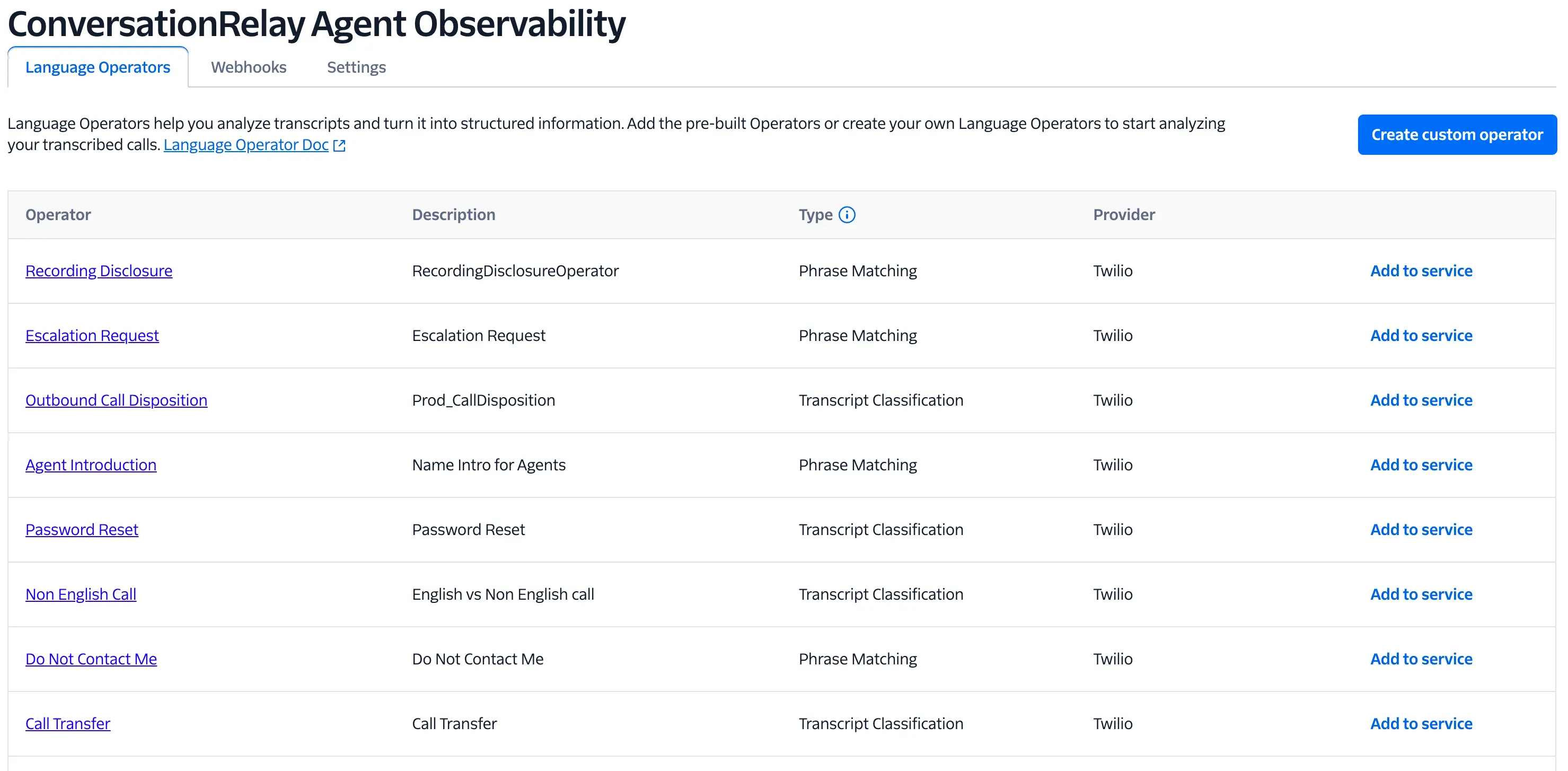
Pre-built Language Operators are maintained by Twilio and offered for common language analysis use cases. Refer to Pre-built Language Operators for a complete list of available pre-built Operators.
- Navigate to Conversation Intelligence (classic) > Services and select your Service.
- Identify pre-built Operators by confirming if the Provider is set to Twilio
- To apply a pre-built Language Operator, click Add to service. A confirmation message appears upon successful addition.
When creating a Custom Operator, choose between Generative and Phrase Matching Operator Types. Use the following table to determine which option best fits your needs:
| Option | Use case | Checks | Sample scenario |
|---|---|---|---|
| Generative | Use an LLM to generate text or JSON for sophisticated and flexible natural language understanding tasks | The entire transcript for comprehensive analysis | Score a call based on multiple custom-defined categories of agent performance. |
| Phrase Matching | Detect specific keywords or phrases within a transcript. | Specific segments of the conversation where the phrase might appear. | Identify when a customer mentions a product name or asks a specific question. |
- Navigate to Conversation Intelligence (classic) > Services and select your Service.
- Click Create Custom Operator to be redirected to the Select operator type page.
- Enter an Operator name and select the desired Custom Operator Type: Generative or Phrase Matching.
- Follow the instructions in the Console to configure your new Custom Operator.
- Once created, add the Custom Operator to your Service by clicking Add to service on the Operator page.
Info
For most customers, the Twilio Console provides a simple and efficient way to manage Language Operators. For API integration or advanced use cases, refer to the Language Operators API documentation.
- Navigate to Conversation Intelligence (classic) > Transcripts.
- Select a Transcript to view its details.
- In the Transcript details, review the results of the Language Operators applied to the Transcript.
Use the OperatorResults Resource API to retrieve analyzed data from a Transcript after applying specific Operators.
1// Download the helper library from https://www.twilio.com/docs/node/install2const twilio = require("twilio"); // Or, for ESM: import twilio from "twilio";34// Find your Account SID at twilio.com/console5// Provision API Keys at twilio.com/console/runtime/api-keys6// and set the environment variables. See http://twil.io/secure7// For local testing, you can use your Account SID and Auth token8const accountSid = process.env.TWILIO_ACCOUNT_SID;9const apiKey = process.env.TWILIO_API_KEY;10const apiSecret = process.env.TWILIO_API_SECRET;11const client = twilio(apiKey, apiSecret, { accountSid: accountSid });1213async function listOperatorResult() {14const operatorResults = await client.intelligence.v215.transcripts("GTaaaaaaaaaaaaaaaaaaaaaaaaaaaaaaaa")16.operatorResults.list({ limit: 20 });1718operatorResults.forEach((o) => console.log(o.operatorType));19}2021listOperatorResult();
Response
1{2"operator_results": [],3"meta": {4"page": 0,5"page_size": 50,6"first_page_url": "https://intelligence.twilio.com/v2/Transcripts/GTaaaaaaaaaaaaaaaaaaaaaaaaaaaaaaaa/OperatorResults?PageSize=50&Page=0",7"previous_page_url": null,8"url": "https://intelligence.twilio.com/v2/Transcripts/GTaaaaaaaaaaaaaaaaaaaaaaaaaaaaaaaa/OperatorResults?PageSize=50&Page=0",9"next_page_url": null,10"key": "operator_results"11}12}
In addition, you can be notified every time that new Operator Results is ready by setting up a Webhook. To do this, you'll use the same Webhook used for notification of new Transcript availability.
If you haven't already done so, you can configure this in Console by navigating to Services > select your Service > click the "Webhooks" tab.
Here, you can provide a Callback URL (where you want to send the request) and an HTTP Method (POST or GET) for the Webhook. To see the signature of the Webhook request body, please see here.
The Webhook payload will contain the transcript_sid, which can then be used to send a follow-up request to fetch Operator Results.
Info
A recommended architecture is to consume the single webhook in your application, and use the transcription_sid to fetch both the Transcript sentences and Operator Results at the same time.
Integration of Conversation Intelligence (classic) Transcript and Language Operator Results into your system(s) is critical to leveraging the insights gained from your customer conversations.
There are two main ways to integrate Conversation Intelligence (classic) into your applications:
- Using the API: Programmatically consume the results in your app using a Webhook + REST API call architecture
- Using Single-Page Applications: Embed single-page applications in your own application with pre-built UIs that mirror the Console
This is the most common and flexible way that you can consume Transcript & Operator Results in your systems.
A Webhook can be set up to notify your application when new Transcripts / Operator Results are ready. Your application can then make a REST API call to fetch the results. This model is covered in more detail in the above sections.
Embed pre-built single-page applications in your own application to view Conversation Intelligence (classic) Transcripts:
- Transcripts single-page application: View and filter the list of Transcripts.
- Transcription Viewer single-page application: View the content of individual transcripts and Language Operator results.