Salesforce Pardot (Actions) Destination
Additional versions of this destination are available
This page is about the Salesforce Pardot (Actions) Destination. See below for information about other versions of the Salesforce destination:
Pardot is a Salesforce marketing automation and analytics solution that lets you send automated emails to prospects and track conversions in emails and across social networks.
Segment's Pardot (Actions) destination enables you to create and update prospects with custom traits that can be leveraged in your marketing efforts. Segment sends data to version 5 of the Pardot API.
The Pardot (Actions) destination provides the following benefits over the classic Pardot destination:
- Fewer settings. Data mapping for actions-based destinations happens during configuration, which eliminates the need for most settings.
- Clearer mapping of data. Actions-based destinations enable you to define the mapping between the data Segment receives from your source, and the data Segment sends to Pardot.
- Sandbox support. Testing with a Salesforce Pardot sandbox account before implementing in your production account enables you to feel confident in your configuration.
- API upgrade. Data is sent to version 5 of the Pardot API — the newest and most standardized version of the API.
- Transparent error handling. Triage and resolve any errors blocking delivery to Pardot with clearer error messages and steps to fix.
- OAuth 2.0 support. Authentication with Salesforce Pardot leverages OAuth 2.0 with an improved token refresh flow.
To get started using Pardot with Segment:
- Make sure you have a Salesforce account with Pardot REST API access.
- Navigate to
https://app.segment.com/[workspace-slug]/destinations/catalog/actions-pardot. Replace[workspace-slug]with your workspace slug. - Click Configure Pardot (Actions) in the top-right corner of the screen.
- Accept the Beta terms.
- Select the source that will send data to Pardot (Actions) and follow the steps to name your destination.
- On the Settings tab, authenticate with Salesforce Pardot using OAuth. Input the Pardot Business Unit ID associated with your Pardot Account, and click Save.
- Follow the steps in the Destinations Actions documentation on Customizing mappings.
- Enable the destination and configured mappings.
You can find your Account ID (piAId) under Marketing > Campaigns in your Pardot account. After selecting your desired website campaign, press View Tracking Code.
The Pardot Business Unit ID associated with your Pardot Account. To find your Business Unit ID in Salesforce, go to Setup and search for Pardot. Your Pardot Business Unit ID is an 18-character string that starts with 0Uv. If you cannot access the Pardot Account Setup information, ask your Salesforce Administrator to find the Pardot Business Unit ID for you.
Optional
Enable to authenticate into a sandbox instance. You can log in to a sandbox by appending the sandbox name to your Salesforce username. For example, if a username for a production org is user@acme.com and the sandbox is named test, the username to log in to the sandbox is user@acme.com.test. If you are already authenticated, please disconnect and reconnect with your sandbox username.
Build your own Mappings. Combine supported triggers with the following Pardot-supported actions:
Mapping limits per destination
Individual destination instances support a maximum of 5 mappings.
Create or update a prospect in Pardot using email address.
Upsert Prospect is a Cloud action. The default Trigger is type = "identify"
The prospect's email address. Used to upsert a prospect in Pardot. If multiple prospects have the given email, the prospect with the latest activity is updated. If there's no prospect with the given email, a prospect is created. Please note that Pardot treats email address as case sensitive and will create multiple prospects for casing differences.
Optional
The prospect's first name.
Optional
The prospect's last name.
Optional
The prospect's formal prefix.
Optional
The prospect's phone number.
Optional
The prospect's company.
Optional
The prospect's job title.
Optional
The prospect's industry.
Optional
The prospect's city.
Optional
The prospect's US state.
Optional
The prospect's postal code.
Optional
The prospect's country.
Optional
The prospect's website URL.
If true, the request’s search includes deleted records. This property only affects AMPSEA accounts. If all records with a matching email address are deleted, the one with the latest activity is undeleted and updated. Otherwise, a new prospect is created.
Optional
Additional prospect fields to send to Pardot.
Only editable fields are accepted. Please see Pardot docs for more details. On the left-hand side, input the Pardot field name. On the right-hand side, map the Segment field that contains the value.
In version 5 of the Pardot API, the email address is used to upsert a prospect.
- If there's no prospect with the email address provided, a prospect is created.
- If there's one prospect with the email address provided, that prospect is updated.
- If multiple prospects have the same email address provided, the prospect with the latest activity is updated. Please note that Pardot treats email address as case sensitive and will create multiple prospects for casing differences.
To send data to a Salesforce Pardot sandbox instance, navigate to Settings and toggle on the "Sandbox Instance" setting. If you have not set up OAuth yet, connect with your sandbox username. If you are already authenticated, please disconnect and reconnect with your sandbox username. Update your Pardot Business Unit ID with the ID corresponding to your sandbox account and click Save.
Your sandbox username appends the sandbox name to your Salesforce production username. For example, if a username for a production org is user@acme.com and the sandbox is named test, the username to log in to the sandbox is user@acme.com.test.
Info
Data and configuration can't be shared between sandbox and production accounts. Make sure you use the Pardot Business Unit ID corresponding to your sandbox account. Information on how to create a sandbox for Pardot can be found in the Salesforce Create a Sandbox for Account Engagement documentation.
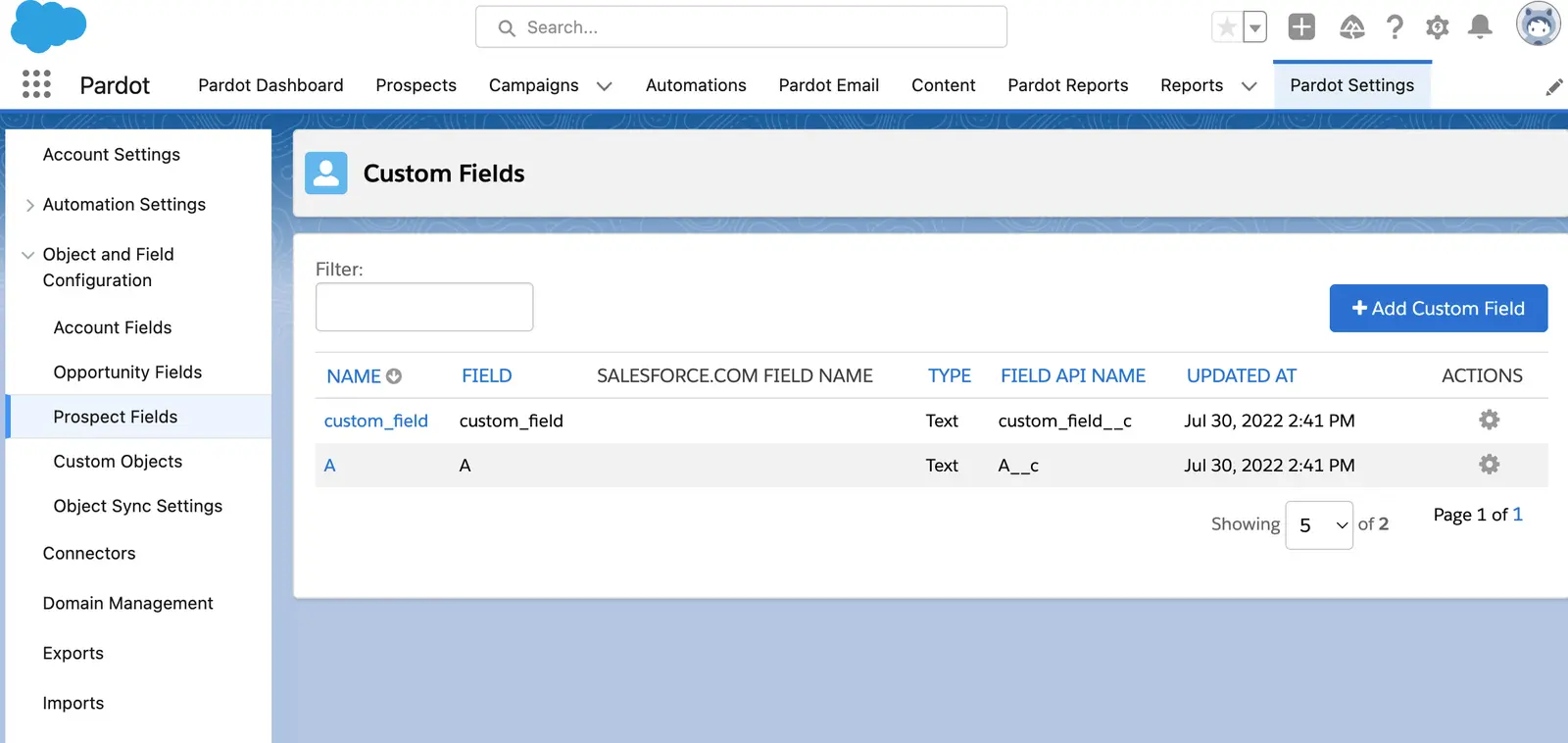
Custom fields can be included in the Other Fields mapping. Custom fields must be predefined in your Pardot account and should end with __c (for example, custom_field__c). Please include the __c in your mapping.
You can see and add custom prospect fields in Pardot under Pardot Settings > Object and Field Configuration > Prospect Fields. Be sure to input the FIELD API NAME exactly as it appears in Pardot in your Segment mapping.
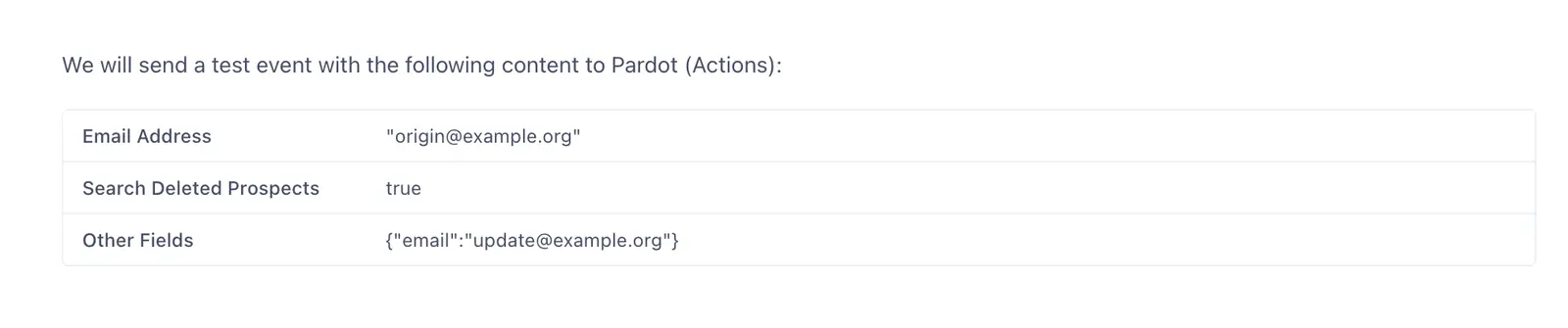
With version 5 of the Pardot API, you can update a prospect's email address using the Other Fields mapping. To update a prospect's email address:
- Input the prospect's current email in the Email Address mapping. This will be used to search for the corresponding prospect in Pardot.
- Input the prospect's new email in the Other Fields mapping with a field name of "email".
In the example below, origin@example.org is the prospect's current email. update@example.org is the prospect's new email that will be updated in Pardot.