Salesforce (Actions) Destination
Additional versions of this destination are available
This page is about the Salesforce (Actions) Destination. See below for information about other versions of the Salesforce destination:
Segment's Salesforce (Actions) destination allows you to create, update or upsert records for any object type. Segment sends data to the Salesforce REST API.
The Salesforce (Actions) destination provides the following benefits over the classic Salesforce destination:
- Fewer settings. Data mapping for actions-based destinations happens during configuration, which eliminates the need for most settings.
- Clearer mapping of data. Actions-based destinations enable you to define the mapping between the data Segment receives from your source, and the data Segment sends to Salesforce.
- OAuth 2.0 support. Authentication with Salesforce uses OAuth 2.0 instead of a username/password.
- Flexible match keys. Upsert and update records based on any match key, including external IDs, record IDs, email and other object fields.
- Batch support. Reduce Salesforce overages and rate-limit errors by batching your Segment data to Salesforce's Bulk API 2.0.
Before you connect Segment to Salesforce, ensure you have a Salesforce account with REST API access.
- From the Segment web app, click Catalog, then click Destinations.
- Search for Salesforce in the Destinations Catalog, and select the destination.
- Click Configure Salesforce.
- Select the source that will send data to Salesforce, follow the steps to name your destination, and select Actions as the destination framework.
- On the Settings tab, authenticate with Salesforce using OAuth.
- Follow the steps in the Destinations Actions documentation to customize mappings. You must select which Event Types and/or Event Names will trigger each mapping.
- Enable the destination and configured mappings.
Salesforce (Actions) authentication limitations
You must authenticate with the Salesforce (Actions) destination using OAuth. A single user can connect up to 5 Salesforce destinations, but upon connecting a 6th instance of the Salesforce (Actions) destination, Salesforce revokes the oldest destination's authorization. If the same user reauthorizes that same destination, this same behavior occurs on the next oldest destination that was authorized, and so on. To prevent this behavior, ensure that a different user with the same Salesforce permissions connects any additional Salesforce destinations.
For additional information on these limitations, see the Salesforce Manage OAuth-Enabled Connected Apps Access to Your Data documentation.
Segment's Actions v2 provide you with access to the following features:
- Sync modes: Control how Segment updates Salesforce by selecting a sync mode, or a strategy for updating your downstream data.
- Dynamic dropdowns: When creating or updating a mapping in the Segment app, the dropdown auto-populates all of the available properties directly from Salesforce.
- Create and modify data: Use Sync modes to create objects in your downstream destination without having to leave the Segment app.
Reauthorize your Salesforce account
You might need to reauthorize your Salesforce account to use all of the features associated with Actions v2.
The following Actions support the Actions v2 functionality:
Sync modes allow users to define how Segment should update the data in your destination.
Available sync modes for the Salesforce (Actions) destination include:
- Add: Add a new record when the specified identifier doesn't exist. If it does exist, Segment skips the record.
- Update: Update a record if a match with the specified identifier is found. Segment does nothing if the record doesn't exist.
- Upsert: If a record with the specified identifier is found, it is updated. If not, Segment creates a new record
- Delete: Remove the record associated with a specified identifier. Not available when using batching.
Optional
The password of the Salesforce account you want to connect to. When all three of username, password, and security token are provided, a username-password flow is used to authenticate. This field is hidden to all users except those who have opted in to the username+password flow.
Optional
Enable to authenticate into a sandbox instance. You can log in to a sandbox by appending the sandbox name to your Salesforce username. For example, if a username for a production org is user@acme.com and the sandbox is named test, the username to log in to the sandbox is user@acme.com.test. If you are already authenticated, please disconnect and reconnect with your sandbox username.
Optional
The security token of the Salesforce account you want to connect to. When all three of username, password, and security token are provided, a username-password flow is used to authenticate. This value will be appended to the password field to construct the credential used for authentication. This field is hidden to all users except those who have opted in to the username+password flow.
Optional
The username of the Salesforce account you want to connect to. When all three of username, password, and security token are provided, a username-password flow is used to authenticate. This field is hidden to all users except those who have opted in to the username+password flow.
Build your own Mappings. Combine supported triggers with the following Salesforce-supported actions:
Mapping limits per destination
Individual destination instances support a maximum of 5 mappings.
Create, update, or upsert leads in Salesforce.
Lead is a Cloud action. The default Trigger is type = "identify"
The Salesforce operation performed. The available operations are Create, Delete, Update or Upsert records in Salesforce.
Optional
This field affects how Segment uses the record matchers to query Salesforce records. By default, Segment uses the "OR" operator to query Salesforce for a record. If you would like to query Salesforce records using a combination of multiple record matchers, change this to "AND".
Optional
If true, events are sent to Salesforce’s Bulk API 2.0 rather than their streaming REST API. Once enabled, Segment will collect events into batches of 5000 before sending to Salesforce.
Optional
The fields used to find Salesforce records for updates. This is required if the operation is Delete, Update or Upsert.
Any field can function as a matcher, including Record ID, External IDs, standard fields and custom fields. On the left-hand side, map the Segment field that contains the value. On the right-hand side, input the Salesforce field API name.
If multiple records are found, no changes will be made. Please use fields that result in unique records.
Optional
The external id field name and mapping to use for bulk upsert.
Optional
The record id value to use for bulk update.
Optional
The lead's company. This is required to create a lead.
Optional
The lead's last name. This is required to create a lead.
Optional
The lead's first name.
Optional
The lead's email address.
Optional
City for the lead's address.
Optional
Postal code for the lead's address.
Optional
Country for the lead's address.
Optional
Street number and name for the lead's address.
Optional
State for the lead's address.
Optional
Additional fields to send to Salesforce. On the left-hand side, map the Segment field that contains the value. On the right-hand side, input the Salesforce field API name.
This can include standard or custom fields. Custom fields must be predefined in your Salesforce account and the API field name should have __c appended.
Create, update, or upsert records in any custom or standard object in Salesforce.
Custom Object is a Cloud action.
The Salesforce operation performed. The available operations are Create, Delete, Update or Upsert records in Salesforce.
Optional
This field affects how Segment uses the record matchers to query Salesforce records. By default, Segment uses the "OR" operator to query Salesforce for a record. If you would like to query Salesforce records using a combination of multiple record matchers, change this to "AND".
Optional
If true, events are sent to Salesforce’s Bulk API 2.0 rather than their streaming REST API. Once enabled, Segment will collect events into batches of 5000 before sending to Salesforce.
Optional
The fields used to find Salesforce records for updates. This is required if the operation is Delete, Update or Upsert.
Any field can function as a matcher, including Record ID, External IDs, standard fields and custom fields. On the left-hand side, map the Segment field that contains the value. On the right-hand side, input the Salesforce field API name.
If multiple records are found, no changes will be made. Please use fields that result in unique records.
Optional
The external id field name and mapping to use for bulk upsert.
Optional
The record id value to use for bulk update.
The API name of the Salesforce object that records will be added or updated within. This can be a standard or custom object. Custom objects must be predefined in your Salesforce account and should end with "__c".
Optional
Additional fields to send to Salesforce. On the left-hand side, map the Segment field that contains the value. On the right-hand side, input the Salesforce field API name.
This can include standard or custom fields. Custom fields must be predefined in your Salesforce account and the API field name should have __c appended.
Create, update, or upsert cases in Salesforce.
Case is a Cloud action.
The Salesforce operation performed. The available operations are Create, Delete, Update or Upsert records in Salesforce.
Optional
This field affects how Segment uses the record matchers to query Salesforce records. By default, Segment uses the "OR" operator to query Salesforce for a record. If you would like to query Salesforce records using a combination of multiple record matchers, change this to "AND".
Optional
If true, events are sent to Salesforce’s Bulk API 2.0 rather than their streaming REST API. Once enabled, Segment will collect events into batches of 5000 before sending to Salesforce.
Optional
The fields used to find Salesforce records for updates. This is required if the operation is Delete, Update or Upsert.
Any field can function as a matcher, including Record ID, External IDs, standard fields and custom fields. On the left-hand side, map the Segment field that contains the value. On the right-hand side, input the Salesforce field API name.
If multiple records are found, no changes will be made. Please use fields that result in unique records.
Optional
The external id field name and mapping to use for bulk upsert.
Optional
The record id value to use for bulk update.
Optional
A text description of the case.
Optional
Additional fields to send to Salesforce. On the left-hand side, map the Segment field that contains the value. On the right-hand side, input the Salesforce field API name.
This can include standard or custom fields. Custom fields must be predefined in your Salesforce account and the API field name should have __c appended.
Create, update, or upsert opportunities in Salesforce.
Opportunity is a Cloud action.
The Salesforce operation performed. The available operations are Create, Delete, Update or Upsert records in Salesforce.
Optional
This field affects how Segment uses the record matchers to query Salesforce records. By default, Segment uses the "OR" operator to query Salesforce for a record. If you would like to query Salesforce records using a combination of multiple record matchers, change this to "AND".
Optional
If true, events are sent to Salesforce’s Bulk API 2.0 rather than their streaming REST API. Once enabled, Segment will collect events into batches of 5000 before sending to Salesforce.
Optional
The fields used to find Salesforce records for updates. This is required if the operation is Delete, Update or Upsert.
Any field can function as a matcher, including Record ID, External IDs, standard fields and custom fields. On the left-hand side, map the Segment field that contains the value. On the right-hand side, input the Salesforce field API name.
If multiple records are found, no changes will be made. Please use fields that result in unique records.
Optional
The external id field name and mapping to use for bulk upsert.
Optional
The record id value to use for bulk update.
Optional
Date when the opportunity is expected to close. Use yyyy-MM-dd format. This is required to create an opportunity.
Optional
A name for the opportunity. This is required to create an opportunity.
Optional
Current stage of the opportunity. This is required to create an opportunity.
Optional
Estimated total sale amount.
Optional
A text description of the opportunity.
Optional
Additional fields to send to Salesforce. On the left-hand side, map the Segment field that contains the value. On the right-hand side, input the Salesforce field API name.
This can include standard or custom fields. Custom fields must be predefined in your Salesforce account and the API field name should have __c appended.
Create, update, or upsert accounts in Salesforce.
Account is a Cloud action. The default Trigger is type = "group"
The Salesforce operation performed. The available operations are Create, Delete, Update or Upsert records in Salesforce.
Optional
If true, events are sent to Salesforce’s Bulk API 2.0 rather than their streaming REST API. Once enabled, Segment will collect events into batches of 5000 before sending to Salesforce.
Optional
This field affects how Segment uses the record matchers to query Salesforce records. By default, Segment uses the "OR" operator to query Salesforce for a record. If you would like to query Salesforce records using a combination of multiple record matchers, change this to "AND".
Optional
The fields used to find Salesforce records for updates. This is required if the operation is Delete, Update or Upsert.
Any field can function as a matcher, including Record ID, External IDs, standard fields and custom fields. On the left-hand side, map the Segment field that contains the value. On the right-hand side, input the Salesforce field API name.
If multiple records are found, no changes will be made. Please use fields that result in unique records.
Optional
The external id field name and mapping to use for bulk upsert.
Optional
The record id value to use for bulk update.
Optional
Name of the account. This is required to create an account.
Optional
Account number assigned to the account. This is not the unique, Salesforce-generated ID assigned during creation.
Optional
Number of employees working at the company represented by the account.
Optional
City for the billing address of the account.
Optional
Postal code for the billing address of the account.
Optional
Country for the billing address of the account.
Optional
Street address for the billing address of the account.
Optional
State for the billing address of the account.
Optional
City for the shipping address of the account.
Optional
Postal code for the shipping address of the account.
Optional
Country for the shipping address of the account.
Optional
Street address for the shipping address of the account.
Optional
State for the shipping address of the account.
Optional
Phone number for the account.
Optional
Text description of the account.
Optional
The website of the account.
Optional
Additional fields to send to Salesforce. On the left-hand side, map the Segment field that contains the value. On the right-hand side, input the Salesforce field API name.
This can include standard or custom fields. Custom fields must be predefined in your Salesforce account and the API field name should have __c appended.
Create, update, or upsert contacts in Salesforce.
Contact is a Cloud action.
The Salesforce operation performed. The available operations are Create, Delete, Update or Upsert records in Salesforce.
Optional
This field affects how Segment uses the record matchers to query Salesforce records. By default, Segment uses the "OR" operator to query Salesforce for a record. If you would like to query Salesforce records using a combination of multiple record matchers, change this to "AND".
Optional
If true, events are sent to Salesforce’s Bulk API 2.0 rather than their streaming REST API. Once enabled, Segment will collect events into batches of 5000 before sending to Salesforce.
Optional
The fields used to find Salesforce records for updates. This is required if the operation is Delete, Update or Upsert.
Any field can function as a matcher, including Record ID, External IDs, standard fields and custom fields. On the left-hand side, map the Segment field that contains the value. On the right-hand side, input the Salesforce field API name.
If multiple records are found, no changes will be made. Please use fields that result in unique records.
Optional
The external id field name and mapping to use for bulk upsert.
Optional
The record id value to use for bulk update.
Optional
The contact's last name up to 80 characters. This is required to create a contact.
Optional
The contact's first name up to 40 characters.
Optional
The ID of the account that this contact is associated with. This is the Salesforce-generated ID assigned to the account during creation (i.e. 0018c00002CDThnAAH).
Optional
The contact's email address.
Optional
City for the contact's mailing address.
Optional
Postal Code for the contact's mailing address.
Optional
Country for the contact's mailing address.
Optional
Street number and name for the contact's mailing address.
Optional
State for the contact's mailing address.
Optional
Additional fields to send to Salesforce. On the left-hand side, map the Segment field that contains the value. On the right-hand side, input the Salesforce field API name.
This can include standard or custom fields. Custom fields must be predefined in your Salesforce account and the API field name should have __c appended.
Create, update, or upsert accounts in Salesforce.
Account V2 is a Cloud action. The default Trigger is type = "group"
Optional
If true, events are sent to Salesforce’s Bulk API 2.0 rather than their streaming REST API. Once enabled, Segment will collect events into batches of 5000 before sending to Salesforce.
Optional
This field affects how Segment uses the record matchers to query Salesforce records. By default, Segment uses the "OR" operator to query Salesforce for a record. If you would like to query Salesforce records using a combination of multiple record matchers, change this to "AND".
Optional
The fields used to find Salesforce records for updates. This is required if the operation is Delete, Update or Upsert.
Any field can function as a matcher, including Record ID, External IDs, standard fields and custom fields. On the left-hand side, map the Segment field that contains the value. On the right-hand side, input the Salesforce field API name.
If multiple records are found, no changes will be made. Please use fields that result in unique records.
Optional
The external id field name and mapping to use for bulk upsert.
Optional
The record id value to use for bulk update.
Optional
Name of the account. This is required to create an account.
Optional
Account number assigned to the account. This is not the unique, Salesforce-generated ID assigned during creation.
Optional
Number of employees working at the company represented by the account.
Optional
City for the billing address of the account.
Optional
Postal code for the billing address of the account.
Optional
Country for the billing address of the account.
Optional
Street address for the billing address of the account.
Optional
State for the billing address of the account.
Optional
City for the shipping address of the account.
Optional
Postal code for the shipping address of the account.
Optional
Country for the shipping address of the account.
Optional
Street address for the shipping address of the account.
Optional
State for the shipping address of the account.
Optional
Phone number for the account.
Optional
Text description of the account.
Optional
The website of the account.
Optional
Additional fields to send to Salesforce. On the left-hand side, map the Segment field that contains the value. On the right-hand side, input the Salesforce field API name.
This can include standard or custom fields. Custom fields must be predefined in your Salesforce account and the API field name should have __c appended.
Create, update, or upsert records in any custom or standard object in Salesforce.
Custom Object V2 is a Cloud action.
Optional
This field affects how Segment uses the record matchers to query Salesforce records. By default, Segment uses the "OR" operator to query Salesforce for a record. If you would like to query Salesforce records using a combination of multiple record matchers, change this to "AND".
Optional
If true, events are sent to Salesforce’s Bulk API 2.0 rather than their streaming REST API. Once enabled, Segment will collect events into batches of 5000 before sending to Salesforce.
Optional
The fields used to find Salesforce records for updates. This is required if the operation is Delete, Update or Upsert.
Any field can function as a matcher, including Record ID, External IDs, standard fields and custom fields. On the left-hand side, map the Segment field that contains the value. On the right-hand side, input the Salesforce field API name.
If multiple records are found, no changes will be made. Please use fields that result in unique records.
Optional
The external id field name and mapping to use for bulk upsert.
Optional
The record id value to use for bulk update.
The API name of the Salesforce object that records will be added or updated within. This can be a standard or custom object. Custom objects must be predefined in your Salesforce account and should end with "__c".
Optional
Additional fields to send to Salesforce. On the left-hand side, map the Segment field that contains the value. On the right-hand side, input the Salesforce field API name.
This can include standard or custom fields. Custom fields must be predefined in your Salesforce account and the API field name should have __c appended.
Create, update, or upsert cases in Salesforce.
Case V2 is a Cloud action.
Optional
This field affects how Segment uses the record matchers to query Salesforce records. By default, Segment uses the "OR" operator to query Salesforce for a record. If you would like to query Salesforce records using a combination of multiple record matchers, change this to "AND".
Optional
If true, events are sent to Salesforce’s Bulk API 2.0 rather than their streaming REST API. Once enabled, Segment will collect events into batches of 5000 before sending to Salesforce.
Optional
The fields used to find Salesforce records for updates. This is required if the operation is Delete, Update or Upsert.
Any field can function as a matcher, including Record ID, External IDs, standard fields and custom fields. On the left-hand side, map the Segment field that contains the value. On the right-hand side, input the Salesforce field API name.
If multiple records are found, no changes will be made. Please use fields that result in unique records.
Optional
The external id field name and mapping to use for bulk upsert.
Optional
The record id value to use for bulk update.
Optional
A text description of the case.
Optional
Additional fields to send to Salesforce. On the left-hand side, map the Segment field that contains the value. On the right-hand side, input the Salesforce field API name.
This can include standard or custom fields. Custom fields must be predefined in your Salesforce account and the API field name should have __c appended.
Create, update, or upsert opportunities in Salesforce.
Opportunity V2 is a Cloud action.
Optional
This field affects how Segment uses the record matchers to query Salesforce records. By default, Segment uses the "OR" operator to query Salesforce for a record. If you would like to query Salesforce records using a combination of multiple record matchers, change this to "AND".
Optional
If true, events are sent to Salesforce’s Bulk API 2.0 rather than their streaming REST API. Once enabled, Segment will collect events into batches of 5000 before sending to Salesforce.
Optional
The fields used to find Salesforce records for updates. This is required if the operation is Delete, Update or Upsert.
Any field can function as a matcher, including Record ID, External IDs, standard fields and custom fields. On the left-hand side, map the Segment field that contains the value. On the right-hand side, input the Salesforce field API name.
If multiple records are found, no changes will be made. Please use fields that result in unique records.
Optional
The external id field name and mapping to use for bulk upsert.
Optional
The record id value to use for bulk update.
Optional
Date when the opportunity is expected to close. Use yyyy-MM-dd format. This is required to create an opportunity.
Optional
A name for the opportunity. This is required to create an opportunity.
Optional
Current stage of the opportunity. This is required to create an opportunity.
Optional
Estimated total sale amount.
Optional
A text description of the opportunity.
Optional
Additional fields to send to Salesforce. On the left-hand side, map the Segment field that contains the value. On the right-hand side, input the Salesforce field API name.
This can include standard or custom fields. Custom fields must be predefined in your Salesforce account and the API field name should have __c appended.
Create, update, or upsert leads in Salesforce.
Lead V2 is a Cloud action. The default Trigger is type = "identify"
Optional
This field affects how Segment uses the record matchers to query Salesforce records. By default, Segment uses the "OR" operator to query Salesforce for a record. If you would like to query Salesforce records using a combination of multiple record matchers, change this to "AND".
Optional
If true, events are sent to Salesforce’s Bulk API 2.0 rather than their streaming REST API. Once enabled, Segment will collect events into batches of 5000 before sending to Salesforce.
Optional
The fields used to find Salesforce records for updates. This is required if the operation is Delete, Update or Upsert.
Any field can function as a matcher, including Record ID, External IDs, standard fields and custom fields. On the left-hand side, map the Segment field that contains the value. On the right-hand side, input the Salesforce field API name.
If multiple records are found, no changes will be made. Please use fields that result in unique records.
Optional
The external id field name and mapping to use for bulk upsert.
Optional
The record id value to use for bulk update.
Optional
Additional fields to send to Salesforce. On the left-hand side, map the Segment field that contains the value. On the right-hand side, input the Salesforce field API name.
This can include standard or custom fields. Custom fields must be predefined in your Salesforce account and the API field name should have __c appended.
Optional
The lead's company. This is required to create a lead.
Optional
The lead's last name. This is required to create a lead.
Optional
The lead's first name.
Optional
The lead's email address.
Optional
City for the lead's address.
Optional
Postal code for the lead's address.
Optional
Country for the lead's address.
Optional
Street number and name for the lead's address.
Optional
State for the lead's address.
Create, update, or upsert contacts in Salesforce.
Contact V2 is a Cloud action.
Optional
This field affects how Segment uses the record matchers to query Salesforce records. By default, Segment uses the "OR" operator to query Salesforce for a record. If you would like to query Salesforce records using a combination of multiple record matchers, change this to "AND".
Optional
If true, events are sent to Salesforce’s Bulk API 2.0 rather than their streaming REST API. Once enabled, Segment will collect events into batches of 5000 before sending to Salesforce.
Optional
The fields used to find Salesforce records for updates. This is required if the operation is Delete, Update or Upsert.
Any field can function as a matcher, including Record ID, External IDs, standard fields and custom fields. On the left-hand side, map the Segment field that contains the value. On the right-hand side, input the Salesforce field API name.
If multiple records are found, no changes will be made. Please use fields that result in unique records.
Optional
The external id field name and mapping to use for bulk upsert.
Optional
The record id value to use for bulk update.
Optional
The contact's last name up to 80 characters. This is required to create a contact.
Optional
The contact's first name up to 40 characters.
Optional
The ID of the account that this contact is associated with. This is the Salesforce-generated ID assigned to the account during creation (i.e. 0018c00002CDThnAAH).
Optional
The contact's email address.
Optional
City for the contact's mailing address.
Optional
Postal Code for the contact's mailing address.
Optional
Country for the contact's mailing address.
Optional
Street number and name for the contact's mailing address.
Optional
State for the contact's mailing address.
Optional
Additional fields to send to Salesforce. On the left-hand side, map the Segment field that contains the value. On the right-hand side, input the Salesforce field API name.
This can include standard or custom fields. Custom fields must be predefined in your Salesforce account and the API field name should have __c appended.
When configuring a mapping, you must select the Operation that will be performed on the record. The Salesforce (Actions) destination supports the following operations:
- Create. Pushes new records to Salesforce. This operation is good for the following scenarios:
- Push records into Salesforce, but don't need data within each row to remain up to date.
- Static data where each row is never updated, such as events.
- Upsert. Pushes new records to Salesforce and updates fields on existing records in Salesforce. This operation is good for the following scenarios:
- Push records into Salesforce and keep the data up to date.
- Update. Updates fields on existing records in Salesforce. This operation is good for the following scenarios:
- You have records in Salesforce that you want to add new information/fields to.
- You want to update fields on existing records in Salesforce.
- Delete. Deletes existing records in Salesforce. This operation is good for the following scenarios:
- You have records in Salesforce that you want to remove.
When using the delete, update and upsert operations, you must specify the match key(s) that will be used to query Salesforce for the record. You can do this within the Record Matchers object. Any field can be used as a record matcher, including:
- External IDs. To map an External ID, the Salesforce API name should have
__cappended to it. - Record IDs. To map a Record ID, the Salesforce API name is
Id. - Standard fields. To map a standard field, the Salesforce API name should match what is in Salesforce for the given field, for example
Email. - Custom fields. To map a custom field, the field needs to be predefined in Salesforce and the Salesforce API name should have
__cappended to it.
If multiple fields are provided in the Record Matchers object, Segment uses an "OR" operator to query Salesforce for a record. If multiple records are returned upon query, no updates will be made. Segment will instead record a 300 error status for the request, and the request will not be retried. Use fields that result in unique records.
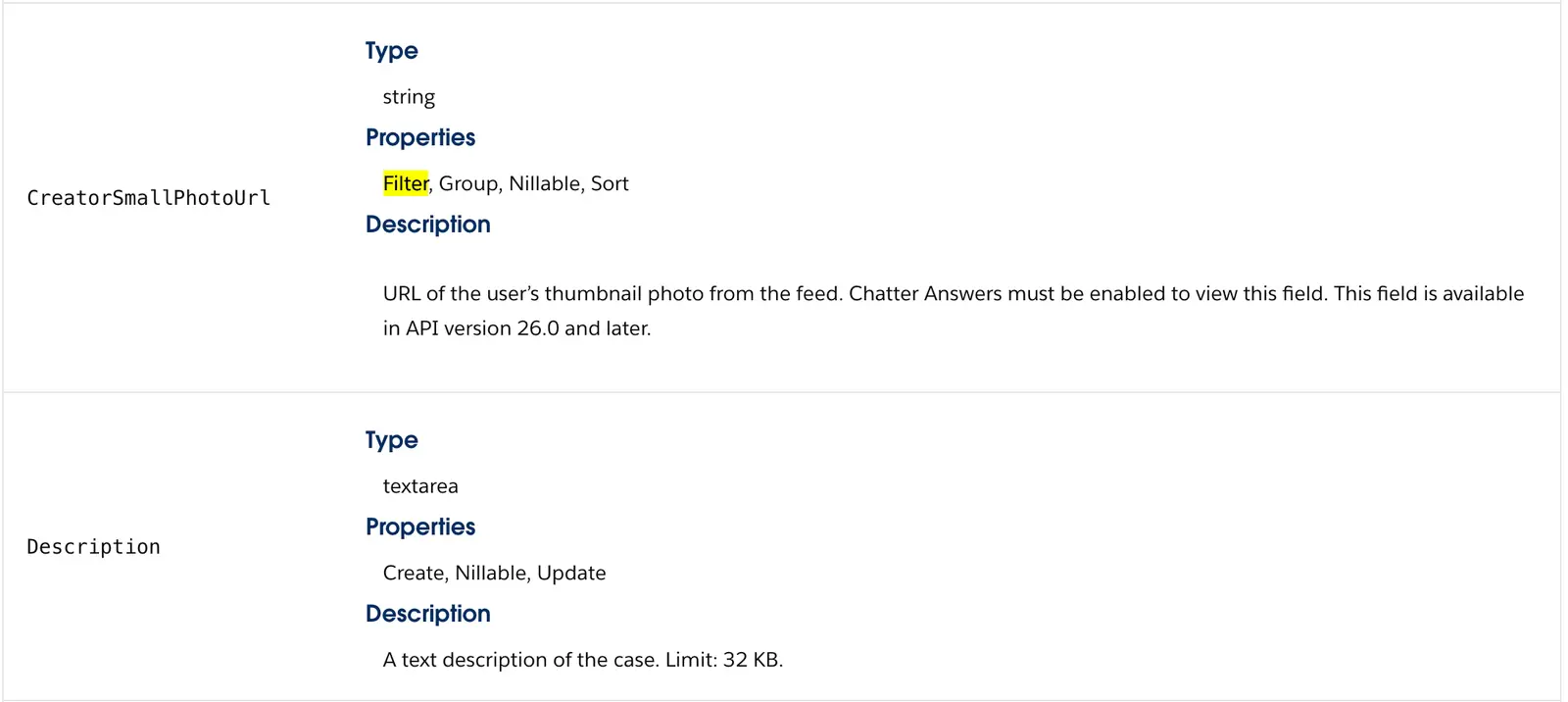
Salesforce only allows querying on fields that have the "Filter" property. For example, Segment doesn't query on the Case Description because it is not a filterable property. You can lookup the standard field properties in Salesforce's API documentation to determine if a field is available for querying.
To migrate from Salesforce (Classic):
- Log in to your Segment workspace and review the copied settings in each new Salesforce (Actions) instance to ensure their accuracy.
- Authenticate Segment with Salesforce with OAuth.
- Enable the Salesforce (Actions) destination & disable the Classic destination.
Authenticate with Salesforce
Salesforce (Actions) requires OAuth based authentication while Salesforce Classic uses tokens and credentials. Because of this, Segment can't migrate authentication credentials. Your workspace owner must login and configure OAuth Authentication for each Salesforce (Actions) destinations that were migrated.
If you have more than one Salesforce instance connected to Segment, repeat these three steps for each instance.
Keep the following in mind as you begin to use Salesforce (Actions):
- Salesforce (Actions) supports batching. The workspace owner can edit the enabled-batching field manually for any of the mappings. This setting is disabled by default.
- Sending Identify events to Salesforce (Classic) results in a create or update operation for Leads, and maps properties from
event.traitsSalesforce (Actions) does not support this behavior. By default, the automatic migration maps only a subset of the most used Lead properties as mentioned. The workspace owner must map any additional Salesforce properties or Custom properties manually.
Review the following tables to see how settings from Salesforce (Classic) were migrated to Salesforce (Actions).
| Salesforce (Actions) property | Migrated behavior |
|---|---|
| Record Matchers | Uses Custom Lead Lookup fields from Salesforce (Classic), if available, or Email as a fallback value. |
| Name | Appears within the Other Fields property, defaults to traits.name. |
| Phone | Appears within the Other Fields property, defaults to coalesce(traits.phone, traits.phoneNumber). |
| Title | Appears within the Other Fields property, defaults to coalesce(traits.address.title, traits.position). |
| Website | Appears within the Other Fields property, defaults to traits.website. |
| Description | Appears within the Other Fields property, defaults to traits.description. |
| Lead Source | Appears within the Other Fields property, defaults to traits.leadSource. |
| Salesforce (Actions) property | Migrated behavior |
|---|---|
| Billing Street | Created only if the Send Address as Billing Address property is set in Salesforce (Classic). Defaults to coalesce(traits.address.street, traits.street). |
| Billing City | Created only if the Send Address as Billing Address property is set in Salesforce (Classic). Defaults to coalesce(traits.address.city, traits.city). |
| Billing State | Created only if the Send Address as Billing Address property is set in Salesforce (Classic). Defaults to coalesce(traits.address.state, traits.state). |
| Billing Country | Created only if the Send Address as Billing Address property is set in Salesforce (Classic). Defaults to coalesce(traits.address.country, traits.country). |
| Billing Postal Code | Created only if the Send Address as Billing Address property is set in Salesforce (Classic). Defaults to coalesce(traits.address.postalCode, traits.postalCode). |
| Shipping Street | Created only if the Send Address as Shipping Address property is set in Salesforce (Classic). Defaults to coalesce(traits.address.street, traits.street). |
| Shipping City | Created only if the Send Address as Shipping Address property is set in Salesforce (Classic). Defaults to coalesce(traits.address.city, traits.city). |
| Shipping State | Created only if the Send Address as Shipping Address property is set in Salesforce (Classic). Defaults to coalesce(traits.address.state, traits.state). |
| Shipping Country | Created only if the Send Address as Shipping Address property is set in Salesforce (Classic). Defaults to coalesce(traits.address.country, traits.country). |
| Shipping Postal Code | Created only if the Send Address as Shipping Address property is set in Salesforce (Classic). Defaults to coalesce(traits.address.postalCode, traits.postalCode). |
To send data to a Salesforce sandbox instance, navigate to Settings > Advanced Settings, toggle on the "Sandbox Instance" setting, save the setting and then authenticate. If you are already authenticated, disconnect and reconnect with your sandbox username.
Your Salesforce sandbox username appends the sandbox name to your Salesforce production username. For example, if a username for a production org is user@acme.com and the sandbox is named test, the username to log in to the sandbox is user@acme.com.test.
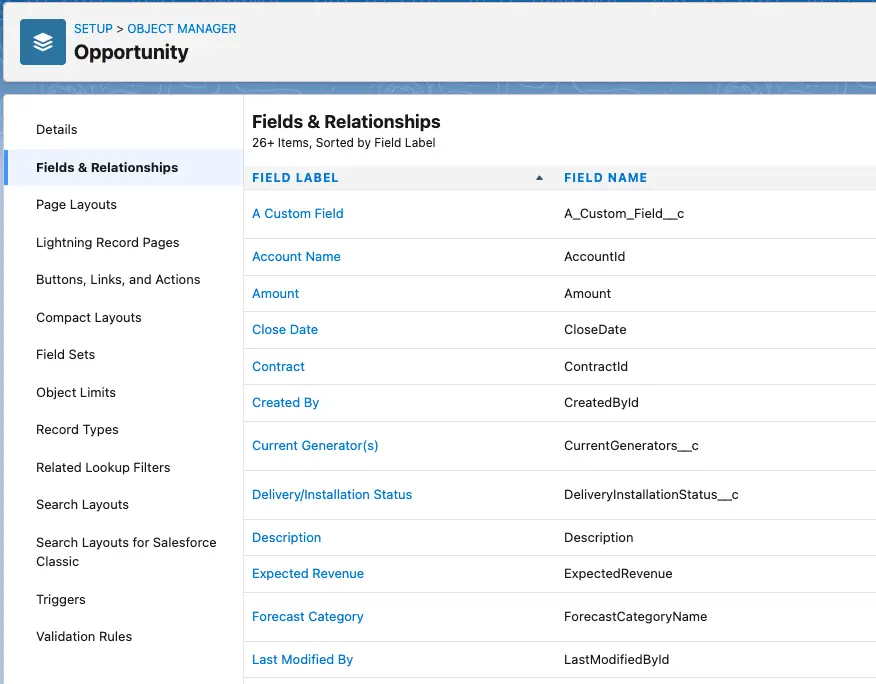
Custom fields can be included in the Other Fields mapping. Custom fields must be predefined in your Salesforce account and should end with __c (for example, My_Custom_Field__c). Include the __c in your mapping.
You can see Salesforce API names in Salesforce under Setup > Objects and Fields > Object Manager > Select your object > Fields & Relationships > FIELD_NAME.
See Salesforce's Create Custom Fields for more information on custom fields.
The only way to associate a Contact with an Account is to include the AccountId on the Contact record. The AccountId is a Salesforce-generated ID assigned to the account during creation (for example, 0018x00002XXXxxXXX). Salesforce only accepts a single AccountId as the Contact's primary account; you cannot pass an array of IDs.
Info
The AccountId is different than the AccountNumber and AccountName. The AccountId is auto-generated, whereas the AccountNumber and AccountName are chosen by you.
A Person Account is a special type of account that represents an individual rather than a business. The requirements for Person Account records differ from what Segment's standard Account action supports. For example, Name is required for Accounts, whereas LastName is required for Person Accounts. To send data for Person Accounts, you must use the Custom Object action. Hard code the Salesforce Object to Account and define other standard and custom fields, such as LastName and FirstName, in the Other Fields mapping.
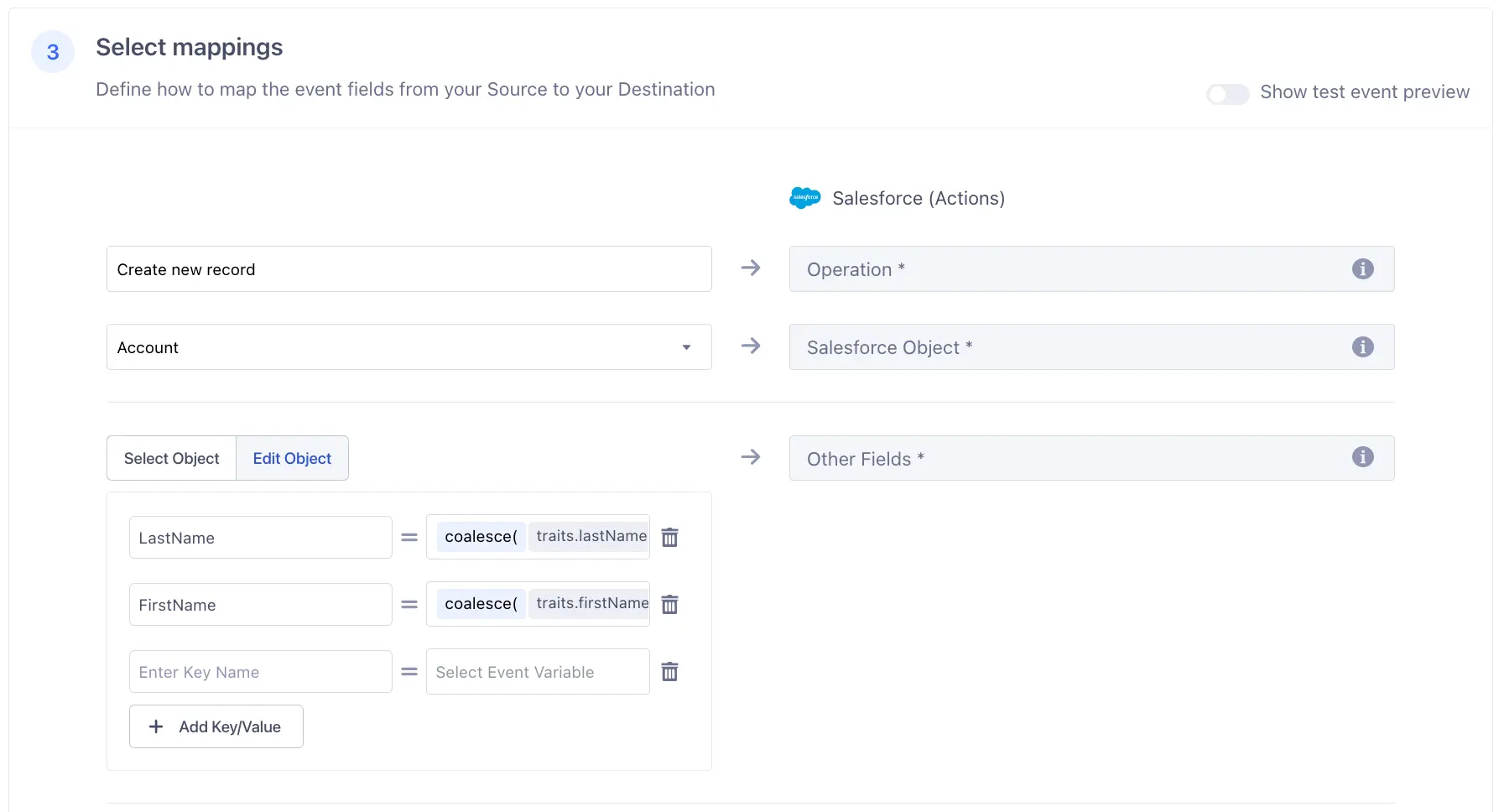
Person Accounts are not enabled by default, and the solution will only work if you have Person Accounts enabled. If you do not have Person Accounts enabled, use the standard Account action.
- For
updateandupsert, the query request used to determine whether the record already exists in Salesforce counts as one API call. A second API call is used to update or create that record. - For
create, no query is executed so one API call is used to create the record.
To check how many API calls you have left in Salesforce, go to Setup > Company Settings > Company Information, and you'll find a field labeled: API Requests, Last 24 Hours.
When using the create operation, it's possible for duplicate records to be created in Salesforce. This is because Segment retries records once they hit the internal timeout. It's possible Salesforce's REST API eventually processes the original record in addition to the retried record, resulting in duplicates. You may encounter this behavior if Salesforce's REST API throttles your records (for example, due to hitting API limits or complex workflow automation). To prevent duplicates, you can use Duplicate Rules in Salesforce. See set up information in Resolve and Prevent Duplicate Data in Salesforce.
Note that this is only a concern when using the create operation. You can use the upsert operation instead to avoid duplicates if upsert meets your needs.
This error happens when you use the update operation, but no value is provided for the field defined as the Record Matcher. To fix this, make sure your payload includes a value for the Record Matcher field.
When Use Salesforce Bulk API is enabled for your mapping, events are sent to Salesforce's Bulk API 2.0 rather than their streaming REST API. If enabled, Segment will collect events into batches of up to 5000 before sending to Salesforce. Bulk support can be used for the upsert or update operations only.
Info
To monitor Bulk API uploads in Salesforce, search for 'Bulk Data Load Jobs' in the Quick Find box, then select Bulk Data Load Jobs. This will redirect you to the Bulk Data Load Jobs page (Environment > Jobs > Bulk Data Load Jobs), where you can view the progress of current jobs, along with success and error messages for recent Bulk V2 operations.
For bulk update, if a record in a batch is missing a Bulk Update Record ID, Segment will still send it to Salesforce. Salesforce will reject the individual record because it will be unable to find a record to update. Other records in the batch that are valid will still be processed. Note that Segment's Event Delivery tab will show the entire batch as successful as Segment cannot currently break down Event Delivery stats into individual failed/passed events.
For "Bulk Update Record ID", see Salesforce's help documentation. For "Bulk Upsert External ID", see Salesforce's help documentation.
Warning
The field mapped to Bulk Upsert External Id should not be included in the Other Fields mapping. Including it as a custom field will cause an error in Salesforce. Although the Bulk API may return successful responses, the Bulk Data Load Jobs page in Salesforce will display error messages for failed operations.