Setting up Adobe Analytics for Mobile
Segment supports Adobe Analytics Mobile Services. With Segment, you don't need to package Adobe Analytics SDKs to use Adobe Analytics Mobile Services features.
To learn more about Segment's mobile libraries, see the iOS and Android technical docs.
Before you start sending data from your mobile application to Adobe Analytics, you must first finish the following set up steps:
- First, enable the Segment-Adobe Analytics destination from in your Segment workspace.
- From your Adobe Mobile Services dashboard, check and customize the settings on the "Manage App Settings" tab.
- Download these settings as the
ADBMobileConfig.jsonfile by clicking the Config JSON link at the bottom of the same tab. Follow the instructions in Adobe's Configuration documentation. - Finally, follow the instructions below for each mobile environment to bundle Segment's Adobe Analytics SDK in your project.
Tip
Mobile implementations use the ADBMobileConfig.json file to store the settings that you would otherwise enter in the Adobe Analytics destination settings in the Segment app. You can change these settings from the Manage App Settings tab in your Adobe Mobile Services dashboard, and can download the file from that same tab. This file includes the Report Suite ID, Timestamp Option, Tracking Server Secure URL, Tracking Server URL, and Use Secure URL for Server-side settings.
compile 'com.segment.analytics.android.integrations:adobeanalytics:+'
After you add the dependency, register the integration with the Segment SDK. To do this, import the Adobe Analytics integration:
import com.segment.analytics.android.integrations.adobeanalytics.AdobeIntegration;
Then add the following line:
1analytics = new Analytics.Builder(this, "write_key")2.use(AdobeIntegration.FACTORY)3.build();
Info
Note: If you're working on Android, be sure to add these permissions to your AndroidManifest.xml:
1<uses-permission android:name="android.permission.INTERNET" />2<uses-permission android:name="android.permission.ACCESS_NETWORK_STATE" />
You can see the Android SDK changelog in the open-source repository for information about specific versions of the Android Adobe Analytics SDK.
pod 'Segment-Adobe-Analytics'
You can see the iOS SDK changelog in the open-source repository for information about specific versions of the iOS Adobe Analytics SDK.
Segment strongly recommends that you create a tracking plan for both your Segment and Adobe Analytics events before you send any events or properties to Adobe. This helps you map your Segment events to Adobe events, and Segment properties to Adobe eVars or props, since you'll have to do this in both the Segment settings UI and your Adobe Mobile Services dashboard.
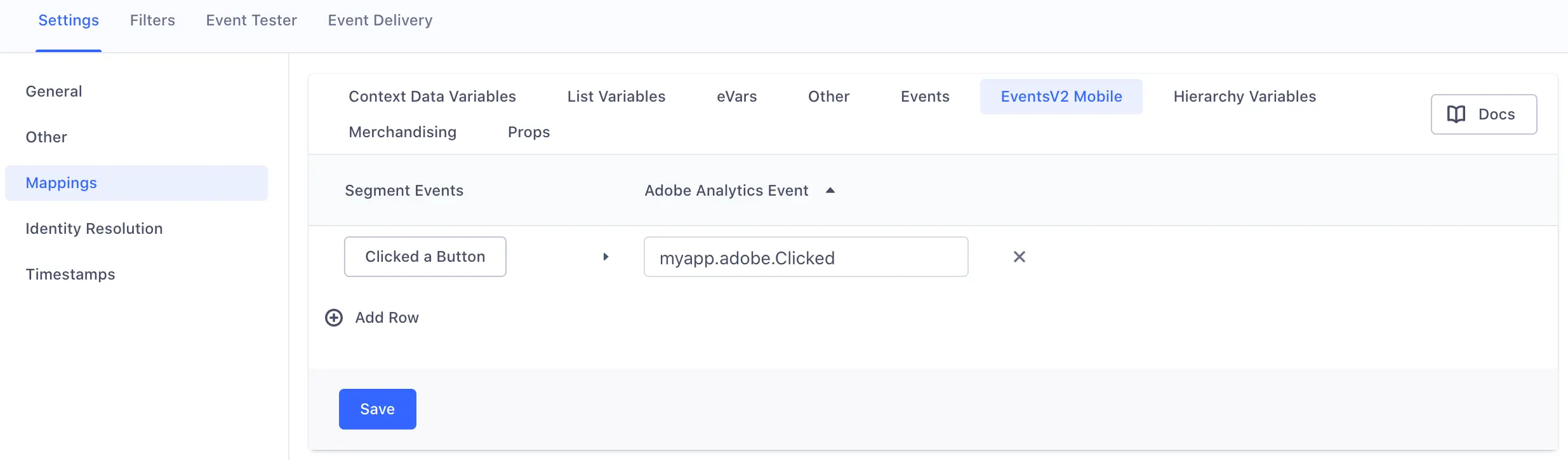
You can map Segment events in your Events V2 settings to any event variable you already defined in your Adobe Analytics Mobile Services dashboard.
Warning
Note: Do not use the deprecated Events settings. These no longer forward events to Adobe.
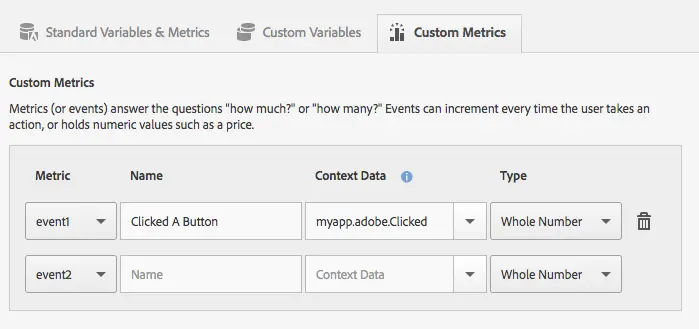
Here's an example of how you might map Segment events to Adobe Analytics events connected in device mode:
Here's an example of how you would implement the same mapping in Adobe's Mobile Services Dashboard:
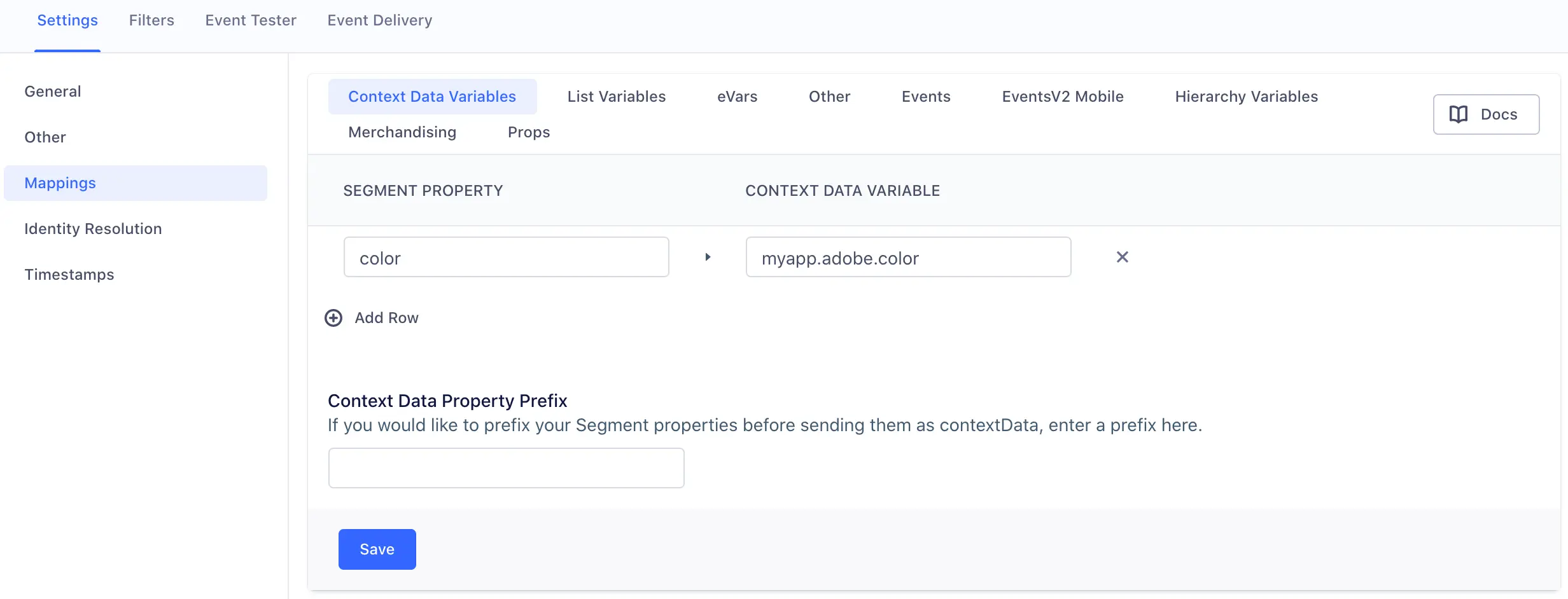
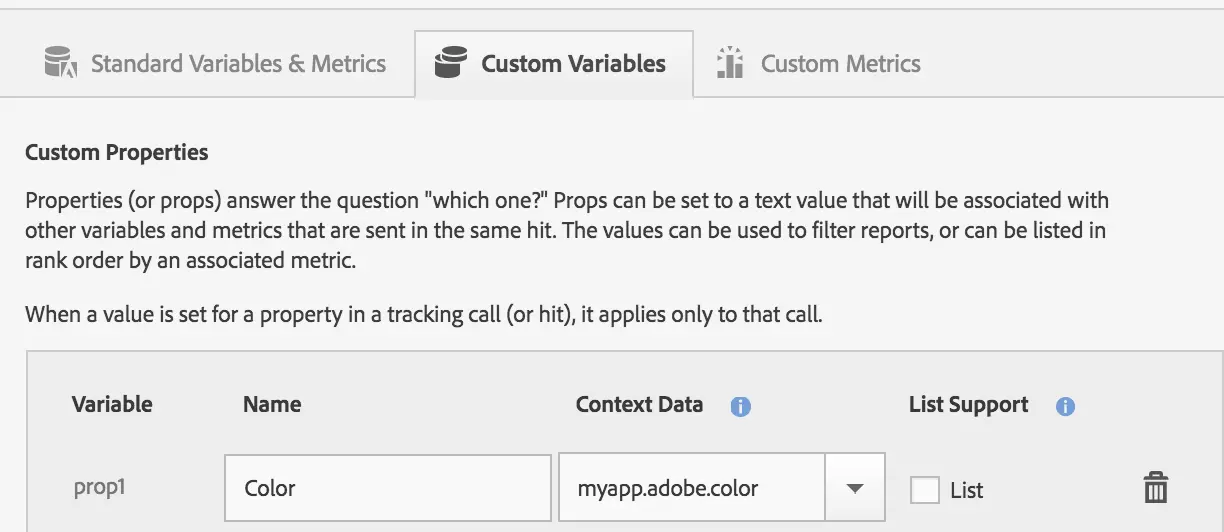
You can use the Context Data Variables settings to map Segment properties to any context data variable defined in your Adobe Analytics Mobile Services dashboard. This includes both Adobe props and eVars. You can see a list of the Adobe variable types in your Adobe Mobile Services dashboard.
Here's an example of how you would implement the same mapping in Adobe's Mobile Services Dashboard:
| Segment Payload Field | iOS Mapping Notation | Android Mapping Notation |
|---|---|---|
anonymousId | anonymousId | .anonymousId |
messageId | messageId | .messageId |
event.track() calls only | event | .event |
namescreen() calls only | name | .name |
context.traits.key | traits.key | .context.traits.key |
context.key | key | .context.key |
context.arrayKey.keyie. context.device.id | arrayKey.keyie. device.id | .context.arrayKey.key |
properties.key | key | key |
Segment implements Adobe Lifecycle Events automatically - you don't have to enable any additional settings! Lifecycle events gather important information such as app launches, crashes, session length, and more. See the list of all Adobe lifecycle metrics and dimensions to learn more.
When you make an Identify call, Segment sets the Adobe visitorId to the value of the user's Segment userId. The snippets below show what Segment does with this information, for iOS and Android.
Config.setUserIdentifier("123");
When you call screen, Segment sends an Adobe trackState event, and passes the screen name and any properties you mapped to Adobe, as context data values.
The snippets below show what Segment does with this information, for iOS and Android.
Analytics.trackState("Home Screen", <properties mapped in contextData>);
When you call track, Segment sends an Adobe trackAction event, and passes your event name and any properties you mapped to Adobe, as context data values.
The snippets below show what Segment does with this information, for iOS and Android.
Analytics.trackEvent("Clicked A Button", <properties mapped in contextData>);
Calling reset sets the user's visitorId to null. null is Adobe's default visitorId value until you explicitly set it (by calling identify). The snippets below show what Segment does in the background.
Config.setUserIdentifier(null);
Calling flush immediately sends all locally queued events to Adobe. The snippets below show what Segment sends on Android and iOS.
Analytics.sendQueuedHits();