Journeys (V2) Use Cases
Event-Triggered Journeys give you the tools to create real-time, personalized flows that react to user behavior as it happens. This page explains sample use cases to help you get started with common patterns like confirmations, abandonment campaigns, and re-engagement flows.
Each example includes a short explanation, key steps to configure, and optional sample event payloads.
Send a confirmation message immediately after a user takes a key action, like placing an order or submitting a form. This type of journey helps reinforce trust and provides instant feedback by delivering personalized messages based on event details.
This use case is ideal for transactional events that should trigger follow-up communication without delay.
- Set the journey entry condition to
Users perform an event. - Choose the event that represents the user action (for example,
Order_Confirmation). - (Optional): Add event property filters if you only want to trigger the journey under specific conditions.
- Click Build, then add a Send to Destination step to forward the event.
- Configure destination:
- Select the destination you want to send the payload to.
- Enrich the payload with profile traits or journey context as needed.
- Click Save to publish the journey.
The following example shows an Order_Confirmation event payload that could trigger this journey. You can customize the event name and properties based on your use case.
1{2"userId": "99",3"context": {},4"integrations": {},5"event": "Order_Confirmation",6"properties": {7"productId": "001",8"productName": "T-Shirt",9"productColor": "green",10"productSize": "Large",11"productPrice": "$55.34",12"event_location": "A",13"cart_ID": "123456",14"scenario": "01 Ordered Product"15}16}
Send a personalized nudge when a user starts an action (like filling out an application) but doesn't complete it within a certain time window. This type of journey helps recover drop-offs by checking for a completion event and following up only if it's missing.
This use case is ideal for flows like job applications, signups, demo requests, or onboarding forms.
- Set the journey entry condition to
Users perform an event. - Choose the event that indicates the user started the flow (for example,
Application_Started). - (Optional): Add event property filters if you only want to trigger the journey under specific conditions.
- Click Build, then add a Hold Until step.
- In the Hold Until step:
- Specify the completion event (for example,
Application_Completed) as the condition. - Set a maximum hold duration.
- Specify the completion event (for example,
- Add a Send to Destination step on the "timeout" branch to send a follow-up message.
- Configure the destination:
- Select the destination you want to send the payload to.
- Enrich the payload with profile traits or journey context as needed.
- Preview the payload that Segment will send to your destination.
- Publish the journey.
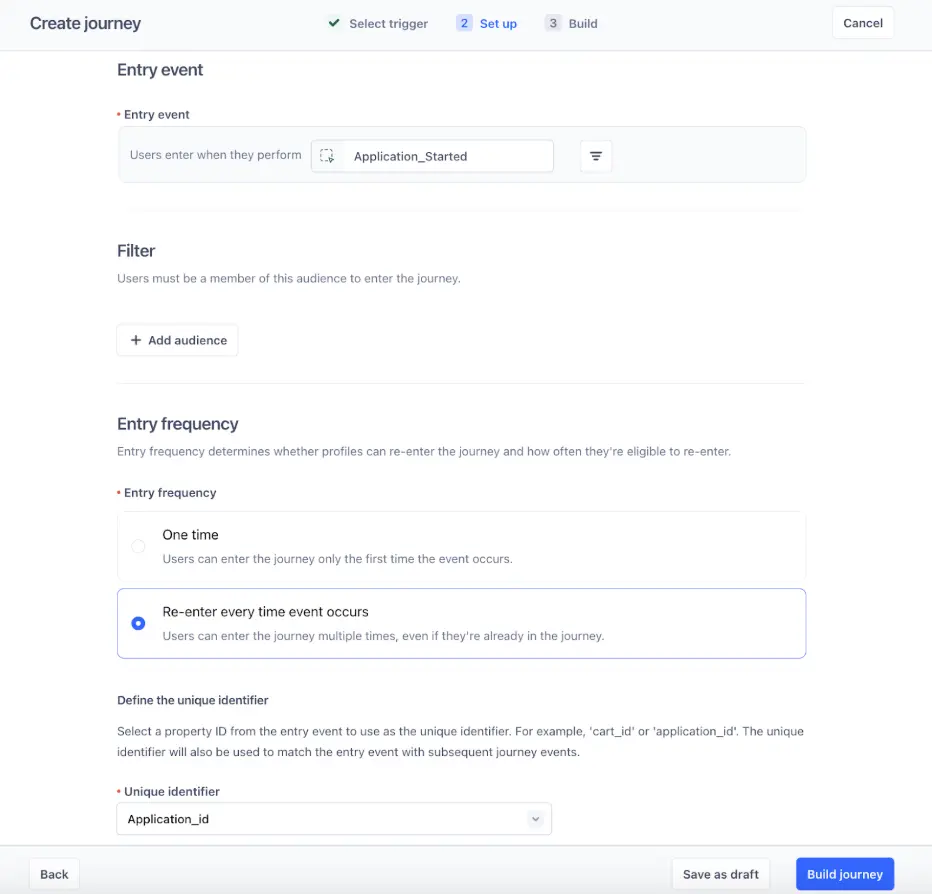
The following example shows both the entry event that starts the journey and the evaluation event that cancels the nudge if the user completes the application.
1{2"userId": "88",3"context": {},4"integrations": {},5"event": "Application_Started",6"properties": {7"Category": "A",8"Tier": "Premium",9"VIP": true,10"Application_id": "1234",11"scenario": "Trigger campaign with Application Started"12}13}
Send a personalized follow-up when a user views their cart but doesn't complete the checkout. This journey tracks whether a checkout event occurs within a short window after the cart is viewed. If it doesn't, you can send a reminder to bring them back.
This use case works well for e-commerce sites that want to reduce cart abandonment and recover potential sales.
- Set the journey entry condition to
Users perform an event. - Choose the entry event that indicates cart activity (for example,
Cart_Viewed). - (Optional): Add event property filters to narrow the scope of who enters.
- Click Build, then add a Hold Until step.
- In the Hold Until step:
- Specify
Checkout_Completedas the evaluation event. - Set a maximum hold duration based on how long you want to wait before nudging (for example, 1 hour).
- Specify
- Add a Send to Destination step on the timeout branch to send the cart reminder.
- Configure the destination:
- Select the destination you want to send the payload to.
- Enrich the payload with profile traits or journey context as needed.
- Preview the payload that Segment will send to your destination.
- Publish the journey.
The following examples show the entry and evaluation events for this journey pattern.
1{2"userId": "88",3"context": {},4"integrations": {},5"event": "Cart_Viewed",6"properties": {7"cart_ID": "123",8"scenario": "01 Simple Cart Abandonment",9"checkout_cart": [10{11"productId": "001",12"productName": "T-Shirt",13"productColor": "green",14"productSize": "Large",15"productPrice": "$55.34"16},17{18"productId": "002",19"productName": "Jeans",20"productColor": "blue",21"productSize": "Medium",22"productPrice": "$99.56"23}24]25}26}
Send a personalized reminder when a user adds items to their cart but doesn't complete checkout, even if they modify their cart along the way. This journey resets the wait timer each time the cart is updated, ensuring that follow-up messages reflect the most recent cart contents.
This use case is ideal for e-commerce journeys where users frequently change items before deciding to purchase.
- Set the journey entry condition to
Users perform an event. - Choose the entry event that indicates the cart is started (for example,
Product_Added). - (Optional): Add event property filters if needed.
- Click Build, then add a Hold Until step.
- In the Hold Until step:
- Specify
Cart_Modifiedas an update event that resets the timer and updates the journey context. - Specify
Order_Confirmationas the evaluation event that exits the user from the journey. - Set the maximum hold duration (for example, 2 hours).
- Specify
- Add a Send to Destination step on the timeout branch to send a cart reminder.
- Configure the destination:
- Select the destination you want to send the payload to.
- Enrich the payload with profile traits or journey context as needed.
- Preview the payload that Segment will send to your destination.
- Publish the journey.
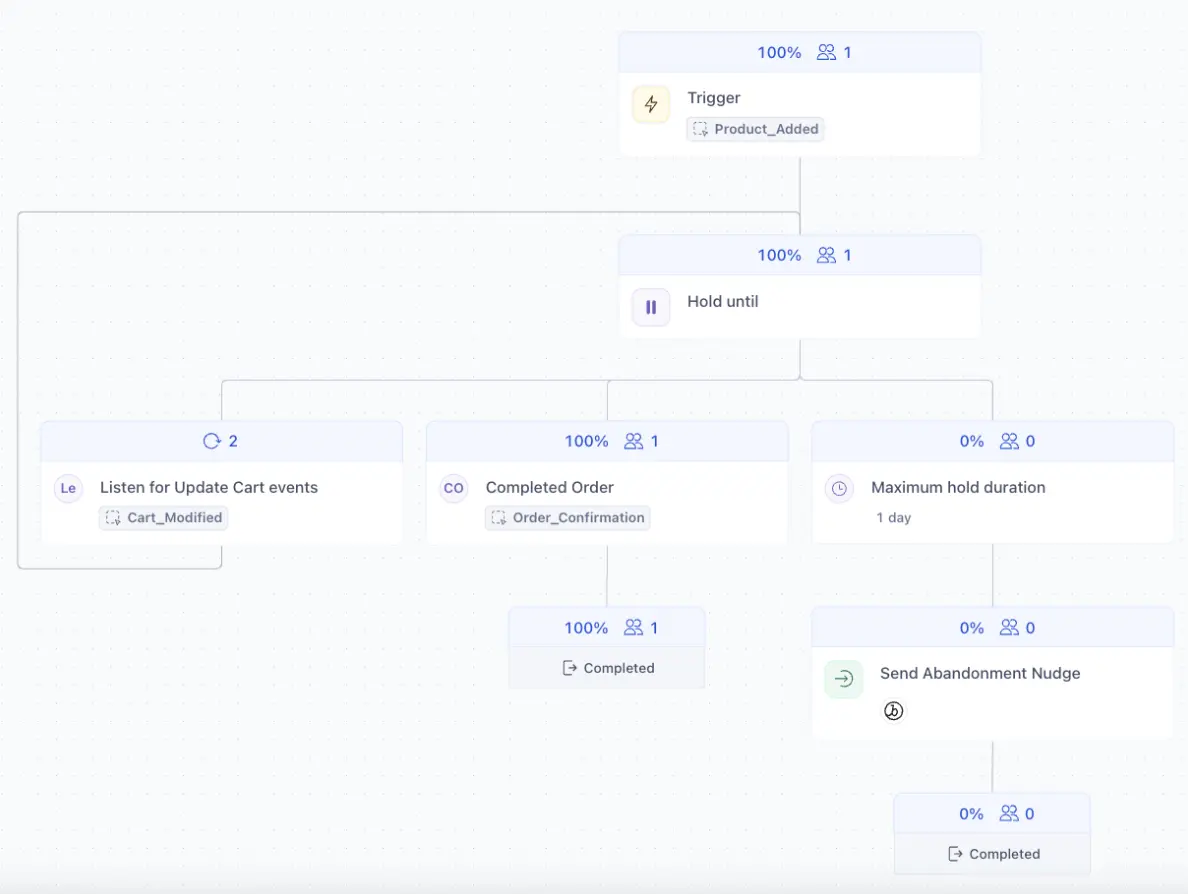
The following example shows the entry event that starts the journey, the update event that modifies the cart, and the evaluation event that would cancel the reminder.
1{2"userId": "23",3"context": {},4"integrations": {},5"event": "Product_Added",6"properties": {7"productId": "001",8"productName": "T-Shirt",9"productColor": "green",10"productSize": "Large",11"productPrice": "$55.34",12"cart_ID": "12345",13"scenario": "01 Simple Loopback Abandonment"14}15}
Send a series of personalized reminders to users who browse multiple products but don't take action, like adding an item to their cart. This journey tracks a sequence of Viewed_Product events and only exits when the user adds a product or reaches the end of the flow.
This use case is helpful for nurturing intent-based activity over time, especially for higher-consideration purchases.
- Set the journey entry condition to
Users perform an event. - Choose the entry event that represents product views (for example,
Viewed_Product). - (Optional): Add property filters to target only certain products or categories.
- Click Build, then add a Hold Until step.
- In the Hold Until step:
- Specify
Product_Addedas the evaluation event. - Set a maximum hold duration (for example, 1 hour).
- Specify
- Add a second Hold Until step to repeat the pattern:
- Again, check for
Product_Added. - Adjust the hold duration as needed.
- Again, check for
- Add a Send to Destination step at the end of the second hold duration.
- Enrich the payload with recent event data or profile traits.
- Preview the payload that Segment will send to your destination.
- Publish the journey.
The following examples show the entry and evaluation events for this flow.
1{2"userId": "26",3"context": {},4"integrations": {},5"event": "Viewed_Product",6"properties": {7"productId": "001",8"productName": "T-Shirt",9"productColor": "green",10"productSize": "Large",11"productPrice": "$55.34",12"productCategory": "A",13"session_ID": "12345",14"scenario": "01 Browse Abandonment"15}16}
Send a series of follow-up messages when a user starts a flow—like a trial—but doesn't complete a key milestone within a set timeframe. This journey uses multiple Hold Until steps to send nudges at scheduled intervals until the user takes the expected action.
This use case is ideal for trial reminders, onboarding flows, or progressive engagement campaigns.
- Set the journey entry condition to
Users perform an event. - Choose the entry event that starts the campaign (for example,
Trial_Started). - (Optional): Add property filters to narrow who enters the journey.
- Click Build, then add a Hold Until step.
- In the Hold Until step:
- Specify
Trial_Endedas the evaluation event. - Set a hold duration (for example, 3 days).
- Specify
- Add a Send to Destination step on the timeout branch to send the first reminder.
- Add another Hold Until step and repeat the same logic.
- Add a second Send to Destination step at the end of that branch.
- Preview the payloads that Segment will send to each destination.
- Publish the journey.
The following events show a user starting and (eventually) ending a trial. The re-engagement messages are only sent if the Trial_Ended event doesn't occur before the hold expires.
1{2"userId": "747",3"context": {},4"integrations": {},5"event": "Trial_Started",6"properties": {7"productId": "001",8"productName": "Basic Plan",9"productCategory": "Enterprise",10"productPrice": "$55.34",11"Account_ID": "12345",12"scenario": "01 Siemens"13}14}
Re-engage users with a personalized sequence of nudges as they move through multiple funnel stages—such as visiting the site, creating an account, starting a trial, and subscribing. This journey listens for key events at each stage, and if no progress is made within a set time, it triggers follow-ups to bring users back.
This use case is useful for SaaS products, gated onboarding flows, or any multi-step process where users drop off between key actions.
- Set the journey entry condition to
Users perform an event. - Choose the initial entry event (for example,
Website_Viewed). - (Optional): Add property filters to limit entry to specific sessions or pages.
- Click Build, then add a series of Hold Until steps for each major conversion point.
- In each Hold Until step:
- Specify the expected event (for example,
Account_Created,Trial_Started, orSubscription_Started). - Configure a fallback path using the maximum hold duration.
- Specify the expected event (for example,
- On the timeout branch of each Hold Until step, add a Send to Destination step to send a reminder.
- After each message, optionally add another Hold Until step to check for the next milestone.
- Preview the payloads that Segment will send to your destinations.
- Publish the journey.
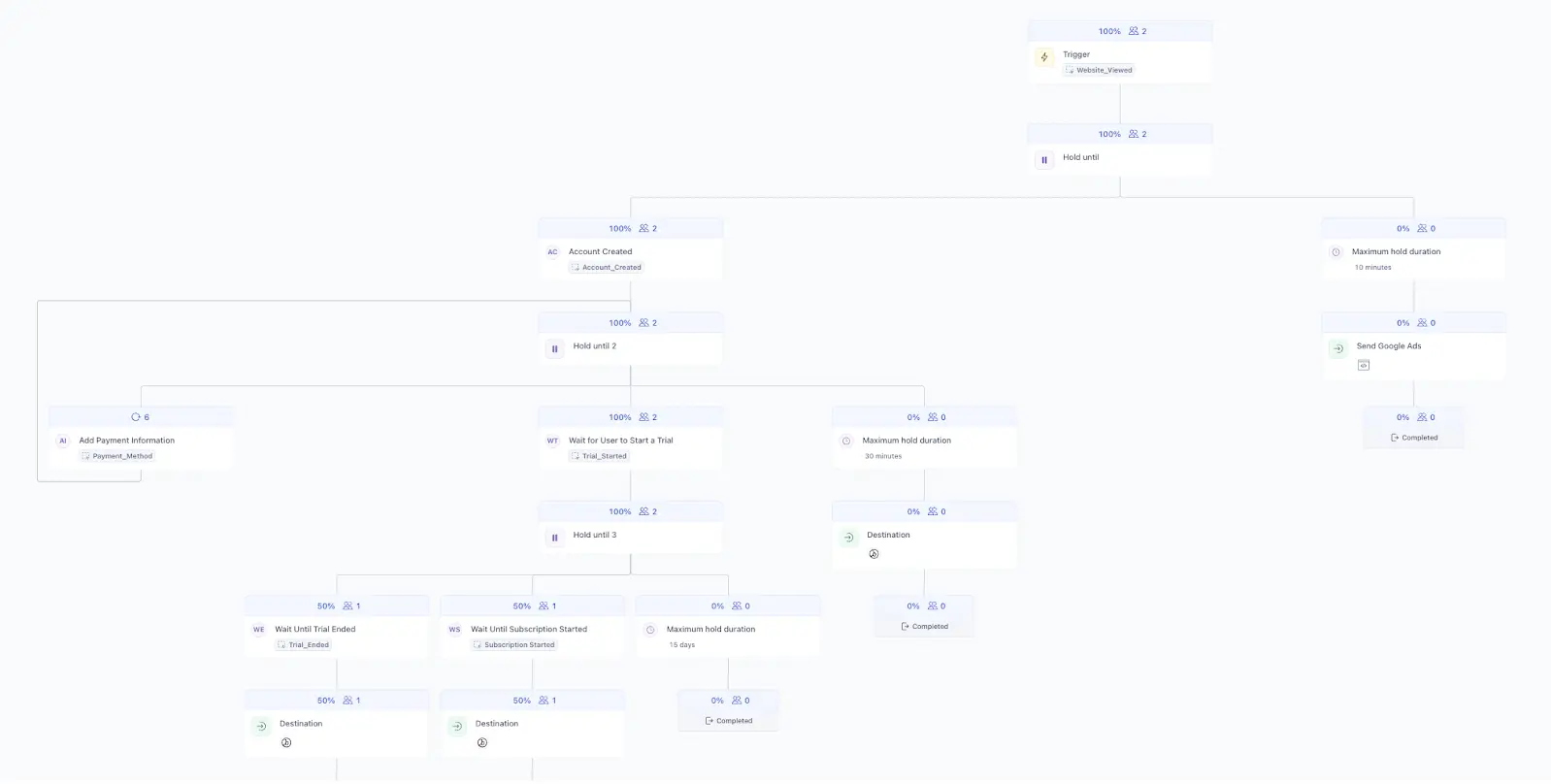
These examples show key moments in the journey, from entry to conversion milestones. Each Hold Until step corresponds to one of these events.
1{2"userId": "999",3"context": {},4"integrations": {},5"event": "Website_Viewed",6"properties": {7"pageViewed": "Home",8"path": "site/home",9"sessionID": "12345",10"scenario": "01 Complex Multi-step"11}12}