Using Linked Audiences with Iterable
This is a beta feature
This feature is in active development and might change before general availability.
Linked Audiences lets you dynamically personalize email messages in Iterable using the predefined traits of any Linked Audience profile and the attributes of any entities used to match the profile into the audience.
The following engagement tools are available for use with Linked Audiences in Segment:
| Type | Description |
|---|---|
| Journey Campaign | Trigger a single-step campaign when you add a specific custom event to a user profile in Iterable. Dynamically personalize the campaign with rich entity context. |
Segment sends data from your Linked Audiences to actions-based destinations. For example, you could send account information for the audience profiles with past due accounts to an email platform.
You can configure multiple triggers per audience (for example, one for account entry, and one for account exit).
| Segment Destination Action | How does it work? | How does Iterable store the data? | Iterable API Endpoint |
|---|---|---|---|
| Custom Event | Segment sends personalization payload information into Iterable as Iterable custom events. The entity personalization payload is contained in the dataFields parameter within API calls. | Custom event properties | Track an event |
| Upsert User | Segment sends personalization payloads into Iterable as Iterable user profiles. The entity personalization payload is contained in the datafields parameter in API calls. | User profile fields | Update user data |
Iterable Journey Campaigns store the entity personalization payload as event properties in custom events.
Note: Using custom events can impact your Iterable billing.
In Segment, make sure you have:
- Set up your Linked Audience.
- A copy of your Linked Audience event name and Iterable user id.
- Set up Iterable as an actions destination.
- Set up a Custom Event destination action and the relevant trigger using the Linked Audiences workflow.
In Iterable, make sure you have:
- Permissions to access the application, or access to someone who has permissions.
- Created all Segment profiles as Iterables profiles using the Upsert User destination action through Connections or Reverse ETL. This is a requirement for them to receive a campaign triggered by a custom event.
- Review the custom event payload schema from your Segment Linked Audiences test event so you know what properties to include in your message personalization. You can do this by accessing the user's profile and clicking into their event history to see the specific properties.
- Created an Iterable profile, for campaign testing, with an email address you can access.
- Familiarity with the Handlebars templating syntax to manually type out the code using dot notation.
To use Linked Audiences you must set up a Journey campaign in Iterable.
In Iterable, do the following:
- Create a Journey and in the Start tile select the Entry source as Event Occurs, then choose Entry type = Custom event. Search and choose the name of the Segment custom event you previously set up and tested in Segment.
- Add an Email Message tile, create your campaign, and connect it to your Start Tile.
- Edit the content in your email:
- Under Design, choose either the WYSIWYG Editor or the Side by Side Editor.
- Reference your Segment custom event payload schema in Iterable to determine what properties to include in your message. You can do this by accessing the user's profile and clicking into their event history (Events > History > Details).
- Translate the event properties in the payload schema into Handlebars syntax for custom events, and enter it in the HTML editor in Iterable. See the personalization examples below for more specific details.
- Choose any additional settings that apply and review and publish your journey. Then continue on to Test your campaign flow in Segment.
- Open the Segment app and send yourself a test email for review. Add your Iterable user id and click Send test event to destination. Review the email you received, and make sure it is formatted properly.
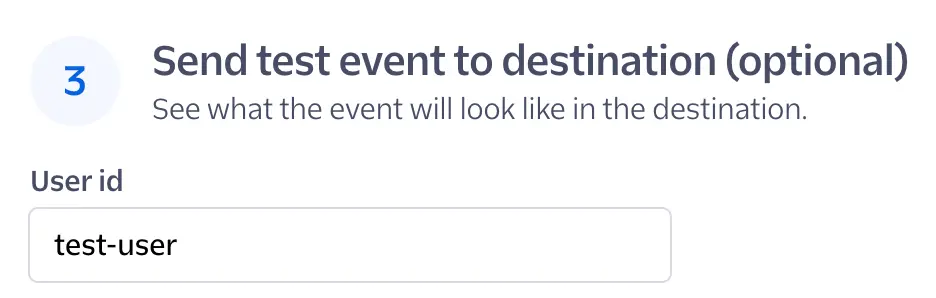
If the event is sent successfully to Iterable, you will see a "message": "success" response in Segment.
- Open Iterable and check the Campaign tab in Messaging Insights (Insights > Messaging Insights > Campaigns > [Your Unique Campaign]) to confirm that Iterable has sent the message.
- If your email doesn't look the way you want it to, adjust the Handlebars syntax in Iterable, and send another test event. See the following personalization examples for more specific details.
- When you're finished testing your campaign, proceed to Enable your Linked Audience.
These examples show how to translate a Linked Audiences payload into Handlebars syntax for your Iterable campaign.
The following is an example of what your payload data might look like with nested payload properties:
1{2"event": "abandoned_carts_linked_audience",3"properties": {4"first_name": "Andrew",5"last_name": "Shopper",6"shopping_cart__id": "123",7"shopping_cart__products": [8{9"id": "324",10"product_name": "Premium Tennis Shoes",11"product_price": "$140",12"__entity": "product"13},14{15"id": "489",16"product_name": "Premium Jacket",17"product_price": "$200",18"__entity": "product"19}20],21"__entity": "cart"22}23}
The following helps translate your payload data into Handlebars syntax:
- To reference a specific event property:
- Use the following Handlebars syntax:
{{event_property_name}} - An example of this property might look like:
{{first_name}}
- Use the following Handlebars syntax:
- To reference nested event properties within an Array:
- Use the following Handlebars syntax:
{{event_property_name.[#_that_represents_specific_entry_in_array].nested_event_property_name}} - An example of this property might look like:
{{shopping_cart__products[0].product_name}}
- Use the following Handlebars syntax:
You can read more on how to reference event properties and nested properties in Handlebars.
Use the Segment custom event payload schema to build an abandoned cart email campaign that includes specific information for the product in a customer's shopping cart.
When an email is sent, it lists the specific product and its related price in your customer's shopping cart. It might look like the following screenshot:
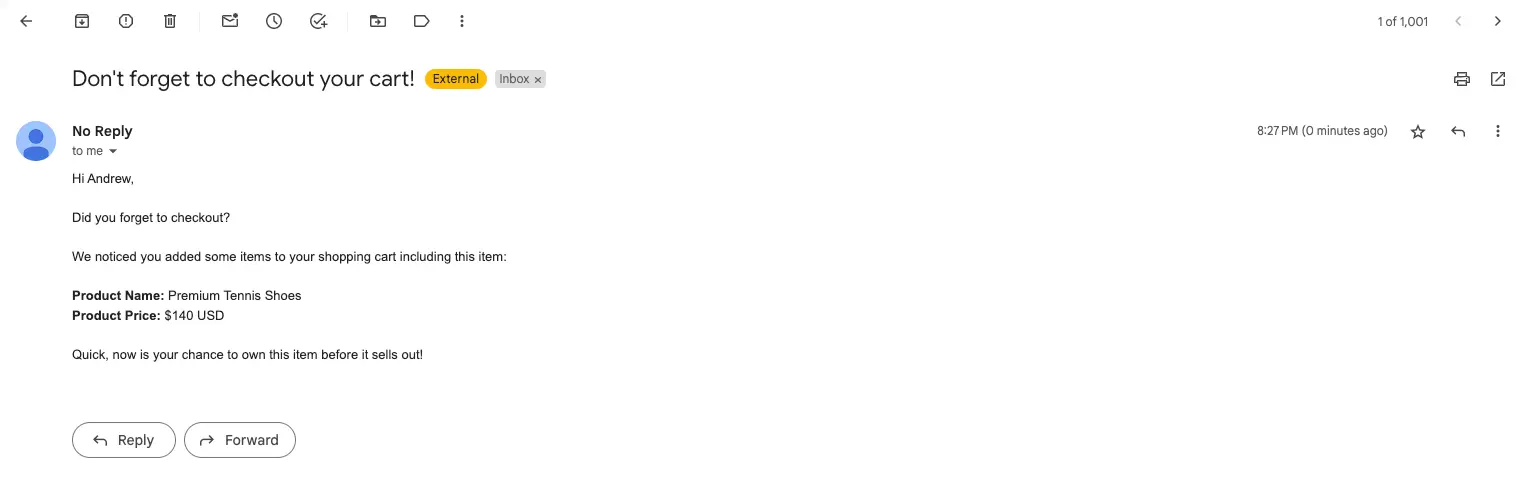
This is an example of what your email using HTML and Handlebars syntax might look like in Iterable:
1Hi {{first_name}},2<br />3<br />4Did you forget to checkout?<br />5<br />6We noticed you added some items to your shopping cart including this item: <br />7<br />8<b>Product Name: </b>9{{shopping_cart__products.[0].product_name}}10<br />11<b>Product Price: </b>12{{shopping_cart__products.[0].product_price}} USD13<br />14<br />1516Quick, now is your chance to own this item before it sells out!17
Use the Segment custom event payload schema to build an abandoned cart email campaign where you can use the #each block helper to run a block of code repeatedly. In this example, you can list all of the products and their related prices in a customer's shopping cart.
When an email is sent, it lists all of the products and their related prices in your customer's shopping cart. It might look like the following screenshot:
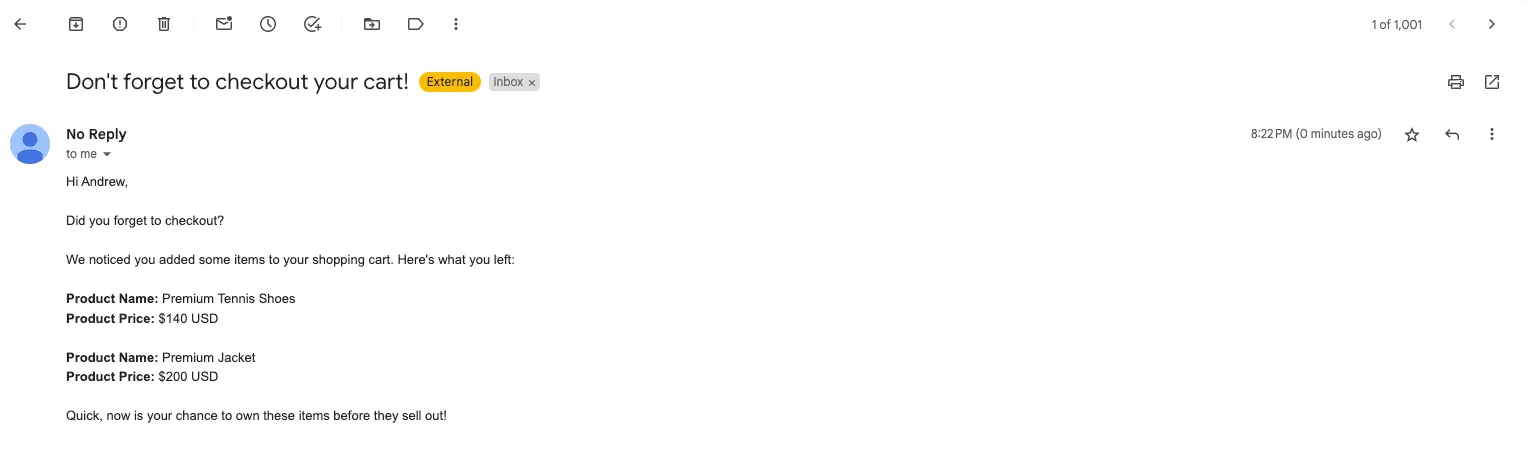
This is an example of what your email using HTML and Handlebars syntax might look like in Iterable:
1Hi {{first_name}},2<br />3<br />4Did you forget to checkout?<br />5<br />6We noticed you added some items to your shopping cart. Here's what you left: <br />7<br />89{{#each shopping_cart__products}}10<b>Product Name: </b>11{{product_name}}12<br />13<b>Product Price: </b>14{{product_price}} USD15<br />16<br />1718{{/each}}1920Quick, now is your chance to own these items before they sell out!