Subscription Groups
Engage Premier End of Life
Engage Premier features, including Channels, Broadcasts, content templates, and Subscriptions, will no longer be available after December 15, 2025.
Subscription groups let your users choose the emails they want to receive from you. This page introduces subscription groups and explains how you can use them with Engage email campaigns.
A subscription group lets you send email campaigns to specific groups of users. Subscription groups also give your customers the ability to manage their email preferences, ensuring they only get emails they want to receive.
For example, you may want to create a subscription group that will receive only promotional email campaigns. Should a customer decide to opt out of your promotional campaigns, they'll still be able to receive email campaigns from other subscription groups you've created and to which they've subscribed.
With subscription groups, your customers can opt in and out of groups on an individual basis instead of unsubscribing from all your campaigns.
Your customers will have the chance to opt in and out of subscription groups on both a subscription preferences page and on the landing page that launches when they unsubscribe.
Customers can access these pages through the unsubscribe and manage preference links that you include in your email templates.
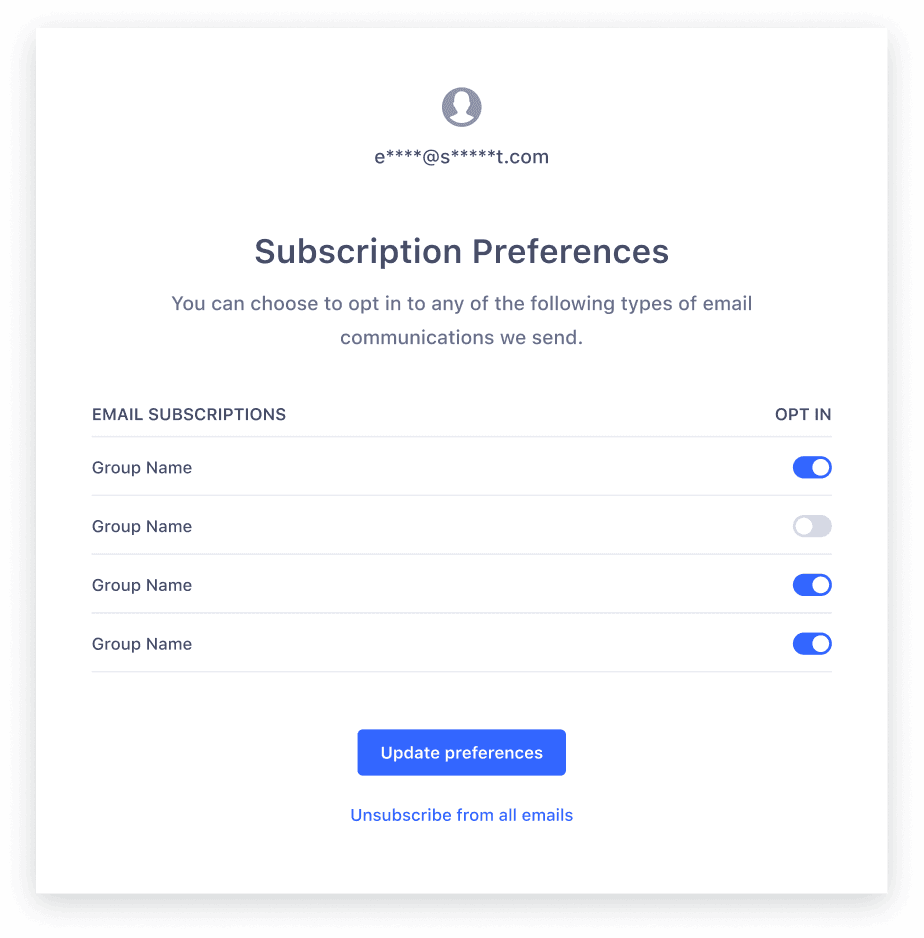
To use a subscription group, you'll need to first create the group, add subscribers, then create a new email template.
Follow these steps to create a subscription group:
- Navigate to Engage > Engage settings > Subscriptions.
- Click +Create subscription group.
- Add a name and description for the group, then click Next.
- (Optional:) Add subscribers to your group with a CSV file upload, then click Next.
- Review your new subscription group, then click Create Subscription Group.
In addition to adding group subscribers when you first create a subscription group, you can also add subscribers to existing groups with a CSV file upload with these steps:
- Navigate to Engage > Engage settings > Subscriptions.
- From the Subscription groups table, select the more options icon, then click Add group subscribers.
- Download the template CSV file, then fill it out by entering email addresses and subscription groups. The subscription group should follow the format
[group_name]_subscription_status. - Upload the CSV file, then click Add Subscribers.
The following table lists validation errors you may run into with your CSV upload:
| Error | Error Message |
|---|---|
| Invalid file types | You can upload only .csv files. Change your file format, then try again. |
| Empty files | This file contains no data. Add data to your CSV, then try again. |
| CSV parsing error | We encountered an issue while parsing your CSV file. Validate the CSV file and try again. |
| Unexpected/fallback | Something went wrong. Try again later. |
| Empty header row | This file contains empty header(s). Remove the empty header(s), then try again. |
| File exceeds one million rows | Too many rows. You can upload up to 1000000 rows. |
| File exceeds 100 MB | Files can be up to 100 MB. |
| Extraneous columns/column name typos | This file has columns that do not match the identifiers in your identity resolution configuration. |
Use the Update History page to view CSV file uploads in your workspace over the last 30 days.
To view the Update History page:
- Navigate to Unify > Profile explorer or Engage > Engage settings > Subscriptions.
- From the Subscription groups table, click the three dots icon, then click View update history.
- From the Upload history table, click the file name link to download the error reports.
Engage uses the following error codes on the report:
| Error code | Description |
|---|---|
| INVALID_EMAIL | The email address isn't formatted correctly. |
| INVALID_PHONE | The phone number is invalid. |
| INVALID_SUBSCRIPTION_STATUS | The subscription status is invalid. Check the status or leave it blank. |
| CONFIGURATION_ERROR | Your SendGrid settings are not configured correctly. Contact Segment support for help. |
| SYSTEM_ERROR | Something went wrong. Please try again. |
| UNABLE_TO_SUBSCRIBE | You can't update the subscription status for this phone number because the user unsubscribed by replying STOP. The user must reply START to resubscribe. |
| GLOBAL_STATE_NOT_SUBSCRIBED | Global state isn't subscribed or set, so Segment can't update subscription states. |
Please note the following limits as you upload CSV files to Twilio Engage:
- You can only upload .csv files.
- Files can't be empty and must have at least one header and one row.
- You can't have multiple columns with the same header.
- Upload CSV files with up to 1 million rows (plus one header row).
- You can only upload one file at a time.
- The CSV file size can't exceed 100 MB.
- If you upload the same email or phone number with different subscription states in a single CSV file, Engage doesn't guarantee the subscription status result.
- The
phoneandemailidentifiers must be valid phone numbers and email addresses, otherwise they'll process as errors. - The subscription group CSV uploader only honors group subscriptions, so
sms_subscription_status,whatsapp_subscription_status, andemail_subscription_statusaren't allowed. - Other than
[group_name]_subscription_status, you should set up all columns in your identity resolution configuration.
Info
To use subscription groups, you'll need to create a new email template with new unsubscribe and manage preference links.
Once you've created a subscription group and added subscribers to it, follow these steps to send to the group:
- Build a new email template. The template should include both unsubscribe and manage preferences links. For more on special links, view Add unsubscribe links.
- During email setup, select the subscription group you want to send to from the Which subscription states should receive this message? dropdown, then finish setting up and publishing your campaign.
Segment supports subscription groups for email. You can send statuses for email subscription groups using the Identify call.
To set susbcription groups with the Identify call, you'll need to include a key-value pair of "type": "EMAIL" and the groups object, like in the following sample payload:
1{2"userId": "12aBCDeFg4hIjKlM5OPq67RS8Tu",3"context": {4"messaging_subscriptions": [5{6"key": "(123) 555-5555",7"type": "SMS",8"status": "SUBSCRIBED" | "UNSUBSCRIBED" | "DID_NOT_SUBSCRIBE"9},10{11"key": "(123) 555-5555",12"type": "WhatsApp",13"status": "SUBSCRIBED" | "UNSUBSCRIBED" | "DID_NOT_SUBSCRIBE"14},15{16"key": "test@example.com",17"type": "EMAIL",18"status": "SUBSCRIBED" | "UNSUBSCRIBED" | "DID_NOT_SUBSCRIBE",19"groups": [20{21"name": "newsletter",22"status": "SUBSCRIBED" | "UNSUBSCRIBED" | "DID_NOT_SUBSCRIBE"23},24{25"name": "marketing updates",26"status": "SUBSCRIBED" | "UNSUBSCRIBED" | "DID_NOT_SUBSCRIBE"27}28]29}30],31"externalIds": [32{33"id": "(123) 555-5555",34"type": "phone",35"collection": "users",36"encoding": "none"37}38],39"traits": {40"email": "test@example.com"41}42},43"integrations": {},44"traits": {}45}
Your Engage space includes up to 25 subscription groups.
No. Templates you've previously created aren't compatible with subscription groups. To use subscription groups, you'll need to create new templates that include new unsubscribe and manage preference links.
If you delete a subscription group, Engage will still maintain the preferences of the group's end users.
The Engage Events Source tracks four subscription group events: Email Unsubscribed, Email Group Unsubscribed, Channel Subscription Updated, and Group Subscription Updated.
If a user unsubscribes from all of your subscription groups, they'll need to re-subscribe by explicitly opting back in to each group.
Yes. Test emails include fully functional unsubscribe and subscription preference links. If a test email recipient unsubscribes using a test email, Segment updates that user's subscription state.
Test emails temporarily override an email subscription state. This means that an unsubscribed email address can receive a test email but won't receive regular email campaigns from which they've unsubscribed.
Yes. Keep the following table in mind when you name a subscription group:
| Field | Convention |
|---|---|
| Group Name Character Limit | Limited to 75 characters, including spaces |
| Group Description Character Limit | Limited to 500 characters, including spaces |
| Spaces in Group Names | Spaces aren't allowed at the beginning and/or end of the Group name |
| Unsupported characters for Group Names | !@#$%^&*()_+\-=\[\]{};':"|,.<>\/? |
| Unsupported accent characters for Group Names | á, é, í, ó, ú, à, è, ì, ò, ù, ë, ï, ã |