Determine carrier, phone number type, and caller info
Twilio Lookup lets you get information about phone numbers programmatically. This information can include the name of the phone number's carrier, its line type (landline, mobile, Voice over IP (VoIP), and others), and the name of the caller.
This data helps you make your applications dynamic and able to handle different carriers. The following examples illustrate a small sample of what Lookup can enable in Twilio Functions.
To get started, use the following instructions to create a Function to host your code.
Before you run any of the examples on this page, create a Function and paste the example code into it. You can create a Function in the Twilio Console or by using the Serverless Toolkit.
If you prefer a UI-driven approach, complete these steps in the Twilio Console:
- Log in to the Twilio Console and navigate to Builder tools > Functions & Assets. If you're using the legacy Console, open the Functions tab.
- Functions are contained within Services. Click Create Service to create a new Service.
- Click Add + and select Add Function from the dropdown.
- The Console creates a new protected Function that you can rename. The filename becomes the URL path of the Function.
- Copy one of the example code snippets from this page and paste the code into your newly created Function. You can switch examples by using the dropdown menu in the code rail.
- Click Save.
- Click Deploy All to build and deploy the Function. After deployment, you can access your Function at
https://<service-name>-<random-characters>-<optional-domain-suffix>.twil.io/<function-path>
For example:test-function-3548.twil.io/hello-world.
You can now invoke your Function with HTTP requests, configure it as the webhook for a Twilio phone number, call it from a Twilio Studio Run Function Widget, and more.
The core functionality of Lookup is determining the carrier and type of a phone number. For example, the following Function code returns true for incoming calls from landline or mobile callers, and false for calls from VoIP callers. An application could use this information to filter out unsupported call types in a Studio Flow if called by a Run Function widget, or simply called as a REST API by your application.
1exports.handler = async (context, event, callback) => {2// The pre-initialized Twilio client is available from the `context` object3const client = context.getTwilioClient();45// Grab the incoming phone number from a call/message webhook via event.From6// If invoked by a REST API call or Studio Run Function widget, it may be a7// parameter such as phoneNumber8// Example: https://x.x.x.x/<path>?phoneNumber=%2b151055501009const phoneNumber = event.From || event.phoneNumber || '+15105550100';1011try {12// Discover the phone number's carrier and type using the Lookup API with13// the `type: 'carrier'` argument14const result = await client.lookups15.phoneNumbers(phoneNumber)16.fetch({ type: 'carrier' });1718console.log('Carrier name: ', result.carrier.name);19// 'Carrier name: AT&T'20console.log('Carrier type: ', result.carrier.type);21// 'Carrier type: mobile'2223// Reject calls from VoIP numbers, and allow all others24return callback(null, result.carrier.type !== 'voip');25} catch (error) {26console.error(error);27return callback(error, null);28}29};
Lookup can also retrieve the name of the individual or business associated with a phone number. Expanding on the previous example, convert the type argument to an array, and add 'caller-name' after 'carrier'.
If available, the response will include a name for the phone number and whether the name is for a business or consumer.
Warning
Keep in mind that not all numbers will have names available.
You can then use this information to adjust application logic, format responses to use names to add personalization, and more.
For this example, the code attempts to format the caller's name and use it in a response, falling back to referencing the carrier name if the caller's name isn't accessible. To test this code out, paste the code into your existing Function, and set it as the A Call Comes In webhook handler for the Twilio phone number you wish to test. The following instructions will show you how to do so.
1// lodash is a default dependency for deployed Functions, so it can be imported2// with no changes on your end3const { startCase } = require('lodash');45exports.handler = async (context, event, callback) => {6// The pre-initialized Twilio client is available from the `context` object7const client = context.getTwilioClient();89// Grab the incoming phone number from a call webhook via event.From10const phoneNumber = event.From;1112try {13// Create a new voice response object14const twiml = new Twilio.twiml.VoiceResponse();15// Discover the phone number's name (if possible) by converting type16// to an array and appending 'caller-name' to the type argument17const result = await client.lookups18.phoneNumbers(phoneNumber)19.fetch({ type: ['carrier', 'caller-name'] });2021console.log('Carrier name: ', result.carrier.name);22// 'Carrier name: AT&T'23console.log('Carrier type: ', result.carrier.type);24// 'Carrier type: mobile'25console.log('Caller name: ', result.callerName.caller_name);26// 'Caller name: DOE,JOHN'27console.log('Caller type: ', result.callerName.caller_type);28// Caller type: CONSUMER'2930if (result.callerName.caller_name) {31// Attempt to nicely format the users name in a response, if it exists32const [lastName, firstName] = result.callerName.caller_name33.toLowerCase()34.split(',');35const properName = startCase(`${firstName} ${lastName}`);36twiml.say(`Great to hear from you, ${properName}!`);37} else {38// If we don't have a name, fallback to reference the carrier instead39twiml.say(`We love hearing from ${result.carrier.name} customers!`);40}4142return callback(null, twiml);43} catch (error) {44console.error(error);45return callback(error, null);46}47};
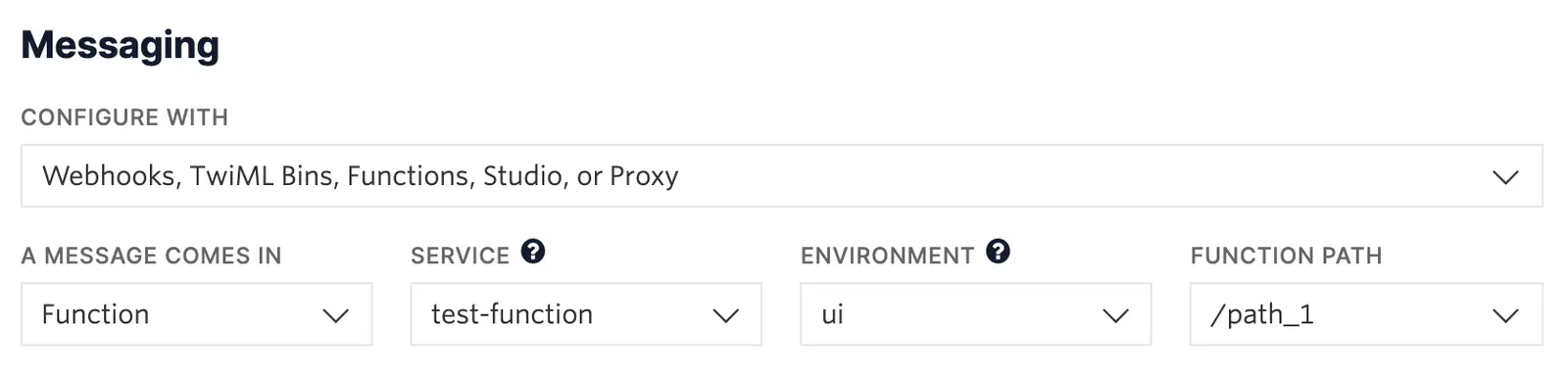
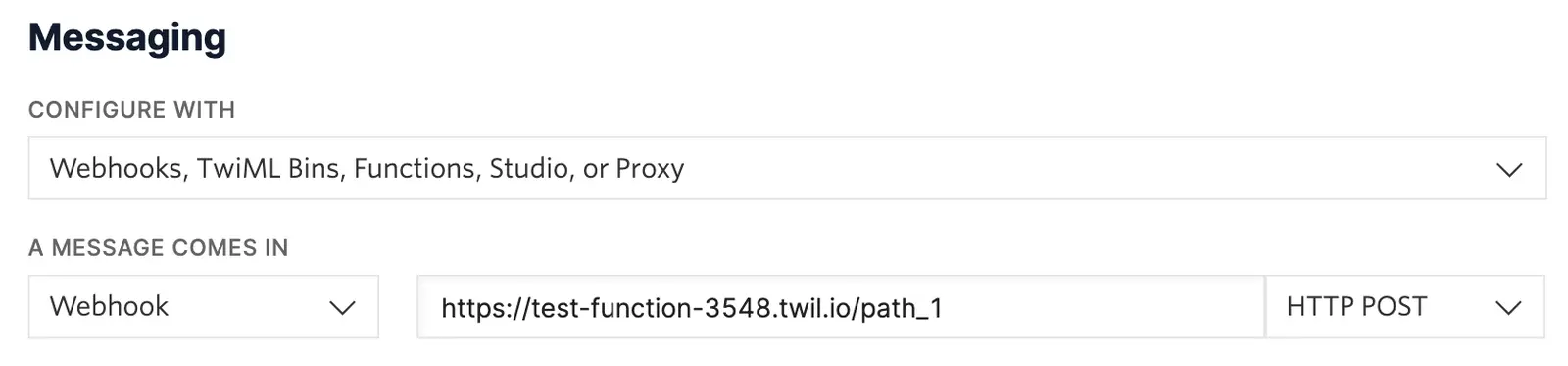
For your Function to react to incoming SMS or voice calls, it must be set as a webhook for your Twilio number. There are a variety of methods to set a Function as a webhook:
Use the Twilio Console UI to connect your Function as a webhook:
- Go to Communications > Numbers & senders > Overview.
- Select the phone number you'd like to connect to your Function.
- Go to the Configuration Details tab.
- To configure Messaging, choose Edit details in the Messaging section.
- To configure Voice calls, choose Edit details in the Voice and emergency calling section.
- Select the webhook method and provide your webhook URL. Select an HTTP method to handle responses.
- Optional: Configure a secondary webhook in case the primary webhook fails.
- Click the Save button.