OAuth apps
OAuth apps enable OAuth 2.0 authorization for Twilio APIs using the client credentials grant type defined in RFC 6749, section 4.4. This grant type is designed for machine-to-machine (server-to-server) interactions, such as backend services, where an application authenticates directly with another application rather than on behalf of a user.
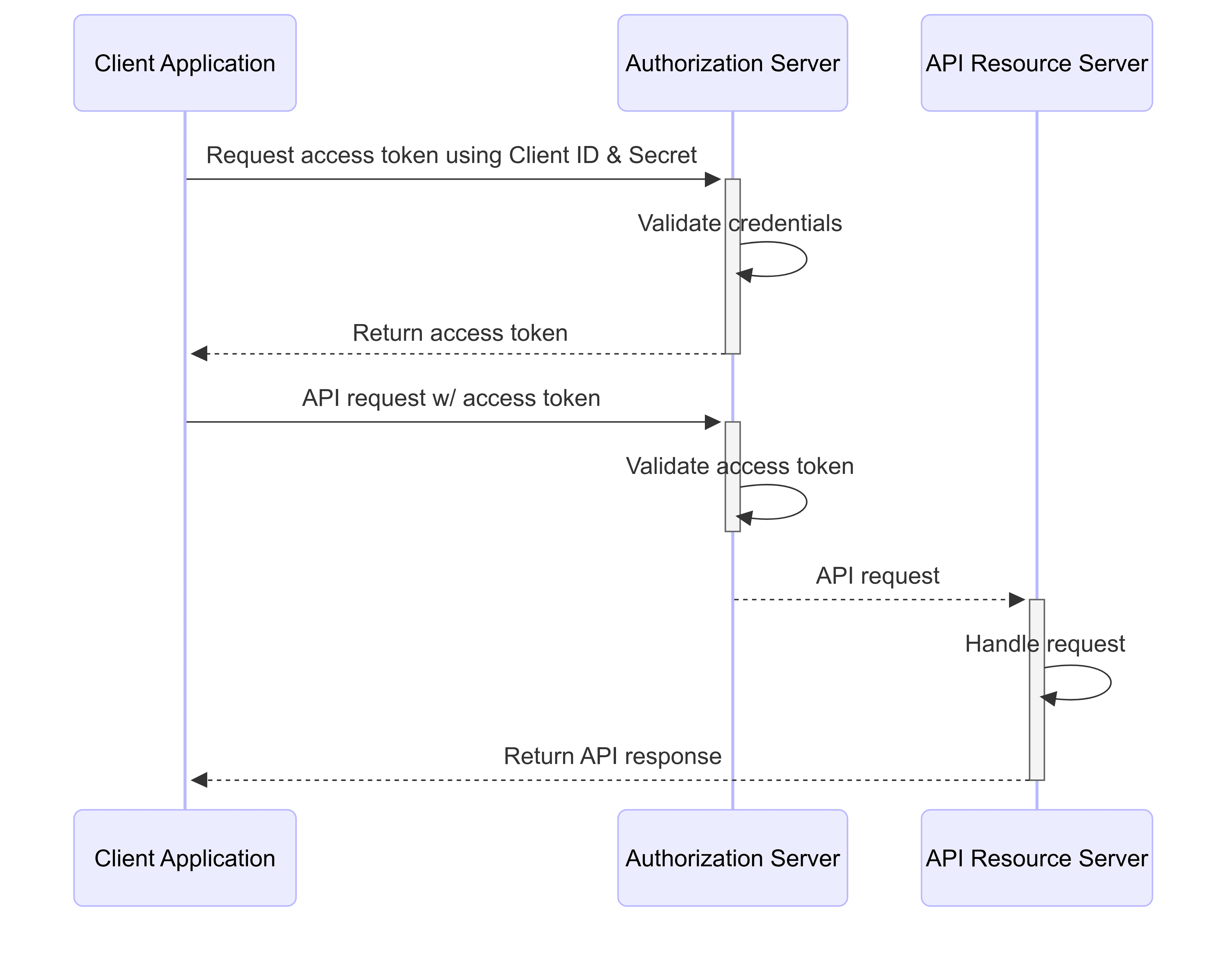
You can create OAuth apps directly in the Twilio Console. When you create an OAuth app, Twilio automatically generates a Client ID and Client Secret for that app. Next, use these credentials to request an access token from the Twilio OAuth token endpoint. After you obtain an access token, you can authenticate calls to Twilio APIs . The sequence diagram below illustrates this client credentials flow.
Here are the key benefits of using OAuth Apps:
- Using OAuth credentials short lived access tokens are generated. Right now the expiry is fixed at 1 hr.
- Access tokens are scoped and have restricted access to only some APIs.
Note
OAuth apps currently do not support the Authorization Code grant type, which is used for third-party delegated access scenarios. For third-party delegated access, use Twilio Connect instead.
- Log in to Twilio Console and navigate Settings > Organization settings > Organization API access.
- Click Create OAuth application.
- On the Application details page, select the grant type and enter the application details:
- Application name
- Application description
- Company name
- Images for the application
- Homepage URL
- Terms of service URL
- Redirect URL
- On the Scopes & permissions page, select the scopes and permission you want to include in the OAuth application.
- On the Copy secret page, copy the credentials and store them somewhere secure.
- Select the Got it! checkbox and click Finish.
To generate the access token, use the Token API.
- Log in to Twilio Console and navigate to Settings > Organization settings > Organization API access.
- Click on the OAuth app name you want to view or update.
- To update the app details, on the Application details tab, click Edit application details and update the details, then click Save.
- To update OAuth scopes, on the Access settings tab, update the scopes, then click Save.
- Log in to Twilio Console and navigate to Settings > Organization settings > Organization API access.
- Click on the OAuth app name you want to rotate secret for.
- On the Credentials tab, click Rotate secret, then click Yes, rotate secret on the confirmation pop-up.
- Copy the new credentials and store them somewhere secure.
- Select the Got it! checkbox and click Done.
Note
When a secret is rotated, the old secret remains valid for 24 hours before becoming inactive.
- Log in to Twilio Console and navigate to Settings > Organization settings > Organization API access.
- In the Action column of the OAuth app you want to delete, click Delete.
- In the pop-up, click Delete.
Audit Events can be viewed from Twilio Console under Monitor-> Insights -> Audit. There are 4 Audit Events related to OAuth apps:
- oauth-apps.created: This event is triggered when an oauth-app is created.
- oauth-apps.updated: This event is triggered every time an oauth-app is updated.
- oauth-apps.deleted: This event is triggered every time an oauth-app is deleted.
- oauth-apps.secret-rotated: This event is triggered every time the client secret of an OAuth app is rotated.
Warning
An OAuth app has a limit of 100 scopes/permissions that can be associated with it.
Each permission maps to one or more endpoints/actions for each API Resource. To download a PDF of the permissions/endpoint actions, click one of the links below:
- Messaging Permissions
- Phone Numbers Permissions
- Studio Permissions
- TaskRouter Permissions
- Voice Permissions
- Lookup Permissions
- Identity and Access Management (IAM) Permissions
- Monitor Permissions
- Verify Permissions
- Video Permissions
- Event Streams Permissions
- Usage Records Permissions
- Serverless Permissions