Time of day routing with Functions
A common use case for Functions is implementing time of day routing in your application. For example, you can vary your application's response to incoming calls based on what time and day a customer is calling, or which path to take in an IVR built with Twilio Studio.
Before getting deeper into the example, first create a Service and Function so that you have a place to write and test your Function code.
Before you run any of the examples on this page, create a Function and paste the example code into it. You can create a Function in the Twilio Console or by using the Serverless Toolkit.
If you prefer a UI-driven approach, complete these steps in the Twilio Console:
- Log in to the Twilio Console and navigate to Builder tools > Functions & Assets. If you're using the legacy Console, open the Functions tab.
- Functions are contained within Services. Click Create Service to create a new Service.
- Click Add + and select Add Function from the dropdown.
- The Console creates a new protected Function that you can rename. The filename becomes the URL path of the Function.
- Copy one of the example code snippets from this page and paste the code into your newly created Function. You can switch examples by using the dropdown menu in the code rail.
- Click Save.
- Click Deploy All to build and deploy the Function. After deployment, you can access your Function at
https://<service-name>-<random-characters>-<optional-domain-suffix>.twil.io/<function-path>
For example:test-function-3548.twil.io/hello-world.
You can now invoke your Function with HTTP requests, configure it as the webhook for a Twilio phone number, call it from a Twilio Studio Run Function Widget, and more.
One potential implementation is to simply respond to callers with a different message depending on the day and time that they are calling. Suppose your business is located on the East coast of the US, and has hours 9am-5pm, Monday-Friday. Calls on those days and between those hours should receive a response indicating that the business is open, while calls on the weekend or outside of business hours should receive a closed message.
This can be accomplished purely by leveraging built-in JavaScript methods, courtesy of the Internationalization API's Intl.DateTimeFormat object. By providing the specific timeZone of your business in the accepted tz format, you can derive the current day and time, and perform any necessary logic to determine your response.
To test this code out, paste the code into the Function that you just created earlier, and set it as the A Call Comes In webhook handler for the Twilio phone number you wish to test. The following instructions will show you how to do so.
Warning
Remember that methods such as new Date() return the local time of the machine that your deployed code is being executed on, not your local time. Functions are typically executing in the UTC time zone. This is why all examples are using Intl.DateTimeFormat instead of just the Date object directly.
Info
We highly recommend using built-in objects such as Intl.DateTimeFormat to implement your application logic, or the date-fns library if you need more robust date utilities.
Moment.js is end of life and should not be used for handling time zone shifts, formatting, etc.
1exports.handler = (context, event, callback) => {2// Create a new voice response object3const twiml = new Twilio.twiml.VoiceResponse();4// Grab the current date and time. Note that this is the local time where the5// Function is being executed, not necessarily the time zone of your business!6const now = new Date();7// Print the timezone of the instance that's running this code8const functionTz = Intl.DateTimeFormat().resolvedOptions().timeZone;9console.log(`This Function is being executed in the ${functionTz} time zone`);10// You should see: 'This Function is being executed in the UTC time zone'1112// Configure Intl.DateTimeFormat to return a date in the specified13// time zone and in this format for parsing, for example: 'Monday, 18'14const formatOptions = {15hour: 'numeric',16hour12: false,17weekday: 'long',18timeZone: 'America/New_York',19};20const formatter = new Intl.DateTimeFormat('en-US', formatOptions);2122// Get the current time and day of the week for your specific time zone23const formattedDate = formatter.format(now).split(', ');24const day = formattedDate[0]; // ex. 'Monday'25const hour = Number(formattedDate[1]); // ex. 1826// Since we're given days as strings, we can use Array.includes to check27// against a list of days we want to consider the business closed28const isWeekend = ['Sunday', 'Saturday'].includes(day);2930// Here the business is considered open M-F, 9am-5pm Eastern Time31const isOpen = !isWeekend && hour >= 9 && hour < 17;32// Modify the stated voice response depending on whether the business is open or not33twiml.say(`Business is ${isOpen ? 'Open' : 'Closed'}`);34return callback(null, twiml);35};
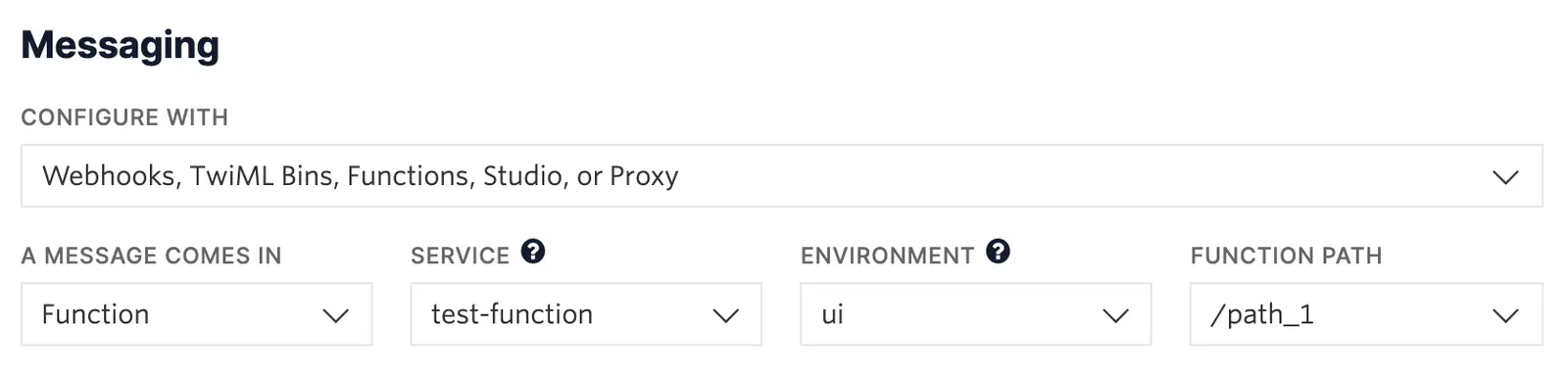
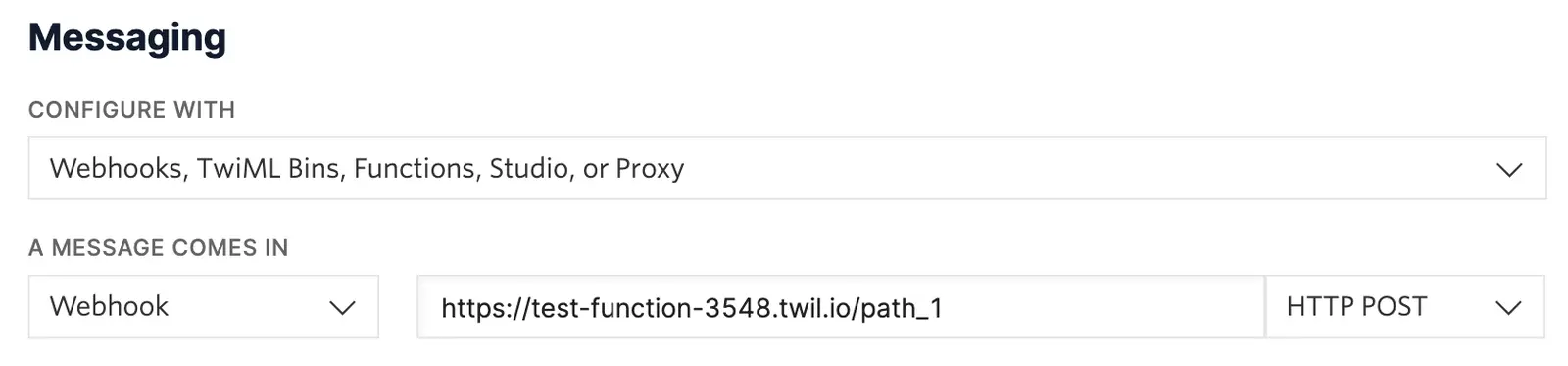
For your Function to react to incoming SMS or voice calls, it must be set as a webhook for your Twilio number. There are a variety of methods to set a Function as a webhook:
Use the Twilio Console UI to connect your Function as a webhook:
- Go to Communications > Numbers & senders > Overview.
- Select the phone number you'd like to connect to your Function.
- Go to the Configuration Details tab.
- To configure Messaging, choose Edit details in the Messaging section.
- To configure Voice calls, choose Edit details in the Voice and emergency calling section.
- Select the webhook method and provide your webhook URL. Select an HTTP method to handle responses.
- Optional: Configure a secondary webhook in case the primary webhook fails.
- Click the Save button.
This logic can also be applied in the context of a Studio Flow, such as in an IVR. For example, a Function can return an isOpen property as a Boolean (or a more advanced data structure if you like), and a subsequent Split Based On... Widget could then perform pattern matching on that value to determine how the Flow should advance. The following code sample would generate a Boolean that can be consumed in a Split Based On... Widget by referencing {{widgets.<widget-name>.parsed.isOpen}}.
To better understand consuming parsed values and how to execute this sample, see Consume the output of the Run Function widget in the Run Function widget example.
1exports.handler = (context, event, callback) => {2// Grab the current date and time. Note that this is the local time where the3// Function is being executed, not necessarily the time zone of your business!4const now = new Date();5// Configure Intl.DateTimeFormat to return a date in the specified6// time zone and in this format for parsing, for example: 'Monday, 18'7const formatOptions = {8hour: 'numeric',9hour12: false,10weekday: 'long',11timeZone: 'America/New_York',12};13const formatter = new Intl.DateTimeFormat('en-US', formatOptions);1415// Get the current time and day of the week for your specific time zone16const formattedDate = formatter.format(now).split(', ');17const day = formattedDate[0]; // ex. 'Monday'18const hour = Number(formattedDate[1]); // ex. 1819// Since we're given days as strings, we can use Array.includes to check20// against a list of days we want to consider the business closed21const isWeekend = ['Sunday', 'Saturday'].includes(day);2223// Here the business is considered open M-F, 9am-5pm Eastern Time24const isOpen = !isWeekend && hour >= 9 && hour < 17;25// Return isOpen in an object that can be parsed and then26// used by the Split Based On... Widget for Flow routing27return callback(null, { isOpen });28};