How to Forward Calls from an SMS Number to a Voice Line
Twilio for Salesforce offers only SMS messaging, but you can still configure Twilio to forward phone calls to your mobile or desk phone. For example, if you're texting with a contact in Salesforce and they request a phone call, call forwarding allows your contact to call the number they've been texting with and connect to your phone.
Info
Follow the steps below to learn how to update phone numbers manually. You'll use this workflow if you have just a small quantity of numbers to change. If you need to change many phone numbers, use the API to perform a bulk update.
Info
If you already own landlines and want to use those same phone numbers for SMS, see the Hosted SMS quickstart.
Setting up the call forwarder should take 5-10 minutes. This is what you need to do:
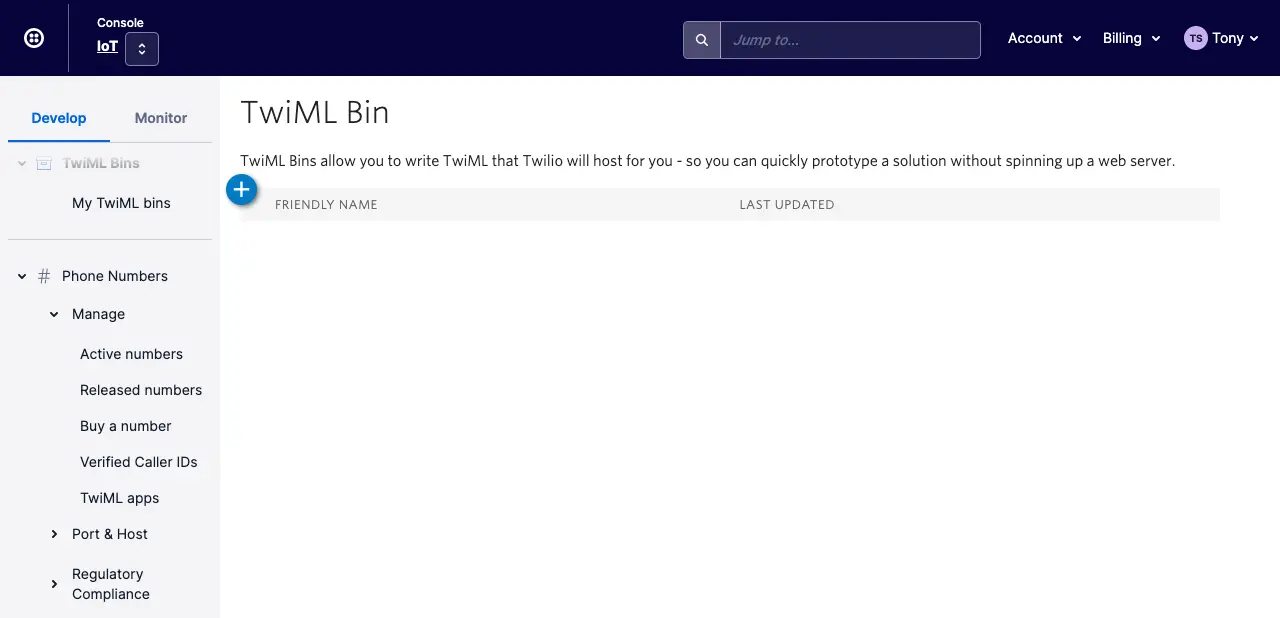
- From the Twilio Console, go to Builder tools > TwiML host & config > TwiML bins.
- Click +.
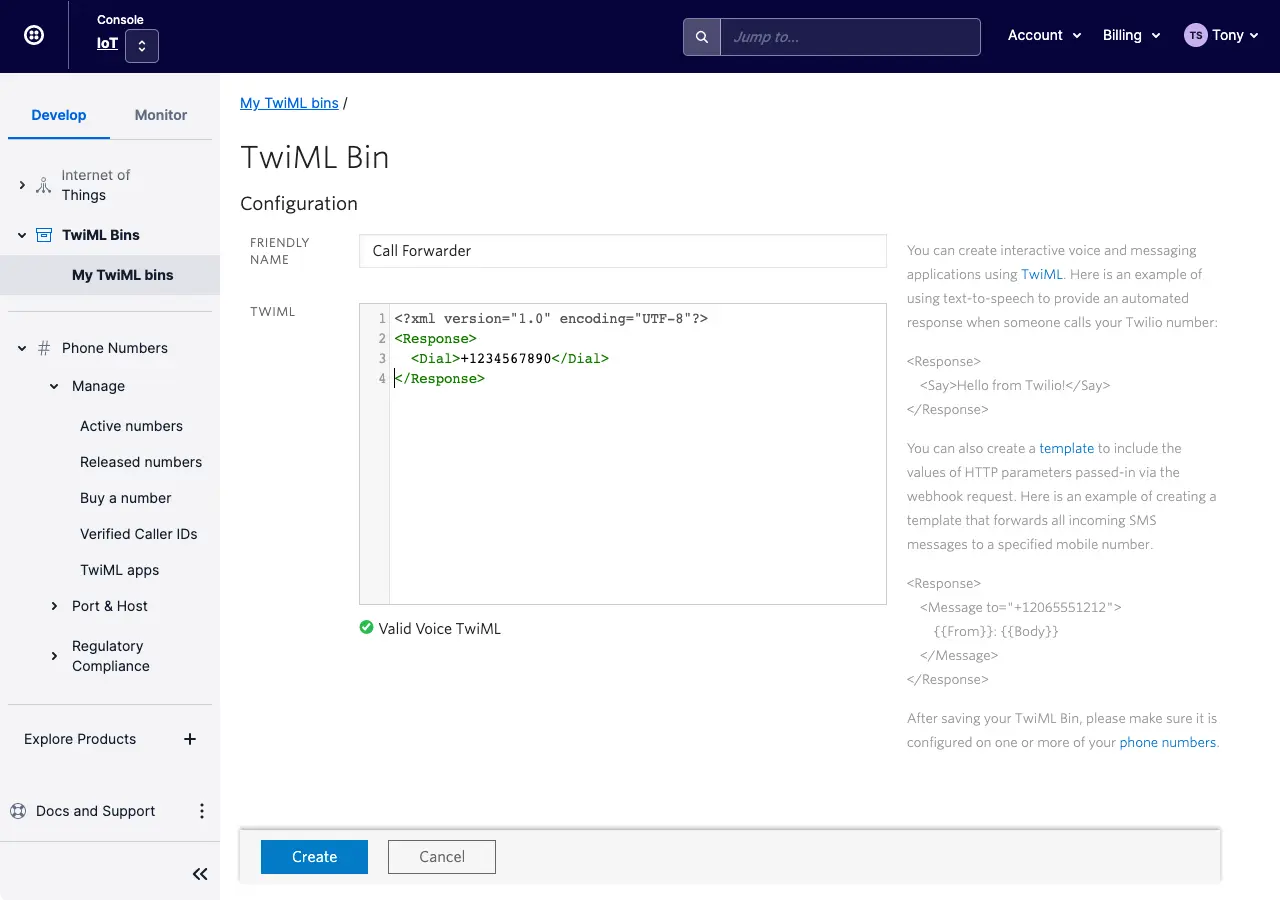
- Enter a name for your TwiML bin.
- Add the following snippet in the TwiML editor, below the XML definition:
1<Response>2<Dial>+1234567890</Dial>3</Response>
- Click Create.
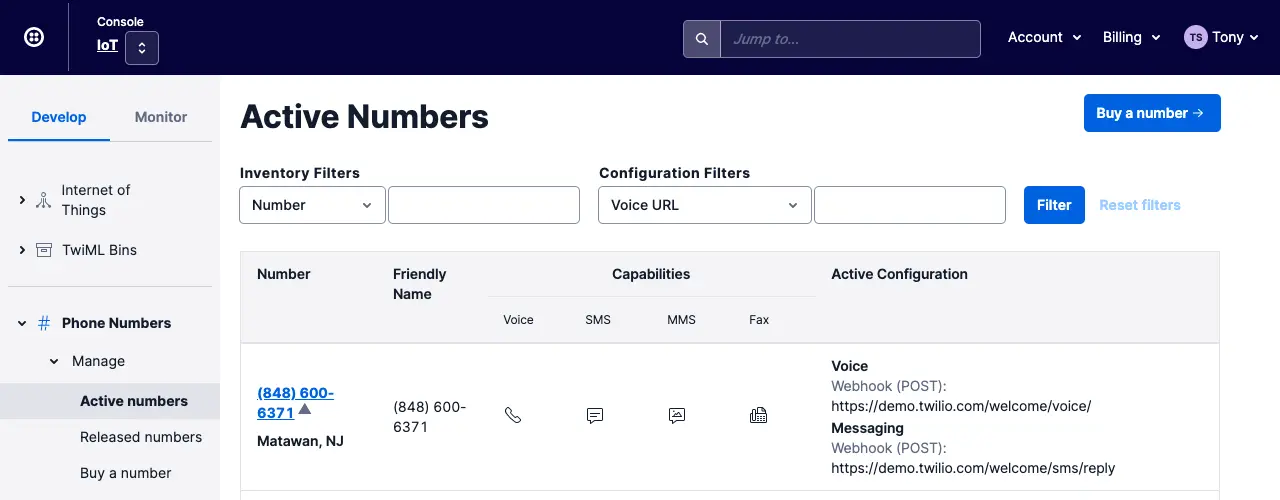
- Go to the Numbers & senders page.
- Select a phone number associated with your messaging service. This is the number your contact might usually reach you by SMS:.
- Select Configuration details,
- Select Voice and emergency calling, then click Edit details.
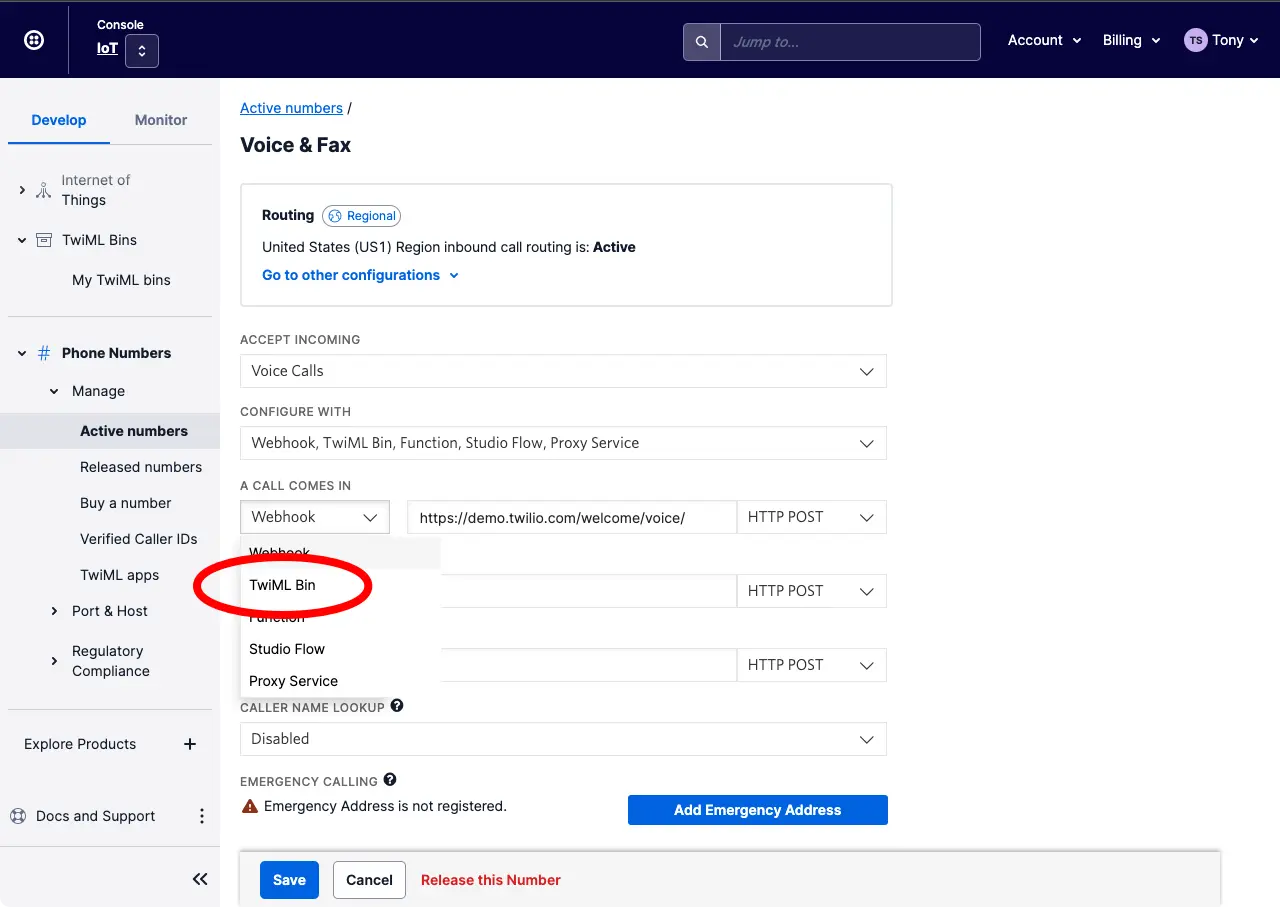
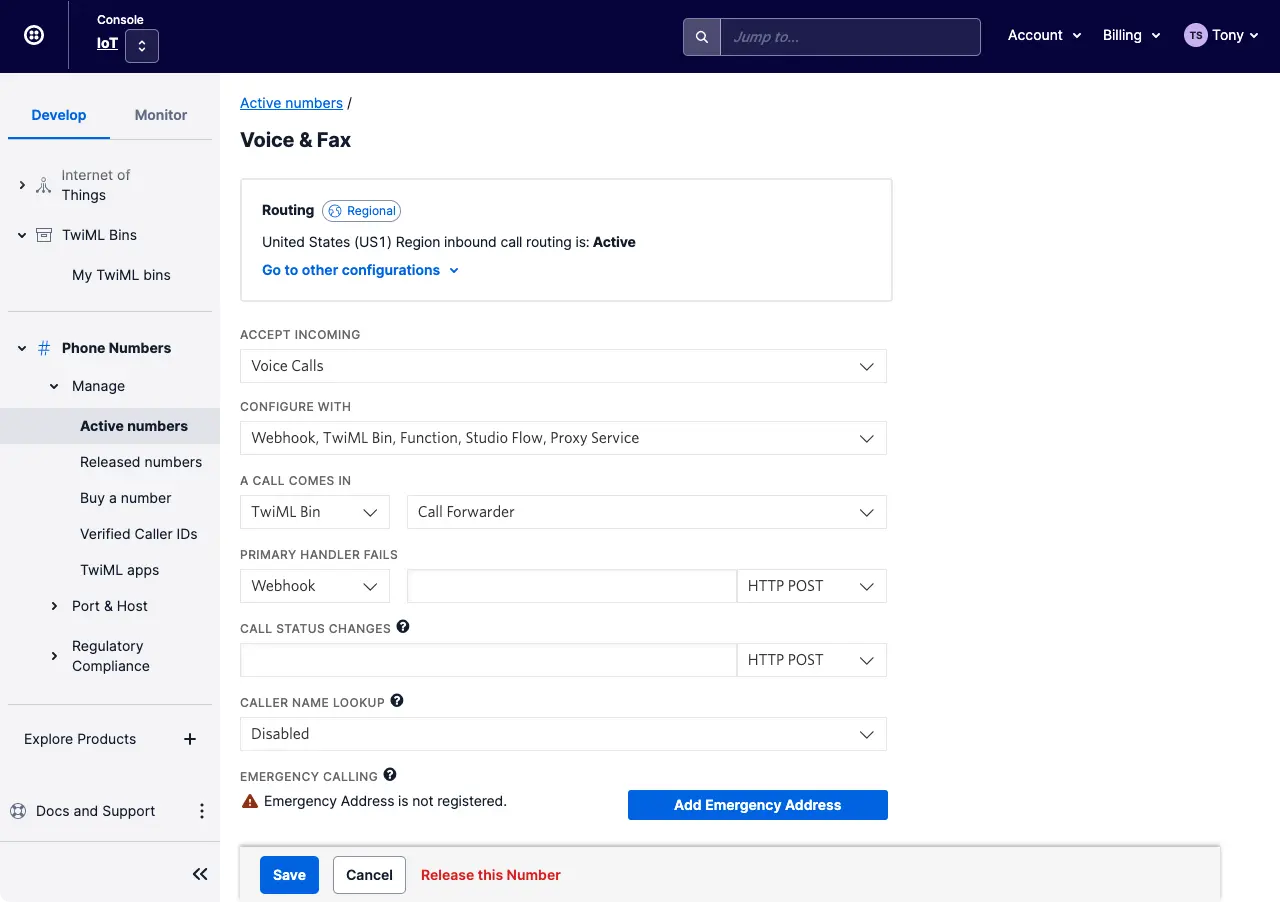
- On the Edit voice configuration dialog, select the Webhook, TwiML Bin, Function, Studio Flow, Proxy Service option.
- Under How do you want to set up your primary method?, select Use TwiML Bin.
- Select the TwiML Bin you created above.
- Click Save.