Computed Traits
Info
Beginning August 18, 2023, new Unify Plus users can access Computed Traits in Unify.
Computed Traits allow you to quickly create user or account-level calculations that Segment keeps up-to-date over time. These can be computations like the total_num_orders a customer has completed, the lifetime_revenue of a customer, the most_frequent_user to determine which user is most active in an account, or the unique_visitors_count to assess how many visitors from a single domain. These computations are based on your events and event properties that you are sending through Segment on the Page and Track calls.
View the table below to better understand how Segment collects custom, computed, and SQL traits.
You can use the Profile explorer (Unify > Profile explorer) to view traits attached to a profile.
| Trait type | Description |
|---|---|
| Custom traits | Traits created from source events you pass into Segment. From your sources, send custom traits as pieces of information that you know about a user in an Identify call. |
| Computed traits | Traits collected from computations off of event and event property data from your sources. Create user or account-level calculations like most_viewed_page or total_num_orders for a customer. Learn more by viewing types of computed traits. |
| SQL traits | Traits created by running SQL queries on data in your warehouse. SQL traits are a type of computed trait. SQL traits help you import traits from your data warehouse back into Segment to build audiences or enhance data that you send to other destinations. |
Segment currently supports the following types of computed traits:
- Types of Computed Traits
- Conditions
- Understanding Windows in Computed Traits
- Connecting your Computed Trait to a Destination
- Editing Realtime Traits
- Accessing your Computed Traits using the Profiles API
- Downloading your Computed Trait as a CSV file
Event Properties per Computed Trait limit
Segment limits the number of Event Properties on each Computed trait to 10,000. If your Computed Trait exceeds this limit, Segment will not persist any new Event Properties and will drop new trait keys and corresponding values.
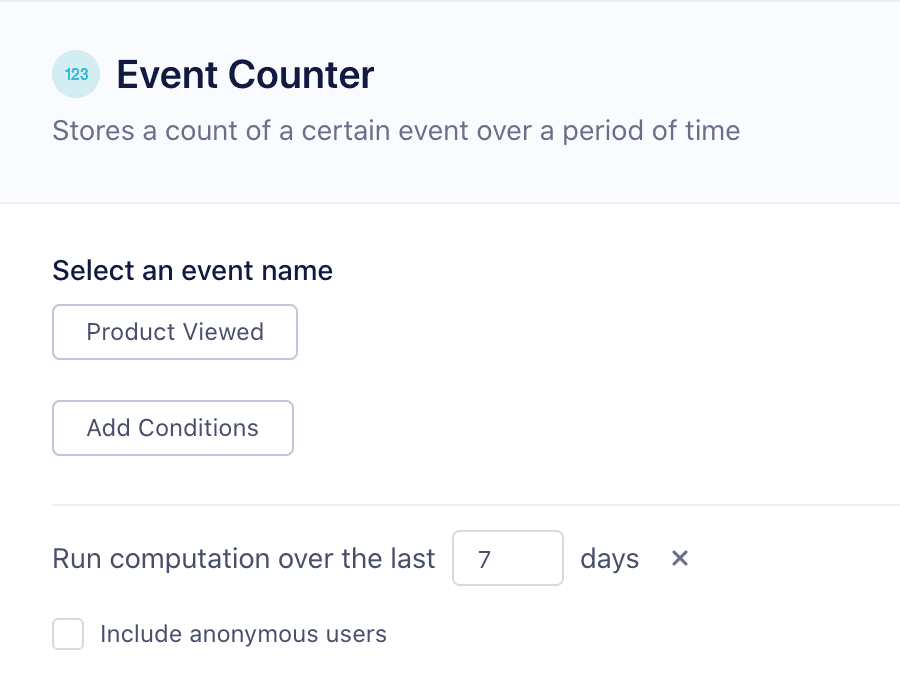
An Event Counter trait stores a count of an event over a period of time. For example, you can create a trait called number_logins_90_days based on a User Logged In event. You can also use event properties to only specific types of events.
User-level examples:
- Orders Completed Last 30 Days
- Pricing Page Views Last 30 Days
Account-level examples:
- Total Logins by Account 30 Days
- Emails Opened by Account 90 Days
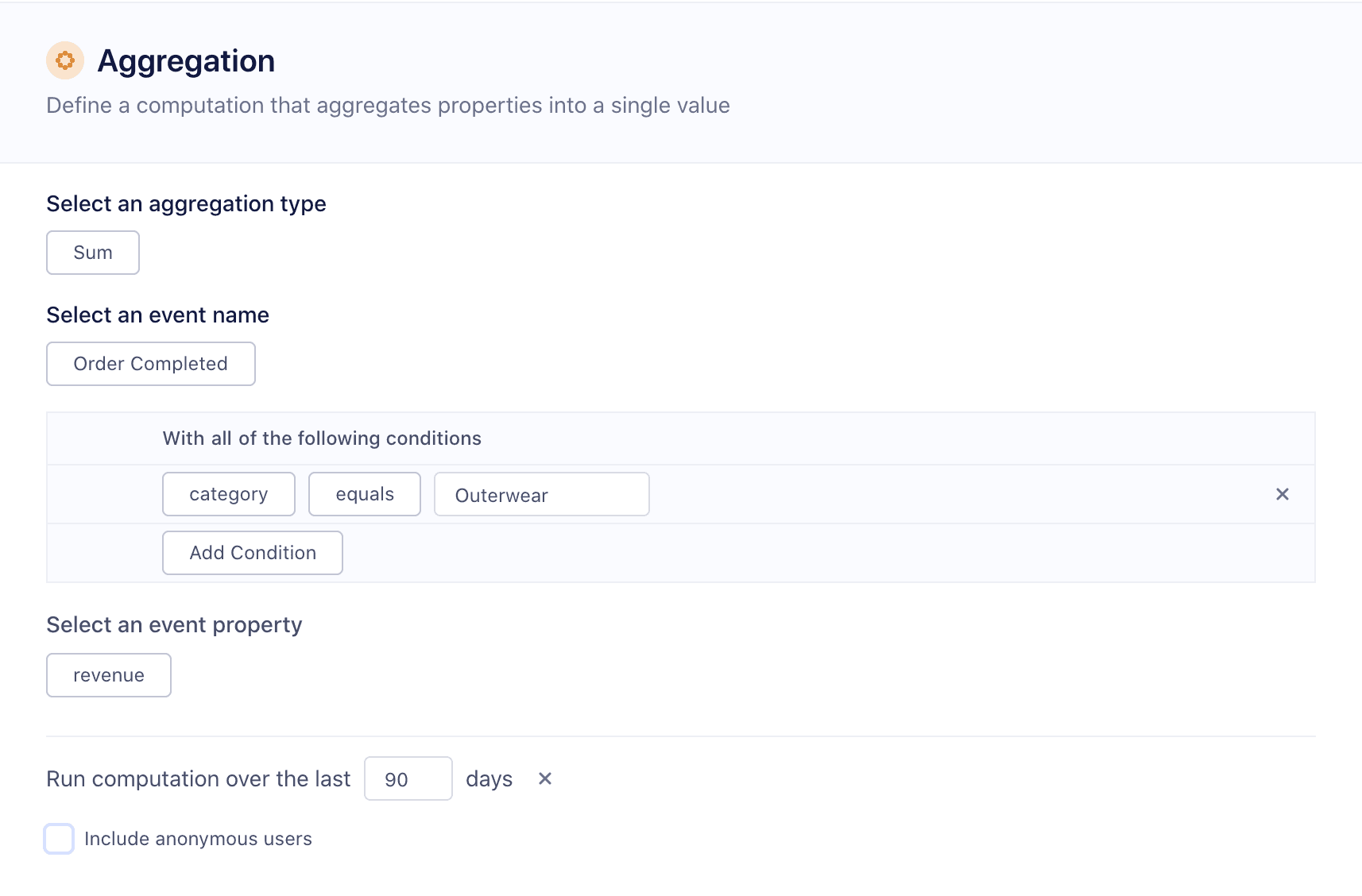
An aggregation computes a sum, average, minimum, or maximum of a numeric event property. A good example is a sum_cosmetics_revenue_90_days if you're sending an Order Completed event with a revenue property. In the example we're refining the revenue even further based on another event property: category = 'cosmetics'. Note that you can only compute an aggregation trait for event properties that have a numeric value.
User-level examples:
- Order Revenue Last 14 Days
- Max Ride Distance Last 60 Days
Account-level use cases
- Total Minutes Watched 30 Days
- Avg Order Size Last 180 Days
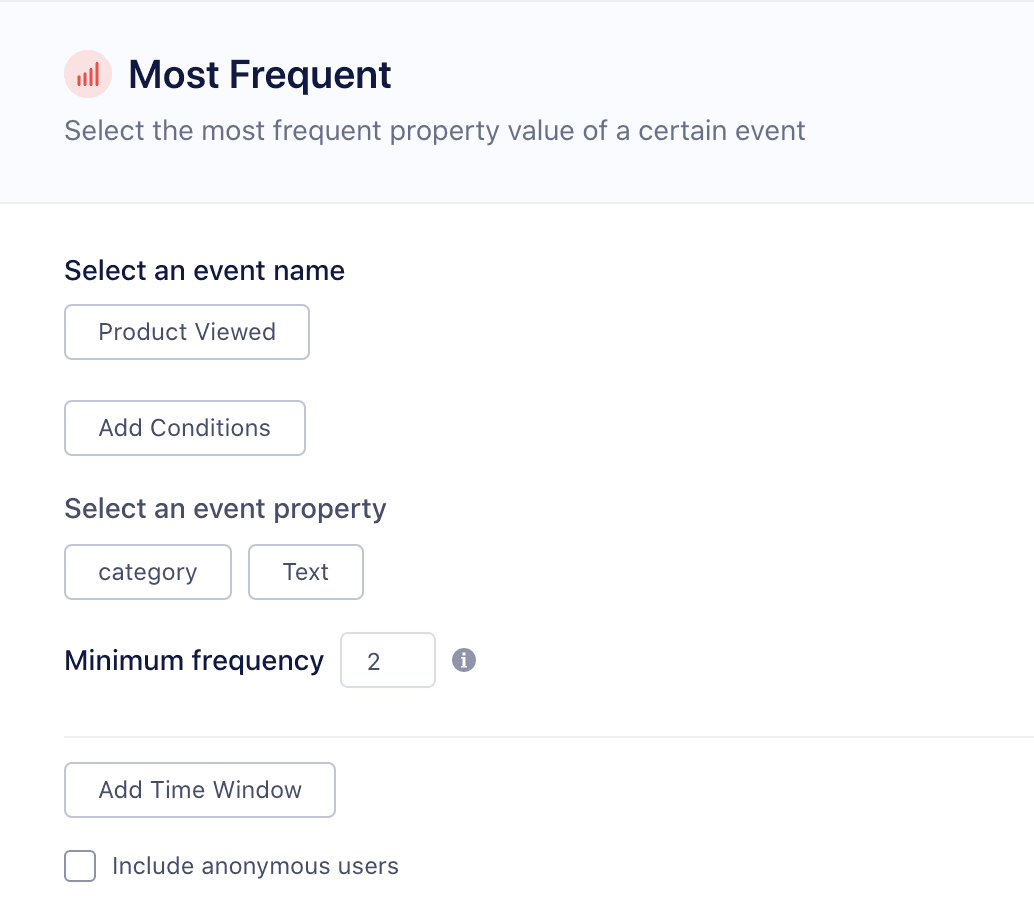
A most frequent user-level computed trait will return the most common value for an event property. This is helpful to create traits like preferred_product_viewed or most_commonly_viewed_category that tell you what a user's preferred product, or content category might be. Note that the most frequent computed trait requires the event property to have been tracked at least twice. In the case of a tie, Segment returns the first alphabetical value. For account-level computed traits, you can also return the most frequent user trait. This is helpful when you want to determine which user has performed an event the most frequently. For example, you might to return the email of the user in an account most actively viewing your app.
User-level examples:
- Favorite Blog Post
- Top Purchase Category
Account-level examples:
- Most frequent product viewed
- Most active user
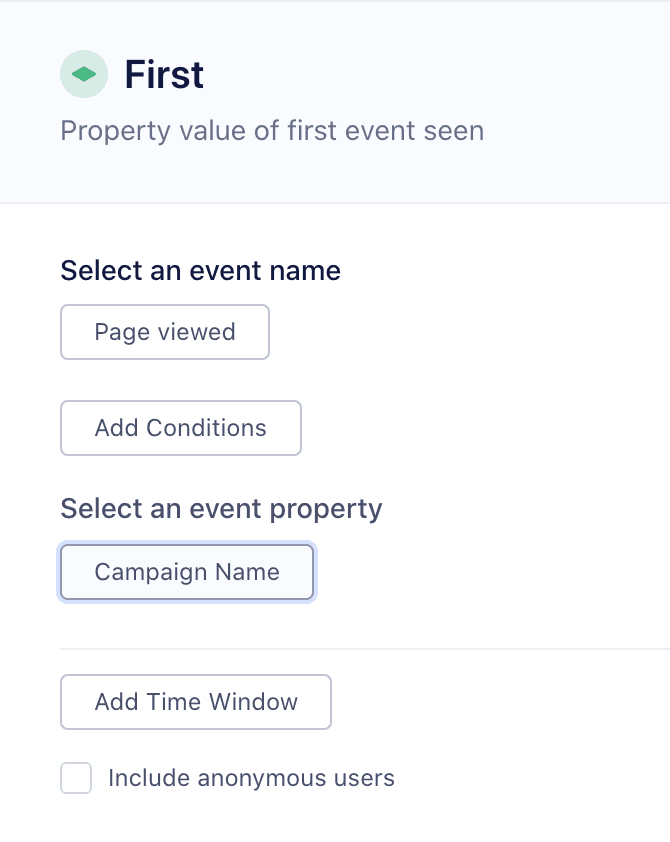
The first user-level trait returns the first event property value Segment has seen. This is common for creating traits like first_page_visited based on the page name. For accounts, the first computed trait could also return a trait like first_user_signup, to calculate the first user to use your product.
User-level examples:
- First seen timestamp
- First utm parameter
Account-level examples:
- First email opened
- First user signup
The last trait returns the last event property value Segment has seen. This is common for creating traits like last_utm_campaign to help you calculate last-touch attribution for paid advertising.
User-level examples:
- Last seen at
- Last utm parameter
Account-level examples:
- Last unsubscribe timestamp
- Last user active
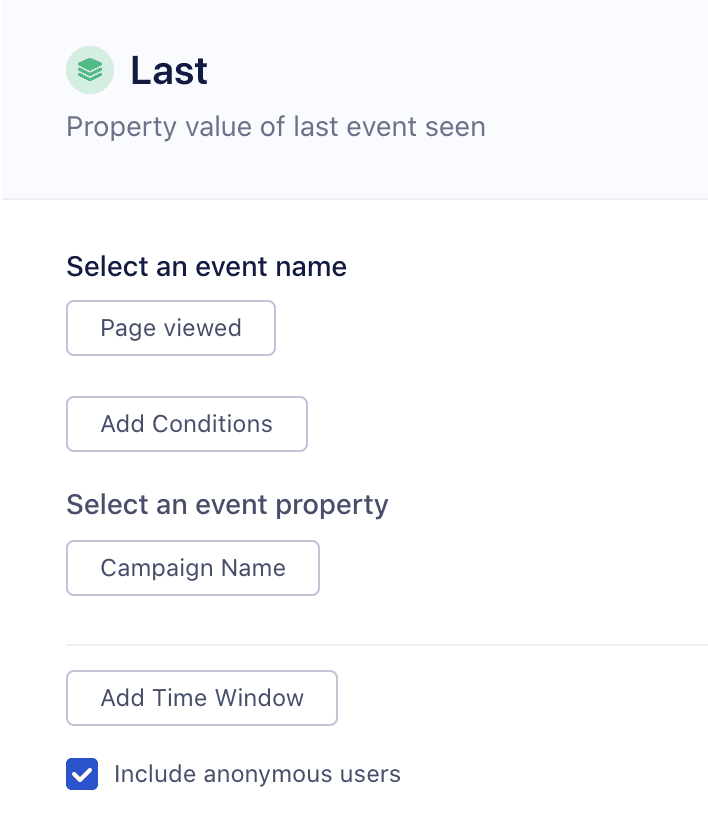
Unique list computed traits will output a list of unique values in alphabetical order for an event property. This is helpful to understand the different types of products or content that a customer or users in an account have interacted with or purchased. Customers are creating traits like unique_product_categories_viewed and sending them to email marketing tools and accessing them through the Profiles API for in-app personalization.
Example use cases:
- Unique products purchased
- Unique categories
- Unique games played
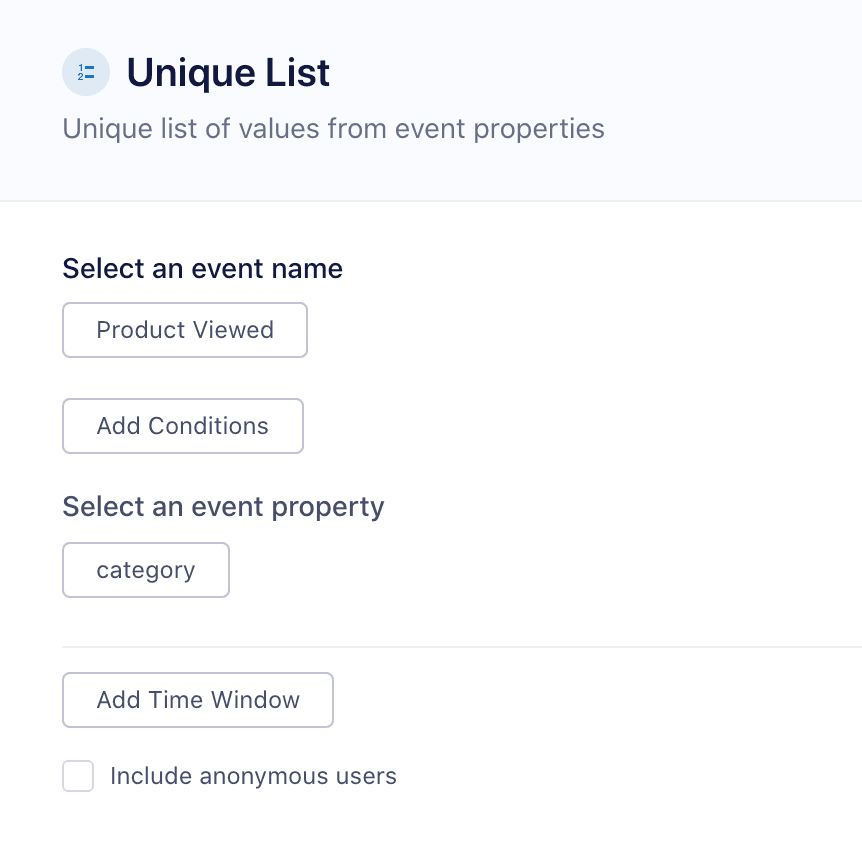
Unique list count computed traits will output a count of the unique list of values for an event property. Customers are creating traits like unique_product_categories_viewed_count to understand the variety of products that a customer is viewing. At the account-level, customers are creating traits like unique_visitors_count to calculate the number of unique visitors by ip address.
User-level examples:
- Unique products viewed count
- Unique categories count
Account-level examples:
- Unique products viewed
- Unique visitors count
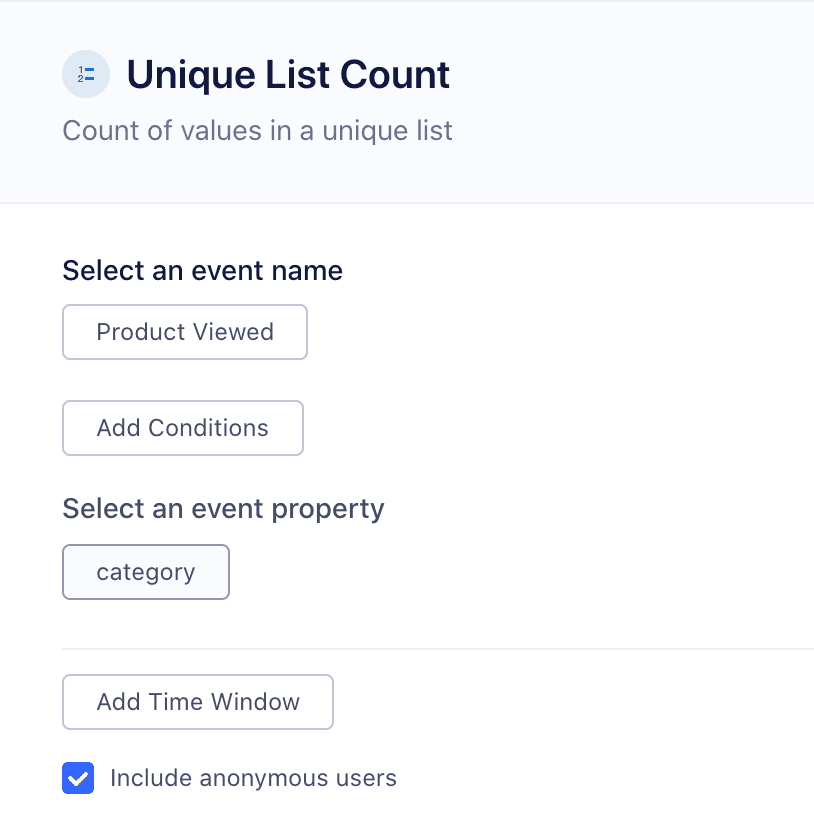
All computed trait types support a common "Add Conditions" section. Conditions defined here restrict the messages considered when calculating the final value of the computed trait by looking at a property of the events. For example, you could limits events to only those where "price" is greater than 30.00 or where "page.url" contains "pricing".
The following operators are available:
- equals
- not equals
- less than
- greater than
- less than or equal
- greater than or equal
- contains
- does not contain
- starts with
- ends with
- exists
- not exists
- before date
- after date
- equals one of
- contains one of
Computed Traits support windows, giving you control over how user activity is evaluated over time. You can choose between sliding windows and session windows, depending on how you want to define recency or engagement.
- Sliding Window: Use this when you want to track actions over a rolling time frame, such as "Orders Completed in the Last 30 Days" or "Emails Opened in the Past Week." This is ideal for measuring ongoing engagement or recent behavior trends.
- Session Window: Use this to capture activity during a user's most recent session, for example, "Count of Page Viewed events in Current Session" or "Total Purchase Amount in Current Session." Session windows are especially useful for measuring bursts of engagement and driving personalization based on the user's current session on your site or app. Since session windows reset automatically after the defined inactivity period, the computed trait always reflects behavior from the most recent or current session.
Real-time support for windows
Computed traits that use session windows are always created as real-time computations. Those that use sliding windows are created as batch-based computations and do not receive real-time updates.
Segment sends user-level computed Traits to destinations using the Identify call for user traits, or using the Track call for event properties. Segment includes the trait value and property in the Identify and Track calls.
For example, the name of a computed trait is added to the user profile as a trait, and the trait's value is set to the value of the computed trait. Segment sends an Identify or Track call when the trait is computed, depending on the destination configuration. If a computed trait counts the number of times a user visits your pricing page, and the user visits your pricing page five times, Segment sends an Identify call with the property pricing_page_visits: 5.
See Computed trait generated events to learn more. The trait name corresponds to the snake_cased name that you see in the trait settings, for example most_viewed_page_category. See the list of Engage-compatible destinations.
For account-level computed traits, you have the option to send either a Group call and/or an Identify call. Group calls will send one event per account, whereas Identify calls will send an Identify call for each user in the account. This means that even if a user hasn't performed an event, Segment will still set the account-level computed trait on that user. As most marketing tools are still based at the user level, it is often important to map this account-level trait onto each user within an account. See Account-level Audiences for more information.
Computed Traits can only be sent to Event destinations
When Engage sends a computed trait to an Event destinations, it uses an Identify call to send user traits and a Group call to send account-level computed traits.
After you create a computed trait, use the Overview page to view a compute progress bar, current status, number of users with the trait, connected destinations, and more. For real-time traits, click Refresh Trait to update the current number of users with the trait.
Viewing compute progress
When you create a real-time computed trait, you'll see a progress bar, computed percentage, and status updates. For existing traits that you edit, Segment displays the compute status but not the progress bar or percentage.
Segment supports the editing of real-time Traits, which allows you to make nuanced changes to existing Traits in situations where cloning or building from scratch may not suit your use case.
To edit a real-time Trait, follow these steps:
- In your Unify or Engage space, select the Computed Traits tab.
- Select the realtime Trait you want to edit.
- Select the Builder tab and make your edits.
- Preview the results, then select Save Computed Trait to confirm your edits.
Segment then processes your Trait edits. While the edit task runs, the trait remains locked and you can't make further changes. Once Segment incorporates your changes, you'll be able to access your updated Trait.
Warning
It is not possible to edit a trait to convert it from real-time to batch, or vice-versa. If the computation type needs to be changed, you will need to recreate the trait with the appropriate conditions.
You can access your computed traits using the Profile API by querying the /traits endpoint. For example, you can query for the emails_opened_last_30_days with the following GET request:
https://profiles.segment.com/v1/spaces/<workspace_id>/collections/users/profiles/email:john.doe@segment.com/traits?include=emails_opened_last_30_days
returns:
1{2"traits": {3"emails_opened_last_30_days": 2554},5"cursor": {6"url": "",7"has_more": false,8"next": "",9"limit": 10010}11}
Traits
You can query a user's traits (such as first_name, last_name, and more):
https://profiles.segment.com/v1/spaces/<space_id>/collections/users/profiles/<external_id>/traits
By default, the response includes 20 traits. You can return up to 200 traits by appending ?limit=200 to the querystring. If you wish to return a specific trait, append ?include={trait} to the querystring (for example, ?include=age). You can also use the ?class=audience or ?class=computed_trait URL parameters to retrieve audiences or computed traits specifically.
You can read the full Profile API docs to learn more.
When computed traits are deleted, any user that had a value for that trait will now have a custom trait on the Unify profile.
You can download a copy of your trait by visiting the computed trait overview page.
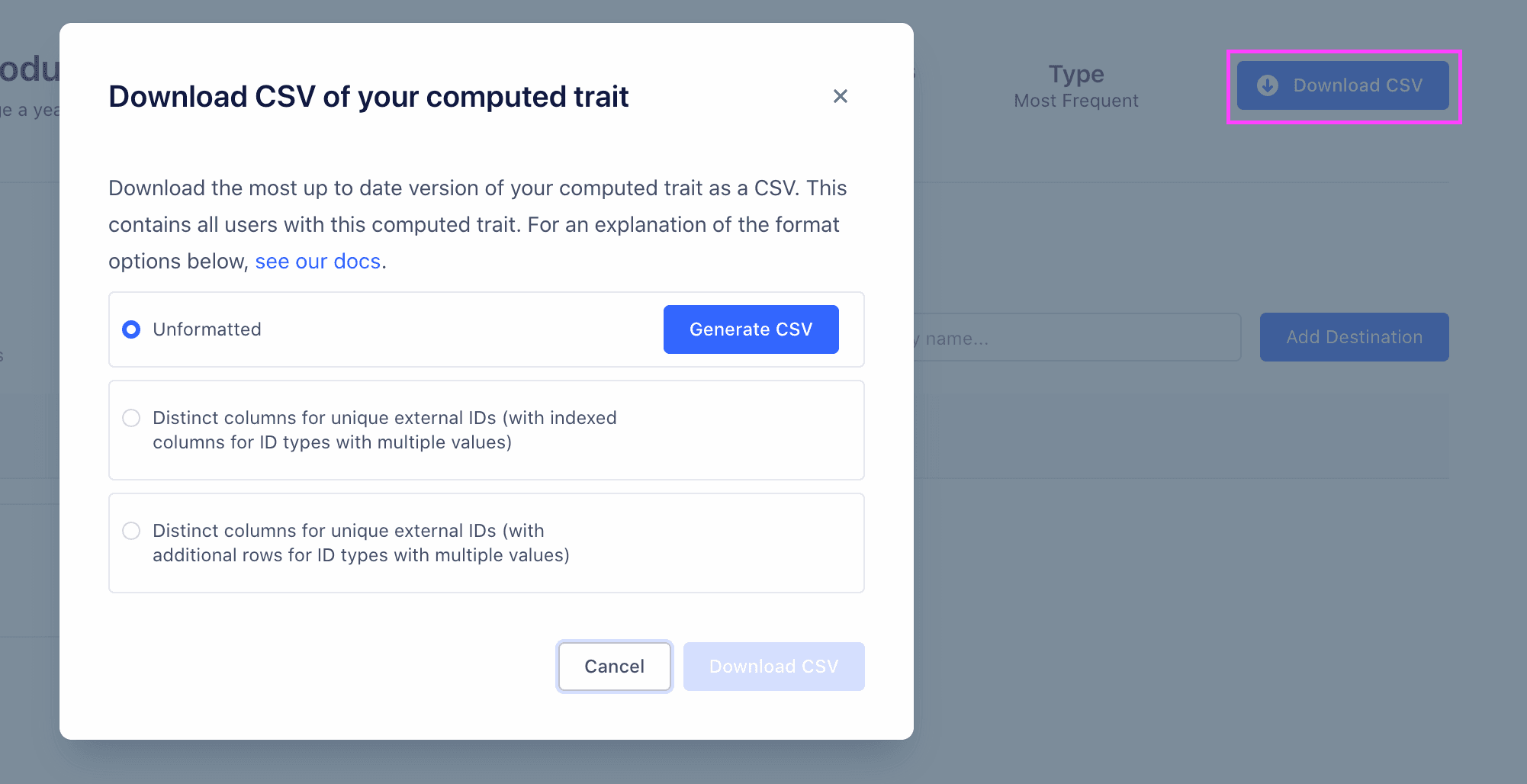
Computed Trait CSVs are generated on demand. Before you can download the CSV, you will need to generate it. There are three different options for formatting:
- Unformatted: Contains three columns. The first contains the user or account key, the second contains the trait value and the third is a JSON object containing the external IDs. Generating this CSV is by far the fastest of the three options. Download example unformatted CSV
- Distinct columns for unique external IDs (with indexed columns for ID types with multiple values): Contains the same first three columns as the unformatted CSV. Additional columns are added for each distinct external ID type. When a single row has more than one value for a given external ID type, for example a user with three email addresses, additional columns with indexed headers are added, (
email,email_1,email_2). Download example formatted CSV with indexed columns - Distinct columns for unique external IDs (with additional rows for ID types with multiple values): Contains the same first three columns as the unformatted CSV. Additional columns are added for each distinct external ID type. When a single row has more than one value for a given external ID type, for example a user with two email addresses, additional rows are added with the first three columns repeated (user or account key, trait value and external IDs JSON). Download example formatted CSV with additional rows
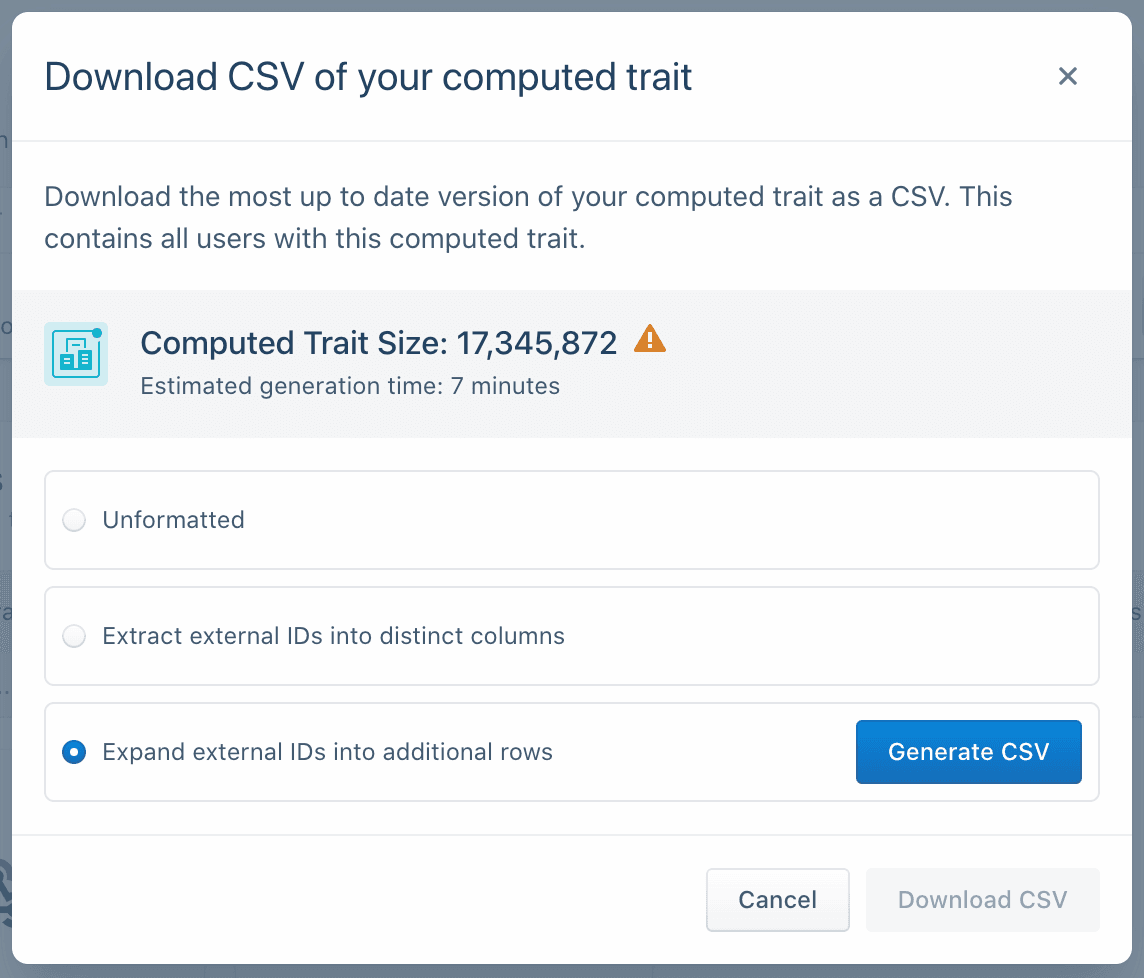 | Generating a CSV can take a substantial amount of time for large traits (around 30 seconds for a formatted CSV with 1 million rows). For CSVs that are expected to take over 20 seconds, the Segment app displays an estimated generation time. After clicking Generate, it is recommended that you leave the modal and page open while the CSV is created. (If the trait recalculates between when you click Generate and when you download the file, regenerate the file. The CSV is a snapshot from when you clicked Generate, and could be outdated.) |
|---|
Warning
You can't add account traits and identifiers using the CSV downloader with account level audiences. This is because every row listed in the CSV file is a user, and since account traits and identifiers only exist on accounts, they wouldn't exist as a user's custom trait and appear on the CSV.