Connect a Tracking Plan
When your Tracking Plan is complete, you can apply the Tracking Plan to one or more Sources. Select Connect Source for your specific Tracking Plan.
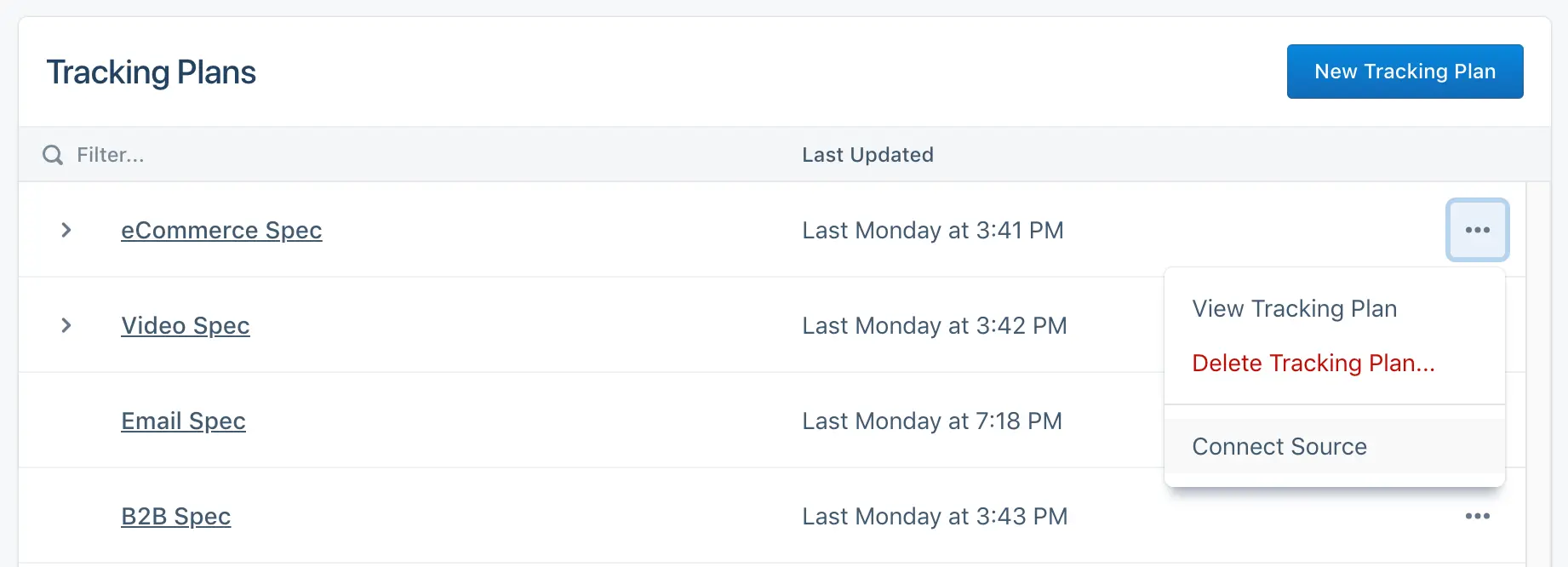
From this menu, you are redirected to a workflow to select a Source from your workspace. Note that a Source can only have one tracking plan applied to it. You can't select a Source that already has a Tracking Plan connected to it, but you can apply a Tracking Plan to multiple sources.
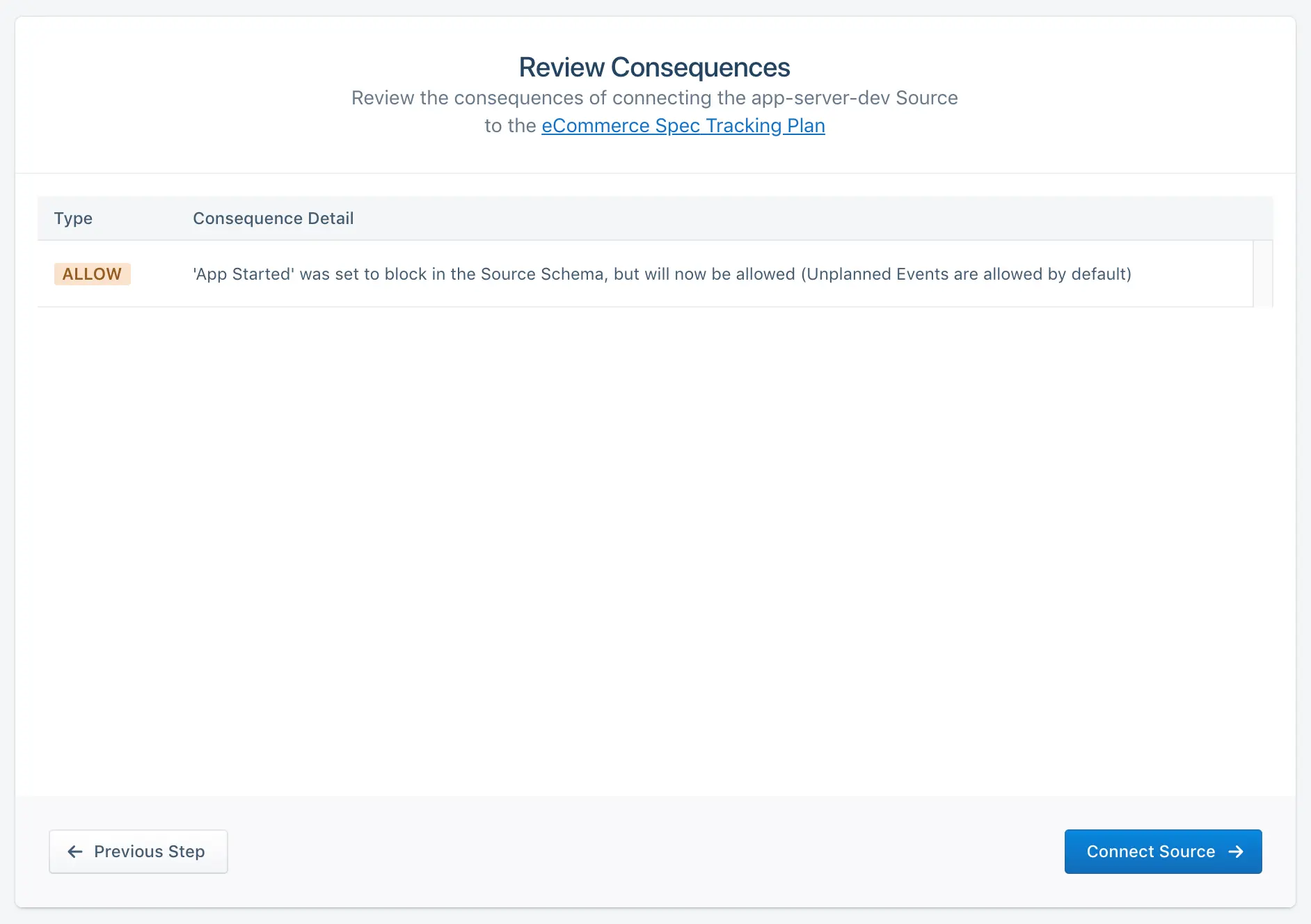
After selecting a Source, you are shown the consequences of connecting your Tracking Plan. Make sure to read through the consequences of connecting a source.
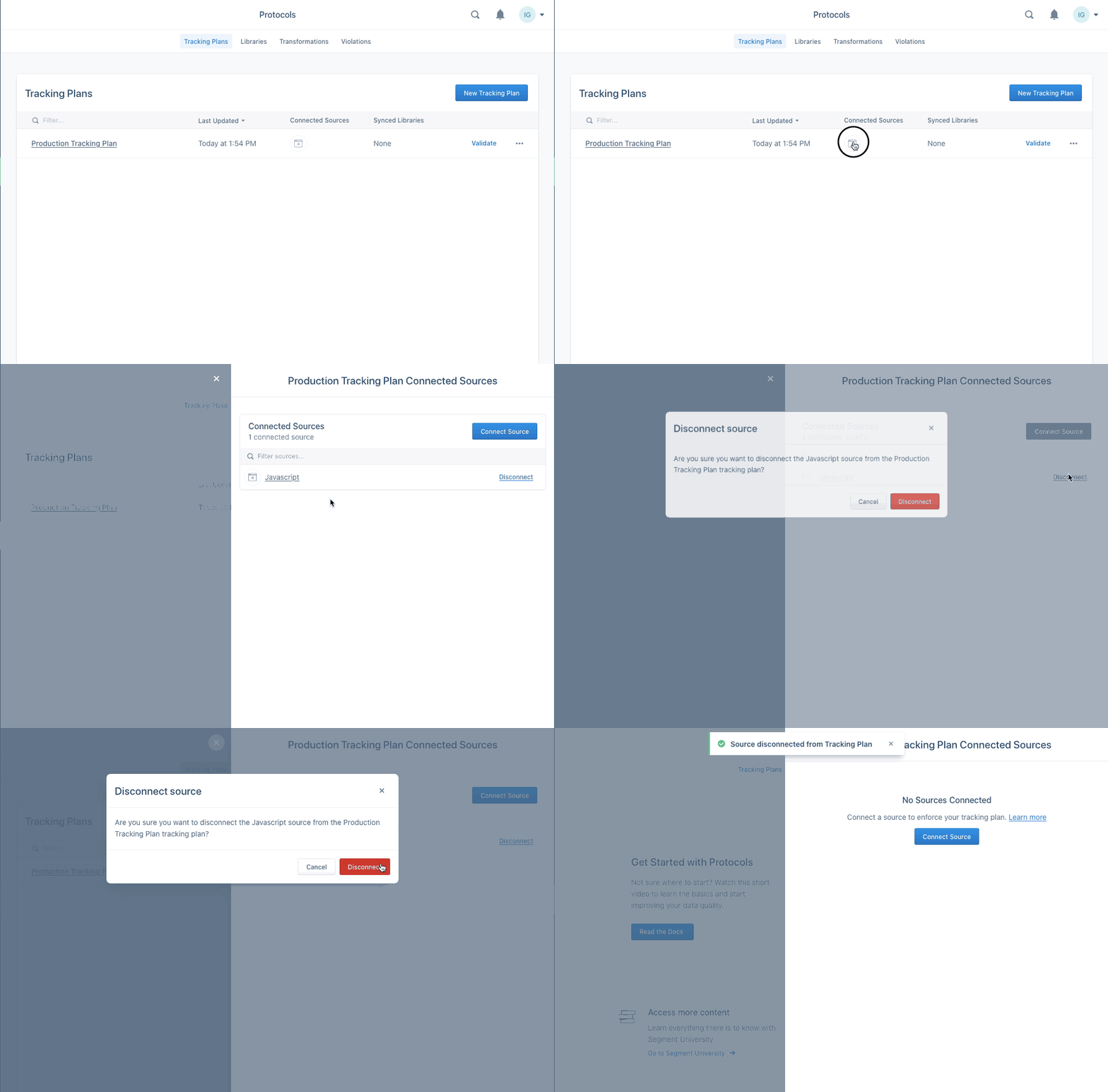
To disconnect the Source from the Tracking Plan, go to the Tracking Plan overview page, locate the column for the tracking plan you want to disconnect, then click the icon under the Connected Sources. In the settings that appear, click Disconnect next to the Source you want to disconnect.