Using Label-Based Access Control
Labels let workspace owners assign permissions to users by organizing resources into groups. Groups can represent collections of sources or spaces.
To create or configure labels in your Segment workspace, go to Settings > Admin, then click the Label Management tab. Only Workspace Owners can manage labels for the entire workspace.
Environment labels
All workspaces include labels for Dev (development) and Prod (production) environments. Business Tier customers can create an unlimited number of labels.
By default, all workspaces include labels for Dev (development) and Prod (production) environments. Workspace Owners can configure what these labels are applied to, and can create up to 5 custom environments.
Labels must use the key:value format. Both the key and value must begin with a letter, and they can only contain letters, numbers, hyphens, or dashes.
To apply labels to sources and spaces, click the Assign Labels tab from the Manage Labels screen. In the screen that appears, select the sources and spaces to apply the label to.
Once a label is in use (either assigned to a resource or used to restrict permissions on a user), the label cannot be deleted. You must first manually remove the label from any resources and permissions before you can delete it.
Info
While only Workspace Owners can bulk-edit labels, source and space admins can edit the labels on the sources and spaces they have access to. To do this, go to the Settings tab for each item.
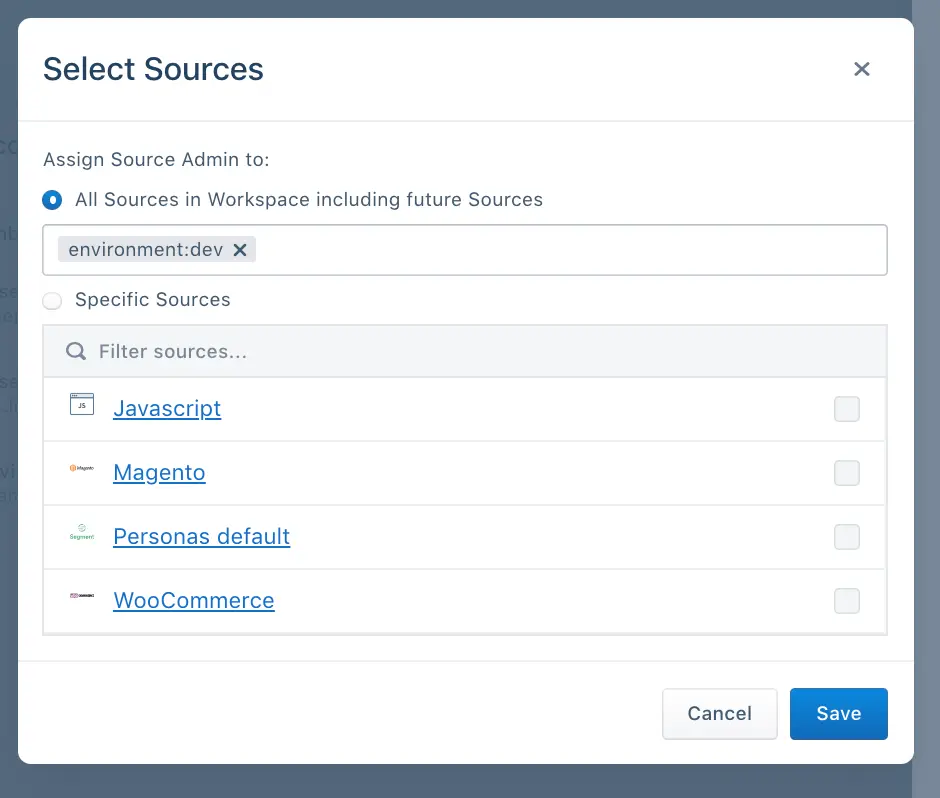
Workspace Owners can also grant specific role access to specific labels. For example, you might give a Source Admin access to only sources that have the Prod label.
Permissions can then be assigned to users in Access Management by label, on the Source Admin, Source Read-Only, Engage Admin, Engage User and Engage Read-Only users.
Custom labels
All Segment workspaces can create up to 5 custom labels. Additional label types (including environment labels) are available to Segment Business Tier accounts.
To create additional custom labels, a Workspace Owner can create new key types in the Manage Labels screen. The Workspace Owner can customize any combination of labels to mirror how resources should be partitioned in their organization.
For example, some organizations may restrict access to sources and spaces by brand or product area, while others might organize resources by tech stack or engineering department.
When you create a new key, it becomes available in the Sources page as a column type that can be used to organize sources.
You can create labels for sources and spaces from Segment workspace by going to Settings -> Admin and then clicking the Label Management tab.
You can apply labels to sources and spaces.
You can assign labels to sources and spaces using the Assign Labels tab in the Manage Labels screen. Source Admins and Space Admins can edit the labels on their individual resources in the Settings tab.
Once a label has been created and has been assigned to resources within the workspace, workspace owners can use these labels to restrict permissions on user access, restrict which sources can be connected to a space through a Connection Policy, and organize sources by viewing these labels as columns in the Sources page.
Workspace owners can only delete a label if it's not in use. See Custom Environments for details on removing labels.
No. If you need to rename a label, first create a new label, assign it to all resources using the old label, and then delete the old label.
No, each resource can have only one value per label category. This prevents confusion about permissions. For example, if a user has access to brand:A, it's unclear whether they should also have access to sources labeled both brand:A and brand:B. Limiting resources to one value per category avoids this confusion.
Labels are additive, meaning they can only further restrict a user's permissions. For example, if a user has access to everything labeled environment:production, then they're not restricted by other label categories. This results in broader permissions compared to a user with access to both environment:production AND region:apac.
For example, if the following sources had these set of labels:
| Source | Labels |
|---|---|
| A | environment:prod, product:car |
| B | environment:prod, product:truck |
| C | environment:dev, product: car |
Then the following users with Source Admin restricted with labels will only have access to the following sources:
| User | Source Admin with labels | Access to sources |
|---|---|---|
| Sally | environment:prod | A, B |
| Bob | environment:prod, product:truck | B |
| Jane | product: car | A, C |
To grant a user access to sources labeled brand:a or brand:b, use group permissions. Create two groups: one with Source Admin access to brand:a and another with Source Admin access to brand:b, then assign the user to both groups.