Protocols Frequently Asked Questions
You can subscribe to a variety of Protocols specific alerts through the workspace Activity Feed settings. To subscribe, visit your workspace Settings > User Preferences > Activity Notifications > Protocols.
You can forward notifications from Protocols to a new Segment source, which can then send them to notification tools such as Slack webhook.
You can also forward these Protocols alerts to any (cloud-mode) Segment destination that accepts Track calls, including data warehouses. Most customers record these activity feed events to a data warehouse for analysis.
You can enable violation event forwarding to start delivering violations as Track calls to a Segment source. From there, you can forward the events to any Segment destination that accepts Track calls.
You can also use the Slack Actions destination to set event triggers for context fields, meaning events with violations are sent as Track calls directly from the source.
Consent Management users see the Segment Consent Preference Updated event automatically added to all existing Tracking Plans after they create their first consent category, or when they create a new Tracking Plan after configuring Consent Management. Segment recommends that you do not remove this event.
To consolidate the views in the Schema tab, Segment automatically converts Page and Screen calls into Page Viewed and Screen Viewed events that appear in the Schema Events view. Segment recommends adding a Page Viewed or Screen Viewed event to your Tracking Plan with any properties you want to validate against. To validate that a specific named page/screen (analytics.page('Homepage') | analytics.screen('Home')) has a specific set of required properties, you will need to use the JSON Schema.
When you update a Tracking Plan (for example, adding or removing a new property or editing the event or data type) the changes are typically applied within a few minutes. However, there can occasionally be a short delay, especially during periods of high usage across the platform.
If you still see events flagged or properties omitted shortly after making changes, try the following:
- Wait a few minutes and then send the event again.
- Make sure the updates are saved and published properly.
If the changes still aren't reflected after 10 - 15 minutes, contact Segment Support.
Each Tracking Plan includes a Changelog, which shows which changes were made by which users. To view it, open a Tracking Plan, click the ... button (also known as the dot-dot-dot, or ellipses menu) next to the Edit Tracking Plan button, and click View Changelog.
The Tracking Plan to Source relationship is a one-to-many relationship. This means you can connect as many Sources to a Tracking Plan as you need. However Segment recommends connecting 1-3 Sources per Tracking Plan, because it's rare to have more than three Sources that share an identical set of events, especially when tracking events across platforms. For example, many Segment mobile SDKs (iOS and Android) automatically collect events that would not make sense to collect in a web app. Segment doesn't recommend including events in a Tracking Plan that would never be tracked in a Source.
You can duplicate Tracking Plans in the Segment web app by following the instructions to copy a Tracking Plan. You can also use the Public API to copy the underlying JSON schema from one Tracking Plan to another.
Segment supports the ability to create multiple versions of an event in a Tracking Plan. This is ideal for mobile apps, where a breaking change like adding a new required property to an event could cause all previous app versions on user devices to generate violations. You must manually add a context.protocols.event_version property to the specific track call so that Segment can correctly validate the event against the defined version. Learn more in the Tracking Plan event versioning documentation.
In the Tracking Plan editor, click on the data type dropdown for a given property and toggle "Allow Null Values". Enabling null values means only null values will be accepted for that property.
Yes. Tracking Plan Labels are an excellent way to organize events in a Tracking Plan by priority, platform, product, or similar metadata for each event.
You can search in a Tracking Plan to find a specific event, and then copy the URL for the search results page and share it. You can also filter by label to share a group of events. The person you send the URL to must have access to the Workspace and Tracking Plan to see the results page. (See the Access Management documentation for more details.)
Yes. Tracking Plan Libraries makes it easy to create groups of events or properties that can be easily imported into multiple Tracking Plans.
No. You can't automatically transfer events from a Tracking Plan to Libraries. To import events into a new event library, import them directly from a source.
Yes. Using the Public API, you can copy the underlying JSON schema from a Tracking Plan in one Workspace to a Tracking Plan in another Workspace.
If you discarded events as a part of your original Tracking Plan, you must connect to the same Source and configure identical Schema Controls in your other Workspace so that blocked events behave as expected.
Unfortunately, Sources cannot be connected to more than one Tracking Plan. If you were able to connect more than one Tracking Plan to a Source, it could create conflict if events overlapped.
Segment's code uses built-in logic to verify if an event exists in the Tracking Plan. If an event does not exist, it will follow the configuration the Schema Configuration settings for each source connected to the Tracking Plan.
Unplanned property omission is only supported for cloud-mode destinations. Unplanned properties will not be omitted when they're sent to device-mode destinations.
When you access a Tracking Plan, you'll come across two IDs: tp_ and rs_. Segment uses the two IDs to identify your Tracking Plan in the two APIs you can use to manage your workspace: the Public API and the Config API.
To view the two IDs for your Tracking Plan, navigate to the Tracking Plan you'd like to view the ID for and select the dropdown next to Tracking Plan ID.
If you're using the Public API, you'll need the ID that starts with tp_.
If you're using the Config API, you'll need the ID that starts with rs.
When you first create your Tracking Plan, you can add events from your Source Schema by selecting the Import events from Source button on the Tracking Plan editor page. You can manually add these events after you've connected your Source Schema to your Tracking Plan by clicking the (+) next to the event on your Source Schema page.
When you initially create your Tracking Plan, you can import events into it from a Source Schema. Manually add these events by clicking the the (+) next to the event in your Source Schema page after connecting your Tracking Plan.
You cannot recover a deleted Tracking Plan and Segment cannot recover it on your behalf. Please delete Tracking Plans with caution.
Violations Daily Digest The Violations Daily Digest is a great way to keep informed of new violations that might be easy to overlook on the Protocols Violations page. The digest sends one email digest per source, every day at approximately 12AM EST. You cannot currently opt in or out of specific sources.
The digest contains all violations for that source that are unique in the previous 48 hours. For example, if an event testEvent had violations on the first day of the month, then those violations won't appear in the digest until the third of the month.
The email includes information about the violation to help you track down its source and correct it. It includes the event name and property name fields, the violation type, the number of times that specific type of violation was seen, and the last time it was seen.
Protocols Violations Page The Protocols Violations page shows a live count for violations. You can adjust the timeframe to show violations in the last hour, the last 24 hours, or the last seven days.
You might see a difference between the count on the Violations page and the count in the Violations email digests. This can happen due to differences between the time periods available (24 hours in in the live page, 48 hours in the daily digest email), and the fact that the digest only shows unique violations. The fields displayed on the Violations page are more detailed than those included in the email digest.
You may see violations related to (root). For example:
1(root)2Must validate all the schemas3// Or4(root)5Must validate "then" as "if" was valid
These violations are related to your common JSON Schema if you've applied custom rules. In this instance (root), refers to the top level of the JSON object (Segment event).
The schema functionality is a reactive way to clean up your data, where the Tracking Plan functionality is a proactive, intentional way to clean and unify all future data. Segment has found that the best data driven companies invest the time required to build strong processes and controls around their data. The investment pays off exponentially.
That being said, there are plenty of scenarios where the reactive Schema functionality solves immediate needs for customers. Often times, customers will use both Schema Controls and Tracking Plan functionality across their Segment Sources. For smaller volume Sources with less important data, the Schema functionality often works perfectly.
Segment can block events from all Segment Destinations except for mobile device mode destinations.
Events that are delivered from a mobile source in device mode bypass the point in the Segment pipeline where Segment blocks events, so mobile events sent using device mode are not blocked and are delivered to your Destinations. If you are a Business Tier customer using Segment's Swift or Kotlin SDKs, you can use destination filters to block events.
When an event is blocked using a Tracking Plan, it does not count towards your MTU limit. If you use blocked event forwarding, blocked events forwarded to a new source will count toward your MTU limit.
Segment doesn't store unplanned properties and properties omitted due to JSON Schema Violations in Segment logs. Segment drops omitted properties from the events. You can find the omitted properties in the context.violations object of an event payload. If you forward Violations to a new source, then you can also see the omitted properties in the Violation Generated event under violationField in the properties object.
Segment only stores fully blocked events for 30 days.
If you're seeing unplanned properties/traits in your payload despite using Schema Controls, you might want to select a new degree of blocking controls.
Segment's Schema Controls provide three options to omit properties/traits. Select the one that aligns with your requirements:
- Standard Schema Controls/"Unplanned Properties/Traits": Segment checks the names of incoming properties/traits against your Tracking Plan.
- Standard Schema Controls/"JSON Schema Violations": Segment checks the names and evaluates the values of properties/traits. This is useful if you've specified a pattern or a list of acceptable values in the JSON schema for each Track event listed in the Tracking Plan.
- Advanced Blocking Controls/"Common JSON Schema Violations": Segment evaluates incoming events thoroughly, including event names, context field names and values, and the names and values of properties/traits, against the Common JSON schema in your Tracking Plan.
The source schema only validates events against the oldest event version in a Tracking Plan. If, for example, you have a version 1 and version 2 of your Tracking Plan, the schema only checks against version 1 of your Tracking Plan.
Blocking events within a Source Schema or Tracking Plan excludes them from API call and MTU calculations, as the events are discarded before they reach the pipeline that Segment uses for calculations.
Warehouse connectors don't use data type definitions for schema creation. The data types for columns are inferred from the first event that comes in from the source.
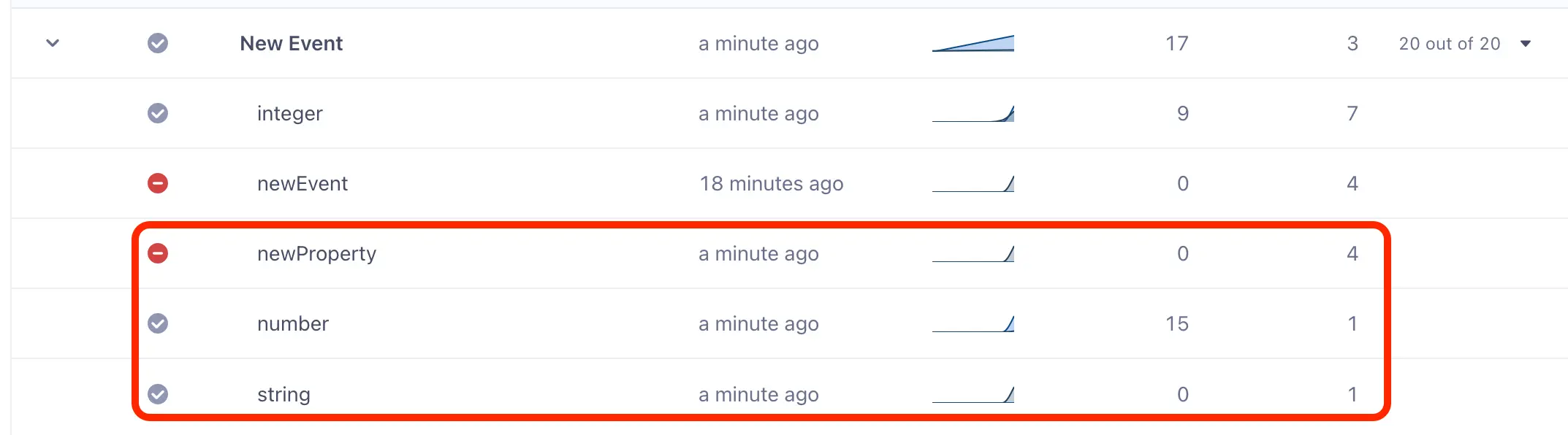
Next to the Event Name column in your Source Schema are two columns: Allowed and Blocked. If you configure your Schema Configuration to Block Unplanned Events and Omit Properties, the Source Schema only shows a property or trait as blocked when the entire event is blocked because it's unplanned and not part of the Tracking Plan. The Block Unplanned Events and Omit Properties settings are only be enforced if the property is an unplanned name, not an unplanned value.
To show a blocked value for a property/trait in your Source Schema, you'll need to trigger a violation, which can only be done using the JSON Schema. Once you configure your Schema Configuration to Omit Properties, the property or trait is shown as blocked.
See an example payload below:
1"protocols": {2"omitted": [3"newProperty"4],5"omitted_on_violation": [6"integer",7"string"8],9"sourceId": "1234",10"violations": [11{12"type": "Invalid Type",13"field": "properties.integer",14"description": "Invalid type. Expected: integer, given: number"15},16{17"type": "Invalid Type",18"field": "properties.string",19"description": "Invalid type. Expected: string, given: integer"20}21]
You can only use schema controls to block events at the point that they are ingested into Segment. When you forward an event that Segment has previously ingested from another source, that event bypasses the pipeline that Segment uses to block events and cannot be blocked a second time.
If you create a destination scoped transformation and request a replay for that destination, the transformation will transform events into the destination. Segment doesn't recommended requesting a replay to resend events to a destination as that will likely result in duplicate events in the destination.
To reduce the risk of creating circular and conflicting transformations, Segment only allows a single transformation to be created for each distinct source, event, destination and type pairing. That means you cannot create two Rename track event transformations for a order_completed event. This eliminates the possibility of different stakeholders creating conflicting transformations to satisfy their own needs. It also simplifies the Transformations list view, making it much easier to sort and filter by source, event, destination, etc.
Selecting multiple events and destinations for a single transformation rule creates a structure that is difficult to scale and likely to generate unintended consequences. For example, if multiple track events could be selected for a property name change, it would be possible to create conflicting changes. By enforcing a single event, Segment can check whether a transformation rule already exists and link you to that rule using a warning.
Only workspace admins are allowed to create transformations.
All users with Protocols admin or read-only permissions can view transformations.
Transformations introduce advanced logic that at scale may impact performance of client-side libraries. If you are interested in testing functionality that supports device-mode destination transformations in analytics.js, contact your account rep.
That depends. If you are working with source-level Transformations, the Protocols conversion will come first. If you are dealing with a destination scoped transformation (which is set to only impact data going to a specific destination), Destination Filters will be applied prior to Protocols Transformations.
Transformations are but one tool among many to help you improve data quality. Segment highly recommends that all customers interested in improving data quality start with a well defined Tracking Plan. The Tracking Plan serves as a roadmap for how you want to collect data. Without a clear roadmap, it's nearly impossible to build alignment around how transformations should be used to improve data quality, leading to more data quality issues than it solves.
Transformations are not applied to events sent through the Event Tester. The Event Tester operates independently from the Segment pipeline, focusing solely on testing specific connections to a destination. For a transformation to take effect, the event must be processed through the Segment pipeline.
This error occurs because there is a limit of 200 rules per API update. This restriction is by design to ensure stable API performance. Segment is not able to increase this limit on your behalf. To work around this, split your update into smaller batches, each with 200 or fewer rules.