Restricting Workspace Access
Deprecated
This page is deprecated. Refer to IAM for current access management documentation.
By default, all team members on an account can make changes anywhere in the workspace. To restrict access to specific Sources, Business Tier plans offer special permissioning; contact sales to learn more.
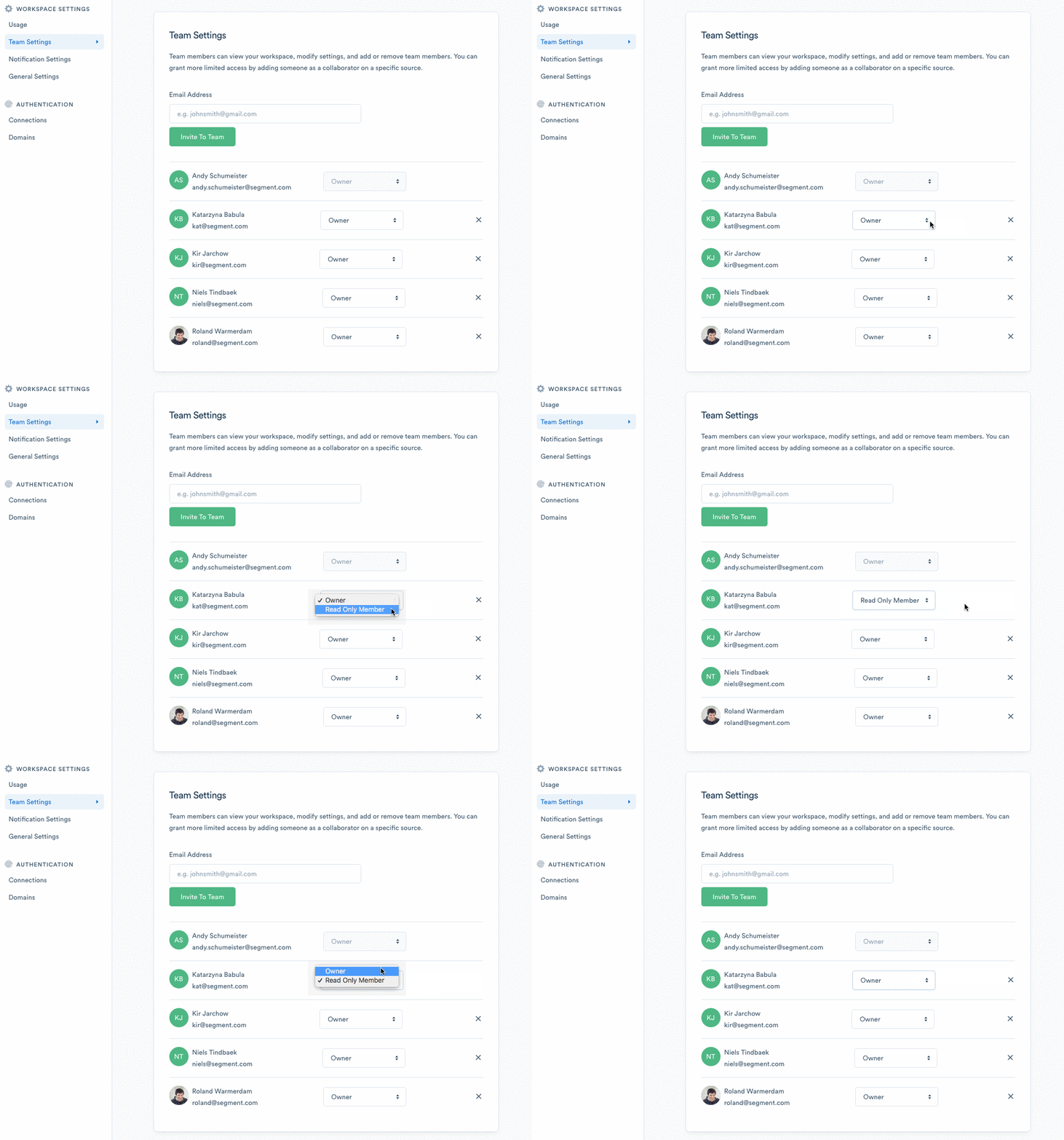
Business Tier workspaces can have Owners, Read-Only Members, and Source Collaborators.
Workspace Owners have full access to the workspace with the ability to view and update settings and create, view, update, and delete sub-resources like Sources and Destinations.
Read-Only Members can view any Source or sub-resource to see their layout, settings, and live data in the Debugger, but they cannot create or modify any Sources or Destinations. Read-Only Members can also view workspace settings, but cannot modify any settings.
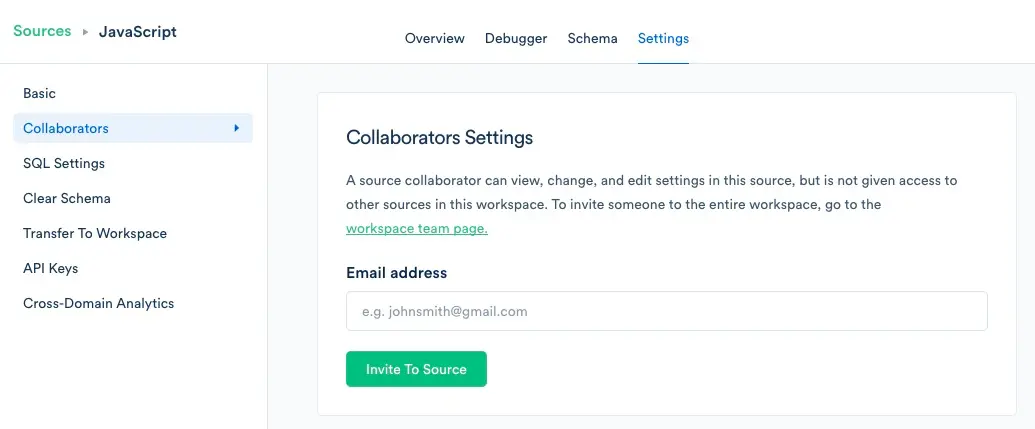
Source Collaborators can be added on a per-Source basis and have full access to the Source with the ability to view and update settings and create, view, update, and delete Destinations on the Source.
To update your team members' roles, go to Workspace Settings > Team Settings, and select the appropriate role.
To add a Source Collaborator, navigate to the Settings page for a given Source, and click Collaborators from the left-hand menu.