Antavo Source
Source Info
- The Antavo Source is an Event Cloud source. This means that it sends data as events, which are behaviors or occurrences tied to a user and a point in time. Data from these sources can be loaded into your Segment warehouses, and also sent to Segment streaming destinations. Learn more about cloud sources.
- This source is in Beta
Antavo is a loyalty management platform. The Antavo source syncs loyalty events and customer profile updates into Segment destination apps and your Segment warehouse.
This source is maintained by Antavo. For any issues with the source, contact the Antavo support team.
-
From your workspace's Sources catalog page, click Add Source.
-
Search for "Antavo" in the Sources Catalog, select Antavo, and click Add Source.
-
On the next screen, you can name the Source (for example, Antavo or Loyalty Engine).
- The name is used as a label in the Segment app, and Segment creates a related schema name in your warehouse.
- The name can be anything, but Segment recommends using something that reflects the source and distinguishes amongst your environments.
-
Click Add Source to save your settings.
-
Copy the Write key from the Segment UI.
-
Log into your Antavo account.
-
Select Twilio Segment integration in Antavo.
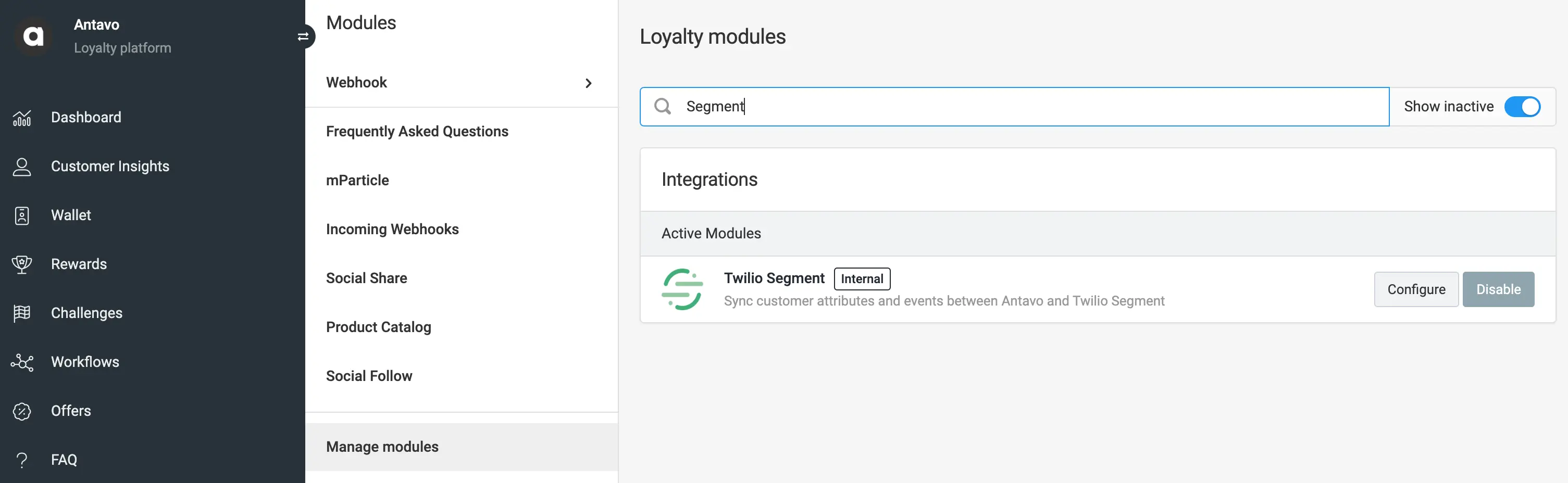
-
Paste the Segment write key and select which attribute should map to
userIDwhen syncing events.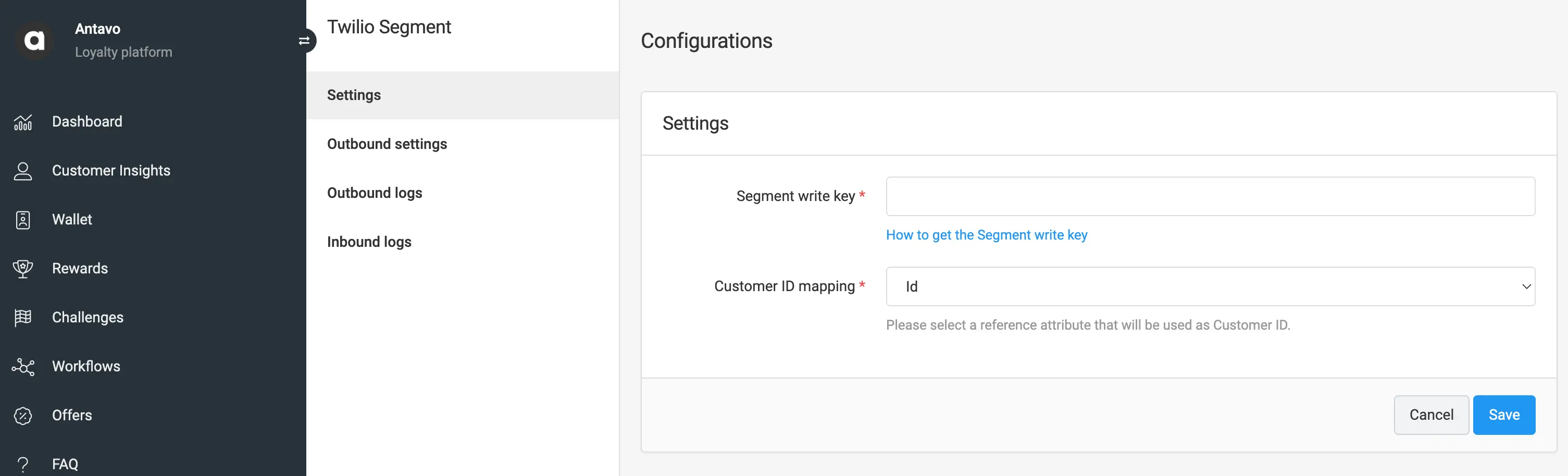
-
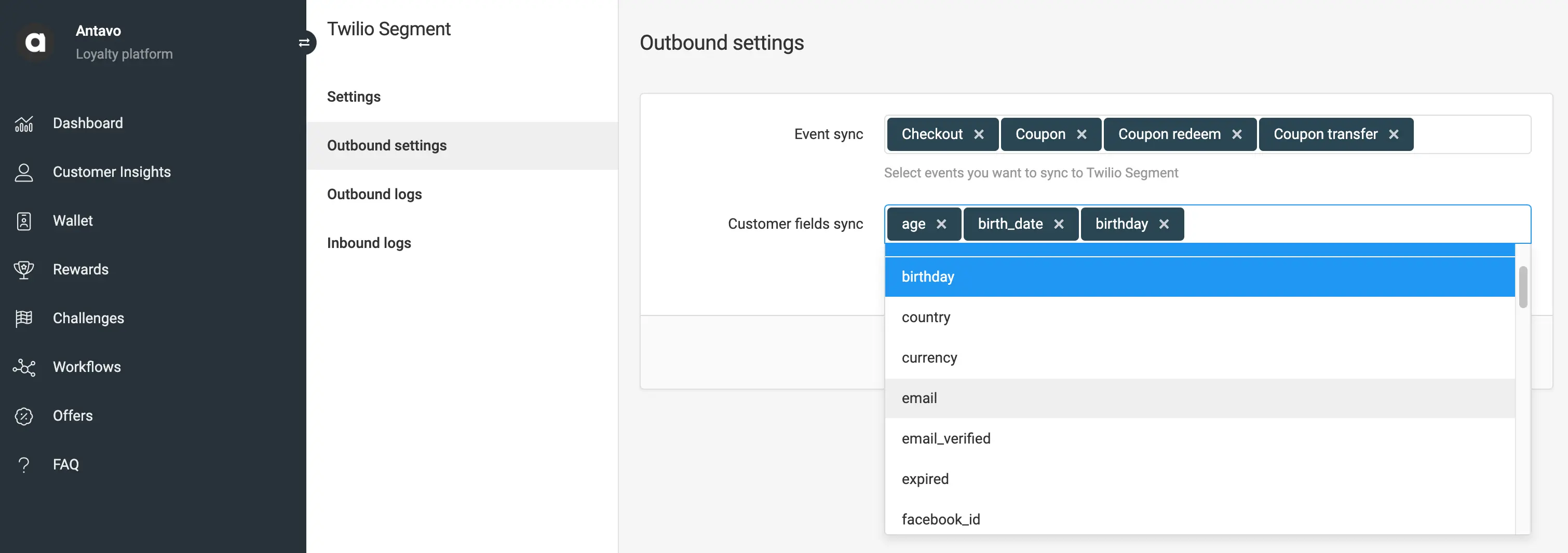
Go to the Outbound settings page and select:
- The events you want to sync to Segment.
- The customer attribute updates you want to sync to Segment.
Antavo syncs two main types of events to Segment: Profile Updates and Loyalty Events. Profile Updates are sent as Segment Identify events, while Loyalty Events are sent as Segment Track events.
Both event types include a userId, which can be configured in Antavo. You can designate any customer attribute as the "external customer ID" to use as the Segment userId.
Profile Updates occur when a customer attribute, added to the Antavo Customer field sync, updates. Customer attributes are included in the traits object.
1{2"traits": {3"first_name": "New",4"last_name": "Name",5},6"userId": "antavo-customer-id",7"timestamp": "2024-11-26T15:19:14.000Z",8"type": "identify",9}
Loyalty Events occur when a built-in or custom event, added to the Antavo Event sync, is triggered. The event data is then sent to the Segment Antavo Source. Event properties are included in the properties object.
1{2"properties": {3"points": 50004},5"type": "track",6"event": "point_add",7"userId": "antavo-customer-id",8"timestamp": "2024-11-26T15:15:49.000Z",9}
If you've enabled any Salesforce destinations (Salesforce (Actions), Salesforce Marketing Cloud (Actions)) or the Antavo destination, you should use the Integrations object to prevent data from flowing to those destinations. This prevents infinite loops, as Antavo has native integrations with their platform and Salesforce.
As the last step of the Antavo Source setup, you can select Destinations to receive data.
Log into your downstream tools and check to see that your events appear as expected, and that they contain all of the properties you expect. If your events and properties don't appear, check the Event Delivery tool, and refer to the Destination docs for each tool for troubleshooting.
If there are any issues with how the events are arriving to Segment, contact the Antavo support team.