Microsoft Azure
If you are using Microsoft's cloud platform, you can integrate with SendGrid. Navigate to the Azure Marketplace, locate the SendGrid add-on, select the appropriate plan, and get ready to start sending.
The following documentation covers signing up, sending an email, adding an attachment, and using filters. The following code examples show how Azure and SendGrid can solve your email deliverability problems.
These examples show how to send email with SendGrid from an Azure-hosted application in each supported language:
For more on making the most of your SendGrid and Azure integration, see the SendGrid Azure blog posts.
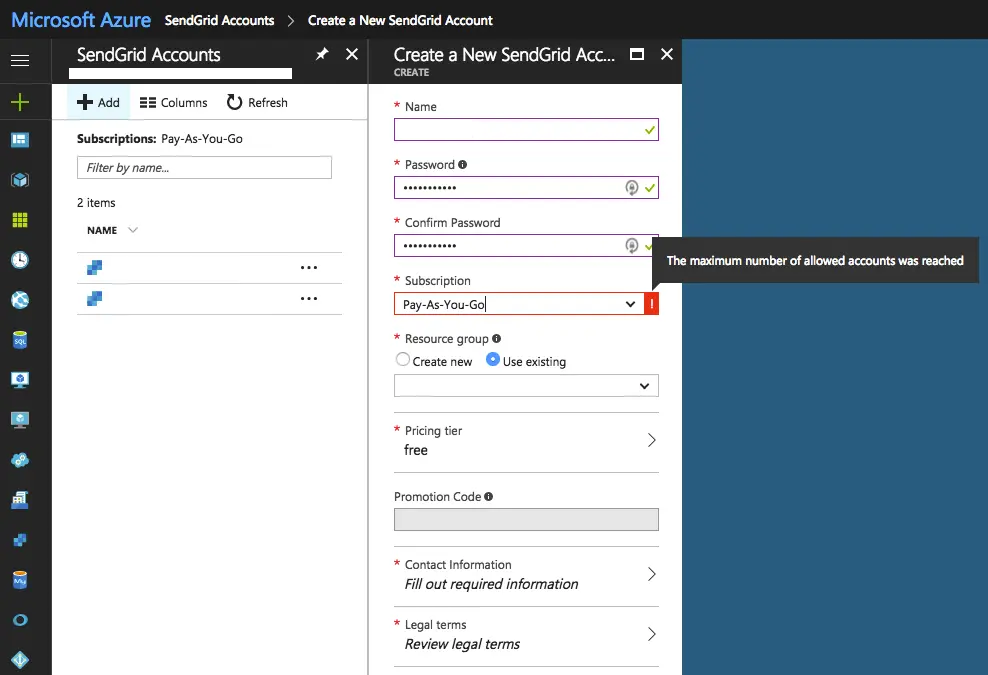
You are limited to 1 SendGrid account per Azure subscription. This limit exists for security and compliance reasons to prevent abuse.
Customers that integrate through the Azure Marketplace, do not have access to SendGrid's Marketing Campaigns.
If you try to create a second account, you will encounter this error on your dashboard: