Test Voice
Flex includes voice, SMS, and chat channels out of the box. When you launch your instance, the phone number Twilio provisions for your account can accept voice calls and SMS. For working with messaging, see the Flex tutorials.
Make sure you are available to accept tasks in Flex ("Available" would be a good status, unless you have customized the Activities for your Flex account).
Write down the phone number assigned to your Flex instance. You can find it on the upper right corner of the Admin panel under Test Drive.
Start by making a voice call from your own phone to your Flex account's phone number, then follow the steps below to answer the call in Flex.
Note: On a trial account, you will hear a message from Twilio asking you to press any key to execute the call. After the recording, hit any number on a cell phone or touch-tone phone to continue.
-
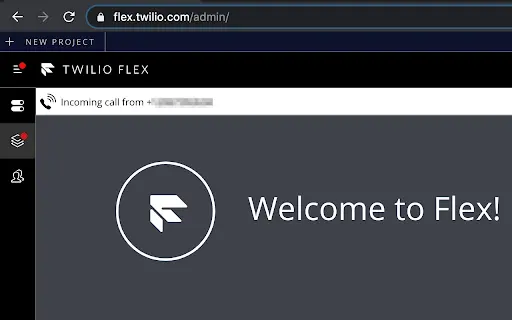
When you hear it ringing, navigate to the Agent Desktop on your Flex Instance, or click the "Stack" button on the left sidebar:
-
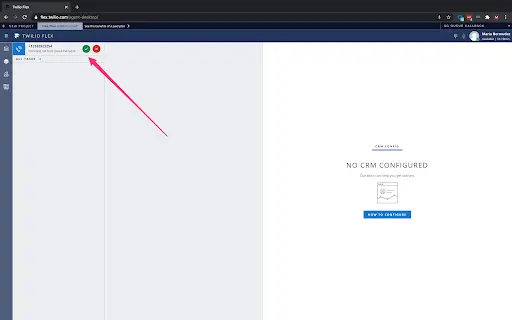
Accept the phone call by clicking the green box next to the incoming number - depending on your speed your phone might be playing hold music.
-
Verify the call went through on your phone (you may need to accept browser access to your speakers and microphone).
-
Click Hang up to end the Voice call.
-
Click Complete to end your wrapup time as an agent.
Wrapup time comes immediately after a conversation ends. This gives the agent time to do assigned tasks after a call, or take notes.