Email Insights Delivery Errors tab
The Delivery Errors tab gives you a detailed view of bounced, blocked, and deferred email. It is the primary tab for diagnosing deliverability problems such as high bounce rates, blocks at specific mailbox providers, and IP reputation issues.
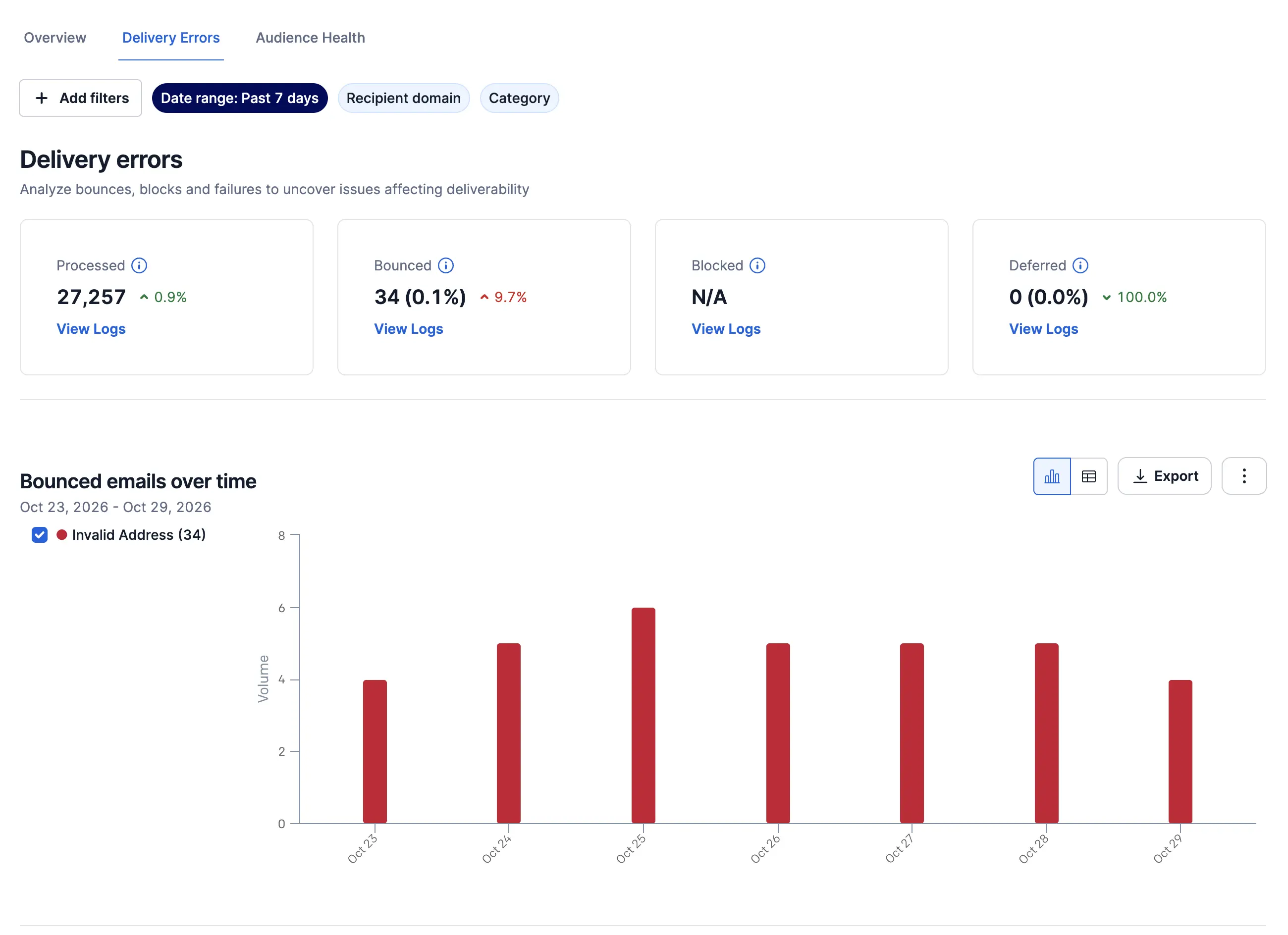
The Delivery Errors tab contains the following data:
- KPI cards: Counts of emails that had Processed, Bounced, Blocked, and Deferred outcomes.
- Bounced emails over time: Trends in the volume of bounced emails. Emails are grouped by their classification (Invalid Address, Technical, Content, Reputation, Frequency/Volume Too High, Mailbox Unavailable, and Unclassified).
- Blocked emails over time: Trends in the volume of blocked emails. Emails are grouped by block reason category (Invalid Address, Technical, Content, Reputation, Frequency/Volume Too High, Mailbox Unavailable, and Unclassified).
- Delivery issues by domains: Hard bounces, deferral rate, average delivery time, and blocks, grouped by recipient domain.
- Delivery issues by IP addresses: Hard bounces, deferral rate, average delivery time, and blocks, grouped by sending IP address.
| Event | Definition | What happens next |
|---|---|---|
| Bounce | The recipient mail server permanently rejected the message, for example because of an invalid address. | Twilio SendGrid does not retry that recipient on future mailings. |
| Block | The recipient mail server temporarily rejected the message, for example because of a rate limit or a content issue. | Twilio SendGrid does not retry that specific message, but you can still attempt future mailings to the recipient address. |
| Deferred | Twilio SendGrid attempted delivery but the receiving server asked for a retry. | Twilio SendGrid continues retrying that specific message during the retry window. |
| Drop | The message was not attempted because the recipient address is on a suppression list, such as the bounce, block, unsubscribe, or spam report list. | Twilio SendGrid doesn't attempt delivery to that address. Remove the address from the relevant suppression list to send to that recipient again. |
Bounce and block classifications group mailbox provider SMTP responses into seven categories. These categories help you understand the likely cause of a delivery failure without manually interpreting every response code and diagnostic message.
| Classification | What it means |
|---|---|
| Invalid Address | The recipient email address is syntactically incorrect or the recipient mailbox does not exist |
| Technical | A technical issue caused the rejection, such as DNS, authentication, network, connection, or mailbox provider service problems |
| Content | The mailbox provider believes the message content may be spam, malicious, or otherwise untrustworthy |
| Reputation | The mailbox provider detected reputation issues with the sending domain or sending IP |
| Frequency/Volume Too High | The mailbox provider is unable or unwilling to process the number of messages being sent, or the rate at which they are being sent |
| Mailbox Unavailable | The recipient mailbox exists, but is currently unavailable or not accepting messages |
| Unclassified | The rejection message is ambiguous or could not be mapped to a more specific classification |
Classifications are based on the SMTP response codes and diagnostic messages returned by mailbox providers. Because mailbox providers can change their response codes and rejection messages over time, classifications may change as Twilio SendGrid updates its mapping logic.
To learn more, see Bounce and block classifications.
Supported aggregates in the Delivery Errors tab include a View Logs link when the underlying messages are within Email Logs retention. Clicking it opens Email Logs with the same date range and filters used in Email Insights, scoped to the bounced, blocked, or deferred messages represented by that aggregate. From there you can see the specific SMTP response codes, recipient addresses, and timestamps for each delivery failure.
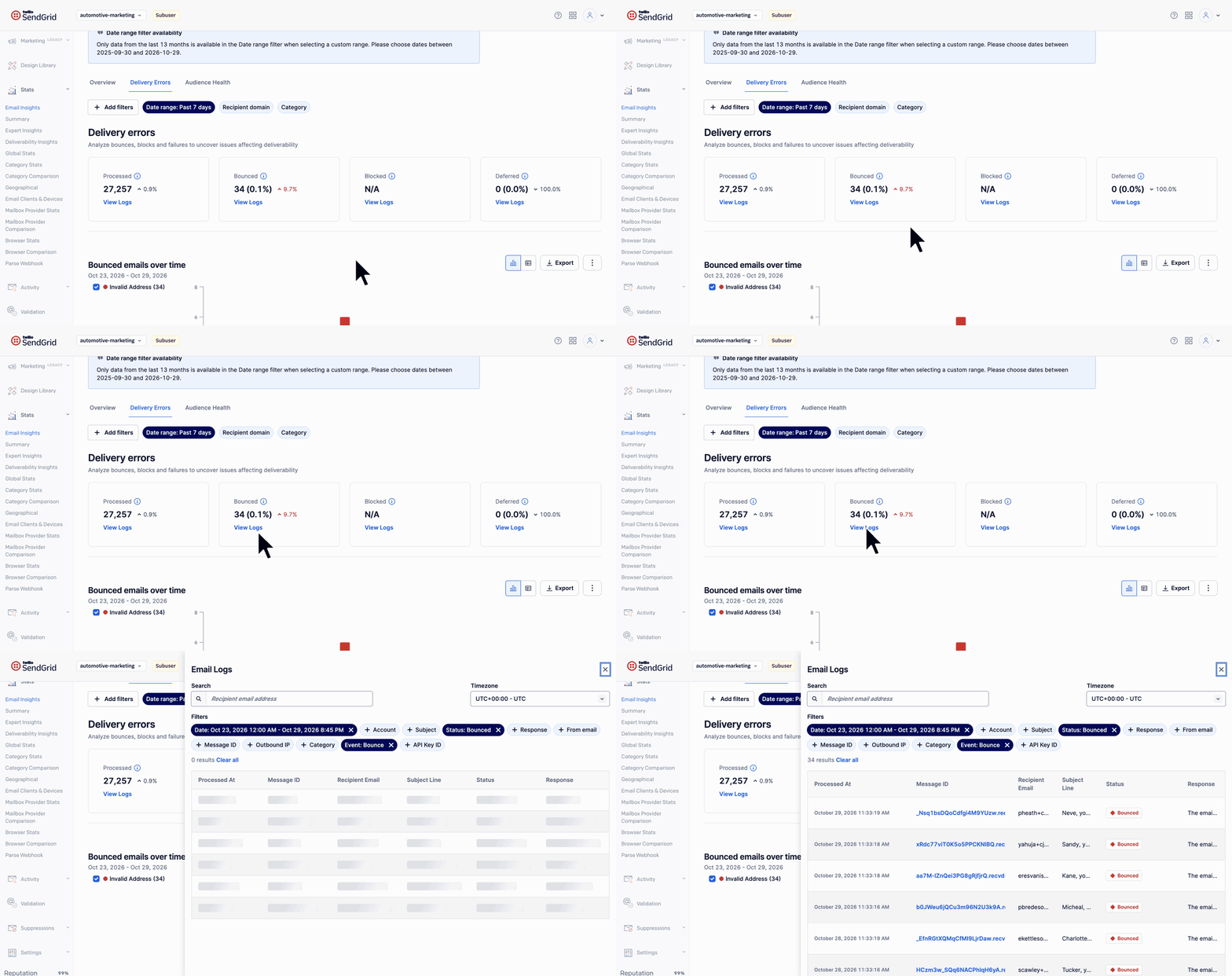
This is the recommended workflow for diagnosing a delivery issue:
- Identify the pattern in Email Insights, such as a spike in Reputation bounces at
gmail.com. - Click View Logs to open Email Logs.
- Review individual bounce reason strings for the specific SMTP response codes.
Visible by default:
- Date range
- Recipient domain
- Category
Additional filters, available from Add filters:
- Template
- Single send
- Marketing campaign
- Unsubscribe group
- IP pool
Info
Not every filter applies to every visualization on a tab. If a visualization can't use an active filter, it shows a message asking you to remove that filter, and the rest of the page still updates.
Engagement filters such as Device type, Email client, Country, and State / Region are not available on this tab. Use the Audience Health tab for those.
For a full explanation of how filters work, see Filters and dimensions.