How to Store Twilio Credentials Securely in Replit
Time to read:
July 21, 2026
Written by
Reviewed by
AI generated summary
- Generate a Twilio API Key and store it in Replit Secrets to keep credentials secure.
- Use environment variables to reference credentials in your code, avoiding direct value exposure.
- Test authentication to ensure Replit Secrets integration is successful.
This summary was generated by AI.
Nearly every Twilio project needs credentials to authenticate... but pasting those credentials directly into your code is the first step on the path to leaking them.
In this short tutorial, I’ll show you how to store your Twilio credentials safely in Replit using Replit Secrets, then read them into your app as environment variables so no sensitive value touches your source code. And at the end of this path, you'll have working credentials stored securely in Replit and tested with a short prompt that authenticates to Twilio to prove everything is wired up correctly.
From there? The world. But first, security! Let’s store.
Prerequisites
To follow along, you'll need the following accounts (and a device to run Replit!)
- A free Twilio account – sign up for an account here
- A free Replit account – you can sign up here
- A modern web browser
Store secrets secretly
If you already have a Replit project where you are trying to add Twilio credentials, go ahead and select it.
If you’re new to Replit, create a ‘Twilio Placeholder’ project from their main prompt. Enter something like “Twilio placeholder” in the box:
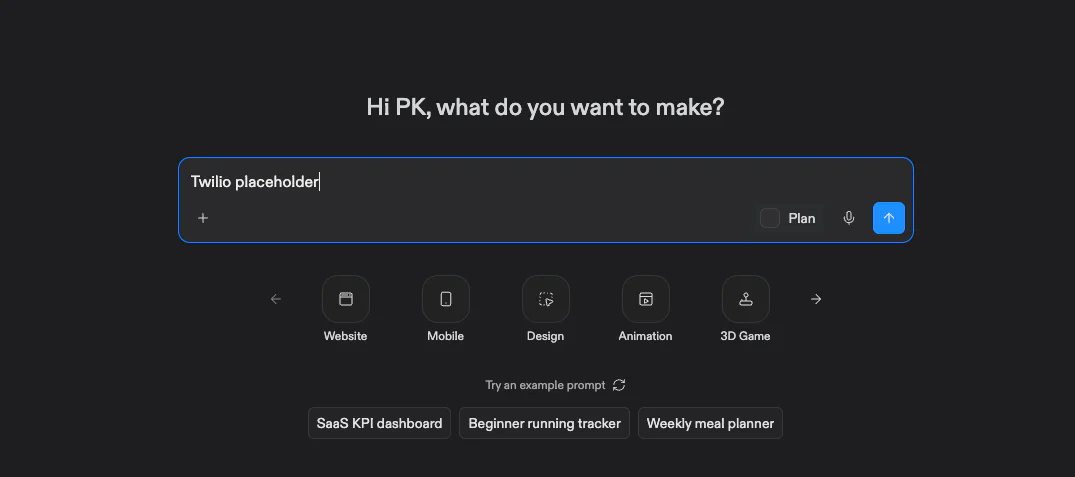
Then, if needed and Replit doesn’t forward you, navigate to your Projects or repls. Hit the Tools button at the top of the page (you may need to first hit the Expand Toolbar icon on the right), and hit the Secrets button.
You can leave the Secrets tab open in the background, we’re going to go gather what you need from Twilio. After these messages, we’ll be right back!
Step 1: Generate a Twilio API Key
An API Key is a credential you create specifically for an application. In your Twilio account, you can create many API Keys, scope each one's permissions, and even revoke keys without disrupting the rest of your account (in case one of them does get away from you!). Go to the Console to create a new API Key.
When you create a new key, note that Twilio offers three types:
- Restricted [Usually recommended] – fine-grained permissions scoped to specific resources. You can always modify scopes after you create a Restricted API key – and Replit will tell you exactly which scopes it needs if it hits an error.
- Standard – full access except the Accounts and Keys resources.
- Main [Generally, don’t pick this] – full access to all resources, including Accounts and Keys. (Reserve this for administrative use, and recognize its power.)
When you create the key, Twilio shows you two values: a SID (starting with SK) and a Secret. Copy both now – the Secret is displayed only once.
You'll also need your Account SID (starting with AC), which you can find on the Console API Key pageat any time. Together, these three values – Account SID, API Key SID, and API Key Secret – are what your app uses to authenticate.
The legacy path: Account SID and Auth Token
When you first create a Twilio account, Twilio generates an Account SID and an Auth Token as your primary credentials.
This pair still works and is what many older tutorials and tools reference. The catch? Your Auth Token grants full access to your account and can't be scoped or rotated as cleanly as an API Key – that is, if it leaks, your whole account is exposed until you rotate it.
If a Twilio product specifically requires the Auth Token, you can store it in Replit Secrets exactly in the same manner as I show the API Key value storage below. For new projects – and, really, nearly all of the time – you should prefer an API Key.
Step 2: Store the credentials in Replit Secrets
Replit Secrets stores and encrypts sensitive values then exposes them to your app as environment variables. The storage process is identical no matter which language your app uses; only the way you – or your Agent – read the values back differs. For full details, see Replit's Secrets documentation.
Reopen the Secrets Tab in your browser (or navigate to your project, then Tools, then Secrets).
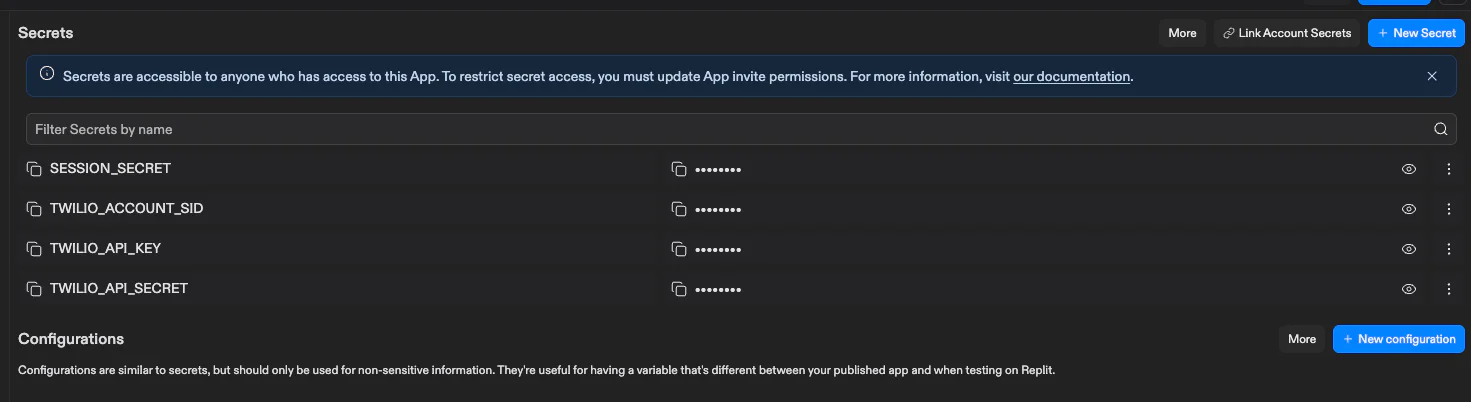
Select the blue New Secret button and add each of the following as a separate key/value pair, then confirm each with Add Secret:
TWILIO_ACCOUNT_SID– your Account SID (starts with AC).TWILIO_API_KEY– your API Key SID (starts with SK).TWILIO_API_SECRET– your API Key Secret.
Read the credentials in your code
Because Replit exposes each secret as an environment variable, you never reference the actual values in your code, you reference the variable names.
This is what lets you commit and share your code safely. Initialize the Twilio client by passing the API Key SID and Secret, along with your Account SID.
Let’s run a basic test to see if things worked. Ask the agent:
And – wait for it! – the Agent will churn away, and hopefully reply with a message like:
Hopefully you see a message similar to that. Seeing the account’s name is confirmation that Twilio accepted your credentials from Replit Secrets, and you’re ready to build a larger app!
Debug common issues
If you get an error, consider the Agent’s feedback – you might have copied one of the values wrong, or used a key with the wrong scope.
A few common gotchas to check:
- If you see an authentication error, double-check that all three strings match exactly – the Agent can adapt to different variable names, but the variables themselves are case-sensitive.
- If authentication still fails, confirm you entered each into the correct field, and that you didn't include stray whitespace when pasting.
Conclusion
You've now generated a Twilio API Key, stored it securely with Replit Secrets, and confirmed your app can authenticate with Twilio and get useful information (like your account's friendly name!). Having authentication working is the foundation for every Twilio project you'll build on Replit – and now that your credentials are safe, you're ready to actually use them.
To go deeper with credential management, review Twilio's API keys overview.
Paul Kamp is the Technical Editor-in-Chief at Twilio. He has, unfortunately, let an API Key or three leak in his time. He can be reached at pkamp [at] twilio.com.


Related Resources
Twilio Docs
From APIs to SDKs to sample apps
API reference documentation, SDKs, helper libraries, quickstarts, and tutorials for your language and platform.
Resource Center
The latest ebooks, industry reports, and webinars
Learn from customer engagement experts to improve your own communication.
Ahoy
Twilio's developer community hub
Best practices, code samples, and inspiration to build communications and digital engagement experiences.