Integrating Twilio Agent Connect with Twilio Flex for Human Handoff
Time to read:
June 09, 2026
Written by
Reviewed by
AI generated summary
- Integrating Twilio Agent Connect with Twilio Flex guarantees no information is lost during AI-human handoff.
- You’ll learn to use Conversation Memory to maintain user details and personalize interactions.
- The setup covers configurations in TAC, Conversation Intelligence, Twilio Flex, and creating custom traits for smooth transitions.
This summary was generated by AI.
Integrating Twilio Agent Connect with Twilio Flex for Human Handoff
In the "agentic" era of customer service, the objective isn’t simply to automate interactions with AI it’s to ensure that when a human agent steps in, they have complete context from every prior interaction. By leveraging Twilio Agent Connect (TAC), Conversation Memory, and Twilio Flex, you can create seamless transitions where no information is lost between AI and human support.
In this tutorial, you’ll learn how to build an intelligent escalation workflow that uses Conversation Memory to retain key user details including custom traits across sessions.
We’ll demonstrate how to manually add a trait (such as a preferred language) to a user’s memory profile, and show how this trait can be utilized by the bot to personalize interactions.
When escalation to a live agent is required, the system will transfer the conversation to Twilio Flex, preserving the full chat history and providing a summary including any relevant traits to the human agent.
We’ll orchestrate this solution using Twilio Agent Connect (TAC), Conversation Intelligence V3, Twilio Flex, and OpenAI to deliver smart, context-aware bot interactions, and ensure a smooth, informed handoff to live support when needed.
Prerequisites
To successfully deploy this project, you will need:
- Python 3.10 or newer installed on your local machine (tested on Python 3.14.4).
- A Twilio Account with an active, SMS and Voice-capable phone number.
- A Twilio Flex instance configured and running.
- An OpenAI Account alongside a valid API Key.
- ngrok installed to securely expose your localhost to Twilio's webhooks.
- A phone to place test calls and verify the escalation workflow.
Step 1: Project Setup & Initialization
Open your terminal, navigate to your desired project directory, and execute the following commands to install the required SDKs and dependencies:
In your project directory create a .env file, then open the .env file in your preferred text editor and fill out below fields for now:
Step 2: Provision Flex and Configure Conversations (Classic)
Step 1: If you don't have a Flex instance running yet, follow the Twilio Flex Account Setup Guide to set up Flex in your account.
This automatically creates a default Flex Conversation Service behind the scenes.
Step 2: Now, you need to create an address rule so Twilio knows what to do when a text hits your phone number.
- In Twilio Console navigate to Conversations (classic) and select Addresses.
- Click Create Address (or select your active Twilio number from the list).
- Under Address Configuration, select Auto-create a conversation to Yes.
- Choose your Conversation Service: Select Flex Conversation Service from the dropdown.
- Quick sanity check: Make sure this matches the service listed under Conversations (classic) > Settings > Default, or your routing will break.
- For the "Want to set up an integration?" prompt, select No. (We don't want a hardcoded webhook here because our Studio flow and Orchestrator will handle the handoff logic dynamically).
- Save your changes.
Step 3: Configure the Twilio Conversation Orchestrator
The Conversation Orchestrator handles interaction traffic and acts as the brains behind our routing and profiling.
- Open your Twilio Console and navigate to the Conversation Orchestrator dashboard.
- Create a new configuration and provide a distinct Conversation configuration name.
- For Conversation grouping, select Group by profile.
- Under the Webhook section, temporarily leave the Webhook URL and HTTP Method empty. We will return to update these once our tunnel is live.
- Do not Select any Twilio phone numbers in Messaging & Chat traffic.
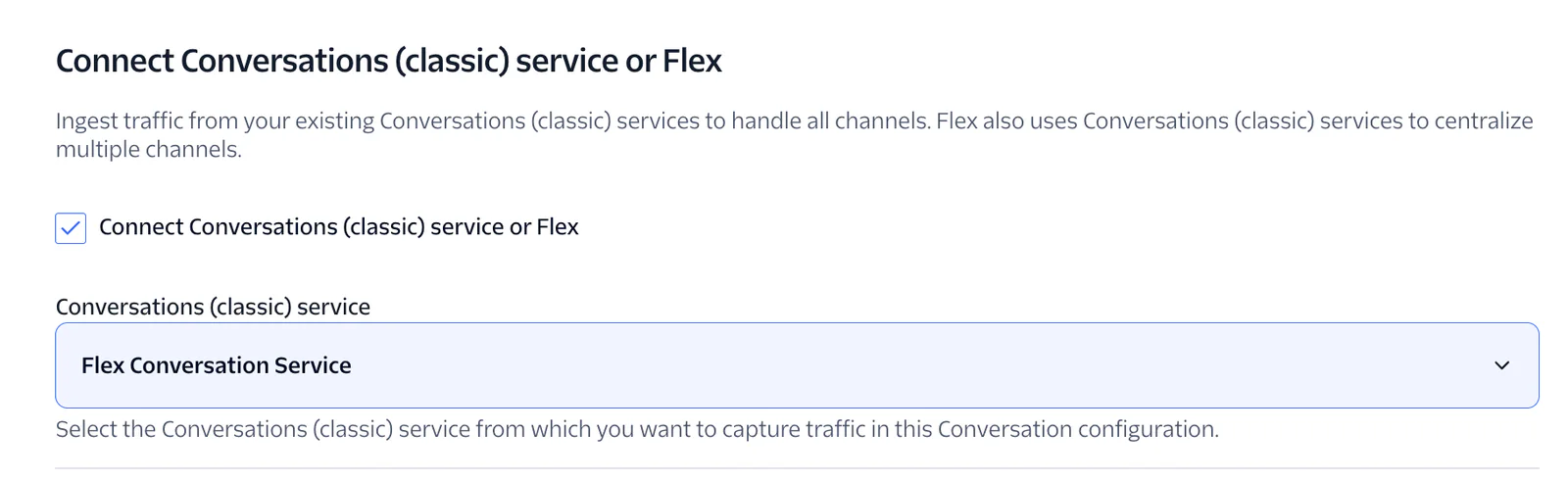
- Check the box to enable Connect Conversations (classic) service or Flex and select Flex Conversation Service from the dropdown menu. This establishes the routing pipeline to your Flex instance for human agent handoffs.
7. Do not enable the option to Set up automatic capture for Voice traffic.
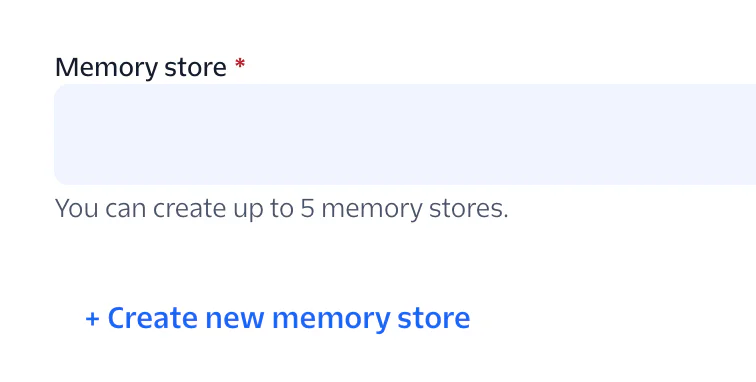
8. Enable Conversation memory, For initial implementations, click + Create new memory store and ensure both Observations and Summaries are toggled ON.
9. Once you reach the Summary page, click on Create Conversation Configuration.
10. The TWILIO_CONVERSATION_CONFIGURATION_ID is the Conversations configuration ID of our Conversation Orchestrator. Copy the Conversations configuration ID of Conversation orchestrator and fill in this field in .env file:
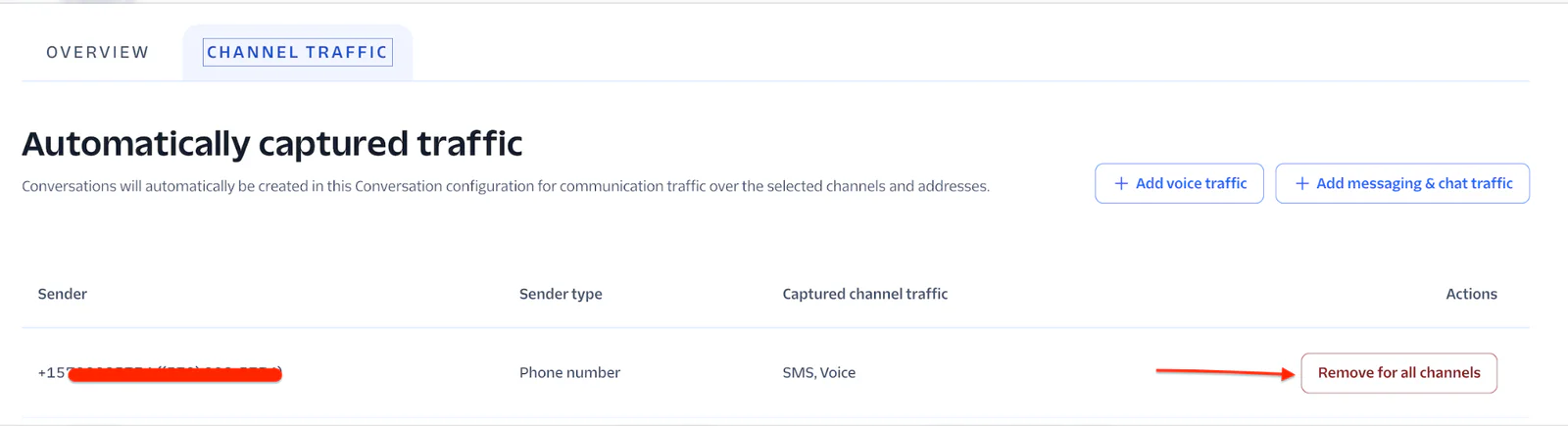
To make this work seamlessly with Twilio Agent Connect (TAC), remove the Twilio phone number as a sender from all channels under Automatically captured traffic in Channel Traffic.
Step 4: Establish Conversation Intelligence Rules
Next, we need to bind a Conversation Intelligence configuration to our orchestrator to synthesize summaries and suggest actions.
- Go to Products & Services > Conversation Orchestrator > Conversation Intelligence > Intelligence configurations.
- Link your new intelligence profile directly with the Conversation Orchestrator you built in Step 2.
- Click on your newly created Intelligence configuration to view its parameters.
- Inside the Details tab, locate the Rules section and click Create Rule.
- Select Summary & Next-Best-Response as your primary language operator and hit next.
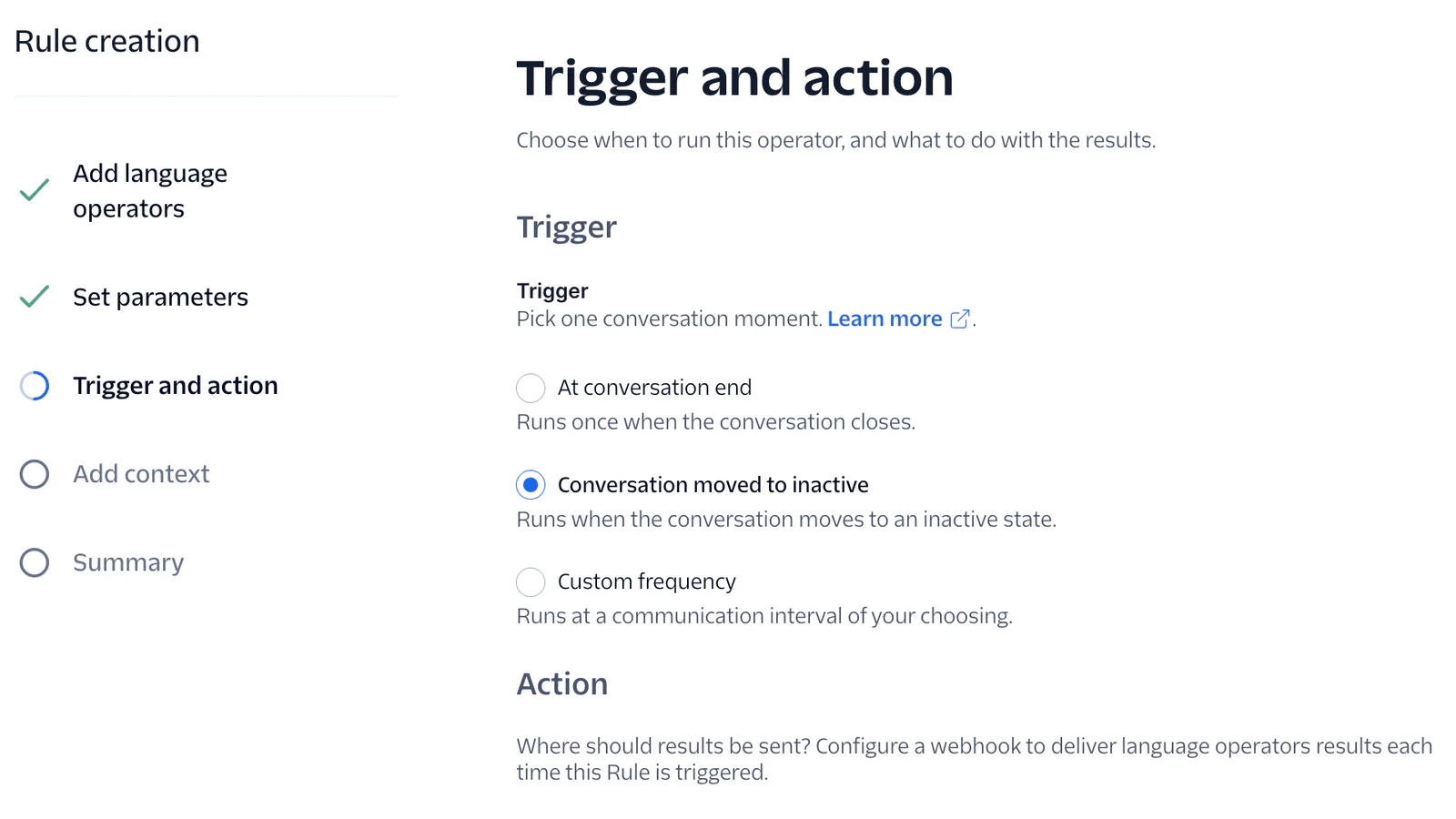
- Set the activation trigger to At conversation end and leave the subsequent Webhook action blank.
- In the Add Context section, select Enable Conversation Memory for this rule.
- Save changes
- Now, create a second rule within the same configuration profile. Set its parameters identical to the first, but change the trigger to Conversation moved to inactive. This ensures you capture summaries if a chat simply timeouts or gets closed silently.
10. Now you will have 2 rules under your Intelligence Configurations service.
Step 5: Expose Local Environment via ngrok
Twilio Agent Connect (TAC) runs on port 8000 locally. We must expose this specific port to the web so Twilio can send incoming event payload data.
Open a fresh terminal window and initialize an HTTP tunnel on port 8000:
(Note: Ensure your ngrok configuration targets port 8000 to match the TAC environment runtime port)
ngrok will output a dynamic forwarding address similar to: https://a1b2-34-56-78.ngrok-free.app
Update Configuration Endpoints:
Return to your local .env configuration file and pass your public ngrok URL to the TWILIO_VOICE_PUBLIC_DOMAIN variable without the https:// prefix:
Next,
For Voice traffic: Navigate to Numbers and Senders > Overview, select your number, and set the Voice webhook to your ngrok URL with the /twiml endpoint.
- Example: https://a1b2-34-56-78.ngrok-free.app/twiml
For the Orchestrator: Go to Conversation Orchestrator, edit your configuration, and set the webhook URL using the /webhook endpoint.
- Example: https://a1b2-34-56-78.ngrok-free.app/webhook
Step 6: Linking the Studio Flow (Human Handoff)
This step ensures that when a handoff is triggered, the call or message is correctly routed through Twilio Studio to a Flex agent.
- Create Flow from Template: In the Twilio Console, navigate to Studio > Flows. Click Create flow, then select From template from the dropdown.
- Select the Handoff Template: Scroll to the bottom and select Twilio Agent Connect - Human Handoff. This template contains the pre-configured logic for TAC escalations.
- Configure Flex Routing: Open the flow editor and click on the send_to_flex widget. Under the "Workflow" settings, select your desired Flex workflow (e.g., Assign to Anyone).
- Capture Flow SID: Save and Publish the flow. Note the Flow SID (it starts with FW...).
- Finalize .env: Add this SID to your environment file:
Step 7: Create custom trait in Conversation Memory Store
To track specific user preferences like a language preference across multiple sessions, we need to define a custom trait in our Conversation Memory Store.
Configure the Custom Trait in the Twilio Console
- In the Twilio Console, navigate to the Memory Store you created earlier within the Conversation Memory.
- Click on the Traits tab.
- You will see the default trait group ( Contact traits). Scroll to the bottom of this section and click + Add trait.
- Configure the new trait with the following settings:
- Trait Name: Language
- Data Type: String
- Click Save.
Step 8: Implementing the Core TAC Backend Logic
Now that our Twilio infrastructure is fully mapped out, let's look at the Python backend script that coordinates the AI runner and the handoff execution loop.
The base code is available in this Github Repo. We are going to modify this base code in such a way that it will handle Conversations with memory retrieval enabled and it will retrieve added traits (ex: language) from customer memory.
Create a new file in your folder and name it agent_handoff.py, and copy paste the code given below:
Time to Test
Run the above code in terminal with command:
- Call or Text: Grab your phone and call or text your active Twilio number.
- Trigger Handoff: Interact with your bot, then ask to speak with a human.
- The Payload: The TAC SDK handles the request, packaging a payload containing the
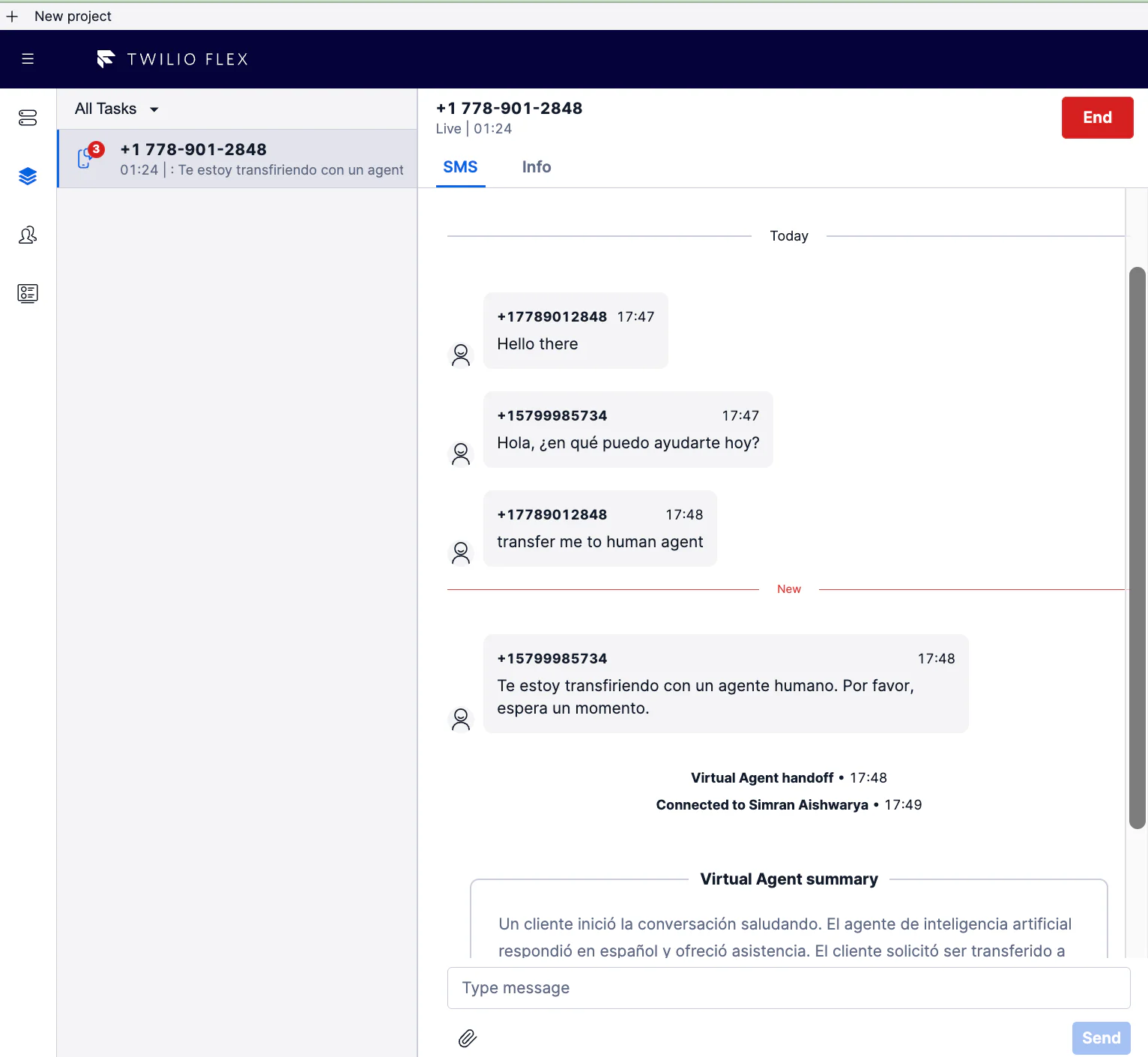
conversationSidandmemoryStoreIddirectly to your Studio Flow. - Flex Dashboard Access: In your Flex instance console, an agent will receive the incoming task request. Rather than seeing a blank chat window, the agent instantly receives the automated AI Summary generated by Conversation Intelligence. They know the customer's problem before they even say hello.
💡 How it Works
Every time a new Conversation is created, the system first checks if a Conversation Memory profile already exists for the participant (e.g., the customer’s phone number). If a profile exists, the Conversation is linked to that existing customer memory. If no profile exists, a new Conversation Memory profile is created for the participant.
For testing purposes, we will manually add a custom trait to the Conversation Memory profile.
This allows us to simulate and verify how traits are stored and retrieved within the memory system. By manually inserting a trait (such as language), we can observe how the Conversation will utilize this information during communication.
After initiating a Conversation, we will get the memory profile Id from Twilio console > Conversation memory > Memory store > Customer Profiles, copy both the Memory Store ID and the Customer Profile ID.
Update the Profile Trait via Python Code
Once the trait is defined in your console, you can programmatically update a customer's profile using the Twilio Python code.
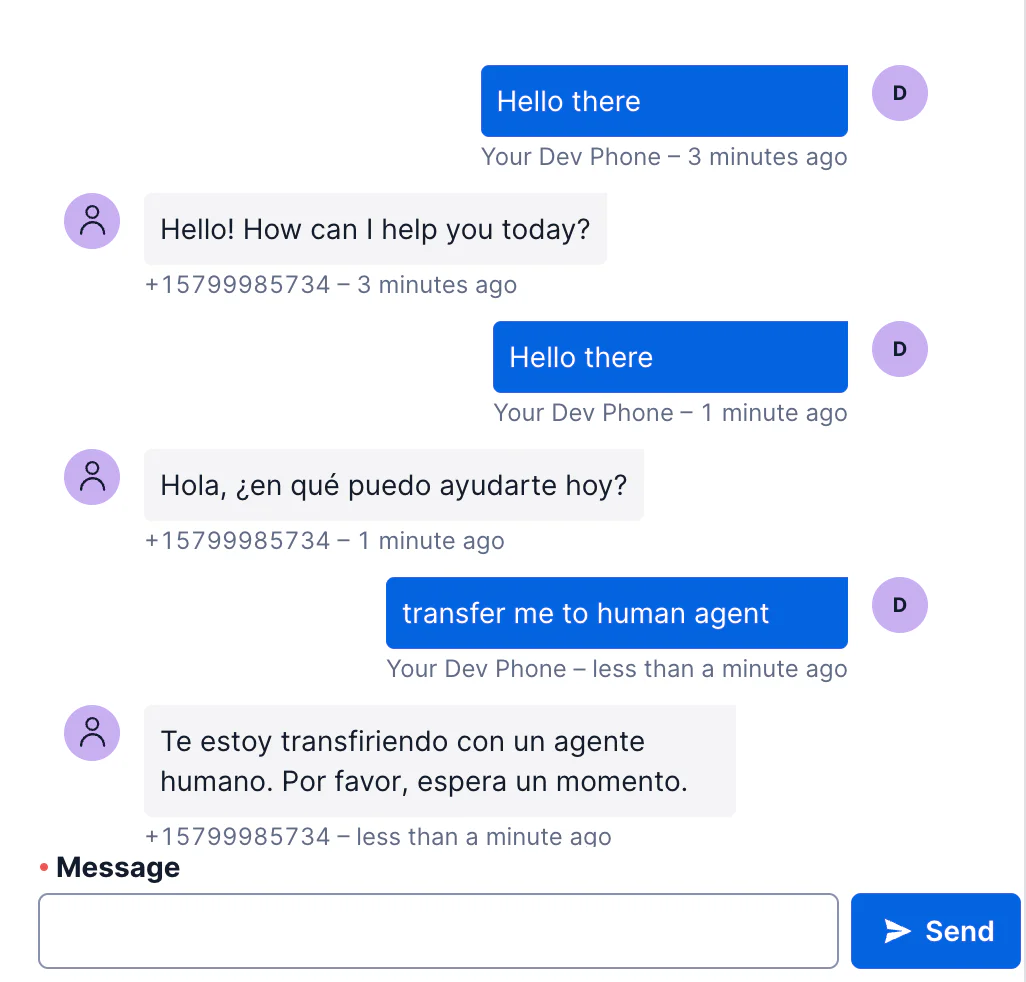
After updating the language trait to Spanish in the Conversation Memory profile, the bot will communicate with the user in Spanish. When the user requests a handoff to a human agent, the chat will seamlessly transfer to a Human Agent in Flex. The conversation history is preserved, and a summary of the interaction will be provided to the agent.
Conclusion
I hope that you’ve enjoyed this article and learned something new that could help your current or next project! If you’re curious what else you can build with Twilio Conversations dive deep into the developer docs.
We can’t wait to see what you build!
Simran Aishwarya is a Developer Support Engineer at Twilio, who specializes in communication platforms, backend systems, and technical problem solving. She works extensively with Twilio products including Voice, Flex, TaskRouter, Conversations, and Segment, and enjoys building practical solutions using Python, JavaScript, APIs, and real-time customer engagement technologies.

Related Resources
Twilio Docs
From APIs to SDKs to sample apps
API reference documentation, SDKs, helper libraries, quickstarts, and tutorials for your language and platform.
Resource Center
The latest ebooks, industry reports, and webinars
Learn from customer engagement experts to improve your own communication.
Ahoy
Twilio's developer community hub
Best practices, code samples, and inspiration to build communications and digital engagement experiences.