Recipe
Automate your ecommerce event tracking with Elastic Path with CX Studio
Implementing a high quality ecommerce tracking plan typically takes developer time to set up and maintain. Elastic Path with CX Studio automates your server-side and client-side ecommerce event collection to provide teams with instant on end-to-end tracking for web and ecommerce events.
What do you need?
-
Elastic Path CX Studio
On this page
In this recipe you’ll learn how to implement comprehensive server and client side tracking for your composable commerce solution using Elastic Path with CX Studio and Twilio Segment… all without writing any code!
By enabling end-to-end tracking for your ecommerce business you can begin to build and execute more effective cross-channel campaigns for customers and deliver tailored experiences to deliver the right message at the right moment on the right channel.
Step 1: Setting up your Elastic Path integration
From the Twilio Segment web app, click ‘Catalog’
Search for “Elastic Path” in the Catalog and select it
Copy the provided API write key and go to Integrations Hub in Elastic Path
Search for Twilio Segment under Instant On integrations.
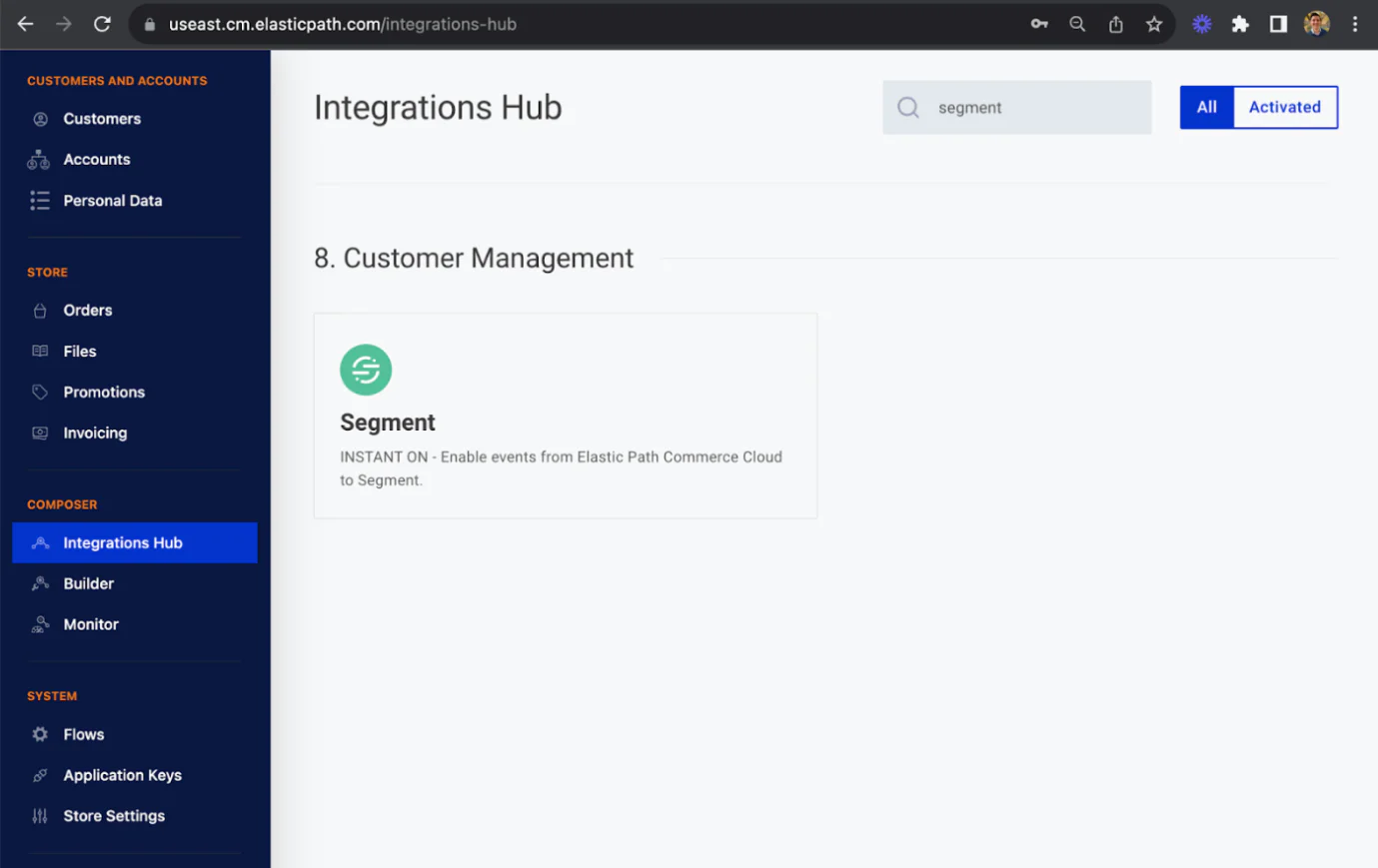
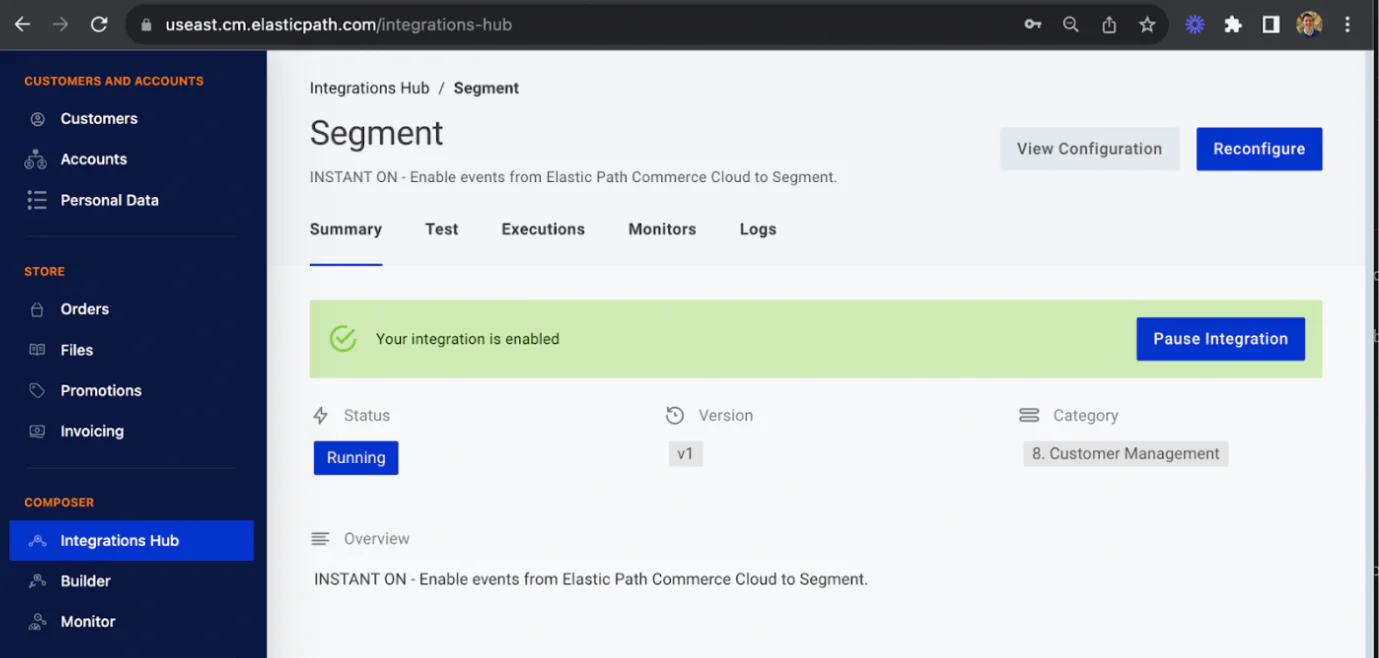
Click on the integration. Then click “Configure”
The integration set up consists of four easy steps
The first step is automatically pre-filled for you, so simply click “next”
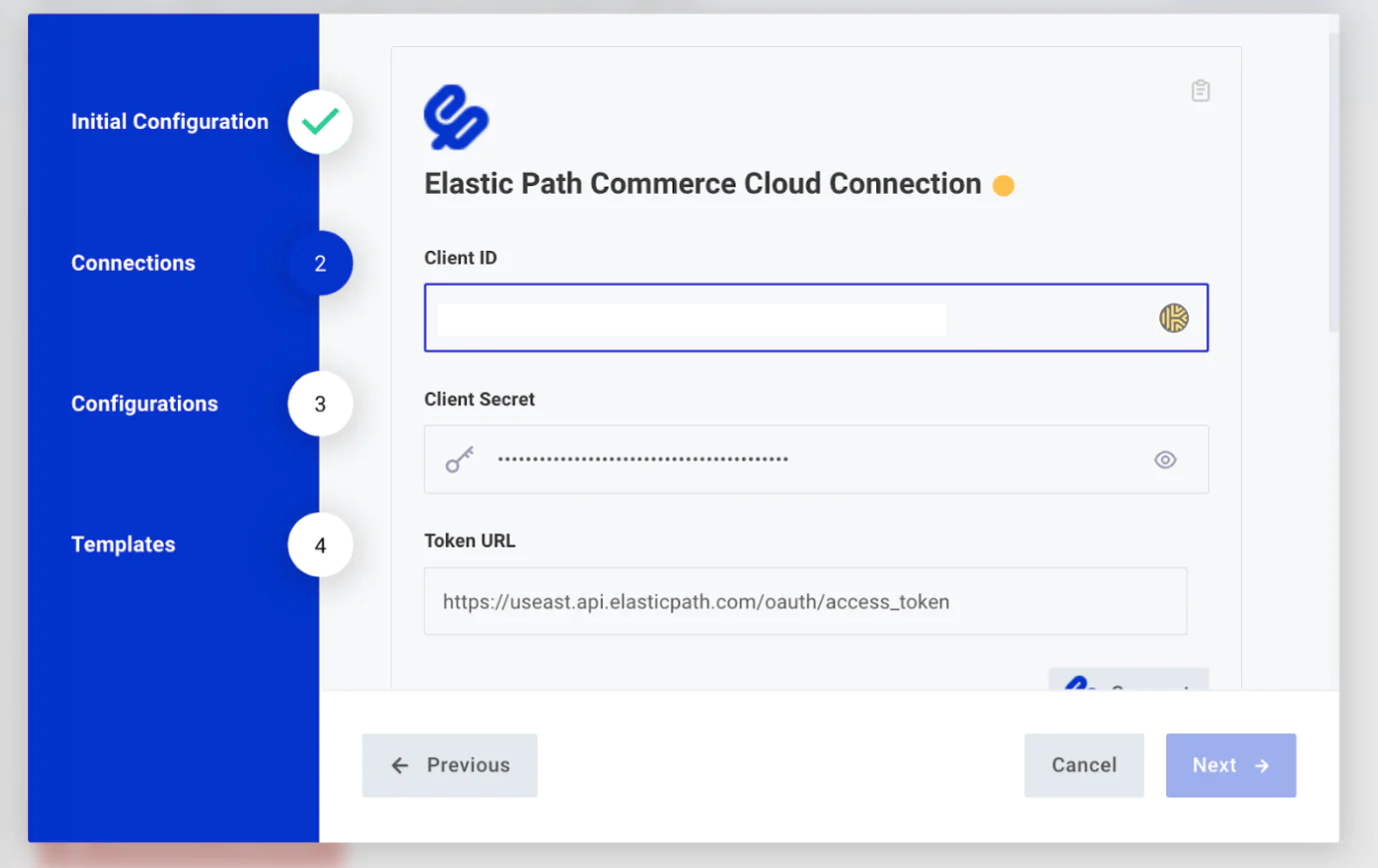
Then, you’ll need to add your Elastic Path Client ID and Secret Key, which you can find in your store API keys
- Add the Twilio Segment write key provided to you in the elastic path source integration
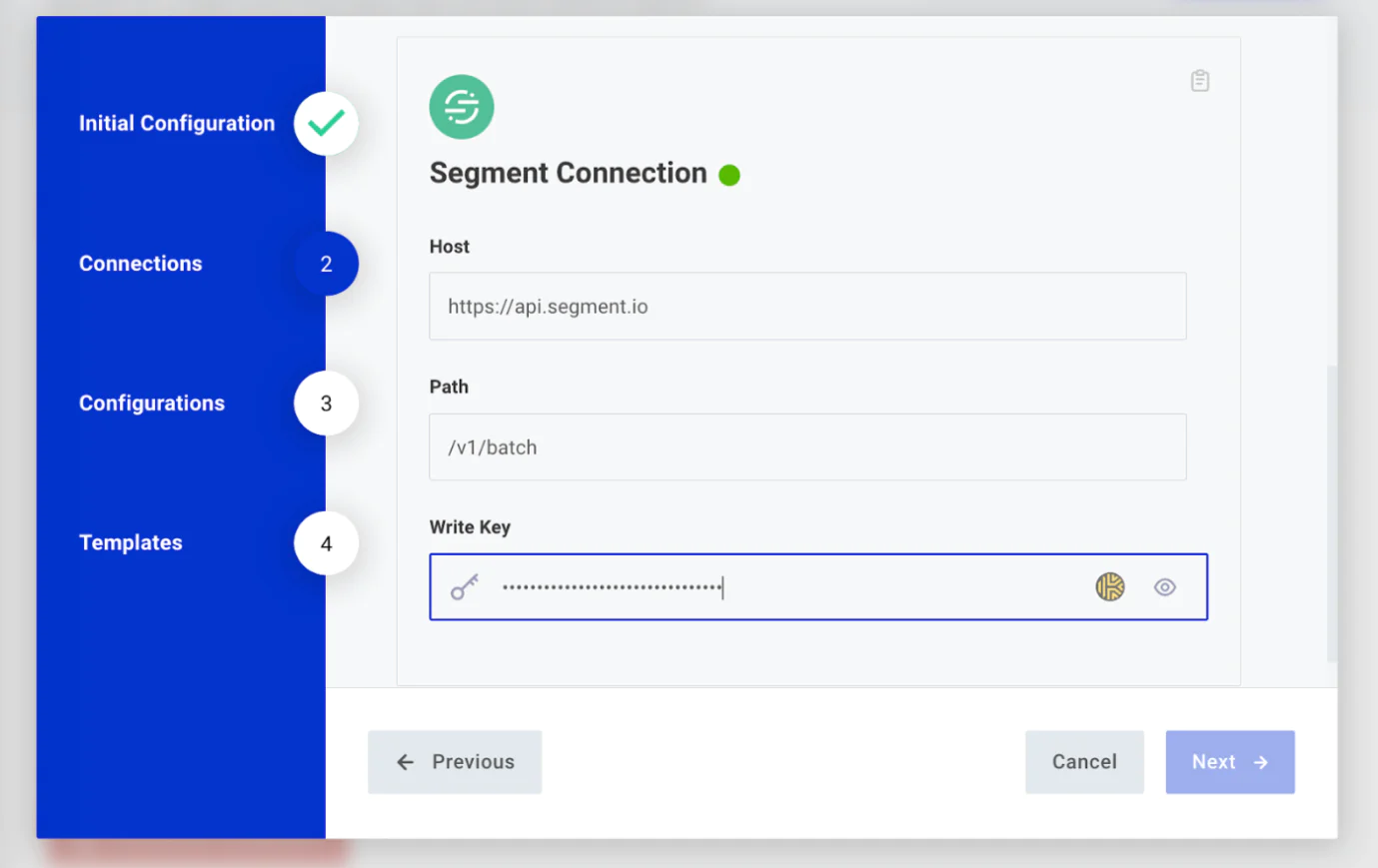
- Paste the API key you copied from the Elastic Path source integration in Twilio Segment and click save
You will now see a full list of server side events available to automatically push to Twilio Segment. Choose the events you’d like to enable and click save.
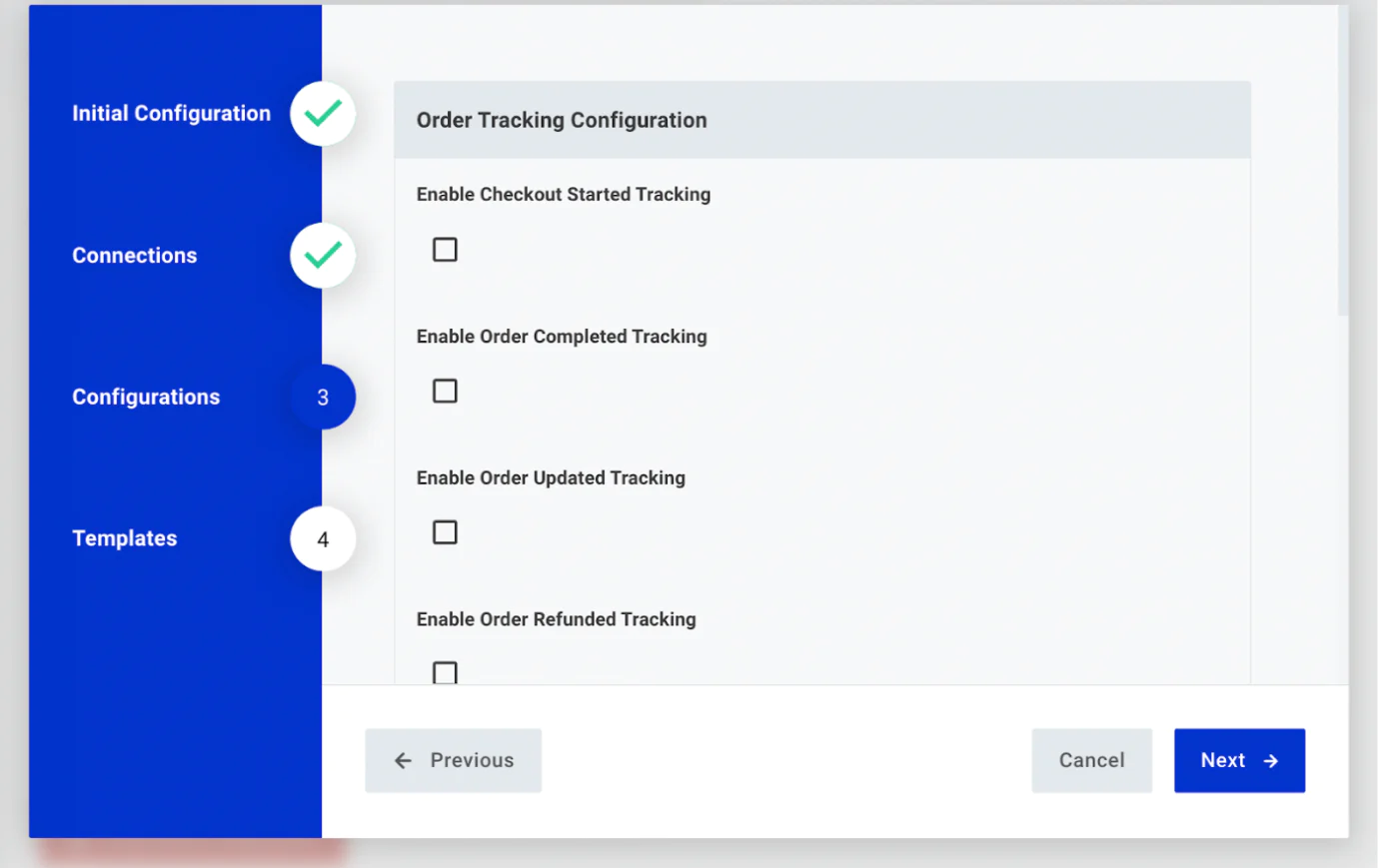
- Click Finish to complete the integration. Once saved, you will see a banner indicating that your integration is enabled and running.
- Note: Before finalizing the integration, you can choose whether to edit any of the specific server-side events code
Step 2: Setting up your CX Studio integration
From the Twilio Segment web app, click ‘Catalog’.
Search for “Elastic Path CX Studio” in the Catalog and install it
Opening the newly-installed CX Studio source, open the Settings > API Keys section to find the Source ID and Write Key
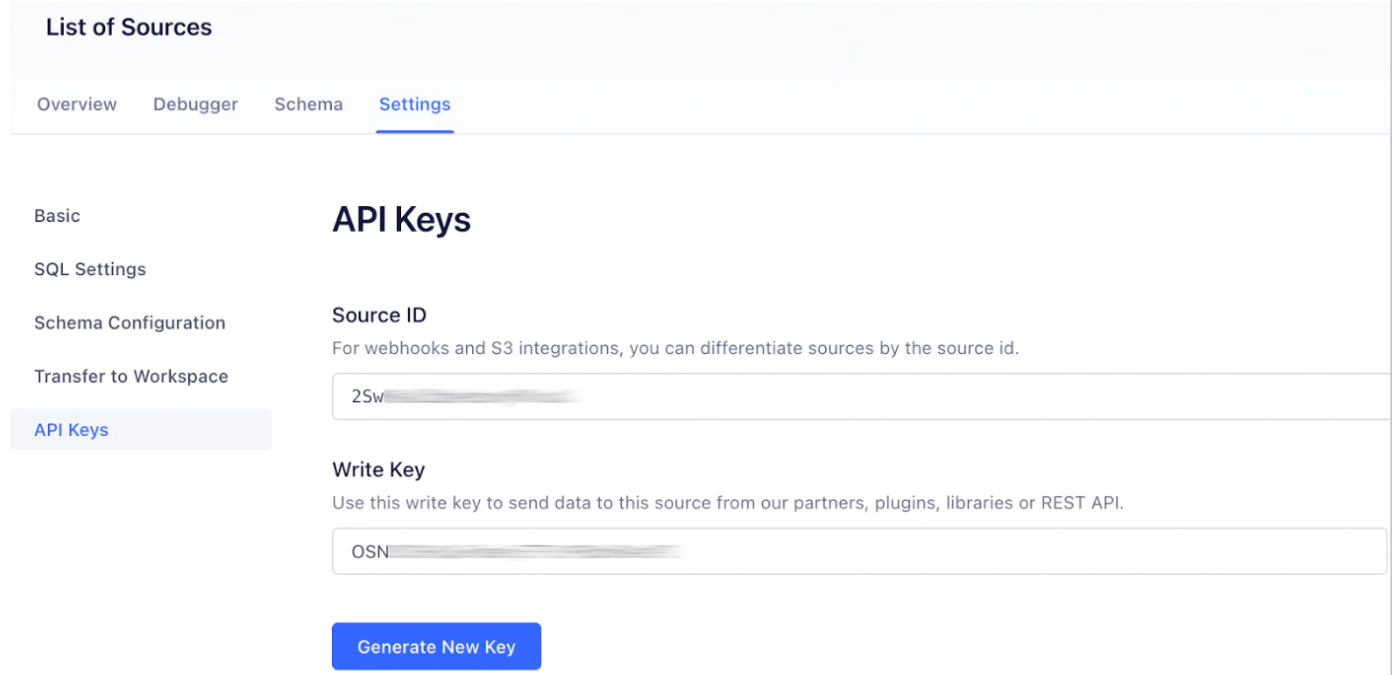
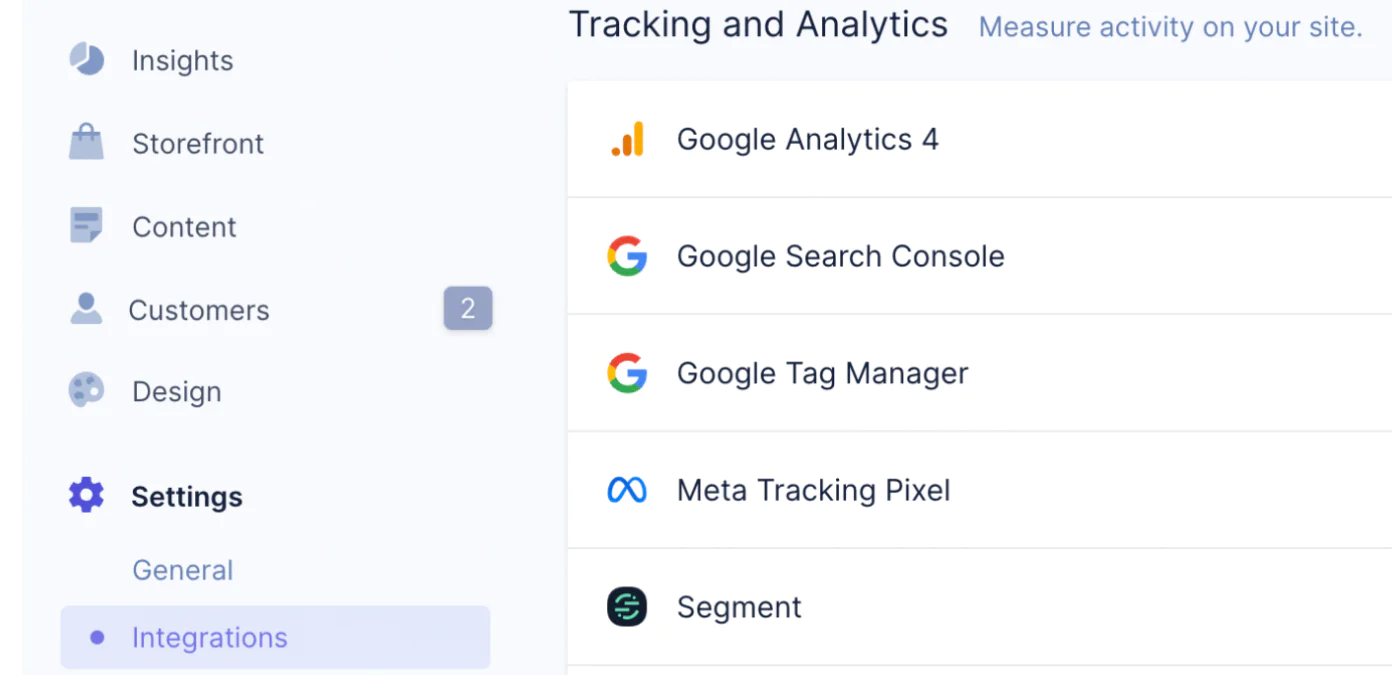
- Copy the provided API write key and visit the Settings > Integrations panel in your CX Studio account and click the “+” icon to the right of the Twilio Segment integration.
- In the Twilio Segment Settings panel that opens, configure your Twilio Segment integration using the Source ID and Write Key from your Twilio Segment CX Studio Source. The Unify Space ID and Unify Access Token settings are not required for this recipe.
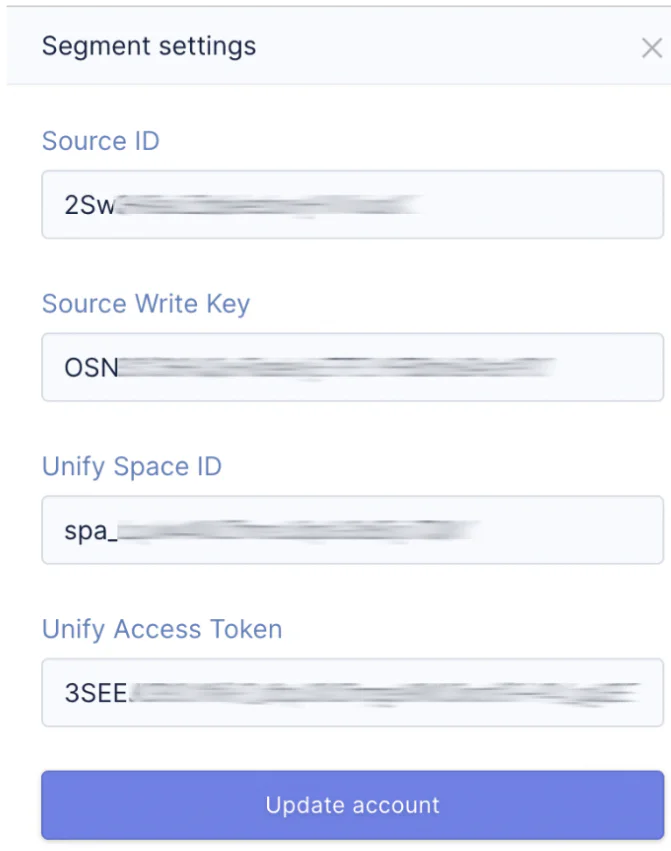
Save the integration. You’ve completed the set up!
Step 3: Review and confirm data
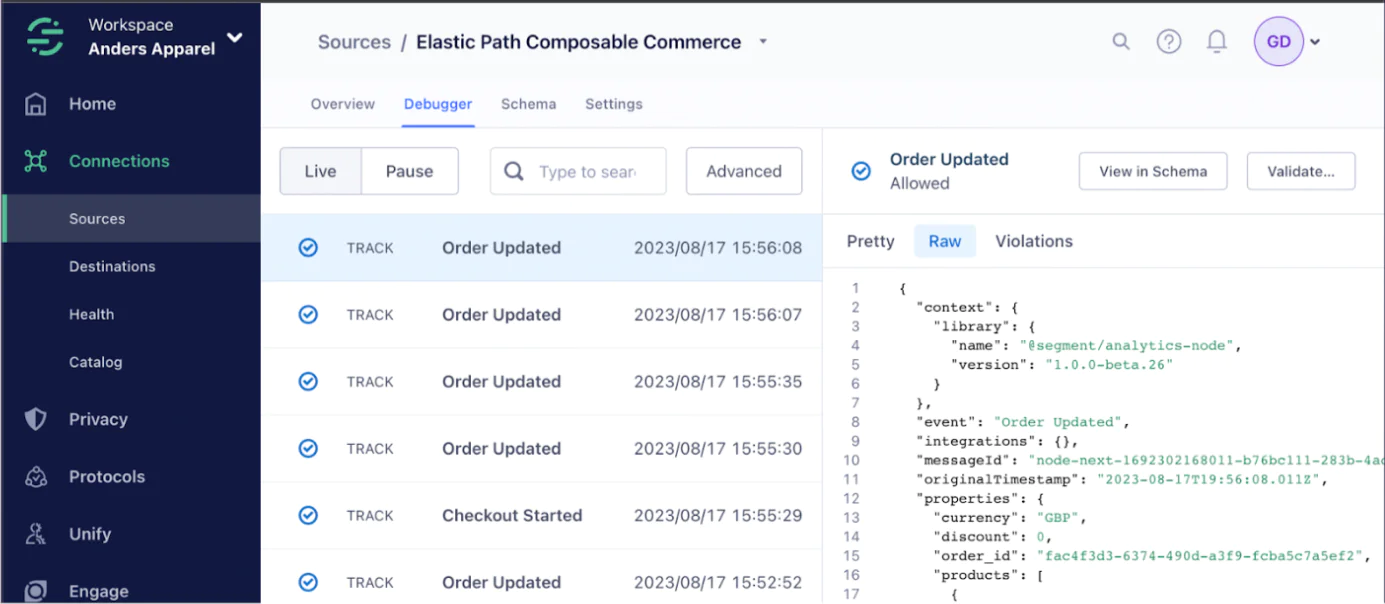
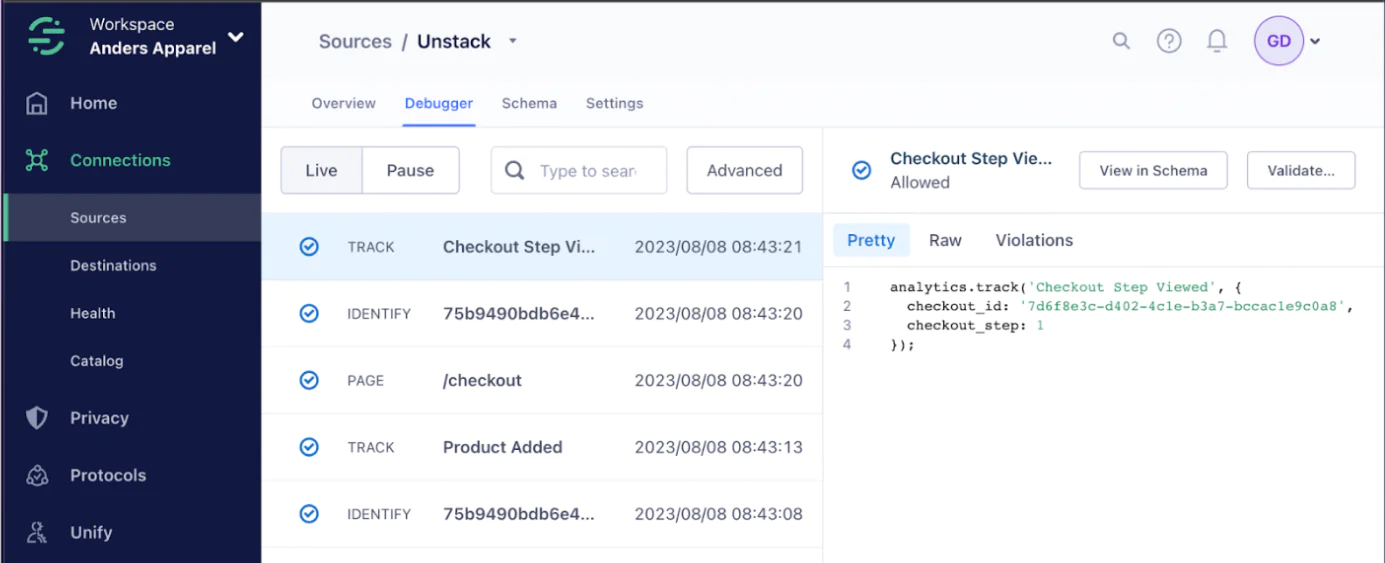
Go back to your Twilio Segment workspace. For each source integration, view the debugger mode to ensure you see real time data coming in.
Wrapping up
Instead of writing custom code to implement your end-to-end ecommerce tracking, Elastic Path with CX Studio automates all of the events you need simply by enabling both one-click integrations.
Add the Elastic Path and Elastic Path CX Studio sources from the Twilio Segment integrations catalog by copying your write key in your Elastic Path and CX Studio integrations.
Once added, configure the backend events that you want to automatically fire to Twilio Segment, and confirm data is appearing in Twilio Segment using the debugger view for both integrations.
Enjoy having comprehensive tracking for your ecommerce business in a matter of minutes.
Easily personalize customer experiences with first-party data
With a huge integration catalog and plenty of no-code features, Twilio Segment provides easy-to-maintain capability to your teams with minimal engineering effort. Great data doesn't have to be hard work!