Build a Phone Number Intelligence Tool with Twilio Lookup on Replit
Time to read:
August 17, 2026
Written by
Reviewed by
AI generated summary
- Use Twilio Lookup with Replit to validate phone numbers, including their type and carrier.
- Set up Twilio and Replit accounts, then prompt the Replit Agent with the app description to build it.
- Publish and test your app live; iterate with additional prompts to improve it.
This summary was generated by AI.
Before you start sending SMS or placing phone calls – let alone letting someone sign up for an account – it helps to know a few things about a phone number first. Is it real? Is it a mobile phone, a landline, or VoIP? Who's the carrier?
Twilio Lookup can provide exactly this sort of phone number intelligence. It can check a phone number's validity, line type, carrier, and risk signals before you spend money contacting it…
Today, I’m going to show you how you can quickly get an overview of Lookup’s features using Replit. Replit helps you turn ideas into apps in minutes – that makes it an excellent way to see what Lookup can do without writing much (if any!) code yourself.
In this tutorial, I'll show you how to prompt Replit Agent to build a small web app. By the end, you’ll be able to type in a phone number, choose the information to get about it, then get phone number details back from Lookup.
Let's be prompt and start prompting!
Prerequisites and common pitfalls
Before you can start building, you will need to set up a few things and sign up for a few accounts - it’ll be quick, I promise. You'll need:
- A free Twilio account – sign up here if you haven’t yet
- A free Replit account – you can sign up here
Build the Replit Lookup app
I’m going to show you how you can build a Replit Lookup app in – fingers crossed 🤞! – two prompts. The first prompt should get us most of the way there, then the second will prompt the agent to refine the app to get it closer to our vision.
Step 1: Describe the whole app to Replit Agent
Open either the Repl you created when following the Store Your Twilio Credentials in Replit, or enter this prompt into the Prompt box (which asks “what do you want to build?”):
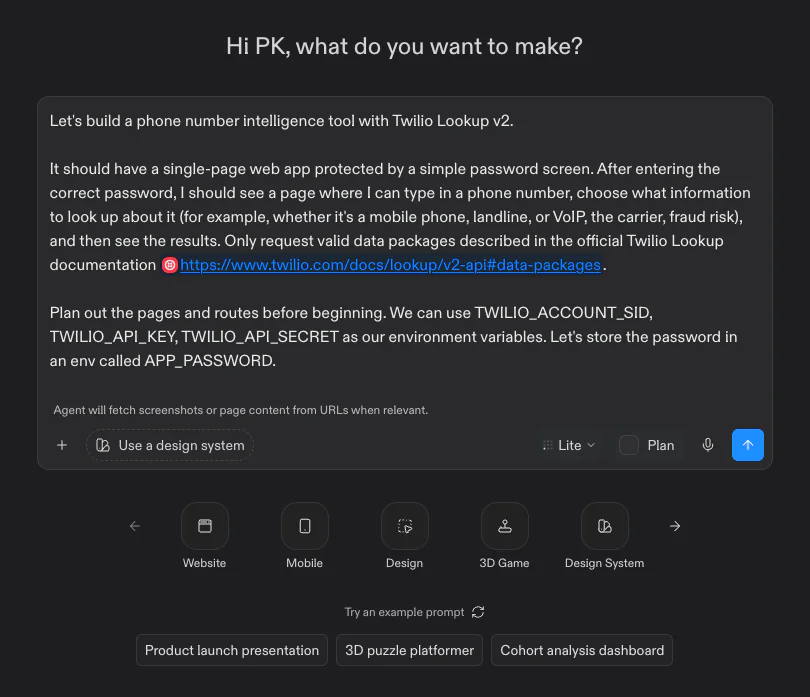
Then run it (the blue Up Arrow ↑ button). In my experience, you don’t need to run in Plan mode; the app is straightforward enough that running as-is should be successful.
Step 1b: enter account credentials and APP_PASSWORD
As you can see in the prompt, I asked the Replit Agent to “use TWILIO_ACCOUNT_SID, TWILIO_API_KEY, TWILIO_API_SECRET” for Twilio access, and gate the app behind an “APP_PASSWORD”. the agent should prompt you to gather those now.
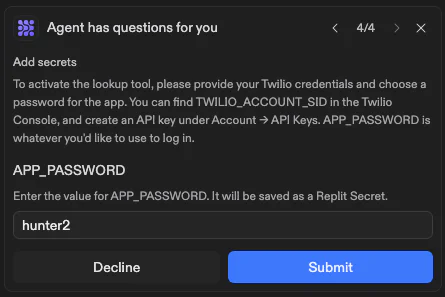
As the Agent asks for the variables in order, copy and paste the variables into the dialog boxes as they pop up. For help gathering what you need, you can scan our tutorial on storing Twilio credentials in Replit.
(Also, come up with a password for your app.)
Step 2: Let the app build
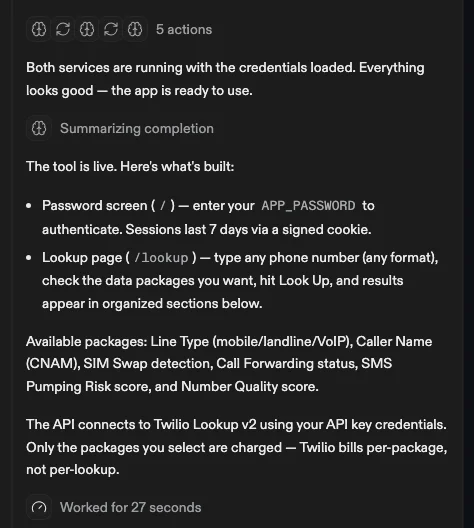
Once you run the prompt and optionally enter environment variables, it’s time to hurry up and wait. The Replit Agent will then work through the steps to build an app.
Your messages will look different, but when the agent is done, you’ll see a message like this:
Step 3: Publish and try it live
The web preview windows inside the Repl editor work for building, but the app needs a real URL to be usable beyond that. For that, we need to deploy our app!
Replit offers four deployment types: Autoscale, Reserved VM, Static, and Scheduled. For our tiny web app, Autoscale is fine, and Replit probably already picked it for you. Click the Publish button in the top-right corner of your Repl to deploy with Autoscale.
Inside that publish panel, Replit will generate a subdomain based on your Repl's name (something like phone-intel-hub--yourhandle.replit.app). Access should be ‘Public’ here, which means anyone with the URL can load the page.
Once you hit Publish, Replit runs through five stages – Provision, Security Checks, Build, Bundle, and Promote – which together take a minute or two:
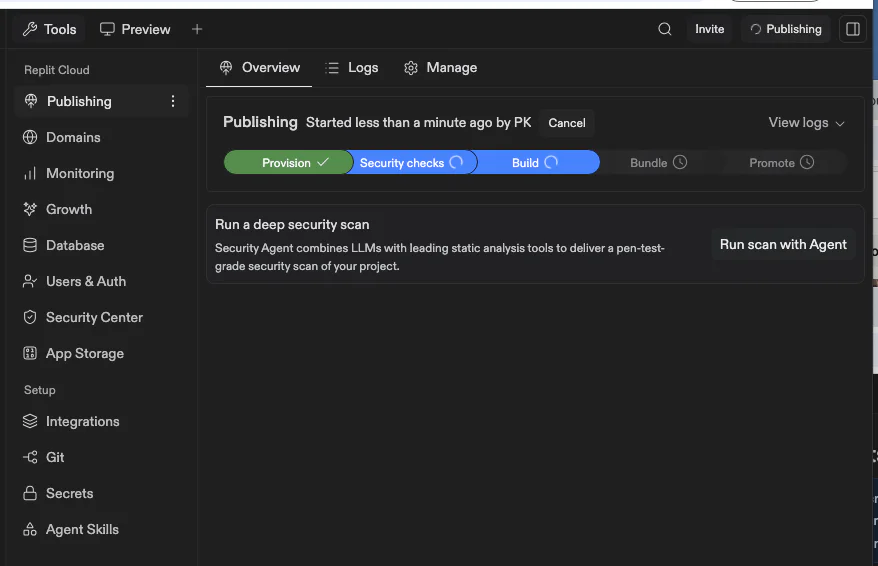
Soon you’ll get a success message and you’re ready to go! Visit the URL to see the password screen your agent designed. It’ll probably look similar (though different! Remember, AI is non-deterministic) to my result:
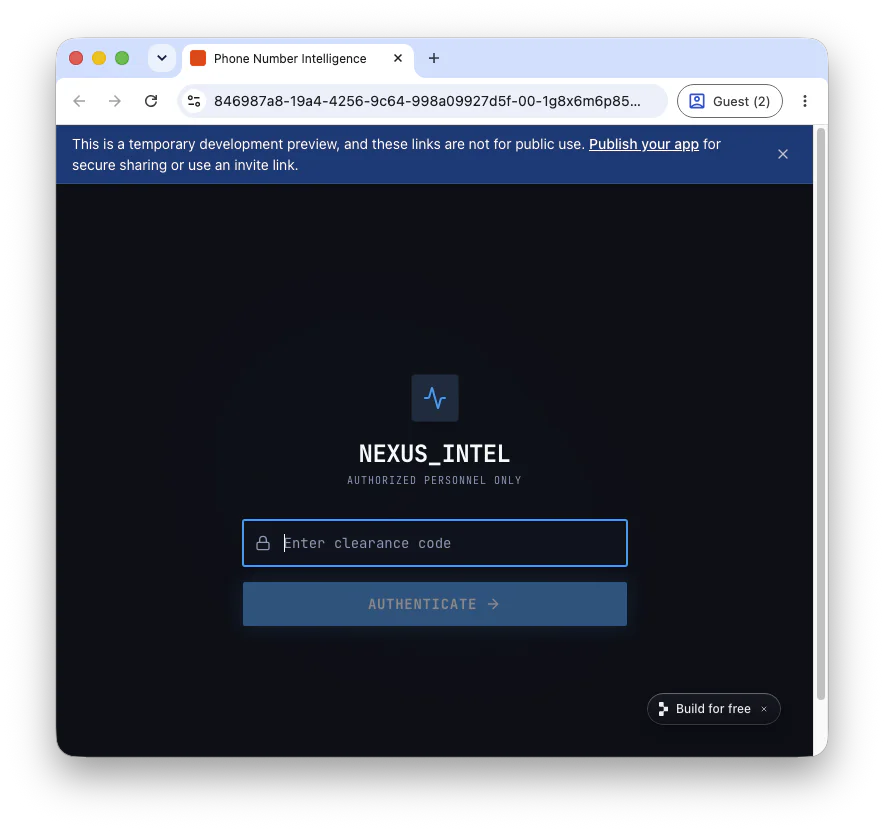
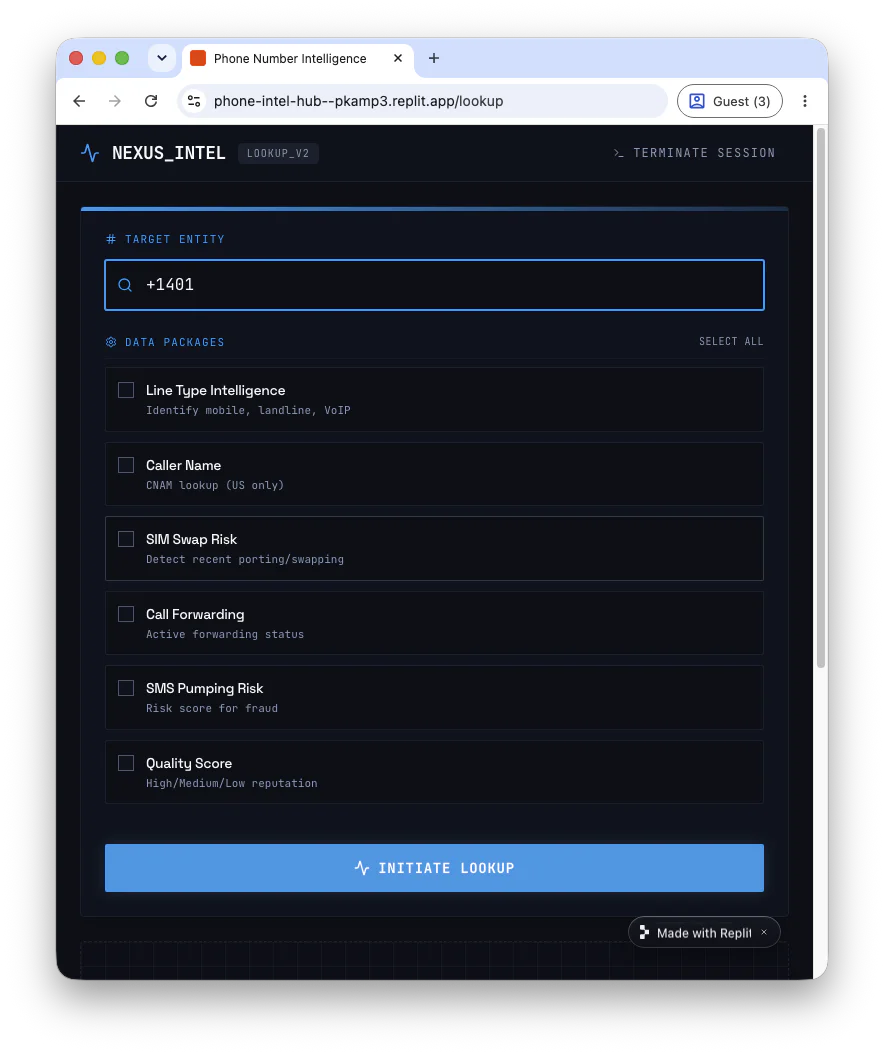
Enter the password, and select a few Lookup packages. Also, try entering a phone number to the app then hit Initiate Lookup or whatever your agent came up with for button text.
Here is how mine looked:
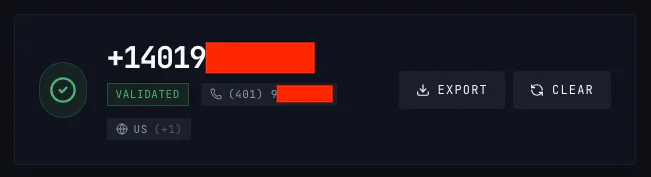
And the result 🎉:
Step 4: Iterate and re-deploy
When working with AI, you’ll become comfortable with the concept “your first prompt won’t be your last”. You work with agents in a loop – you try your app, note what feels off, ask for specific changes, and iterate.
Now, I can only give you advice here, I can’t tell you exactly what you need to do next. As I noted above, your work with the agent is non-deterministic. The changes you’d like to make after running your prompts are different from the ones I did make.
My run had a few examples of inconsistencies which were useful for me to discuss with the agent. Again, you won’t have the exact same issues, but these might be useful for you to pattern-match against:
- "Network Quality" isn't a Lookup package
- "SIM Swap Risk," while a real package, requires carrier approval (which is exactly why it returned error 60606: Lookup Package Is Not Enabled – once you are comfortable with Lookup, you can ask for approval here)
To close the loop, after I tried the first draft, the next prompt I sent to my agent was:
After sending the agent off for a second time, it returned a nice result with some defaults set:
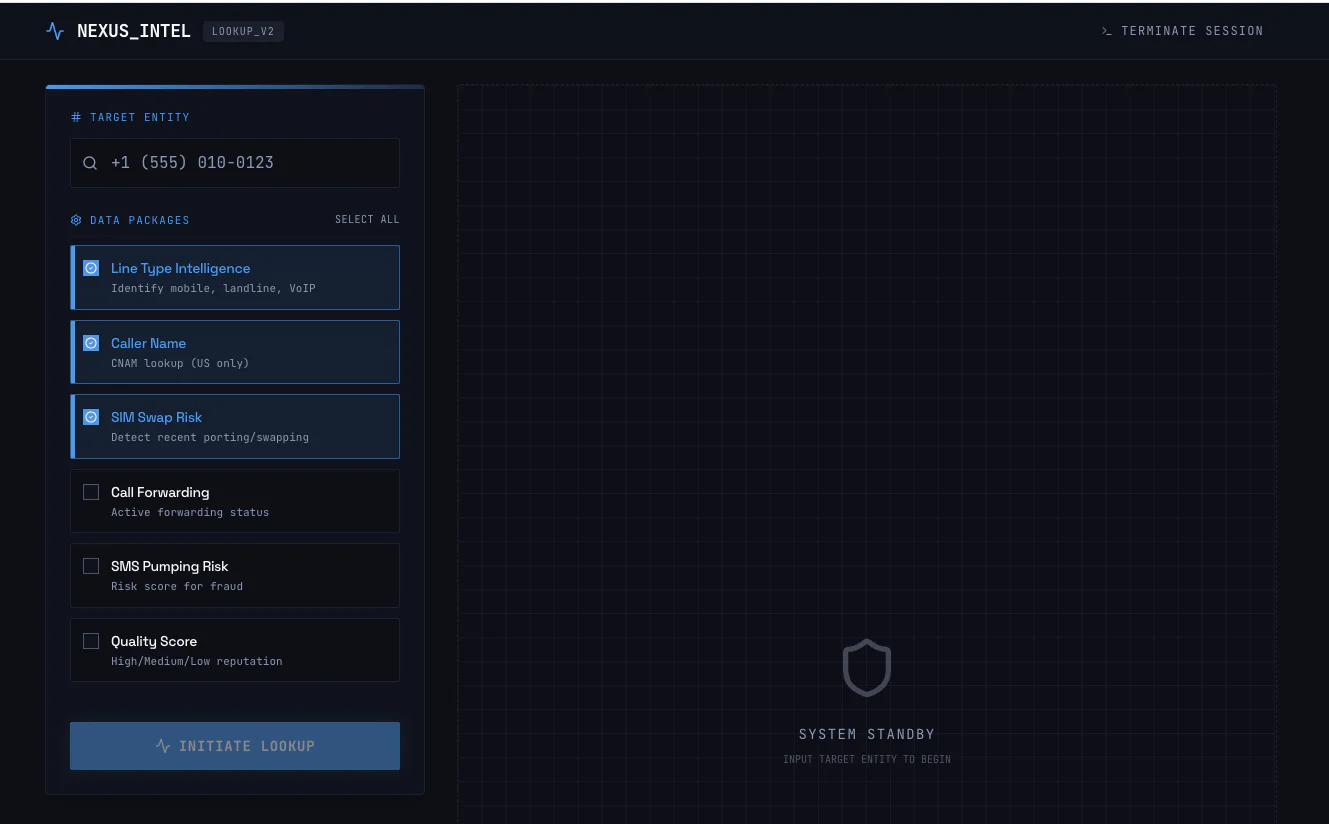
Republish or Publish as needed, and prompt the agent as many times as you need to get a good result. When you’re back, we can discuss some general advice on running and debugging!
Run, test, and troubleshoot
At this point, after a few rounds with the agent and entering the cell phone numbers of all your friends, you’re probably learning quite a bit. For any number you enter, you should see whether it's a cell phone, landline, or VoIP line come back in a few seconds.
Not on the happy path? Here are few things to check if something doesn't work:
- Wrong password loops back to the login screen – confirm
APP_PASSWORDis set correctly in the Secrets tool. - A malformed phone number returns a validation error – try entering the number in E.164 format (a plus sign, country code, then number, without spaces or other symbols).
- Error 60606 – a checked package isn't enabled on your account. See Step 4 above.
Conclusion
You now have a working phone number intelligence tool with the Lookup API. Use this as a starting point for validating individual phone numbers, cleaning up your database, or decreasing fraud in your application. You also now have more experience prompting the Replit Agent to build a nice proof of concept.
Next, check out the full list of Lookup packages and see what each one returns, and check out the Lookup Docs. And if you want to put that lookup to good use, my colleague Kelley showed how you can send OTPs, or One Time Passwords, using Twilio Verify and Replit. Have fun looking things up!
Paul Kamp is Twilio’s Technical Editor-in-Chief. He can confirm that his cell phone number is indeed a cell phone number. You can reach him at pkamp [at] twilio.com.


Related Resources
Twilio Docs
From APIs to SDKs to sample apps
API reference documentation, SDKs, helper libraries, quickstarts, and tutorials for your language and platform.
Resource Center
The latest ebooks, industry reports, and webinars
Learn from customer engagement experts to improve your own communication.
Ahoy
Twilio's developer community hub
Best practices, code samples, and inspiration to build communications and digital engagement experiences.