How to Block Spam Calls with Twilio Voice in Node.js
Time to read:
March 06, 2026
Written by
AI generated summary
- Block spam calls using Twilio Voice, Marchex Clean Call, and Nomorobo in Node.js.
- Enable and configure Add-ons in Twilio Marketplace for spam call detection.
- Develop a Node.js app to analyze and reject potential spam calls based on Add-ons' recommendations.
This summary was generated by AI.
How to Block Spam Calls with Twilio Voice in Node.js
If you're running a customer support line, hotline, or any service that receives calls through Twilio, spam calls can waste resources and clog up your phone system.
Twilio Marketplace provides spam detection without the complexity. Twilio Marketplace provides add-on integrations that connect third-party services directly into your Twilio webhooks. When enabled, Twilio automatically includes spam analysis results in your webhook parameters.
In this tutorial, you'll build a spam call blocker using two Add-ons: Marchex Clean Call and Nomorobo Spam Score. Your Node.js application will analyze incoming calls to your Twilio number and either accept or reject them based on their spam ratings.
Prerequisites
- A Twilio account - Sign up for free here
- A Twilio phone number - How to obtain a Twilio number
- Node.js v18 or higher
- ngrok installed
Install and configure Twilio Add-ons
You'll install two Add-ons from the Twilio Marketplace: Marchex Clean Call returns a BLOCK or ALLOW recommendation, while Nomorobo Spam Score returns 0 (legitimate) or 1 (spam).
Install Add-ons
Log in to your Twilio Console and navigate to Marketplace > Catalog from the left panel and then filter for Add-ons:
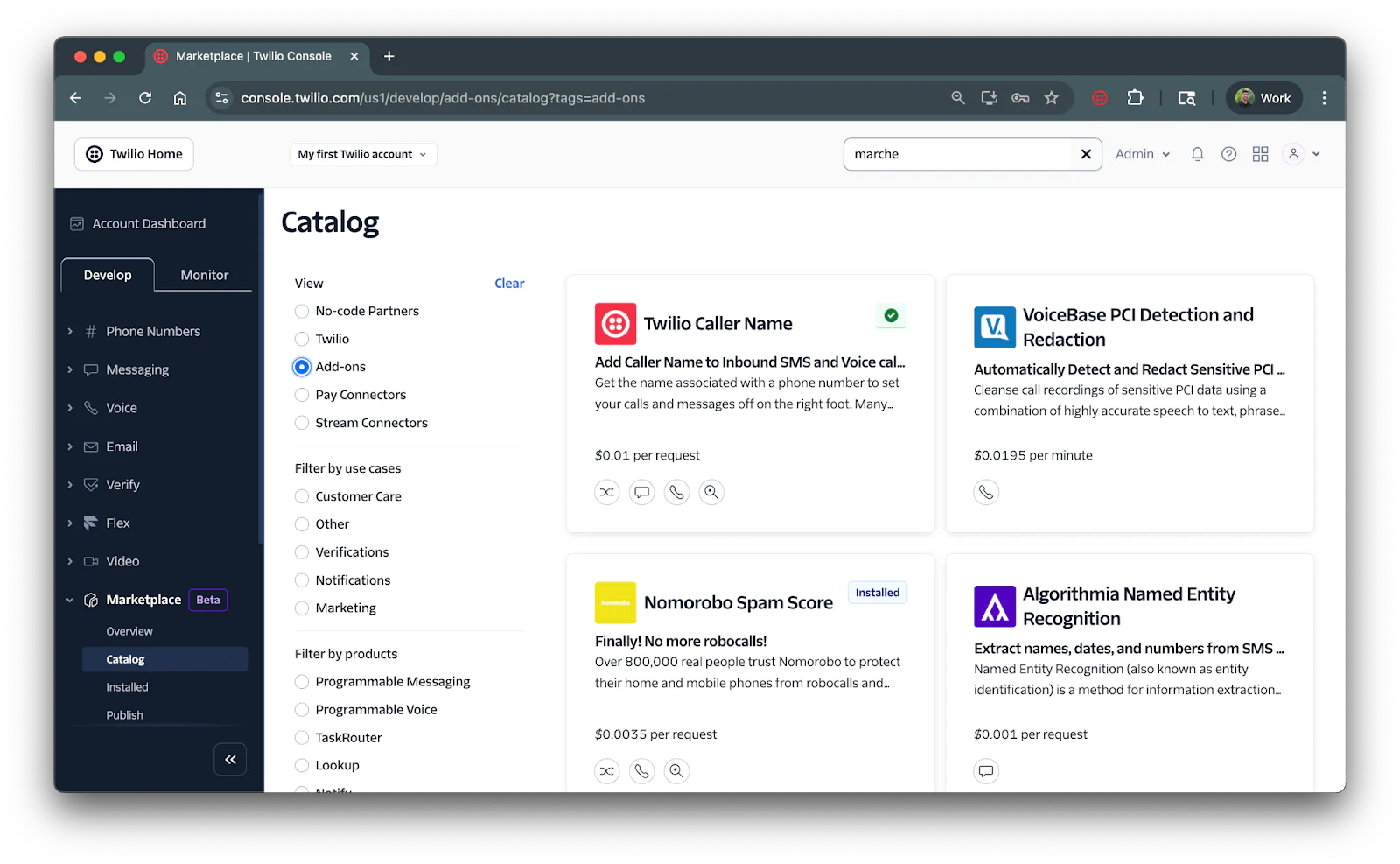
Scroll and find Marchex Clean Call and Nomorobo Spam Score and click the Install button on the add-ons page for both of these add-ons. You can also click here to navigate to their respective add-ons page: Marchex Clean Calland Nomorobo Spam Score.
You’ll be prompted with the Terms and Conditions of the add-ons before installing. Click the acknowledge and agree checkbox and then click Install.
Once installed, navigate to the Configure tab of both of the add-ons and under USE IN select Incoming Voice Call and then click Save at the bottom.
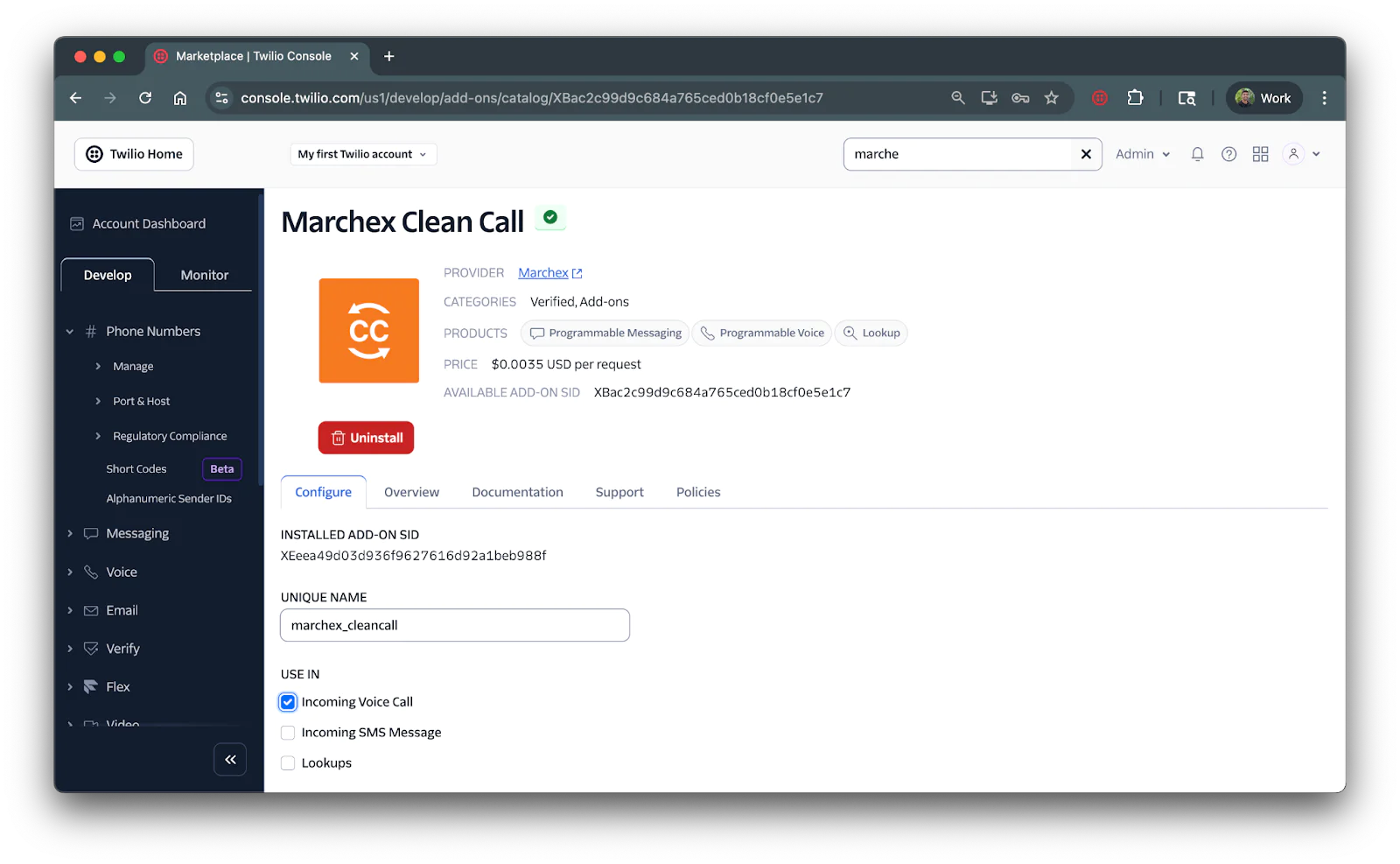
Ensure you do this step for both of the add-ons.
Set up Node.js application
Open up your preferred shell/terminal and navigate to your preferred directory where you’d like to set up your application. Run the following command to create a new directory and initialize your project:
Express will be used as the web framework for handling webhook requests and the Twilio package will be used for creating TwiML responses.
Understanding the AddOns parameter
When Add-ons are enabled, Twilio includes an AddOns parameter in webhook requests. The parameter arrives as a JSON string containing results from all enabled Add-ons:
Each Add-on has its own result structure:
- Marchex:
marchex_cleancall.result.result.recommendationcontains"BLOCK"or "ALLOW" - Nomorobo:
nomorobo_spamscore.result.scorecontains0or1
Create the webhook handler
Create a file named index.js in your project directory and add the following code:
The helper functions parse each Add-on's response to determine if the call should be blocked. If either Add-on flags the call as spam, the <Reject> TwiML verb immediately hangs up. Otherwise, the call is accepted.
Save the file.
Connect your application to Twilio
Start your Express serve by entering the following command on your terminal:
You’ll then see the following outputted on your terminal:
Create an ngrok tunnel
Your Express server is running locally on your computer, which means it isn't publicly accessible. Twilio needs a public URL to send webhook requests to your application.
You'll use ngrok to create a secure tunnel that forwards requests from a public URL to your local server. Open a new terminal tab and run the following command to spin up an ngrok tunnel:
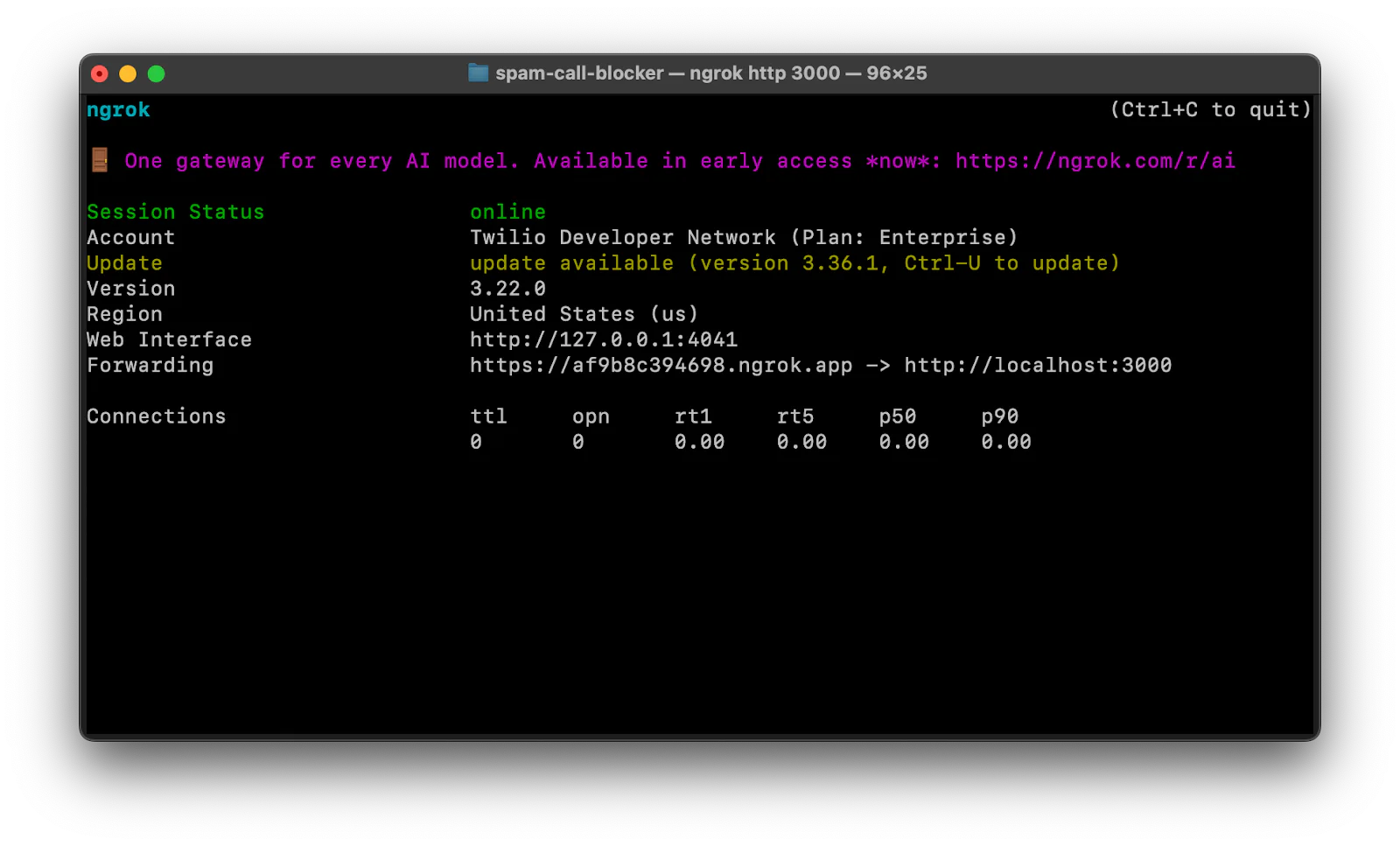
Copy the Forwarding URL (e.g., https://abc123.ngrok.io).
Configure webhook
Navigate to Phone Numbers > Manage > Active numbers in your Twilio Console and click on your number.
In the Voice Configuration section, select Webhook for " A call comes in" and enter your ngrok URL followed by /voice:
Ensure the HTTP method is set to POST and click Save configuration.
Test the application
Call your Twilio number from any phone. You should hear "Welcome! Your call is being connected." and then the call will hang up.
Check your terminal - you should see: Legitimate call - allowing through.
.Test blocking (optional)
To test the blocking functionality, temporarily modify index.js to force blocking. Add the following code right before if (blockCall) { (line 38):
Save, and restart your server. Call your number again - it should be rejected immediately.
Conclusion
You've built a spam call blocking system using Twilio Voice and Add-ons. Your application automatically analyzes incoming calls using Marchex Clean Call and Nomorobo Spam Score, blocking spam while allowing legitimate calls through.
Here are some ways to enhance your implementation:
- Use the <Dial> verb to forward legitimate calls to your actual phone number
- Add the <Record> verb for voicemail functionality
- Build a whitelist to bypass spam checks for known contacts
Explore the Twilio Add-ons Marketplace to discover other integrations for your voice applications.
Dhruv Patel is a Developer on Twilio's Developer Voices team. You can find Dhruv working in a coffee shop with a glass of cold brew or he can be reached at dhrpatel [at] twilio.com.



Related Resources
Twilio Docs
From APIs to SDKs to sample apps
API reference documentation, SDKs, helper libraries, quickstarts, and tutorials for your language and platform.
Resource Center
The latest ebooks, industry reports, and webinars
Learn from customer engagement experts to improve your own communication.
Ahoy
Twilio's developer community hub
Best practices, code samples, and inspiration to build communications and digital engagement experiences.