Build a WhatsApp Fact-Checking Bot with Twilio, OpenAI, and Node.js
Time to read:
May 04, 2026
Written by
Reviewed by
AI generated summary
- Build a WhatsApp bot with Twilio, Node.js, and OpenAI to verify forwarded messages.
- Analyzes text, images, voice notes, and short videos, performing web verification for credibility.
- Replies with a short verdict and sources to help users determine the trustworthiness of forwarded content.
This summary was generated by AI.
Build a WhatsApp Fact-Checking Bot with Twilio, OpenAI, and Node.js
A lot of news is spread on WhatsApp. Some of it is timely and useful. Some of it is half true. Some are obviously fake. And lately, some look polished enough that you pause for a second before deciding whether to trust them. This is especially harder for the older generation who don’t understand why anyone would intentionally spread fake news. I see this firsthand with my dad and that got me thinking about building him a bot to help verify some of the messages he receives.
In this tutorial, you'll build exactly that using Twilio, Node.js, and OpenAI. The bot will accept forwarded text, images, voice notes, and short videos. If the forwarded content contains audio, it gets transcribed first. Then the bot uses an LLM to analyze the claim and do a web verification pass before replying.
What we are building
By the end of this tutorial, you'll have a WhatsApp bot that can:
- receive forwarded WhatsApp messages through a Twilio webhook
- inspect plain text messages directly
- analyze images with an LLM
- transcribe voice notes and short videos before analysis
- perform a lightweight web verification step for current or factual claims
- send a short verdict back to the sender on WhatsApp
- include a matched source when the bot finds a strong official or highly credible confirmation
Here is the end-to-end flow:
- A user forwards a message to your WhatsApp number.
- Twilio sends the incoming message to your webhook.
- The app checks whether the message is text, image, audio, or video.
- If the content is audio or video, the app transcribes it first.
- The app sends the content to OpenAI for analysis.
- If the claim looks factual or time-sensitive, the model can do a lightweight web search before deciding.
- The app replies to the user through Twilio with a short credibility assessment.
Prerequisites
To follow along, you'll need:
- A Twilio account (you can create one here, if you don’t have one already).
- A WhatsApp Sender
- Or use the Twilio WhatsApp Sandbox
- An OpenAI API Key
- Node.js 20 or later
- A tunneling tool like ngrok
Set up the project
Start by creating a new Node.js project, open up your preferred shell/terminal and navigate to where you want your project to be. Then, execute the following command to create your src folder where your project will be under and to initiate a Node.js project :
Then, install the needed dependencies:
Update your package.json to have these values:
Create a .env file and add the following values:
For this tutorial, the app is split into three small pieces:
- src/index.js for the Express server and Twilio webhook
- src/services/media.js for downloading and classifying media
- src/services/openai.js for transcription and verification
Build the WhatsApp webhook
Let's start with the Express app that receives inbound WhatsApp messages from Twilio.
Create a file named index.js within the src folder and add the following contents:
Twilio sends webhook parameters as form-encoded data, so express.urlencoded() is enough here.
Now add a /whatsapp route that handles incoming text and media. Add the following code to the end of src/index.js, after the twimlMessage function:
Handle images, voice notes, and videos
Next, create a helper file named src/services/media.js for classifying and downloading media and add the following code:
Twilio stores inbound media at a URL that requires authentication. That means you need to download the file with your Account SID and Auth Token before sending it to OpenAI. Add the following code to the end of src/services/media.js:
Once the media is downloaded in a Buffer, you base64-encode and wrap it in a data: URL so the vision API can consume the image.
Back in src/index.js, you can now complete the webhook by adding the media handling code. Replace the comment line // We'll handle media types in the next section with the following code:
Images go straight into a multimodal model. Audio and short video clips go through transcription first.
OpenAI's speech-to-text tooling supports common audio and video file types including mp3, mp4, m4a, wav, and webm, which makes it a good fit for WhatsApp voice notes and short forwarded clips.
Add transcription and verification with OpenAI
Now, create the OpenAI service.
Create src/services/openai.js and add the follwoing code to it:
You'll use one function for transcription and two for verification: one for text-plus-transcript, and one for images.
Transcribe audio or video
Add the following to src/services/openai.js to generate a transcription from the audio or video provided:
Create a verification prompt
The bot can make mistakes and it is important that it doesn’t sound overly confident. "Unclear" is a perfectly valid answer. Add the following function to src/services/openai.js:
Let the model use lightweight web verification
If someone sends a government notice, or breaking news claim, the model shouldn't rely only on what it sees in the screenshot. It should try to find a matching official or reputable source first. Add the following code to src/services/openai.js:
OpenAI's Responses API supports built-in tool use for web search, which allows you to add a verification step without building your own crawler or search layer. It also gives you a way to pull out a supporting source and include that in the WhatsApp reply when the match looks strong.
Verify text and transcripts
Add the following code to src/services/openai.js to verify messages and transcripts:
Verify images
Then, add the following to verify images:
OpenAI's Responses API supports image inputs, which makes it possible to evaluate screenshots, flyers, and forwarded graphics without adding OCR or an external vision pipeline.
Configure Twilio WhatsApp Sandbox
Now it's time to connect your local app to Twilio.
Start your server:
Expose it publicly:
Copy the HTTPS forwarding URL from ngrok and append /whatsapp, for example:
Then open the Twilio Console, go to your WhatsApp Sandbox settings, and paste that URL into the incoming message webhook field.
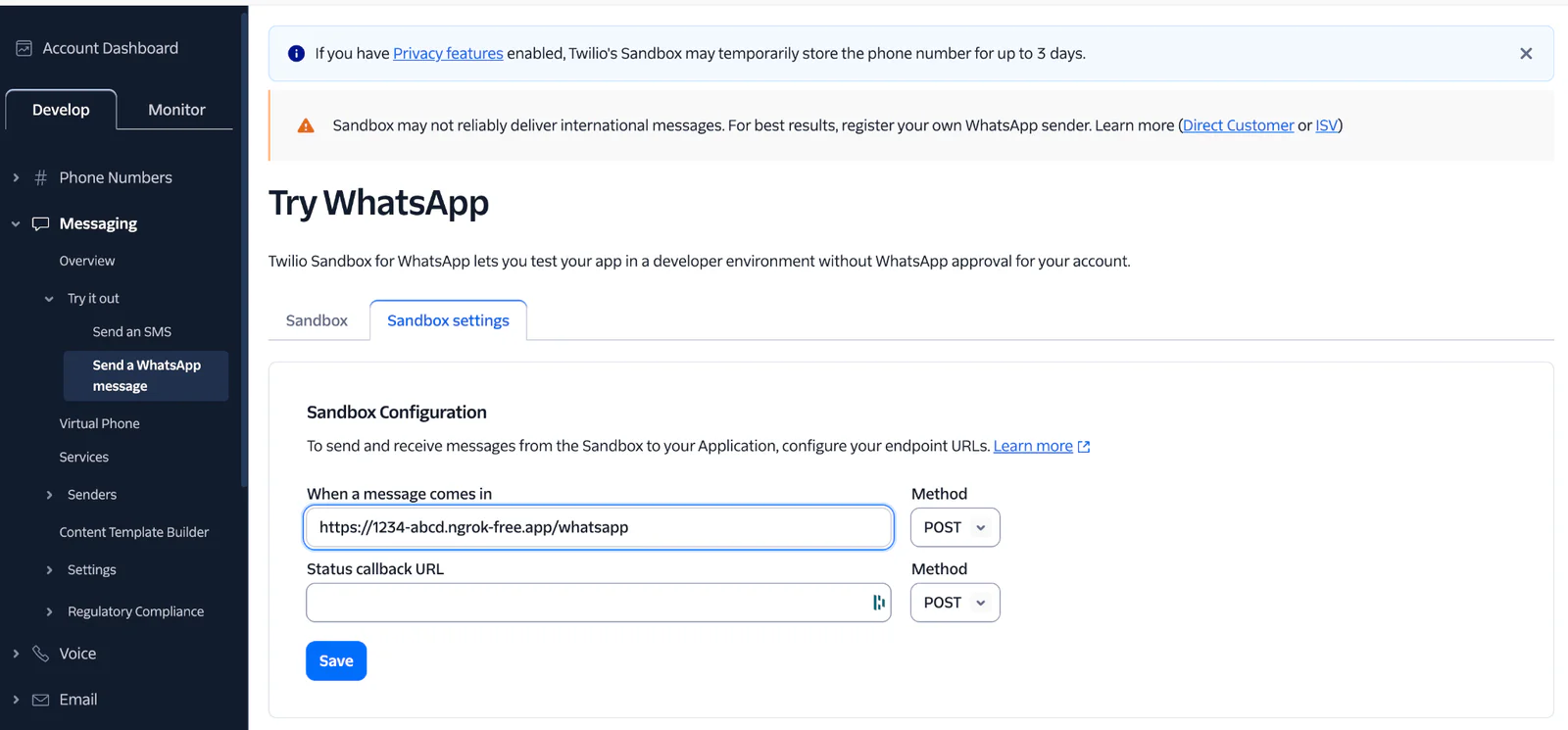
After that, send the sandbox join code from your phone to the Twilio WhatsApp number. Once your number is connected, you can start forwarding real messages to the bot.
Test the bot
At this point, try forwarding a few different message types:
- a chain message with a dramatic claim and no source
- a screenshot of an official looking notice
- a voice note describing a current event
- a short video clip with a caption making a factual claim
The bot should respond in a format like this:
And when the bot finds a good match online, the reply can be a little more useful:
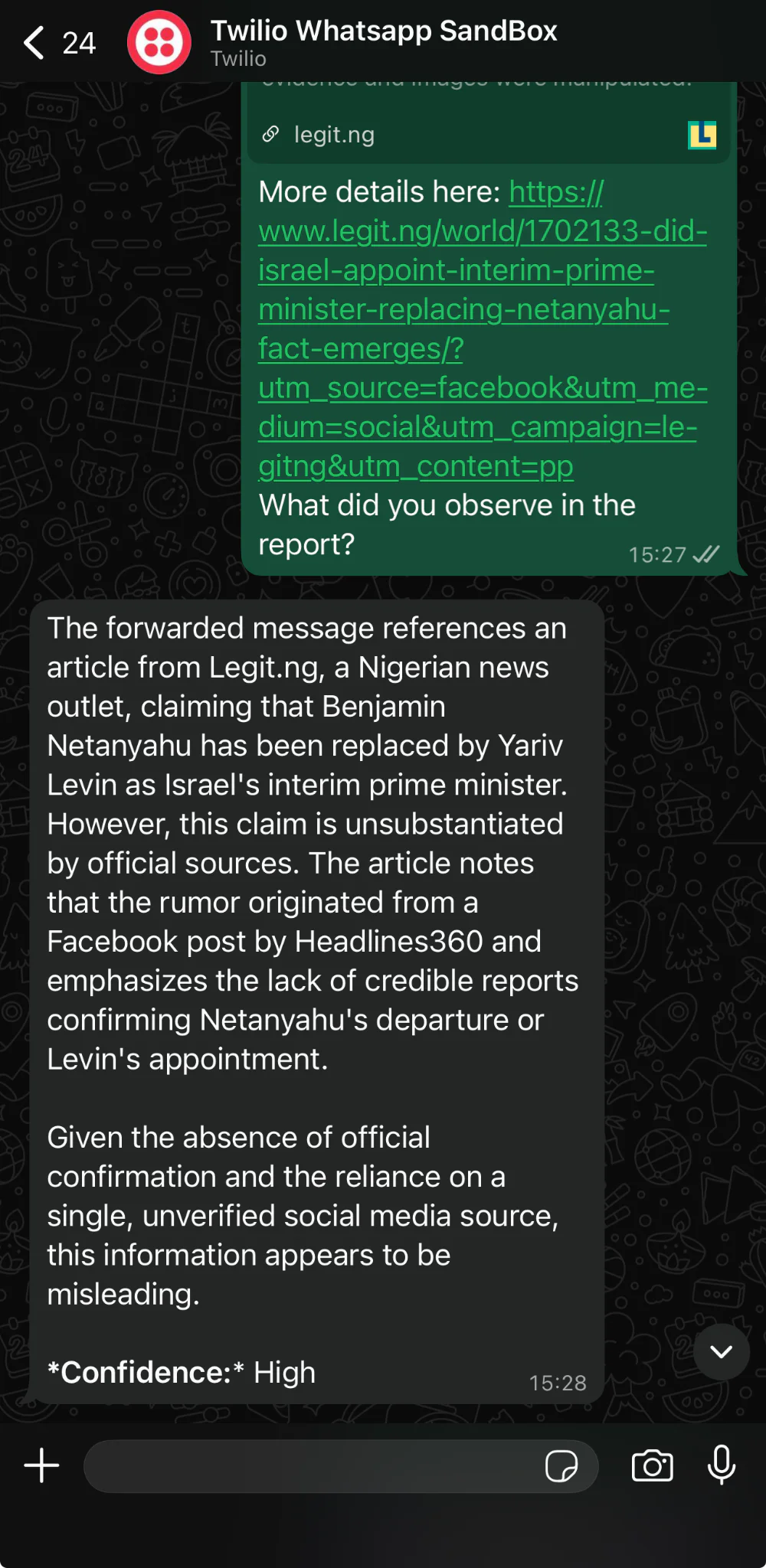
Wrapping up
In this tutorial, you built a WhatsApp bot that can review forwarded content in multiple formats and return a practical second opinion.
Using Twilio for messaging, Express for the webhook, and OpenAI for transcription, multimodal analysis, and lightweight web verification, you now have a compact project that solves a real everyday problem: helping someone decide whether a forwarded message is worth trusting.
If you wanted to evolve this beyond a tutorial, here are some possible additions:
- Validate requests before processing webhooks
- Add asynchronous handling for longer audio and video files
- Store requests and verdicts for analytics or review
- Create a database of known fake messages
I look forward to seeing what you build! You can reach me on:
Email: odukjr@gmail.com
Discord: @charlieoduk
Github: charlieoduk

Related Resources
Twilio Docs
From APIs to SDKs to sample apps
API reference documentation, SDKs, helper libraries, quickstarts, and tutorials for your language and platform.
Resource Center
The latest ebooks, industry reports, and webinars
Learn from customer engagement experts to improve your own communication.
Ahoy
Twilio's developer community hub
Best practices, code samples, and inspiration to build communications and digital engagement experiences.