Build a Twilio Whatsapp + Pipedrive Integration
Time to read:
December 17, 2025
Written by
AI generated summary
- Connect Twilio WhatsApp with Pipedrive for seamless inbound and outbound messaging.
- Enable fast, frictionless conversations and log conversation history directly in Pipedrive.
- Use WhatsApp Sandbox for test messaging before deploying with a verified number.
This summary was generated by AI.
Build a Twilio Whatsapp + Pipedrive Integration
If you aren’t familiar with Pipedrive, it’s a sales-first CRM platform that helps you track sales, activities, and leads. When it comes to sales, clients expect fast and frictionless conversations on channels they already use. By integrating Twilio’s Messaging service with Pipedrive, you can engage leads and clients directly through WhatsApp and SMS ensuring timely and effective conversations.
In this tutorial, you’ll connect your WhatsApp-enabled Twilio number to Pipedrive and allow inbound and outbound messages from the platform. You’ll also be able to send messages to multiple contacts and log conversation history.
Prerequisites
A free Twilio account - Sign up here
A Twilio number (optional) - Read our docs here on how to obtain a Twilio number.
For this tutorial, we’ll be using the WhatsApp sandbox to generate a verified number to send messages for testing purposes so you will not need a number to test this tutorial.
For a production setting, you will need a Twilio number and need to register a WhatsApp sender to start sending messages.
A Pipedrive account - Sign up here
Install Twilio App for Pipedrive
Sign into your Pipedrive account and navigate to Twilio’s app on the Pipedrive marketplace: Twilio SMS & WhatsApp for Pipedrive.
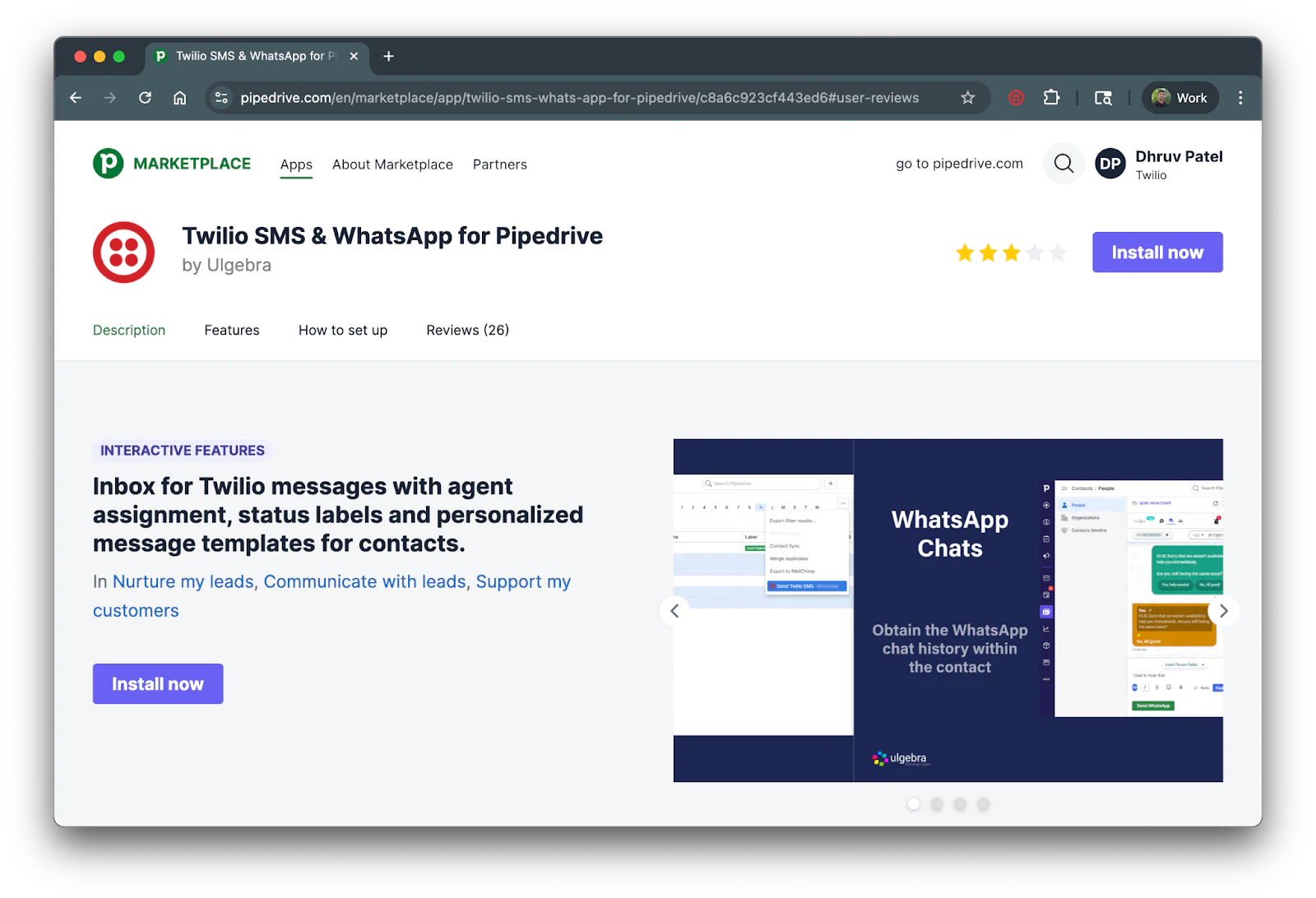
Click on the purple Install now button on the top right corner and you’ll see a modal showing which users will be using the app:
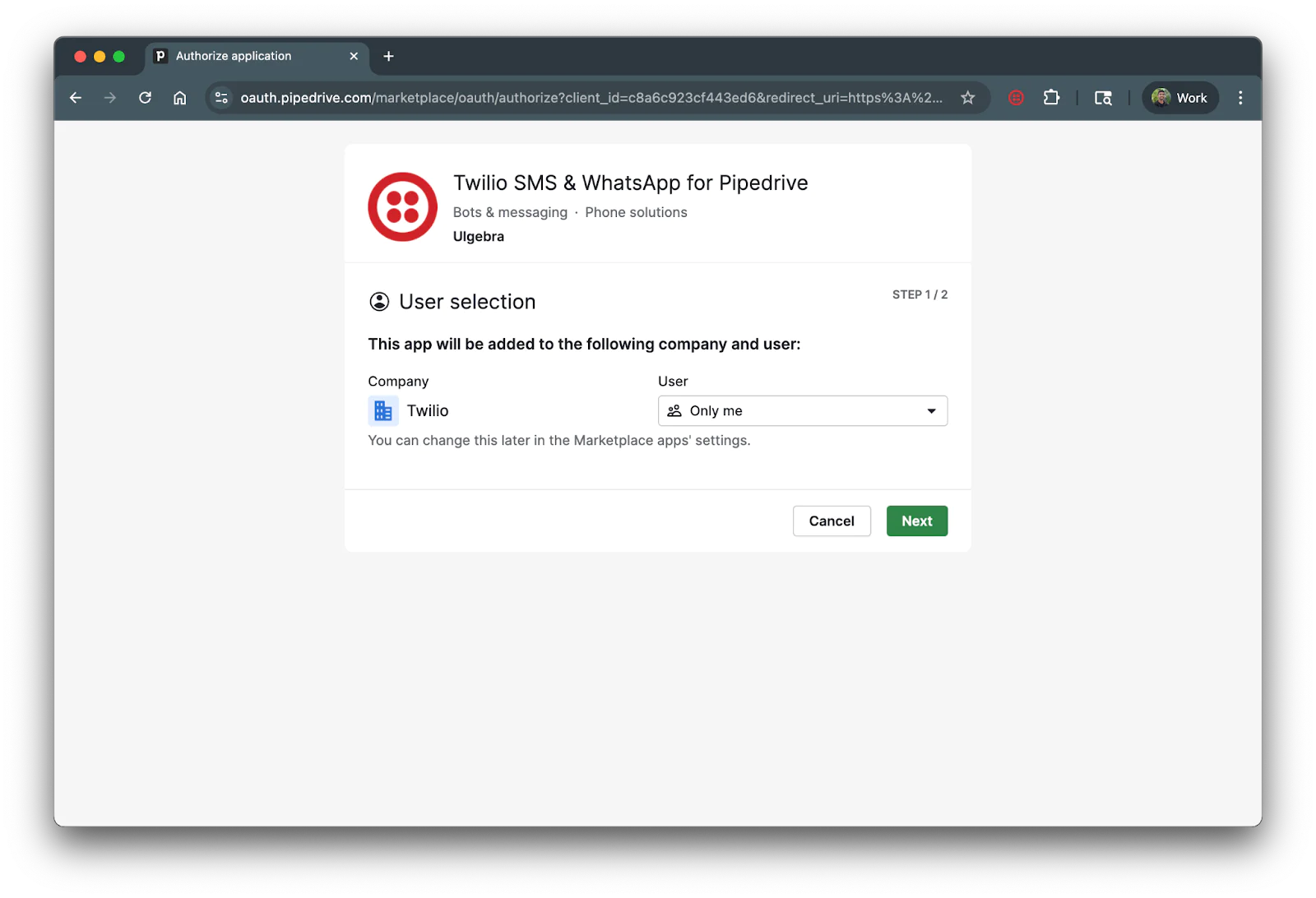
Select the users that will be using the app and click the green Next button.
The next section will ask you to allow permissions for the app. Select Allow and Install to install the app to your Pipedrive account.
You’ll then be asked to log into Ulgebra:
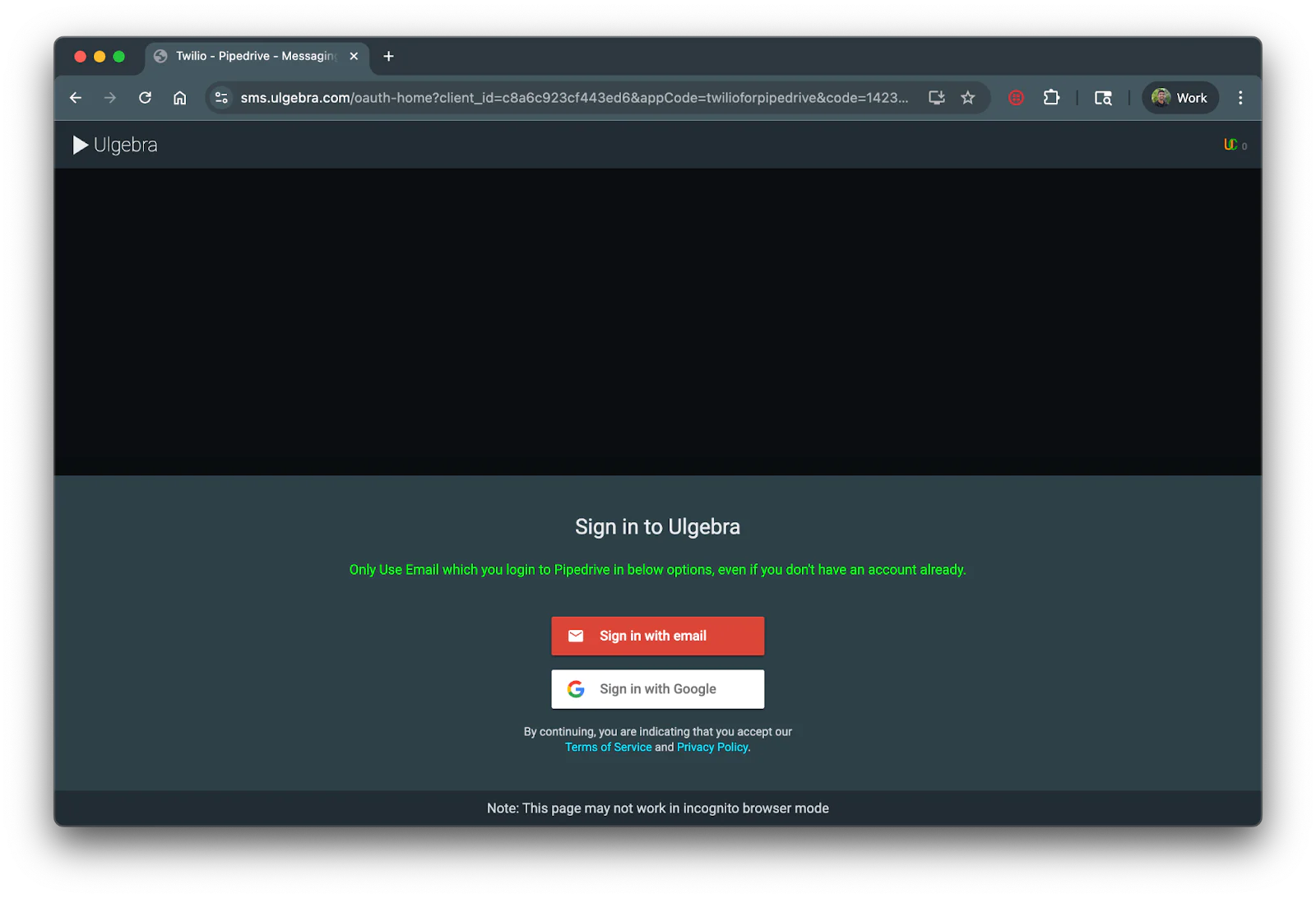
Ensure to log in using the same credentials you use for your Pipedrive account. Once logged in, you can head to your Pipedrive dashboard.
Connect Twilio account with Pipedrive
Now that you have the Twilio app installed to your Pipedrive, you need to authorize and connect your Twilio account with the app.
On your Pipedrive dashboard, navigate to the Contacts menu from the left tab and you’ll be directed to the People submenu:
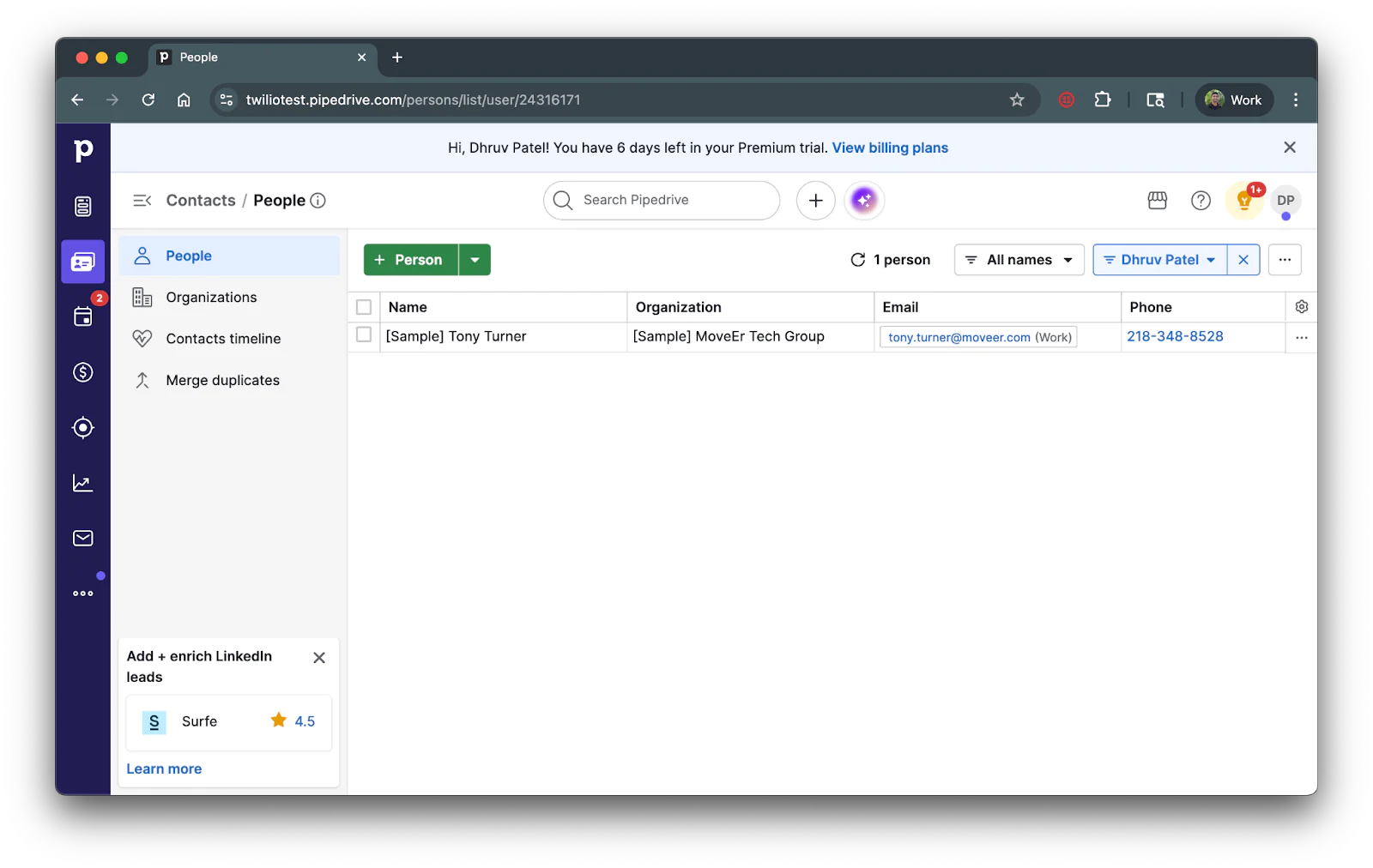
Select any person on your contacts list (create one if you don't have any) and you’ll see a new tab for your Twilio application named, New - Twilio Chat:
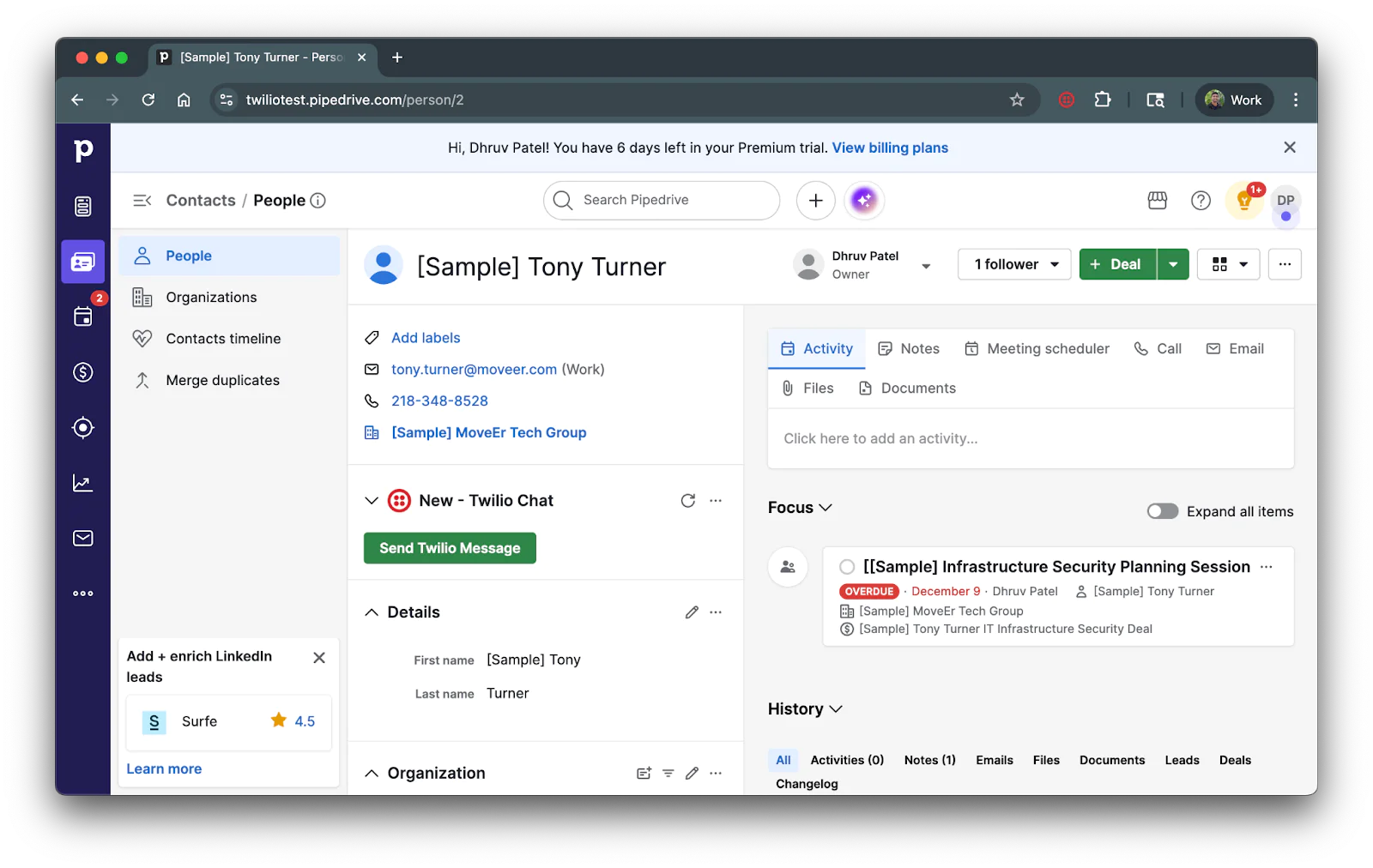
Click on the green Send Twilio Message button and a modal will pop up asking you to authorize Pipedrive for Twilio:
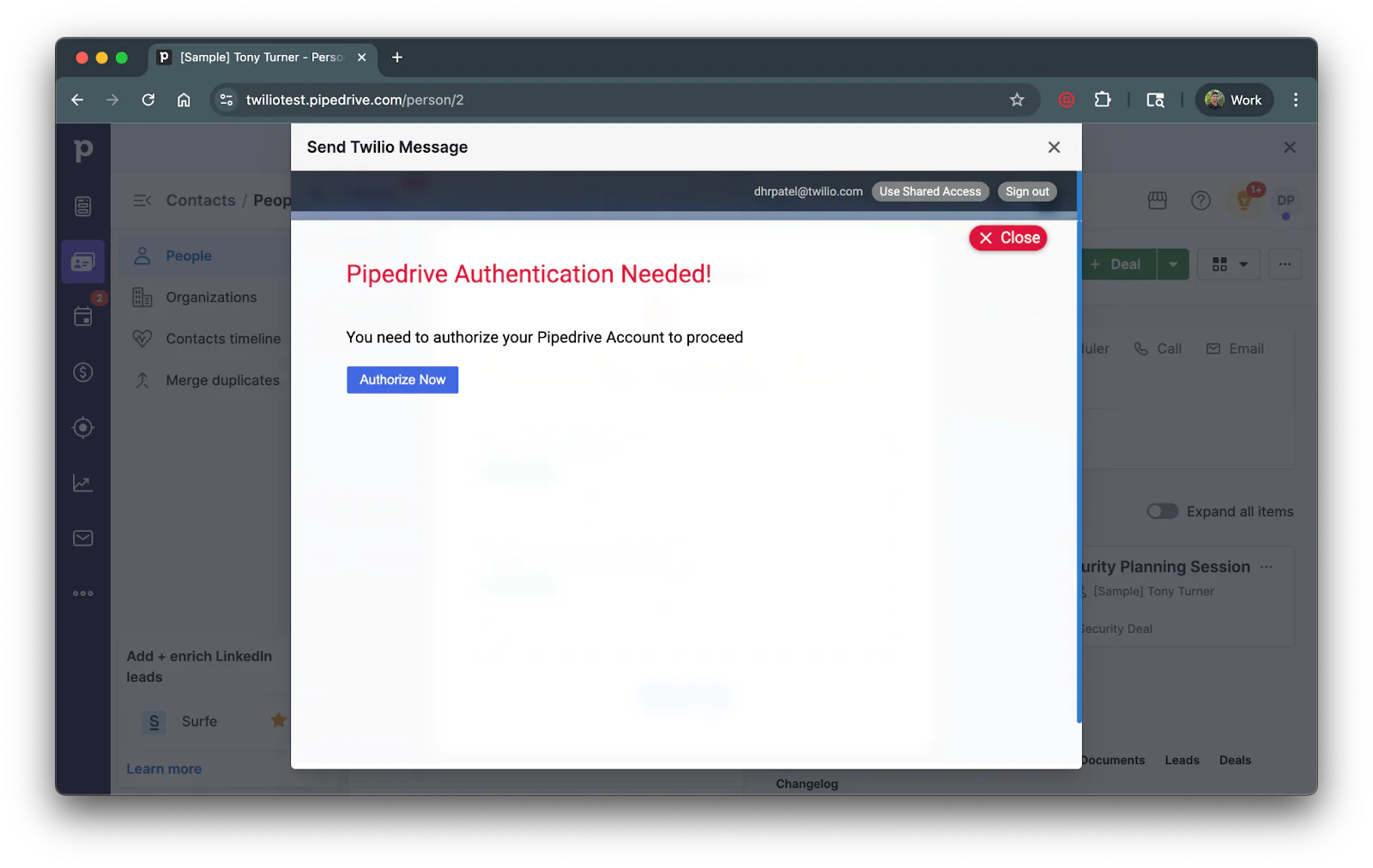
Click on the blue Authorize Now button and a new window will pop up asking you to add Twilio to Pipedrive. Once authorized, you can head back to the previous Pipedrive window and you’ll get a message saying to refresh the page if you’ve already authorized. Click on the blue Refresh button on the modal and then you’ll be asked to enter your Twilio account credentials:
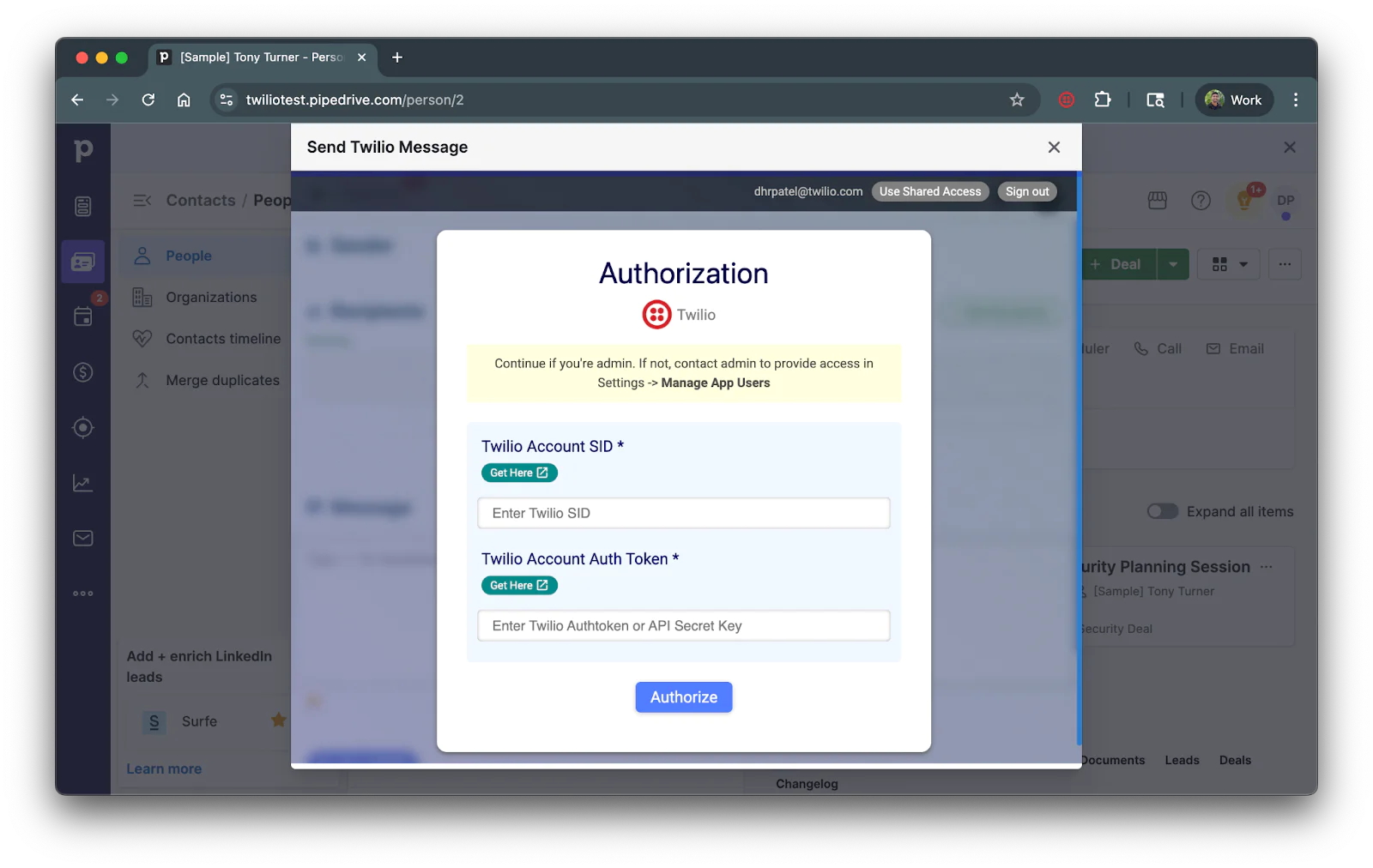
To get your Twilio Account SID and Twilio Account SID Token, open up your Twilio Console and scroll to the bottom to see your account credentials:
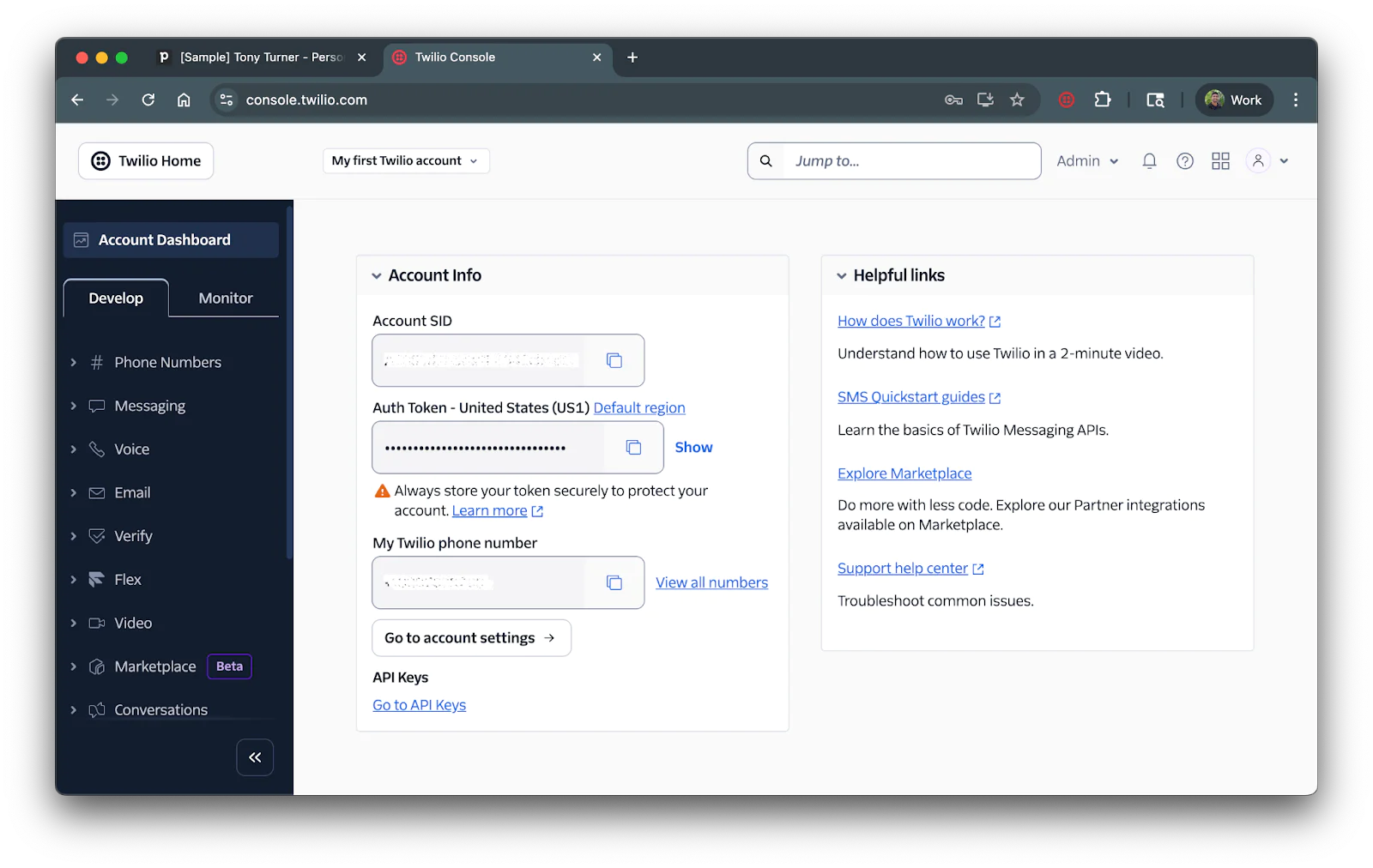
Copy the Account SID and Auth Token and place them in their respective fields on Pipedrive on click on the blue Authorize button.
Once authorized, another modal will pop up for user configuration and if you’d like to authorize other Pipedrive users to use the Twilio integration.
Set Up WhatsApp Sender on Pipedrive
Now that your Twilio account is connected with your Pipedrive account, you’re ready to start sending messages with your verified WhatsApp senders.
For those without verified WhatsApp senders, I’ll be showing how to set up the WhatsApp sandbox so you can test it out with your unverified Twilio number. If you already have a verified WhatsApp sender, feel free to skip that section.
Allow incoming messages from Twilio
To enable two-way messaging, you’ll need to allow incoming messages to be received on Pipedrive. Navigate back to Pipedrive and ensure you’re still on the Twilio app. On the top right corner, click on your profile to reveal settings for the Twilio App:
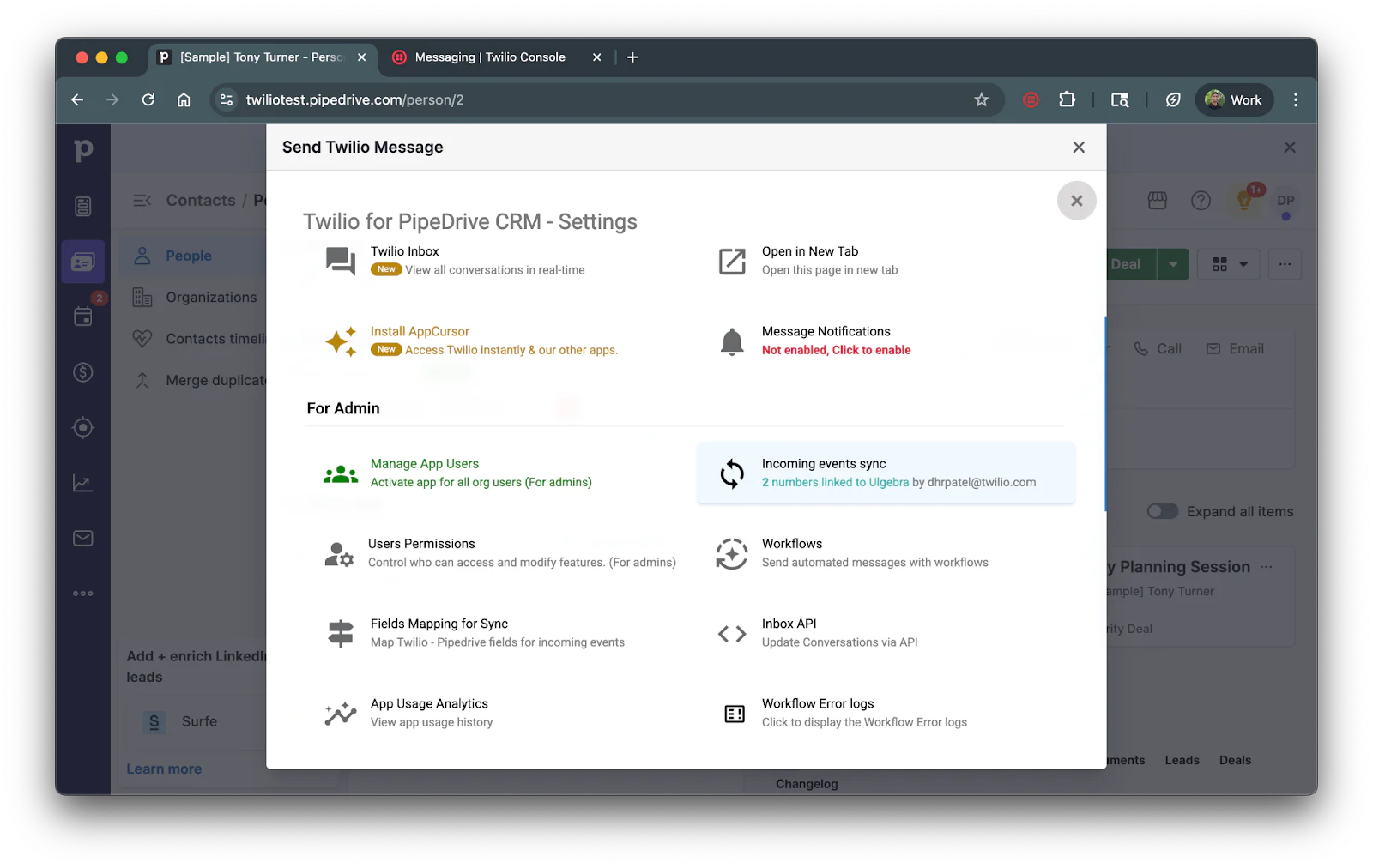
Click on Incoming events sync and you’ll see your Twilio numbers. You can enable incoming SMS on your Twilio number by clicking on the button next to your number. To enable incoming messages from WhatsApp, click on the blue button that says Link without changing messaging service:
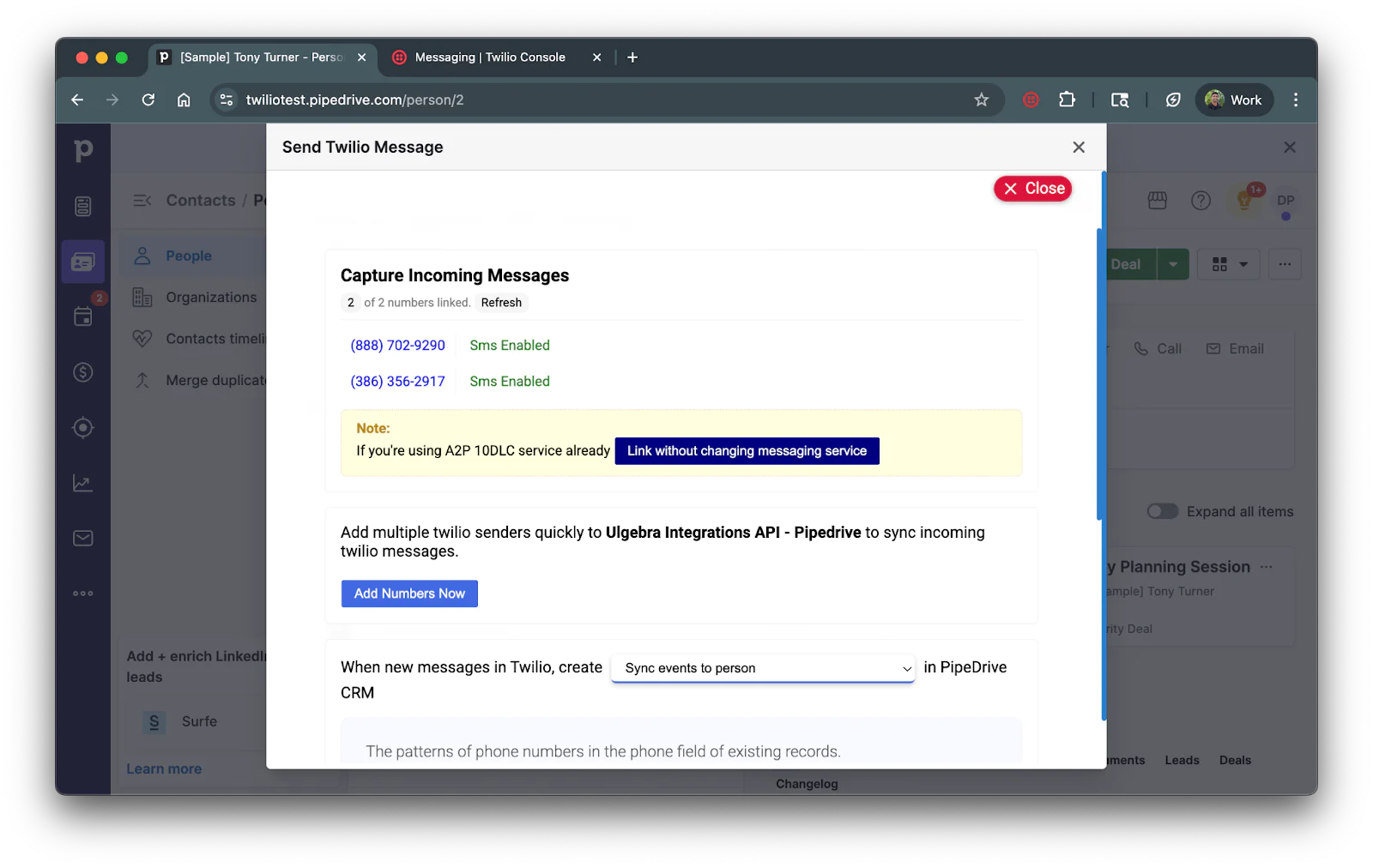
You will then see instructions on how to capture incoming messages to your Twilio messaging service.
- If you are using a messaging service: Follow the instructions.
- If you have a standalone Twilio number verified with WhatsApp: Copy the webhook url from step 4 and navigate to your Twilio numbers messaging configuration menu. To get here, navigate to Phone Numbers > Manage > Active Numbers from the left tab on your Twilio Console and click on your verified WhatsApp number. Click on the Configure tab and scroll down to Messaging Configuration. Paste in your webook URL within the When a message comes in input box. Select POST from the Method dropdown and click the Save configuration button.
- If you don’t have a verified WhatsApp number yet: Copy the webhook URL from step 4 and proceed to the next section.
Set up Twilio WhatsApp Sandbox (if you don’t have a verified sender)
If you already have a verified sender, feel free to skip this section.
Navigate to your WhatsApp Sandbox settings on your Twilio Console. To head to this section, click on Messaging on the left sidebar of your Console (if you don't see it on the sidebar, click on Explore Products, which will display the list with the available products and there you will see Messaging). Then, click the Try it out dropdown and click Send a WhatsApp message within the dropdown.
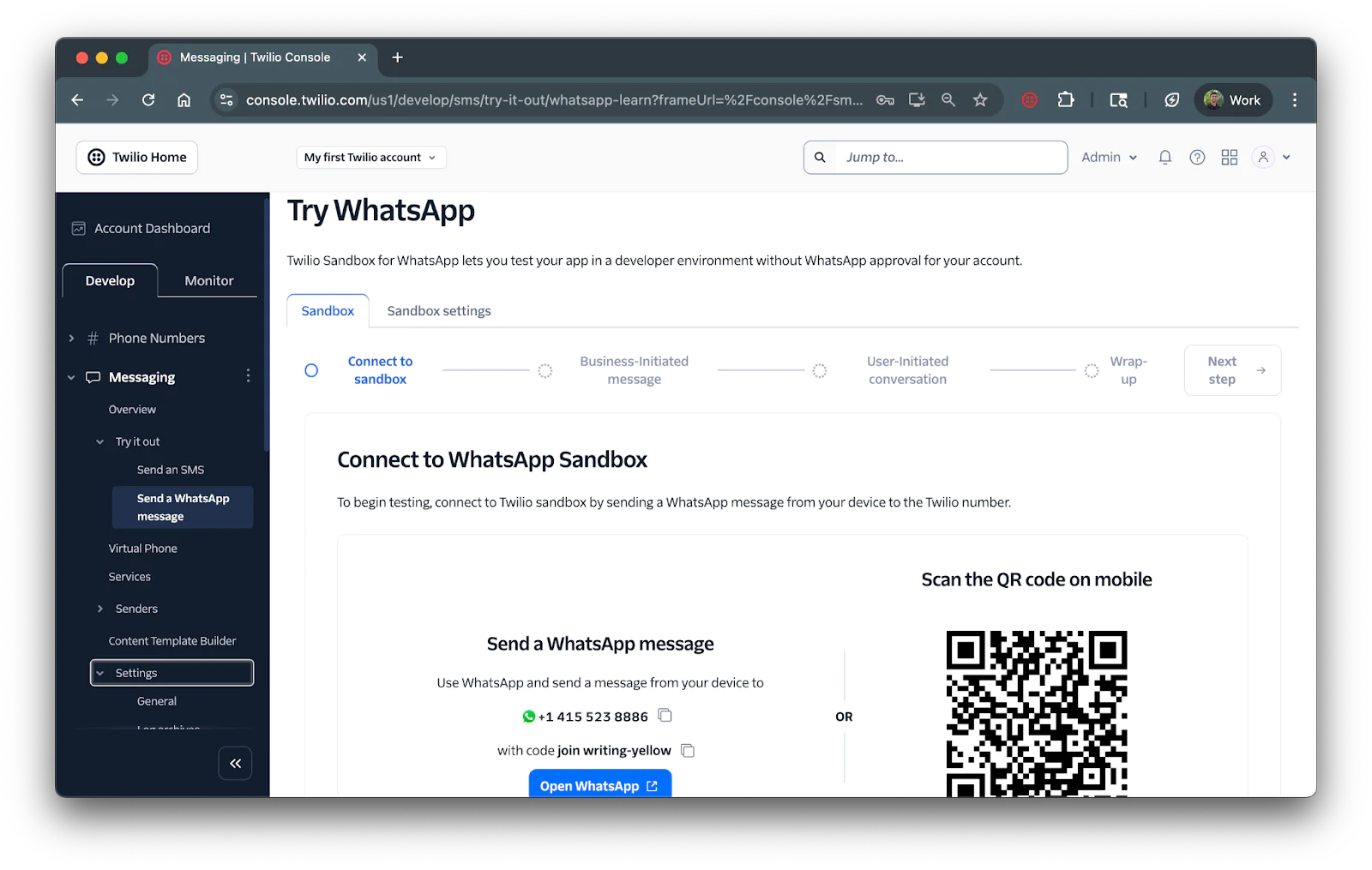
Follow the steps on screen to connect your WhatsApp account to your Twilio account. Upon joining the sandbox, you’ll be able to send or receive WhatsApp messages to yourself.
Once joined, you’ll see the screen below with your generated WhatsApp number you can use for testing:
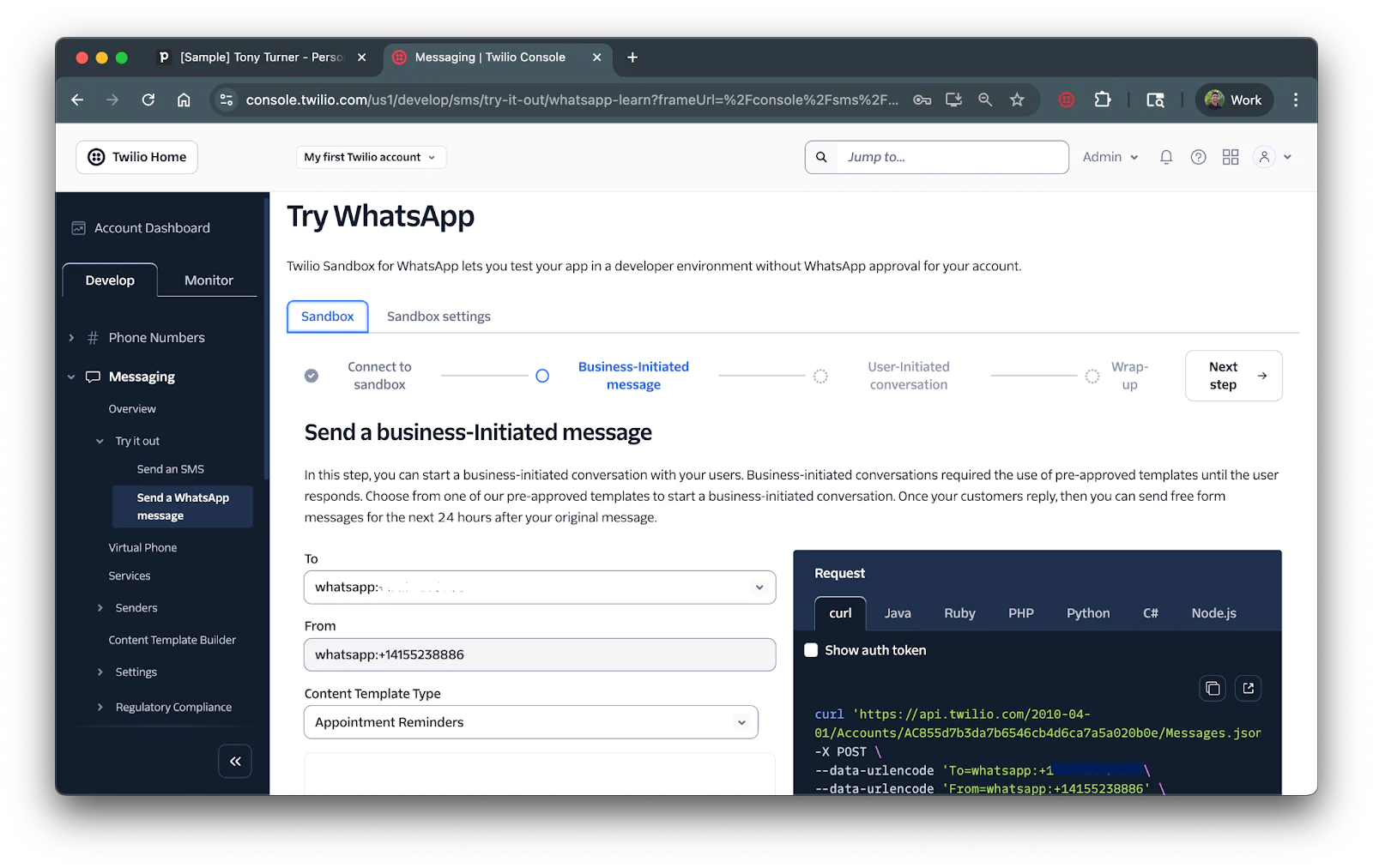
Save the From number as you’ll need it for the next section.
Click on the Sandbox settings tab and paste in your webook URL (from the previous section) within the When a message comes in input box. Select POST from the Method dropdown and click the Save button:
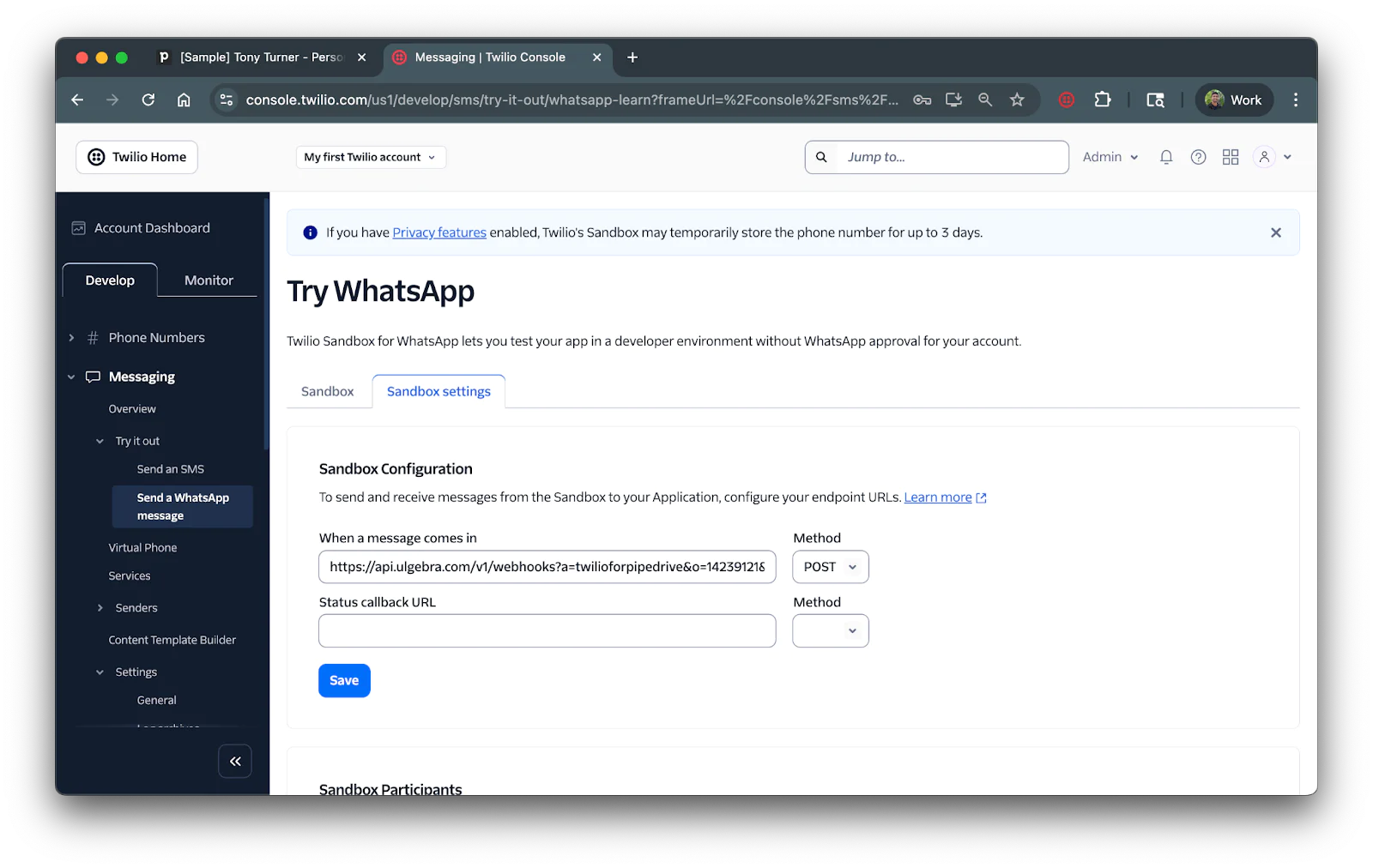
The Twilio app on Pipedrive is now ready to receive incoming texts to the WhatsApp number generated from the Sandbox. Let’s now add this sender on Pipedrive.
Add WhatsApp sender to Pipedrive
Now that Pipedrive is able to listen to incoming messages, it’s time to add your WhatsApp sender to Pipedrive.
Head back to your Pipedrive window and Close out the Incoming events sync menu and close out the settings page so that you are on the main Send Twilio Message page of the app:
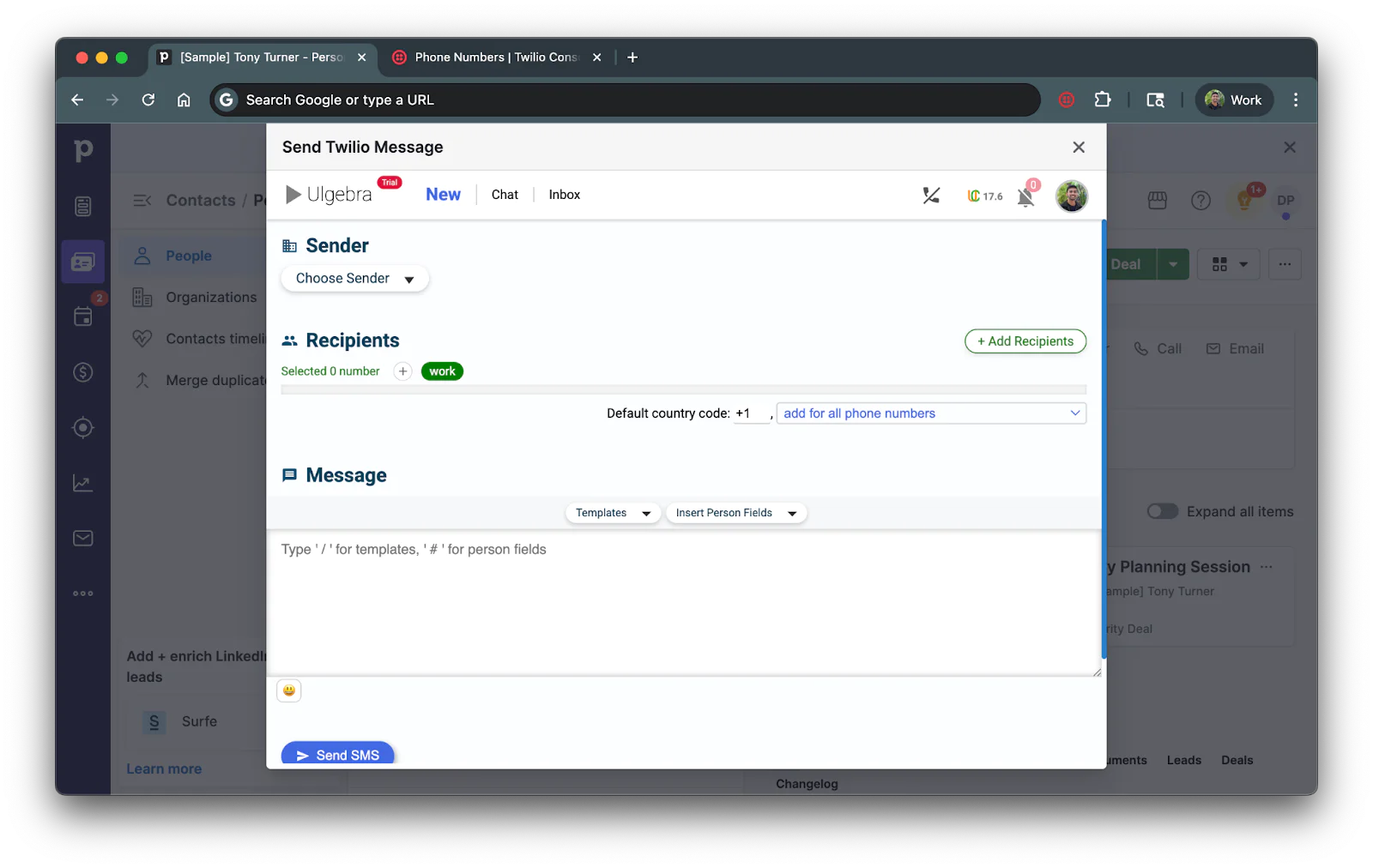
Click on the Sender dropdown to select a sender and then click on the + Add New Sender button on the top right of the modal.
For the Channel dropdown, select WhatsApp and for the Sender ID type in whatsapp: followed by your Twilio Number (verified by WhatsApp). If you set up the WhatsApp Sandbox, enter in the From number you were given from that section. Ensure this numbers is in E.164 format. The sender ID should look like whats in the Sender ID field below:
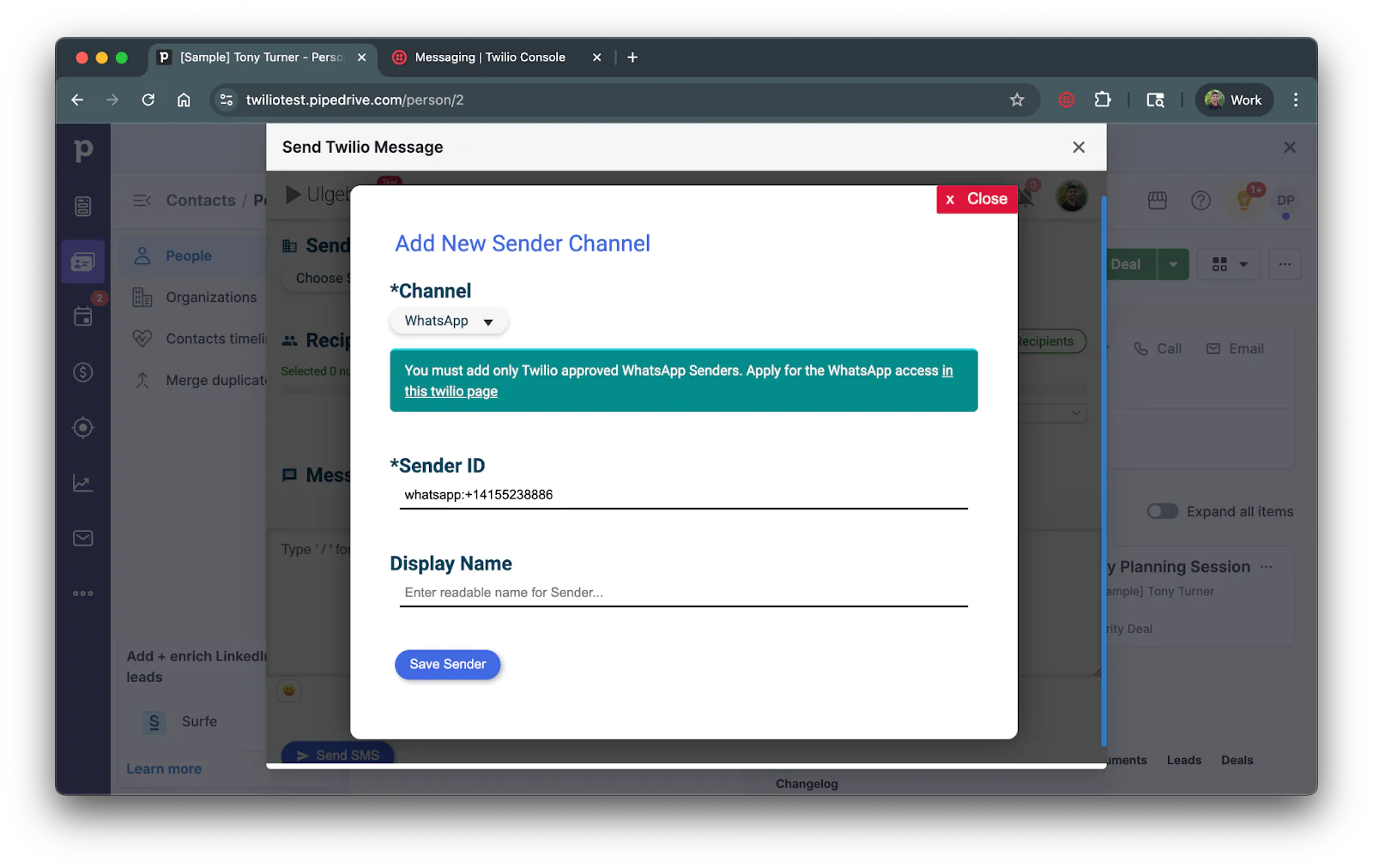
Feel free to enter a Display Name for the number you’ll use with Pipedrive and then click Save Sender.
Chat Through WhatsApp on Pipedrive
Your Twilio app on Pipedrive is now ready to send out messages. To test this out, lets create a new contact so you can send messages to yourself.Head back to the People page of the Contacts section on Pipedrive and create a new contact by click on the green + Person button. Add a name and your phone number to the new contact and click Save.
Now click on the contact you just created and click the green Send Twilio Message button. For Sender select the WhatsApp sender you just created. Enter any message in Message field and scroll down and click on the Send WhatsApp button to send your message.
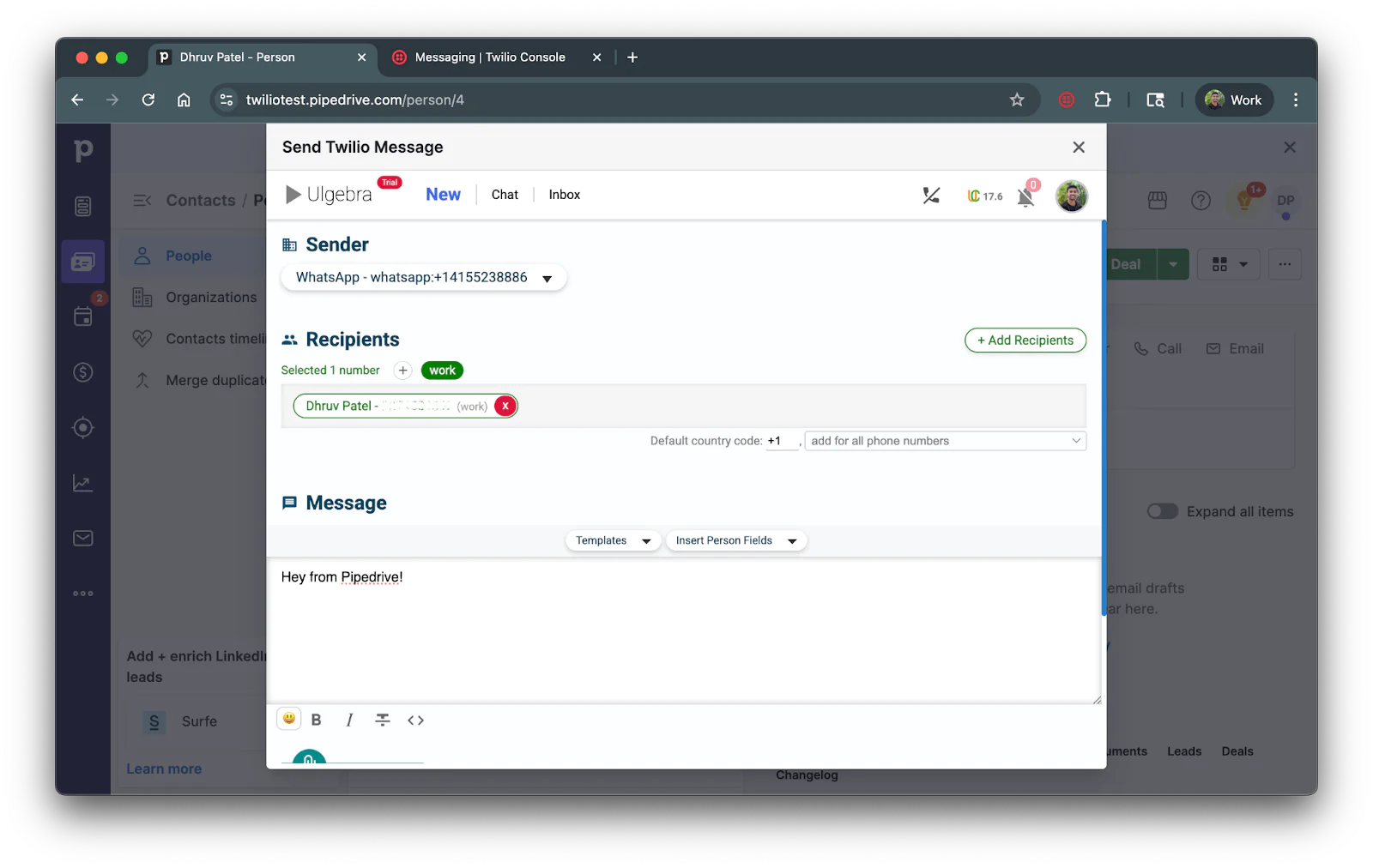
You’ll then see a confirmation message on the screen saying your message has been processed:
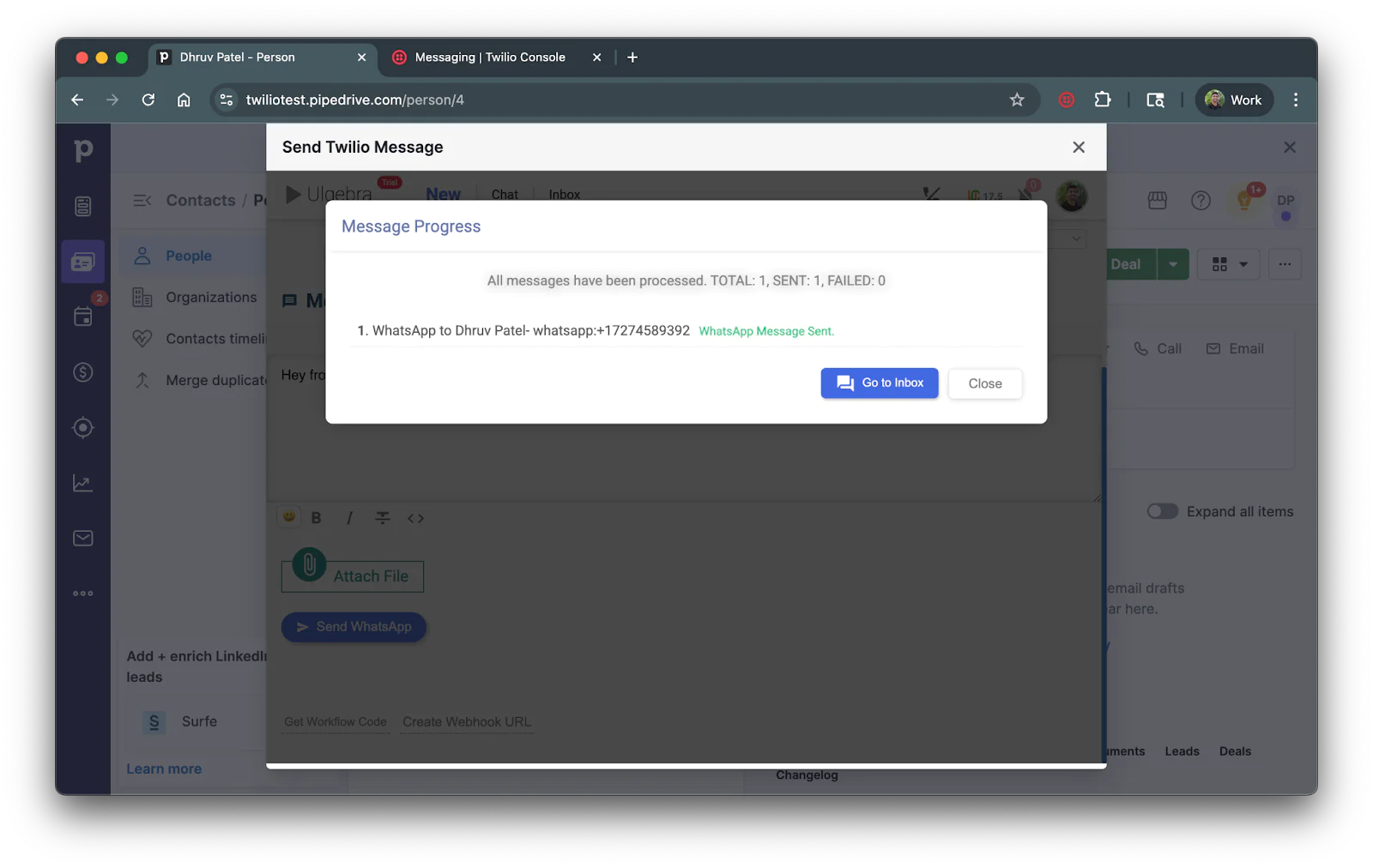
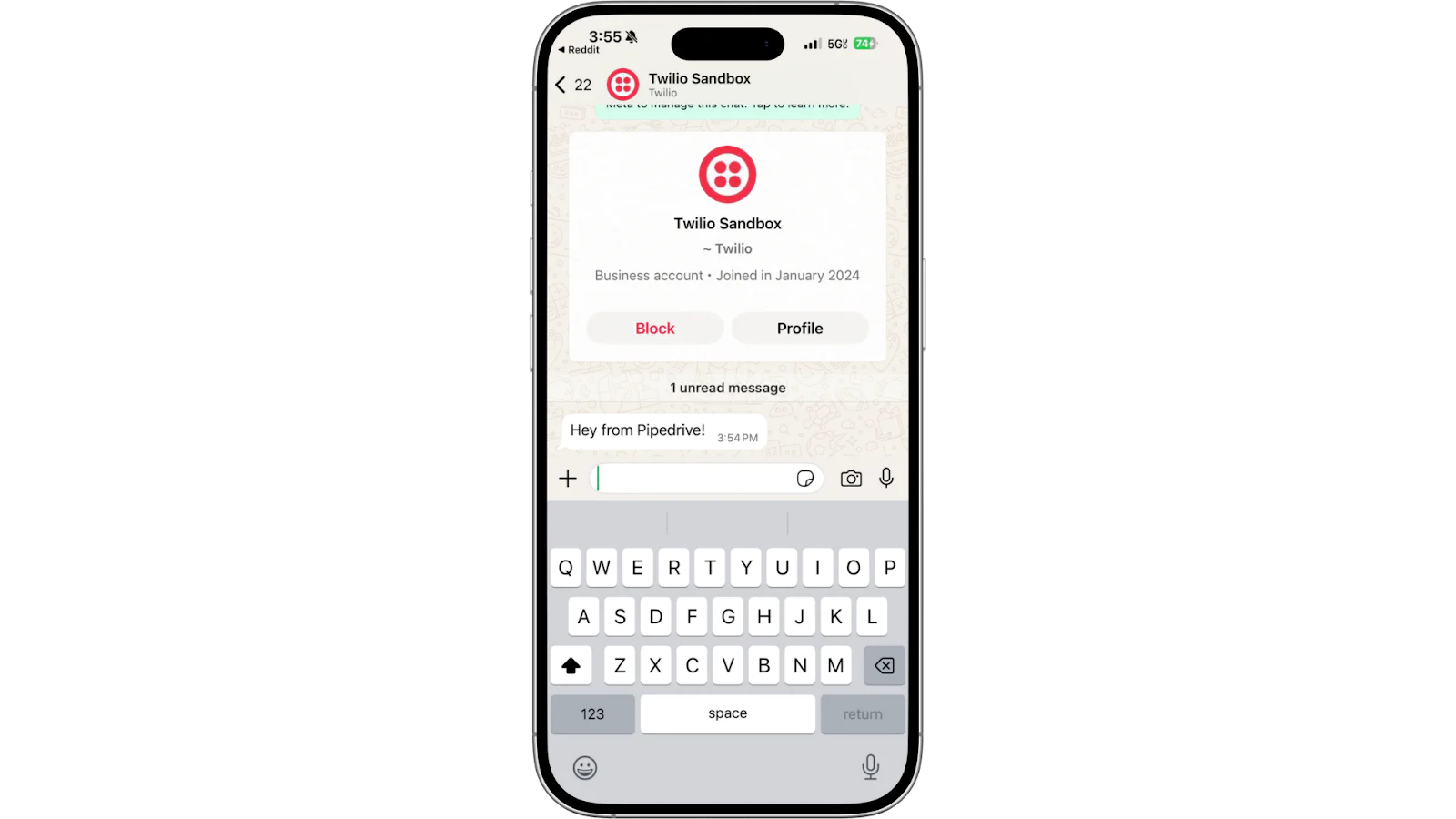
You can then click on the blue Go to Inbox button to view your chat and respond to incoming messages. You can also assign people to chats and view other chats on this menu.
Conclusion
You’ve successfully connected Twilio WhatsApp messaging with Pipedrive. You’re now able to chat with leads, enable bulk sends, and log conversations directly from your Pipedrive dashboard.
Moving forward, you can add WhatsApp templates for faster outreach or personalize messages using Pipedrive person fields. For more details on what more you can do with this integration, check out Ulgebra’s documentation on it.
Dhruv Patel is a Developer on Twilio’s Developer Voices team. You can find Dhruv working in a coffee shop with a glass of cold brew or he can either be reached at dhrpatel [at] twilio.com.

Related Resources
Twilio Docs
From APIs to SDKs to sample apps
API reference documentation, SDKs, helper libraries, quickstarts, and tutorials for your language and platform.
Resource Center
The latest ebooks, industry reports, and webinars
Learn from customer engagement experts to improve your own communication.
Ahoy
Twilio's developer community hub
Best practices, code samples, and inspiration to build communications and digital engagement experiences.