Recipe
Enhancing your customer profiles with Shopify or Amazon order data using Alloy
Until now, there were no no-code tools to bring customer e-commerce data into one place. In this recipe, we will leverage the new Alloy Flow source to send e-commerce events from popular selling platforms to Twilio Segment, then on to Segment destinations, all without code.


What do you need?
-
Alloy
Steps
The Problem: Siloed E-Commerce Data
E-commerce sellers are constantly searching for ways to improve customer engagement. Typically, they wish to better understand user activity across channels than target specific customer segments through paid and owned channels.
This is a hard problem to solve, because customer profile data is generally scattered across different e-commerce apps or CRMs. These customer information silos make it difficult to identify the ideal audiences for effective engagement.
Hiring a developer to bring this data together was time-consuming and expensive, and it could not always meet the intended needs. But by pairing Alloy Flow with Twilio Segment, sellers can finally pipe data to hundreds of Destinations, all without involving a developer.
The Solution: Alloy Automation + Twilio Segment CDP
With Twilio Segment Connections and the new Alloy Flow source, ecommerce brands can unify data across tools without extensive development effort.
Alloy Flow allows e-commerce merchants to quickly set up an automation process to send order events to Twilio Segment from multiple sales channels. Ecommerce sellers can then syndicate data from Alloy to hundreds of destinations in the Twilio Segment catalog.

In this guide, we’ll walk you through getting data flowing between Alloy and Twilio Segment, configuring an ecommerce data source, such as Amazon Seller Central or BigCommerce, and sending data to destinations for analytics, customer service, and more.
Configuring a Twilio Segment Source
If you haven’t already, create a Twilio Segment account and workspace, or log in to your existing workspace.
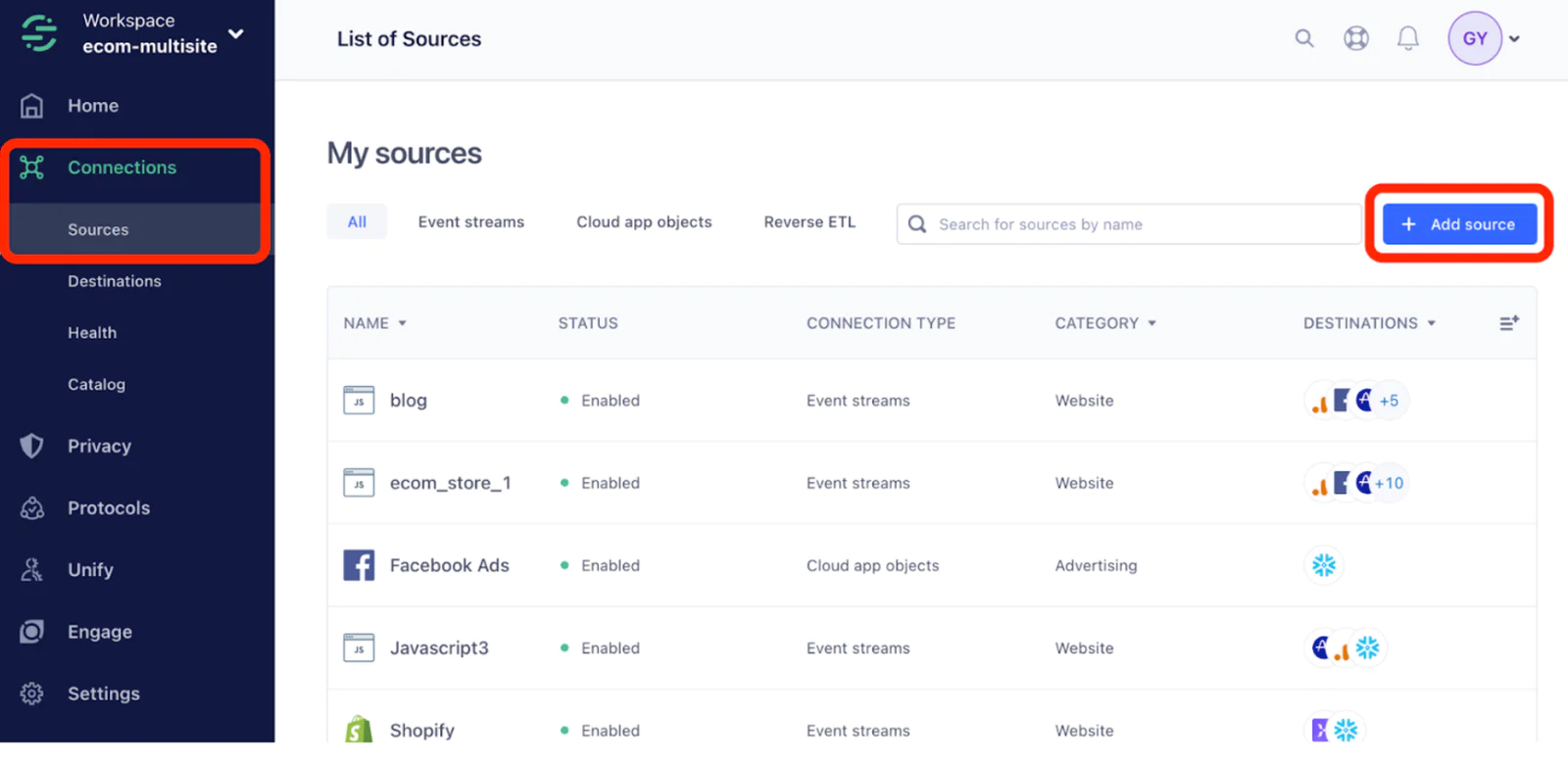
On the left sidebar, click Connections then Sources. Click Add source on the top right.
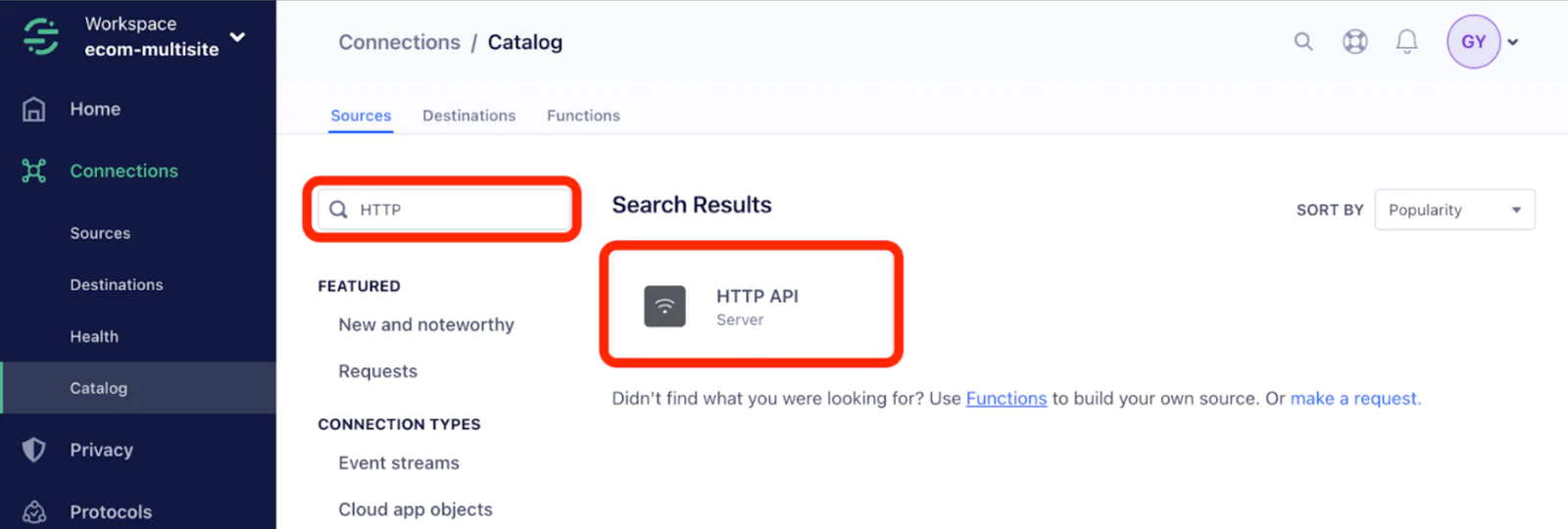
Use the Filter box to search for “HTTP,” then click the HTTP API result.
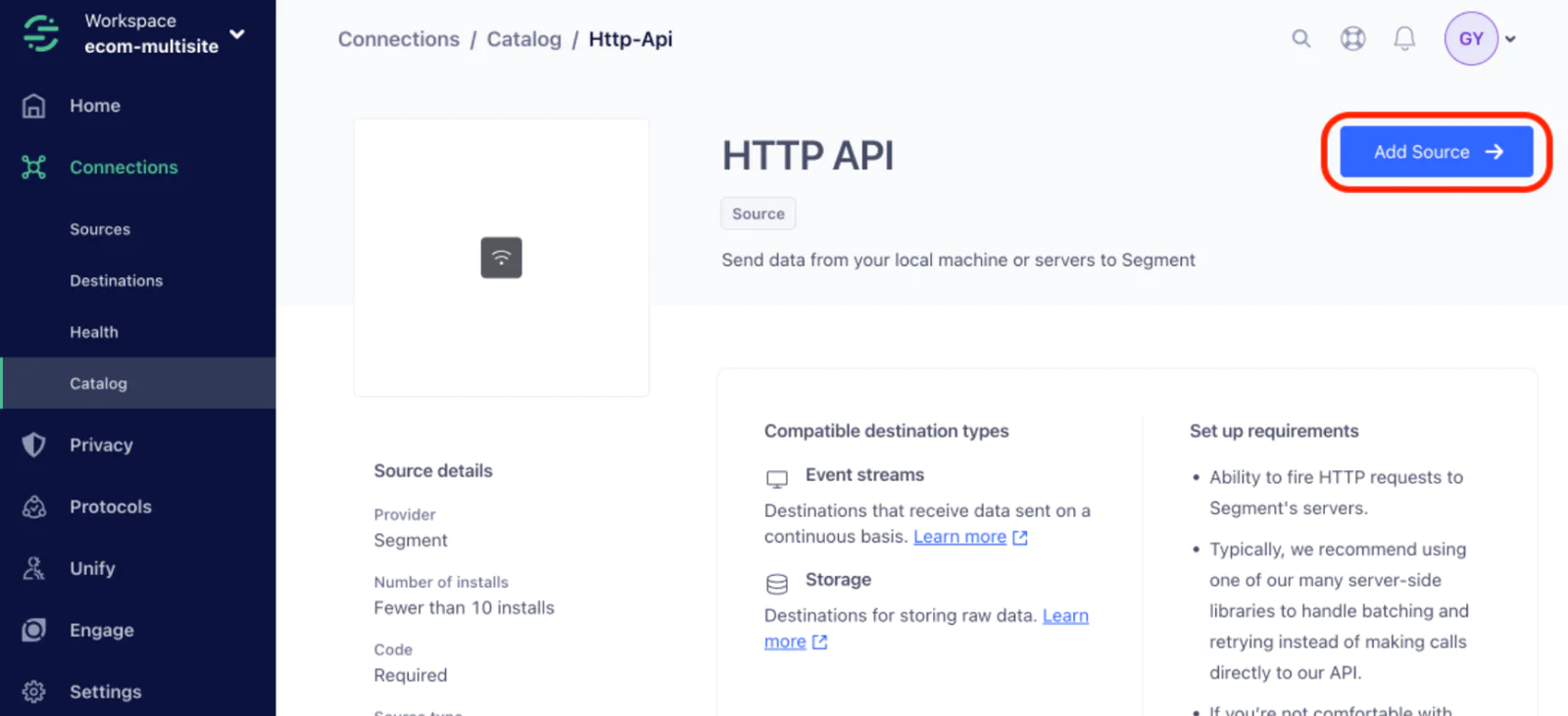
Click Add Source at the top right.
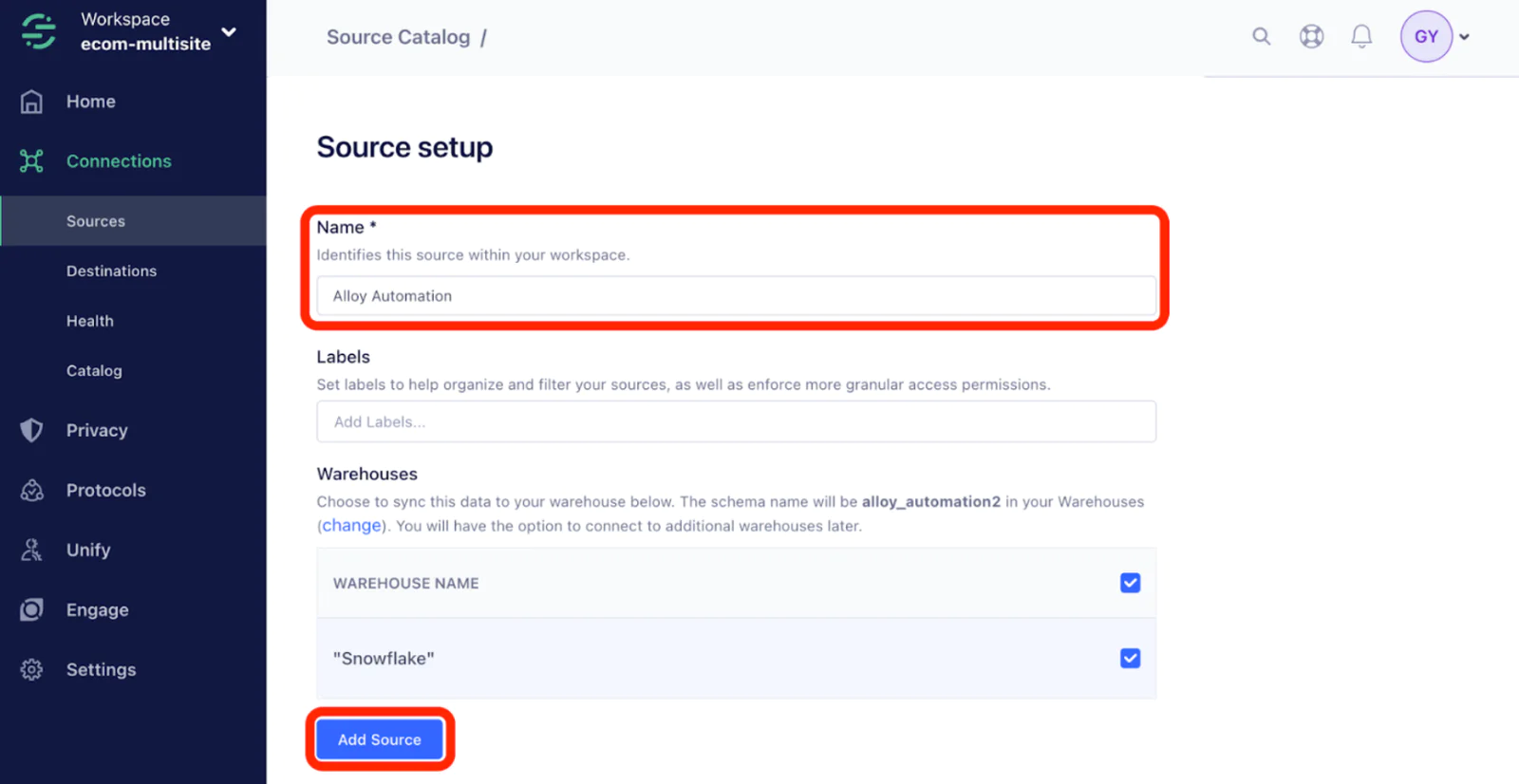
Give the source a name, such as Alloy Automation or Alloy Automation Amazon. Then click Add Source.
You’ve successfully set up your Twilio Segment HTTP API Source. Before moving on, copy the write key, as Alloy Automation will require it for configuration.

Configuring Alloy
Create a workflow for Amazon orders / Shopify orders
To create a workflow tailored for Amazon or Shopify orders, you'll begin by establishing a new workflow within Alloy. This will allow you to synchronize order events directly to Twilio Segment seamlessly.
Start the process by selecting the source trigger from available options, which could be either Amazon Seller Central or Shopify, depending on your platform. Once you've picked the appropriate trigger, the next step is to integrate with Twilio Segment.
To do this, choose the Twilio Segment block within the workflow and specifically select the "Identify a User" action. You will be required to populate the various fields. Fortunately, Alloy provides dynamic variables directly from the source trigger and any other previous block, making this process intuitive and efficient.
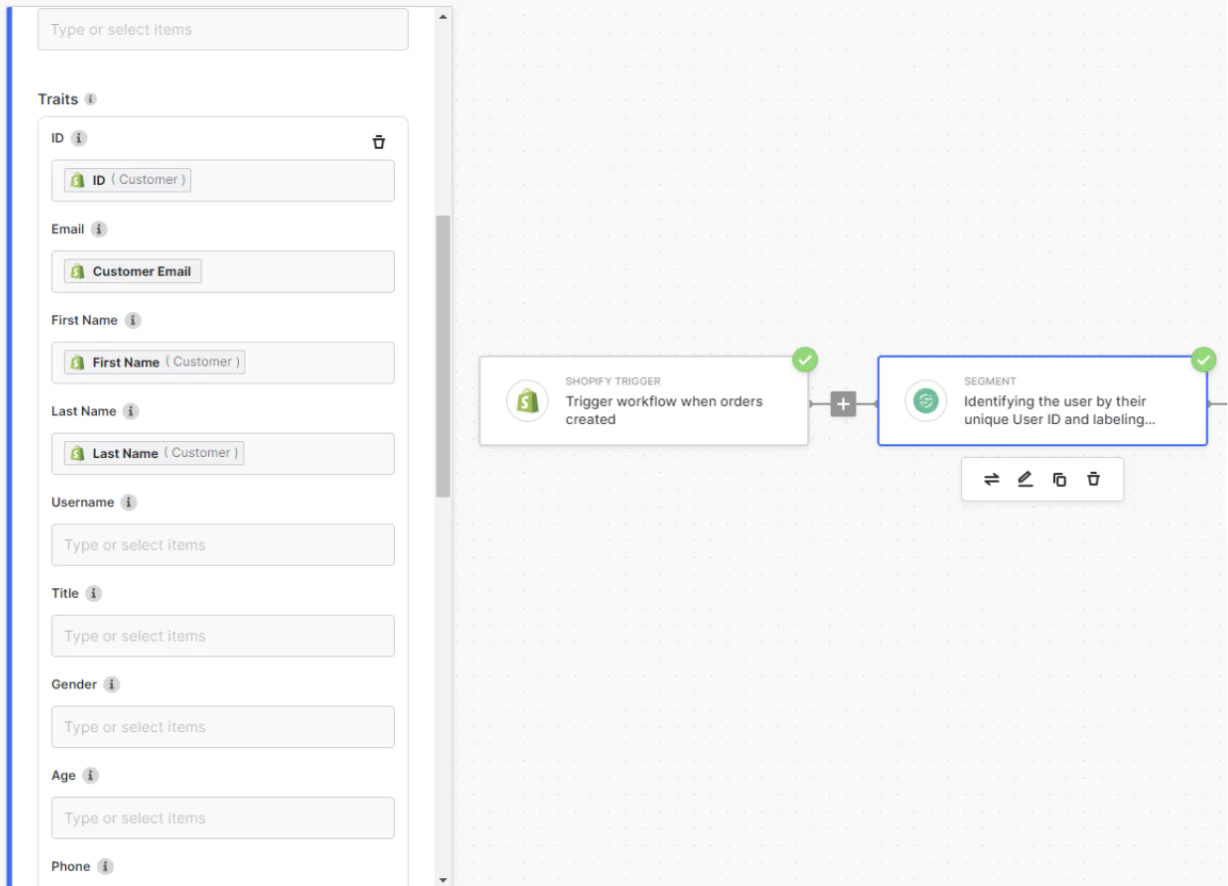
After setting up user identification, it's beneficial to also track specific events related to orders. Add another Twilio Segment block into your workflow and this time choose the "Track Events" action. As before, you'll need to populate the fields.
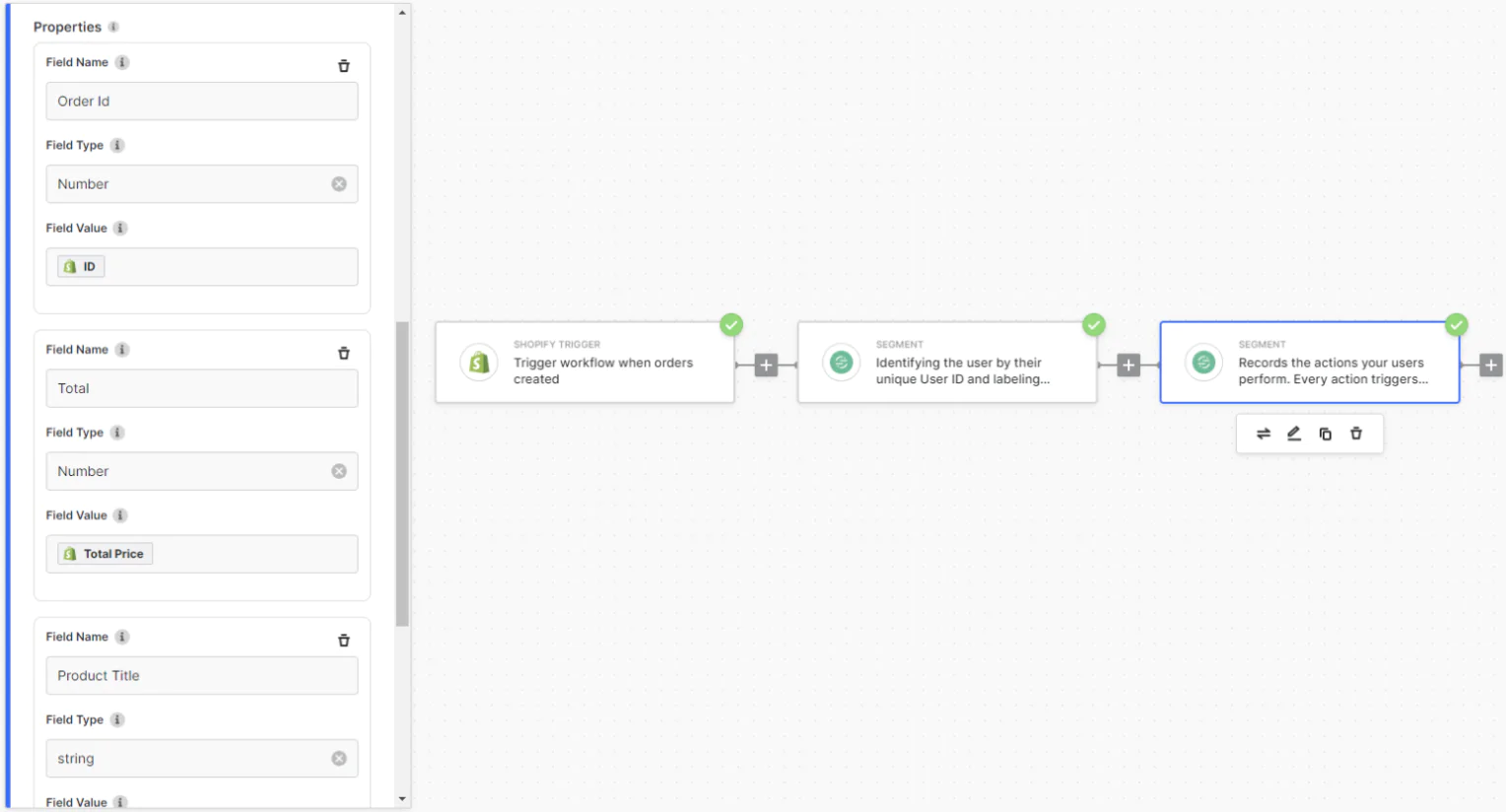
Once all steps are completed and you've verified the data flow, it's crucial to give your workflow a descriptive title for easy identification in the future. After doing so, save the workflow to make it active and ready to process order events.
Testing the Data Flow
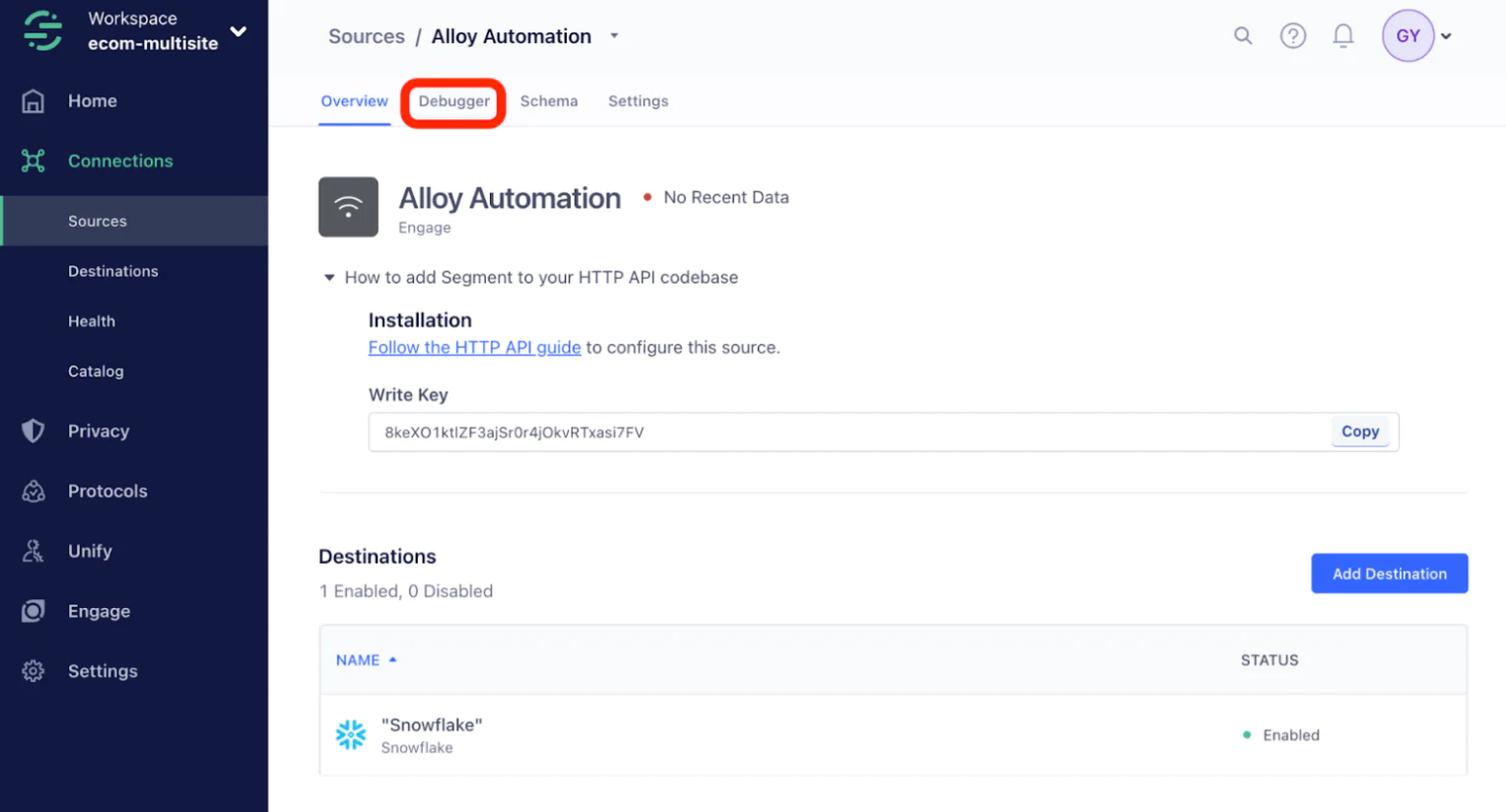
Back in Twilio Segment, click Connections, then Sources on the left sidebar, then find the HTTP API source you created previously. Click the Debugger Tab.
Within the debugger tab, you will start to see orders as they come in from your Alloy Automation source. We configured the Alloy source to emit both a track event (to record user activity) and an identify event (to enrich user profiles).
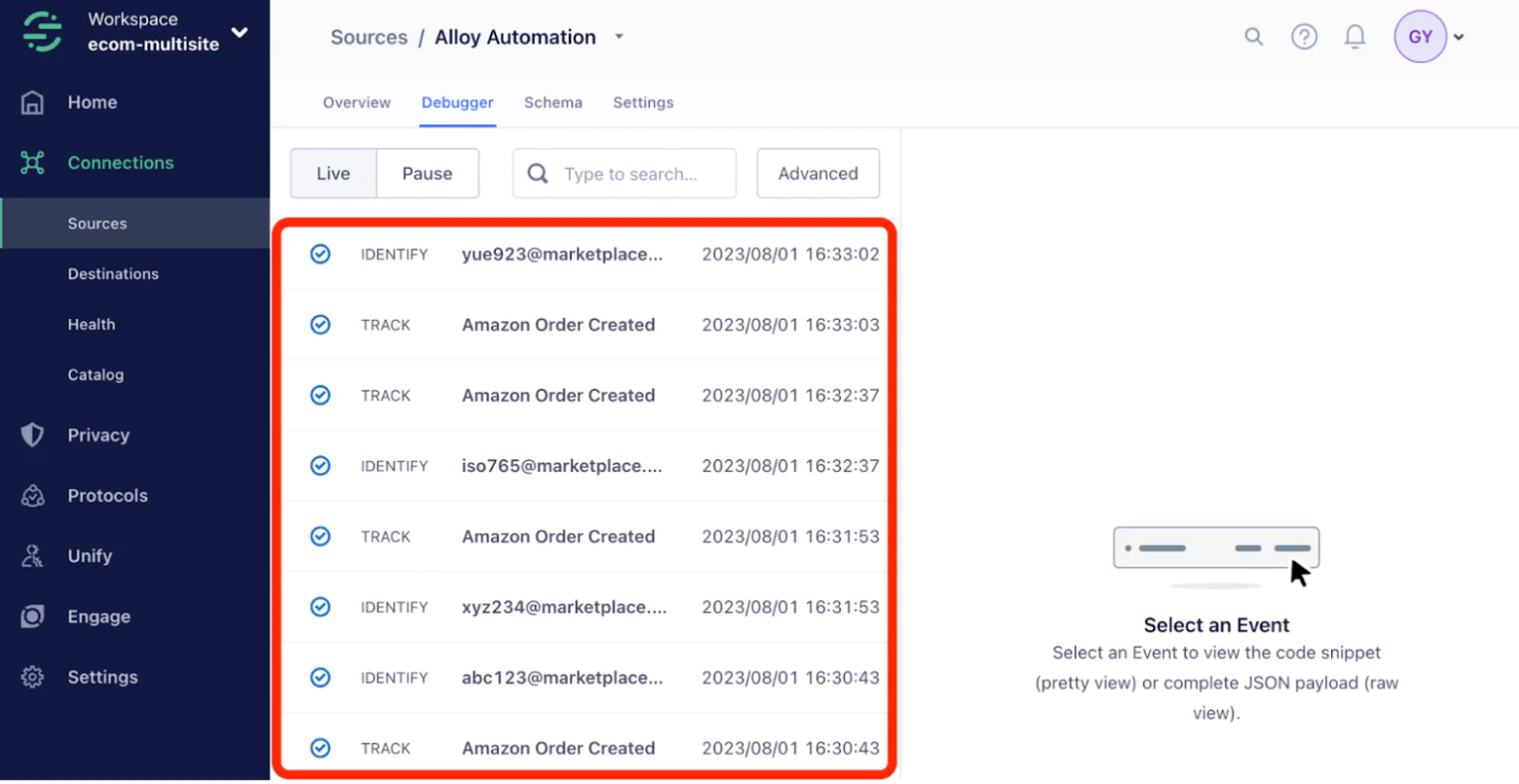
If you click on a track event, then click the Raw tab, you will see all the details of the order in the properties object.

Similarly, clicking an identify call will reveal the traits object, which contains data that would be appended to a Twilio Segment Unify user profile.
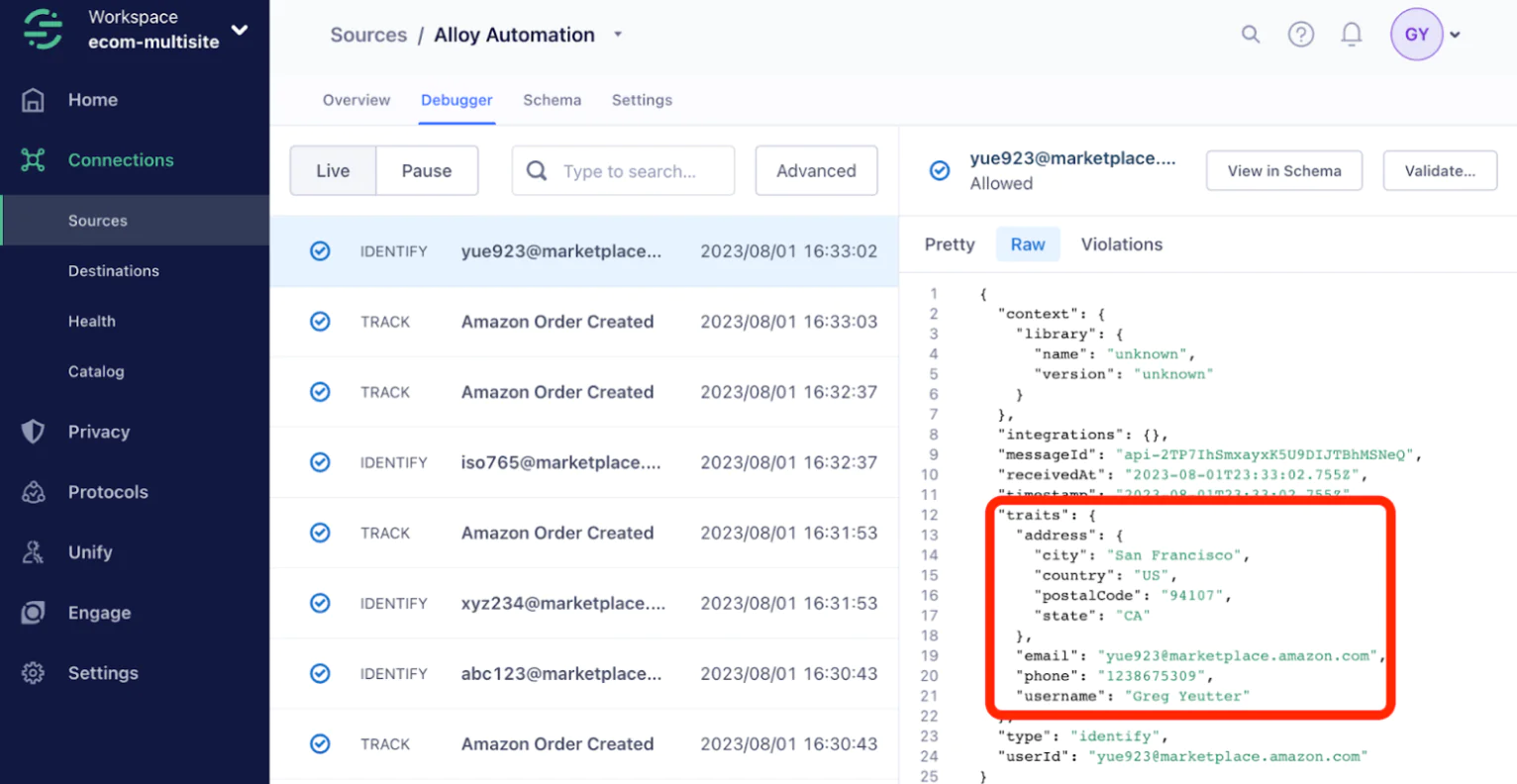
If anything relevant is missing from the properties or traits objects, you can make edits to the workflows within Alloy Automation.
Once you have verified that orders are flowing in Twilio Segment, the next step is to forward events to some of the hundreds of destinations in the Twilio Segment catalog.
Connecting Twilio Segment Destinations
With Twilio Segment, you can route data from your Alloy Automation source to more than 400 pre-built destinations. Popular examples for e-commerce companies include analytics tools, CRMs, marketing automation tools, and data warehouses.
In this guide, we’ll demonstrate setting up Mixpanel analytics as a destination, but other destinations require a similar level of effort.
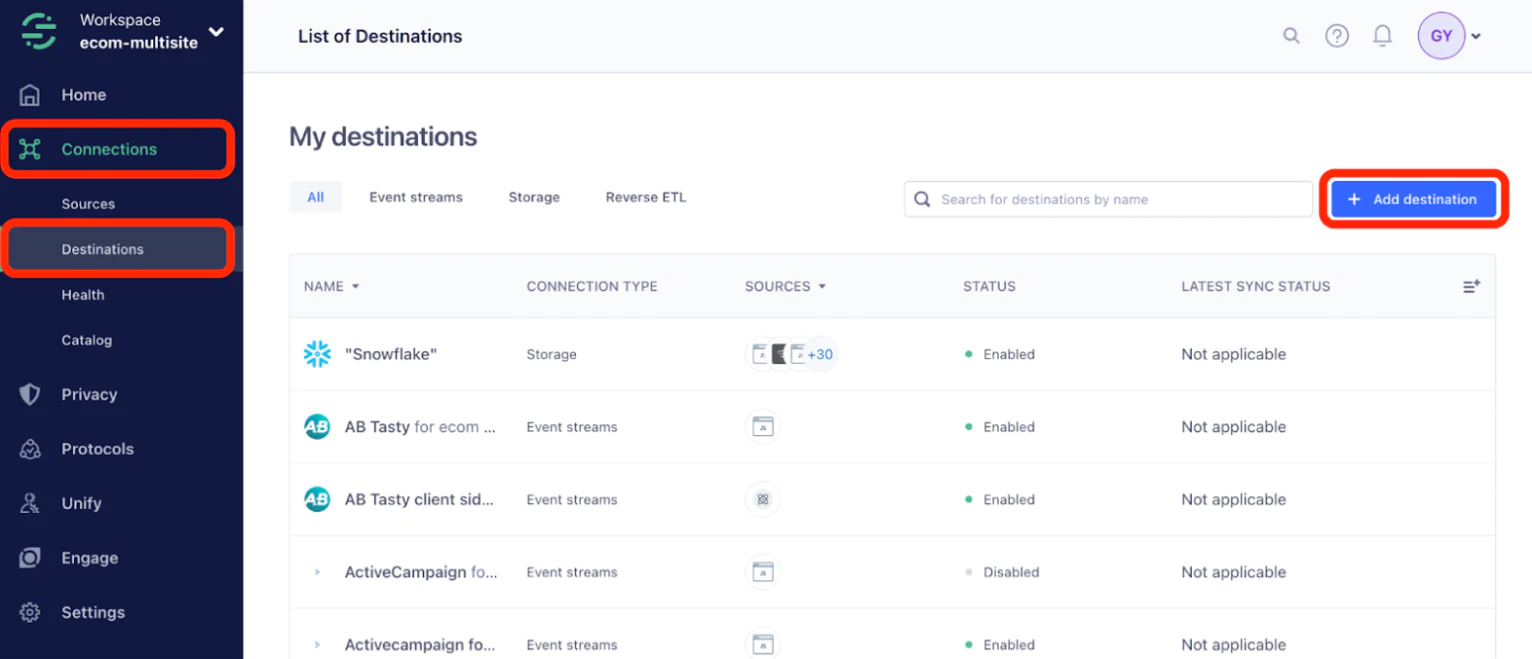
In Twilio Segment, select Connections then Destinations in the left sidebar. Click Add destination at the top right.
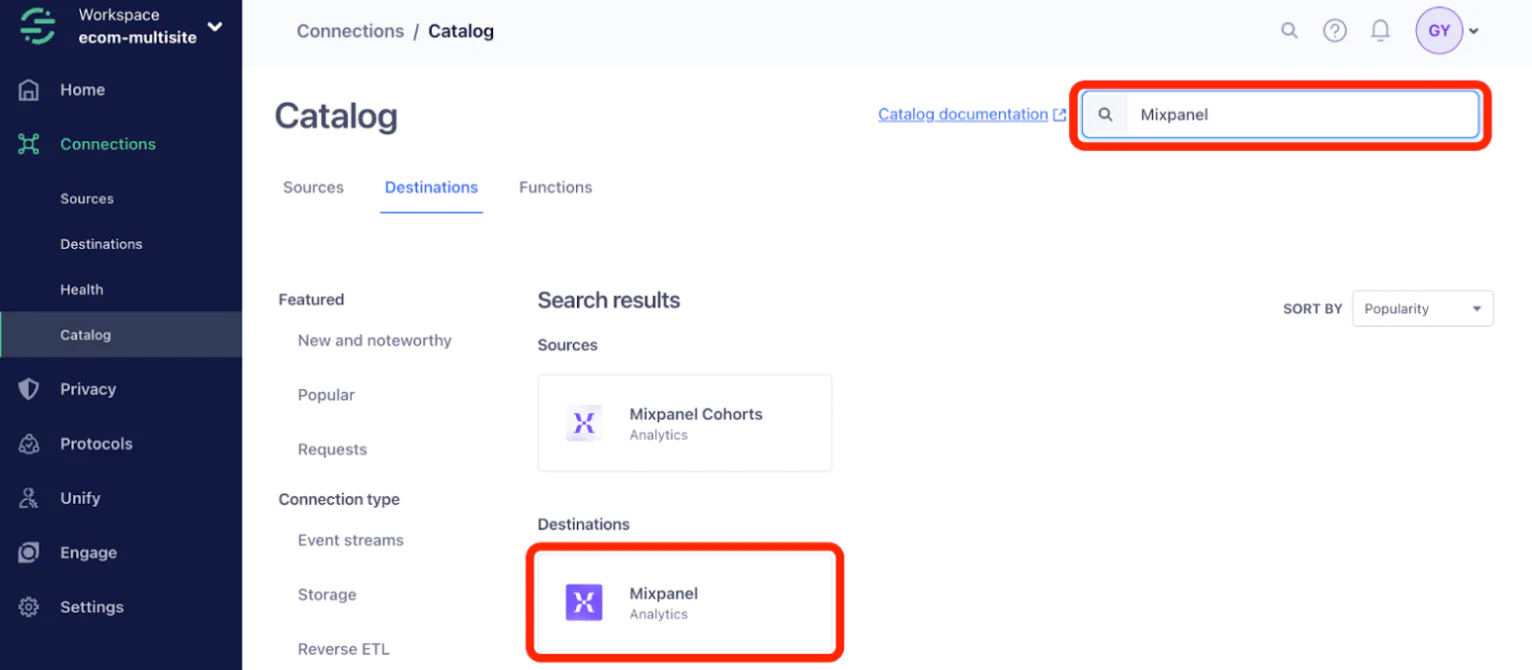
Search for Mixpanel in the search bar at the top right, then select Mixpanel under Destinations.
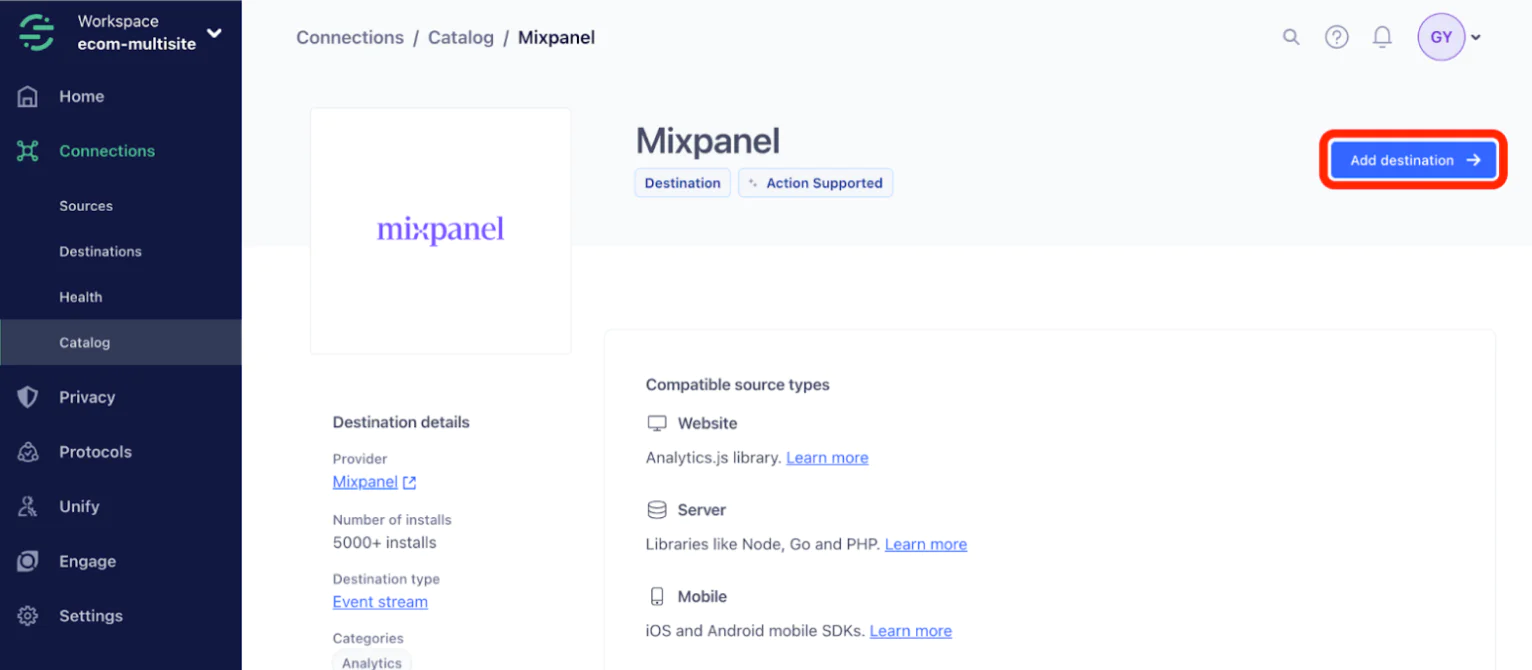
Click Add destination at the top right.
Select the Alloy Automation source you created earlier, then click Next.

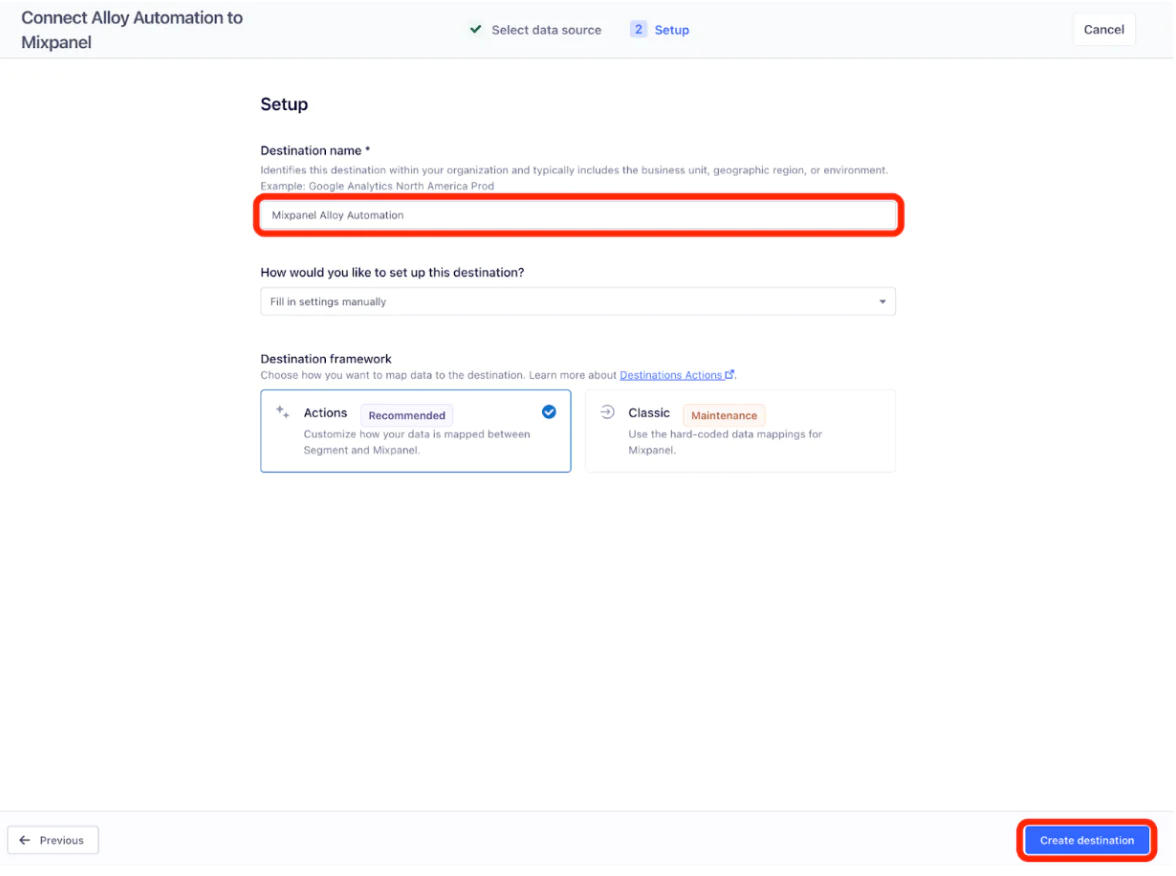
Give your Destination a name, and keep Actions selected. Click Create destination.
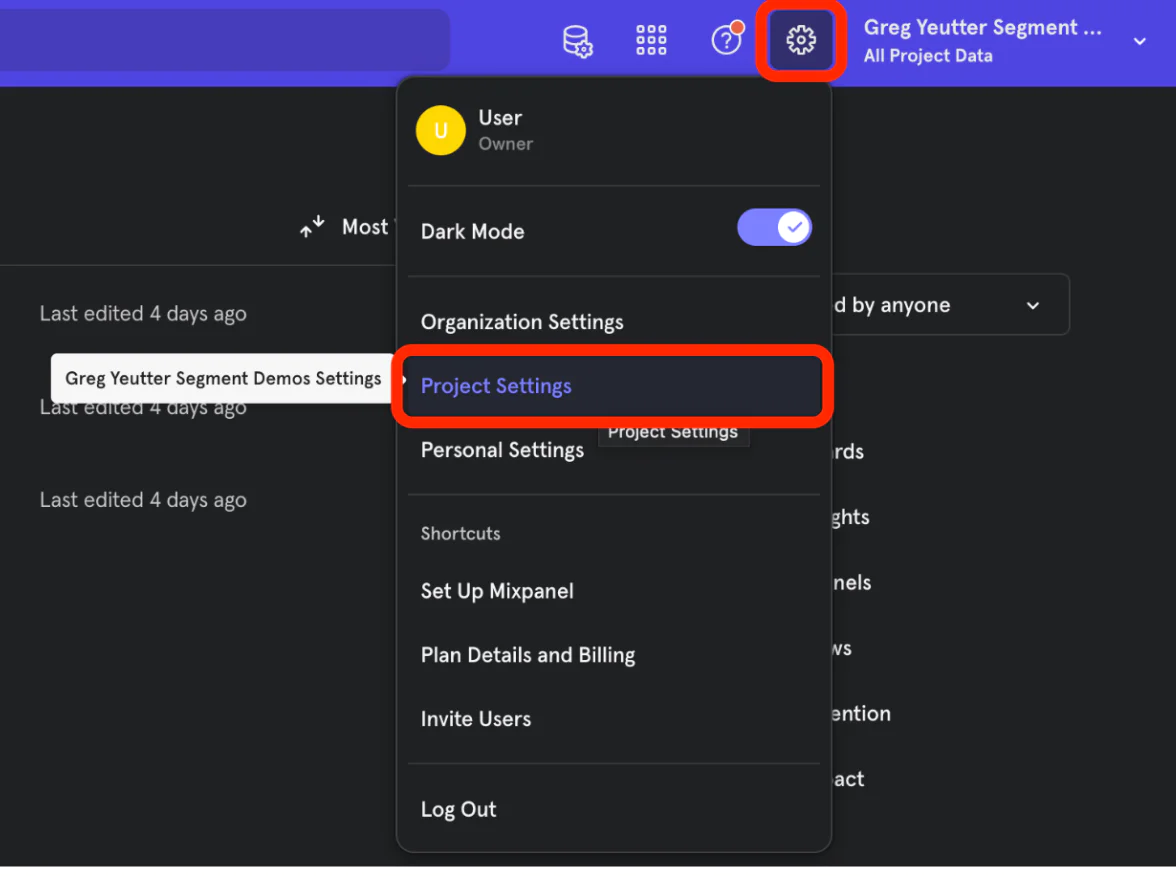
Now, log into your existing Mixpanel account, or create a new one. Click the gear icon in the top bar, then click Project Settings.
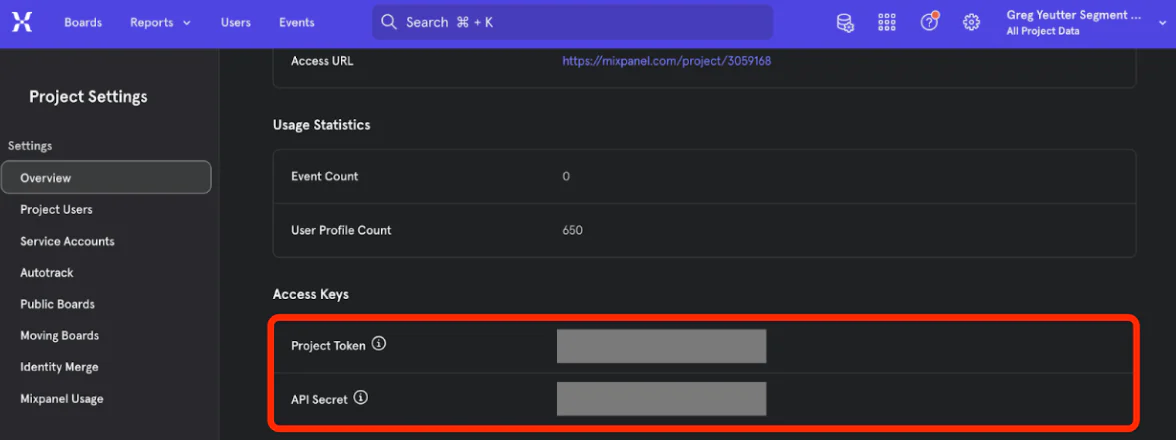
Scroll down to Access Keys, then copy your Project Token and API Secret.
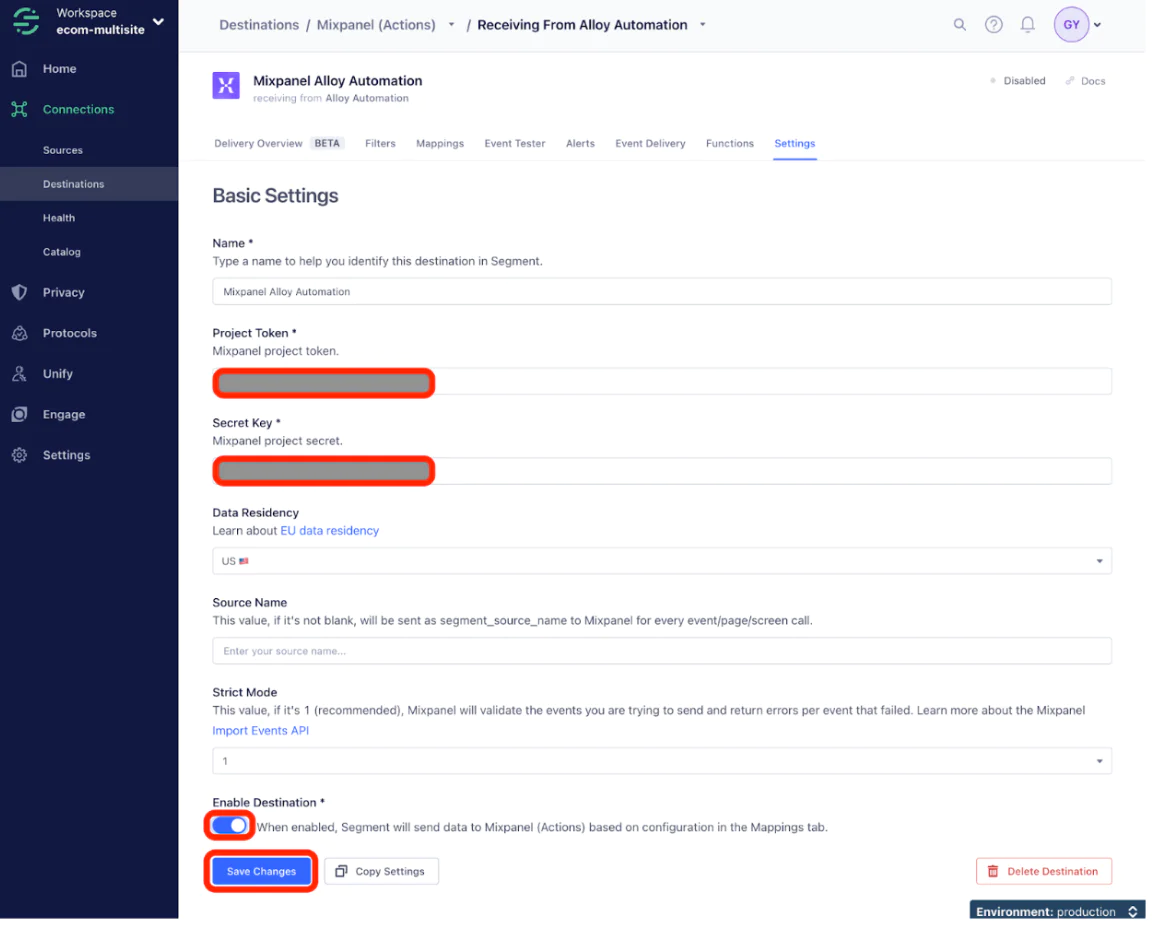
In Twilio Segment, paste these parameters, then toggle Enable Destination. Click Save Changes.
Wait for a new order to come in, then check Mixpanel to ensure the order is reflected in analytics.
The Result: Unified E-Commerce Data
In this recipe, we set up Alloy Automation as a source to bring in e-commerce events from popular selling platforms, such as BigCommerce and Amazon Seller Central. By sending the data into Twilio Segment, you can leverage the same e-commerce data across hundreds of Twilio Segment destinations, including analytics, CRM, marketing, advertising, and data warehouses.
Easily personalize customer experiences with first-party data
With a huge integration catalog and plenty of no-code features, Twilio Segment provides easy-to-maintain capability to your teams with minimal engineering effort. Great data doesn't have to be hard work!