Recipe
Automate Journeys with Twilio Segment & Marketing Cloud
Learn how to harness real-time behavioral data from Twilio Segment to trigger personalized, automated journeys in Salesforce Marketing Cloud—without manual exports or complex custom builds. This guide also shares best practices for syncing data to Data Extensions using Twilio Segment’s Actions destination, along with configuration tips to ensure accurate, reliable activation across the Salesforce ecosystem.
What do you need?
-
An active Unify Workspace in Twilio Segment
-
Your tracking plan events implemented on the website (e.g., product viewed, product added, order completed)
-
Access to a Salesforce Marketing Cloud Business Unit with permissions to create Data Extensions
-
A defined lifecycle use case to target, such as Abandoned Browse, that we’ll cover in the recipe
On this page
Step 1: Import Subscriber Keys into the Unify Workspace
1. Confirm the primary identifier used in SFMC (preferably Subscriber Key).
2. Choose your method to import Subscriber Keys:
Use Salesforce Source and field mapping, if available.
i. If Subscriber Keys originate from Salesforce, they are typically tied to Contact IDs.
ii. Use the Salesforce source in Twilio Segment and map the relevant fields to bring Subscriber Keys and email opt-in status into the Unify Workspace.
iii. Review Twilio Segment's official Salesforce Unify Integration documentation.
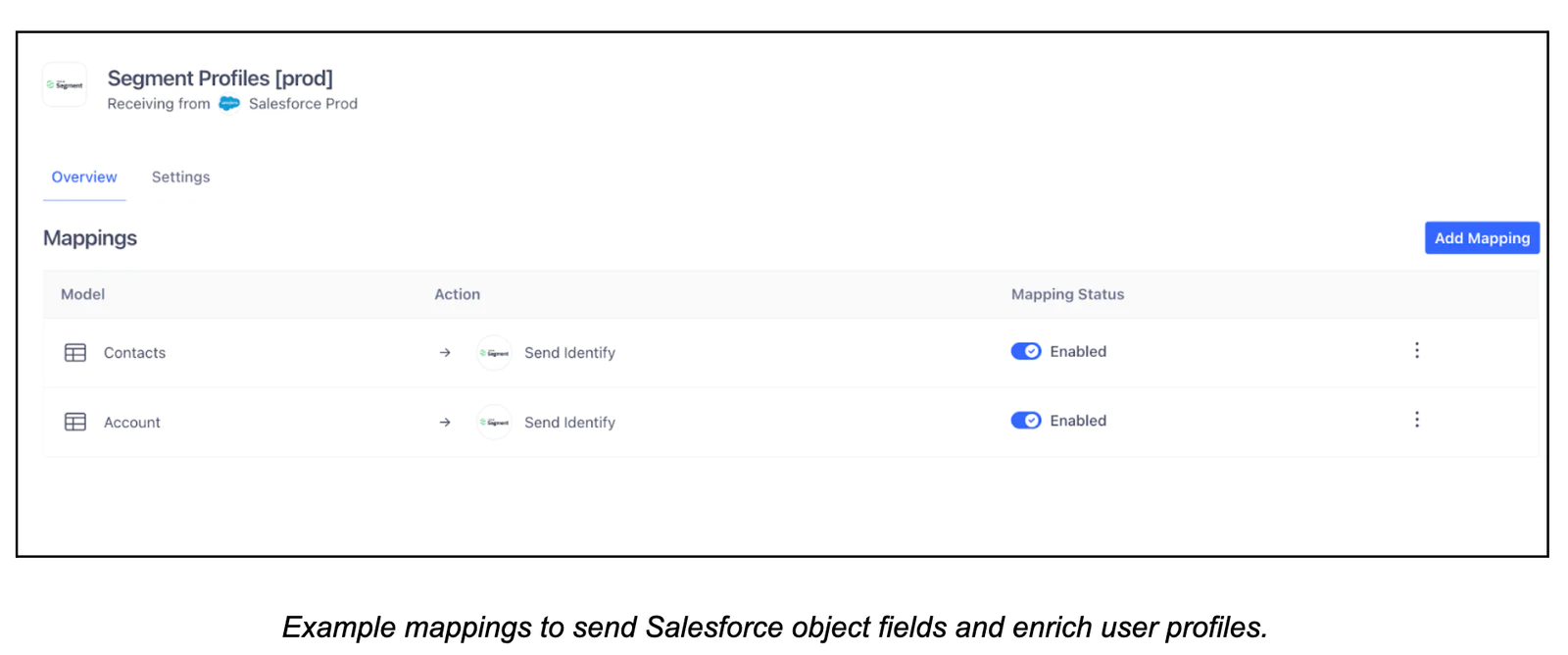
- Otherwise, use email as the user platform identifier or leverage custom methods such as Reverse ETL or Insert/Destination Function that fetch Subscriber Keys via the SFMC API.
3. Ensure that these identifiers are available within the Unify Workspace to be passed downstream to SFMC.
Step 2: Enable the Salesforce Marketing Cloud (Actions) Destination
1. From Twilio Segment’s Destinations Catalog, connect Salesforce Marketing Cloud (Actions) Destination to Unify Workspace.
2. Enter your SFMC credentials and API keys to enable the connection.
Review Twilio Segment's official SFMC Destination documentation.
Step 3: Build Event-Triggered Journey
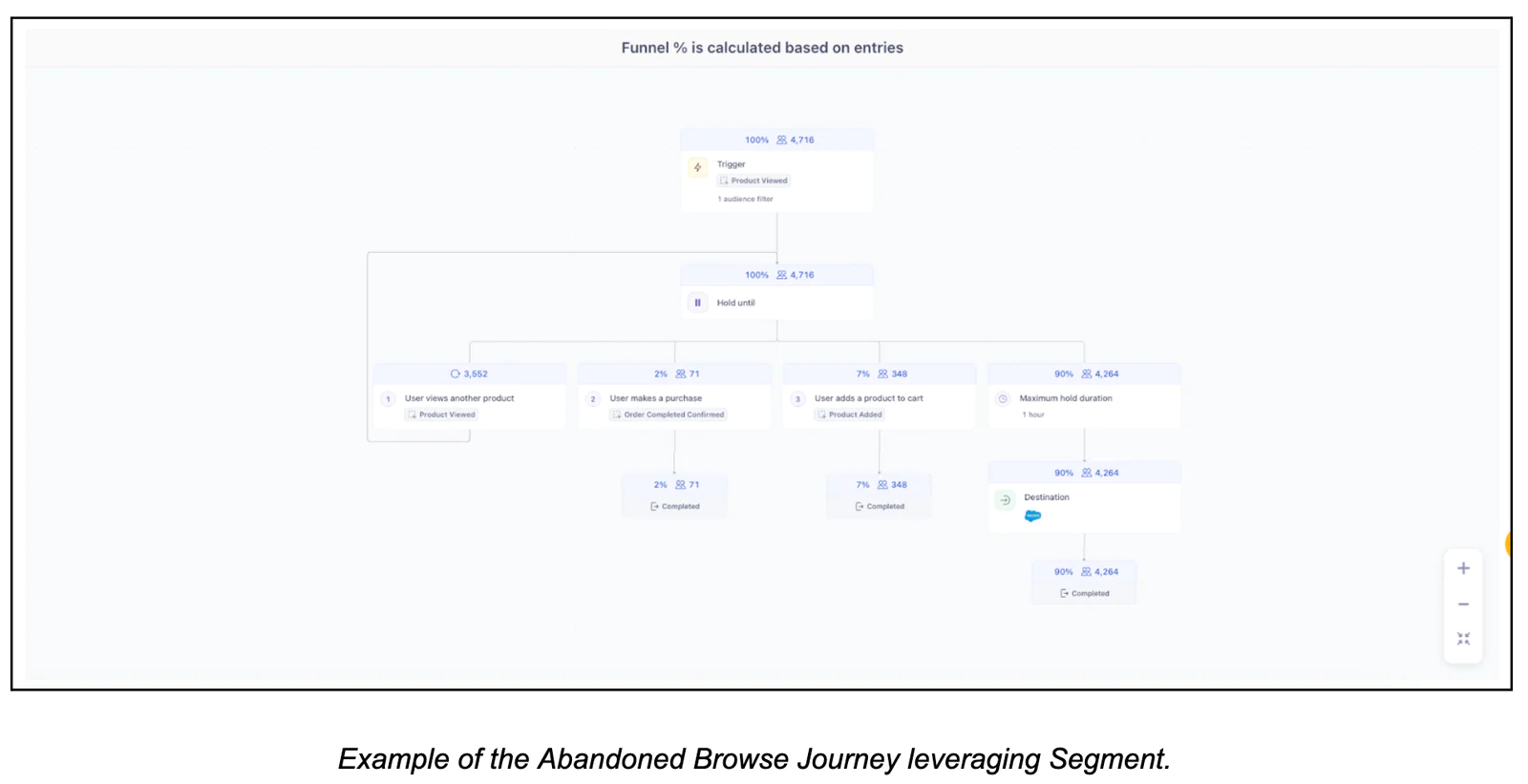
In this example, we’ll walk through the logic for an Abandoned Browse Journey.
Define Journey Logic & Structure:
Trigger: A known user views a product on the site
Condition: The user does not add the product to the cart or complete a purchase
Action: Send a personalized email X hours after the browsing behavior is detected
Define Personalization Parameters:
Use Computed Traits such as: Last Product Viewed or Most Frequently Viewed Product
If available in your Unify Workspace, include Product Recommendation traits to tailor the content
Building the Journey in Twilio Segment:
Use Product Viewed as the entry event
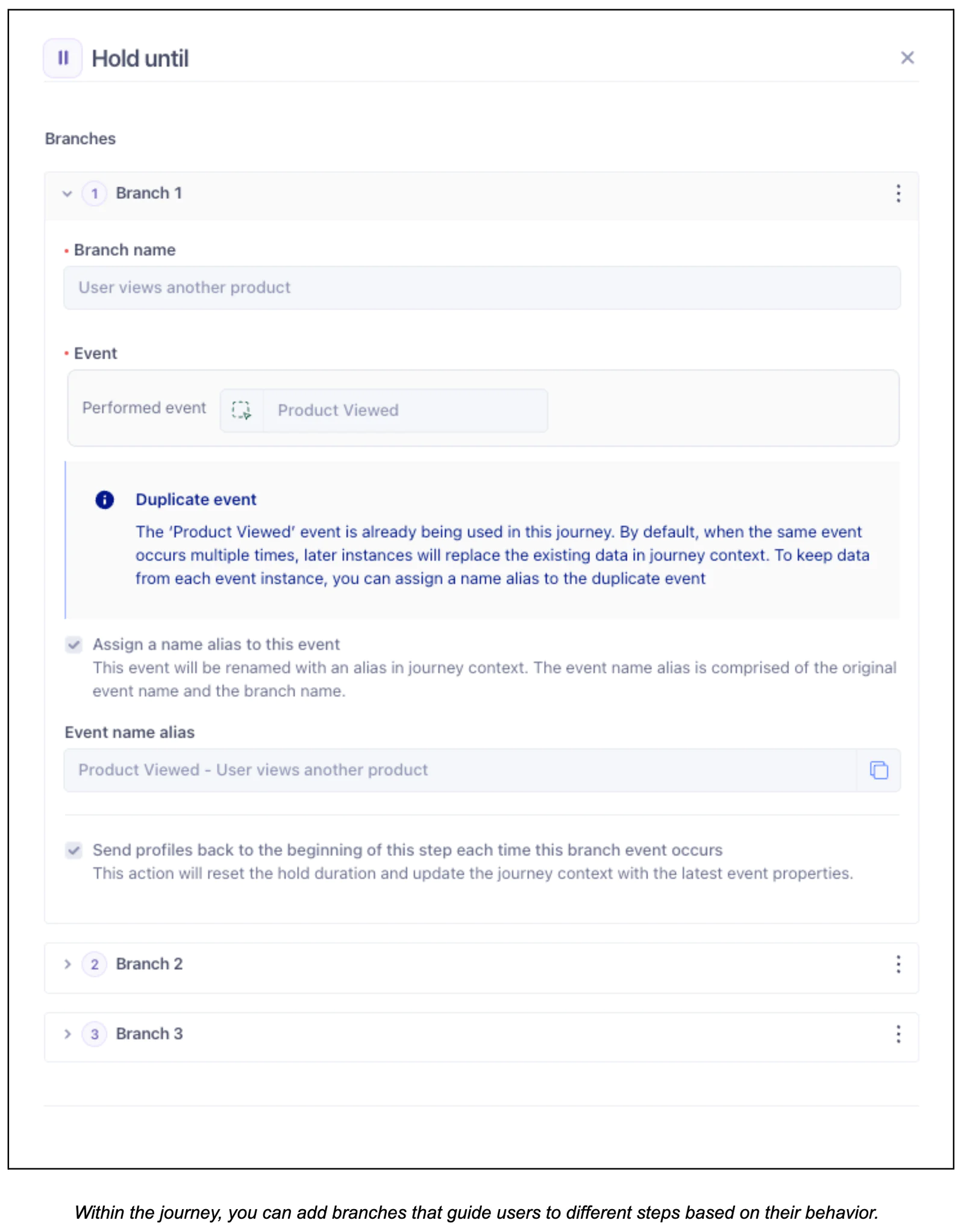
Set a clear exit condition (e.g., user makes a purchase or adds to cart)
Configure timing, branching logic, and personalization fields within Journey Builder to reflect your goals
Review Twilio Segment's official Journey V2 documentation.
Step 4: Destination Step Activation
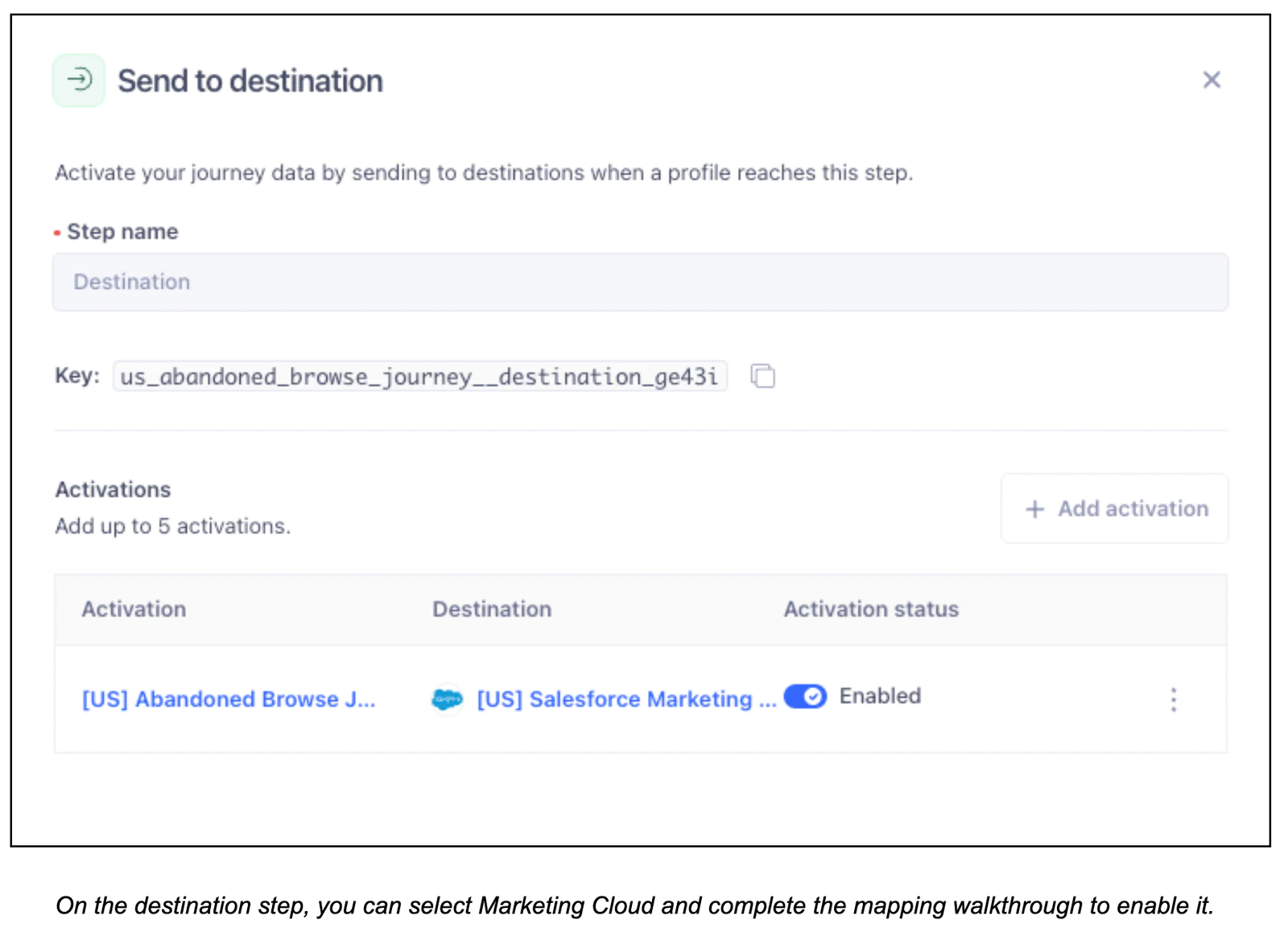
Once the Journey is built in Twilio Segment, the next step is to configure the Destination Step.
In Twilio Segment:
On the Destination step, select the connected Salesforce Marketing Cloud (Actions) Destination.
Choose the action to trigger in SFMC, typically either:
Send contact to a Data Extension
Send API Event
Map the action to the appropriate identifiers and traits.
Review the payload preview to confirm the journey attributes map correctly to the destination fields.
Test the payload to validate successful delivery.
In Salesforce Marketing Cloud, we’ll walk through the “Send contact to a Data Extension” action as an example.
Go to Marketing Cloud, in the menu, click on “Email Studio” then “Email”.
In the Mail menu, click on Subscribers and then on Data Extension.
On the Data extension, click on “Create”:
Create a Data Extension with the same fields defined in the Twilio Segment mapping.
Make sure to test that the payload was successfully received and stored in the Data Extension.
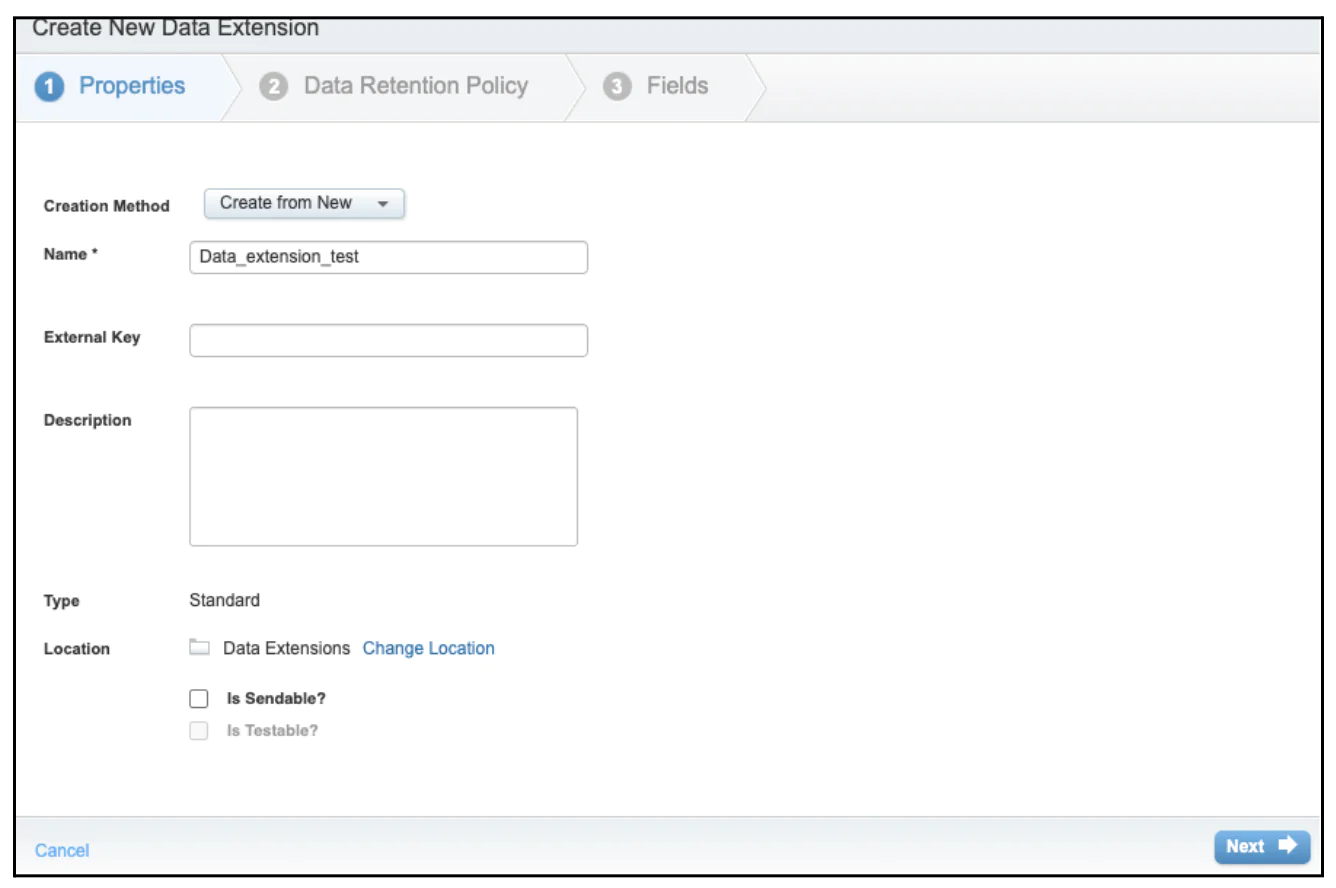
Create the Data Extension and assign it a name.
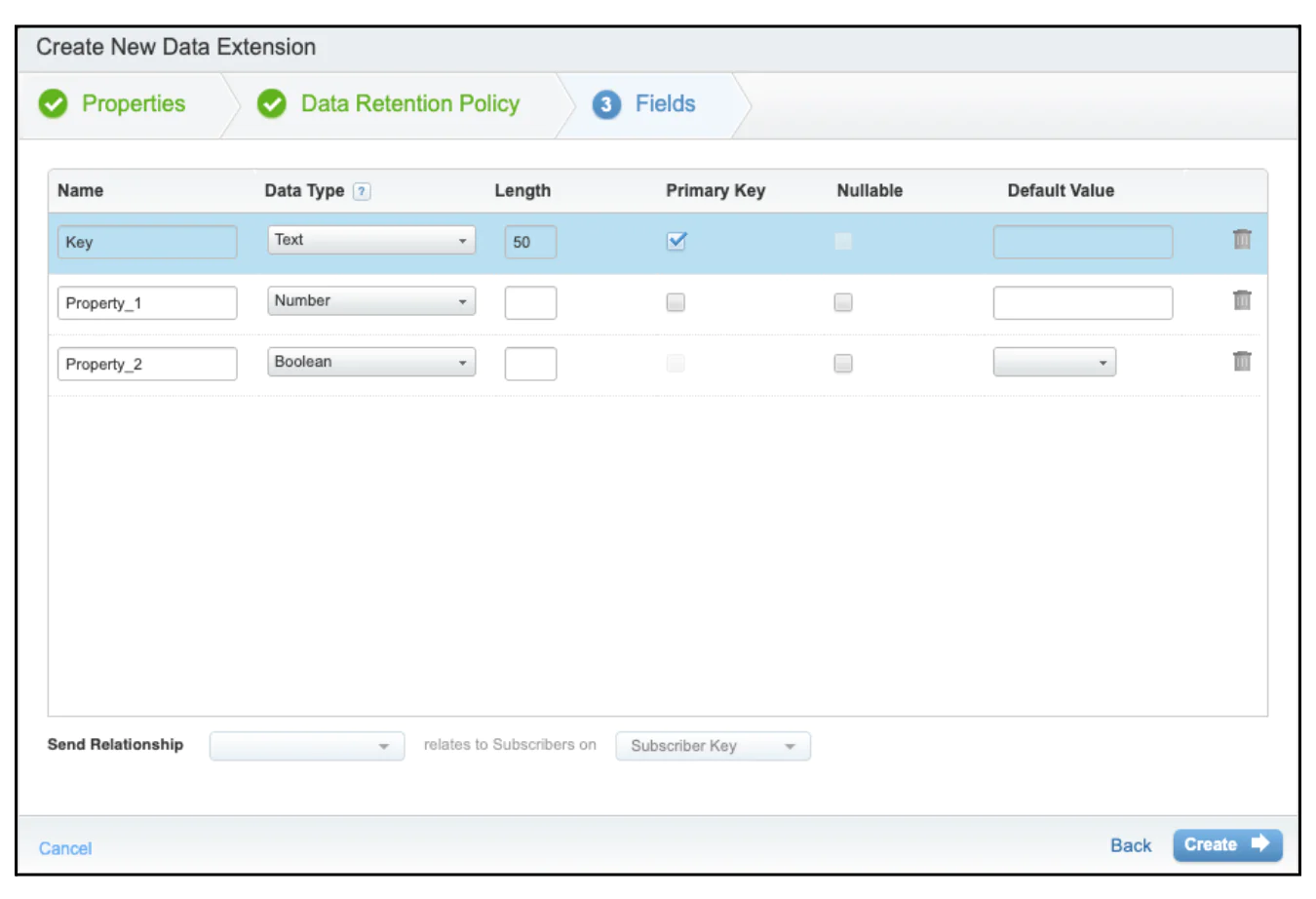
Add the same fields to the mapping in Twilio Segment.
Bonus!
Send SKUs, names, and other product-viewed properties to personalize Abandoned Browse emails with the exact products each user viewed.
Add traits like “likelihood to purchase,” enabling you to target users less likely to convert with tailored incentives such as a free shipping offer.
Step 5: Finalize Journey in SFMC
Once the Journey is configured in Twilio Segment and connected to Salesforce Marketing Cloud, the final steps are:
Publish the Journey in Twilio Segment to begin sending real-time data to SFMC.
Build and activate the customer-facing journey in Marketing Cloud, including the relevant email templates or automations.
Run validation tests to ensure the data, triggers, and messaging flow correctly across both platforms.
Measure performance by monitoring key metrics (e.g., open rates, conversions) and refining the journey for continuous improvement.
Wrapping Up
In this recipe, we’ve:
Synced journey event data from Twilio Segment into Salesforce Marketing Cloud.
Automated personalized campaigns, like abandoned browse emails, that re-engage users and drive conversions.
Easily personalize customer experiences with first-party data
With a huge integration catalog and plenty of no-code features, Twilio Segment provides easy-to-maintain capability to your teams with minimal engineering effort. Great data doesn't have to be hard work!