Recipe
Boost Your Lead Scoring with Twilio Segment + HubSpot
Lead scoring can make or break your sales strategy. It ensures the right prospects get the attention they need when they need it most. But if your data is scattered or your process is manual, it’s easy to miss opportunities, waste valuable time, and lose potential customers to competitors. That’s where Twilio Segment and HubSpot come in.

What do you need?
-
Hubspot Marketing Hub Professional or Enterprise
-
Twilio Segment
On this page
By connecting all your data sources through Twilio Segment and enriching your HubSpot CRM, you can automate lead scoring and engage the right customers at the right time with personalized, impactful outreach. In this Twilio Segment recipe, we’ll show you how to streamline your lead scoring process so you can confidently prioritize and connect with your best leads.
Step 1: Configure HubSpot as a destination in Twilio Segment
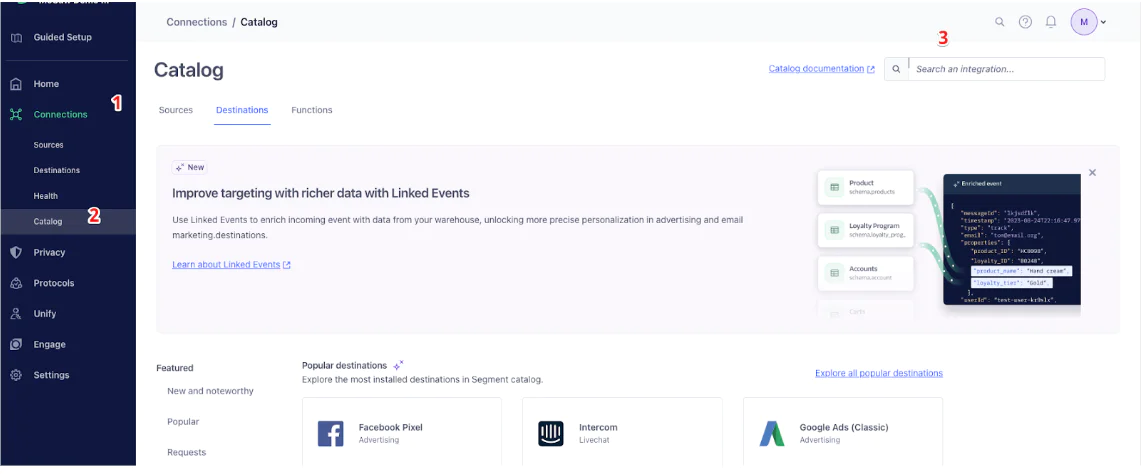
Within your Twilio Segment workspace, navigate to Connections (1), then Catalog (2). Use the search bar (3) to search for HubSpot.
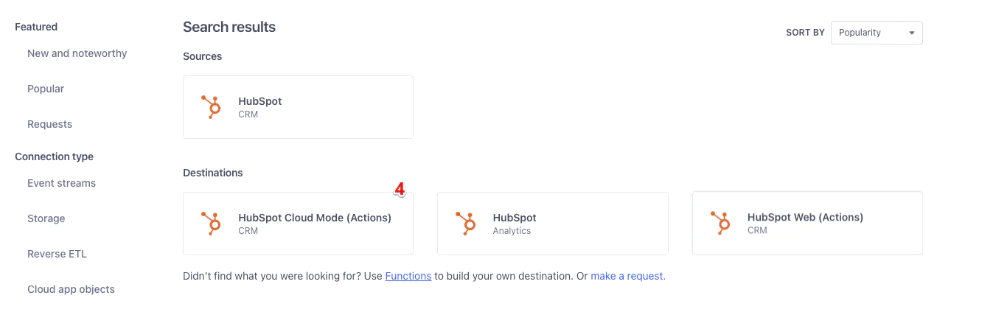
For this recipe, we’ll use HubSpot Cloud Mode (Actions) (4) to send data from Twilio Segment’s servers via the HubSpot API.
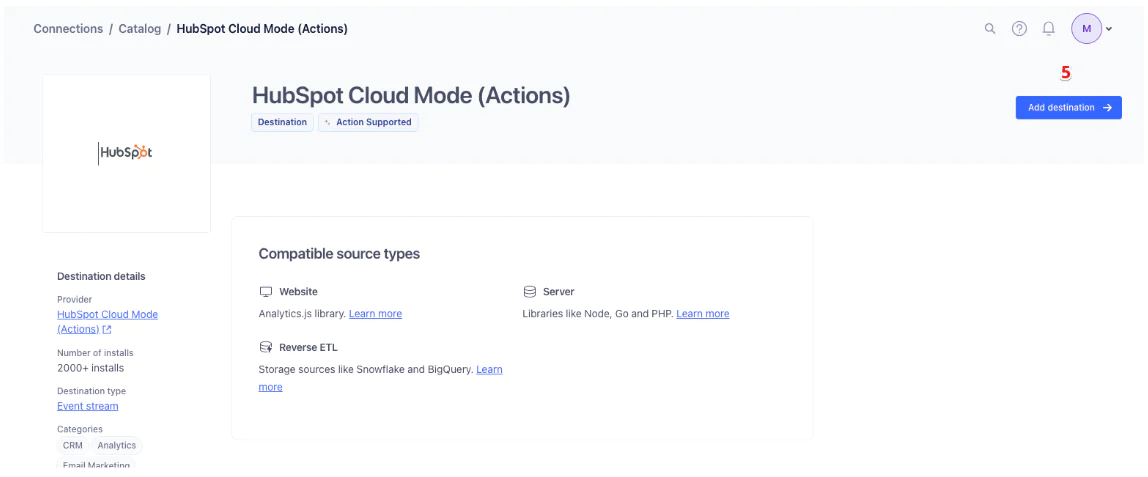
In the next screen, add this as a destination (5).
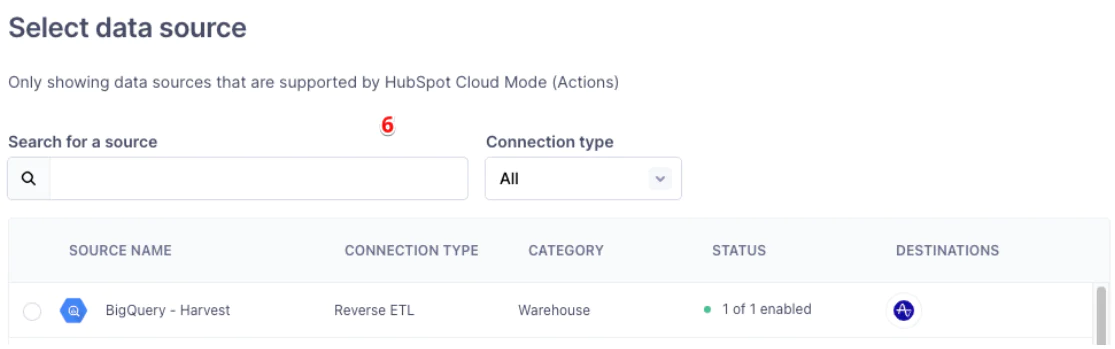
After adding it as a destination, we’ll need to associate an appropriate source. Search and locate a source where enriched data exists to feed your HubSpot lead scoring. (6)
Note: Twilio Segment will only display valid sources that connect to HubSpot.
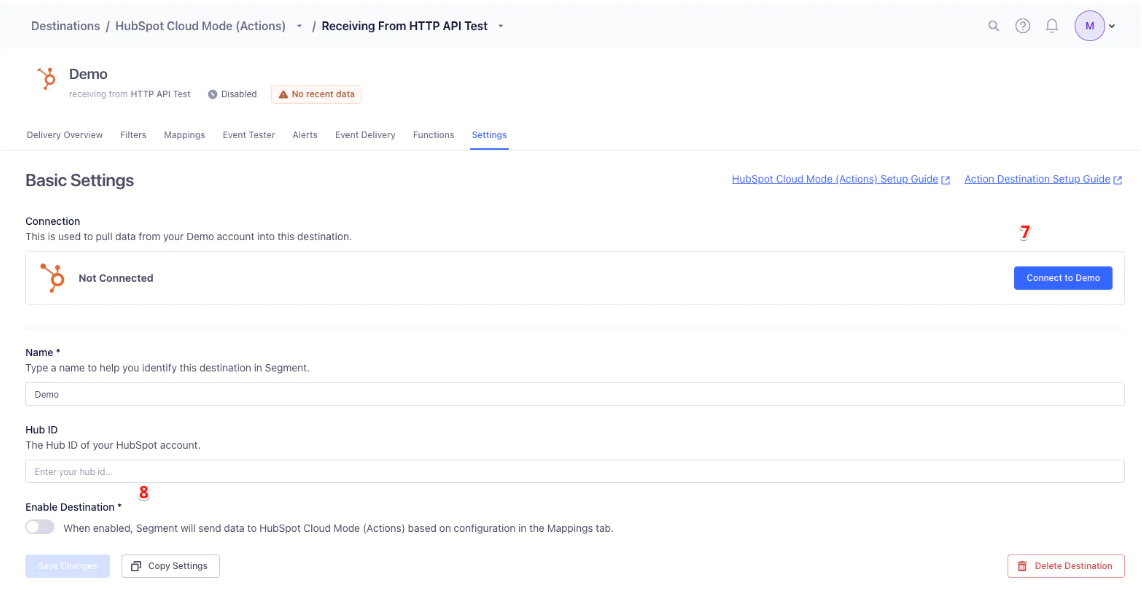
Now that the destination and sources are configured, use the settings screen for the destination to authorize Twilio Segment to send data to HubSpot. Connect to your HubSpot account (7), and ensure your Hub ID is populated and the destination is enabled. (8)
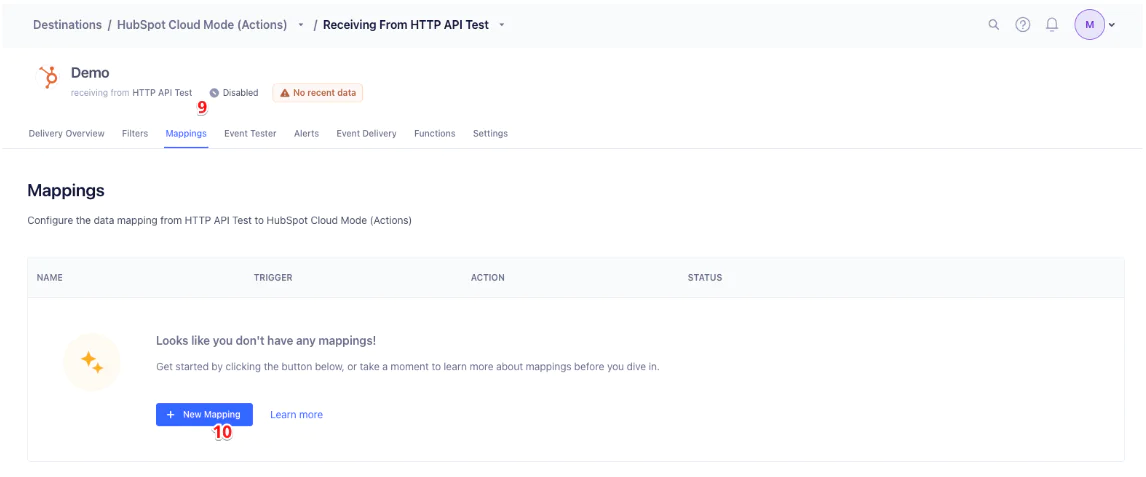
With your destination and source configured, we’ll now create a mapping for data to flow from the source into HubSpot. In this recipe, we’ll use “Upsert Contact” to enrich our Contacts in HubSpot with additional data. On the Mappings (9) screen, select New Mapping (10) to get started.
The Set Up Mapping screen may differ depending on your source and the values that are pre-populated. In the Map Fields section, review and confirm the Twilio Segment values align with your HubSpot fields:
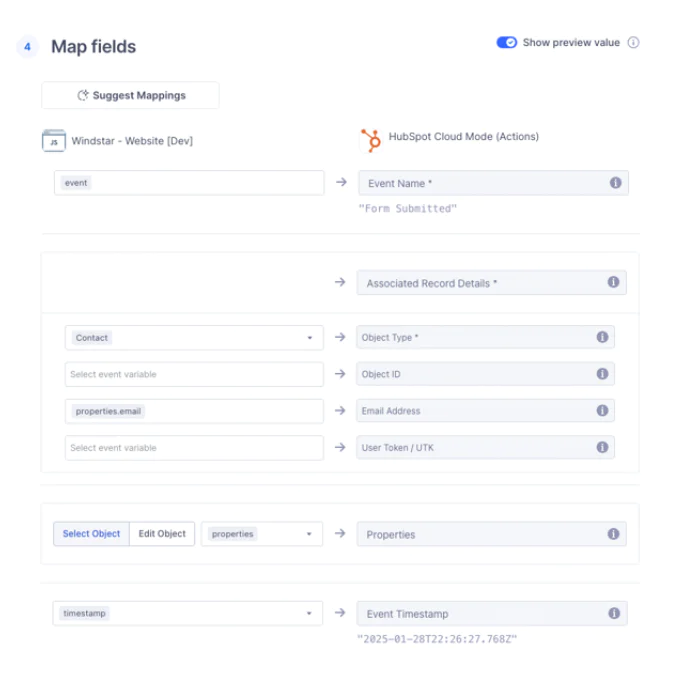
Once reviewed, click the next button to save and enable your mapping. Your data will now begin flowing into HubSpot.
Optional - Using the Custom Object v2 Connector
The Segment Custom Object v2 connector enables you to seamlessly integrate and manage custom objects within HubSpot beyond the standard ones. This integration allows for the creation, updating, and association of custom objects, facilitating more tailored data management and automation within HubSpot.
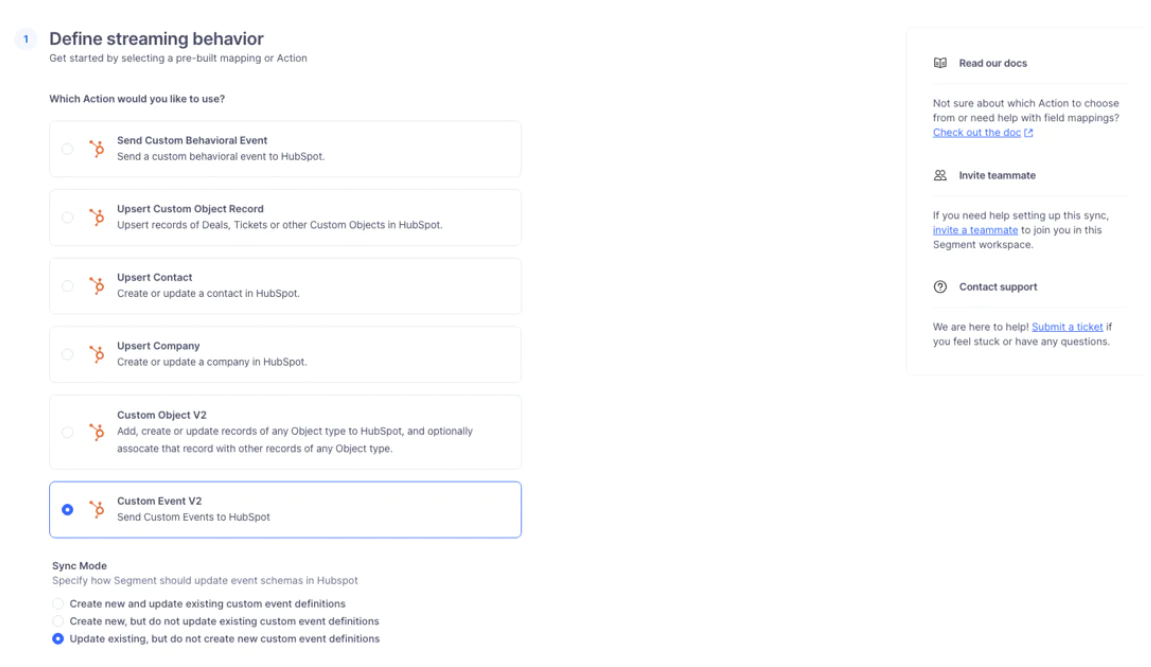
To send additional object data, in the mapping section, choose Custom Object V2
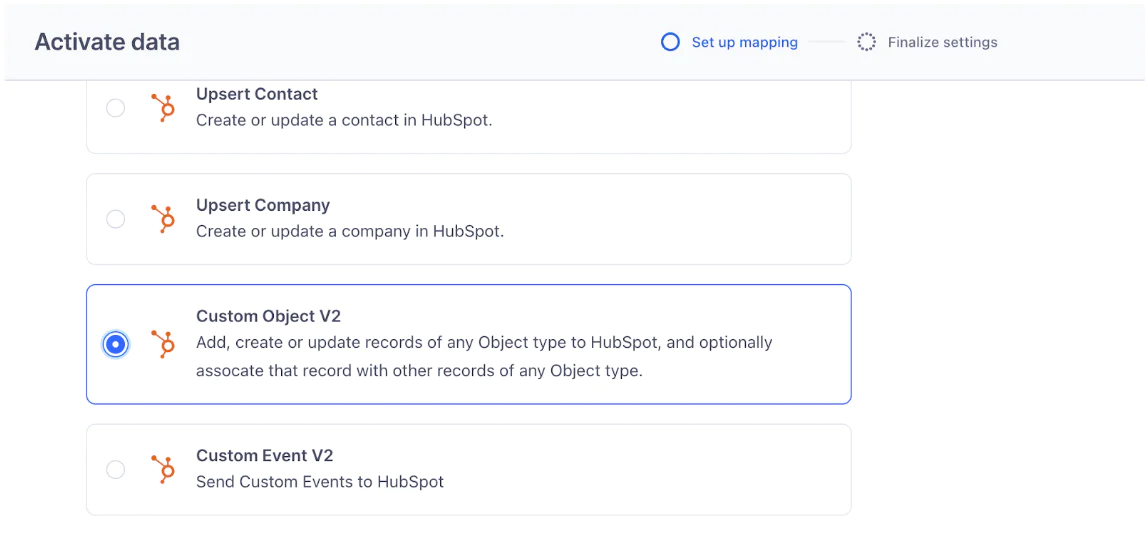
Further down, you can select how to manage sync rules, and how Twilio Segment should update records:
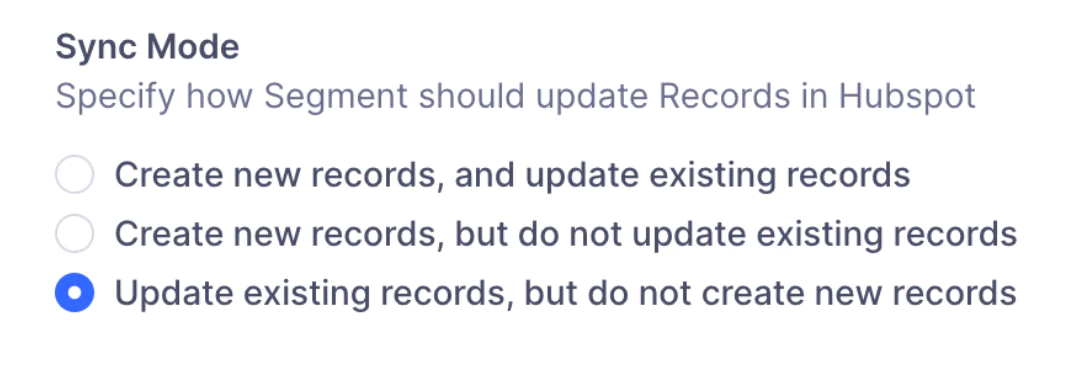
Additional options commonly found in other mappings are available as well, such as event filtering and Linked Events.
For instance, if we had a custom object to capture Webinar event data, we would map the captured webinar data from Twilio Segment to the corresponding properties in the HubSpot "Webinar" object.
Use the connector to associate the "Webinar" custom object with relevant standard objects, such as Contacts, to link participants to their respective webinar records.
Leverage HubSpot's workflow automation to trigger follow-up emails, tasks, or other actions based on the data within the "Webinar" custom object.
Step 2: Using Twilio Segment Data with HubSpot Score
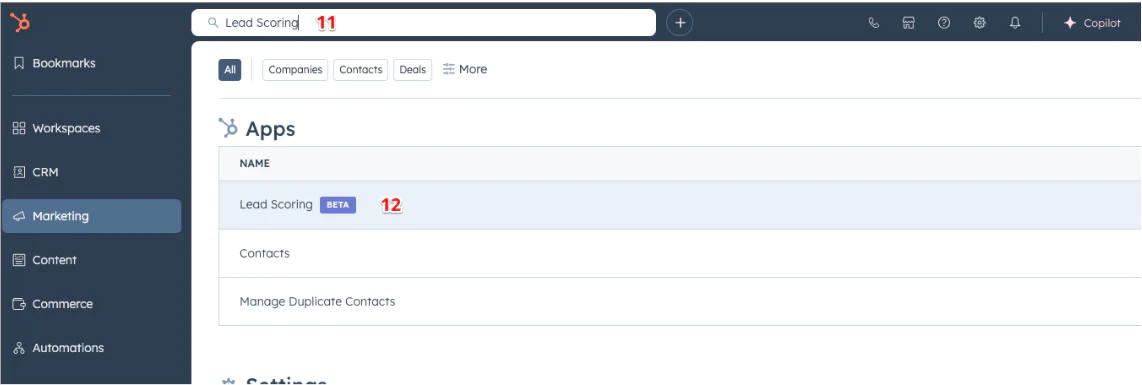
In HubSpot, use the search feature (11) at the top and enter “Lead Scoring.” Select “Lead Scoring” under Apps (12). You can also check out the HubSpot Lead Scoring Knowledge Base if you need additional guidance on configuring your scoring criteria.
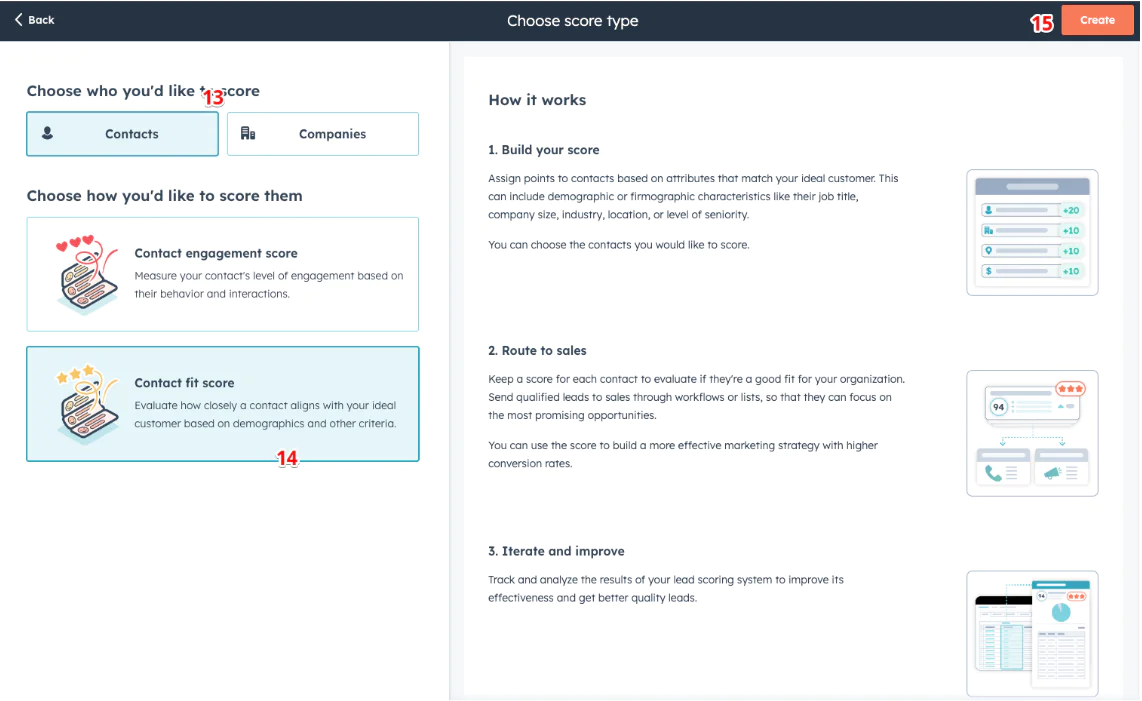
As we’ve selected contacts in our mapping, we’ll continue with them selected here (13). For this example, we’ll use the Contact fit score (14) as we are not sending event data. With everything selected, choose “Create” (15).
Choose “Add Property Group” to begin using the sent Twilio Segment data.
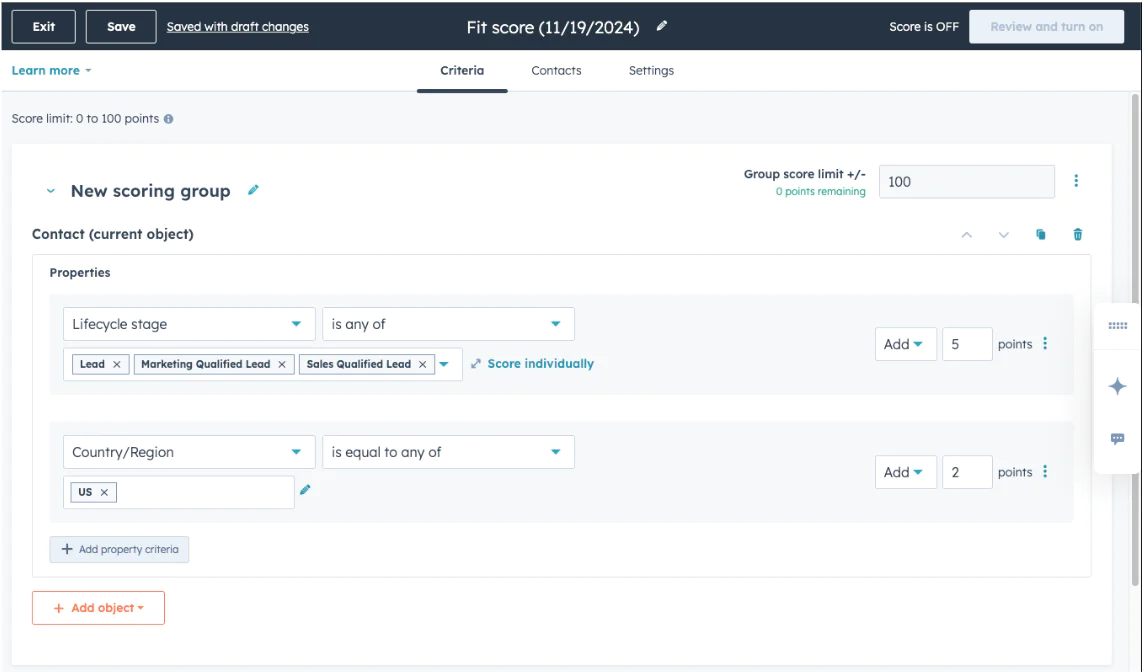
Now, we can start selecting any contact data points that we've sent to HubSpot contact properties. Adjust the scoring for each one based on your lead scoring model. Here we are using Lead values in the Lifecycle stage to increase their score. Data like “County/Region” can also be used for specific values that align with your target markets.
Wrapping Up
Integrating Twilio Segment with HubSpot for lead scoring drives your sales strategy forward. With Twilio Segment feeding enriched first-party data—demographics, firmographics, and behavior—straight into HubSpot, you get the insights you need to set up effective lead scoring rules. It also enables you to map user traits, engagement signals, and other critical data points from Twilio Segment to keep your scoring sharp and dynamic.
The payoff? A lead management system that gives your sales and marketing teams the power to zero in on high-value opportunities and create personalized experiences that convert.
Easily personalize customer experiences with first-party data
With a huge integration catalog and plenty of no-code features, Twilio Segment provides easy-to-maintain capability to your teams with minimal engineering effort. Great data doesn't have to be hard work!