Recipe
How to set up low recency purchase winback campaigns
Implement a campaign using Twilio Segment to increase repeat purchases with personalized discounts based on intent signals to win back customers with low recency purchase patterns.

What do you need?
-
Twilio Segment Connections
-
An email tool like Twilio SendGrid
On this page
The desired outcome for setting up low recency purchase winback campaigns is to re-engage customers who have not made recent purchases, encouraging them to return and buy again. By personalizing content, recommendations, and messages based on users' past purchases, behaviors, and preferences, businesses can increase customer lifetime value, reduce churn by reigniting interest among inactive customers, and maximize ROI from existing customer relationships.
Step 1: Add the required Sources
In your workspace, add a new prod or dev source for your website and another for your order processing system. This should be your website where checkout events will be tracked and the system that captures completed orders. These sources will be responsible for collecting the required Track Events and sending them to Twilio Segment.
Sign Up or Log In to Twilio Segment
First, access the Twilio Segment platform by signing up or logging into your existing account.
Create a Source for Your Website
A source in Twilio Segment acts as the origin of data you collect, such as user interactions on your website.
In your Twilio Segment workspace, navigate to the Sources section.
Click the Add Source button.
From the catalog of sources, select JavaScript (for websites).
Provide a name for your source, e.g., "i.e. Company Website - Dev or Prod".
Optionally, add labels for organization.
Enter your website URL.
Click Create Source button.
- Install the Twilio Segment Snippet
After creating your source, Twilio Segment will provide you with a JavaScript snippet.
Copy the JavaScript snippet provided by Twilio Segment.
Paste the snippet into the <head> tag of your site to install Twilio Segment.
If you need to connect your website, mobile app, or server as a source please refer to our documentation on these touchpoints.
Step 2: Track your events
In order to build the funnels needed to personalize this winback campaign, you'll need to track two key events: 'Page Viewed' from your website and 'Order Completed' from your server source.
Page Viewed: This event will start sending to Twilio Segment once Analytics.js is added to the site.
- Order Completed: Manually add this event to your site (See V2 Ecommerce spec).
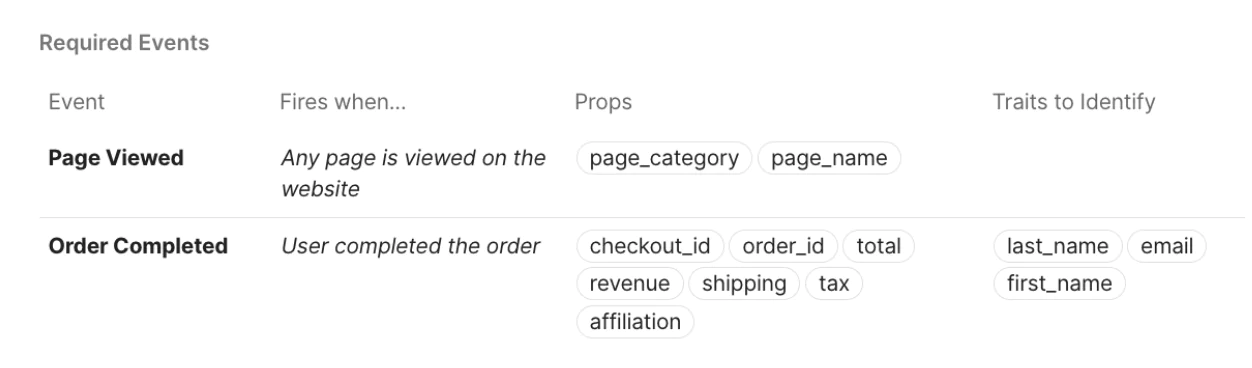
In this example, we're not only tracking the event 'Page Viewed,' but also sending additional properties like 'page_category' and 'page_name'. These properties provide important context about the event and can be extremely valuable in your analysis. Learn more about properties.
It should be noted that 'Order Completed' should trigger an Identify call because this event allows you to tie a user to their actions and record traits about them, i.e., first_name, last_name, email. This can further be used for personalized messaging in your winback campaign.
Only Identify calls can add and update user traits to a profile. For connections-only customers, the Identify event can still be mapped to downstream destinations to create/update user profiles.
Step 3: Add Destinations
Now, you'll need to decide where you want to send this data. This could be an email marketing platform like Twilio SendGrid. In your Twilio Segment workspace, add a new destination and select your tool of choice from the catalog. This destination will receive the data collected by your source and use it according to your needs. We recommend starting with an analytics tool to see the events flowing and build out the funnels you need to measure.
Step 4: Test your setup
Finally, test your setup to ensure data is being collected and sent correctly. You can do this by performing the actions you're tracking on your dev website and checking if the corresponding events appear in your Twilio Segment debugger and analytics tool.
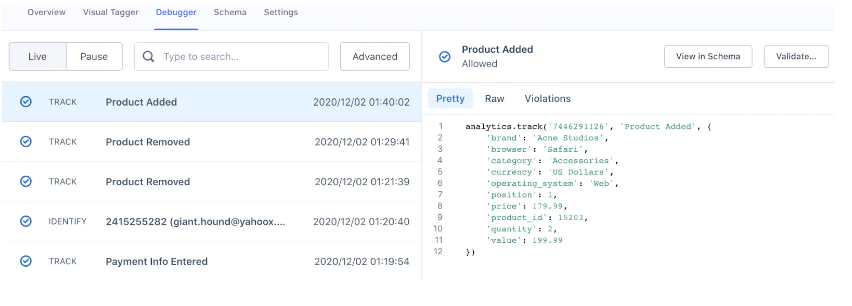
The Source Debugger is a tool that helps you confirm that API calls made from your website, mobile app, or servers arrive to your Twilio Segment Source, so you can troubleshoot your Twilio Segment setup even quicker.
Your data may not show up instantaneously and there may be a delay, but once the data is flowing you are ready to move to the next step.
Step 5: Analyze and activate
Once your setup is looking accurate and data is flowing into your destinations, you can start analyzing it. For instance, you can identify users who haven’t visited your website within the past 90 days. You can then use a platform like Twilio SendGrid to send a message like the one pictured below of a low recency winback campaign tailored to a user based on previous behavior. In this case, it can be sent to a user who hasn’t resumed language lessons. Based on the events and properties you’re tracking, you can use a similar approach to deliver messages to lapsed customers to increase engagement.
Note: it's important to first collect an email address, so consider using a lightbox popup or another tool to capture the user's email before tracking 'page_scroll' and/or 'page_viewed' events.

Final Thoughts
By addressing the needs of inactive customers with personalized strategies that leverage intent signals, you can strengthen relationships, foster long-term loyalty, and boost sales. Identifying and addressing the reasons behind decreased purchase frequency using behavioral and contextual data helps mitigate churn and retain valuable customers, enhancing overall business performance.
Easily personalize customer experiences with first-party data
With a huge integration catalog and plenty of no-code features, Twilio Segment provides easy-to-maintain capability to your teams with minimal engineering effort. Great data doesn't have to be hard work!