Recipe
Powerful Content Personalization with Twilio Segment and Elastic Path CX Studio
Creating a highly personalized experience for shoppers is fundamental to optimizing conversion rates. Using Elastic Path’s CX Studio Personalization workflow for Twilio Segment, building a bespoke experience unique to each of your customers has never been easier. Simply connect Twilio Segment to your Elastic Path CX Studio site to begin tracking user behavior and linking their Twilio Segment profile data to their CX Studio session. Then, with a few clicks, add a personalized experience to pages - no code required!
What do you need?
-
Elastic Path CX Studio
Steps
Note: For more information on setting up tracking and analytics with Elastic Path, including please refer to the Elastic Path CX Studio ecommerce Event Tracking recipe.
In this recipe, you’ll learn how to implement Twilio Segment client tracking for your composable commerce solution using ElasticPath CX Studio and Twilio Segment, and personalize your CX Studio content using Twilio Segment Audiences and Traits… all without writing any code!
By enabling tracking and personalization for your ecommerce business, you can begin to build and execute more effective campaigns for customers and craft tailored experiences to deliver the right message at the right moment directly to your users in your storefront.
Step 1: Setting up your CX Studio integration
There are 2 parts to setting up CX Studio with Twilio Segment: Installing the CX Studio source in Twilio Segment, and then installing the Twilio Segment Integration in CX Studio to connect your data-stream both ways.
Twilio Segment Configuration
To install the CX Studio Source:
- From the Twilio Segment web app, click “Catalog”
- Search for “Elastic Path CX Studio” in the Catalog and select it
To retrieve the settings you’ll need from your Twilio Segment workspace:
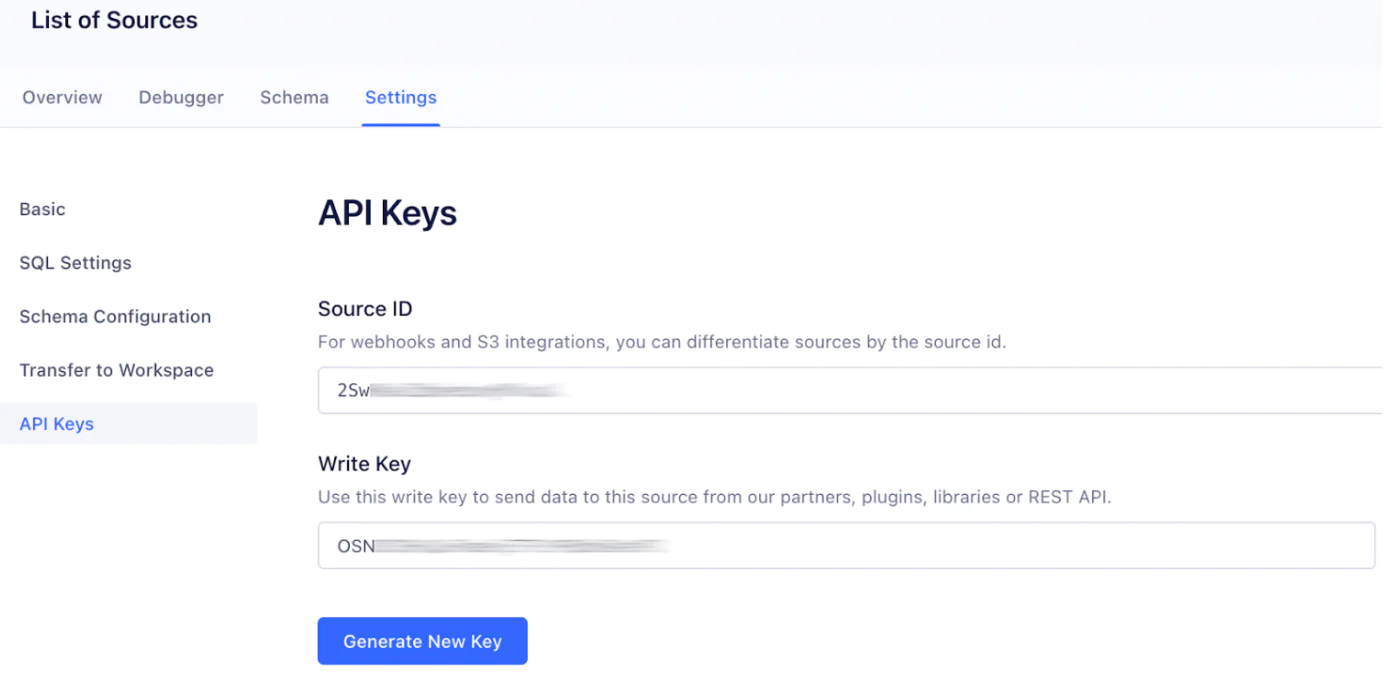
- In Twilio Segment, navigate to Sources and open your installed “Elastic Path CX Studio” source, open the “Settings” tab, and then “API Keys” sub-menu retrieve the Source ID and Write Key.
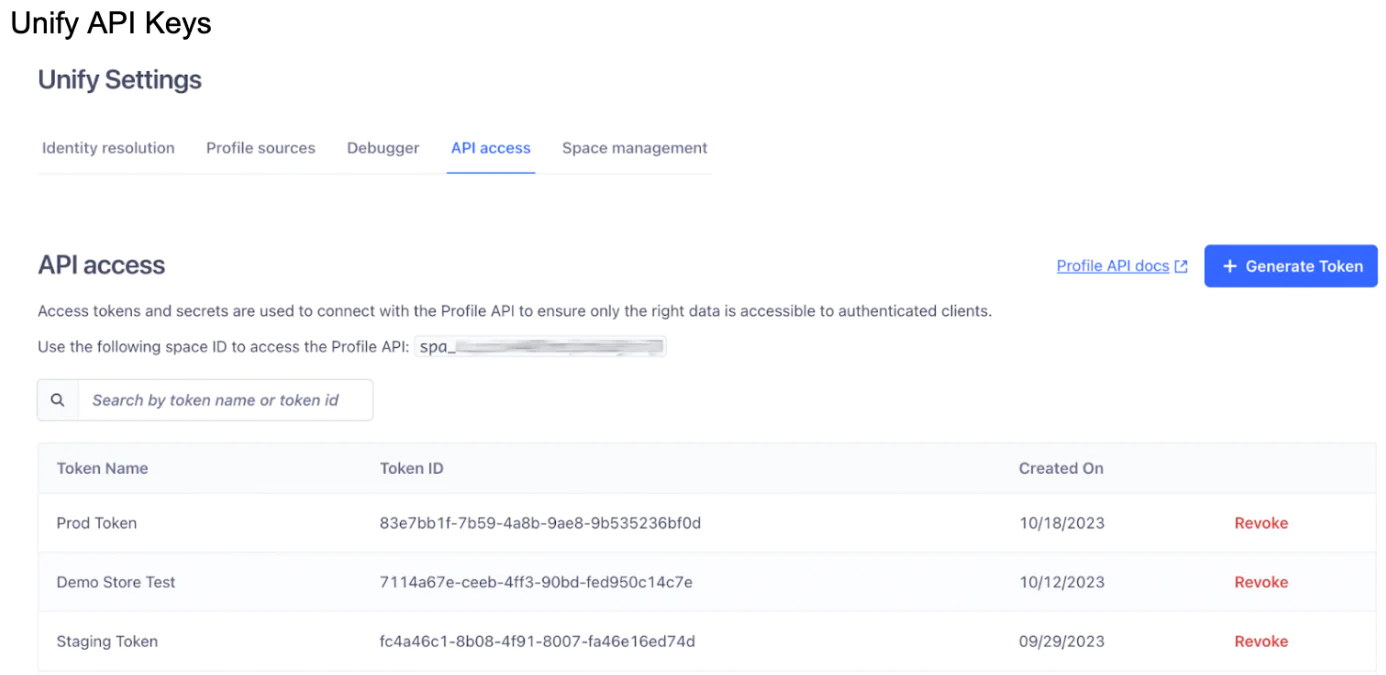
- Then navigate to Unify > Unify Settings to retrieve your Unify Space ID and to generate a Unify Access token.
CX Studio Configuration
Adding the Twilio Segment Integration to CX Studio:
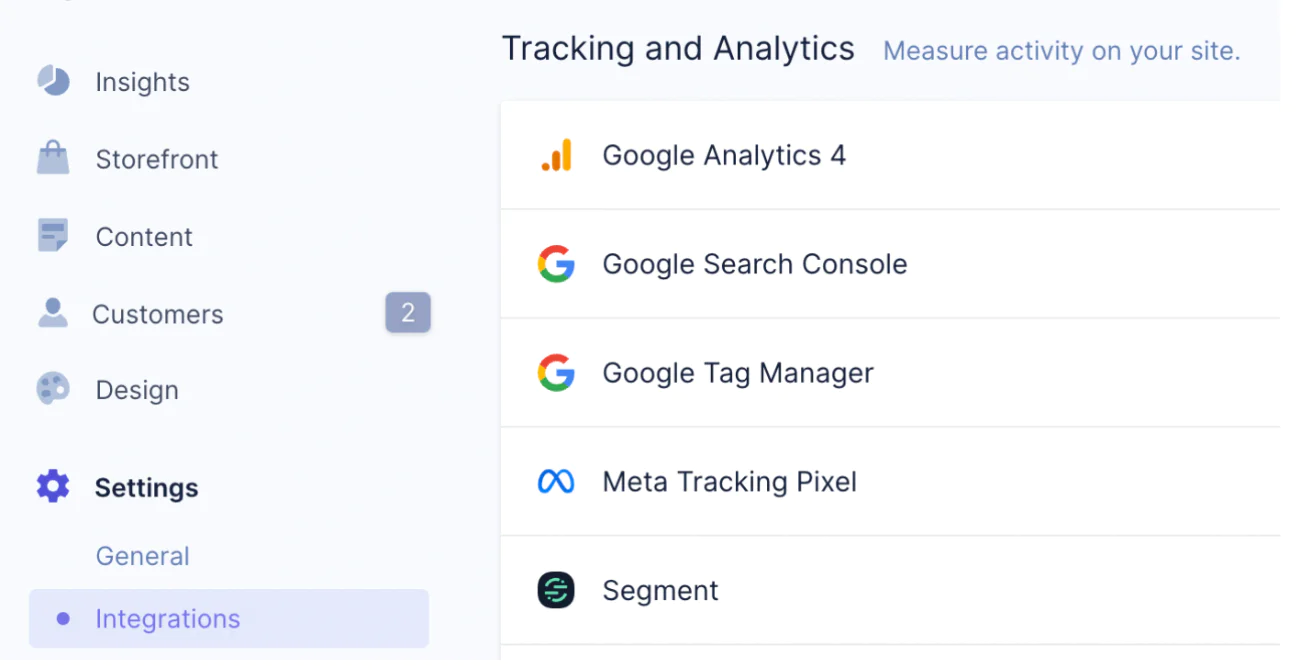
- In CX Studio, navigate to Settings > Integrations, and Locate the Twilio Segment Integration, then click the “+” icon on the right to open the settings panel.
- In the Twilio Segment Settings panel that opens, configure your Twilio Segment integration using the Source ID and Write Key, and Unify Space ID and Access Token retrieved in the previous step.
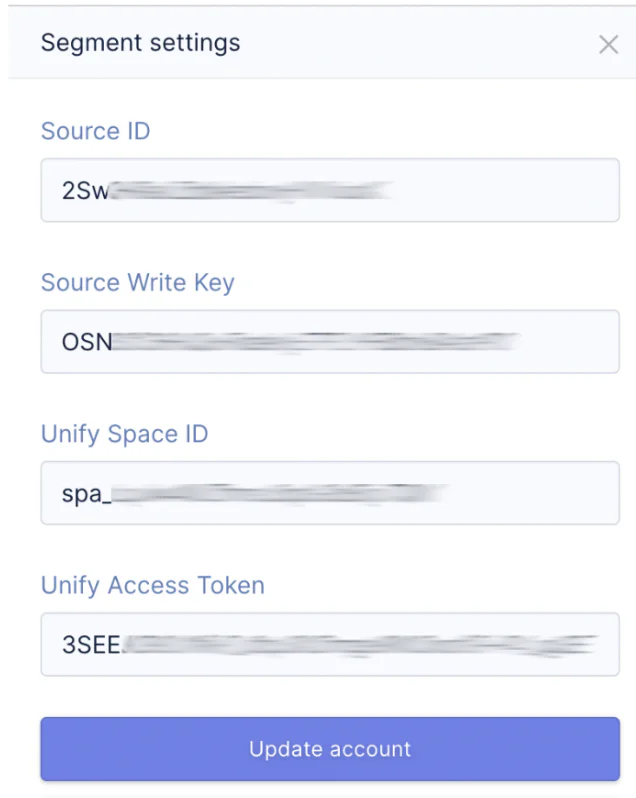
Once you have entered all the configuration settings in CX Studio, click “Connect Account” to save the integration.
You’ve completed the set up!
Step 2: Confirm it’s working
Once you have your CX Studio storefront configured to push events to Twilio Segment, visit your CX Studio storefront and generate some event data. Click some product links, open the associated product pages, add products to your cart, and check out. This will push event data into your Twilio Segment workspace.
Note: For more information on how to review your tracking and analytics are working with Elastic Path, please refer to the Elastic Path CX Studio ecommerce Event Tracking recipe.
Checking Source Data
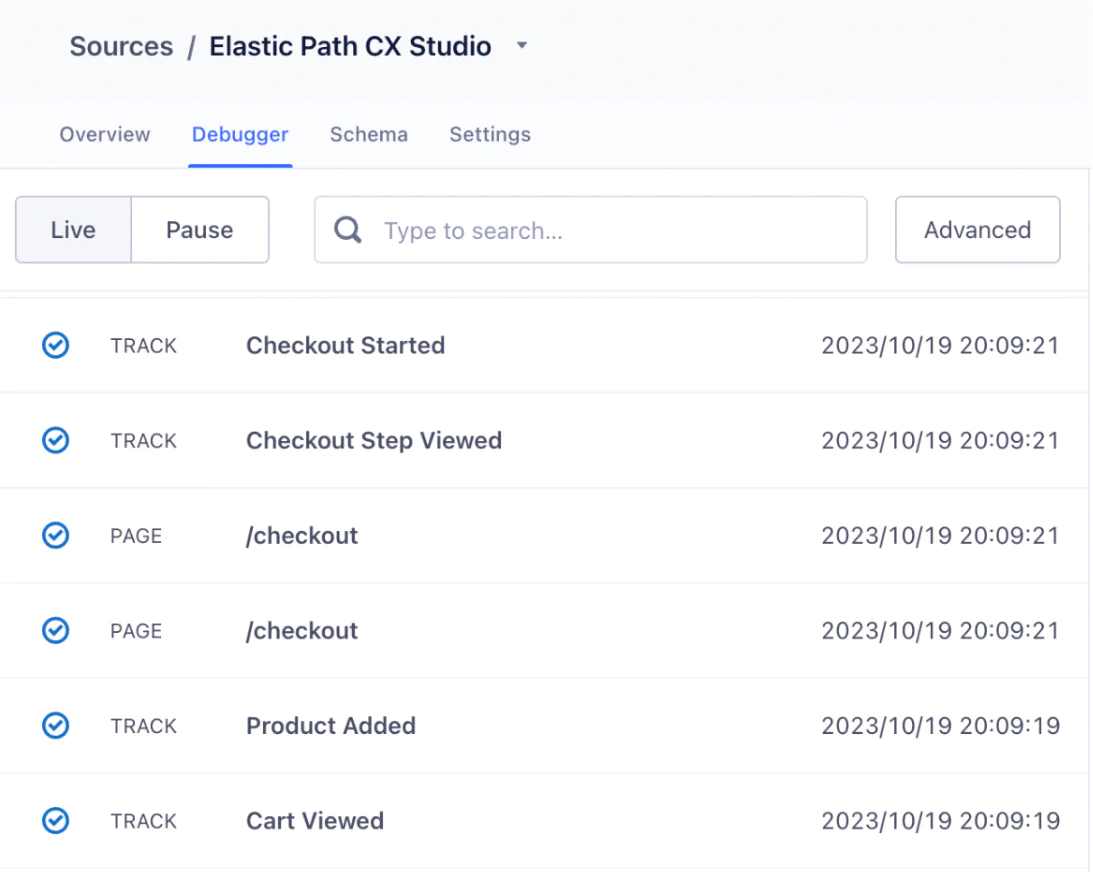
You can view the event stream real-time by clicking the Elastic Path CX Studio source in the Sources area of Twilio Segment, then navigating to the Debugger tab.
Checking Unify
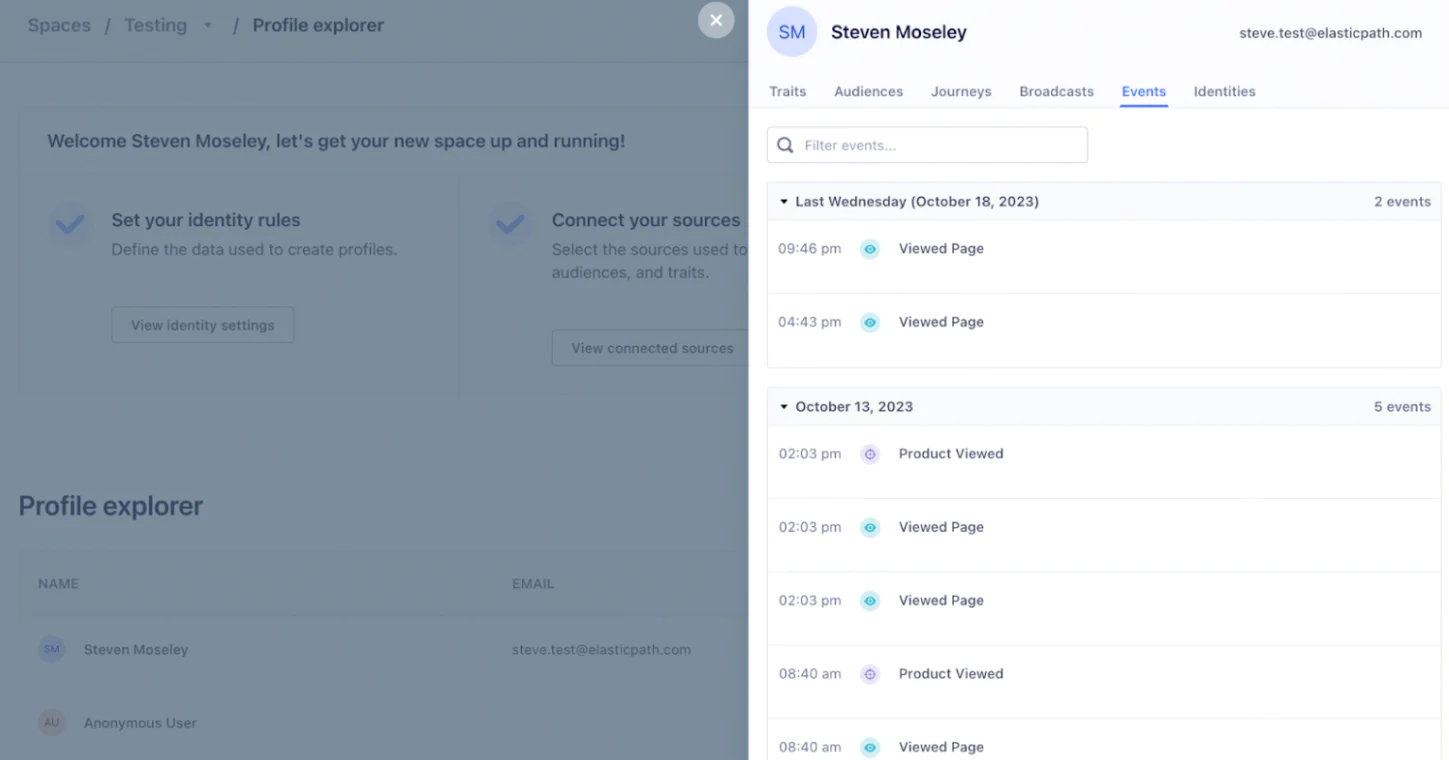
To verify that your Unify configuration is working correctly, navigate to Unify > Profile Explorer and verify that profiles are making their way into your Twilio Segment workspac
Step 3. Begin Personalizing Content
To personalize your content in CX Studio, you can get started with just a few clicks.
First, open the page editor and begin editing the page you wish to personalize. In the Section Toolbar, click the Content Personalization icon (see below).
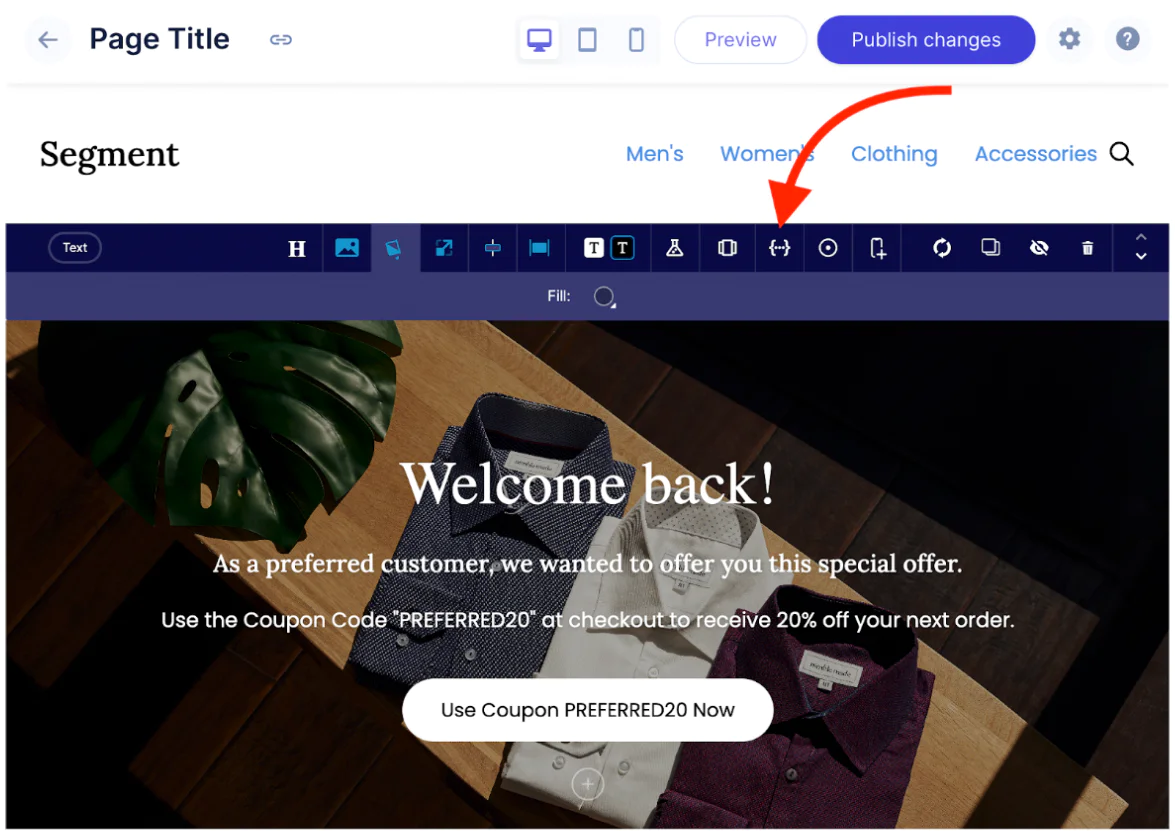
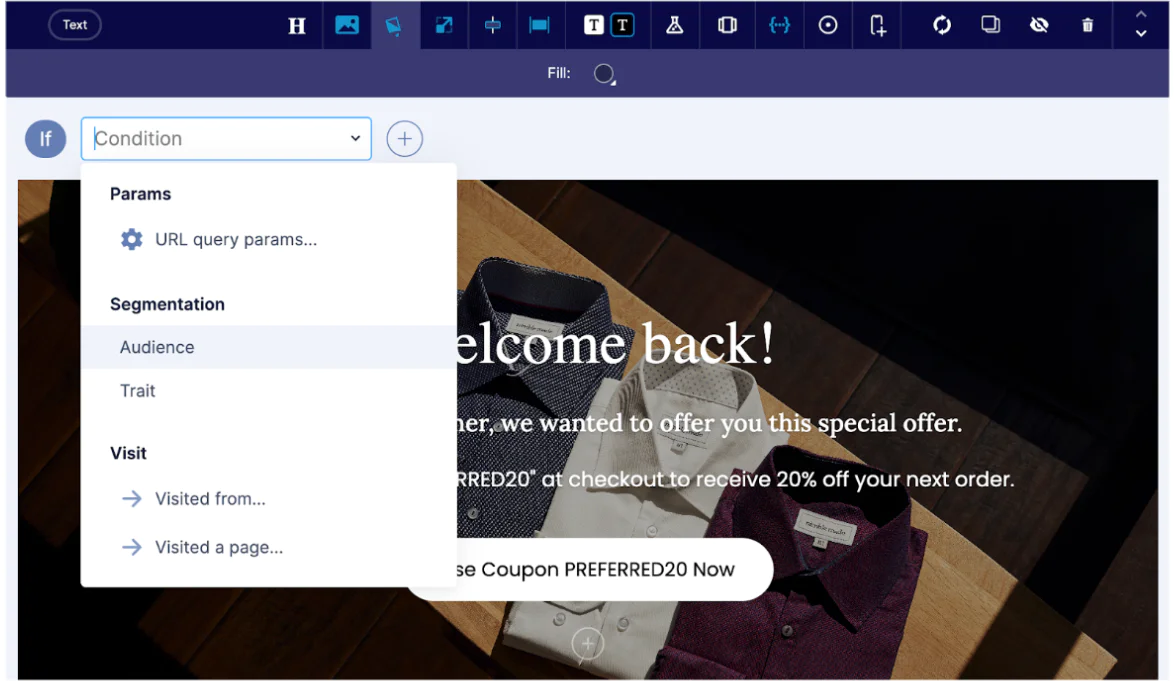
This will open the personalization sub-toolbar, where you can begin creating rules for the display of a given section of content.
Because you have Twilio Segment connected, you’ll be presented with options to limit the section’s visibility to rules based on a Twilio Segment Audience or Trait.
Follow the instructions below to begin using these conditions for personalization.
Audience Personalization
To personalize content for an Audience, you can simply enter the Audience key of an Audience you’ve defined in Twilio Segment, e.g. this custom “VIP Customers” audience:
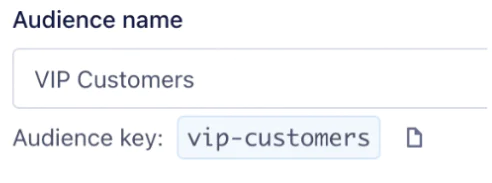
Given this, you can define a rule looking for an Audience that in a given storefront visitor’s profile.

To personalize content for a broad range of Audiences, you can use advanced comparison. For example, if you have several Audiences beginning with “vip-”, you can target them all using a “starts with” comparison.

Trait Personalization
Traits allow quantitative rules for personalization. To personalize content for a Trait, you can use comparison functions to compare that trait to a value or value range.
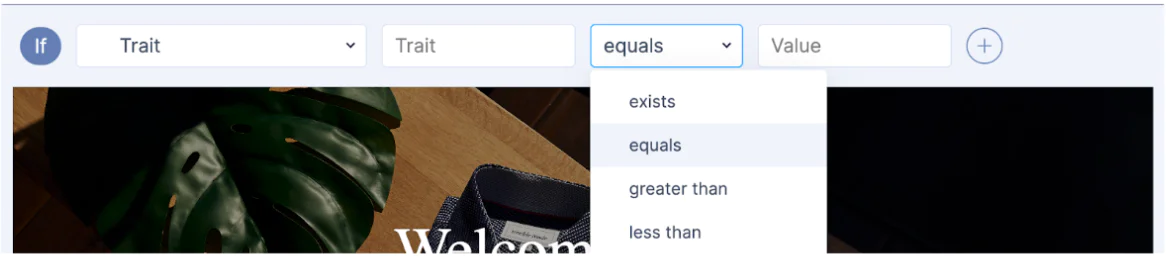
For example, for the following computed trait named “LTV”, with a trait key “ltv” containing the aggregate historical purchase value of a customer:
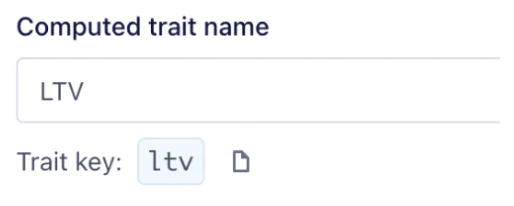
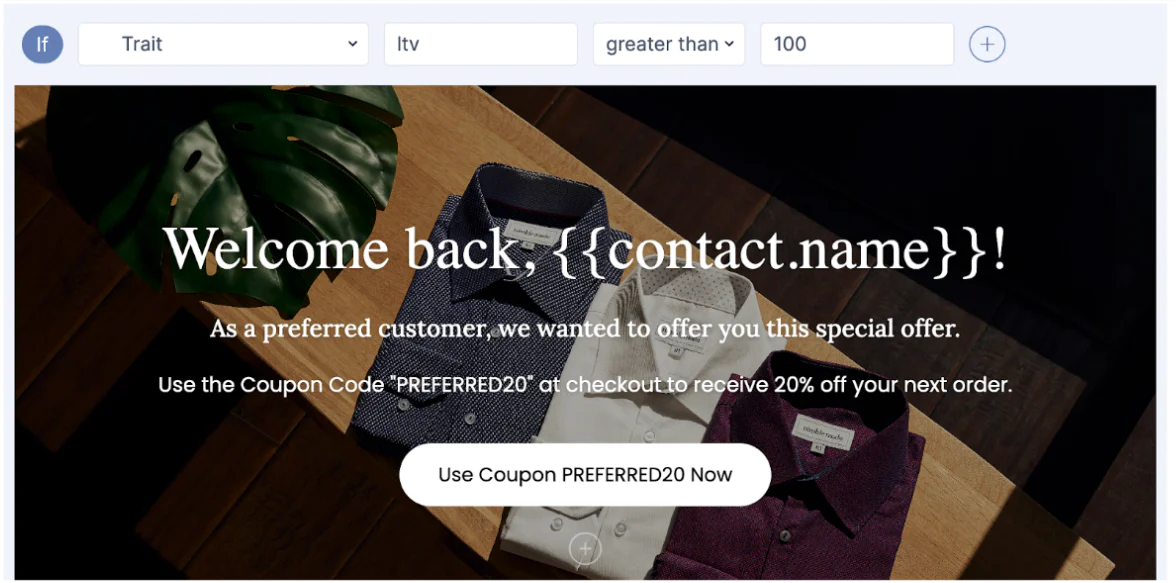
You can access that trait from CX Studio’s Twilio Segment profile data and limit content for a specific range, e.g. for customers with an LTV greater than 100 as shown below.

Personalizing the Content
Once you’ve established your conditionals for displaying a given section, you can further personalize the content using the details of that “contact” using {{ handlebars }} syntax to print the contact attribute to the screen. Some commonly-used attributes are {{ contact.first_name }} and {{ contact.city }}, for example. The available values for a contact record can be found in the Customers area in your CX Studio main menu.
Going a Step Further
Beyond simply customizing a single section for a given audience, you can personalize for a set of matching criteria, using multiple conditions with “match all” or “match any” operators to enable narrowing or broadening the audience for a particular section. You can also invert the criteria in a subsequent section to segment users into groups (Group A > Section 1, Group B > Section 2). There are limitless possibilities of combinations of experiences you can craft.
Wrapping up
Instead of writing custom code to implement your end to Personalization UI, Elastic Path CX Studio and Twilio Segment simplify the experience with an intuitive, easy-to-use GUI right in the page editor. It’s as simple as:
- Connect CX Studio to Twilio Segment
- Confirm the data is flowing in
- Configure your Twilio Segment workspace to generate Audiences and Traits
- Start Personalizing pages in CX Studio
Easily personalize customer experiences with first-party data
With a huge integration catalog and plenty of no-code features, Twilio Segment provides easy-to-maintain capability to your teams with minimal engineering effort. Great data doesn't have to be hard work!