Build a Passwordless Login System Using WebAuthn and PHP
Time to read:
December 02, 2025
Written by
Reviewed by
AI generated summary
- Implement WebAuthn for secure, passwordless logins using public-key cryptography.
- Set up a PHP environment and install necessary libraries like lbuchs/webauthn.
- Combine PHP backend scripts with JavaScript frontend to manage registration and login flows seamlessly.
This summary was generated by AI.
Build a Passwordless Login System Using WebAuthn and PHP
Passwordless login using WebAuthn is a secure authentication method that eliminates the need for traditional passwords by utilizing public-key cryptography. Instead of entering a password, users authenticate using a trusted device, such as a fingerprint scanner, facial recognition, or a hardware security key.
In this article, you will learn how WebAuthn handles user authentication behind the scenes to enable secure, passwordless logins using public key cryptography, and how to implement it in PHP.
How WebAuthn works
In a typical WebAuthn workflow, users start by entering their email or username.
The system then checks the data source to see if the user has already registered or not. If the user is new, the system initiates a registration process, prompting them to create a new credential using a trusted device, such as a fingerprint scanner, facial recognition, or a security key.
If the user is already registered, a login process is triggered, allowing them to authenticate using their previously registered device. Once the authentication is successful, the user gains access to their account.
Prerequisites
Make sure you have the following to follow along with the tutorial:
- PHP 8.3 or above
- Composer installed globally
- A web server like Apache with HTTPS support enabled (WebAuthn requires a secure context)
- A basic understanding of PHP and JavaScript
Set up your PHP environment
To get started, navigate where you usually store your PHP projects and create a new project folder named auth in the directory by running the following commands:
Install the WebAuthn PHP library
To use the WebAuthn PHP library, install the lbuchs/webauthn library, a PHP package that simplifies WebAuthn integration. To do so, run the command below:
Set up the backend
Now, let's write the backend code that sets up the necessary server-side environment for running a WebAuthn-based passwordless authentication system using PHP. To do so, create a file named init.php inyour project directory and add the following code to the file:
In the backend code above:
- The
$rparray defines the relying party details, wherenameis set towebauthn_phpandidtolocalhostwherenameis a human-friendly label for the application, set towebauthn_php, andid, typically, matches the domain name (e.g.,localhostduring development) and is set tolocalhost. These details help identify the server or application during the WebAuthn registration and authentication process. In the context of WebAuthn, a Relying Party (RP) refers to the web application or server that relies on the authenticator such as a fingerprint scanner or security key to verify a user's identity. The RP is responsible for initiating the authentication process and validating the results. - The session_start() function starts a PHP session. This is essential for storing temporary data during the authentication process, such as challenges or session variables used to verify the user's interaction.
- Using
lbuchs\WebAuthn\WebAuthn, we created a new instance of the WebAuthn class to manage the authentication processes by utilizing the provided relying party information. This instance forms the core of the backend logic for handling passwordless login sessions.
Handle the WebAuthn registration and server side login
To manage user registration and authentication using passkeys on the server side, you need to create two PHP scripts. These scripts will handle requests from the frontend, interact with the WebAuthn library, and manage user credentials as well as session data.
To get started, navigate to your project root and create two new files: register.php and validate.php.
Next, add the following code to the register.php file:
The register.php file manages the server-side logic for WebAuthn registration. It starts by including the init.php file, then retrieves the user's email and name from the POST request data.
In the first phase, the script checks whether a user already exists, using a hashed version of their email as the filename. If the user does not exist, it generates a new challenge and registration options, stores relevant session data, and sends the options to the frontend in JSON format.
In the second phase, the script verifies the registration response received from the client. If the verification is successful, it saves the user's credential information in a serialized file for future authentication.
Next, add the following code to the validate.php file:
The validate.php script handles the server-side logic for WebAuthn authentication during the login process. It starts by loading the init.php file and retrieving the user's email from the POST request. The script checks whether the provided email is valid and confirms the user's registration by verifying the existence of their corresponding file.
In the first phase, the script generates a login challenge using the user's stored credential ID and sends this challenge to the frontend for the user to complete. In the second phase, it processes the authentication response sent by the client, validating the user’s credentials against the stored public key and the challenge. If the verification is successful, the script welcomes the user; otherwise, it returns an error message.
Create the user authentication interface
To build the user interface for your passwordless login system, create an HTML file named app.html in the auth project directory, and add the following code to the file:
In the code above, the page is titled “PHP WebAuthn Demo”, and the external script demo.js is loaded with defer, it contains the functions that drive the WebAuthn registration and login flows.
The <body> defines two <div class="container"> panels and a footer. The first panel, id="register-section", is visible on load and includes an email input (id="reg_email") and a full‑name input (id="reg_name"), both marked required, plus a Register button that calls register.a().
The second panel, id="login-section", starts hidden via style="display: none;" and contains a required email input (id="val_email") and a Login button that invokes validate.a(). After a successful registration, demo.js hides the register section, reveals the login section, and smoothly scrolls it into view.
Script the frontend
Scripting your project will assist in interacting with the backend through AJAX, communicating with the browser's WebAuthn API, and assist in encoding and decoding the binary data required for credential creation and verification.
To implement the WebAuthn registration and login functionality on the frontend, create a file named demo.js in your project's top-level directory. In this file, add the JavaScript code below:
The code implements passwordless authentication via the WebAuthn API, a subset of the browser’s Credential Management API. The register and validate objects orchestrate user registration and login by calling navigator.credentials.create() and navigator.credentials.get(), posting the assertion data to register.php and validate.php, then swapping the UI between the two forms on success.
Test the application
Start your application server. Once your application server has started, open localhost/app.html in your browser to access the application page, input your email and username, and click on the Register button.
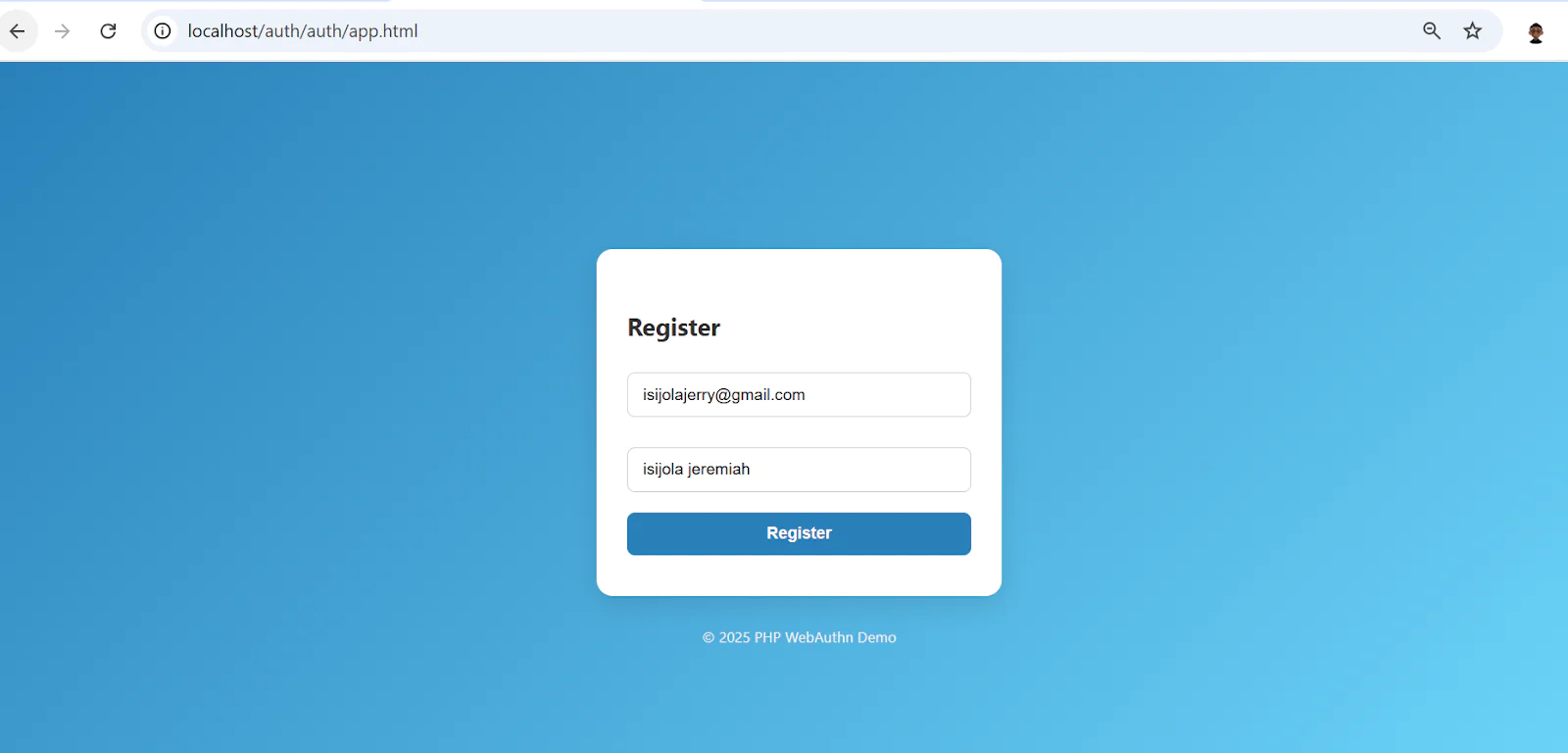
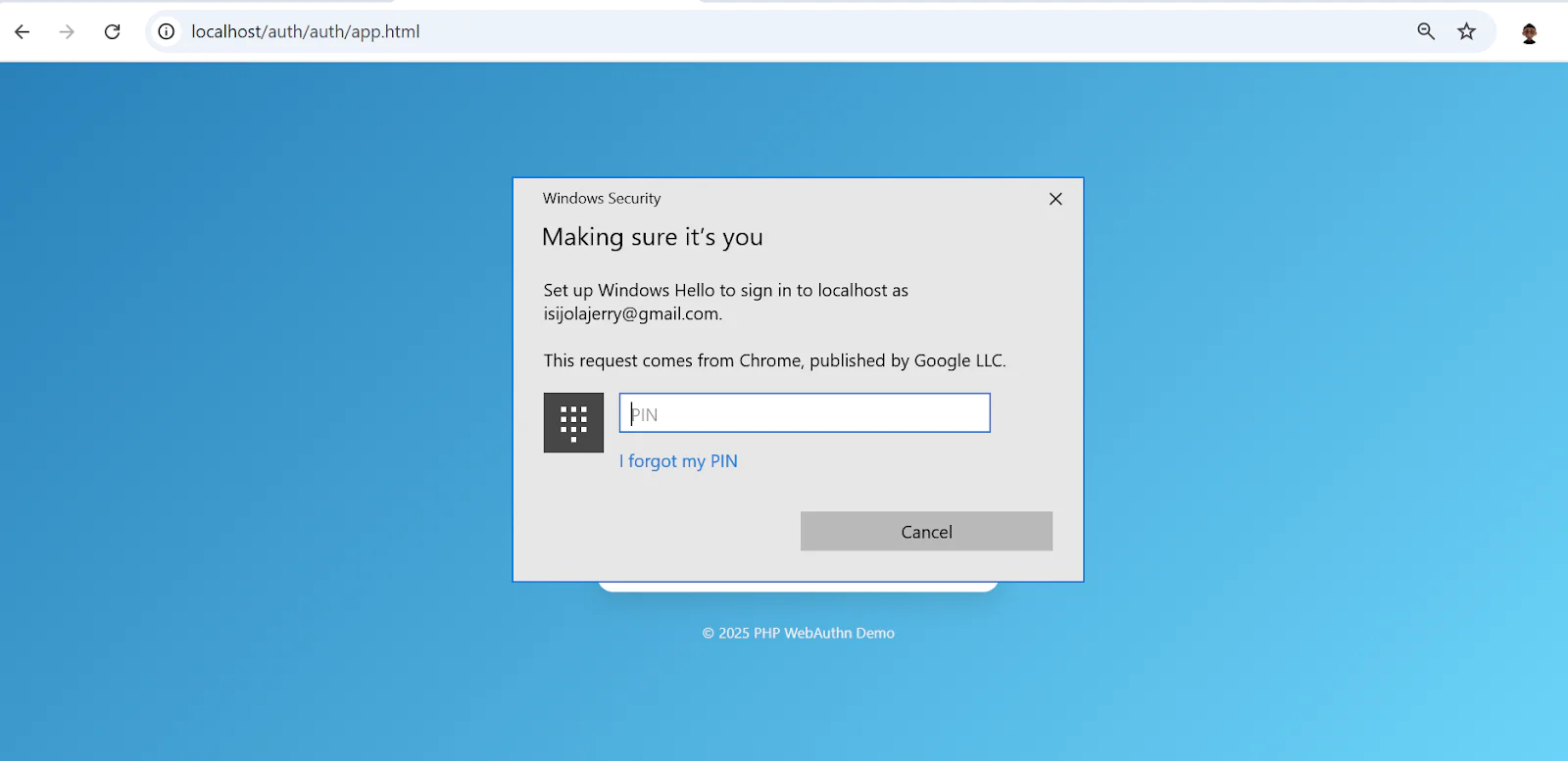
After you submit the form, you will be given several passkey options to choose from to complete the registration. Select any passkey that you prefer, but remember that you will need to log in using the same method.
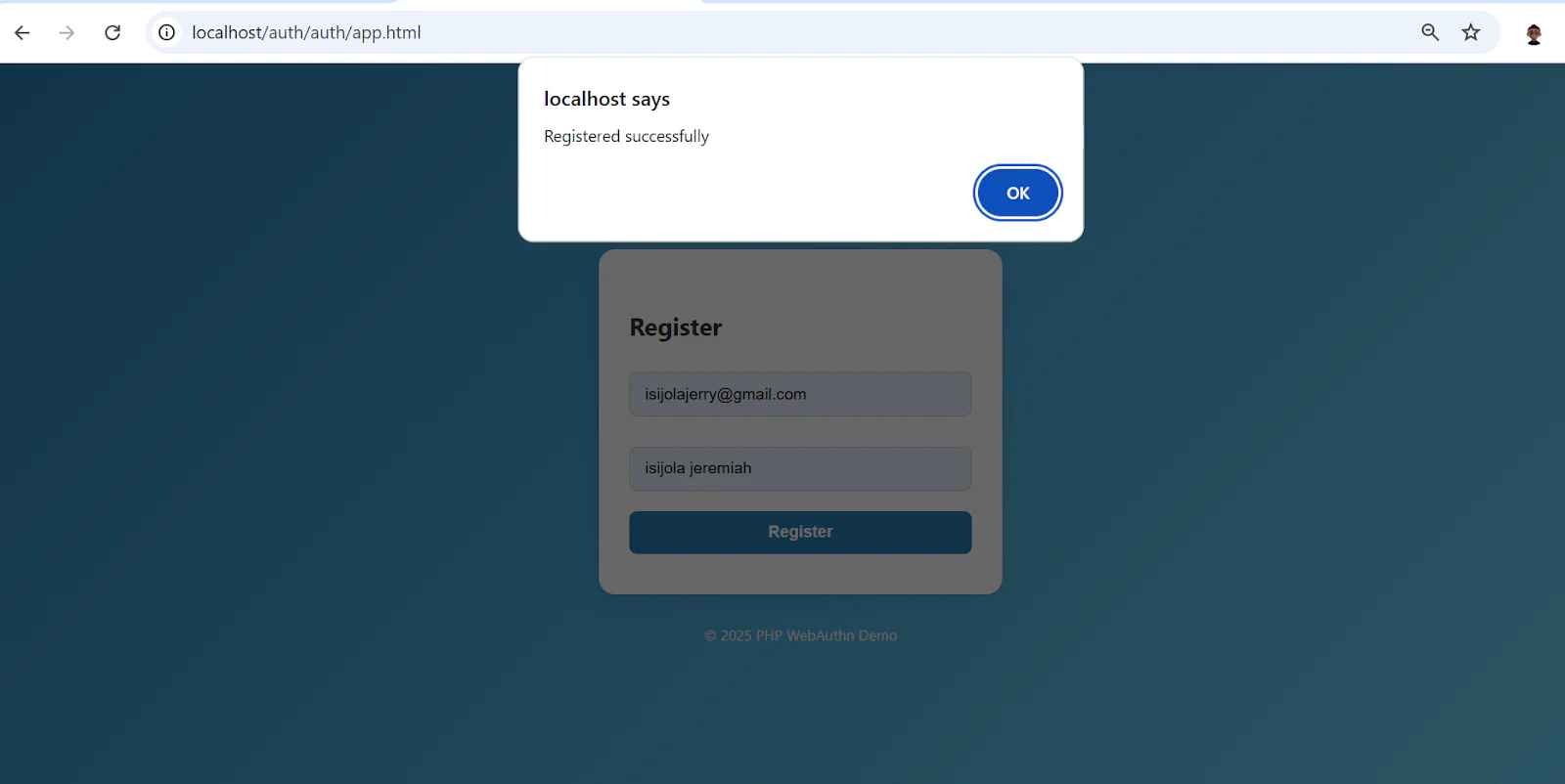
If registered successfully, you should get an alert telling you “Registered Successfully”.
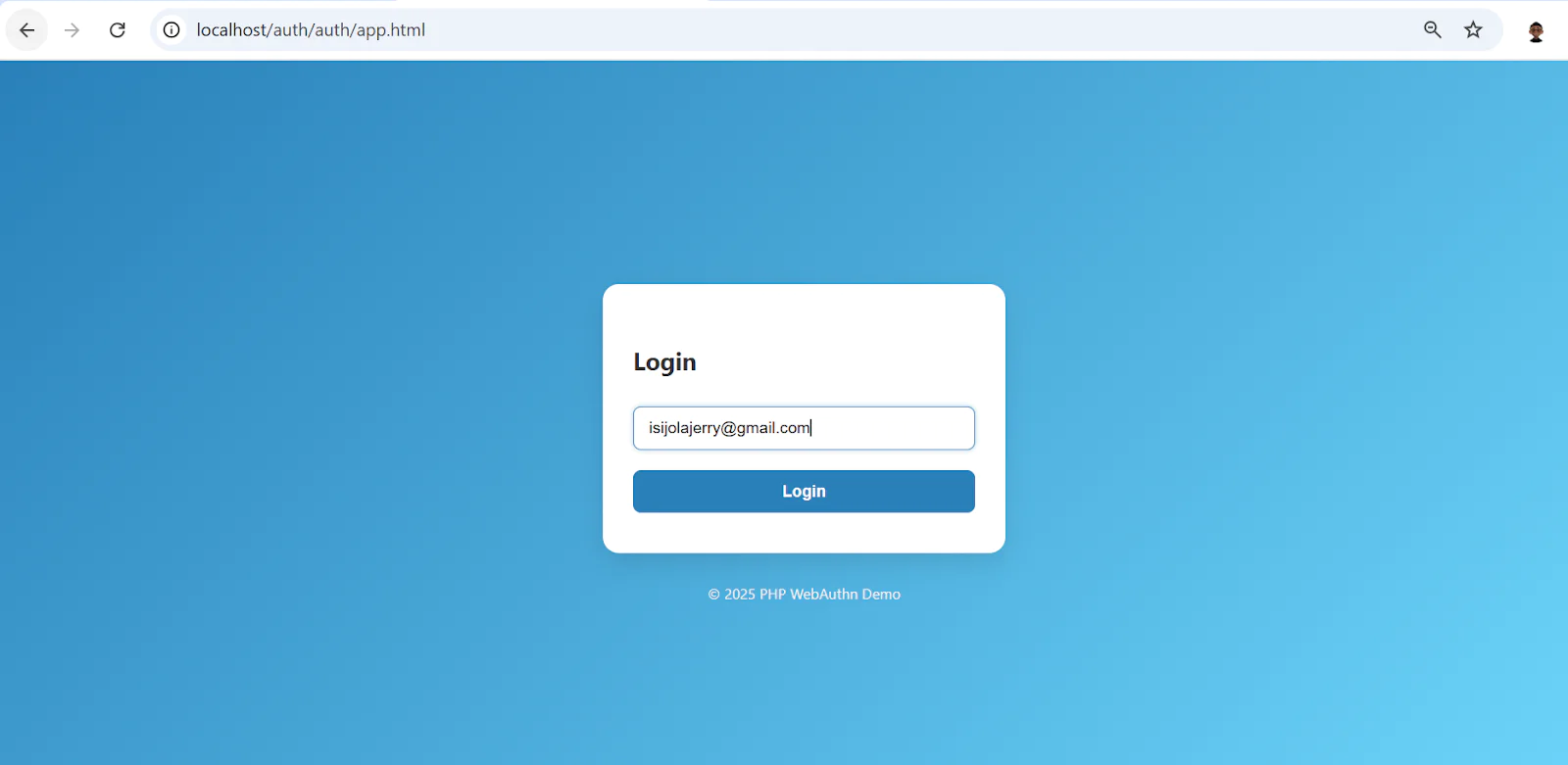
You will be redirected to the login page where you are expected to input your email in the email field on the login form and click on the Login button.
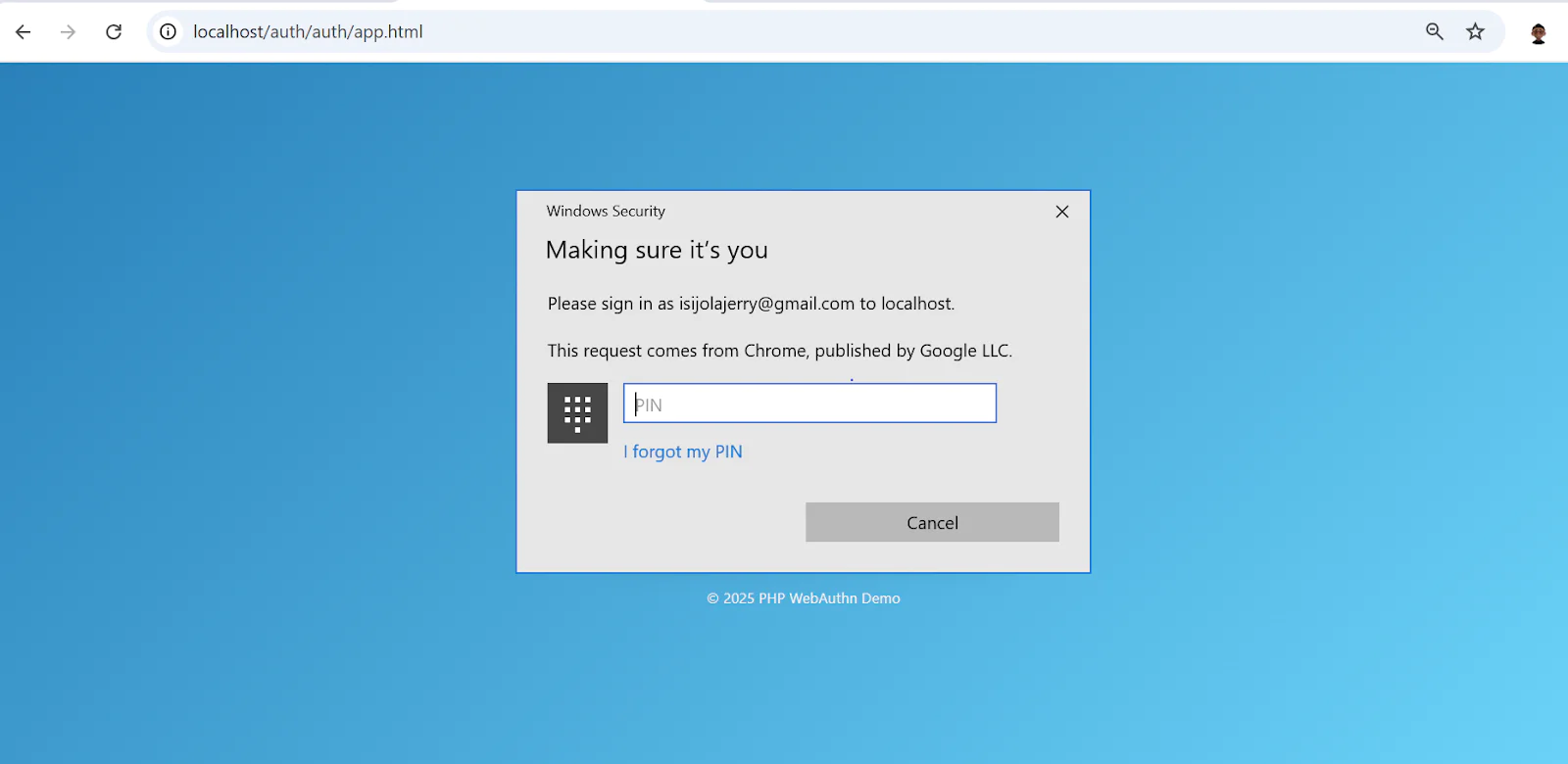
Once you submit the form, you will be asked to login with the passkey method selected used during registration.
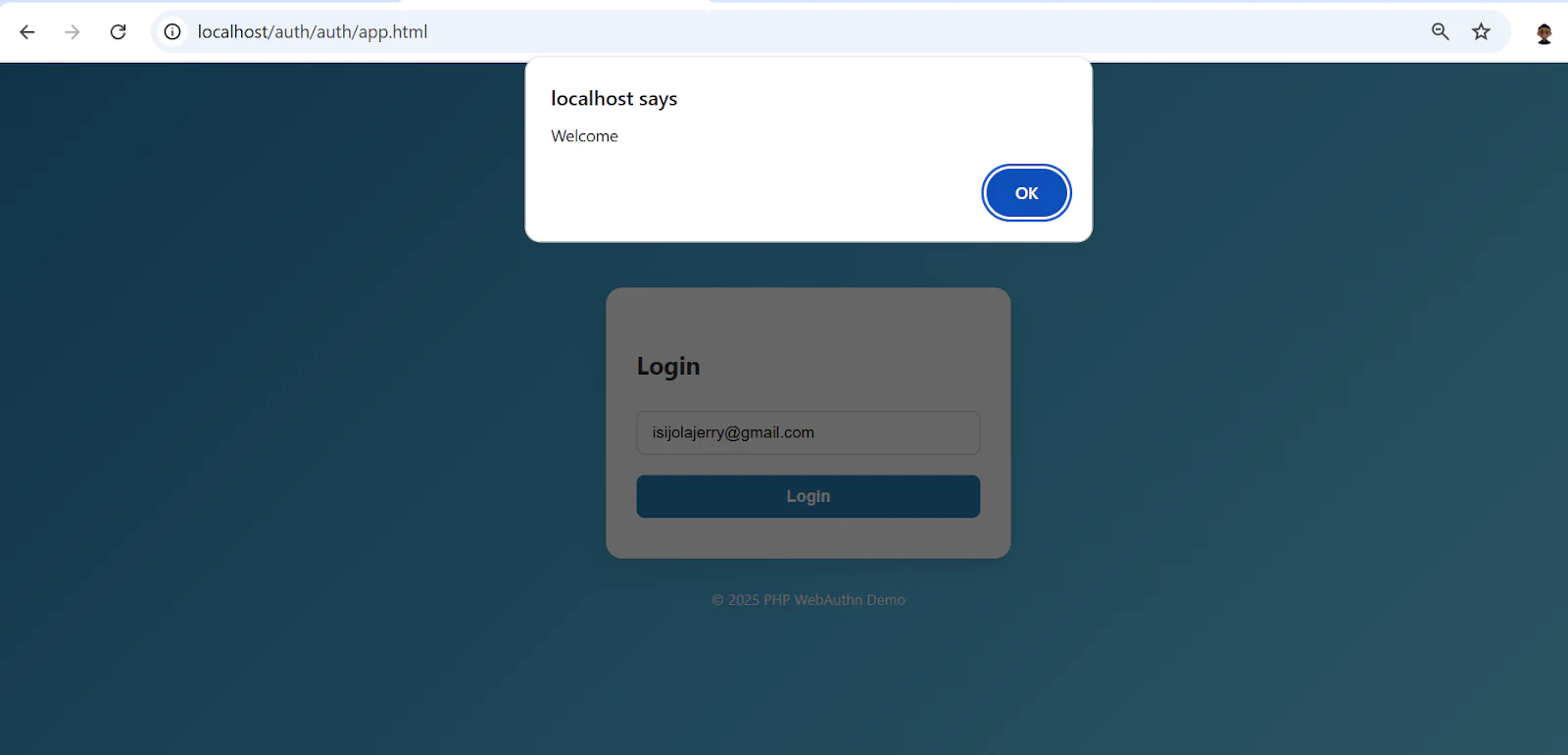
After successfully validating your login, you will get a welcome message alert on your screen.
That’s how to build a passwordless Login system using WebAuthn and PHP
In this tutorial, you learned how to build a passwordless authentication system in PHP using WebAuthn. You implemented a secure registration and login flow that uses public key cryptography in place of traditional passwords. By combining frontend JavaScript with PHP backend scripts, you successfully created a seamless and secure user authentication experience without relying on passwords.
Isijola Jeremiah is a developer who specialises in enhancing user experience on both the backend and frontend. Contact him on LinkedIn.
Password icons created by Smashicons on Flaticon.

Related Resources
Twilio Docs
From APIs to SDKs to sample apps
API reference documentation, SDKs, helper libraries, quickstarts, and tutorials for your language and platform.
Resource Center
The latest ebooks, industry reports, and webinars
Learn from customer engagement experts to improve your own communication.
Ahoy
Twilio's developer community hub
Best practices, code samples, and inspiration to build communications and digital engagement experiences.