Build and Test a Patient Appointment Scheduling Agent with Twilio and Bluejay
Time to read:
June 24, 2026
Written by
Reviewed by
AI generated summary
- Leverage Twilio Programmable Voice and Conversation Relay for patient appointment scheduling.
- Use Bluejay for comprehensive simulation, testing, and monitoring to ensure high precision and efficiency.
- Rigorous validation includes automated persona generation and detailed performance metrics for healthcare integration.
This summary was generated by AI.
This guide demonstrates the implementation of a patient appointment scheduling voice agent using Twilio Programmable Voice and Conversation Relay. It further explores utilizing Bluejay for comprehensive simulation, testing, and production monitoring.
Voice AI in healthcare requires high precision to ensure patient safety and operational efficiency. Errors in intent recognition or data capture can lead to missed critical appointments. This implementation covers a scheduling agent capable of processing bookings, rescheduling, cancellations, and urgent slot requests, with validation tests via Bluejay, to ensure reliability prior to deployment.
By the end of this post, you'll have a working Twilio scheduling agent connected to a Bluejay testing and observability pipeline that catches failures before your patients do.
Prerequisites
Before getting started, here's what you'll need:
- A Twilio account - sign up for a free Twilio trial if you don't have one yet.
- A Twilio phone number. Twilio’s free trial gives you a small preloaded balance.
- Purchase a number with Voice capabilities as detailed here.
- A Bluejay account
- An API key for the LLM powering your scheduling agent. E.g., OpenAI
- An EHR or scheduling system (e.g., Epic, athenahealth) to connect as a tool.
- We will use SQLite as the scheduling db for the demo.
- Python 3.13 or later installed
- A free ngrok account
Nice to have:
- Familiarity with REST APIs and webhooks.
- Basic understanding of how LLM agents work in a voice context.
Build
Understanding the architecture
The architecture positions the scheduling agent behind a Twilio phone number. Inbound calls are routed via Programmable Voice to Conversation Relay, which serves as the control plane managing the full-duplex dialogue between the caller and the LLM agent. The agent is configured to invoke external tools (e.g., provider availability checks, SMS confirmations) and handle escalation to human operators as required.
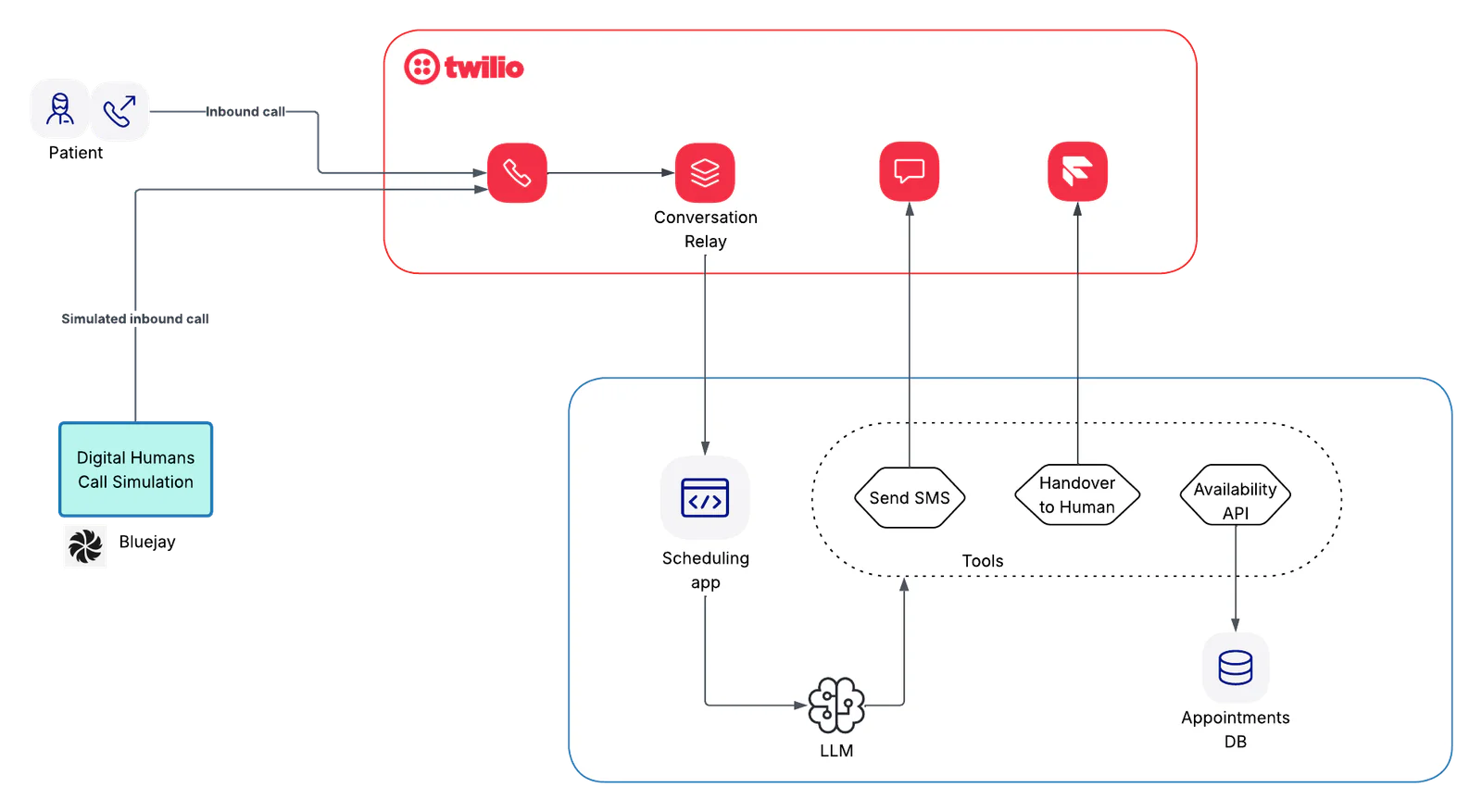
The flow looks like this:
- Patient calls your Twilio number
- Twilio Programmable Voice initiates a Conversation Relay session
- Conversation Relay passes each patient utterance to your app via webhook
- Your agent responds with a next action: speak, invoke a tool, or escalate
- Twilio synthesizes speech and delivers the agent's response to the patient
Bluejay plugs into this architecture at both ends: simulating patient calls pre-launch and monitoring real production calls post-launch.
Set up your Twilio Programmable Voice number
To get started, you'll need a Twilio phone number capable of handling incoming voice calls. Check the tutorial on how to purchase your first number.
Set up your backend server
- Clone the repo
- Navigate to the project directory
cd conv-relay-scheduling
- Install dependencies
npm install -r requirements.txt
- Copy the sample environment file and configure the environment variables
cp .env.sample .env
- If using the free version of ngrok, run the server on port 8000 and copy the url generated
ngrok http 8000
Configure the Voice Webhook
This step tells Twilio where to send the call data when a patient dials your new number. This must point to the endpoint that will initiate the Conversation Relay session.
- Navigate to Phone Numbers > Manage > Active numbers.
- Click on the number you just purchased.
- Scroll down to the Voice section.
- Under A CALL COMES IN, select Webhook and configure it to point to your agent's TwiML-generating endpoint. For this example it is /incoming-call
- Click Save configuration
| Field | Value |
|---|---|
| A CALL COMES IN | Webhook |
| Webhook URL | [Your Public ngrok url]/incoming-call |
| HTTP Method | HTTP POST |
Configure Conversation Relay
Conversation Relay is the control plane that connects Twilio Programmable Voice with your LLM agent via a WebSocket connection. It manages the audio stream, handling speech-to-text (STT) and text-to-speech (TTS), and relays patient utterances to your agent, while also playing back your LLM responses back to the patient.
Twilio requires all Conversation Relay endpoints to use a secure WebSocket connection (wss://). This means your deployment must be running behind a server with a valid SSL/TLS certificate. The connection is initiated using TwiML (Twilio Markup Language) returned from the webhook endpoint configured above
TwiML for Conversation Relay
The api endpoint for /incoming-call is in src/twilio/call_controller.py. It returns the following TwiML to hand off the call to Conversation Relay. Some of the attributes are described below, but check src/config.py and the docs for other attributes supported by the <ConversationRelay> noun.
The WebSocket Handshake
When Twilio receives the above TwiML, it initiates a WebSocket connection to your agent server. It sends a setup message immediately after. Once connected, Conversation Relay begins streaming patient audio, transcribing it, and sending the text utterances to your agent server as JSON payloads via the WebSocket.
LLM scheduling agent
The LLM agent is the core logic engine. It receives patient utterances from Conversation Relay, determines the patient's intent, interacts with your scheduling tools (SQLite), and responds with an action (speak, invoke tool, or escalate to human). It also maintains conversation history for the duration of the call. When a message arrives from Conversation Relay, the agent:
- Extracts the patient's transcribed utterance and appends it to conversation history
- Streams the LLM response token-by-token back to Conversation Relay so speech synthesis starts immediately
- If the LLM requests a tool call, executes it server-side (SQLite read/write), feeds the result back to the LLM, and repeats until the LLM produces a final spoken reply – all within a single patient turn
- Sends the final text tokens to Conversation Relay with last=true to signal end of turn
- If the patient interrupts mid-response, stops streaming and discards buffered tokens
System Prompt and Tool Definitions
A clear system prompt is crucial for steering the LLM to act as a reliable scheduling agent.
Agent prompt
Tool Definitions
The agent needs access to specific functions to interact with the scheduling system.
For this blog post and its accompanying example, the following tools have been made available to the agent:
- Look up patient, doctor, and appointment details
- Schedule a new appointment
- Cancel an existing appointment
- Change/reschedule an appointment
- Send an SMS notification
Agent WebSocket Messages to Twilio
The agent communicates with Conversation Relay using a standardized JSON payload over the WebSocket. The types of messages the agent can send to Twilio are documented here.
SQLite tables
The following 3 tables (exact names) are created if they don’t exist:
- Patients - Name, Phone, Email
- Providers - Name, Specialty
- Appointments - Provider (link→Providers), Patient (link→Patients), Start Time, End Time, Status, Notes
Test
Start the server
python3 -m uvicorn src.main:app --reload --port 8000
The app should now run on the above port and is ready to accept appointment scheduling calls.
Test with Bluejay
With your agent built and deployed, the next step is validation, and this is where most teams underinvest. Manually calling your agent a few times catches obvious bugs, but it won't surface many edge cases that matter in healthcare: the patient who changes their mind mid-call, an automatic speech recognition (ASR) mis-transcription that causes the wrong provider to be booked, or the prompt regression that silently breaks urgent call handling after a model update.
Bluejay lets you run hundreds of simulated patient calls in parallel, score every turn automatically, and monitor production for regressions all connected directly to your Twilio environment. Here's how to set it up through Bluejay's UI.
Connect Bluejay to your Twilio agent
Head over to app.getbluejay.ai and click the "+" button in the top left corner to connect your agent
You’ll be prompted to fill in a few details. Here's exactly what to enter:
- Agent Name: Atlas Healthcare Clinic (Twilio)
- System Prompt: Paste in the system prompt from when you built your agent. This is the description that defines how your agent behaves on calls
- For reference, this is the prompt above
- Agent type: Set this to Inbound since the agent will be receiving patient calls
- Mode: Toggle on Voice
- Voice Connection Type: Select Phone
- Phone Number: Add your Twilio phone number at the bottom to finish setting things up
Once you hit save, your agent is connected and ready to be tested inside Bluejay!
Demo
Create simulated patient personas
Prior to running tests you need to set up your Digital Humans, which are Bluejay's simulated patients that call your agent like a real person would. Unlike static test scripts, Digital Humans can hesitate, change their mind mid-call, and surface the kind of edge cases that only show up in real conversations.
Bluejay offers multiple ways to generate digital humans automatically including from previous conversations, workflows, natural language, and more. Today we're exploring goal adherence: automatically generating digital humans based on specific goals or behaviors you want to verify your agent can perform.
- Head to the Simulations tab inside Bluejay and click Create a Simulation
- Enter your simulation name. In our case, Atlas Healthcare Clinic (Twilio) Simulation
- Select Goal Adherence and Bluejay will read your system prompt and automatically generate 3 Digital Humans based on the goals it detects
- Click Generate and Bluejay will create your simulated patients, ready to run
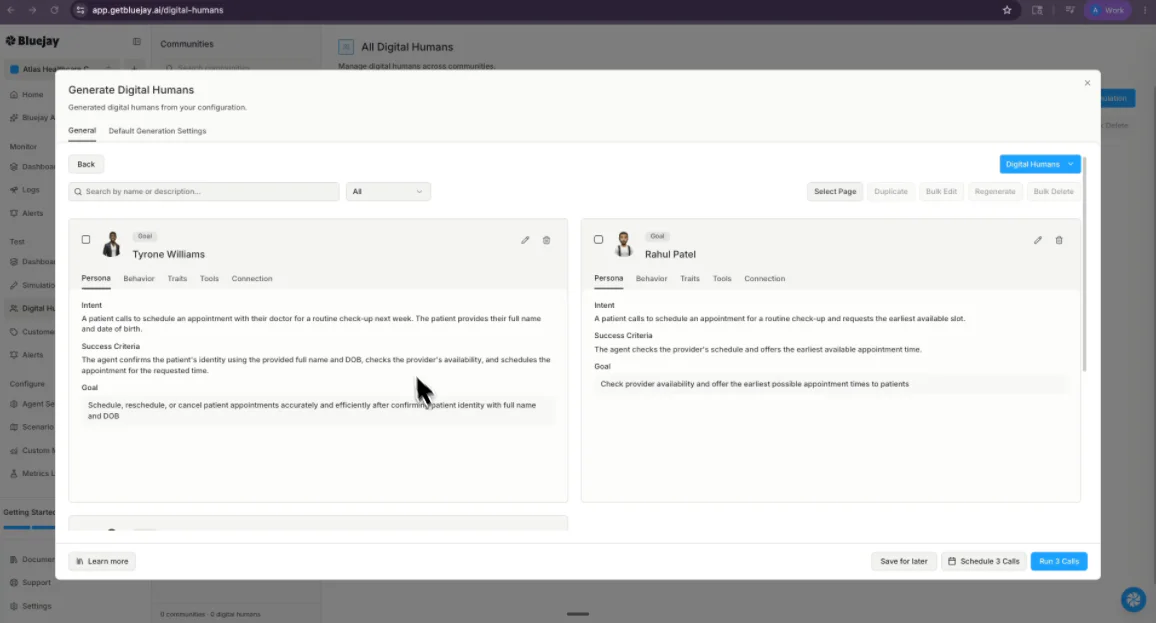
This is the quickest way to get meaningful coverage without having to manually think through every test case from scratch.
If you want more control, Bluejay also gives you multiple other options. You can explore other generation techniques available on the platform or you can also build personas manually.
Run a pre-launch simulation batch
Once you've generated your Digital Humans through Goal Adherence, Bluejay takes you directly to the simulations view.
You'll see your Digital Humans listed and a Run 3 Calls button ready to go. Click it and Bluejay will place calls to your agent in parallel, with each Digital Human working through their own scenario from start to finish.
You can watch the results stream live as each call completes. Once the batch finishes you'll land on the results dashboard. Here's what to look at:
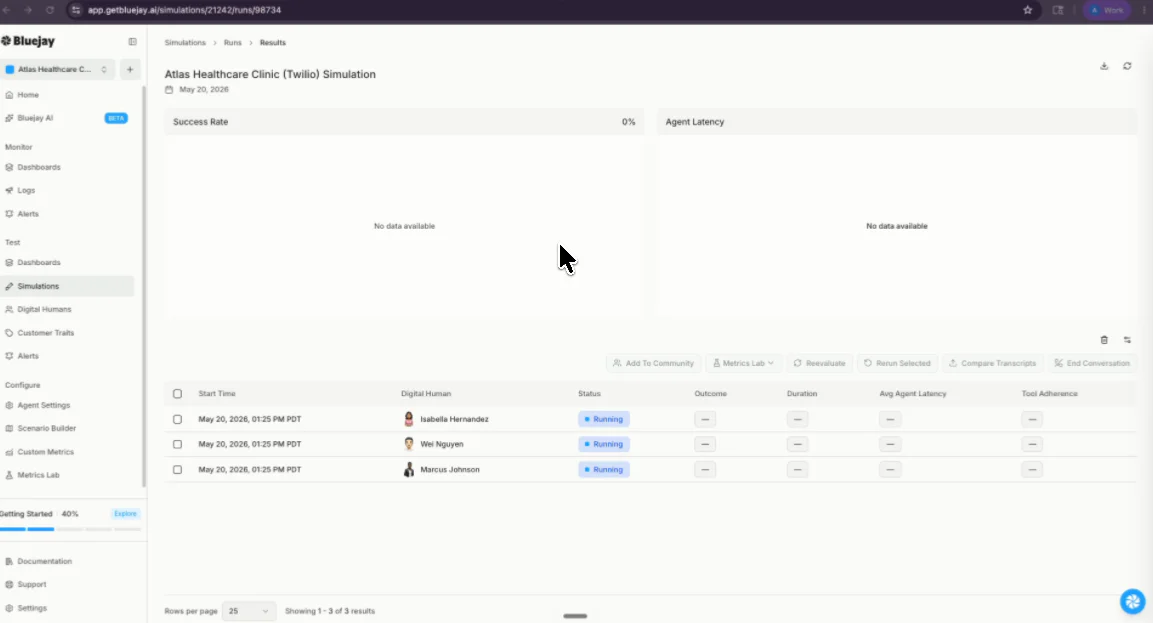
Outcome Pass Rate is your headline number - percentage of simulated calls meeting all success criteria end to end.
Latency (P50 / P95) shows how fast your agent is responding. P50 is your average and P95 is your worst case.
Interruptions track how often the agent talked over the patient or vice versa.
Tool Call Accuracy tells you whether the agent called the right tool with the right parameters every time.
Word Error Rate (WER) shows how accurately speech recognition is transcribing what patients say.
Custom Metrics Bluejay also lets you create your own custom evals to measure what matters most for your specific use case e.g., pronunciation accuracy, agent tone, patient sentiment, or compliance with regulatory scripts.
HallucinationFrequency of false information, critical for healthcare safety.
Pronunciation measures how accurately your agent is pronouncing medical terms, provider names, and medications.
Redundancy flags how often your agent unnecessarily repeats information the patient already confirmed.
Traces give you a full step-by-step insight of every conversation — every LLM call, tool invocation, and response in sequence.
This is especially useful in healthcare where you might need to track things that go beyond whether the appointment was booked correctly.
Explore the dashboard docs to get a deeper understanding of these metrics, and more.
Conclusion
By integrating Twilio’s Conversational AI stack with Bluejay, you can establish a resilient pipeline for agent development. This architecture – incorporating automated persona generation, rigorous scoring, and real-time observability – enables developers to deploy updates with the high confidence levels required for healthcare environments.
Additional resources
- Explore Twilio Conversation Relay dive deeper into the full range of orchestration options: multi-channel support across Voice, SMS, and WhatsApp, advanced tool calling patterns, and handoff controls.
See the Conversation Relay documentation.
- Explore Bluejay Observability beyond simulation, Bluejay's Observability product lets you monitor every real production conversation your agent has: transcript scoring, drift detection, and custom alert thresholds.
Visit getbluejay.ai to learn more or talk to the team about your use case.



Related Resources
Twilio Docs
From APIs to SDKs to sample apps
API reference documentation, SDKs, helper libraries, quickstarts, and tutorials for your language and platform.
Resource Center
The latest ebooks, industry reports, and webinars
Learn from customer engagement experts to improve your own communication.
Ahoy
Twilio's developer community hub
Best practices, code samples, and inspiration to build communications and digital engagement experiences.