How to Handle No-Answer/Pickup Scenarios with Voicemail and Callback using Twilio Voice
Time to read:
March 16, 2026
Written by
Reviewed by
AI generated summary
- Implement a fallback strategy using Twilio Voice when calls are not answered.
- Prompt the caller for a callback request, storing their number and message for follow-up.
- Transcribe and log callback requests and voicemails to manage follow-up efficiently.
This summary was generated by AI.
How to Handle No-Answer/Pickup Scenarios with Voicemail and Callback using Twilio Voice
Have you ever called a company but instead of being connected to a representative, you were told no one was available and the call abruptly ended? Have you ever had to stay on the phone waiting for hours until a customer representative finally is able to take your call?
Unfortunately, those bad user experiences are too common. But, it doesn't have to be this way. Using Twilio Programmable Voice, you can build a better experience! Even if there's nobody available to take the call right now, you could ask them to leave a message and their phone number so you can give them a callback later on.
Prerequisites
To follow this tutorial, prior experience with the following technologies is recommended, but not required:
- C#
- .NET
- ASP.NET Core
You’ll need the following development resources to build and run the project:
- .NET 10 SDK (other versions of .NET may work too)
- A code editor – Any editor will suffice, but for an optimal experience use:
- Visual Studio Code with the C# for Visual Studio Code extension
- or Visual Studio 2026 (The Community edition is free.) with the following workloads enabled: ASP.NET and web development, .NET Core cross-platform development.
- A Twilio account
- Twilio CLI – The Twilio command-line interface requires Node.js and npm (included with the Node.js installation).
- ngrok – A free account is all that’s necessary.
Understanding the case study
When a customer calls your Twilio Phone Number and nobody picks up, you need to have a graceful fallback. The fallback you will build will ask if the caller wants to receive a callback, asking for their phone number and message.
To do this, you will build a set of webhooks to send instructions to Twilio. When your Twilio phone number is dialed, Twilio will send an HTTP request to your webhook, and your webhook will instruct Twilio to dial a non-existent client. This is to simulate a scenario where nobody picks up the call.
Since the client doesn't exist, Twilio will report the DialCallStatus as no-answer. Twilio will then send another HTTP request asking what to do as a result of the change in status.
Your webhook will ask the caller if they would like a callback. If a callback is requested, the caller will be prompted to provide their phone number and a message.
The phone number and message will automatically be inserted into a Customer Relationship Management (CRM) system so that customer representatives can make the callback later. This tutorial will use a dummy implementation of the CRM integration. A specific CRM integration will not be covered in this tutorial.
Purchase a Twilio Phone Number
You need to create a Twilio Phone Number to be able to receive calls for this demo.
You can do this using the Twilio CLI or using the Twilio Console.
If you want to use the CLI, install the Twilio CLI on your machine by following the Twilio CLI Quickstart instructions.
Log in using the Twilio CLI using the following command:
You will be prompted to enter your Account SID and Auth Token. Both can be found on the right-hand side of the Twilio console home page.
Use the following Twilio CLI command to buy a phone number if you don't have one already. You can get a local phone number using the following command, replacing “US” with the appropriate country code for your location:
Note: Although you’ll be buying a phone number, if you're using a trial account, the credit in your trial account will be applied to the charge. No credit card is required.
If you already have a Twilio phone number, you can list your phone numbers using the following command:
Copy the Twilio Phone Number for this application someplace handy so you can update the phone number resource later. You will also need to call this phone number later to test the application.
Develop the Twilio webhook server
Create the ASP.NET Core WebAPI
The Twilio webhook server will be implemented as an ASP.NET Core WebAPI project.
Use the following commands to create an empty WebAPI project:
You can run your .NET project using this command:
For your convenience, you can also use the dotnet watch run alternative. This will automatically reload the .NET application as you edit. You can use this command to watch your project:
You will need to provide the URL of the locally running web project later. Take note of the HTTP-URL when running the web project. The default HTTP URL is usually http://localhost:5000.
Receive and respond to inbound phone calls
When your Twilio Phone Number is dialed, Twilio will send an HTTP request to the webhook URL that you will configure later. You will create a new controller and action to handle this HTTP request and provide instructions to Twilio.
Run the following command to add the Twilio.AspNet.Core NuGet package:
This Twilio library will add some helpful classes and methods to create TwiML (the Twilio Markup Language). TwiML is a set of specific XML elements and attributes you can use to instruct Twilio what to do when a call or text is received.
ASP.Net generates a default program.cs with some dummy data that you will need to overwrite. For this tutorial you will keep this file as simple as possible and tell .NET to use your Controllers. Replace the code in your program.cs with the following:
The project won't find your controllers yet, but you create them in this step.
Create a new folder called Controllers. In this folder, you will create a file called VoiceController.cs. To this new file, add the following code:
Note that the VoiceController class is inheriting from the TwilioController class. The TwilioController class adds the TwiML method. The TwiML method converts the VoiceResponse object to TwiML (XML) and uses it as the body of the HTTP response.
The Incoming action will generate the following TwiML:
When Twilio receives this HTTP response, Twilio will attempt to dial the client named "NON-EXISTENT-CLIENT". Since there are no clients with that name connected to Twilio, Twilio isn't able to dial the client, and Twilio will change the dial status to "no-answer".
To test this out you'll need a phone that can make phone calls to your Twilio phone number. Switch back to your shell and run the following command to run the ASP.NET project:
Twilio won't be able to reach your local network directly. In order to allow calls to reach your application, you will have to use a tunneling program such as ngrok. With ngrok installed and authenticated, type this command into your terminal to open the port. If your application is not running on port 5000, replace the number here with the accurate port number:
Use the following command to create a webhook. Take care to replace the placeholder with your actual Twilio phone number. For the URL, use the URL provided by your ngrok output.
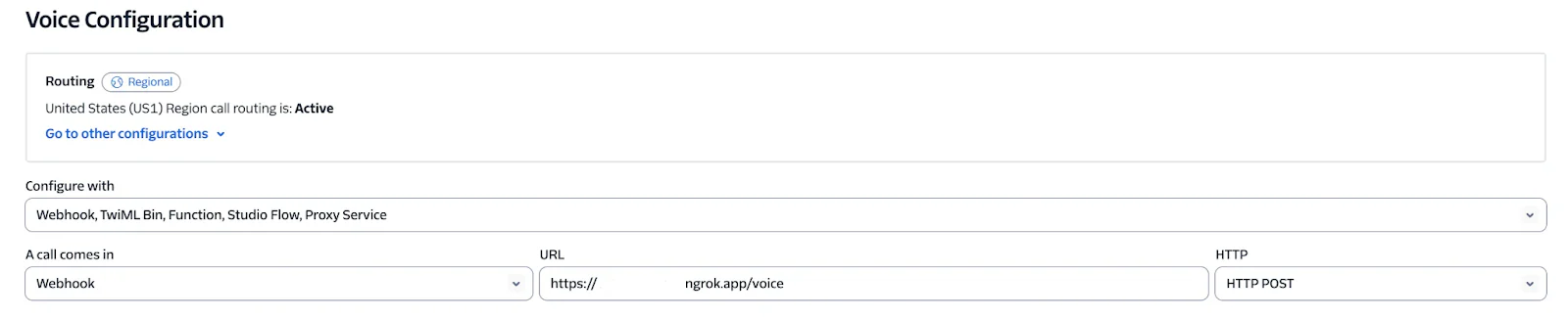
If you aren't using the CLI, you can also paste the ngrok URL, including the /voice hook, into your console under Webhook -> A Call Comes In as shown:
Call your Twilio phone number to hear the result. You should hear a dialing sound while Twilio is trying to dial the non-existent client, but then the call abruptly ends without warning.
If you look at the details of the phone call in the Twilio Console, you can see that the duration of the phone call is very short and the status is "Completed". The dial instruction created a child call and the status of the child call is "No Answer".
Handle the no-pick up scenario
You can add the action attribute to provide additional instructions to Twilio after the dialed call ends. You need to set a URL as the action attribute value which Twilio will use to make an HTTP request to when the dialed call ends. You can respond with TwiML to provide additional instructions for Twilio to execute.
Update the Voice action with the highlighted code:
Take note of the optional parameter action passed into the constructor of Dial.
Now the resulting TwiML looks like this:
When the dialed call ends, Twilio will send another HTTP request to ask for instructions to the /incoming route.
To handle this subsequent HTTP request, you need to create a new action at /incoming.
Add the following static field at the top of the VoiceController class:
This is a hashset of status codes you want to handle using the callback scenario.
You will also add this method to help build URIs easily in your project.
Now, add the following action to VoiceController after the Voice method:
Twilio will pass along a bunch of data using form encoding which you can capture using the FromForm attribute. The data will be serialized into the request parameter as a StatusCallbackRequest instance.
The code checks whether the .DialCallStatus is one of the status codes from the badStatusCodes HashSet. If not, an empty TwiML response is returned which will end the call.If so, the following TwiML is returned:
This TwiML will prompt the caller to press '1' or '2'. When they press a digit on their phone, Twilio will send an HTTP request with the pressed digits to the /RequestCallback route.
If the caller doesn't press any number, the Redirect node will be executed which will also have Twilio send another HTTP request to the /RequestCallback route.
Add the following action after the previous actions to handle requests for the /RequestCallback route:
The HTTP request to /RequestCallback also sends a bunch of data using form encoding which is being serialized to the request parameter. You can access the number pressed by the caller using request.Digits.
When the caller presses "2", Twilio will respond with the message "Goodbye" and hang up.When the caller doesn't press a number, they will be prompted to press "1" or "2" again which will send another HTTP request to the current URL as a result.
When the caller presses "1", the following TwiML is constructed:
Twilio will ask the caller to enter their 10 digit phone number. When the caller enters their phone number, Twilio will send an HTTP request with the digits to the /CapturePhoneNumber route.
Before creating a new action to handle the /CapturePhoneNumber route, you will need to add a couple of files. Follow these instructions to create an interface and class to handle the CRM integration.
Create a new directory called Services. Inside of that directory create a new file called ICallbackService.cs. Place the following code in the file:
Create a new file DummyCrmCallbackService.cs within the Services directory and place the following code in the file:
Open the startup.cs file and add the following line before you call the builder.Build() method:
This will wire up the dependency injection so that DummyCrmCallbackService will be injected whenever you request an instance of ICallbackService.
Back in your VoiceController, add the following two actions to handle HTTP requests to the /CapturePhoneNumber and /FinishCall routes:
In the highlighted line, take note of how the second parameter of the CapturePhoneNumber is the ICallbackService interface you just created. By using the FromServices attribute, ASP.NET Core's built-in dependency injection will create an instance of DummyCrmCallbackService and will inject it into the parameter.
The CapturePhoneNumber action will re-prompt the user to give their 10-digit phone number. If the Digits property isn't 10 characters long, the subsequent HTTP request will go back to /CapturePhoneNumber.
However, if the Digits property is 10 characters long, the callback is created through callbackService.CreateCallback and the following TwiML is returned:
Twilio will ask the caller to leave a message after the beep, pause for a second, and then start recording the message. If the caller leaves a message, Twilio will send an HTTP request to the /FinishCall route which will send a simple confirmation message and hang up. If the caller doesn't leave a message, Twilio will say, "Your callback has been requested. Goodbye." and hang up.
The transcribe and transcribeCallback attributes tell Twilio to transcribe the message left by the caller and which URL to send the transcription to when it is ready. The transcription data will be sent to the /CaptureVoiceMailTranscript route, but unlike previous webhooks, the response of this webhook does not control the conversation with the caller. Twilio takes a little bit of time to transcribe the voice mail recording, so the conversation has already ended at that point.
To finish this tutorial, go into the VoiceController and add an action to handle the HTTP requests to the /CaptureVoiceMailTranscript route:
The CaptureVoiceMailTranscript action will receive the data from Twilio and pass the TranscriptionText to the callbackService. The AddTranscriptToCallback method will take care of finding the previously created callback by using the CallSid and update it with the TranscriptionText.
Test the no-pick up scenario
To test this out you'll need a phone that can make phone calls to your Twilio phone number. Switch back to your shell and run the following command to run the ASP.NET project:
If using the CLI, use the following command to create a webhook, taking care to replace the placeholder with your actual Twilio phone number:
Or set the webhook up on your dashboard as before.
Now you can test out your callback logic by calling your Twilio Phone Number. The call should go like this:
- Twilio: The person you are trying to reach is unavailable. If you would like to receive a callback, press 1. If not, press 2 or hang up.
- Caller: *press 1*
- Twilio: Please enter your 10 digit phone number
- Caller: *presses 10 digits*
- Twilio: Please let us know what you are calling about by leaving a message after the beep.
- Caller: I need help resolving a very urgent issue related to your product. Please call me back as soon as you can.
- Twilio: Your callback has been requested. Goodbye.
After the conversation, Twilio will finish transcribing the voice mail and post it back to /CaptureVoiceMailTranscript where it will be saved to a CRM. Currently, you are logging the callback information instead of integrating with a real CRM. This is sufficient for this proof of concept, but you can swap the DummyCrmCallbackService with your own implementation to integrate with your preferred CRM.
Potential enhancements
These webhooks always need to be public for Twilio to be able to reach them. That also means that anyone can call them and potentially pretend to be Twilio making HTTP calls. To verify the HTTP calls are authentic and originate from Twilio, see Secure your C# / ASP.NET Core app by validating incoming Twilio requests in the Twilio docs.
Instead of configuring the URL for the action using the Route attribute, you can configure it on the controller to just use the action name as the URL like this [Route("[action]")].Also, instead of hardcoding the URL in all the Twilio callbacks, you can use the URL helpers to generate the correct URL like this Url.Action(nameof(YourAction)).
Additional resources
Check out the following resources for more information on the topics and tools presented in this tutorial:
Transcribe Phone Calls in Real Time Using C# .NET with AssemblyAI and Twilio – Learn how to use AssemblyAI to transcribe Twilio Voice calls
TwiML for Programmable Voice – Learn how about all the available TwiML verbs and nouns available for Twilio Voice
Dependency injection in ASP.NET Core – Learn more about the built-in dependency injection container that comes with ASP.NET Core
Routing to controller actions in ASP.NET Core – Learn how routing works in an ASP.NET Core MVC/WebAPI application
Amanda Lange is a .NET Engineer of Technical Content. She is here to teach how to create great things using C# and .NET programming. She can be reached at amlange [ at] twilio.com.

Related Resources
Twilio Docs
From APIs to SDKs to sample apps
API reference documentation, SDKs, helper libraries, quickstarts, and tutorials for your language and platform.
Resource Center
The latest ebooks, industry reports, and webinars
Learn from customer engagement experts to improve your own communication.
Ahoy
Twilio's developer community hub
Best practices, code samples, and inspiration to build communications and digital engagement experiences.