Script Adherence Using Real-time Conversation Intelligence with Twilio Flex
Time to read:
May 26, 2026
Written by
Reviewed by
AI generated summary
- Real-time conversation insights with Twilio Flex improve customer and agent experiences.
- Language operators allow live agent assistance and supervisory actions during calls.
- Custom plugins can be configured to monitor script adherence and provide live feedback to agents.
This summary was generated by AI.
Twilio Conversations, our collection of communication platform capabilities at Twilio, provides many enhancements that are relevant to Twilio Flex and contact center use cases. Improved management of the customer journey using memory, channel orchestration, and real-time conversation insights are all directly applicable to creating the next generation of customer and agent experiences.
The ability to gather and respond to live conversation data unlocks a host of new possibilities around agent assistance as well as live supervisory options. Traditional Quality Assurance and Quality Management (QA and QM) tooling operates in the past, attempting to gain insights on what happened rather than what is happening. Real-time language operators in Conversation Intelligence change all that, allowing engagement during the live interaction to improve the overall experiences and outcomes for both agent and customer.
In this post, we’ll show you a proof of concept Flex plug-in and related configuration to use Conversation Intelligence real-time language operators to build the next generation of agent assistance. While we are showing how to take advantage of built-in language operators, you can use these same patterns and concepts to build completely bespoke experiences aligned to your specific business procedures, data and KPIs.
Live Agent Assistance: the on-ramp to new Twilio Conversations features
Real-time language operators in the new Conversation Intelligence platform point the way to exciting new agent assistance and custom Flex plugin experiences. Management of customer profiles ( Conversation Memory) and organizational knowledge ( Enterprise Knowledge) are exposed as platform primitives for use in all areas of the customer journey. Conversation Orchestrator provides the foundational layer that ties all Twilio channels together, gleaning insights from the data flowing from live interactions.
As Jeff Eiden, Sr. Principal Product Manager for Conversation Intelligence, explained: “this works because of Conversation Orchestrator’s passive hydration model that gets Flex conversations from the CPaaS exhaust same as any other communication.“
In other words, the channels you are already using with Flex can be sources of rich data that can drive experiences in real time.
What you'll build
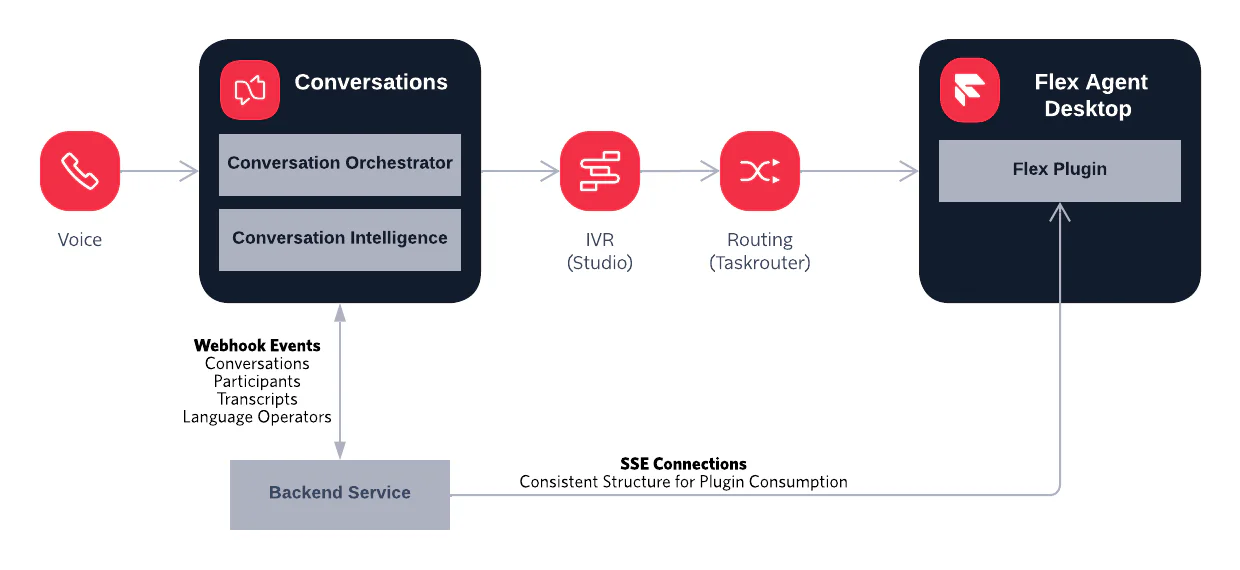
There are three primary components to this solution. In the example, the primary components are already built for you, and you will mainly be setting up the configuration in your Flex instance.
Backend Service
The server can run on your own desktop (using ngrok), but typically would be deployed to your cloud platform of choice. We used Node in the code, but you could use Python or another stack of your choice. The server is responsible for receiving webhooks from the Twilio Conversation services, processing them, and providing a standardized format for use in the Twilio plugin. This standard format is then piped over to the plugin via SSE (Server-sent Events), using the Call SID as an identifier.
Twilio Conversations Configuration
The solution is using Conversation Orchestrator and Conversation Intelligence to gain insights on the active call. You can set up these services using the Twilio Console as explained in this post, or via API as explained in the repo README.
Twilio Flex Plugin
A custom plugin receives information processed by the Backend Service and formats for display to the human agent directly inside the Flex agent desktop. Information is displayed based on the active Task represented by a Call SID.
Common use cases
Although this tutorial shows you how to drive agent adherence to standard operating procedures, there are many other potential use cases unlocked by these features:
- Triggering next best actions (both conversation prompts AND actual system actions)
- Targeted responses or actions based on sentiment for both agent and supervisors
- Live coaching, either automated or with supervisor input
- Surfacing of specific contextual data relevant to current issue, question or comment
- Sales-related opportunities (upsell, cross-sell, response to churn risk, competitor mention)
Just some food for thought. What other interesting and valuable features specific to your business could you unlock with the power of these platform capabilities?
Prerequisites
- A Twilio Account (with Flex and the new Twilio Console enabled).
- If you don’t have an account yet, you can sign up here
- A Twilio Phone Number with Voice capabilities
- You can learn to search for and buy a Twilio number here
- Note: for the most extensive ability to prototype, your number will need approval using 10DLC, Toll-Free, or other local compliance requirements. Learn more here.
- Comfort using VS Code or similar IDE, as well as the command line to set up a Git repo locally.
- Node.js 18+ and the Twilio CLI installed, including the Flex PlugIns CLI
- ngrok for exposing your local server to Twilio webhooks.
Please follow the README in the repo for detailed step by step instructions.
Set Up the Backend
Clone the repo
To get started, clone the repo to a local directory
Navigate to the new directory for your repo to start setup.
This project consists of two main folders: /server and /plugin-cintel-rtt.
Install Dependencies
Run npm installin both directories to get your environment ready.
Configure Environment Variables
You will need to create .env files for both your server and your plug-in. Key variables include:
For server (/server/.env):
For plug-in (/plugin-cintel-rtt/.env):
Activating Intelligence: How Conversation Operators drive real-time signals
Conversation Intelligence uses language operators – small LLM prompts – describing what to look for in the transcript or conversation with your customer, AI agent, or human agent. Language operators scan the conversation looking for the insights you care about (sentiment, churn risk, etc.) or creating additional feedback (summaries, agent adherence checks, etc.). Twilio provides some operators out of the box or you can create your own.
For this demo, we want to pay attention to the actions of a human agent and confirm they apply with our demo company’s key operating procedures, a type of script adherence.
We'll use the built-in script adherence operator, but before you deploy your solution, you can also create your own custom behavior. This operator will evaluate if the agent greeted the customer, verified their identity, and explained the resolution steps. This is just an example, your prompt, output_schema, and parameters can identify the steps and dimensions required for your use case.
The Conversation Configuration
Conversation Intelligence operators work within the context of a Conversation configuration, a part of Conversation Orchestrator. So, let's start by setting up a Conversation configuration first.
In the Twilio Console, navigate to Conversation Orchestrator: Conversation configurations in the Products & Services area.
Select Create a Conversation Configuration.
Fill in the name, description and choose Group by profile as the grouping type.
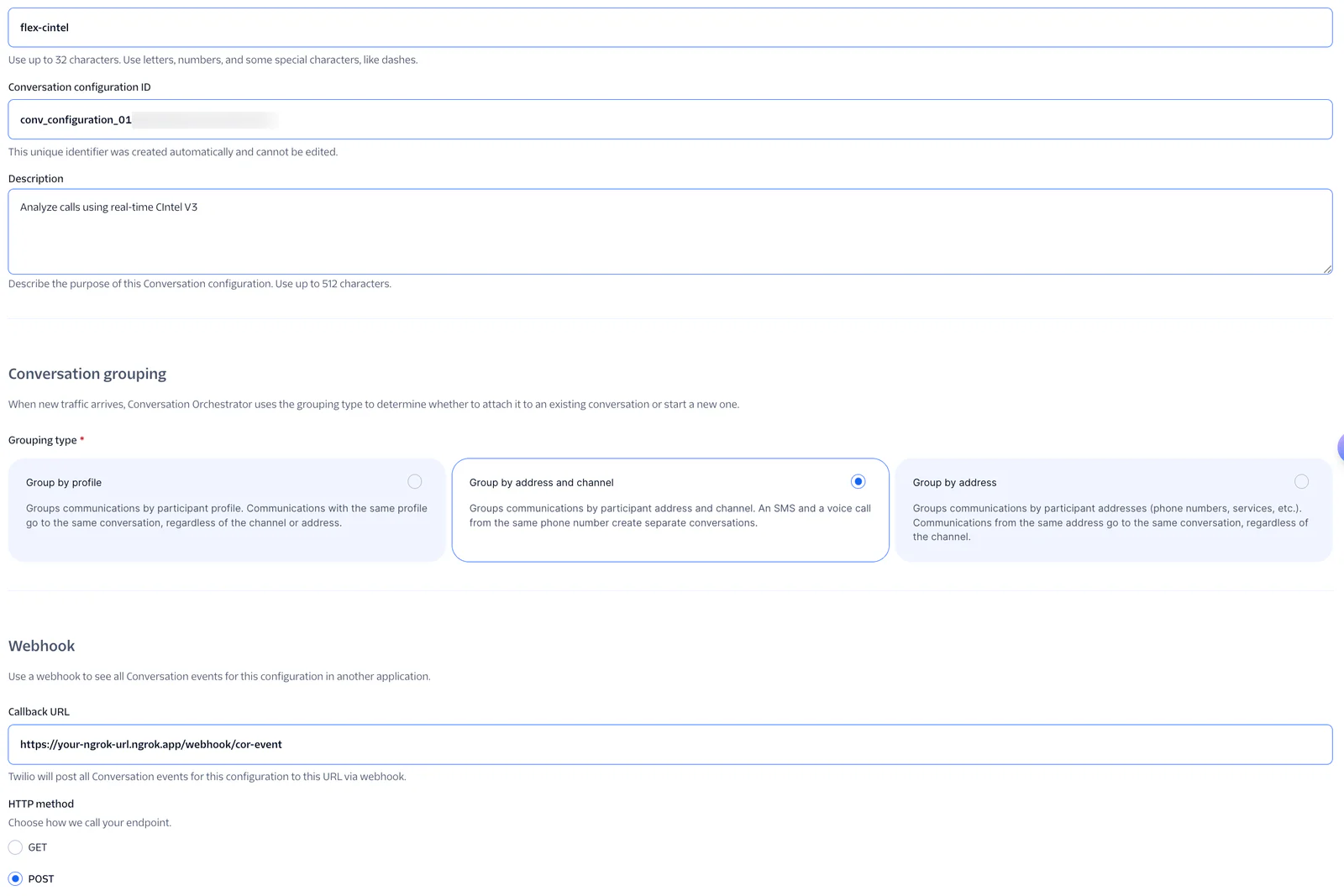
Point the webhook to the same ngrok service used in this demo, with the path /webhook/cor-event.
Click Next. For this demo, we are not setting up digital channels, so click Next again for Voice traffic.
For this demo, choose Capture automatically (passive ingestion) and check the Set up automatic capture checkbox. This means we will monitor everything on your voice number. To learn more about ingestion types, please review the documentation.
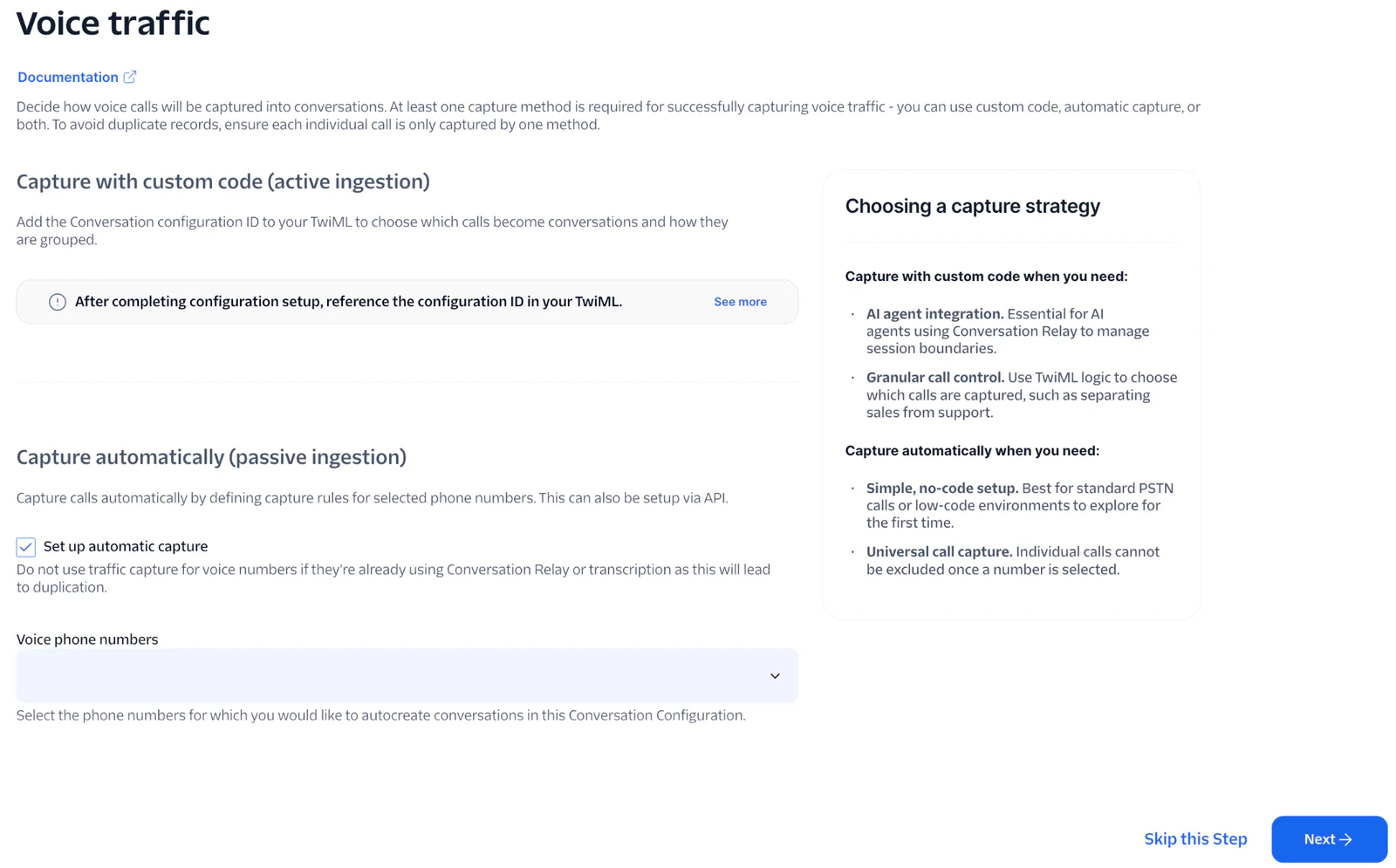
Click Next. On the Configure lifecycle screen, choose Basic and set voice calls to close On Hangup.
Click Next. On the Enable Conversation Memory screen, select an existing Memory Store or create one. Check the Turn on observations and summaries checkbox.
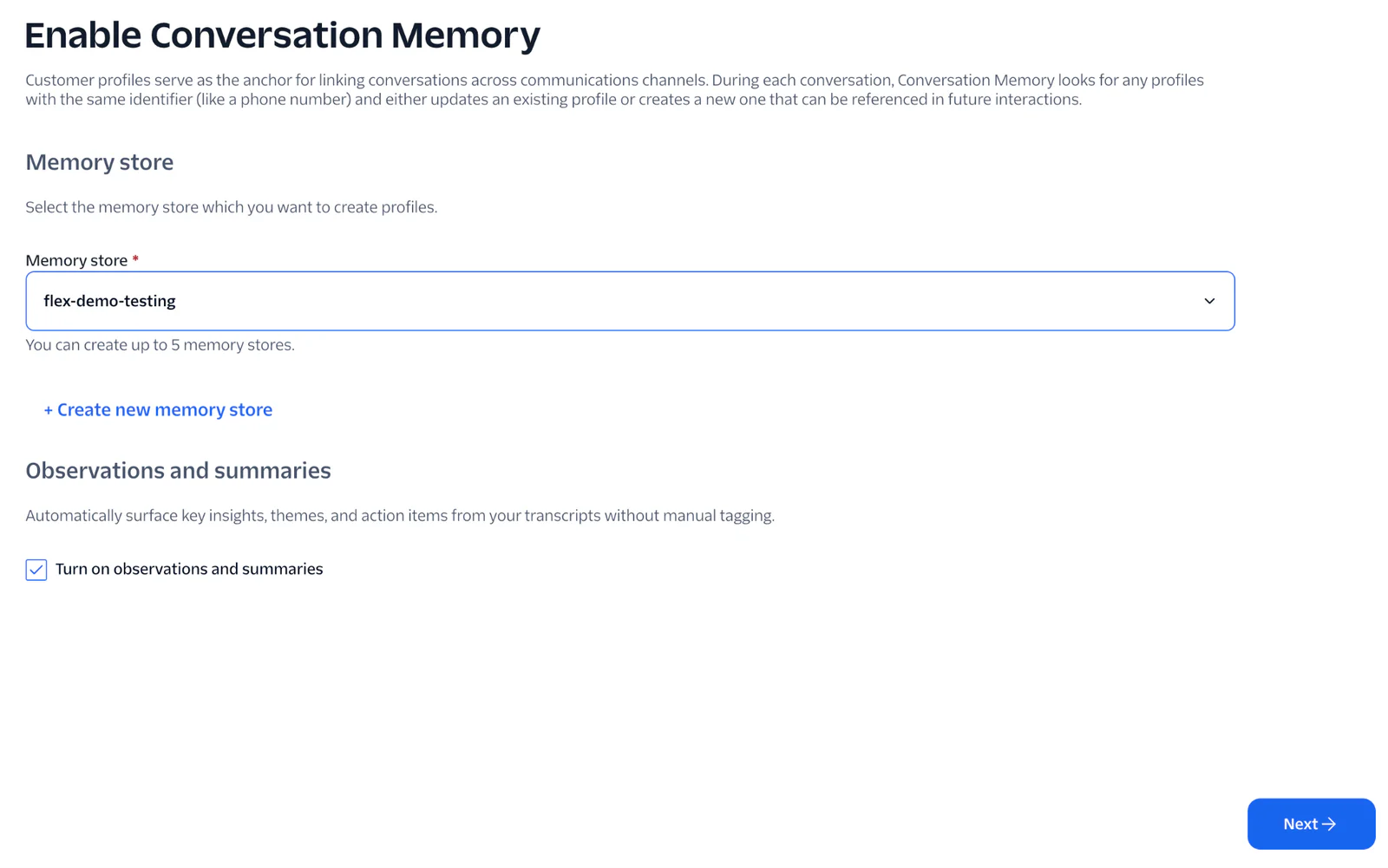
Click Next to review the Voice transcription screen and Next again to complete configuration.
Conversation Intelligence
Now we are ready to set up our Conversation Intelligence configuration with the agent adherence language operator.
In the Twilio Console, navigate to Conversation Intelligence: Intelligence configurations in the Products & Services area.
Select Create Intelligence configuration.
Provide a name and description, then select the Conversation configuration you just created.
This will create a new configuration. From the configuration list, select Create rule on your configuration.
Choose the built-in Script-Adherence operator. Click Next.
On the Set parameters screen, we have the ability to customize the behavior of this operator with our own rules. Paste the following script:
Click Next. On the Trigger and action screen, choose Custom Frequency and set this operator to run on every 1 (one) communication. We want this operator to check on every communication for adherence.
For the Webhook action, point to your ngrok server on the endpoint /webhook/cintel-action.
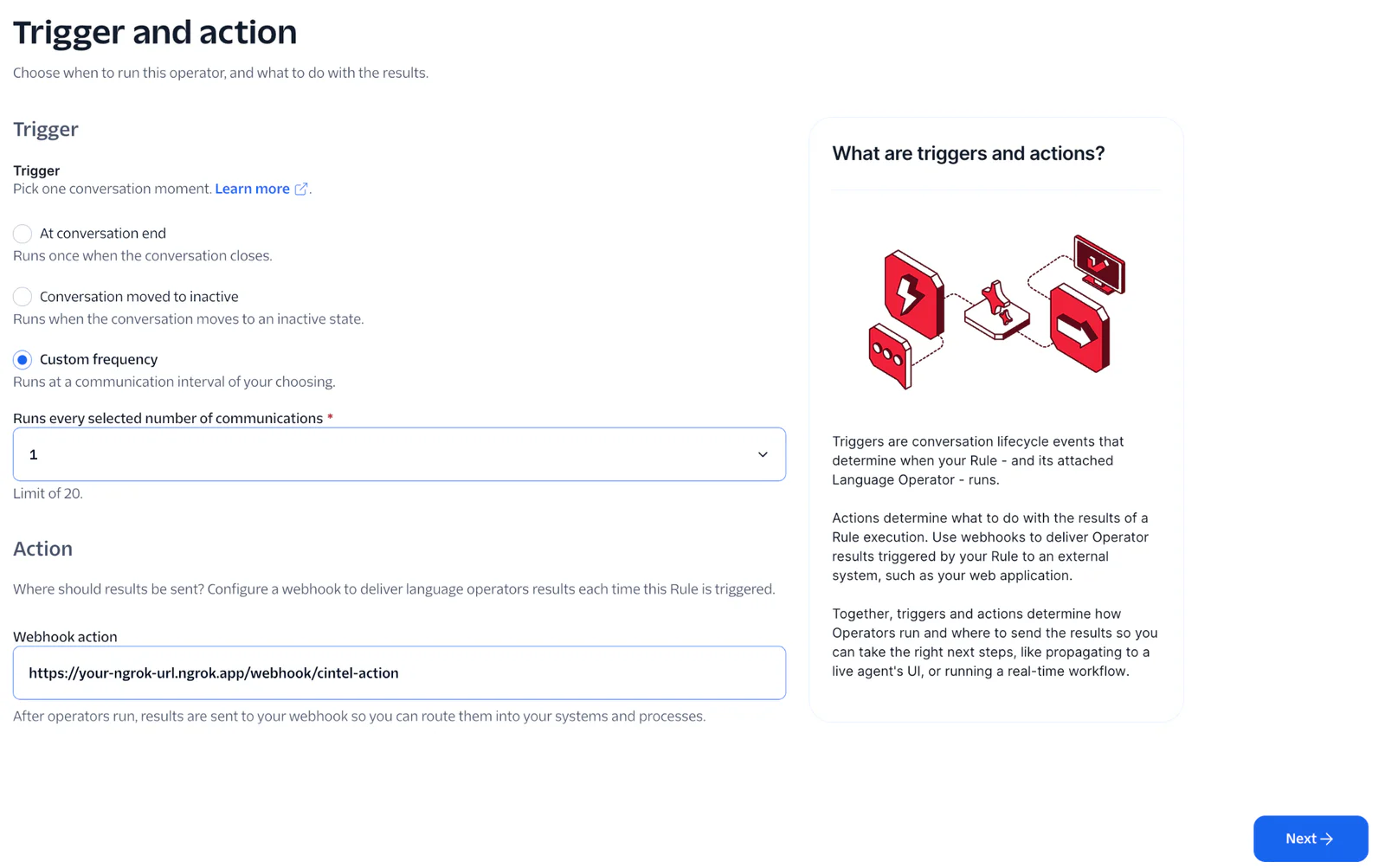
Click Next. On the Add context screen, check the Enable Conversation Memory for this rule checkbox.
Click Next, review the summary and finish creating the rule.
Add a Sentiment and Summary operator
Let's create one more rule, this time for Sentiment and Summary operators. While these could be created as part of the same rule set above, we probably don't need them to run on every message. Creating another Rule allows us to tune how we trigger the operators based on the desired outcome.
From the same Conversation Configuration, select Create Rule once again.
This time, choose Sentiment and Summary.
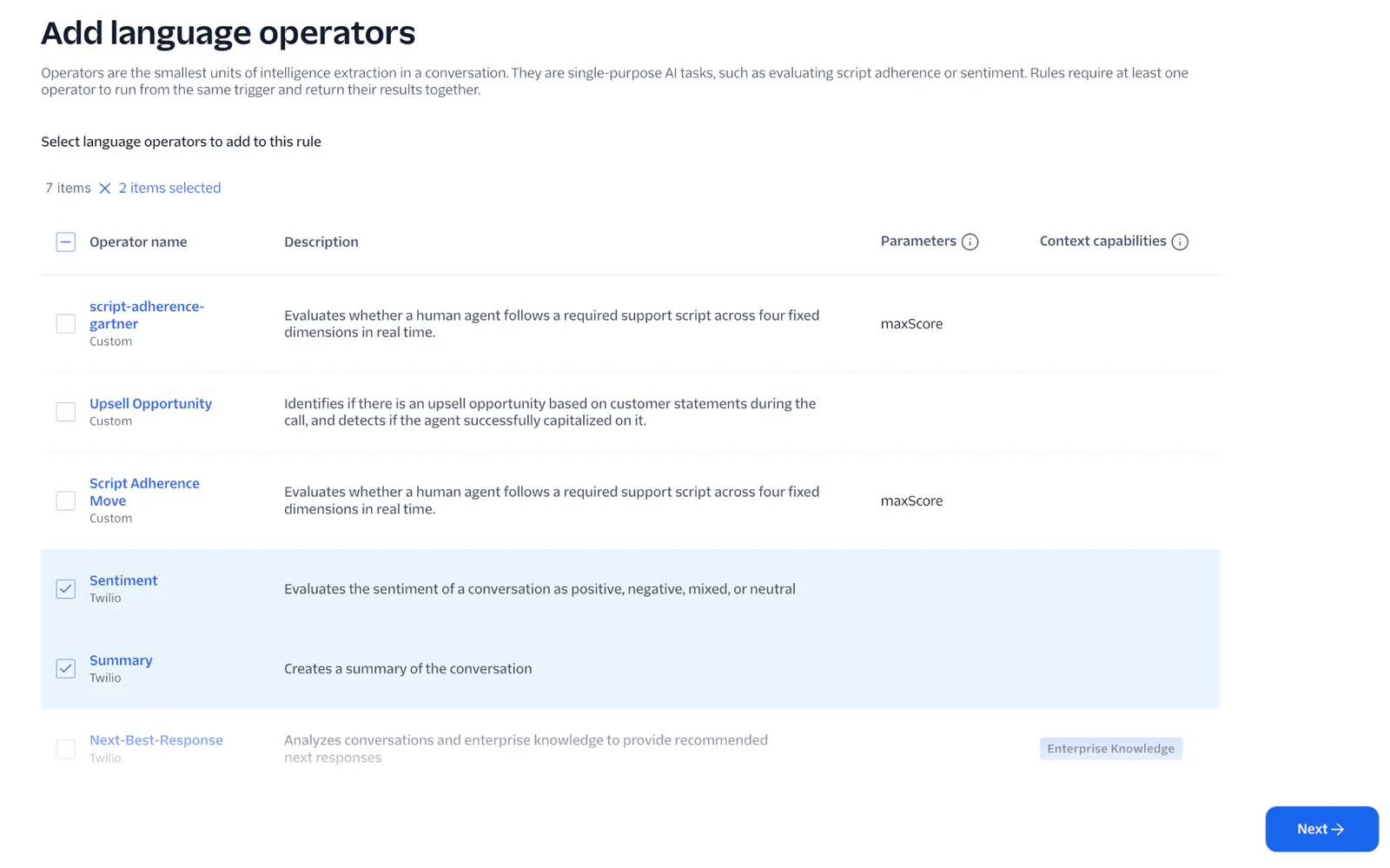
Click Next. No parameters needed here, so click Next again. But notice we do have the ability to version these operators.
On the Trigger and action screen, choose Custom Frequency and this time choose every 5 communications. You can experiment with this setting based on what works for the types of calls you receive. For this demo, we want to update the human agent with sentiment and summary information during the live call, but only on occasional intervals.
For the Webhook action, point to your ngrok server on the endpoint /webhook/cintel-action as before.
Click Next. On the Add context screen, check the Enable Conversation Memory for this rule checkbox.
Click Next, review the summary and finish creating the rule.
Deploy the Flex plugin
If you want to test the plugin locally first…
Confirm you are connected to the correct profile for your target Flex account.
Finally, deploy the UI component that the agents will actually use:
- Update webpack.config.js case statement to match your Twilio CLI profile name for your Flex account (replace FlexDemo in the repo sample)
- Copy .env.example to .env.production.
- Update plugin-cintel-rtt/.env.production with your backend URL.
- Run twilio flex:plugins:deploy using the example below. Replace the profile name with the name of your configured profile. This is what will target and deploy your environment variables correctly.
When the deployment completes, use the provided :release command to release your plug-in and make it active for agents.
Test the experience
- Start your local server: cd server && npm run dev.
- Open your Flex instance and set your status to Available.
- Start a call or SMS to the phone number configured in your Conversations Configuration.
- Accept the Task
- Watch the Magic: As you speak, the Agent View tab in Flex will automatically check off agent adherence steps ( Greeting, Identity, etc.) as the CIntel v3 operator detects them.
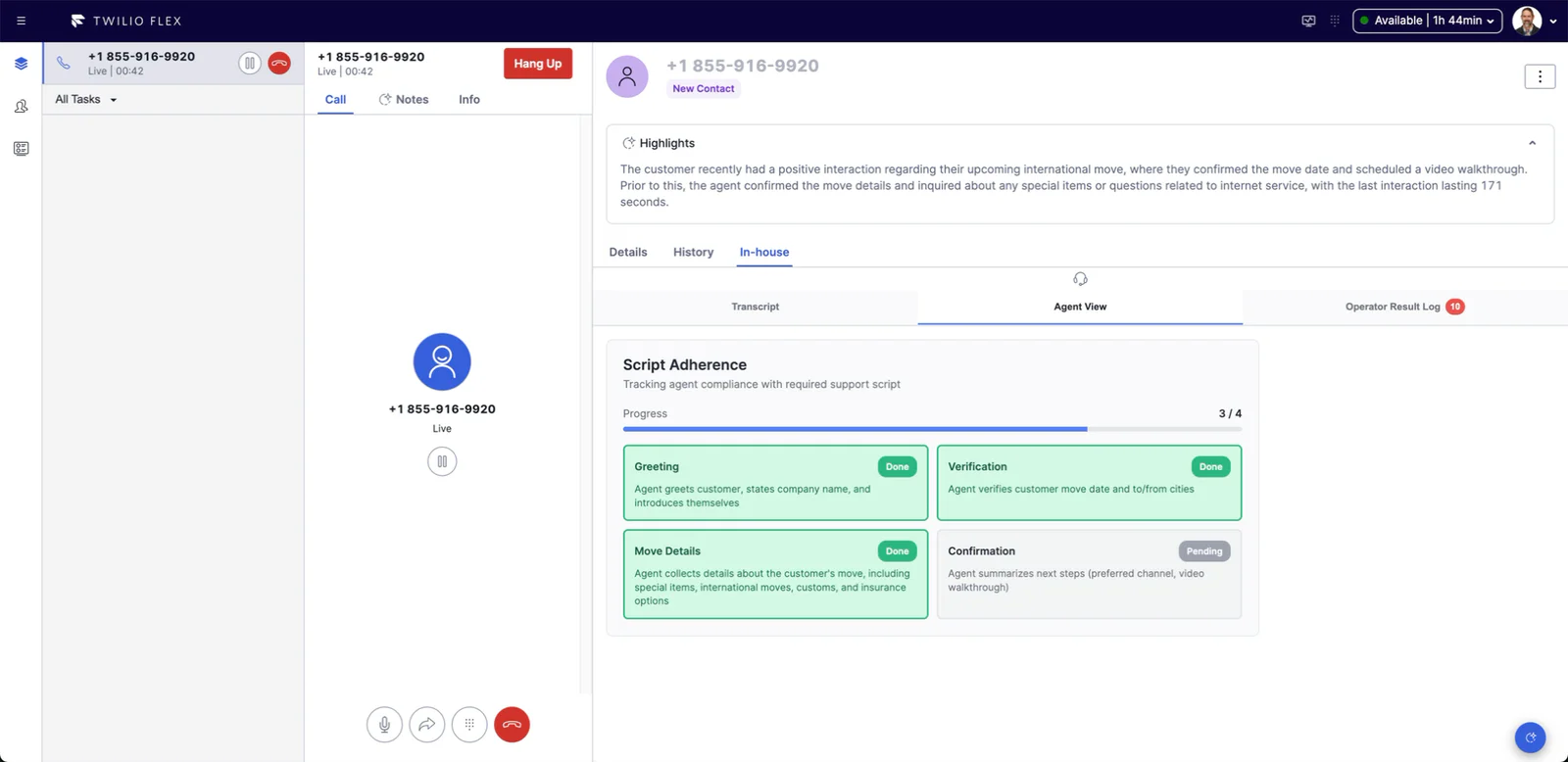
And hopefully, you see the magic, too! You now have a proof of concept Flex plug-in and configuration to use Conversation Intelligence real-time language operators to watch agent script adherence.
What’s Next?
Now that you have real-time script adherence working, you could expand this by adding a customer operator such as Upsell Opportunity.
Whatever you add, keep in mind that your plugin implementation needs to be aware of the types of language operator results it will receive. For this example, the plugin is responsible for taking the raw output, normalized by the server webhook implementation and figuring out how to display it.
Here are some pointers:
- If you update the steps in your Script Adherence operator, change
plugin-cintel-rtt/src/config/scriptDimension.jsonto match. - To show results for Summary and Sentiment, update
plugin-cintel-rtt/src/components/TranscriptPanel.tsxto show these above the transcript. - Operator results are processed in plugin-cintel-rtt/src/components/OperatorResultLog.tsx and used as props for the other components.
Alternatively, you could also decide to implement more logic in the backend server, with pre-defined message payloads for various types of results that your plugin knows how to display. That's the flexibility of the Conversation Intelligence language operator output, particularly if you create custom operators that define their own output schema.
Conclusion
We are super excited to provide this new functionality to explore using the latest Twilio Conversations platform capabilities with Flex. We imagine this will enable you to build better agent assistance to drive amazing customer experiences, improve agent productivity, and create better outcomes for each interaction.
Let us know how you end up using it – we can’t wait to see what you build!
Additional resources
Curtis Swartzentruber is a Flex specialist who has been working with Flex since the pre-beta days, first as a Flex partner and now as a Twilion. He’s a builder who is always looking for solutions that drive value for customers. Using cool tech is a bonus. He can be reached at cswartzentruber [at] twilio.com.
Ruma Nair is a Principal Product Manager focused on bridging the gap between advanced AI capabilities and measurable impact for workforce productivity and customer engagement.Her email address is rnair [at] twilio.com
Jeff Eiden is Director of Product Management at Twilio, focused on agentic conversational engagement. His email address is jeiden [at] twilio.com


Related Resources
Twilio Docs
From APIs to SDKs to sample apps
API reference documentation, SDKs, helper libraries, quickstarts, and tutorials for your language and platform.
Resource Center
The latest ebooks, industry reports, and webinars
Learn from customer engagement experts to improve your own communication.
Ahoy
Twilio's developer community hub
Best practices, code samples, and inspiration to build communications and digital engagement experiences.