How To Track User Events With Segment in Node.js
Time to read:
February 20, 2026
Written by
Reviewed by
AI generated summary
- Integrate Segment’s Node.js library for simplified event tracking and data routing.
- Server-side tracking with Segment ensures controlled data sending and eliminates extra front-end scripts.
- Use Segment's identify, track, and page methods to associate user actions and manage interactions.
This summary was generated by AI.
How To Track User Events With Segment in Node.js
Understanding how users interact with your application is essential for building better products and making data-driven decisions. Segment is a customer data platform that simplifies the process of collecting, cleaning, and routing user data to your analytics tools, marketing platforms, and data warehouses.
Instead of implementing multiple analytics libraries and managing separate integrations, Segment provides a single API that lets you send data once and route it to several destinations. This means you can add new analytics tools without changing your codebase.
In this tutorial, you'll learn how to create a Segment source and integrate Segment's Analytics Node.js library into your application to track user events, identify users, and send data to your preferred destinations.
Prerequisites
- A Segment account - Free tier available
- Node.js v18 or higher installed on your machine
Client-Side vs Server-Side Tracking
Segment offers two approaches for collecting analytics data: client-side tracking with Analytics.js running in the browser, or server-side tracking with libraries like Analytics for Node.js (which is what this tutorial will use).
This tutorial uses server-side tracking, which gives you full control over what data is sent to Segment and eliminates the need for other scripts in your frontend. If you need automatic client-side tracking, you can use Analytics.js alongside your server implementation.
Setup Application
Create a Segment Source
Before writing any code, you'll need to create a Source in Segment. A Source is where your data originates. For this project, your source will be your Node.js application.
Log in to your Segment workspace and navigate to Connections > Sources from the left panel.
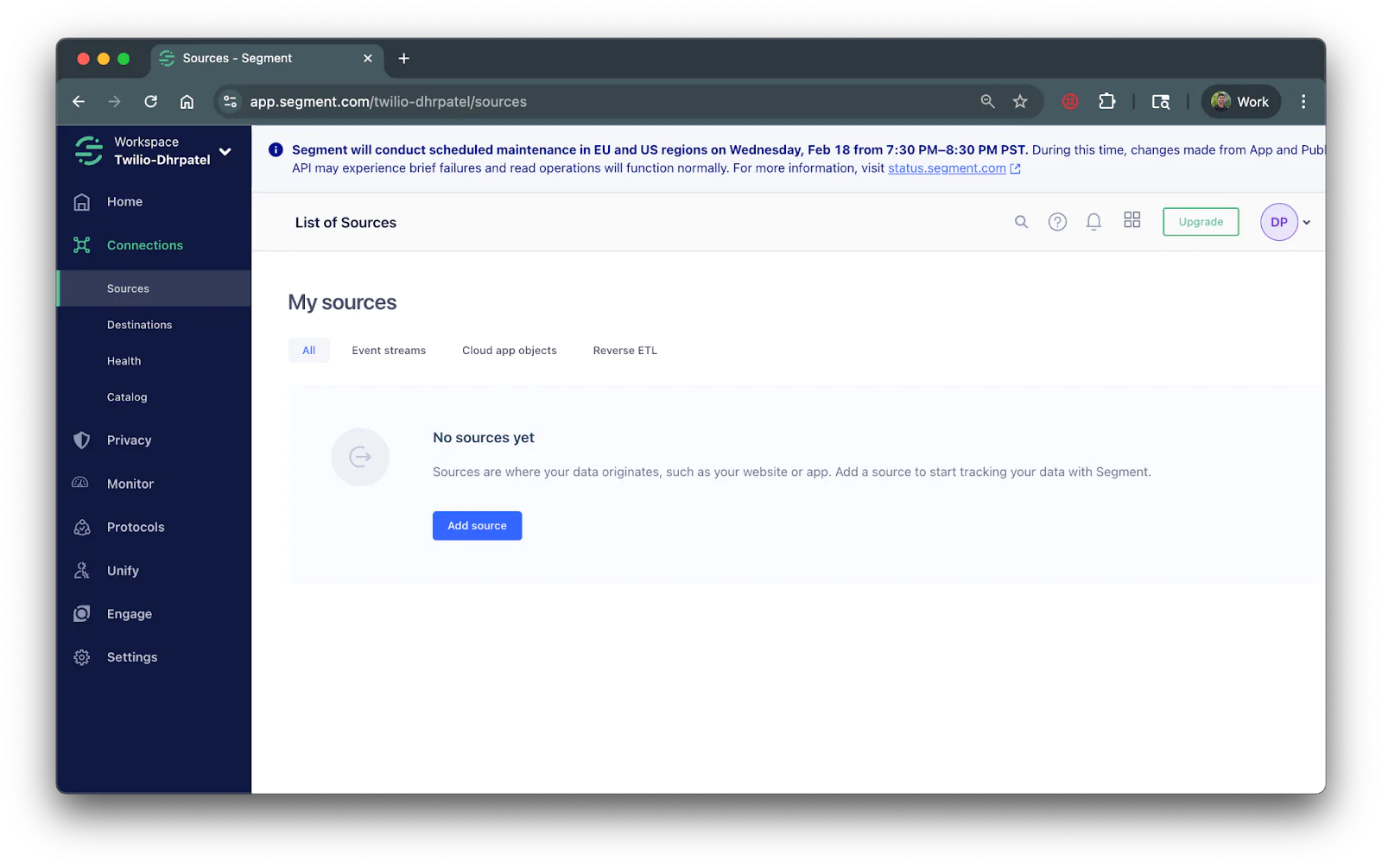
Click Add Source, search for Node.js and select it.
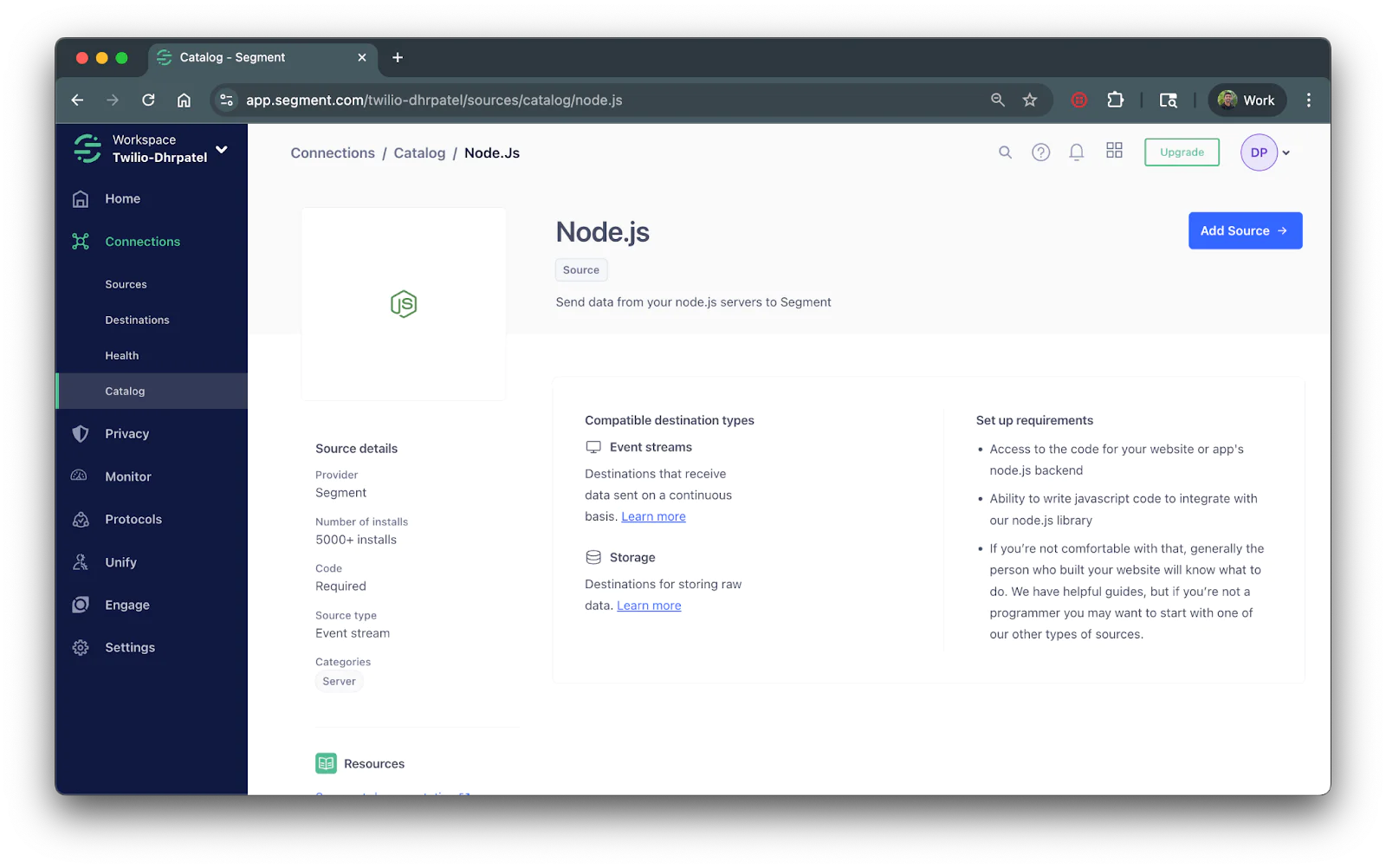
Once you find Node.js from the catalog, click Add Source and give your source a name (e.g., "My Node App").
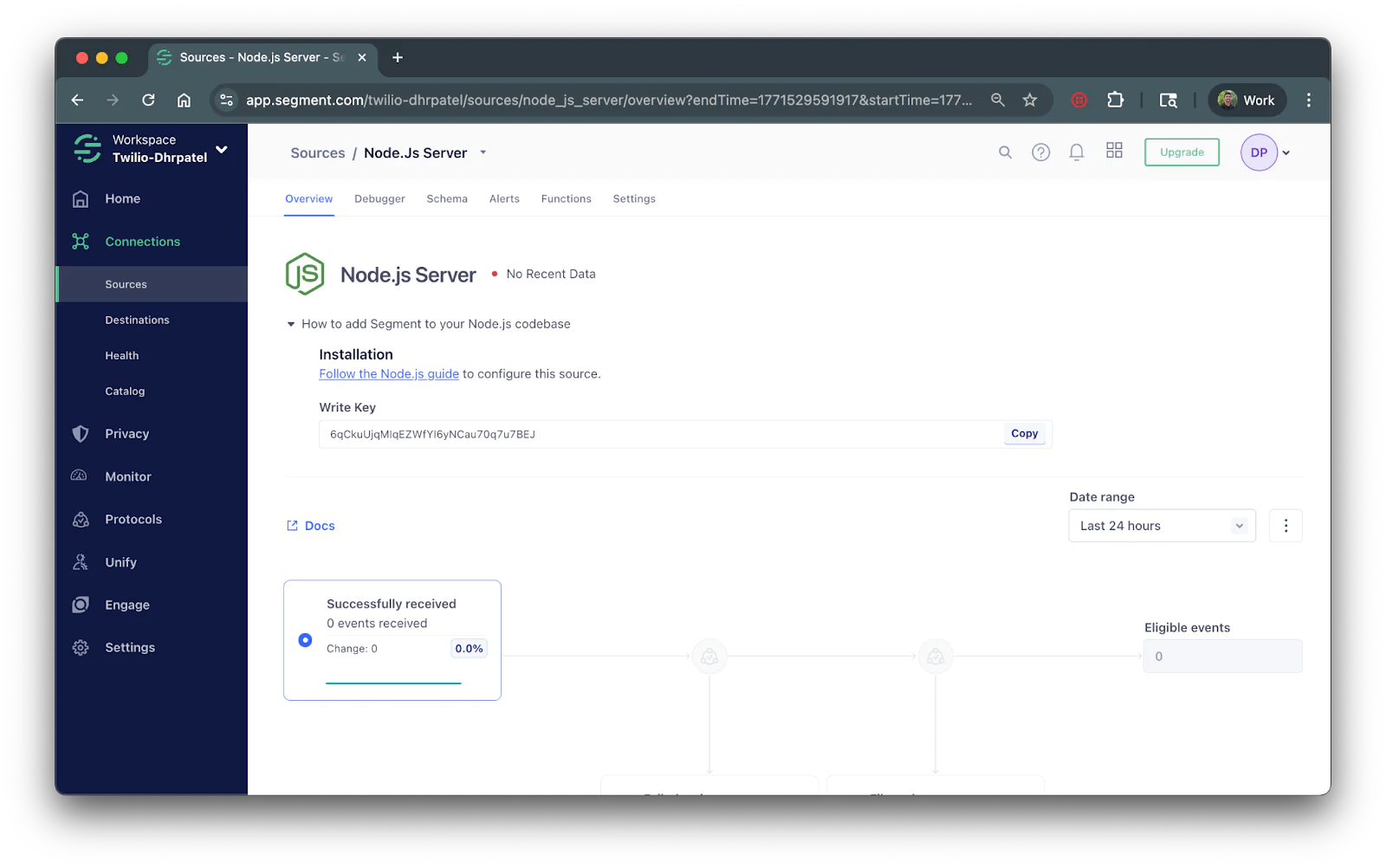
Click Add Source and you’ll see your Write Key on the source overview page. This key authenticates your application with Segment.
Take note of the Write Key this as you’ll need it for the next section
Set up a Node.js Application
You'll start setting up your application by initializing a Node.js project, installing the dependencies you'll need and setting environment variables.
Initialize a Node.js project
Open up your terminal, navigate to your preferred directory for Node.js projects, and enter the following commands to create a folder, change into it, and initialize a Node.js project:
Install the required dependencies
Next, run the following command to install the dependencies you'll need for this project:
- @segment/analytics-node - Segment's official Node.js library for tracking events and identifying users
- express - For building your server and handling HTTP requests
- dotenv - To load environment variables
Import Environment Variables
Using your preferred text editor or IDE, open up your segment-tracking directory, create a .env file and place the following within the file:
Replace XXXXXX with your Write Key from the Segment dashboard (from the previous section) and save the file.
Segment's Core Methods
Before diving into the code, let's understand the six core methods that make up Segment's Spec:
|
Method |
Purpose |
When To Use |
|---|---|---|
|
Associates a user with their traits |
When a user signs up, logs in, or updates their profile |
|
|
Records actions users perform |
When a user completes an action (purchase, click, form submit) |
|
|
Records page views |
When a user requests a web page |
|
|
Records screen views |
When a user views a screen in a mobile app |
|
|
Associates a user with a company or org |
When linking users to accounts in B2B applications |
|
|
Merges two user identities |
When linking an anonymous user to an identified user |
These methods form the foundation of Segment's Spec, a standardized way of structuring your analytics data that ensures consistency across all your tools.
In this tutorial, we'll focus on identify, track, and page, and since they're most relevant for server-side Node.js applications. The screen method is typically used in mobile SDKs, and alias is primarily needed when migrating from other analytics tools or handling specific identity resolution scenarios.
Initialize the Segment Client
Now create a file called index.js within the segment-tracking directory. This file is where you'll write the code to track user events.
Open the index.js file and add the following code to initialize the Segment client:
This code loads your environment variables, sets up an Express server and creates a new Segment Analytics client using your Write Key.
This code also includes mock helper functions (createUser and processOrder) to demonstrate the Segment integration. In a production application, these functions would interact with your actual database and authentication system.
Identify
The identify method lets you tie a user to their actions and record traits about them. You should call identify when a user first signs up, when they log in, or when their profile information changes.
Add the following signup route to your index.js file:
The traits object can contain any information about the user that you want to record. Common traits include:
- email - The user's email address
- name - The user's full name
- plan - The user's subscription tier
- createdAt - When the user account was created
- company - The user's company name
Track
The track method records specific actions your users perform. Every action triggers an event with a name and optional properties that describe the action. You should call track directly in the route handlers where the action occurs.
For logged-in users, use their userId. For anonymous users, use an anonymousId which you can generate from their session ID or another unique identifier.
Add the following checkout route to your index.js file:
Page
The page method records whenever a user views a page in your application. This is essential for understanding user navigation patterns, measuring content engagement, and optimizing your user experience. You should call page directly in the route handlers that serve your pages.
Add the following routes to your index.js file:
You can also use middleware to automatically track page views across all routes:
This middleware will track page views only when a userId or anonymousId is available. The check if (req.method === 'GET' && (userId || anonymousId)) ensures we only attempt to track when at least one identifier exists, as required by Segment.
Start the Server and Handle Graceful Shutdown
Now that you've added all the routes, you need to start the Express server to listen for incoming requests.
Additionally, Segment's Node.js library batches events and sends them asynchronously for better performance. To ensure all events are sent before your application shuts down, you should flush the client and close it gracefully.
Add the following code to the end of your index.js file:
The app.listen() method starts the Express server on port 3000. The closeAndFlush() method ensures that any queued events are sent to Segment before the process exits when you stop the server.
Test Your Integration
Now it's time to test out your Segment integration. Start your server by running:
In a production setting, these endpoints would be called from your frontend application. For example, when a user submits a signup form or clicks a checkout button. For testing purposes, you'll manually send requests using curl to simulate these interactions.
Open a new terminal window and use curl to test your routes.
Sign up a new user (identify method)
Run the following command on your terminal:
Complete a checkout (track method)
Run the following command on your terminal:
View pricing page (page method)
Run the following command on your terminal:
This passes an anonymousId as a query parameter for testing purposes.
View Segment dashboard
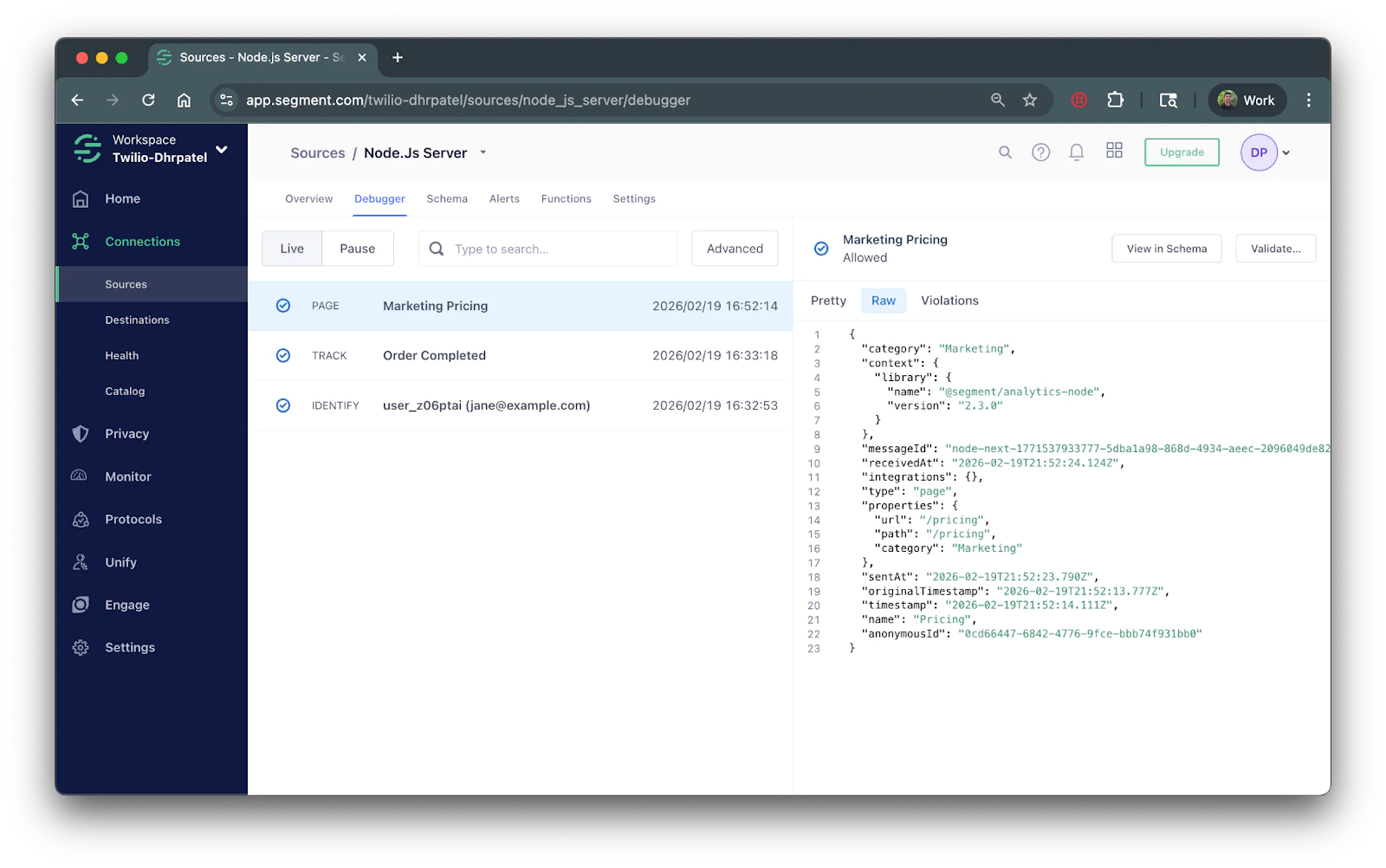
After sending these requests, head back to your Segment dashboard and navigate to your Source's Debugger tab. You should see your events appearing in real-time:
Add Destinations
Now that your events are flowing into Segment, you can route them to any of Segment's destinations. To add a destination:
- In your Segment workspace, go to Connections > Destinations
- Click Add Destination
- Search for and select your preferred destination
- Follow the setup instructions for that destination
- Connect it to your Node.js source
Once configured, your tracked events will automatically flow to your new destination without any code changes.
What's Next?
You've successfully integrated Segment into your Node.js application and learned how to identify users and track events. Here are some ways to enhance your implementation:
- Set up a tracking plan to standardize your events and ensure data quality across your team
- Use Segment Functions to transform or enrich your data before it reaches destinations
- Implement Personas to build unified customer profiles and create audiences for targeted campaigns
- Add more destinations to route your data to analytics, marketing, and data warehouse tools
For more advanced use cases, check out Segment's documentation and their Analytics Node.js library reference.
Dhruv Patel is a Developer on Twilio's Developer Voices team. You can find Dhruv working in a coffee shop with a glass of cold brew or he can be reached at dhrpatel [at] twilio.com .

Related Resources
Twilio Docs
From APIs to SDKs to sample apps
API reference documentation, SDKs, helper libraries, quickstarts, and tutorials for your language and platform.
Resource Center
The latest ebooks, industry reports, and webinars
Learn from customer engagement experts to improve your own communication.
Ahoy
Twilio's developer community hub
Best practices, code samples, and inspiration to build communications and digital engagement experiences.