Recipe
Removing PHI for Google Analytics Website Tracking
How healthcare customers can use Twilio Segment to remove HIPAA identifiers before sending data to Google Analytics.
What do you need?
-
Twilio Segment Connections
-
Google Analytics 4 Account
On this page
Please note that this post merely provides an overview of possible uses of Twilio Segment and is not considered legal advice or methods of compliance with HIPAA. It should not be taken or used as legal advice about the privacy, security, protection or use of data in healthcare or in compliance with HIPAA.You should consult with your legal and/or security experts as needed before implementing solutions for any use case.
Recently, The U.S. Department of Health and Human Services (HHS) updated guidance on the use of web tracking technologies by HIPAA Covered Entities. This update reinforces that additional safeguards are required when processing Protected Health Information (PHI) with tracking platforms like Google Analytics (GA). While certain provisions were legally challenged in June, most of the Bulletin remains intact and is actively enforced by HHS.
This increased stringency leaves healthcare organizations in a difficult position. Google Analytics is vital to their digital marketing strategies, offering critical insights into patient engagement. However, to comply with HIPAA, Covered Entities are rethinking how they use these tools and exploring features that can limit the risk of PHI disclosure.
As part of this bulletin, HHS explained that such tracking technologies may be subject to HIPAA and healthcare organizations that use such tracking technologies must ensure they comply with the applicable obligations under HIPAA. In addition, the updated guidance addressed the use of Customer Data Platforms (CDP) as a possible means to support compliance when using web tracking vendors like Google Analytics.
This Recipe provides an example of how to configure Twilio Segment to strip identifiers from web tracking data before it reaches Google Analytics. Additionally, we’ll cover how to replace problematic tracking pixels with Twilio Segment’s CDP, ensuring only specific event properties of interest are collected, rather than indiscriminately tracking everything by default.
How You Can Configure Twilio Segment to Remove PHI for Website Tracking
By configuring Twilio Segment to remove HIPAA identifiers before sending data to web tracking vendors, healthcare organizations can reduce risk of unauthorized PHI disclosures.
There are two main capabilities of Twilio Segment that support PHI removal:
PHI Filters that support removal of HIPAA Identifiers before sending any data to GA as a Destination.
Cloud-Mode Destinations that replace indiscriminate pixel tracking with a server-to-server architecture where all disclosed data must be specifically allowlisted.
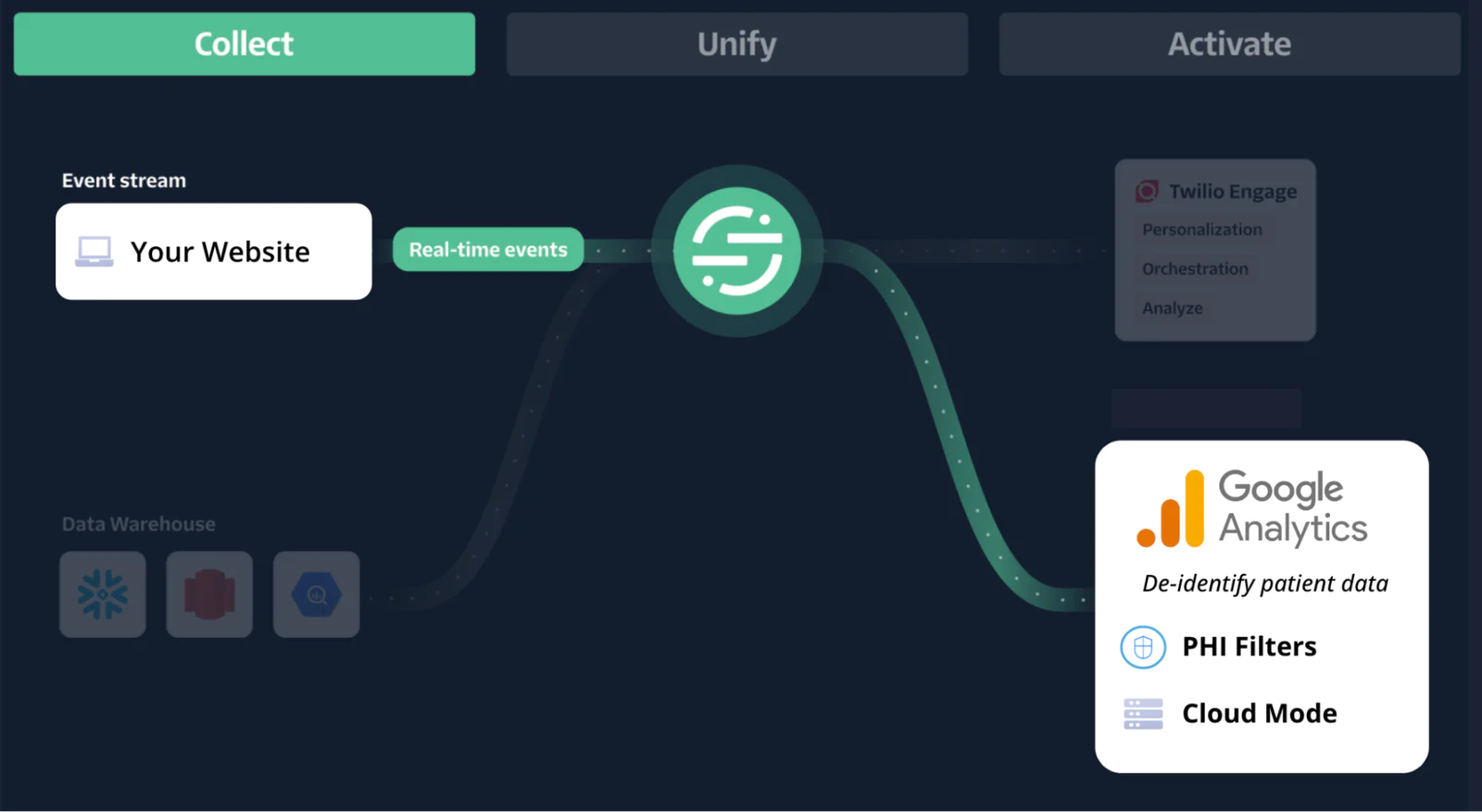
Let’s now walk through how to configure the Google Analytics Destination with these features enabled, so you can continue tracking patient website activity.
Step 1: Set up your Website as a Source
If you haven’t done so already, the first step is to add your organization’s website as a Source. This allows website analytics data to flow from your site to Twilio Segment, rather than from your site to Google Analytics directly.
This involves installing Twilio Segment on your website. To do this, please follow the steps outlined in the Basic Twilio Segment Installation guide. For most customers, we recommend setting up your website as a JavaScript source, which is the most straightforward configuration that allows you to send tracking data from a front-end web browser to Twilio Segment.
Once you’ve installed Twilio Segment on your site, your Connections overview page in your Workspace should list your website as an enabled source, as shown below:
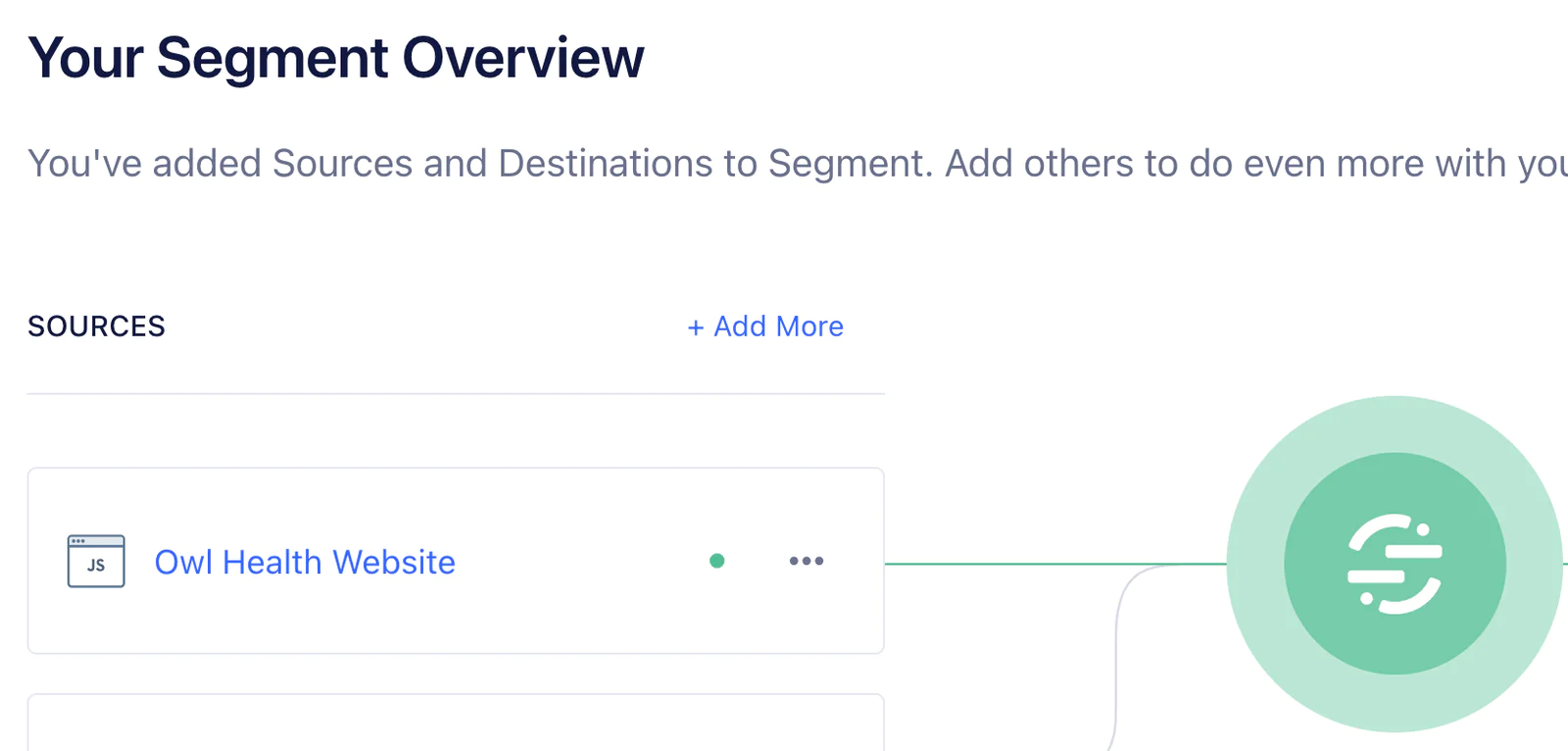
The next step is to use Twilio Segment primitives to record page views and track the visitor actions you’re interested in. Here are the core Twilio Segment APIs you can call from your website:
Page: What web pages are being visited?
Track: What are visitors doing on my site?
Identify: Who are the visitors?
As a best practice, you should only collect traits and properties that you deem necessary for your use cases, and ensure these PHI/PII traits and properties are removed before transmission to a Twilio Segment Destination like Google Analytics.
Once this is done, be sure to remove any existing Google Analytics tracking code snippets you’ve previously added to your website.
Step 2: Enable Google Analytics Cloud-Mode Destination
Once you have Twilio Segment set up on your website, and have confirmed data is successfully flowing into the CDP (you can verify this using the Source debugger), the next step is to add Google Analytics as a Destination in your Workspace.
Enable the GA Cloud Destination rather than the Web Destination. Whereas the Web Destination sends data directly to Google, the Cloud-Mode Destination uses server-side tracking – sending analytics first to Twilio Segment, then onto GA. This is important for two main reasons:
This eliminates the use of risky client-side cookie or pixel tracking that could result in unintended exposure of PHI
Enables application of a filter to events to remove PHI before transmitting to Google Analytics (covered in Step 3 below)
Add the Destination
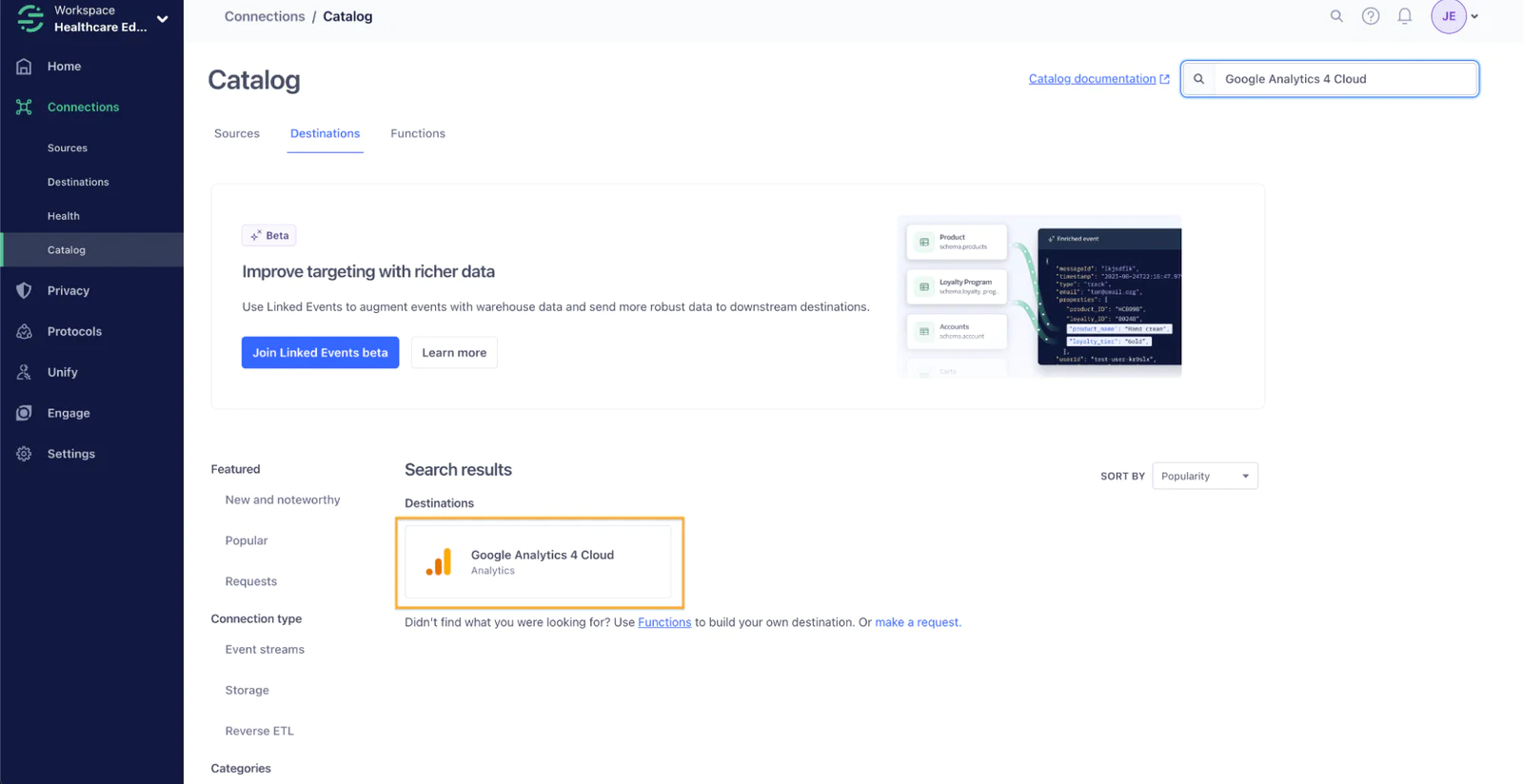
To enable the GA Cloud Destination, navigate in your Twilio Segment Workspace to Connections > Catalog and search for “Google Analytics 4 Cloud”. Click on the search result as shown below:
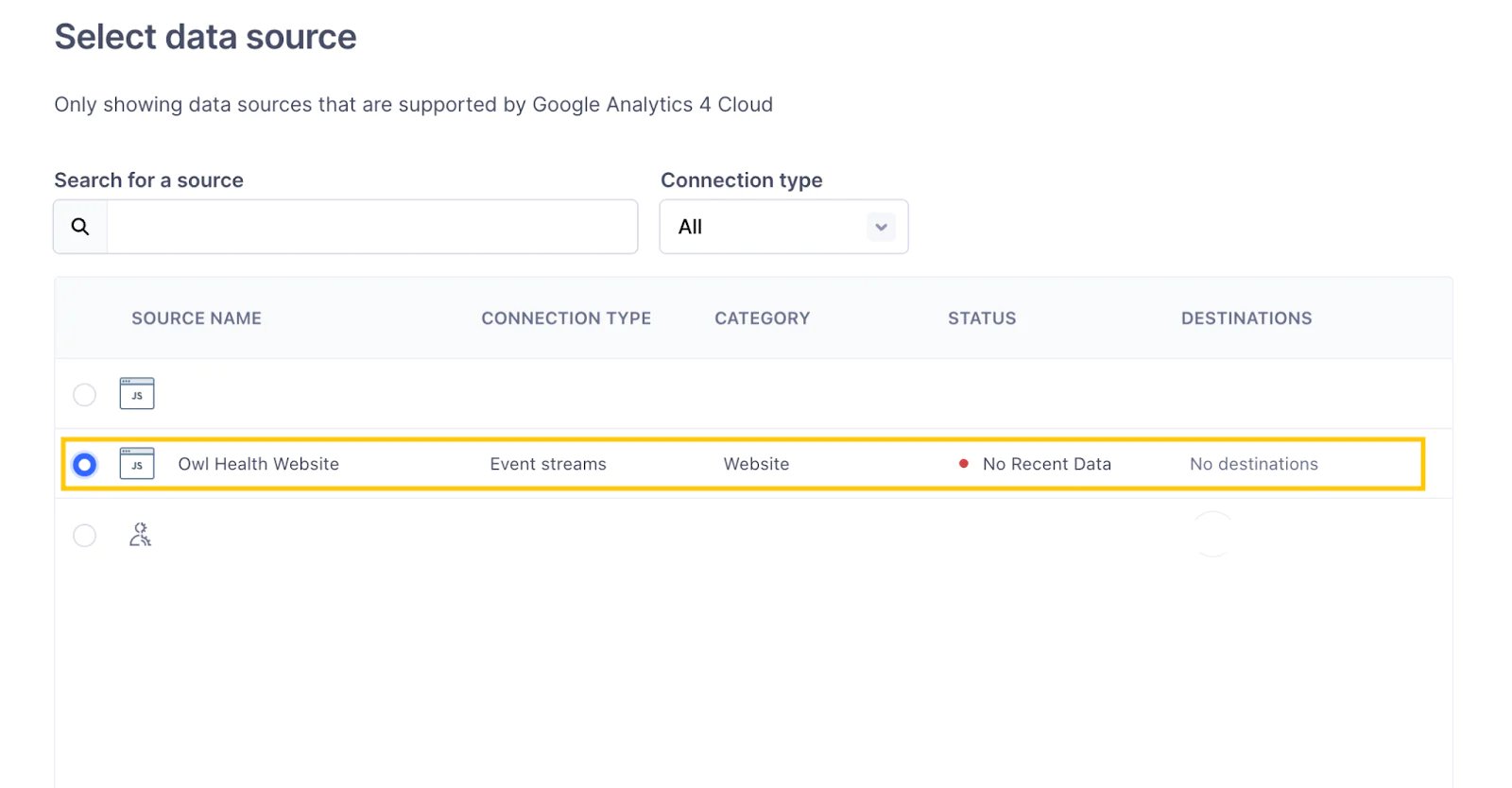
This will kick off a process to configure the Destination. You’ll first be asked to select a data source for the Destination. Be sure to choose the Website Source you set up in the previous step, this will connect your site’s data entering Twilio Segment to forward onto Google Analytics:
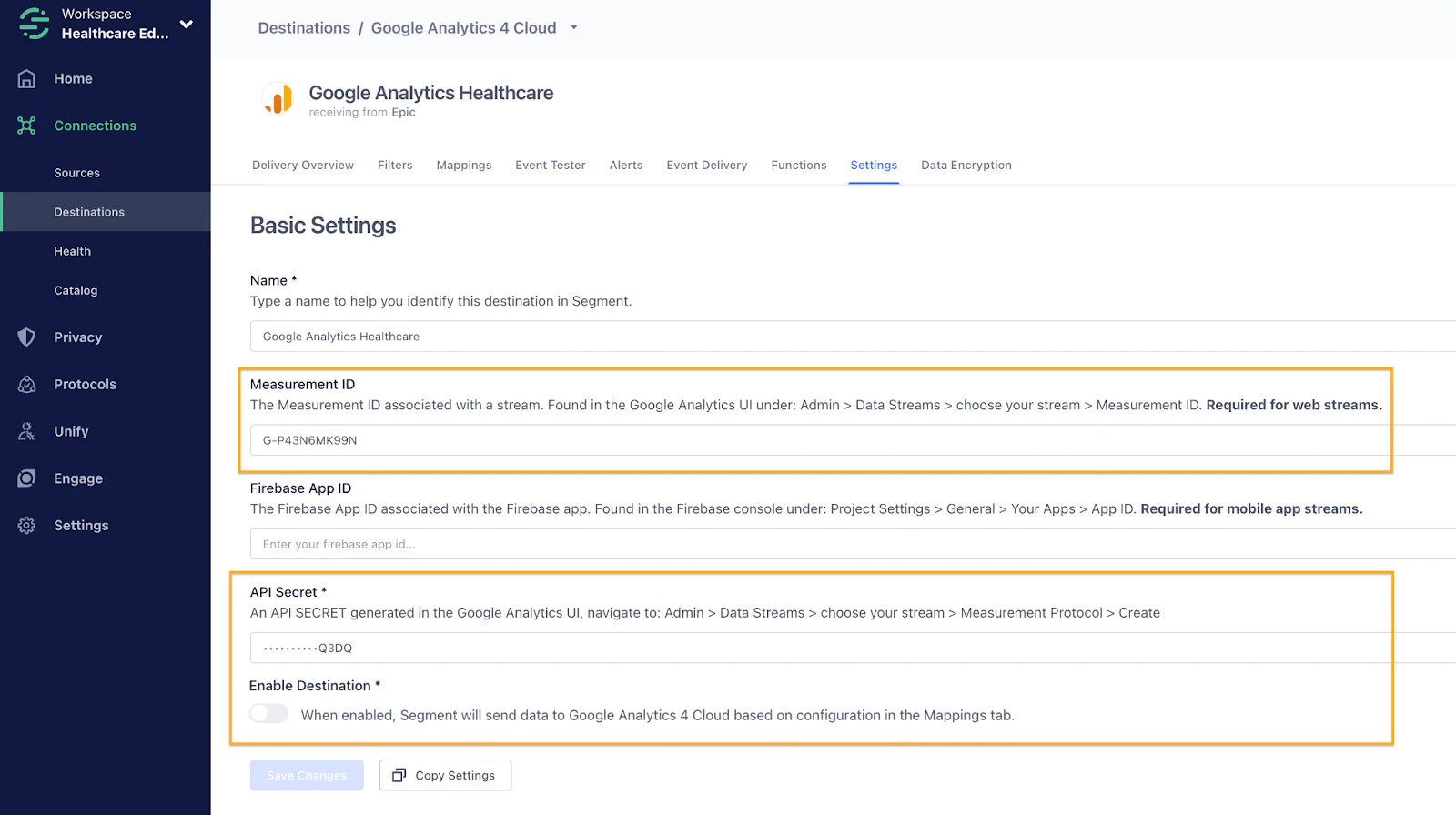
You’ll give your Destination a friendly name, then you’ll need to add your Google Analytics Measurement ID and API Secret so Twilio Segment can successfully authenticate with your GA instance. For more information on finding these secrets, please see the docs on the GA Cloud Destination.
For now, you can leave the Destination Disabled. You should flip this to Enabled only when you have the Destination Filters set up to avoid any potential data leaking.
When done, your Destination Settings page should look like this:
Set up Mappings
Once the Destination has been added, you’ll need to set up Mappings. This is what allows you to configure how the data from your website is mapped to Google Analytics. With Mappings, you have fine-grained control over precisely what events, properties, and metadata are transmitted to GA.
There are many available pre-built Actions you can choose from, including Page View, View Promotion, Login, Search, and more. Please see the GA Cloud Destination docs for more details on available Action Mappings you can enable and the specific data signature sent to Google.
To add an Action Mapping, click on the Mappings tab and click the +New Mapping button. As an example, here’s how you can set up the ‘Page View’ Action to stream a page view event when a user views a page:
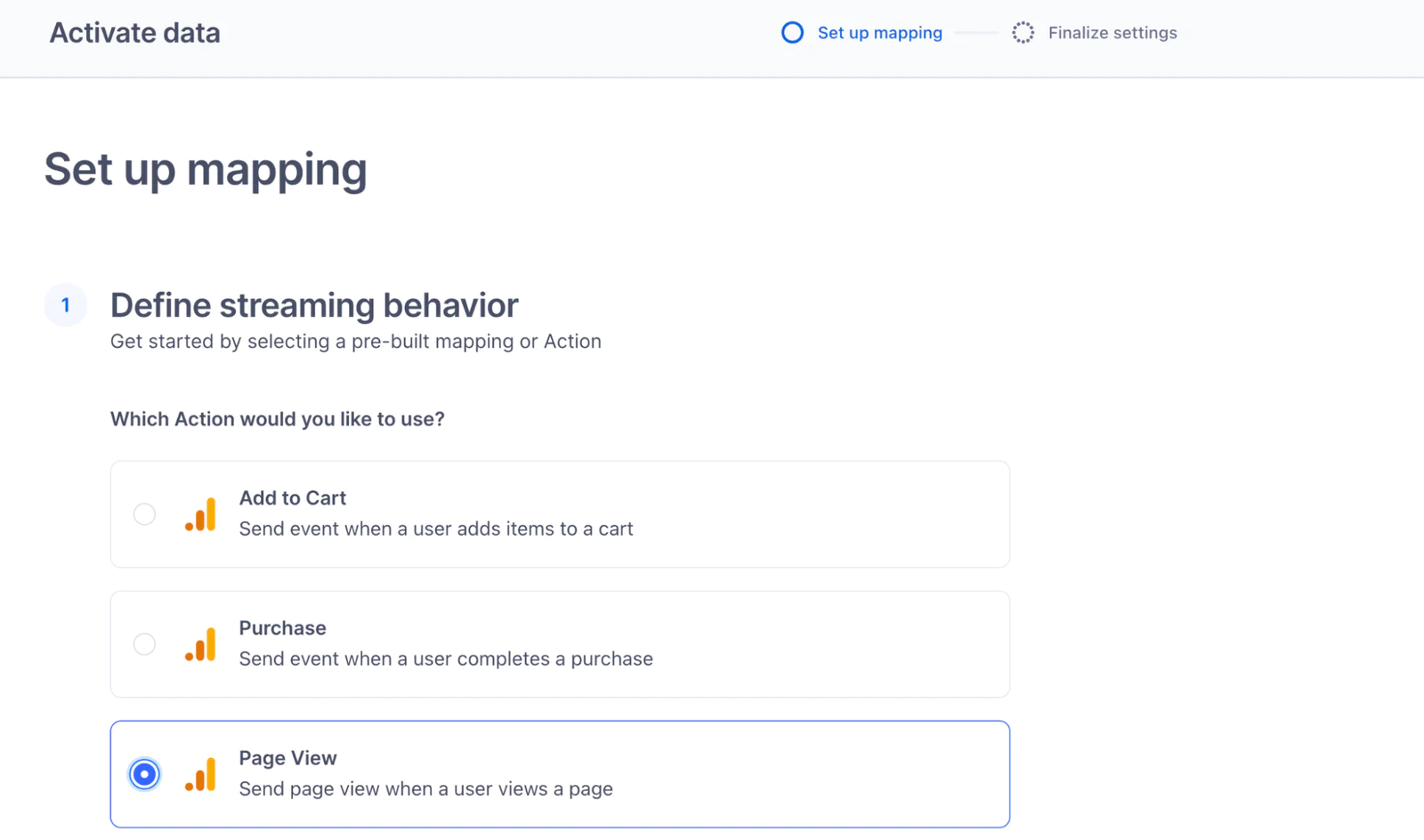
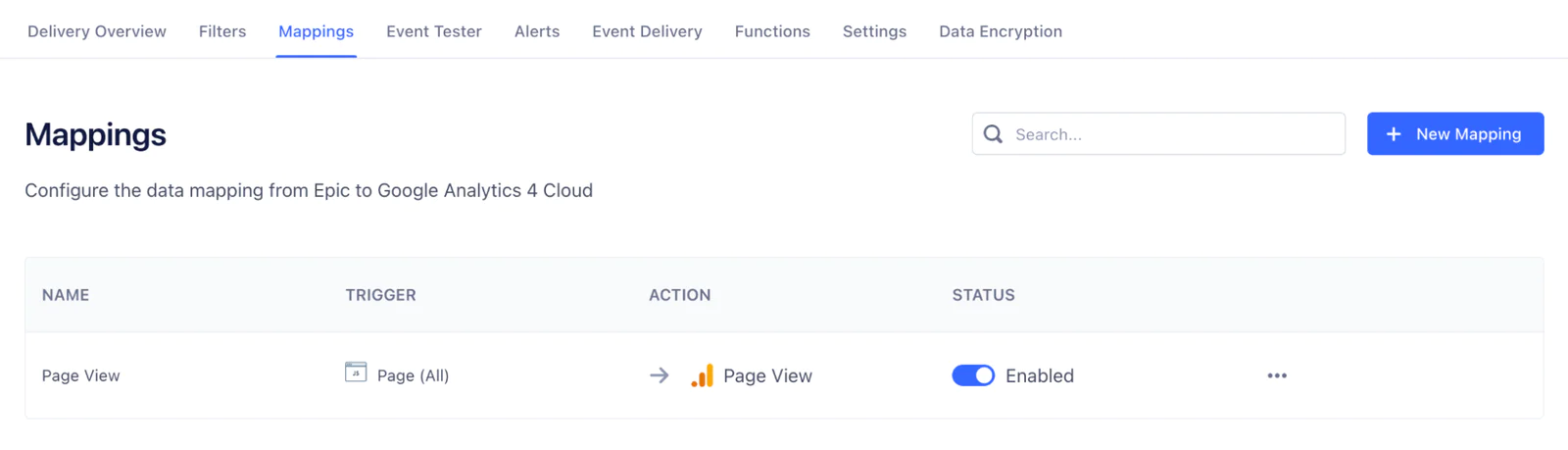
Once you finish setup including giving the Mapping a friendly name, you should see it enabled on your Mappings list:
Step 3: Apply Destination Filters to Remove PHI
Once we have the GA Cloud Destination set up, the final step is to apply a Destination Filter. Destination Filters are used to prevent certain data from flowing into a destination. This is where you will remove HIPAA identifiers from events that flow from Twilio Segment to Google. Healthcare organizations should conduct a thorough review of the data they send to ensure that all HIPAA identifiers are properly handled in compliance with their own assessments and compliance obligations.
Note that it is also possible to use data encryption for the purposes of removing PHI, but this guide will focus on the use of Destination Filters.
You will have full visibility into the PHI that you are sending from your website into Twilio Segment, and how this data is named/formatted. Therefore, it is your responsibility to set up the Destination Filter rules to target all the PHI that will be sent into the CDP, so it is blocked from entering Google Analytics.
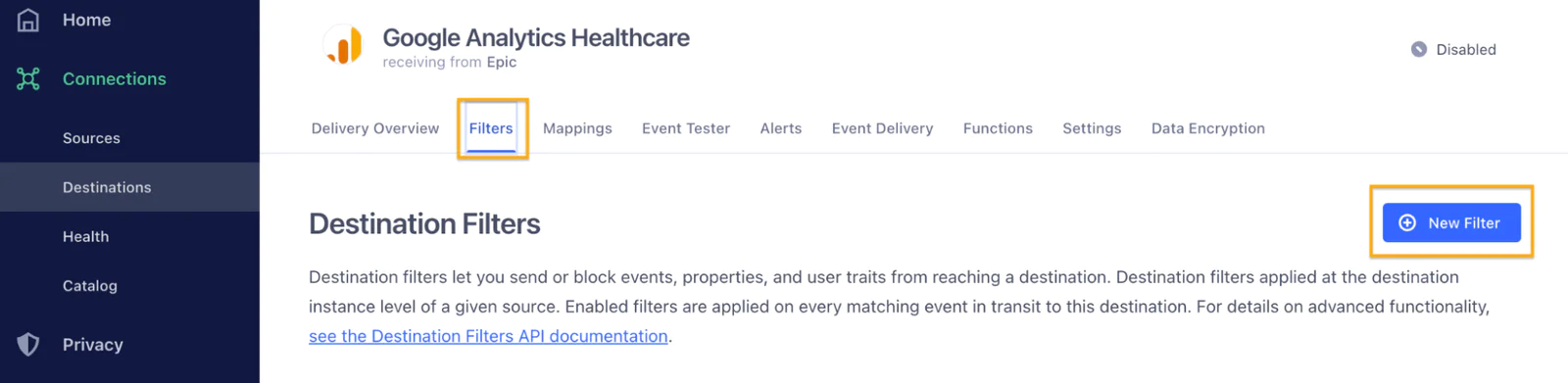
To create a Destination Filter, Click on the Filters tab in the GA Cloud Destination screen, then click the +New Filter button:
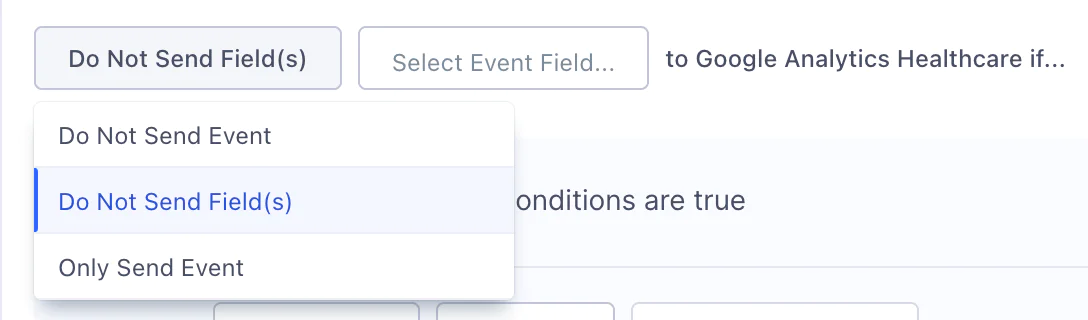
This will open up a window to configure the Destination Filter rules. Because we’re wanting to remove certain fields containing PHI but still send events to GA, change the filter type to “Do not send Field(s)” using the dropdown:
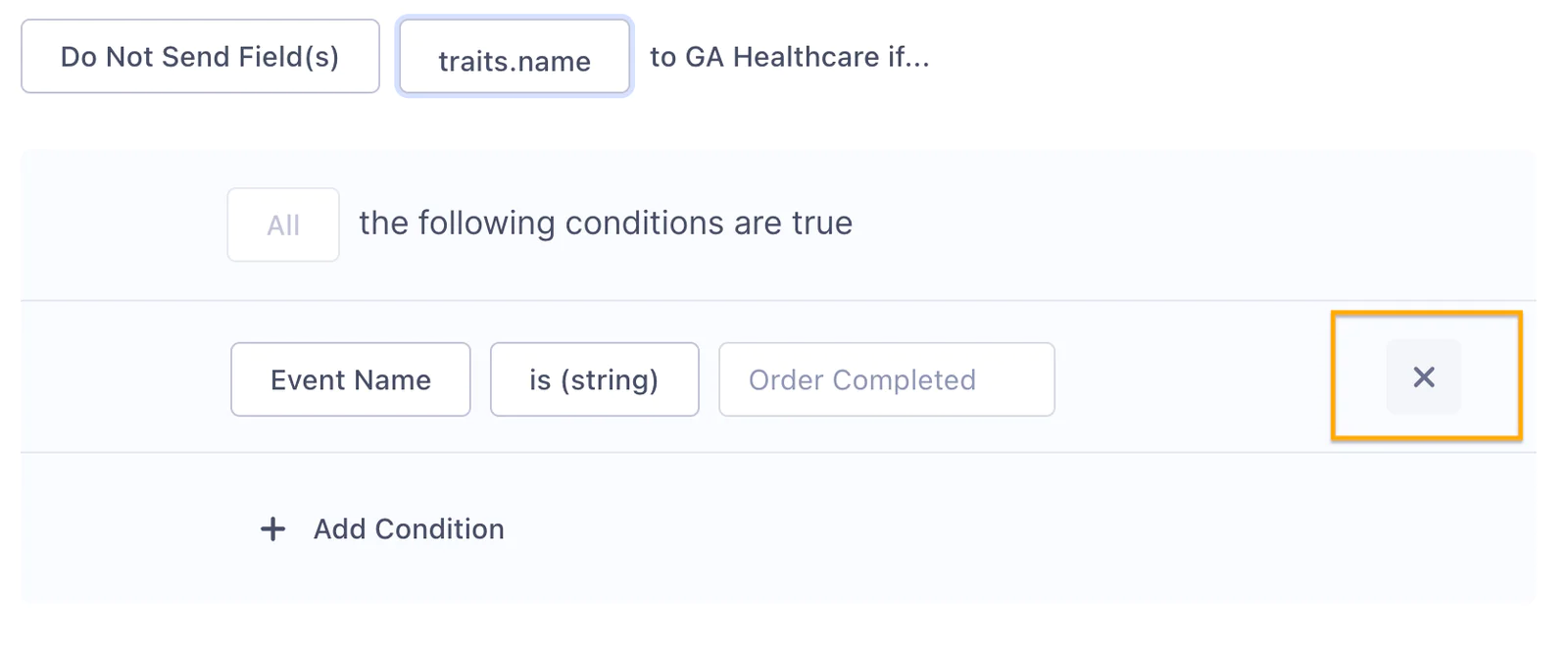
You must also remove the default conditional logic by clicking on the x icon. This will apply the field filter to all events:
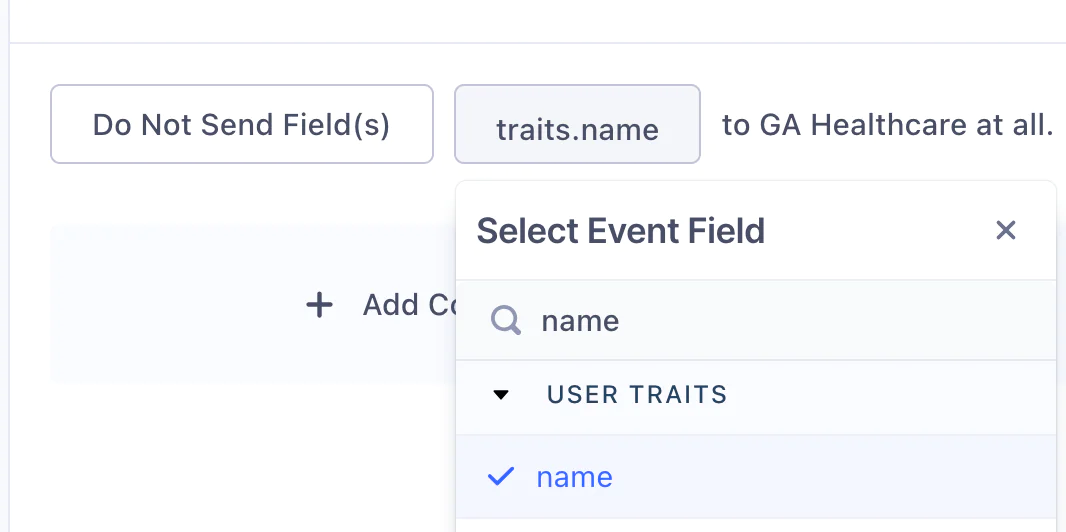
Now, you’ll select the Event Fields you want to filter out of the events flowing from Twilio Segment to GA. For instance, select user traits > name from the Event Field dropdown to remove the person’s name from GA events as shown below:
This is where you’ll want to be sure you select all user traits and properties that are recognized under the list of 18 HIPAA identifiers.
Here is a list of Twilio Segment Default PII properties that are recognized as HIPAA identifiers that you should add to your list of fields to filter, in addition to your own additional PHI fields:
name, ssn, phone, email, address, street, city, zipcode, ip, gender, sex, sexual orientation, credit card, disability, passport, ethnicity, citizenship, race, identification, mac, photo, veteran, certificate, license, medication, allergy, condition, diagnosis, procedure
Note that the above list is just a starting point. You will need to assess any and all data included in events contained in your GA Action Mappings (See Step 2), and ensure they are targeted in the Destination Filter Rules.
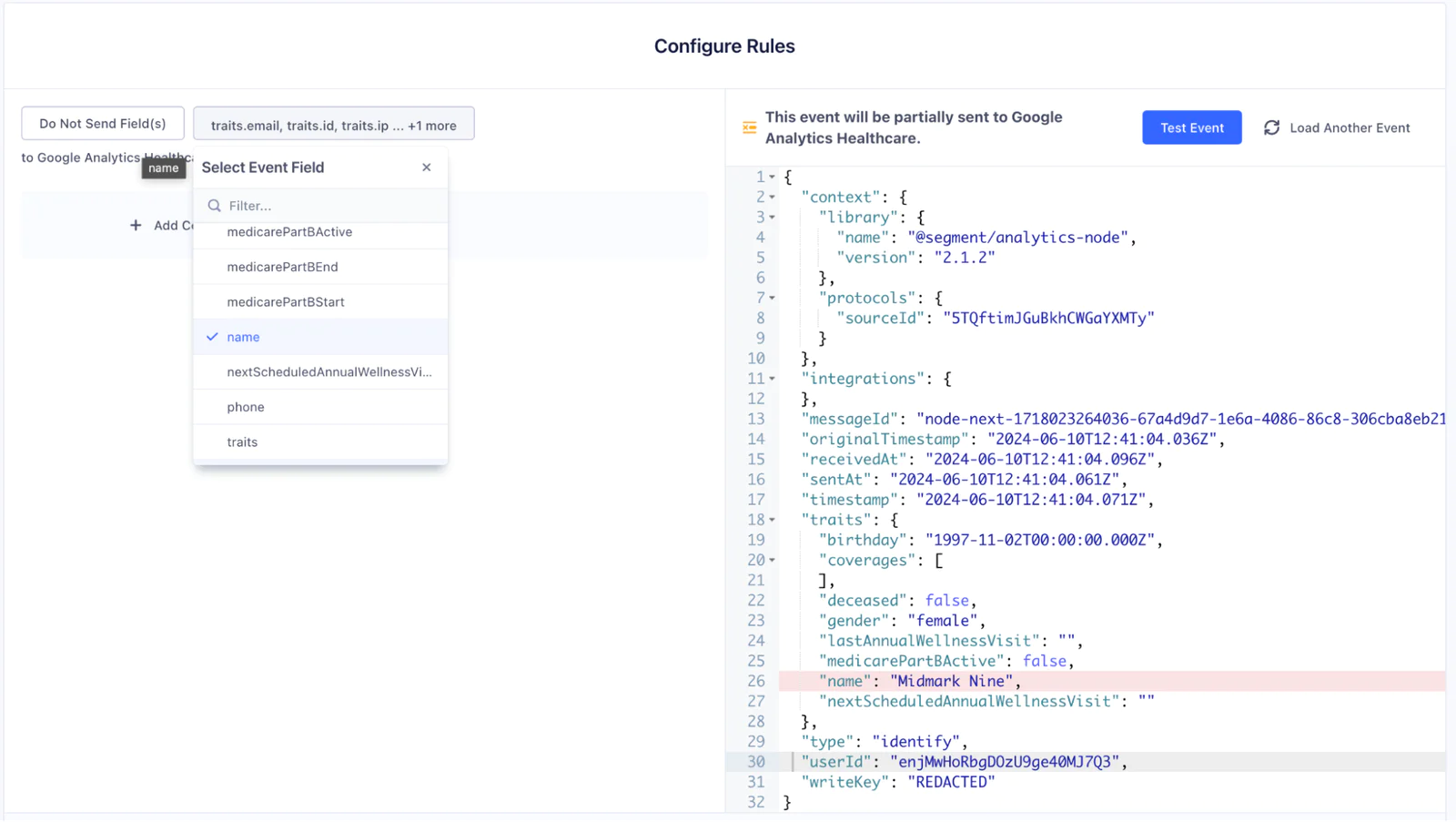
Once you’ve added all of your appropriate PHI fields to be stripped, you can use the Load Sample Event button to preview how your filter will work, as shown stripping out name as a field below:
When done adding your Event Fields, click Next Step to give your Filter a name and description. Be sure to use the toggle to Enable the Destination:
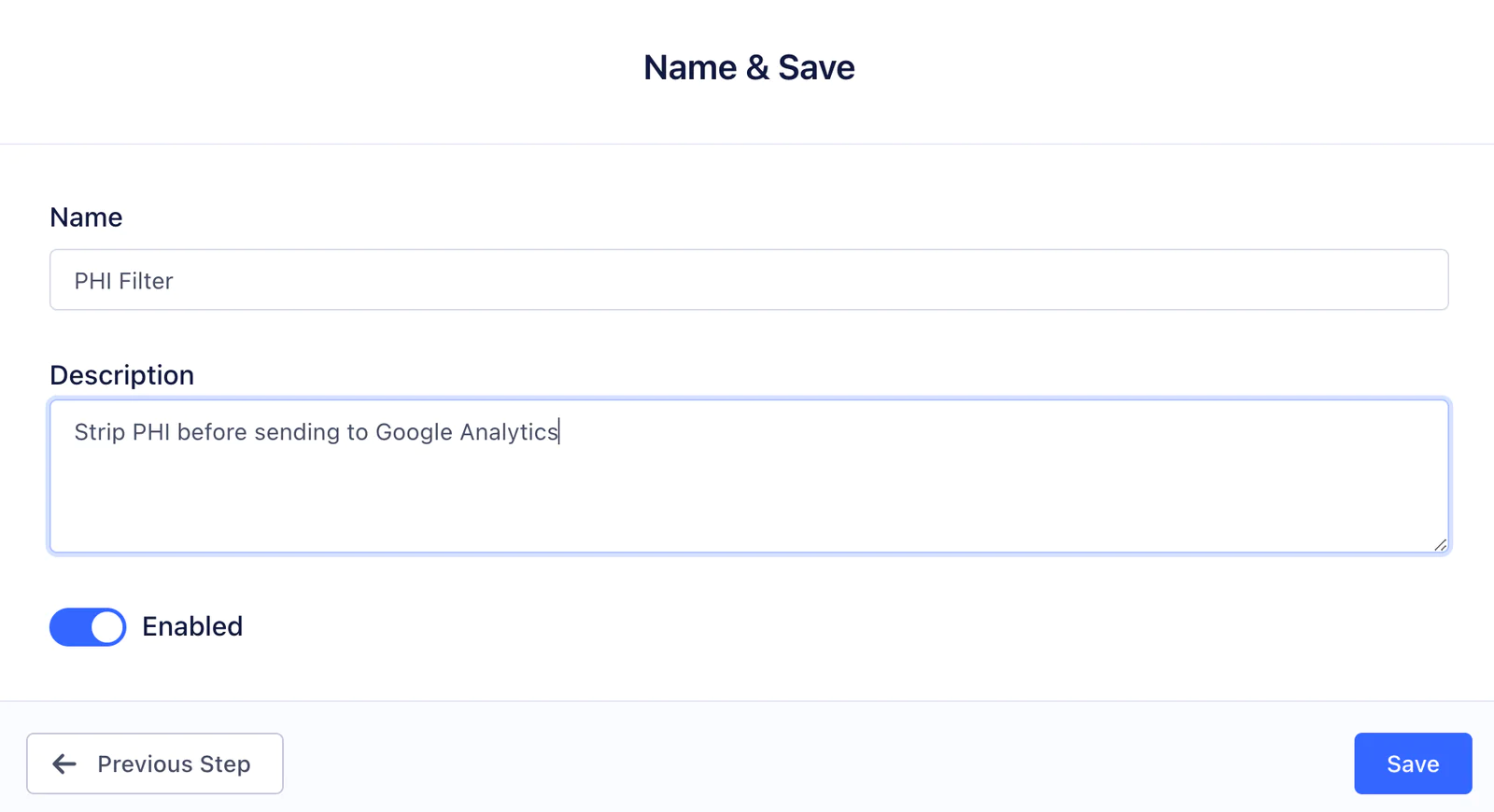
Save your Destination Filter. Congrats! You should now be set up to send analytics data from your website to Google Analytics, using filters to remove the data you identified.
As a last step you will need to Enable the Destination so Twilio Segment will start to send data to Google Analytics. Go back to the Google Analytics Destination settings page, and toggle the Destination to be Enabled, then Save your Destination settings as shown below:

Wrapping Up
We’ve just walked through an example of how some healthcare organizations have configured Twilio Segment for use of Google Analytics for website tracking. In particular, we showed examples of how to:
Replace problematic web pixels with a Cloud-Mode Google Analytics Destination that provides fine-grained control over data transmission.
Apply a Destination Filter to strip out PHI before transmitting data to Google Analytics.
Please note the above example is just one example and it is vital that you and your team perform your own assessment of how to address your obligations under HIPAA and the HHS Bulletin regarding use of web tracking platforms.
This is all made possible by Twilio Segment’s powerful and flexible CDP!
Want more information on getting a BAA in place with Twilio for the use of Twilio Segment?
Please Contact Us for more information.
Easily personalize customer experiences with first-party data
With a huge integration catalog and plenty of no-code features, Twilio Segment provides easy-to-maintain capability to your teams with minimal engineering effort. Great data doesn't have to be hard work!