Self-Destruct Message System with Laravel Fortify and Twilio Verify
Time to read:
December 01, 2025
Written by
Reviewed by
AI generated summary
- Build a self-destruct message system using Laravel Fortify and Twilio Verify.
- Utilize Laravel Fortify for secure authentication and Twilio Verify for two-factor verification via OTPs.
- Create a robust system that ensures sensitive messages are accessible only once, then automatically expire.
This summary was generated by AI.
Self-Destruct Message System with Laravel Fortify and Twilio Verify
Ever wished you could send a message that vanishes after someone reads it, just like in spy movies? Maybe it’s a password, a private link, or something sensitive you don’t want lingering in someone’s inbox. That’s exactly what a self-destruct message system does.
In this tutorial, we explore how to build such a secure system using Laravel Fortify for authentication and Twilio Verify for secure two-factor verification.
Prerequisites
- Composer installed globally
- PHP 8.3 or higher with the PDO extension installed and enabled
- A free or paid Twilio account. Create a free account if you are new to Twilio
- A basic understanding of Laravel
- Prior experience working with databases
- Ngrok for exposing your local server
- Your preferred text editor or IDE
Scaffold a new Laravel project
To create a new Laravel project and change into its directory, choose a folder where you usually keep your PHP projects and run the commands below. They scaffold the Laravel app, and then change into the new project’s directory.
During installation, respond to the prompts as follows:
- Would you like to install a starter kit? — "No starter kit"
- Which testing framework do you prefer? — "Pest"
- Which database will your application use? — "SQLite"
- Would you like to run the default database migrations? (yes/no) — "no"
Next, install the key dependencies required for building this application. These tools will power authentication and SMS verification in your project:
- Laravel Fortify is a frontend-agnostic authentication backend for Laravel. It provides the core logic for user authentication, which includes login, registration, password reset, and two-factor authentication. Since Fortify handles only the backend, it allows you to build your own custom frontend while securely managing the underlying auth workflows.
- Twilio's PHP Helper Library enables your application to interact with Twilio’s services with a minimum of code. With this SDK, you can send SMS messages and use Twilio Verify to generate and validate one-time passwords (OTPs) for phone-based authentication.
Now, run the following command to install Laravel Fortify:
Next, we need to publish its resources. To do that, run the command below:
Next in line is Twilio's PHP Helper Library. Run the command below to install it.
Retrieve your Twilio credentials
Initially, you'll need the following Twilio credentials: Account SID, Auth token, Twilio phone number, and a Twilio Verify SID. But before retrieving these credentials, copy and paste the following configuration at the bottom of your .env file:
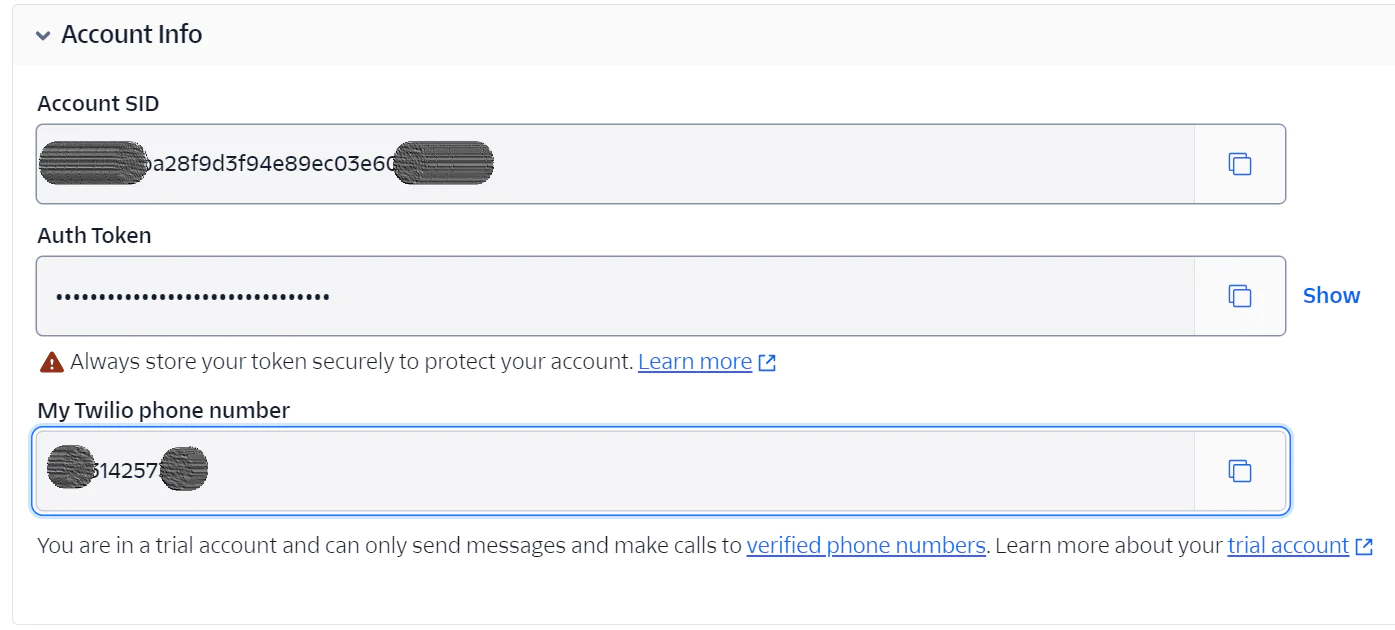
Now, log in to your Twilio Console dashboard. In the Account Info panel, copy your Account SID, Auth Token, and Twilio phone number into your .env file, replacing the values of <<your_account_sid>>, <<your_auth_token>>, and <<your_twilio_phone_number>> respectively.
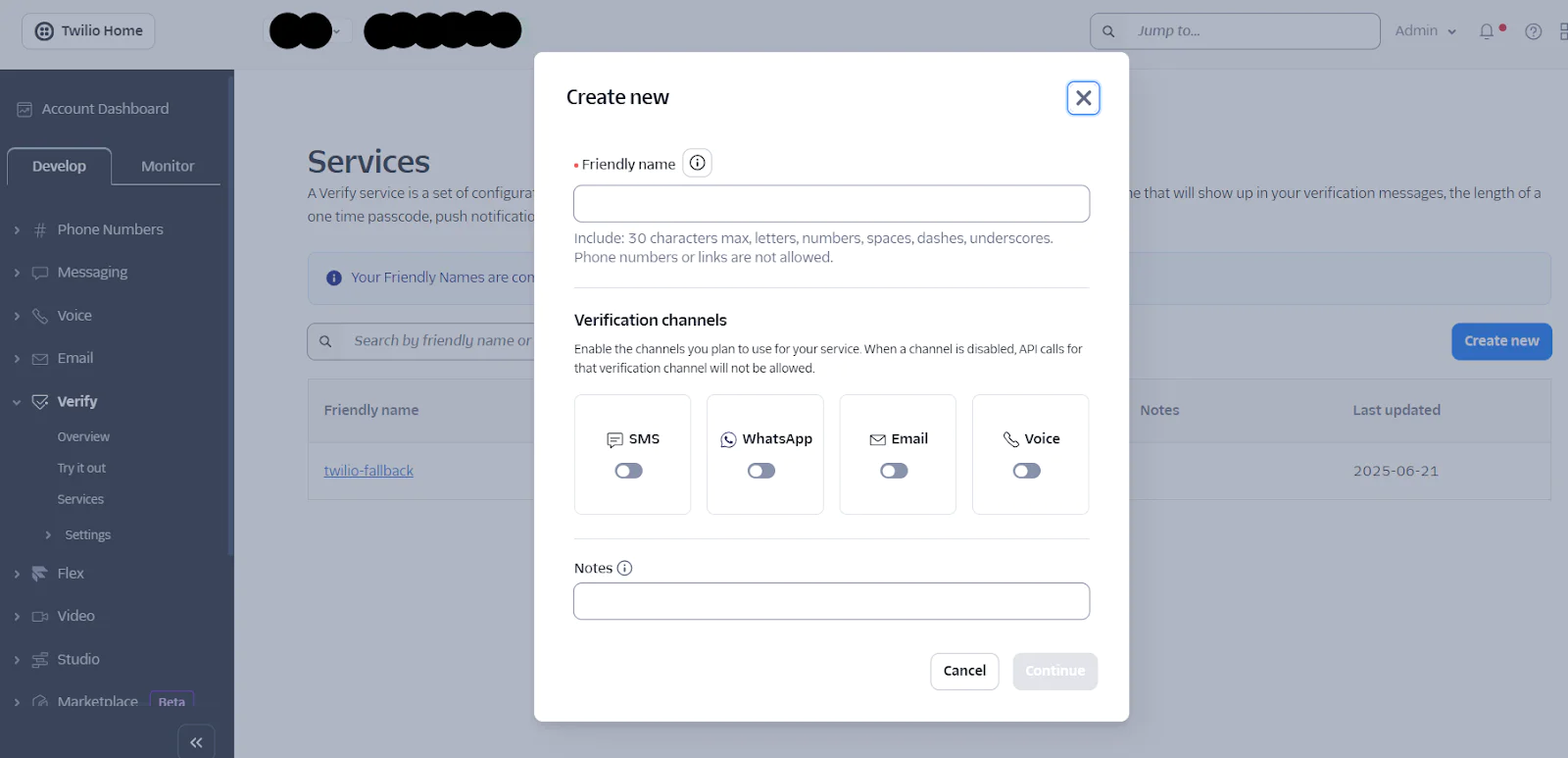
You're almost done getting the credentials, but one more is needed. Navigate to Explore Products > User Authentication & Identity > Verify in your Twilio Console Dashboard. Click the Create new button, then fill out the prompt by providing a Friendly Name, ensure to check the box labeled Authorize the use of Friendly Name,and enable SMS as the verification channel for your service. Then click the Continue button.
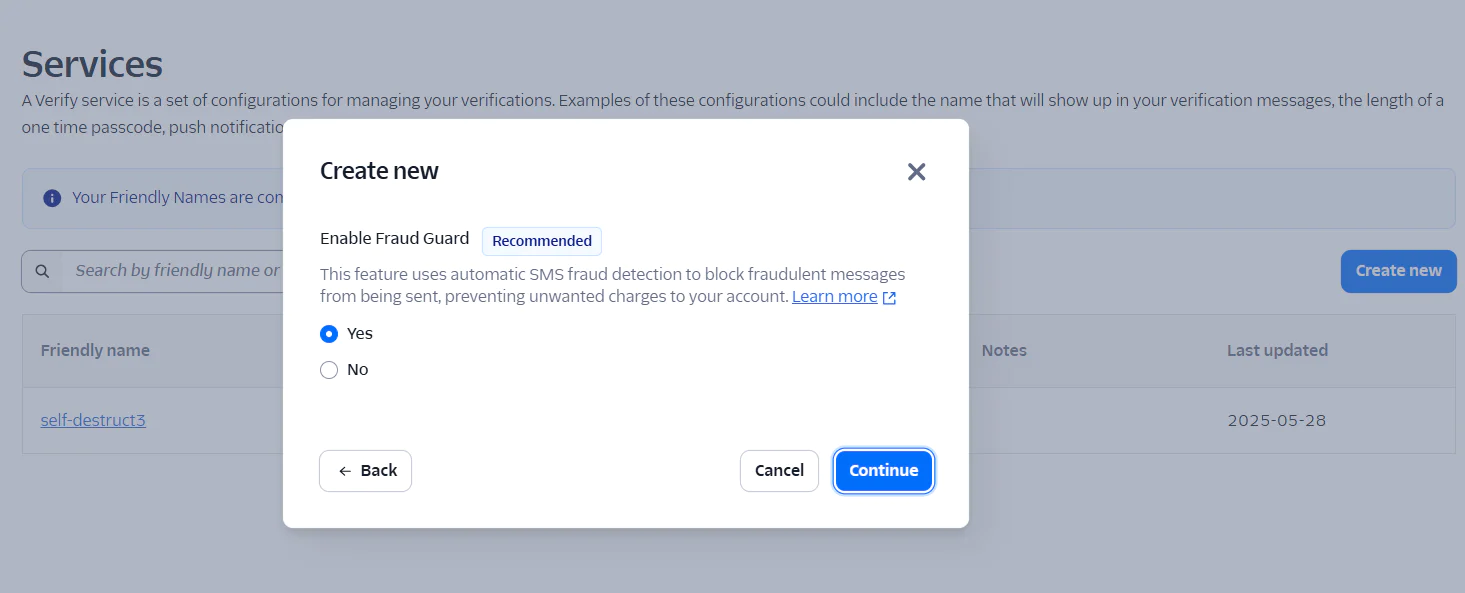
The next prompt is a fraud guard that uses automatic SMS fraud detection to block messages from being sent. Tick the Yes radio button, then click Continue to proceed.
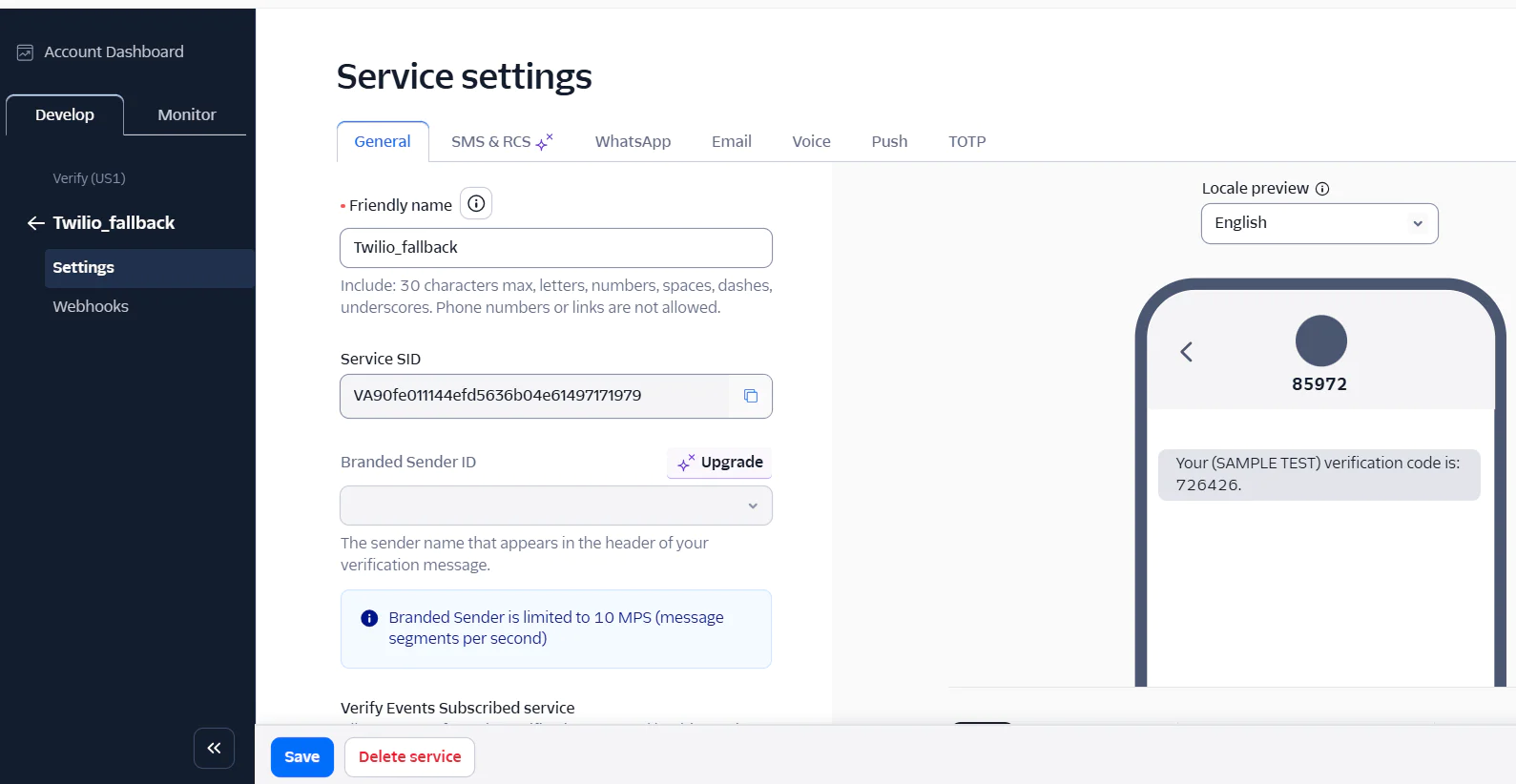
You will be redirected to the Service settings page, where you will see your Service SID. Copy the Service SID and replace <<your_verify_service_sid>> in your .env file with it.
Next, to use these credentials in the Laravel app, navigate to the config directory, open the services.php file, and add the following configuration to the array returned from the file:
Now, let’s create a dedicated service class to manage all interactions with Twilio’s Verify API. Start by creating a new folder named Services inside the app directory. Then, within that folder, create a file named TwilioVerifyService.php. Then, open the newly created file and add the following code:
The service class begins with a constructor which loads your Twilio credentials from the config/services.php file, which in turn pulls the values from your .env file.
The class also defines two other methods:
- sendOtp: This method sends a One-Time Password (OTP) to the recipient’s phone number using Twilio Verify, and sends a secure message link as a follow-up SMS as well
- checkOtp: This method verifies the OTP entered by the recipient, using Twilio Verify to confirm whether the code is valid
Create the database
Creating the database will be as easy and swift as you've ever seen. Laravel makes working with databases a breeze, thanks to its clean syntax, migration system, and environment-based configuration.
We will create a table named "messages" with columns "id", "content", "recipient_phone", "viewed", and "expires_at". Don’t worry, you will get to know their use as we continue. Now, run the following command to create the table:
Next, navigate to your database/migrations directory, open the recent migration file that ends with create_messages_table.php, and update the file to match the following code.
Now, run the code below to actually create the "messages" table in the database we just created.
Create the controller logic and the model
The controller logic handles a series of methods that create, store, view, and verify messages sent through your application. It's the brain that receives input, interacts with the model, and returns a response, whether it's saving a message, sending an OTP, or checking verification status.
To connect this logic with the database, the model comes into play, which acts as the direct link to the "messages" table. The model handles all data-related operations in a clean object-oriented way.
Now, run the command below to create the controller and the model:
This command creates a controller named MessageController and a model named Message. Let’s start with the message model. Navigate to your app/Models directory, open the Message.php file, and update the file to match the following code.
Since we're using UUIDs (Universally Unique Identifiers), we don't want the "id" column to auto-increment as it typically does. To prevent this, the $incrementing property is initialized to false. Also, because UUIDs are stored as strings rather than integers, we initialize $keyType to 'string'.
The $fillable array defines which fields are mass assignable. This helps protect the model from mass-assignment vulnerabilities. Lastly, the $casts array tells your application to cast the viewed field to a boolean (true/false), and convert expires_at into a Carbon object, making it easier to work with dates and times.
Next, go to your .env file and add the line below:
This APP_BASE_URL variable will prevent you from having to edit your code each time you start the ngrok server.
Now, for the controller logic. Navigate to the app/Http/Controllers directory where you’ll find a new file called MessageController.php. Open this file and update the file to match the following code.
From the code above, dependency injection brings in the TwilioVerifyService and assigns it to the $verifyService property, making it accessible throughout the controller's methods.
The create() method displays the form where users can enter the message content and the recipient’s phone number.
The store() method validates the content and recipient_phone fields, stores the message in the database using a UUID as the unique ID, and sets the expiration time to 30 minutes from when the message was sent. It then generates a link using the message UUID, sends an OTP to the recipient via Twilio along with the link, and finally redirects back to the form page with a success message.
The show() method retrieves the message by its UUID, and checks whether it has already been viewed or if it has expired. If the message is expired or has already been viewed, it displays an exception. Otherwise, it shows the OTP verification form when the recipient clicks the link.
Lastly, the verifyOtp() method validates the OTP entered by the user and uses Twilio Verify to check if the code is correct. If the verification is successful, it marks the message as viewed and displays the message content. If the OTP is invalid, it returns an error.
Integrate the frontend template
Now, it's time to add the frontend template. The frontend view follows this structure in the resources/views directory.
To create these templates files, run the following commands:
Next, navigate to your resources/views/messages directory, open the create.blade.php file, and add the following code.
Next, open the expired.blade.php and add the following code.
After that, open the verify.blade.php and add the following code.
Now, open the view.blade.php and add the following code.
Now, create a new folder named layouts in your resources/views directory. In this folder, create a new file named app.blade.php and add the following code .
Create the route
The route sets the controller method that should handle the incoming HTTP request and also defines middleware, URL parameters, and response types.
Now, let’s make sure the route is correctly set up. Open the web.php file located in the routes directory, and update it to match the following code:
Test the application
Let's test the application to see how it works. Start the Laravel app by running the following command:
Now, in a separate terminal session or tab, start ngrok with this command, creating a secure tunnel between the app and the public internet:
This command will generate a forwarding URL, which you can see in the terminal screenshot below.

Replace the APP_BASE_URL placeholder in your .env file with the forwarding URL which is printed to the terminal by ngrok.
Next, open your browser to http://127.0.0.1:8000/messages/create. You should see a form similar to the one shown below.
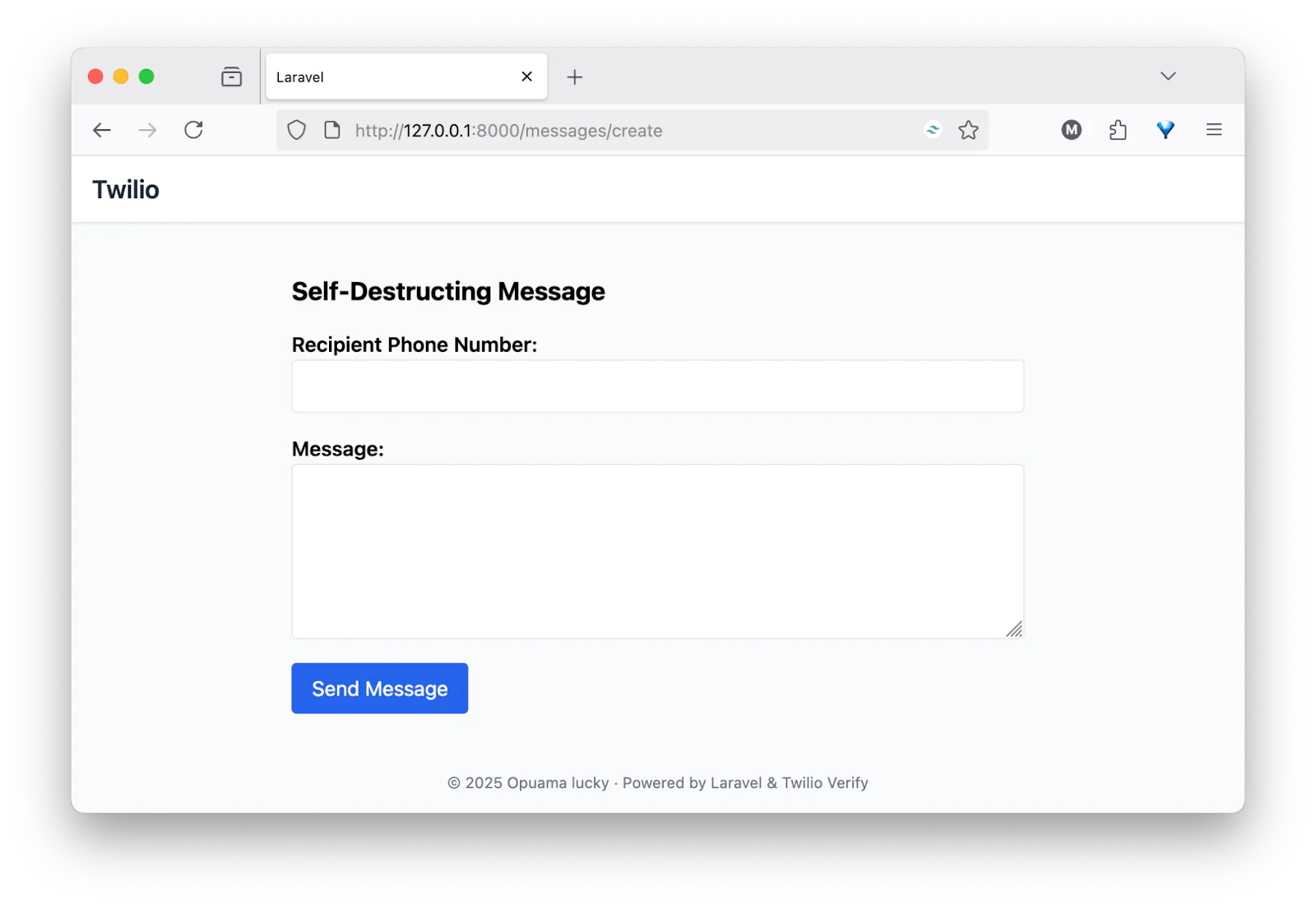
Enter the recipient's phone number and type a message. It can be any text, even a secret message; then click the Send Message button.
The recipient will receive an SMS with an OTP code from Twilio Verify, and an SMS with a secure link. Open the secure link, enter the OTP that you received, and click the View Message button.
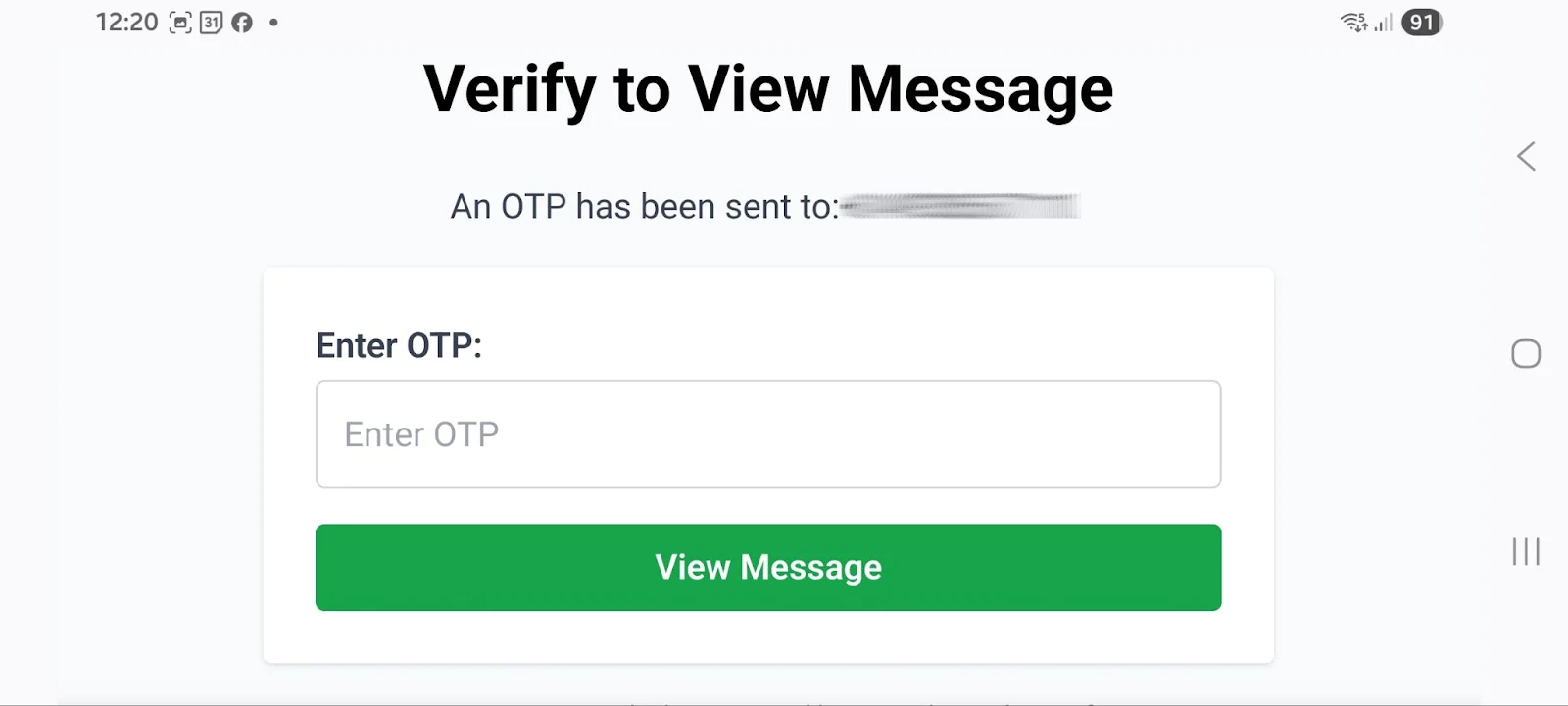
Next, you’ll be redirected to the message page as shown in the image below.
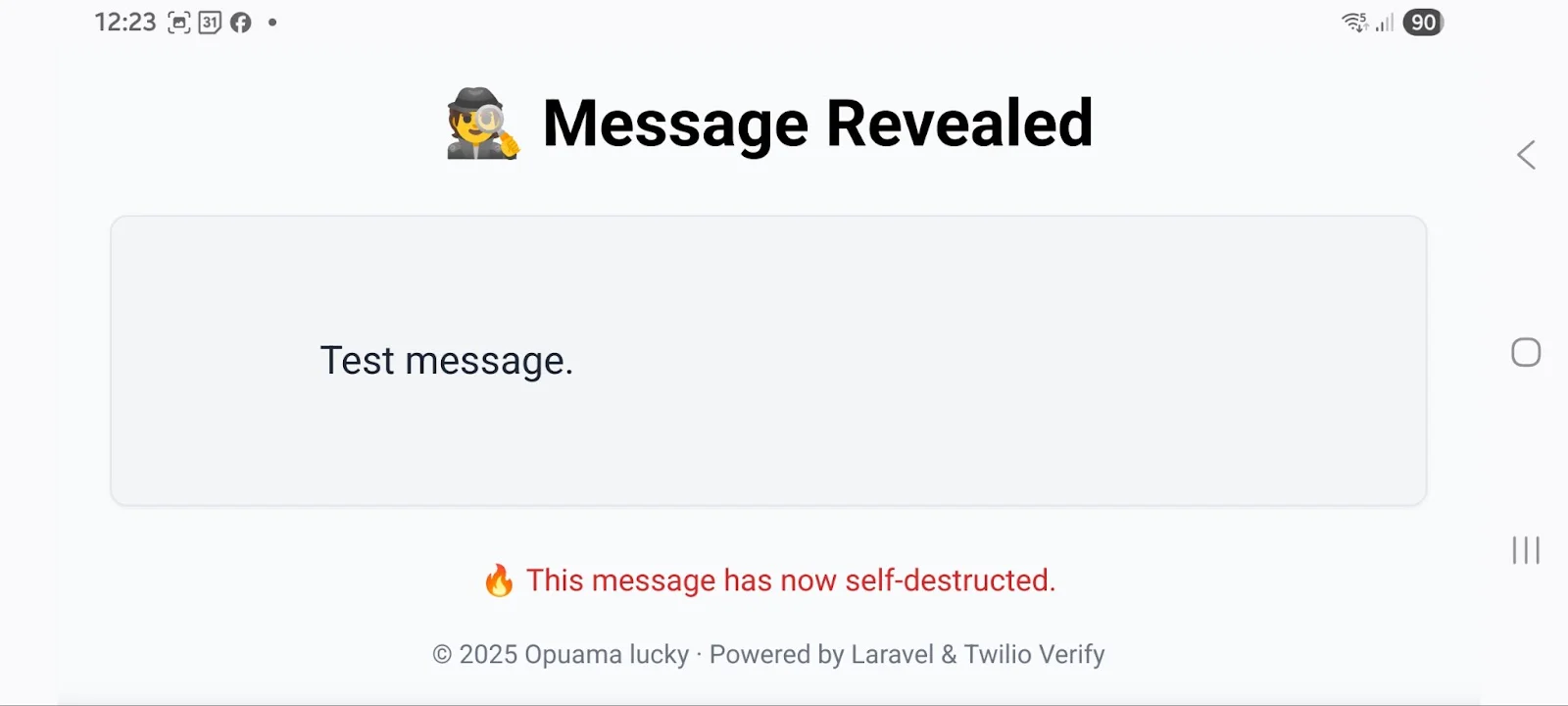
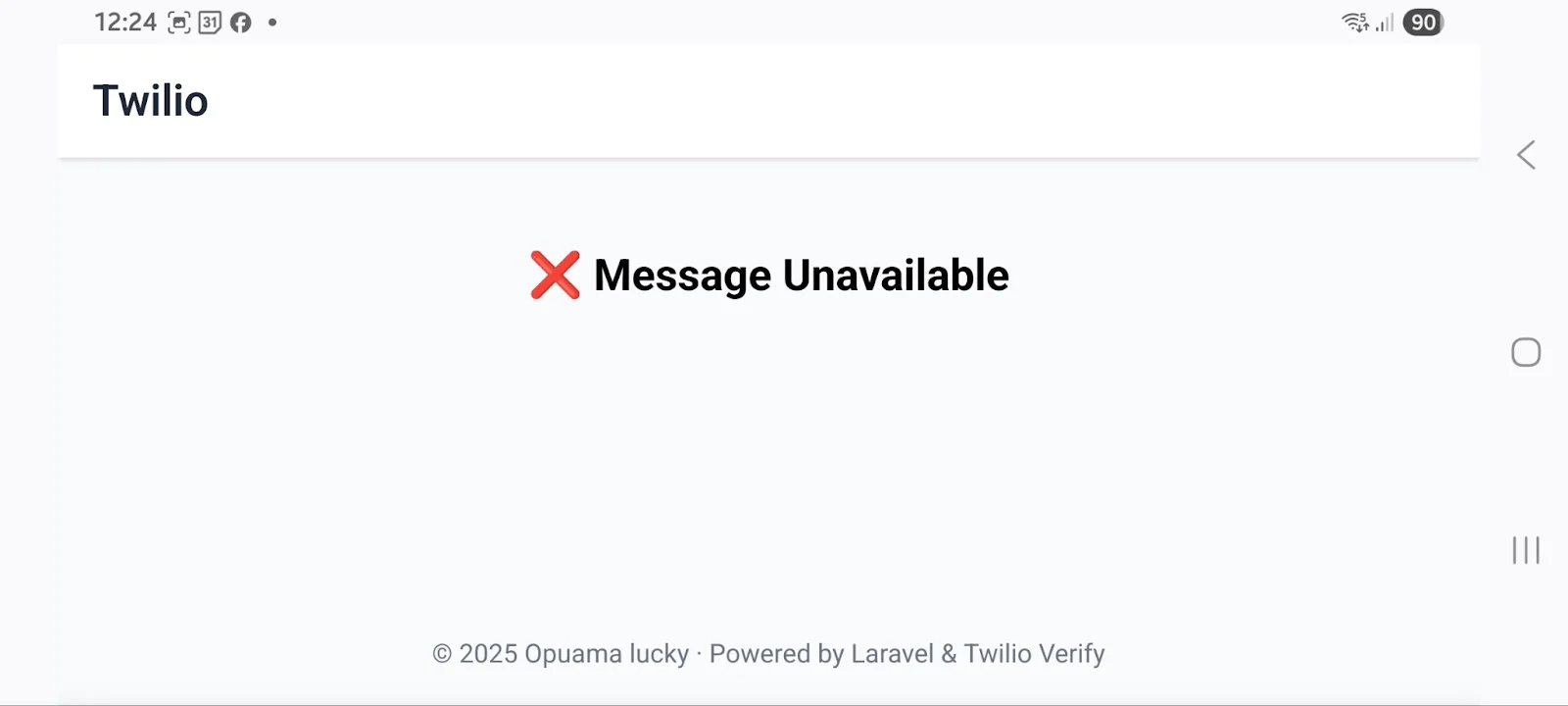
The message can only be viewed once. If you try to access it again, you'll see Message Unavailable. So make sure to view the message when you receive the OTP because there are no second chances.
If you reload the page, you'll see that it's no longer available.
That’s how to create a self-destruct message system
With this secure self-destruct message system, you can share sensitive or private information quickly and confidently, knowing it can only be viewed once and is protected with Two-factor verification using Twilio's Verify API.
In this tutorial, we built a lightweight and powerful tool for sending confidential messages that automatically expire after being read or after a set time. This setup helps prevent unauthorized access and ensures that sensitive data doesn’t linger longer than necessary.
How about adding more features such as user authentication, message expiration timers, encryption, and multi-channel delivery to take it even further.
Happy coding!
Lucky Opuama is a software engineer and technical writer with a passion for exploring new tech stacks and writing about them. Connect with him on LinkedIn.
The Disappear icon was created by Freepik and the Message icon was created by pojok d on Flaticon.
Related Posts
-
 AI-powered agents for contact center in Australia: containment quality, not deflectionAliakbar Lokhandwala
 -
AI-powered agents for contact center in India: what they can and cannot doAliakbar Lokhandwala
-
AI-powered agents for contact center in Philippines: what the term actually meansAliakbar Lokhandwala
Related Resources
Twilio Docs
From APIs to SDKs to sample apps
API reference documentation, SDKs, helper libraries, quickstarts, and tutorials for your language and platform.
Resource Center
The latest ebooks, industry reports, and webinars
Learn from customer engagement experts to improve your own communication.
Ahoy
Twilio's developer community hub
Best practices, code samples, and inspiration to build communications and digital engagement experiences.