Ways to easily integrate Zapier with Twilio
Time to read:
February 09, 2026
Written by
Reviewed by
AI generated summary
- Use Zapier to integrate Twilio with 8000+ apps for seamless automations without coding.
- Microsoft Copilot helps guide the integration process with automated suggestions and support.
- Follow easy steps to set up Twilio actions, such as sending SMS or emails through Zapier.
This summary was generated by AI.
Ways to easily integrate Zapier with Twilio
You might be wondering how to do easy integrations with Twilio and your favorite software suites. Maybe you are looking to integrate Twilio with a variety of products such as:
- Microsoft Teams
- Google Calendar
- Google Sheets
- Dropbox
- Slack
- Airtable
- Discord
Or maybe you want a quick, no-code way of using Twilio to send easy:
- SMS
- Emails
- WhatsApp Messages
- Voice Calls
If you are looking for a solution that has zero or no code requirements and easy AI assistance, consider trying Zapier! Zapier was originally started from a startup hackathon, and launched its developer platform in 2012. Zapier is a secure partner with Twilio and is enabled to create drag-and-drop solutions to integrate and get started with Twilio, no code required!
Microsoft Copilot has recently integrated with Zapier to make using it even easier. Copilot is now available in beta to walk you through how to make your integration connections. It will hold your hand through the process, and give you helpful suggestions for next steps.
In this article we'll look at how to get set up for easy integrations using Zapier, Twilio, and Copilot. For other examples of Zapier integrations we've discussed on this blog, check out:
Getting Started with Zapier and Twilio
To get started with Zapier, you'll need a Zapier account.
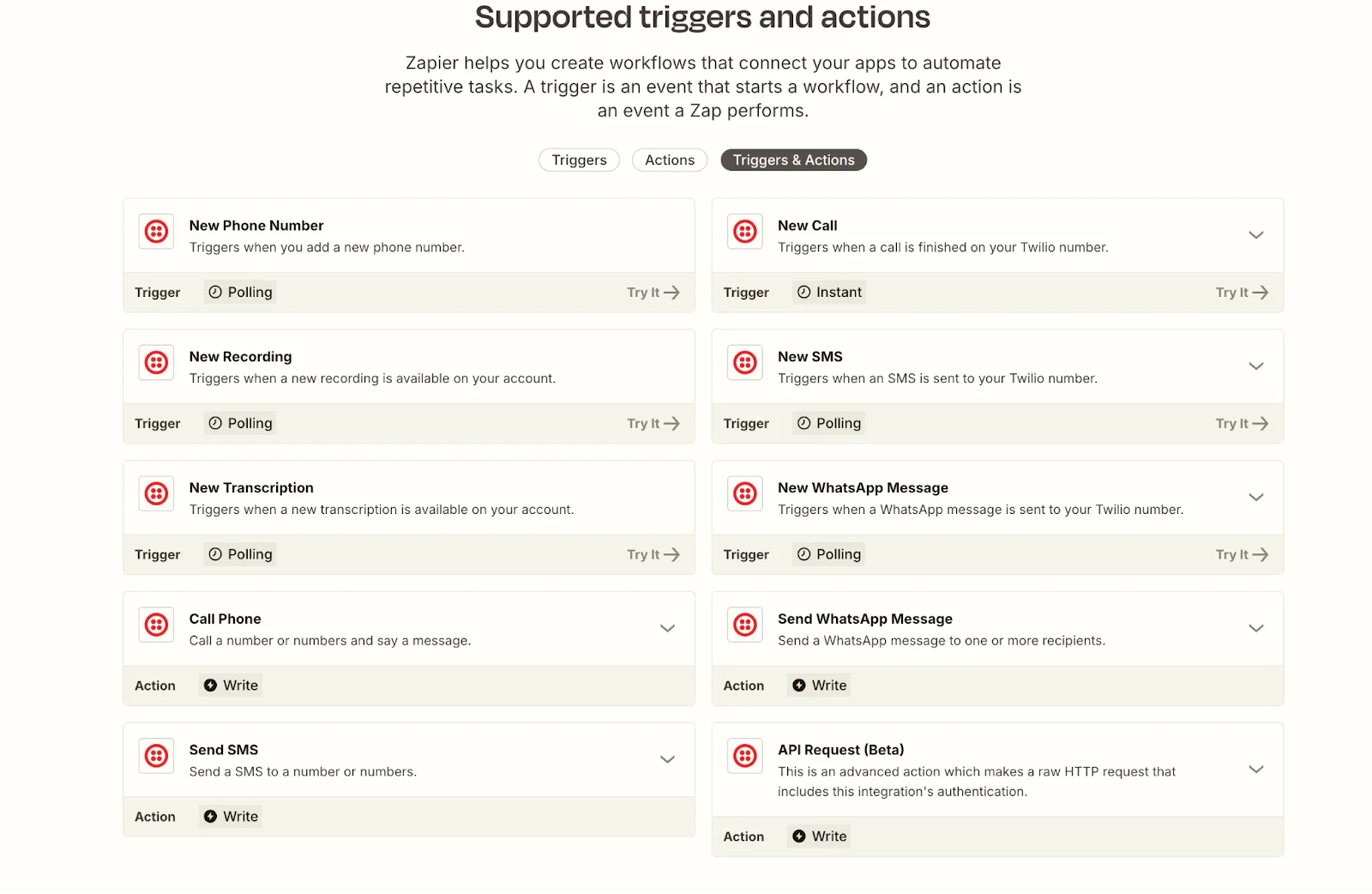
You can connect Twilio to over 8000 apps with Zapier. Zapier supports a variety of Twilio Triggers and Actions. A Trigger is the action initiated by Twilio, such as a call or SMS coming to your Twilio number. An Action is things Twilio can automatically do on your behalf, such as sending an SMS or WhatsApp message. Essentially, if an action is initiated by Twilio, Zapier can notice the action, see what it's doing, and then take the next action automatically without your input. It automates the process and does it with no code writing necessary.
Zapier supports Twilio triggers such as:
- A new call
- A new WhatsApp message
- A new SMS
And can do such actions as:
- Make a phone call
- Send an SMS
- Send a WhatsApp message
- Send a request to an API (beta feature)
This is not an exhaustive list, so check out the Twilio integrations on Zapier's integrations page as shown in the screenshot below.
Demo: a Drag and Drop SMS to Email Solution
Here is one quick example of how you can do a no-code Zapier integration.
To complete this tutorial you will need:
- A Twilio Account (free trial works fine!)
- A Zapier Account (Zapier also has a free trial)
- A phone that you can send an SMS from
- Any email address
Since you'll be sending your SMS with Twilio, you will first need to purchase a Twilio phone number if you do not have one. Make sure that the number you have purchased has Messaging capabilities.
Keep in mind that to send automated SMS from a number, you may also need to go through the 10DLC Registration process or the Toll-free Message Verification process. However, you shouldn't need to do this to send SMS messages to your purchased number, which is what this tutorial will allow you to do.
Once you have a Twilio number, you can go to Zapier. Navigate to the Twilio integrations page on Zapier. Scroll down and click on Receive New Twilio SMS Messages in your email inbox. This is the first sample interaction shown, so you will use this as an example to showcase what is possible.
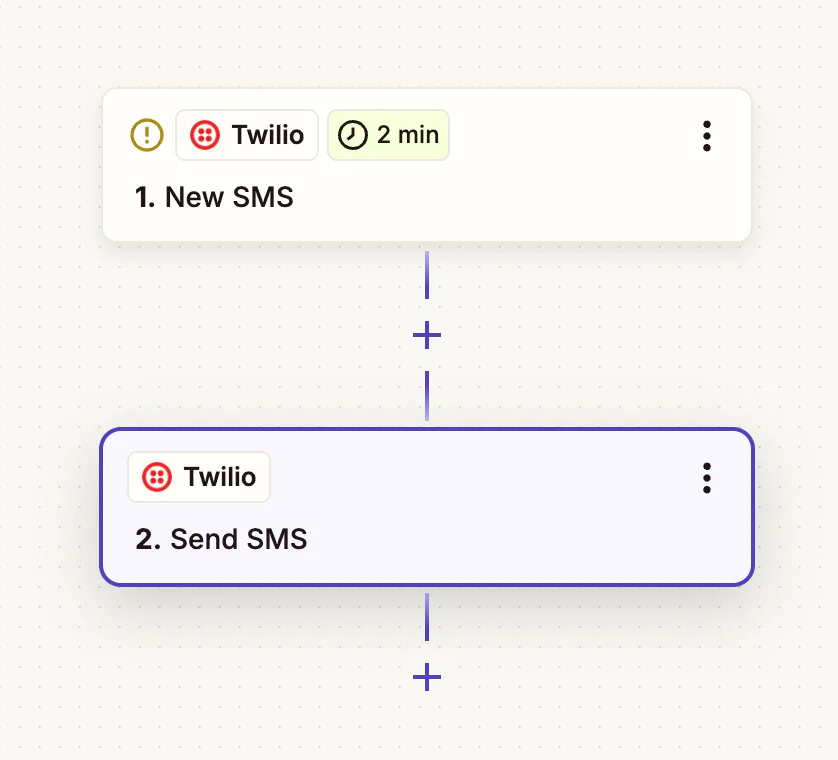
That will bring up the Zapier dashboard with three tabs. In the center, you'll see the flowchart for your beginning integration.
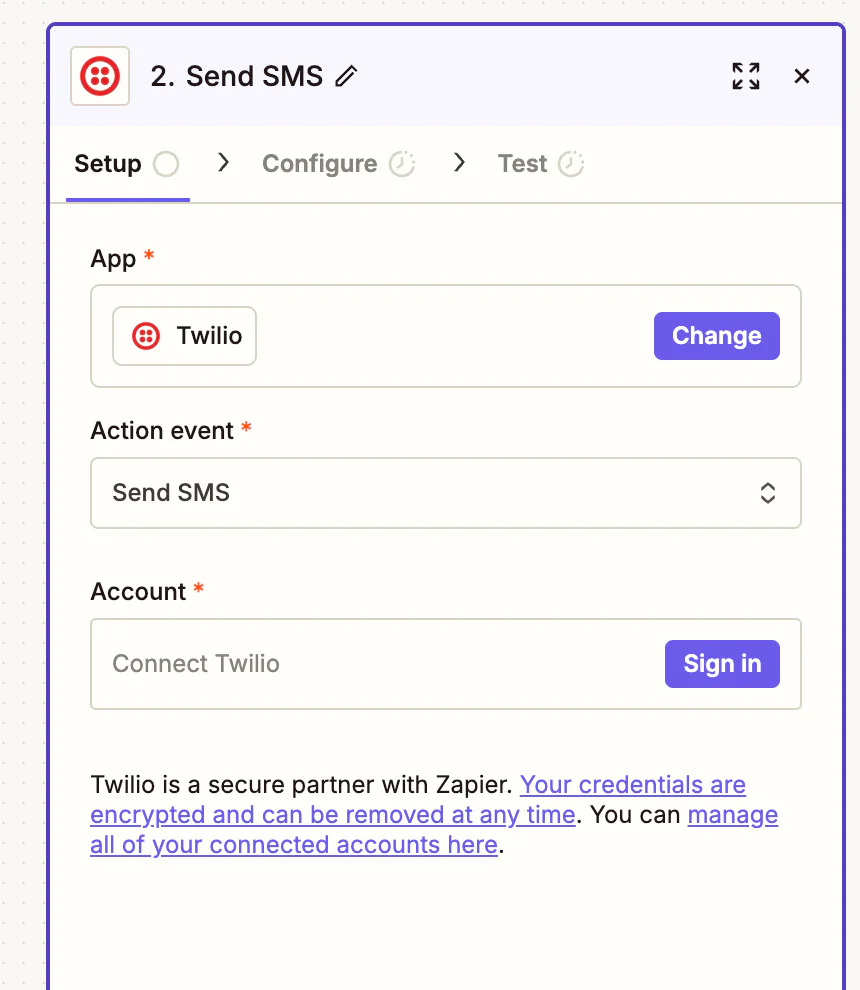
On the right sidebar you'll see the connections information about your Action. You should be able to browse both the Trigger and Action here. Here's an example of what I see when I click on the Send SMS action. It contains boxes to fill with my necessary information to continue the action. On this button, you can connect your Twilio account.
Finally, draw your attention to the left sidebar to view the Copilot integration beta. Copilot will generate an interactive wizard to help you through your workflow. It will walk you through any steps necessary to create your flow.
Please note that this is a beta feature, so the responses it gives and its visual appearance may change. The below screenshot shows an example of the Microsoft Copilot interaction as it exists as time of writing.
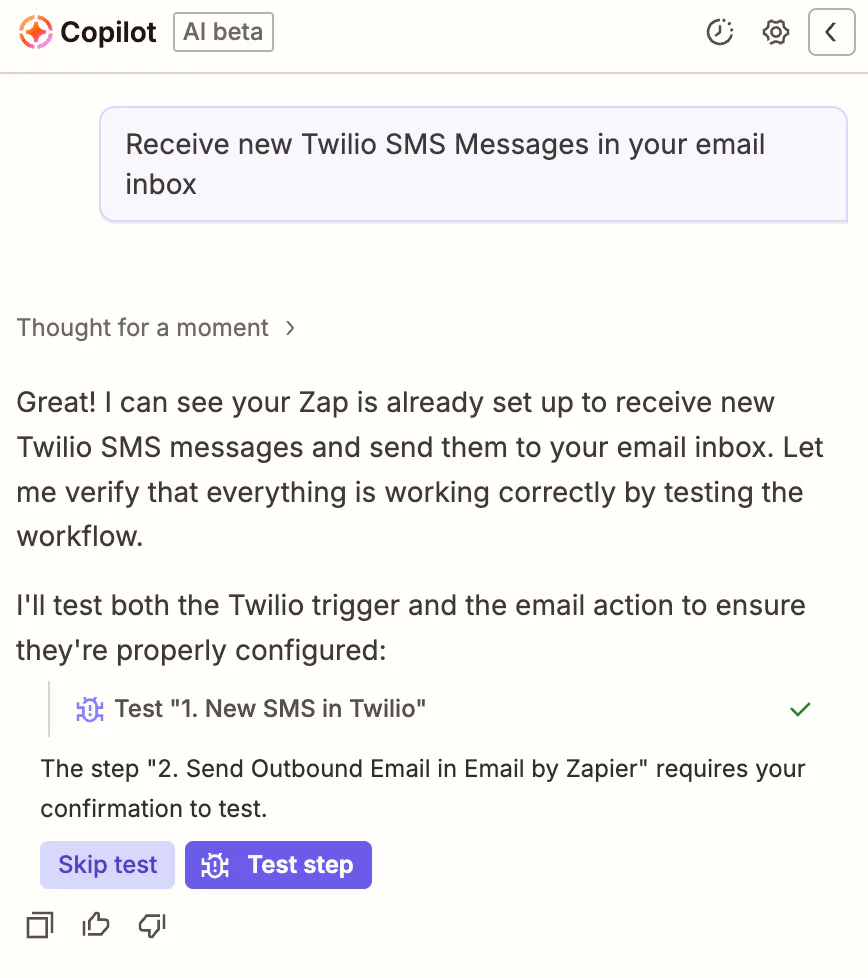
Follow the instructions as shown to authenticate your Twilio account: either by asking Copilot to help you authenticate, or by authenticating using the settings bar on the right hand side of your screen. You will need the Account SID found on your Twilio Dashboard.
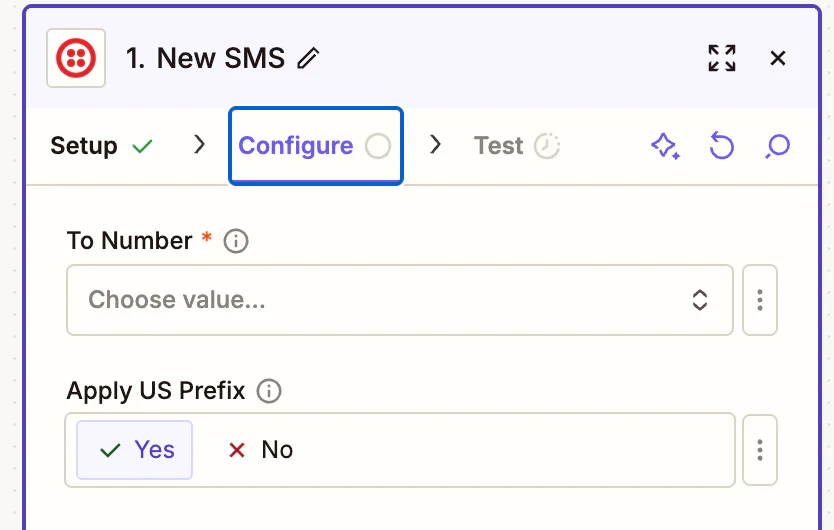
If you have chosen a Twilio phone number, Copilot can find that number automatically to help you set up. If Copilot doesn't find your number automatically once your account has been connected, you can click on the Configure tab on the right hand side of the screen under New SMS. This will allow you to choose your Twilio number from the drop-down.
If you chose Receive New Twilio SMS Messages in your email inbox when you were first setting up your Zap, you should already see Email by Zapier as the second item in your flowchart. Copilot might be able to configure this for you automatically. However, if it does not, you will need to make sure the body of your SMS is what is sent in the email when you text.
To make sure that the body of your text is what is sent to the email, the 'body' of the email should include the Body data item in Zapier. Click the + sign on the expanded Body tab and choose Body from the dropdown of provided suggestions. (In the screenshot, it says 'Blah' but this is just a placeholder; the Body item will use the text of whatever SMS that you send.)
For testing purposes, you do not need to specify an email address. All emails sent will be sent to the email associated with your Zapier account. If you want to expand your email processes, you can adjust this later. If you need to send a larger quantity of automated emails, consider connecting to Twilio SendGrid.

Your Zap is all set up. You can now click Test to send a test email. Click Publish to activate your Zap.
It might take a while to see your email, so be patient. Once the test email flow is correct, try sending a text to your Twilio number from any phone. You should see the body of the text delivered to your email!
Test troubleshooting by going to My Zaps and make sure your Zap is published and active.
You should see it checked with a blue status toggle as shown in the screenshot.

Other possibilities with Zapier and Twilio
If you are curious about integrating Twilio in a no-code way with many enterprise packages, Zapier offers a lot of possibilities. You can integrate a lot of different enterprise and commercial software suites with Twilio without installing anything new to your machine and without writing a single line of code.
Look at the full list of integrations on Zapier and see if the workflow that you desire is possible. We can't wait to see what you build, and if you want to contact us about an integration solution your project or business is missing, reach out to us and we will build something great together.
Amanda Lange is a .NET Engineer of Technical Content. She is here to teach how to create great things using C# and .NET programming. She can be reached at amlange [ at] twilio.com.



Related Resources
Twilio Docs
From APIs to SDKs to sample apps
API reference documentation, SDKs, helper libraries, quickstarts, and tutorials for your language and platform.
Resource Center
The latest ebooks, industry reports, and webinars
Learn from customer engagement experts to improve your own communication.
Ahoy
Twilio's developer community hub
Best practices, code samples, and inspiration to build communications and digital engagement experiences.