How to Use Twilio's Content Template Builder for Messaging
Time to read:
February 11, 2026
Written by
AI generated summary
- Create reusable message templates to maintain brand consistency and simplify message management.
- Include dynamic variables, rich media, and interactive elements for personalized and engaging messages.
- Support for multiple channels like SMS, WhatsApp, and RCS ensures broad reach and flexibility.
This summary was generated by AI.
How to Use Twilio's Content Template Builder for Messaging
Twilio's Content Template Builder enables you to create rich, interactive message templates that work across multiple channels including SMS, WhatsApp, and RCS. Instead of hardcoding message content into your application you’re able to design reusable templates with dynamic variables, rich media, and interactive elements directly in the Console.
In this tutorial, you'll learn how to use Twilio's Content Template Builder to create and send various types of message templates using Node.js. You'll explore creating text templates, rich cards, and templates with interactive actions.
Prerequisites
- A Twilio account - Sign up with Twilio for free here
- A Twilio phone number
- Node.js installed on your machine
Understanding Content Templates
Before diving into the code, let's understand what Content Templates offer and why you should use them:
What are Content Templates?
Content Templates are pre-designed message structures that you create once and reuse across your applications. They support:
- Dynamic Variables - Insert personalized data like names, order numbers, or dates
- Rich Media - Include images, videos, and documents
- Interactive Elements - Add buttons, quick replies, and call-to-action links
- Multi-channel Support - Use the same template across SMS, WhatsApp, and RCS
Content Templates help ensure brand consistency across all your messaging while keeping message content separate from application logic. You can modify templates without changing your code, and design everything visually using the builder.
Content Templates Types
The Content Template Builder supports several template types:
- Text - Simple text messages with optional variables
- Media - Messages with images, videos, or documents
- Rich Card - Combine media, text, and action buttons in a single card
- Carousel - Multiple swipeable cards for showcasing products or options
- Quick Reply - Text messages with suggested response buttons
- Call to Action - Messages with buttons that trigger actions like phone calls or URL visits
- List Picker - A list of options for users to choose from
- Catalog - Share product catalogs
- Flows - WhatsApp Flows for guided interactions
Some of these content types only work with certain channels. For more info on these types and their channel support, take a look at our docs: Content Types Overview.
For this tutorial, we’ll be showing how to create text templates, rich cards and media
Set up a Node.js Application
You'll start setting up your application by initializing a Node.js project and installing the dependencies you'll need.
Initialize a Node.js project
Open up your terminal, navigate to your preferred directory, and enter the following commands to create a folder, change into it, and initialize a Node.js project:
Install the required dependencies
Next, run the following command to install the dependencies you'll need for this project:
- twilio - The Twilio package will be used to access the Twilio Programmable Messaging API to send messages using Content Templates
- dotenv - Used to load environment variables from a .env file
Import Environment Variables
You'll need your Twilio Account SID, Auth Token and Twilio phone number to send RCS messages from your Node.js application. Log in to your Twilio Console, scroll down to the Account Info section and you'll see Account SID, Auth Token and your Twilio phone number:
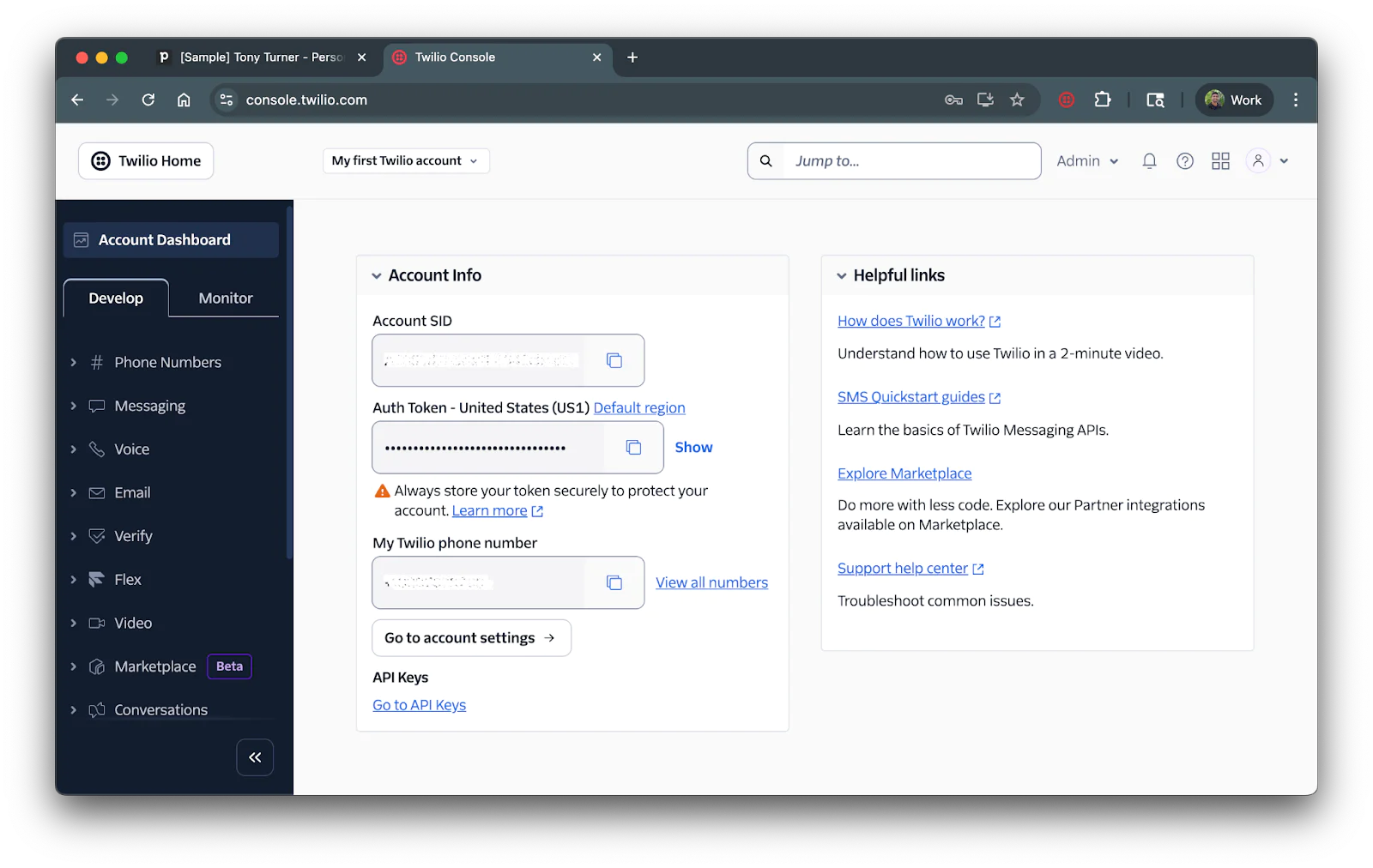
Head back to your IDE to create a file named .env. Copy the following into your .env file:
Send a Text Template
Let's start with a simple text template that includes dynamic variables. To send a template, you'll need to create a Content Template in your Twilio Console. Navigate to Messaging > Content Template Builder to create your text template.
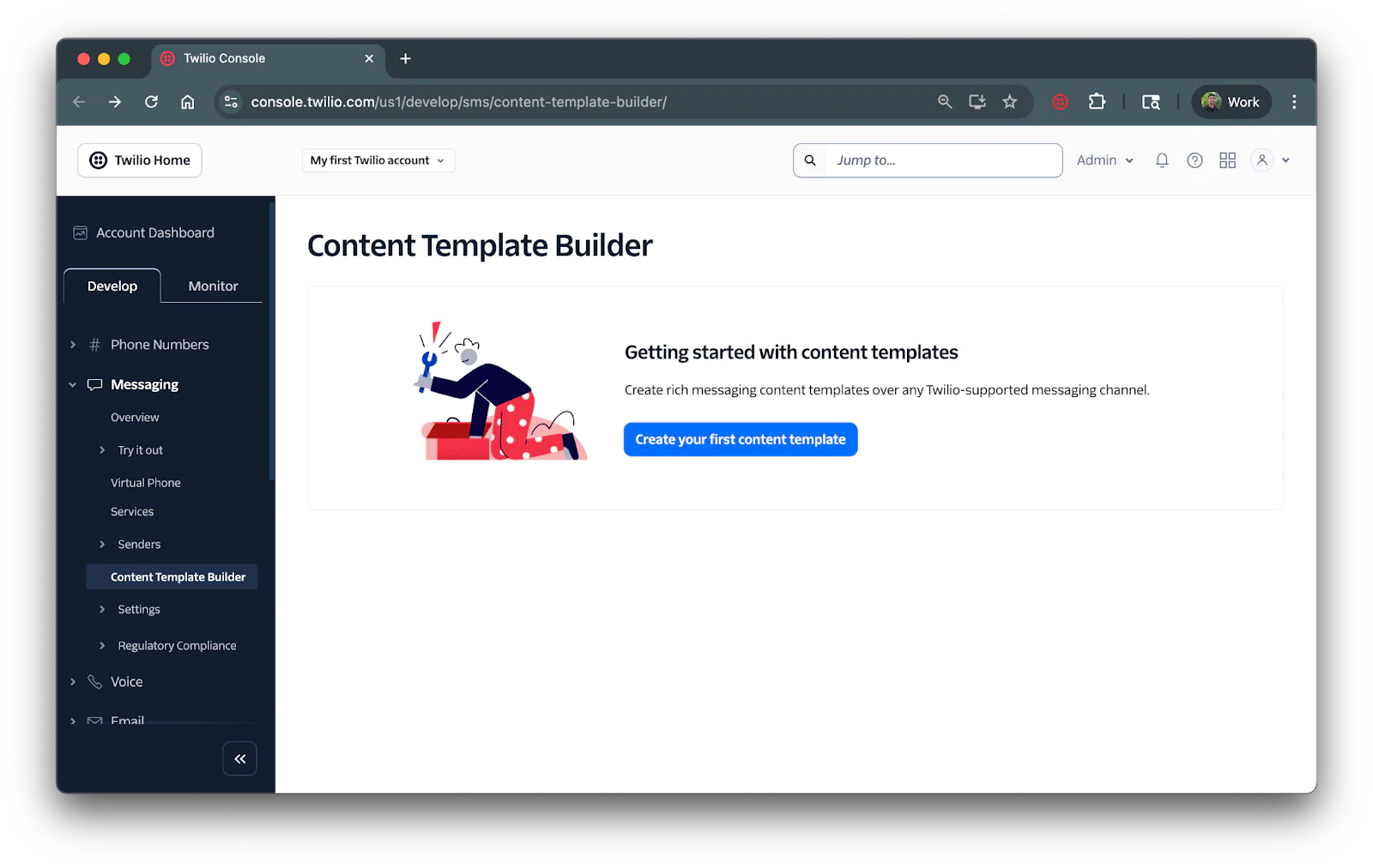
In the Content Template Builder, click Create your first content template. Then enter a Template Name (e.g., "order_confirmation"), select Text as the template type and click Create.
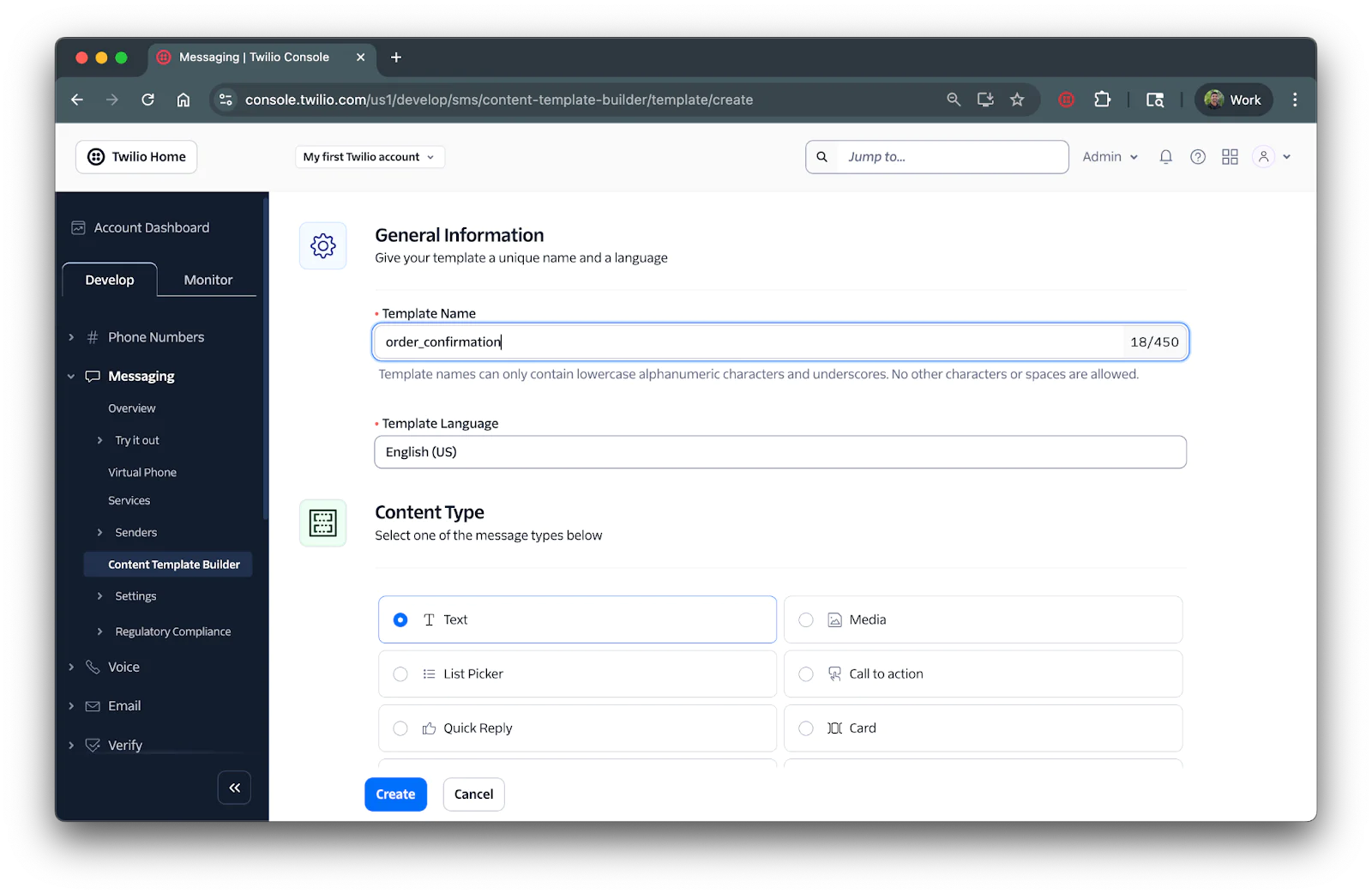
In the body field, enter your message with variables using double curly braces like so:
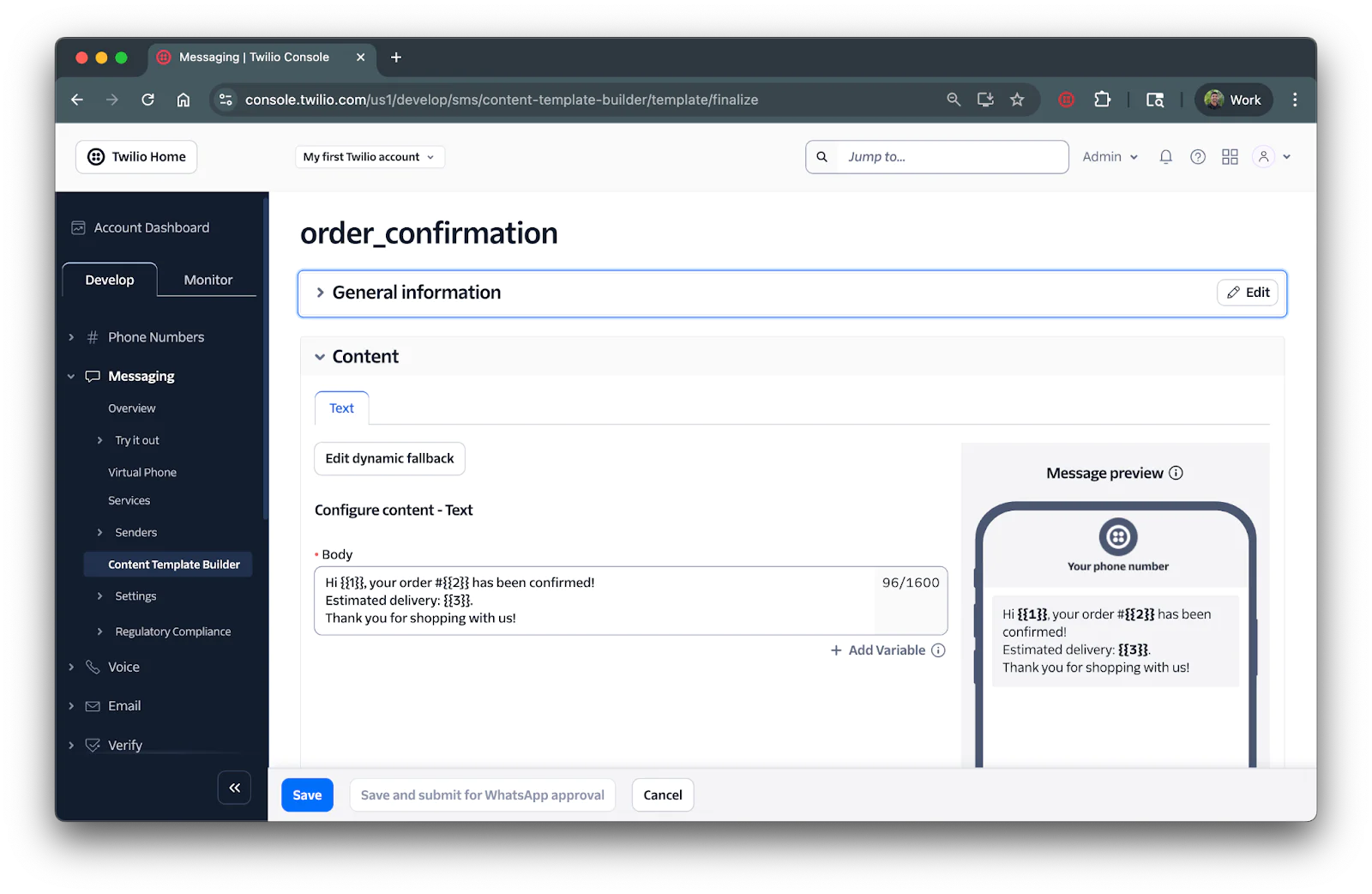
Click Save and you’ll be asked to provide sample values for each variable. Once added and saved, you’ll be navigated to the Content Template Builder homepage with your template shown in the list.
Take note of the Template SID below your template name as you’ll need it in the next section.
Navigate back to your project directory and create a file called send-text-template.js and add the following code:
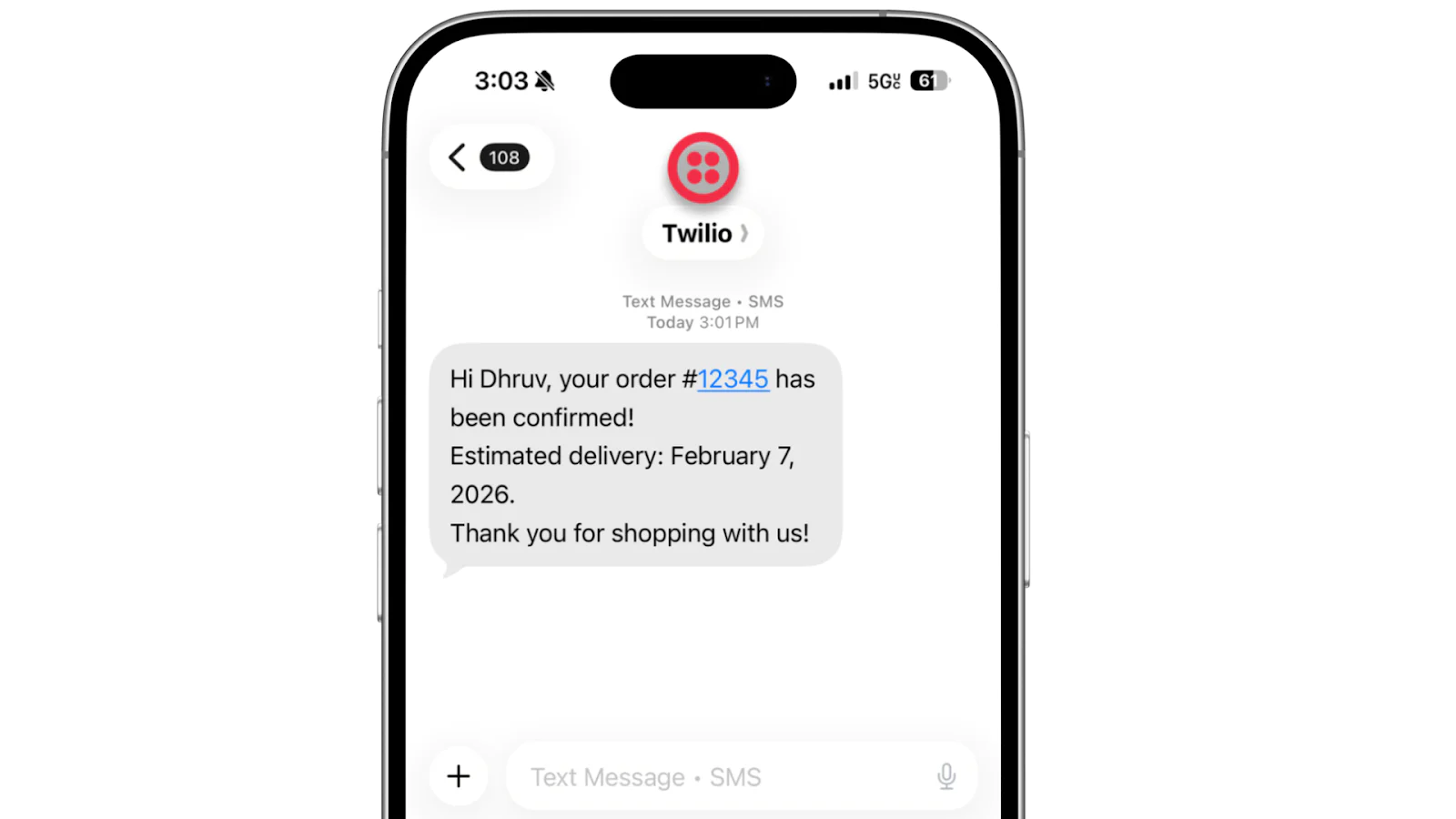
The contentVariables parameter is a JSON string that maps variable numbers to their values. For more info on using content variables check out our docs: Using Variables with Content Templates.
Run the following command on your terminal to test your text template:
You should see a success message with the Message SID printed to your console.
Send Media
Media templates let you send images, videos, or documents with optional caption text. For this example, we’ll use a similar message we used in the last section but send a receipt for the recipient
Navigate back to the Content Template Builder in your Twilio Console. Navigate to Messaging > Content Template Builder and click the Create new button at the top right of the menu.
Then enter a Template Name (e.g., "order_receipt"), select Media as the template type and click Create.
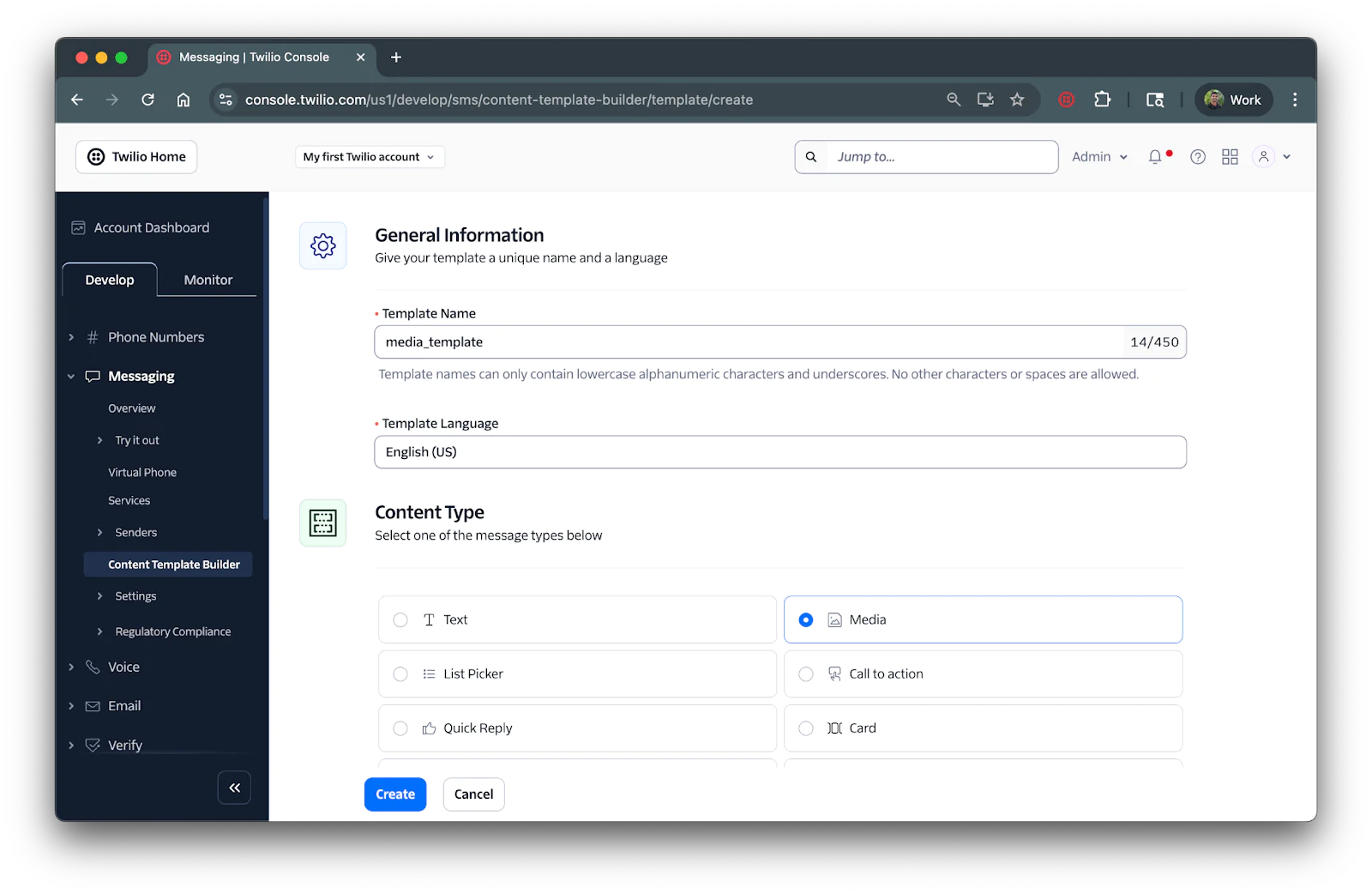
In the body field, enter your message with variables using double curly braces like so:
For the Media URL field, enter in a URL path of where you media is hosted. You can also use variables for this field like so:
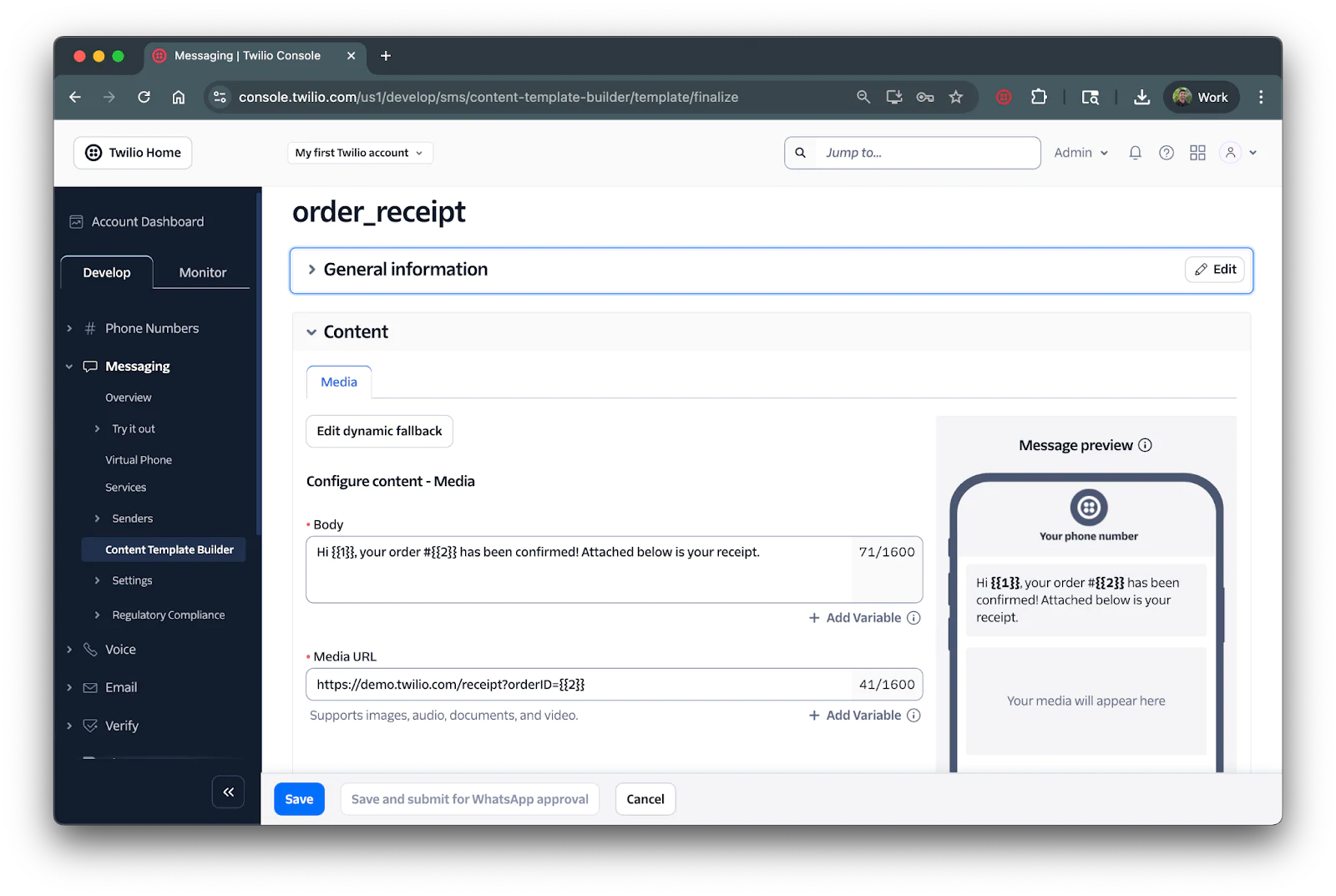
Click Save and you’ll be asked to provide sample values for each variable. Once added and saved, you’ll be navigated to the Content Template Builder homepage with your template shown in the list.
Take note of the Template SID below your template name as you’ll need it in the next section.
Navigate back to your IDE or editor and create a file called send-media.js within the project directory. This file is where you'll write the code to send an RCS message with an image.
Then, open the send-media.js file and add the following code:
Run the following command to test sending the media message with the media attached:
Copy code
You should see a success message with the Message SID printed to your console, and the recipient should receive the media message with the media.
Send an RCS Rich Card
Rich cards allow you to combine media, text, and interactive elements into a single, visually appealing message.
To send an RCS rich card, you’ll first need to set up a Messaging Service linked with your Twilio phone number with RCS enabled.
To get your RCS Messaging Service SID, navigate to the Messaging tab on the left and then click Services. Here is where you’ll see all your Messaging Services, including your RCS service. Take note of the Sid of your RCS sender for your .env file.
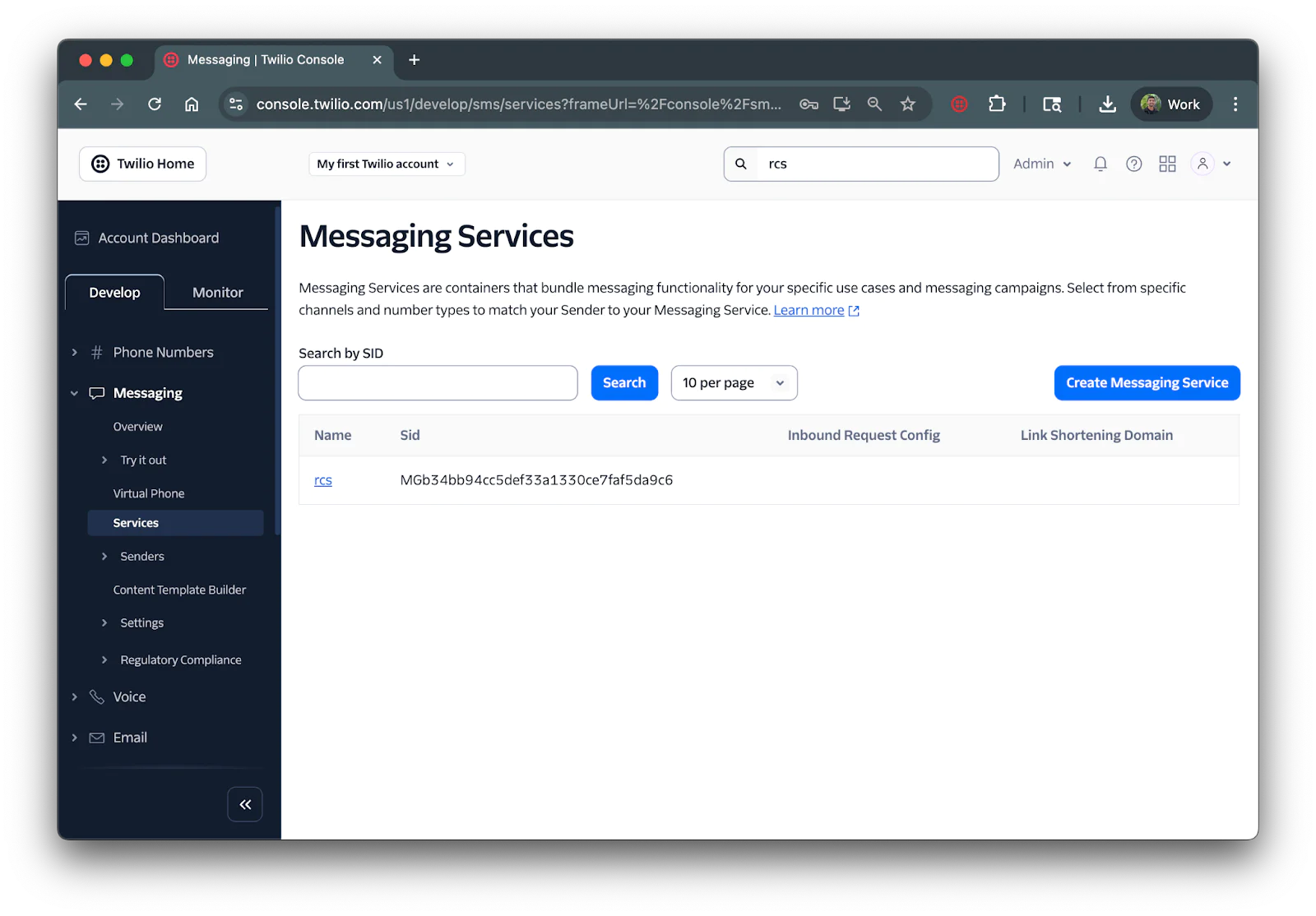
Add the following to your .env file and replace the XXXXXX placeholders with the actual Sid:
To send rich cards, you'll need to create a Content Template in your Twilio Console. Navigate to Messaging > Content Template Builder to create your rich card template.
Click on Create New or Create your first content template. On the form, give your template a name and language and then select Card as the content type. Finally, click Create.
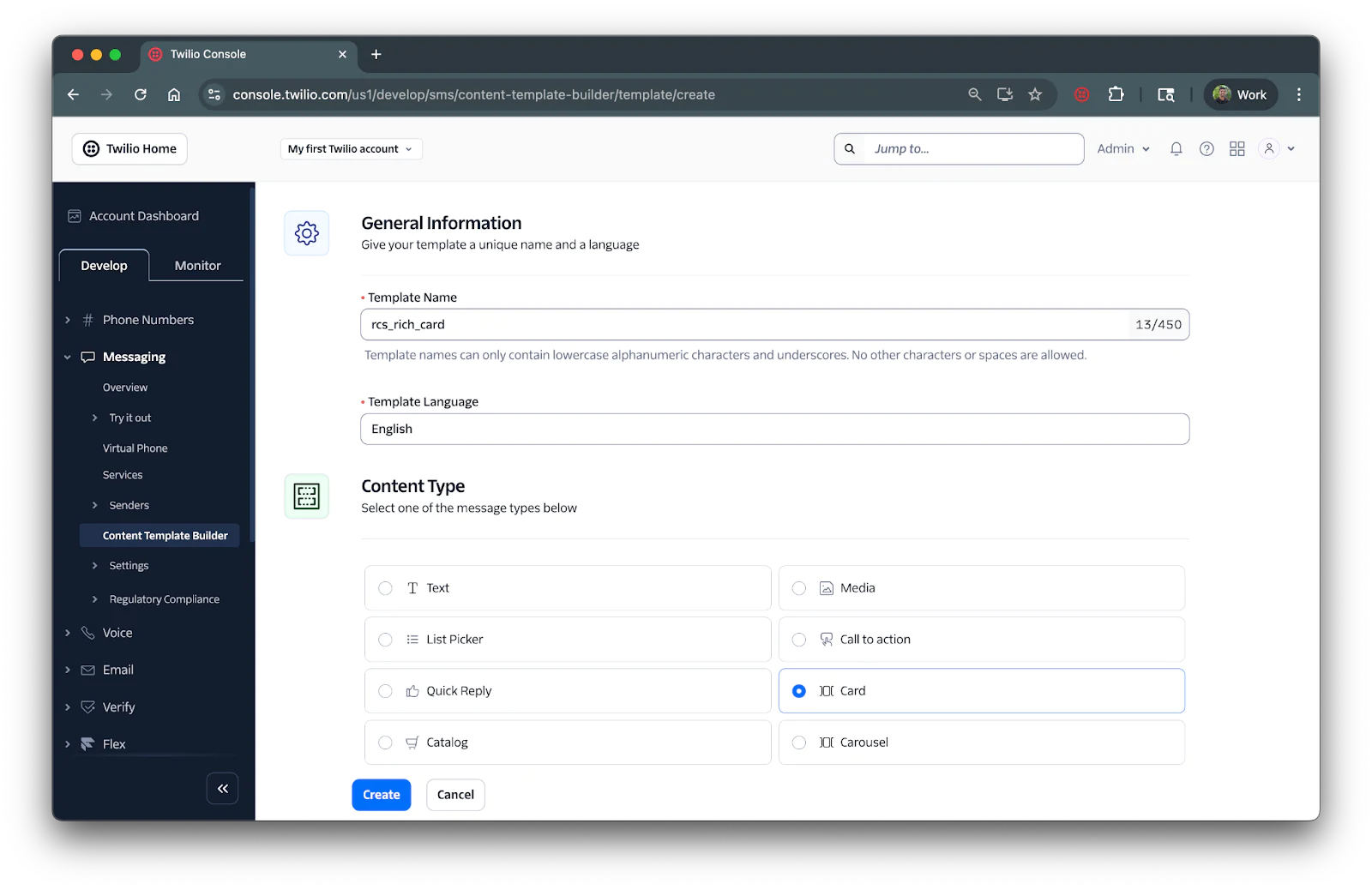
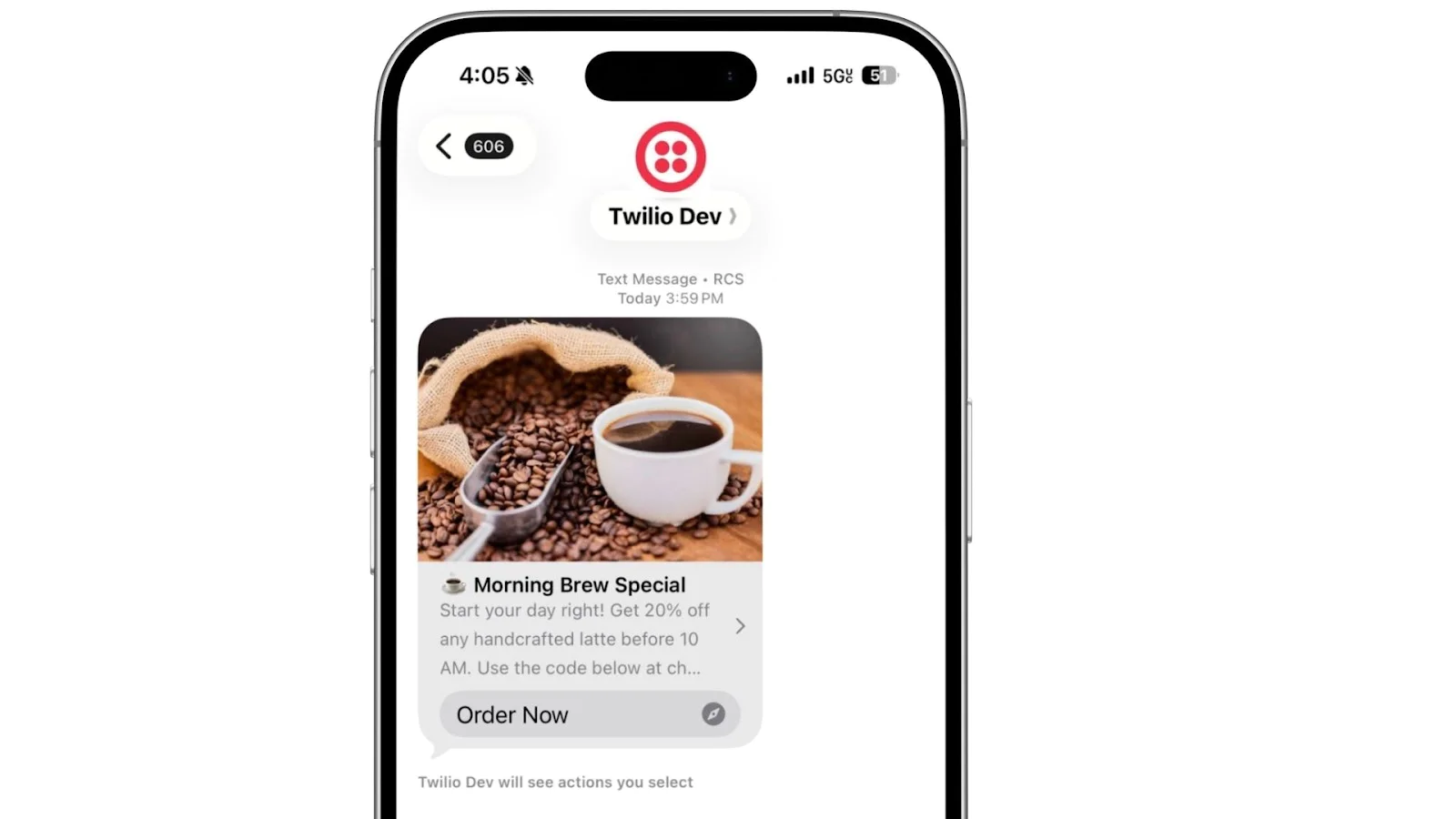
For this tutorial, I created a rich card for a coffee shop promotion. Here's the example:
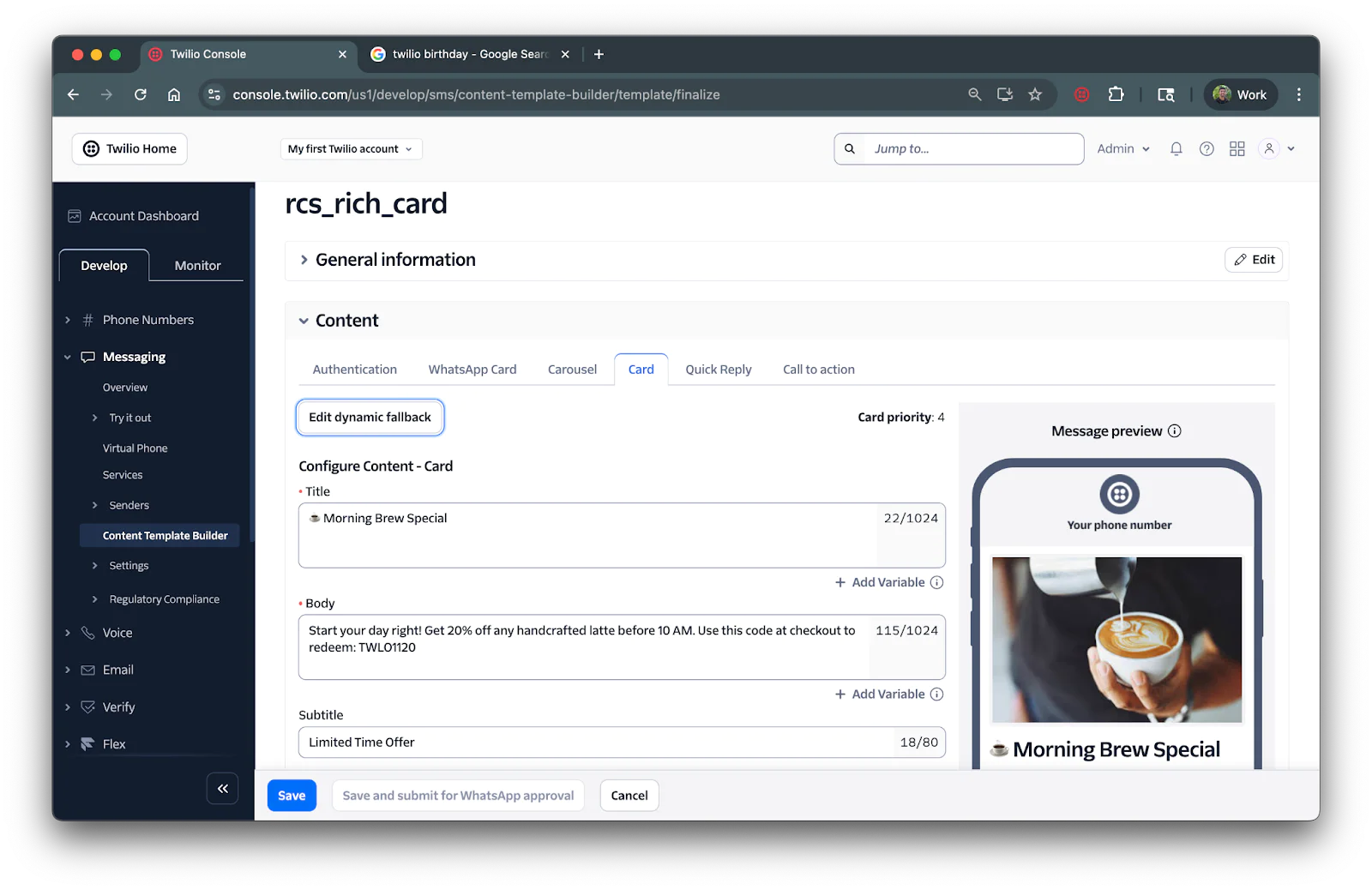
You can also add action buttons to your rich card:
- Quick Reply
- Phone Number
- Visit Website
- Coupon Code
Once created, copy the Content SID for the next step.
Then, create a new file called send-rich-card.js and add the following code:
Replace YOUR_CONTENT_SID with the template SID and save. Navigate back to your terminal and enter the following command to send the template:
What's Next?
You've successfully learned how to use Twilio's Content Template Builder to create and send various types of message templates! Here are some ways to expand on what you've built:
- Set up webhooks to receive and respond to incoming messages
- Submit templates for WhatsApp Business API approval
- Combine Content Templates with Twilio Conversations for multi-channel messaging experiences
- Explore the Content API for programmatic template management
For more information on Content Templates and all available options, check out Twilio's Content API documentation.
Dhruv Patel is a Developer on Twilio's Developer Voices team. You can find Dhruv working in a coffee shop with a glass of cold brew or he can be reached at dhrpatel [at] twilio.com .
Related Resources
Twilio Docs
From APIs to SDKs to sample apps
API reference documentation, SDKs, helper libraries, quickstarts, and tutorials for your language and platform.
Resource Center
The latest ebooks, industry reports, and webinars
Learn from customer engagement experts to improve your own communication.
Ahoy
Twilio's developer community hub
Best practices, code samples, and inspiration to build communications and digital engagement experiences.