How to Validate Twilio Event Streams Webhooks in Rust
Time to read:
June 24, 2026
Written by
Reviewed by
AI generated summary
- Validate Twilio webhooks using Rust to ensure secure and accurate event handling.
- Set up your development environment with Rust, Cargo, ngrok, and necessary environment variables.
- Implement Rust code to handle POST and GET requests, verifying signatures to authenticate webhook sources.
This summary was generated by AI and reviewed by the Twilio team.
How to Validate Twilio Event Streams Webhooks in Rust
One of Twilio's stand out features is its Event Streams Webhooks. These are HTTP requests where the body of each webhook is a JSON array of CloudEvents.
Event Streams Webhooks tell your application about specific events that happen on your Twilio account. For example, they can alert your application when customers receive an SMS message sent from your account, or when your account receives an incoming phone call.
The incoming requests include details of the event, such as the body of an incoming message, the phone or WhatsApp number it was sent from, and the event's name. Here's an example of what a request might include:
After receiving an Event Streams Webhook, your application(s) can respond to the events as and when necessary, making your application extremely helpful to your users. However, like all application input — regardless of its source — you must validate it!
The same goes for Event Streams Webhooks.
Gladly, Twilio makes this pretty trivial. Each webhook request is signed; you can find the signature in the X-Twilio-Signature header. The signature, in combination with your account's Auth Token, the body of the webhook, and the request URL, can be used to verify that the webhook came from Twilio.
The whole process is a little bit involved. However, in this short tutorial, you're going to learn how to do it. Let's begin.
Architecture
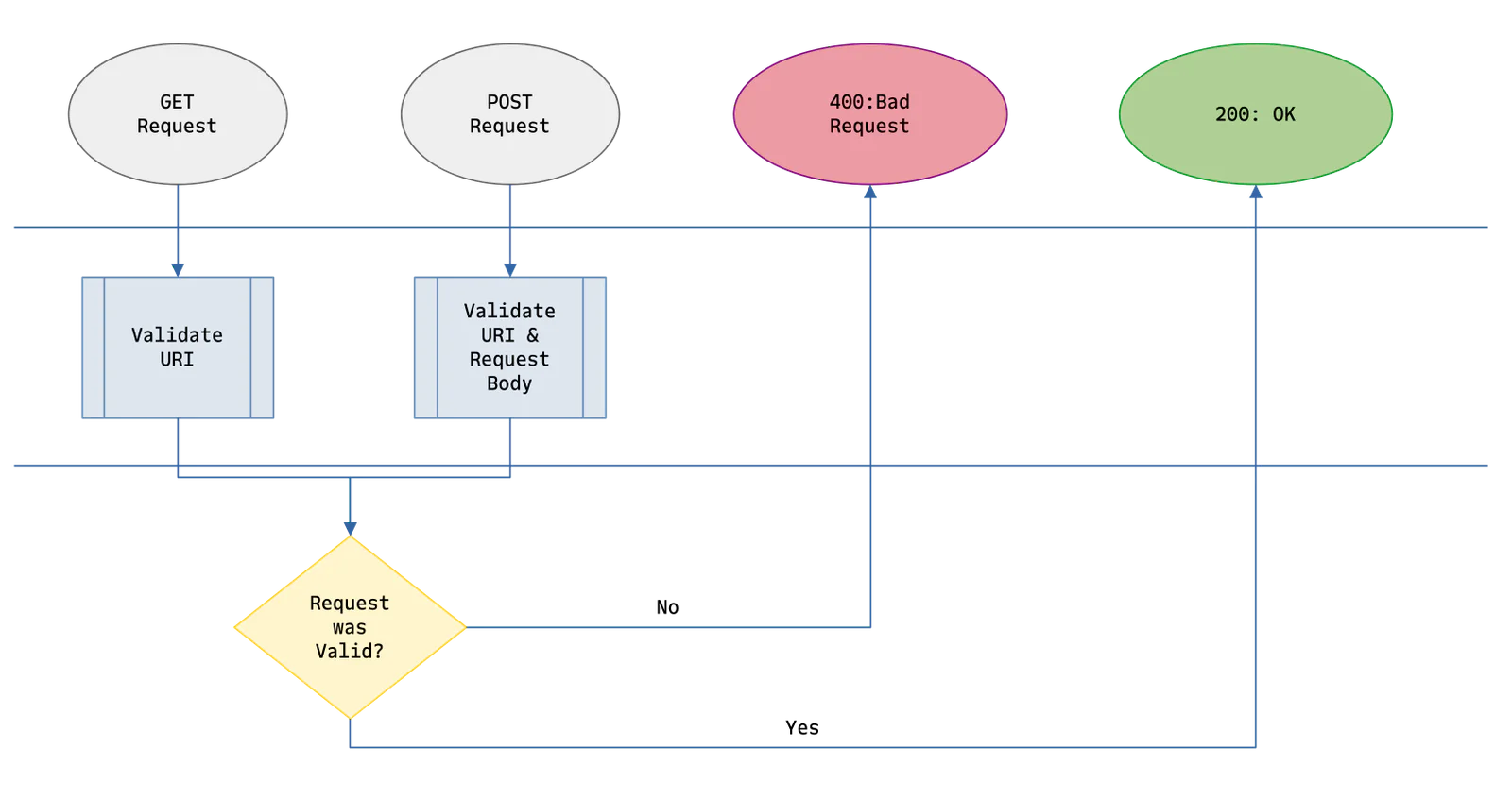
The app has two routes, one which receives webhook POST requests from Twilio, and another that receives GET requests. When requests are received the app validates them, based on whether they use the GET or POST HTTP method. Regardless of which method was used, if the request is valid, "Request was VALID" will be logged to the console and an HTTP 200 OK status code is returned. If it's invalid, then "Request was INVALID" will be logged and an HTTP 400 Bad Request status code is returned.
Prerequisites and common pitfalls to getting started
You'll need the following to use the application:
- A Twilio account (free or paid). Create a Twilio account if you don't already have one.
- Rust and Cargo
- ngrok and a free account, or a similar service that can create a secure tunnel between the locally running application and the public internet
- Your preferred code editor or IDE, such as Neovim or Visual Studio Code
- Some terminal experience is helpful, though not required
Build the app
Now, it's time to build the app.
Step 1: Scaffold a new Rust application
Start off by using Cargo to scaffold a new Rust binary application, named "twilio-event-webhook-validation", then change into the new project directory.
Step 2: Add the required crates
Now, you need to add a couple of crates, which the application will need to make use of.
To add them to the project, run the command below.
If you're using Microsoft Windows, run the command below, instead:
Step 3: Register the required environment variables
The application only needs two environment variables: EXTERNAL_URL and TWILIO_AUTH_TOKEN. These are the public-facing URL (different from its locally-running URL) of the application, and your Twilio Auth Token, respectively.
To set them, first, create a new file named .env in the project's top-level directory. Then, paste the configuration below into .env.
Next, in your terminal, have ngrok create a secure tunnel to the application on port 3000.
You'll see output, similar to the screenshot below, in your terminal.
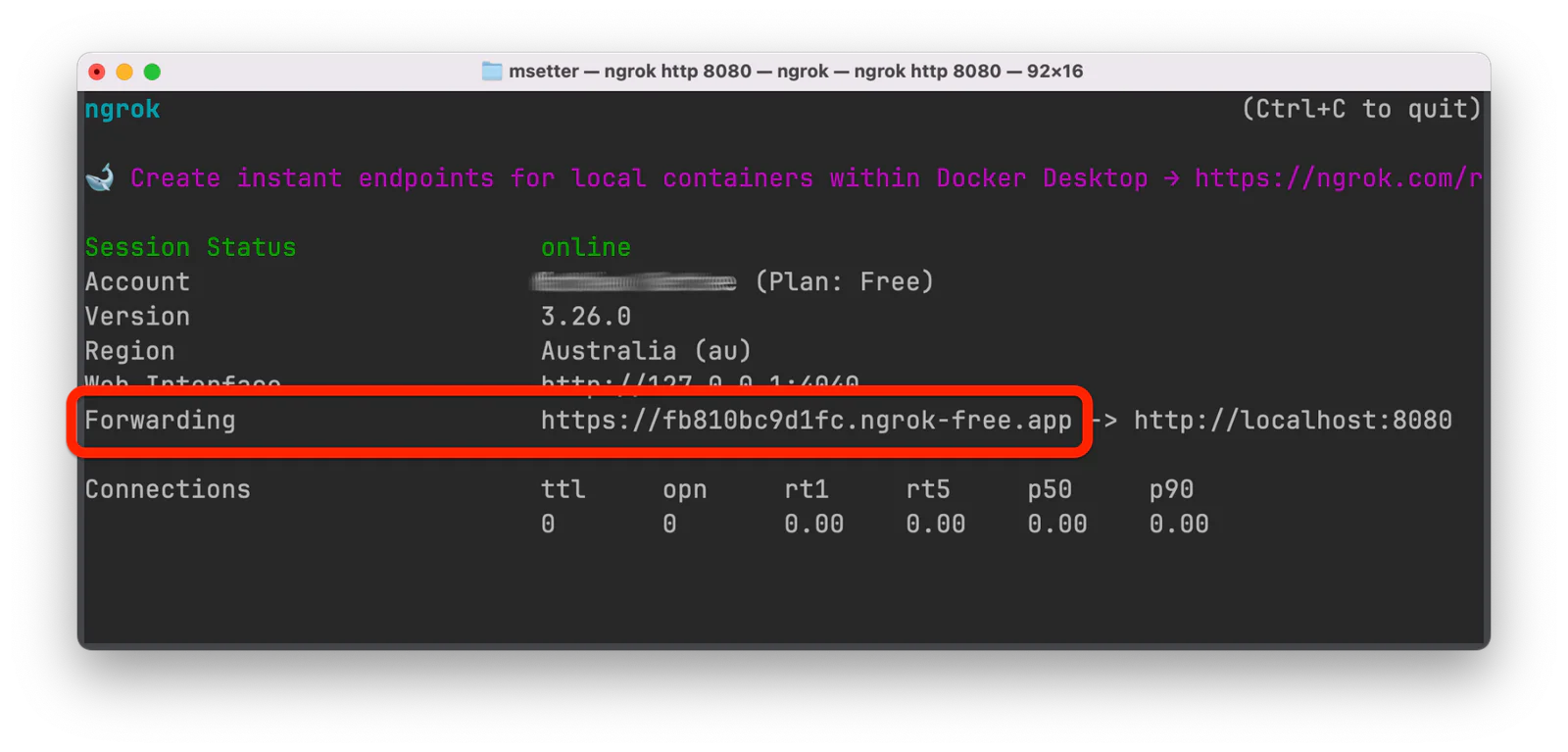
Copy the Forwarding URL and set it as the value of EXTERNAL_URL in .env.
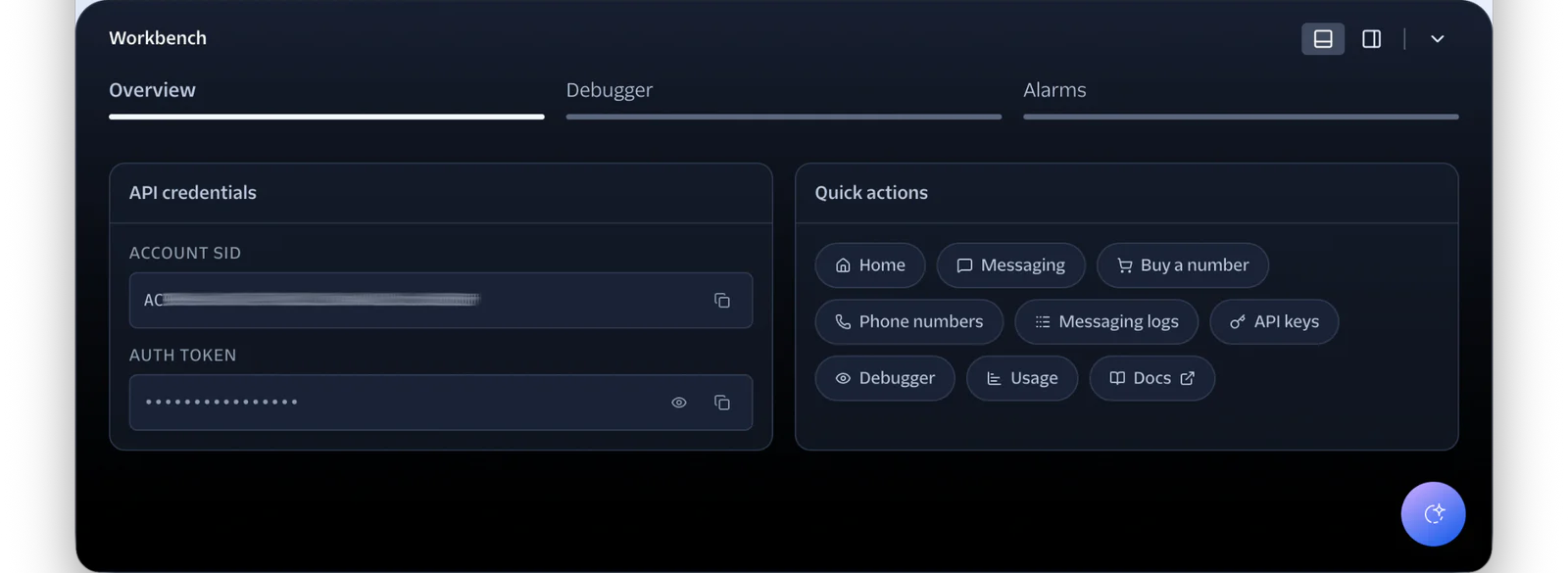
Now, log in to the Twilio Console and open the Workbench at the bottom of the page. Then, copy the AUTH TOKEN value and paste it into .env as the value of TWILIO_AUTH_TOKEN.
Step 4: Create Sink Resources
The next step is to create two Sink resources, because they're a quick and easy way to simulate sending webhook requests to the application to be validated.
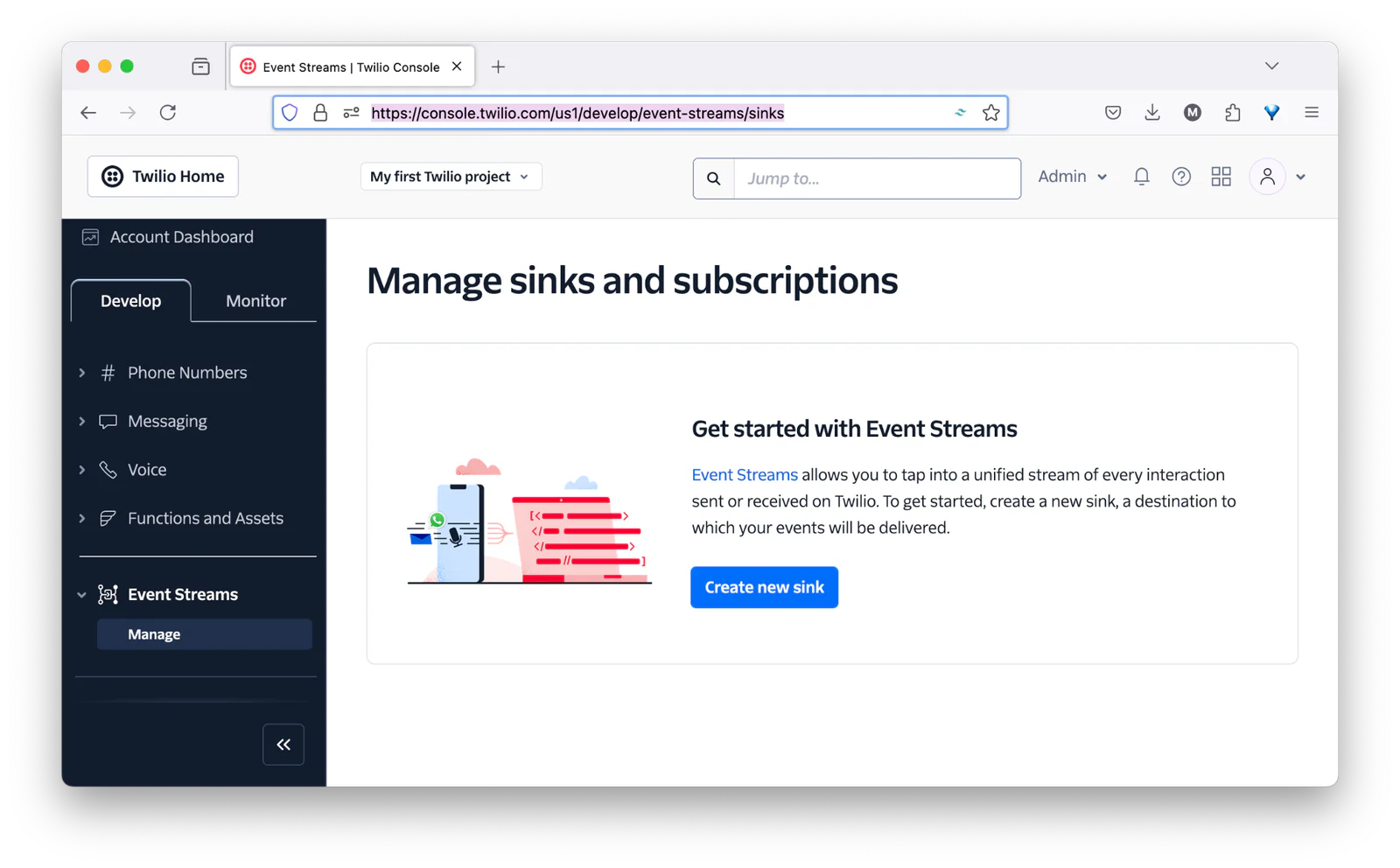
Do this in the Twilio Console, by navigating through Explore Products > Developer Tools > Event Streams. Then, click Create new sink to start the process.
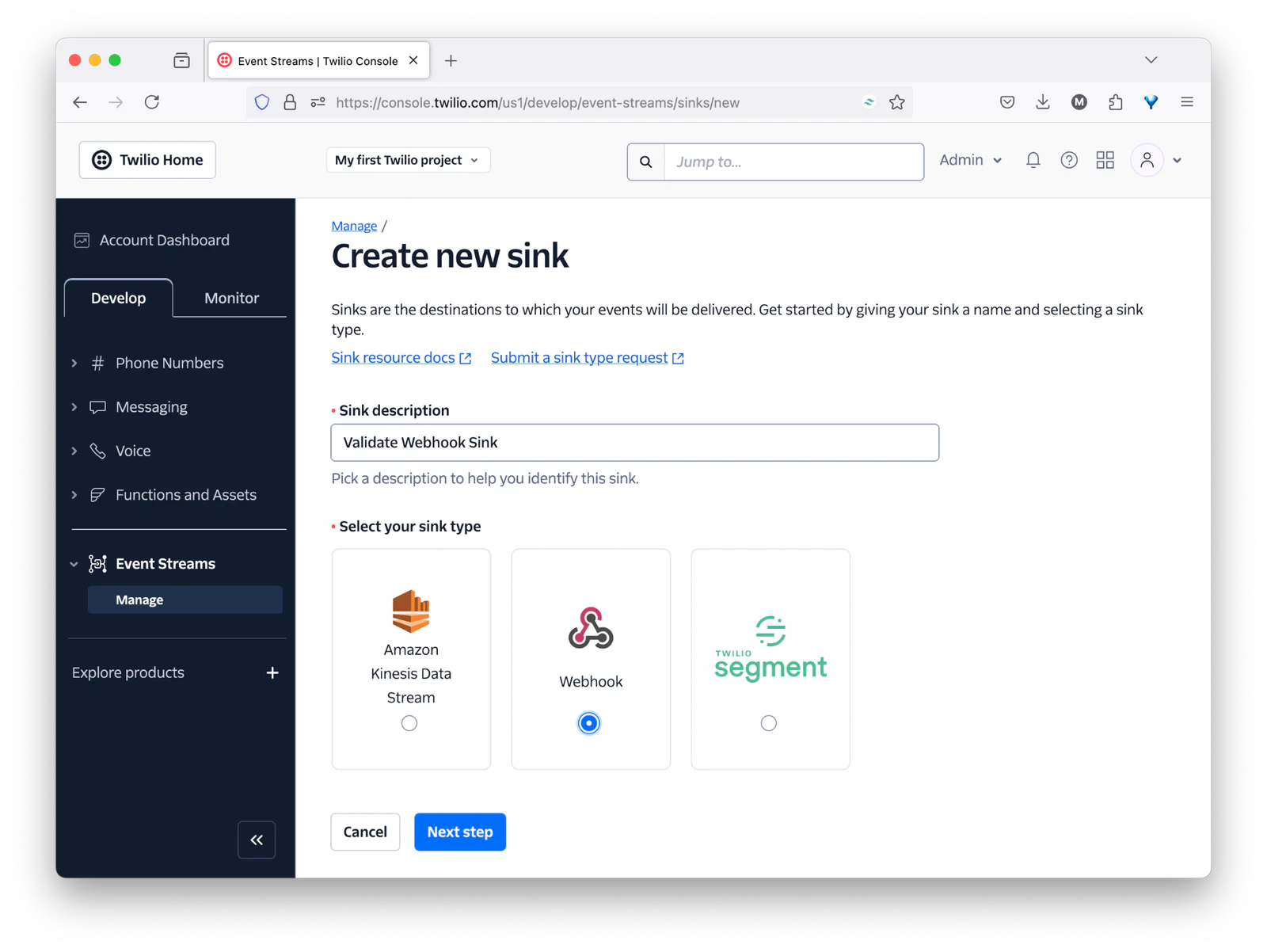
Set Sink description to "Validate Webhook Sink". Set sink type to "Webhook". Then, click Next step.
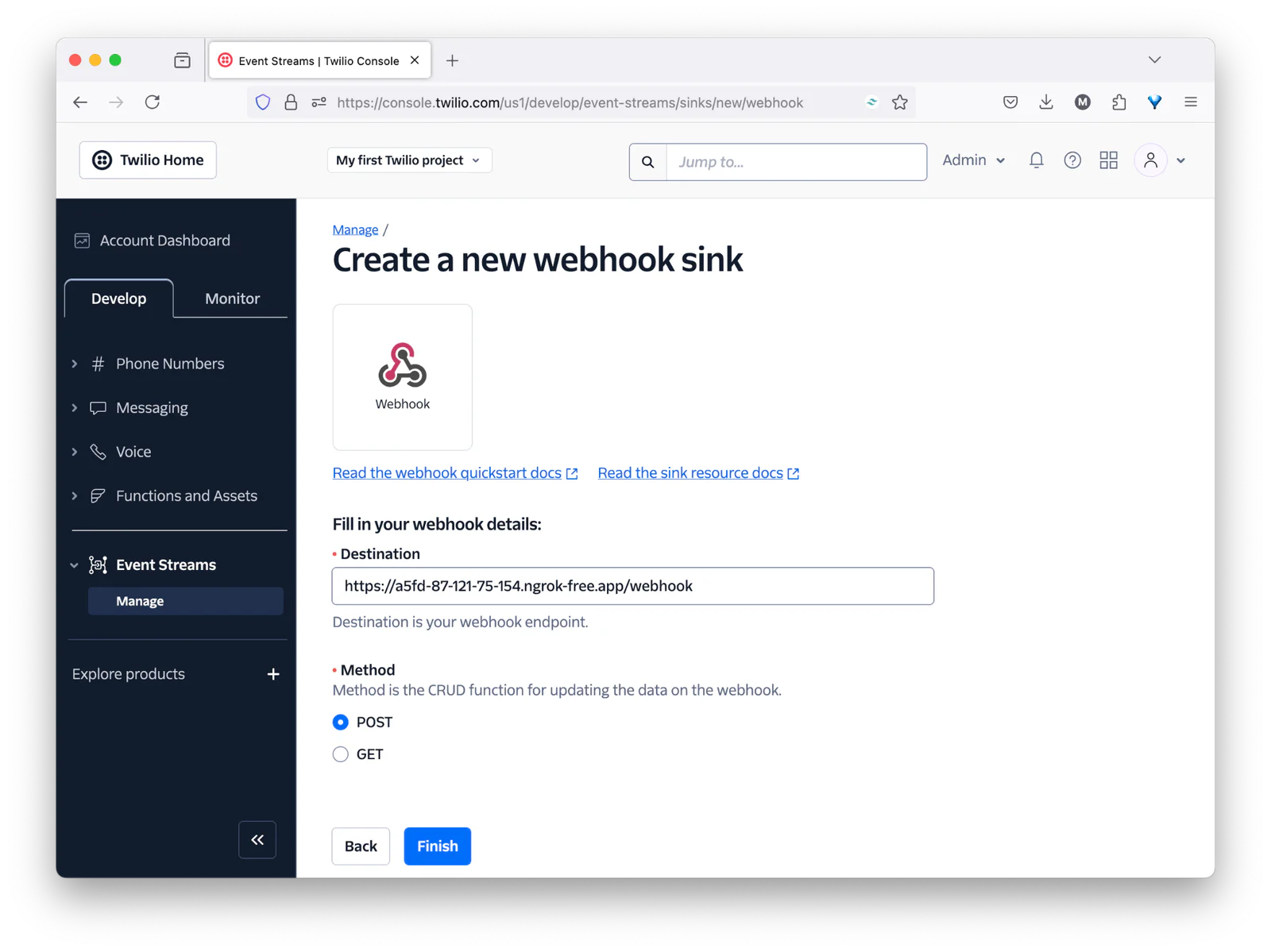
After that, set Destination to the Forwarding URL printed by ngrok to the terminal, with "/webhook" at the end. Leave Method set to "POST", and click Finish. Then, in the confirmation popup that appears, click "View Sink Details", to view the sink's properties page, confirming that it's configured as required.
With the POST webhook sink created, repeat the process. However, this time, set Method to "GET" instead of "POST", and give the webhook sink a name that indicates that it's for GET requests, not POST requests.
Step 5: Write the Rust code
With the setup out of the way, it's time to write the Rust code. Gladly, there's not that much to write. Replace the contents of src/main.rs with the following:
The code starts off by defining a struct called AppState. The struct has two properties which are used throughout the application:
- external_url: the base of the application's public URL
- validator: an instance of
WebhookValidatorfrom the rustlio package. This has the functionality required to validate incoming webhook requests.
Then, two functions are defined on AppState:
- new: This returns a new AppState instance with both of the defined properties initialised
- build_external_url: This function builds the application's public-facing URL, including any query parameters. This is necessary, as the request's signature is based on the application's external URL which Twilio makes the request to, not the internal version running on localhost.
Next, the application's entry point (main()) is defined. This function defines the two routes in the application's routing table. It also registers fallbacks for requests made to defined routes but with unsupported methods (handled by handled_405()), and for undefined routes (handled by handled_404()). The fallback handler functions are extremely simplistic, returning the relevant status code and a short text message, telling the user what happened.
Following that, the handle_post_webhook() function is defined. This function handles webhook requests made with the POST method. The function takes the AppState struct and three extractors. Extractors are handy types and traits which simplify extracting data from requests.
Without diving into too much detail, the first, headers, simplifies working with a request's headers. The second, params, simplifies working with the request's query string. Finally, the third contains the request body.
Within the body of the function, the request's signature is retrieved from the X-Twilio-Signature header. This is then passed to the validate_body() function, along with the application's external URL and the request's body. If the function returns true, "Request was VALID" is logged to the console and an HTTP 200 OK status code is returned. Otherwise, "Request was INVALID" is logged and an HTTP 400 Bad Request status code is returned.
This validate_body() function, in essence, does two things:
- Computes a signature of the request URL. The signature is an HMAC using the SHA1 hashing algorithm, where the HMAC's key is the provided Twilio Auth Token.
- Generates a SHA-256 hash of the request's body.
The function returns true if:
- The computed signature matches the signature sent by Twilio in the request
- The generated SHA-256 matches the hash sent by Twilio in the request's
bodySHA256query parameter
Finally, comes the handle_get_webhook() function. This function is almost identical to validate_body(). The key difference is that it calls WebhookValidator's validate() function, instead of validate_body(). This function computes a signature of the request URL and compares it to the signature sent by Twilio in the request X-Twilio-Signature header.
Test that the code works as expected
With the code written, let's check that it works as expected. Before we can do that, start the application by running the following command:
Then, switch back to the browser tab where you created the webhook sinks in the Twilio Console. There, open the webhook sink for testing POST requests, and scroll to the bottom of the page where you'll see the Test sink section. There, click "Send test event" to send a test POST webhook event request to the application.
Now, switch to the terminal tab where ngrok is running. There, in the ngrok terminal output, you'll see that the request was received. Then, switch to the terminal tab where the Rust application's running. You should see "Request was VALID" written to the terminal output, similar to the example output below.
Now, send a test event from the GET webhook sink and see if "Request was VALID" was printed to the terminal's output.
That's how to validate Twilio Event Webhooks in Rust
Thanks to Event Streams Webhook validation, you can be sure that incoming webhook requests come from Twilio — and weren't tampered with in-transit. What's more, thanks to Rustlio, you only needed to write a minimal amount of code to perform the validation.
I strongly encourage you to check out the documentation link below to find out more about the crate.
You can find the complete code for this article on GitHub. I can't wait to see what you build with Twilio and Rust.
Matthew Setter is a PHP and Go Editor in the Twilio Voices team. He’s also the author of Mezzio Essentials and Deploy with Docker Compose. You can find him at msetter@twilio.com . He's also on LinkedIn and GitHub.
Validation icon in the article's main image was created by Freepik on Flaticon.

Related Resources
Twilio Docs
From APIs to SDKs to sample apps
API reference documentation, SDKs, helper libraries, quickstarts, and tutorials for your language and platform.
Resource Center
The latest ebooks, industry reports, and webinars
Learn from customer engagement experts to improve your own communication.
Ahoy
Twilio's developer community hub
Best practices, code samples, and inspiration to build communications and digital engagement experiences.