How to Authenticate with Magic Links in Go
Time to read:
December 02, 2025
Written by
Reviewed by
AI generated summary
- Set up a new Go project with required dependencies and environment variables.
- Create database tables and models to store user information and magic links.
- Implement services for generating tokens, sending SMS via Twilio, and handling HTTP requests.
This summary was generated by AI and reviewed by the Twilio team.
How to Build a magic link using Go and Twilio
Magic links are secure, single-use URLs sent to users, typically via email or SMS, to authenticate them, granting them access to an application — without requiring a traditional password. They are widely used for passwordless authentication, where users can log in simply by clicking the link.
In this tutorial, we’ll build such an application using Go to handle the backend logic and Twilio's Programmable Messaging API for sending links via SMS.
Prerequisites
Before diving into the code, ensure you have the following:
- Go 1.22 or above
- A Twilio account (either free or paid). Create a new account if you don’t already have one.
- A Twilio phone number
- ngrok to expose the application publicly on the internet and a free ngrok account.
Create the application
Okay, let's build the application. Start by creating a new directory named "magic_link" wherever you create your Go projects, changing into the directory, and initialising a new Go module with the following commands:
Set the required environment variables
To keep sensitive credentials like API keys out of your source code, we'll load them from environment variables. This makes the app more secure and easier to configure across different environments.
To do this, create a file named .env in your project's top-level folder and copy the following credentials into it:
Next, log in to the Twilio Console, and from the main dashboard, copy your Account SID, Auth Token, and phone number. After that, paste them into .env in place of <your twilio sid>, <your twilio auth token>, and <your twilio phone number> respectively..
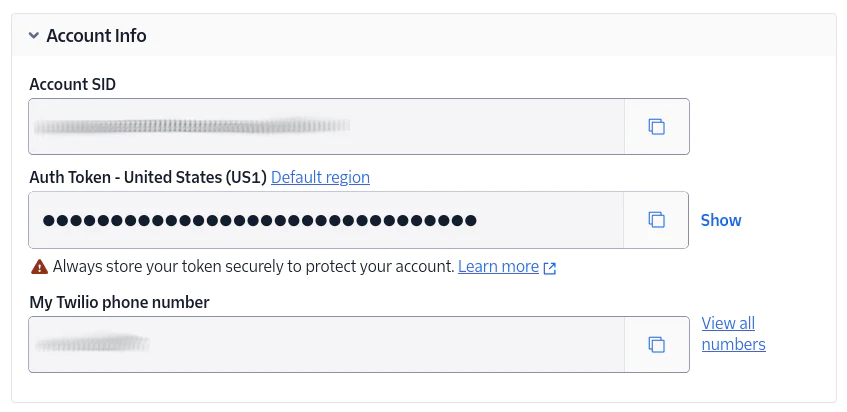
You also need an ngrok Forwarding URL. pen up a terminal and have ngrok expose port 8080 on your local machine to the internet using this command:
Then, copy the Forwarding URL printed to the terminal and paste it in place of <your ngrok url> in .env.
Set up the project
You next need to install the following dependencies:
- github.com/twilio/twilio-go: This is the official Twilio Go Helper Library, which simplifies interacting with Twilio services like SMS, voice, and other communication tools. For this project, it will be used to send magic links via SMS.
- github.com/joho/godotenv: This package will help us manage our environment variables.
- github.com/mattn/go-sqlite3: This package is a Go driver for SQLite. In this project, SQLite will store user data and magic links, ensuring authentication tokens are managed securely and expire after a set period.
To install all of these, run the following command in a new terminal tab or session:
Set up the database and define the database models
In this tutorial, we’ll use SQLite to store user information and issue magic links. This helps us track users, generate secure tokens, check if links have expired, and make sure each link is only used once. Alongside that, we’ll define Go structs (models) that match the database schema — these will make it easier to work with users and magic links in code.
Create a subdirectory called database, in the project's top-level directory, and inside it create a file called sqlite.go. In the new file, add the following code:
Now, in sqlite.go replace <your phone number> with the mobile/cell phone number that will receive SMS from the application.
In the code, we create two tables. The first is the "users" table, which stores the user details. The second is the "magic_links" table, which stores the link with expiration and usage status.
Next, create another directory in the project's top-level directory called models, and inside it, create a file called users.go. Then, add the following code to the new file:
Thecode above contains the data structure for the user, storing the essential information about them.
You now need to create another file inside the models directory called models.go. Inside it, add the following code:
The code above is a struct that represents a magic link in the database. It includes a secure token, a reference to the user it belongs to, an expiration time, and a flag to check if it's already been used. This is all the essential details needed for safe, one-time authentication.
Set up the application's configuration and services
Now that the database and models are in place, you need to set up the application's configuration, and services for loading and the core logic for sending and verifying magic links. This includes loading environment variables, generating secure tokens, and sending SMS messages through Twilio.
Create a directory called config in the project's top-level directory and inside it create a file called config.go. Then, add the following code to the new file:
This code handles loading app configuration from .env using the GoDotEnv package. It pulls in values like your Twilio credentials, the app port, and the ngrok URL, then stores them in a Config struct.
If PORT or NGROK_URL aren’t set, it falls back to sensible defaults; 8080 for the port and a localhost URL for the base URL. The Load() function returns a fully populated Config instance, which the rest of the app can use to stay flexible and keep sensitive data out of the codebase.
Next, we’ll implement the application’s core services — these are reusable components that handle the main logic of our app, like generating magic links, verifying them, and sending SMS messages. Let’s start with the service responsible for creating and managing magic links.
For the services, create a subdirectory called services in the project's top-level directory, and inside it create a file called magic_links.go. Now, add the following code to the new file:
The code above generates a secure, 32-byte token using the crypto/rand package. It also retrieves users by phone number, and creates and stores magic links in the database.
There is also a verification method that checks if the provided token exists, hasn’t expired, and hasn’t already been used. If the token is valid, the associated user is returned and the token is marked as used to prevent reuse.
It also handles magic link verification by checking if the token is valid, hasn’t expired, and hasn’t already been used. If all checks pass, the user is successfully authenticated; otherwise, an appropriate error is returned.
Next, still inside the services directory, create another file called sms.go. Then, add the following code to the new file:
This code defines a service for sending SMS messages using Twilio. It implements the SMSService interface with a single method, SendSMS(). The TwilioService struct holds a Twilio client and the sender's phone number. The NewTwilioService() function initializes the client using your Account SID and Auth Token. When SendSMS() is called, it creates and sends a message through Twilio’s Programmable Messaging API using the provided recipient number and message body.
Implement route handlers and the main function
Now that the services are ready, it’s time to hook them up to actual HTTP routes. In this section, we’ll build the request handlers that process form submissions, trigger SMS messages, and handle verification. We’ll also set up the main.go file to wire everything together and start the web server.
Create a directory called handlers in the root of your project. Inside the handlers directory, create a file called magic_link.go (this is separate from the one in the services directory). Then, add the following code to the new file:
The code above defines the HTTP handlers responsible for the main user interactions. ServeLoginPage() and ServeVerifyPage() render the login and verification HTML templates. RequestMagicLink() handles form submissions from the login page. It accepts a phone number, generates a magic link, and sends it via SMS. VerifyMagicLink() checks if the token in the URL is valid, expired, or already used, and returns a success or error response accordingly.
We’ve built the handlers and connected the core logic. Now, let’s bring everything together in main.go. This file sets up configuration, connects to the database, initializes services and handlers, and starts the HTTP server.
Create a main.go file inside of the root directory. Then, add the following code to the file:
Create the required templates
For the template layer, you’ll need three files, two HTML files and a JavaScript file. Create a templates subdirectory in the project's top-level directory. This will contain all three files you’ll be creating.
The first HTML file is called login.html and contains the following code:
The second HTML file is called verify.html and will contain the following code:
Lastly, the JavaScript file will be called script.js and it will have the following code:
Test the application
Since ngrok is already running, you only need to start up the application server by running the following command:
Navigate to your ngrok Forwarding URL in your local browser where you should see it look like the screenshot below:
Fill out the form by inputting your phone number and submit the form. You should receive an SMS containing the magic link soon after submitting the form, which looks similar to the screenshot below.
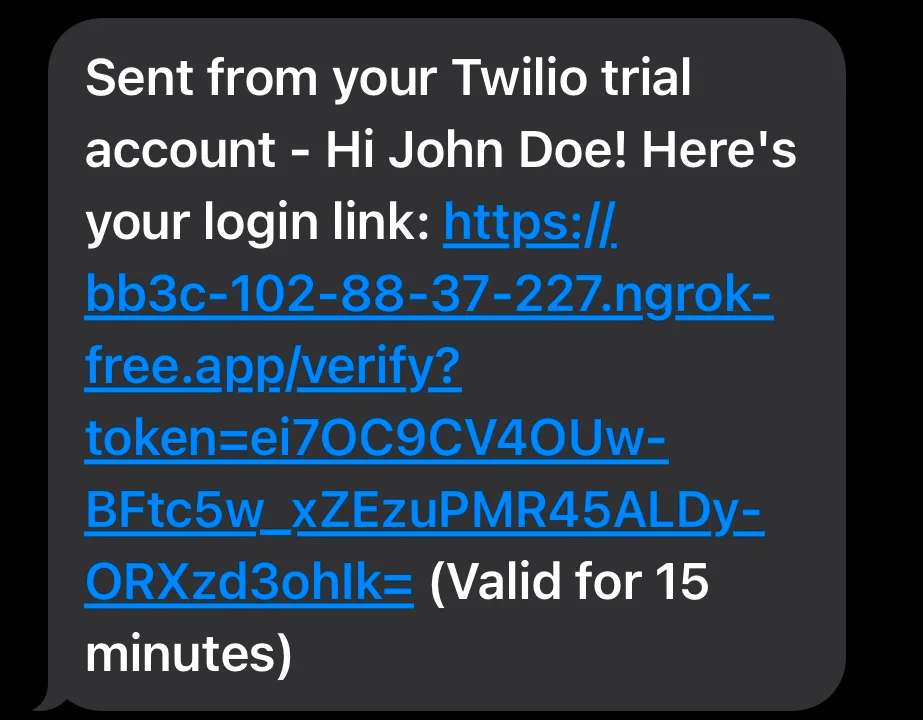
Click on it and you’ll see it verifies your login.
That’s how to build a magic link in go
In this article, we took a look at how to build a magic link in Go using Twilio, withSQLite as the database. You can improve on this project by adding email service to also send you a link, and SendGrid can be used for this purpose.
Tolulope Babatunde is a software developer with a passion for translating complex concepts in clear content through tech writing.
Magic icons and Link icons created by Freepik on Flaticon.
Related Posts
-
 AI-powered agents for contact center in Australia: containment quality, not deflectionAliakbar Lokhandwala
 -
AI-powered agents for contact center in India: what they can and cannot doAliakbar Lokhandwala
-
AI-powered agents for contact center in Philippines: what the term actually meansAliakbar Lokhandwala
Related Resources
Twilio Docs
From APIs to SDKs to sample apps
API reference documentation, SDKs, helper libraries, quickstarts, and tutorials for your language and platform.
Resource Center
The latest ebooks, industry reports, and webinars
Learn from customer engagement experts to improve your own communication.
Ahoy
Twilio's developer community hub
Best practices, code samples, and inspiration to build communications and digital engagement experiences.