Build a SendGrid MCP Server for AI Email Workflows
Time to read:
December 03, 2025
Written by
Reviewed by
AI generated summary
- Set up a local MCP server to enable AI-driven email automation using SendGrid.
- Configure Python environment and install necessary libraries for MCP server functionality.
- Create and register MCP tools for managing emails and contacts with SendGrid's API.
This summary was generated by AI.
Build a SendGrid MCP Server for AI Email Workflows
Model Context Protocol (MCP) is an open standard developed by Anthropic that lets you connect AI models to external services through MCP servers. Instead of stopping at producing drafts inside a chat window, a model uses MCP to take action such as sending emails, updating databases, or working with APIs. Before MCP, models could only suggest the next step and leave the implementation part to the user. In this article, you’ll build a local MCP server that gives your AI workflows the ability to use SendGrid for email automation.
Prerequisites
To follow along with this article, ensure you have the following:
- A SendGrid account. If you don't have one, create it here. You will receive a 60-day free trial that allows up to 100 email sends per day.
- Basic understanding of Python and the command line interface.
- Python 3.9 or later installed on your computer.
Setting Up Your Development Environment
Having addressed the prerequisites, the next step is to set up your coding environment. This will involve initializing a Python virtual environment, installing essential libraries, and fetching your SendGrid API key to configure email access securely.
Python Virtual Environment Configuration
Start by creating a folder named sendgrid-mcp at a location of your choice on your computer. This will be the root directory of your project and will hold all your code and configuration files. Then open the folder in your code editor and run the following command in its terminal:
The above command creates a virtual environment named venv. This will help isolate your project dependencies, preventing conflicts with other projects that may use different package versions.
Then activate the virtual environment by running the appropriate command in your terminal, based on your operating system:
For Windows run:
For macOS or Linux:
Activating the environment ensures that any packages you install or commands you run stay confined to your project. If everything is set up correctly, your terminal prompt will show the name of the virtual environment at the beginning.
Installing the Necessary Libraries
With the virtual environment active, install the packages your MCP server will need to function. Here are the packages you will need:
- fastmcp: This package will provide the MCP server framework, allowing AI models to communicate with your server.
- sendgrid: This is SendGrid’s official SDK that will help in sending emails.
- httpx: This will help in handling asynchronous HTTP requests for custom API calls.
- python-dotenv: Will load settings from a file, keeping sensitive data like API keys secure.
Run the following command on your terminal to install them using pip. If you don't have pip installed, install it from here.
When the installation is complete, you are ready to move on to the next phase of the setup.
Setting Up the Environment Variables
Your server will need the SendGrid API and other settings to operate. Some of these are very sensitive and hardcoding them in your code risks exposing them, especially when sharing the project via version control platforms like GitHub. To counter this, you will need to store them in a .env file. In the sendgrid-mcp folder, create a file named .env. Then, open it in your code editor and add these lines:
Those are all the configurations you will need to create your SendGrid MCP server. You will understand what each configuration means as you move along with the article.
Configuring Your SendGrid Account
To perform actions on your behalf, the MCP server must authenticate with the SendGrid API. This requires an API key and a verified sender email address. To obtain them, log in to your SendGrid account. Then, proceed to Settings > API Keys in the SendGrid dashboard. Click Create API Key in the top-right corner. Name it mcp-project to identify its purpose.
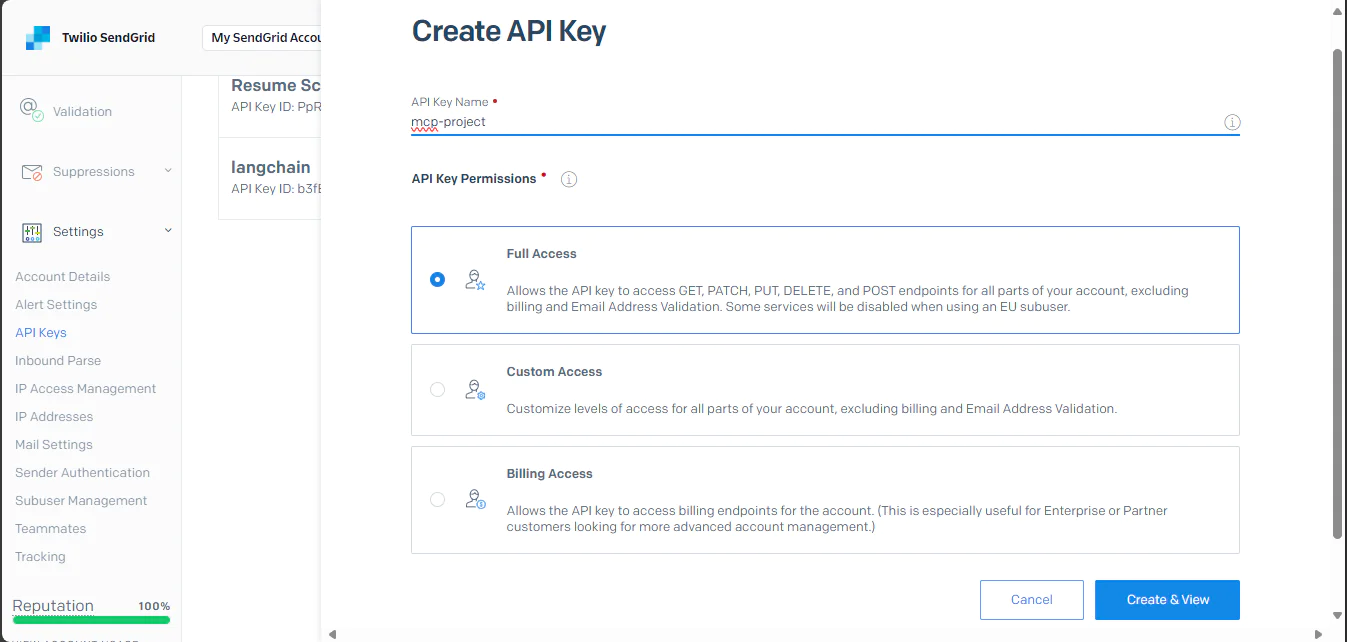
Select Full Access to allow the key to send emails, manage contacts, and fetch stats. Click Create & View.
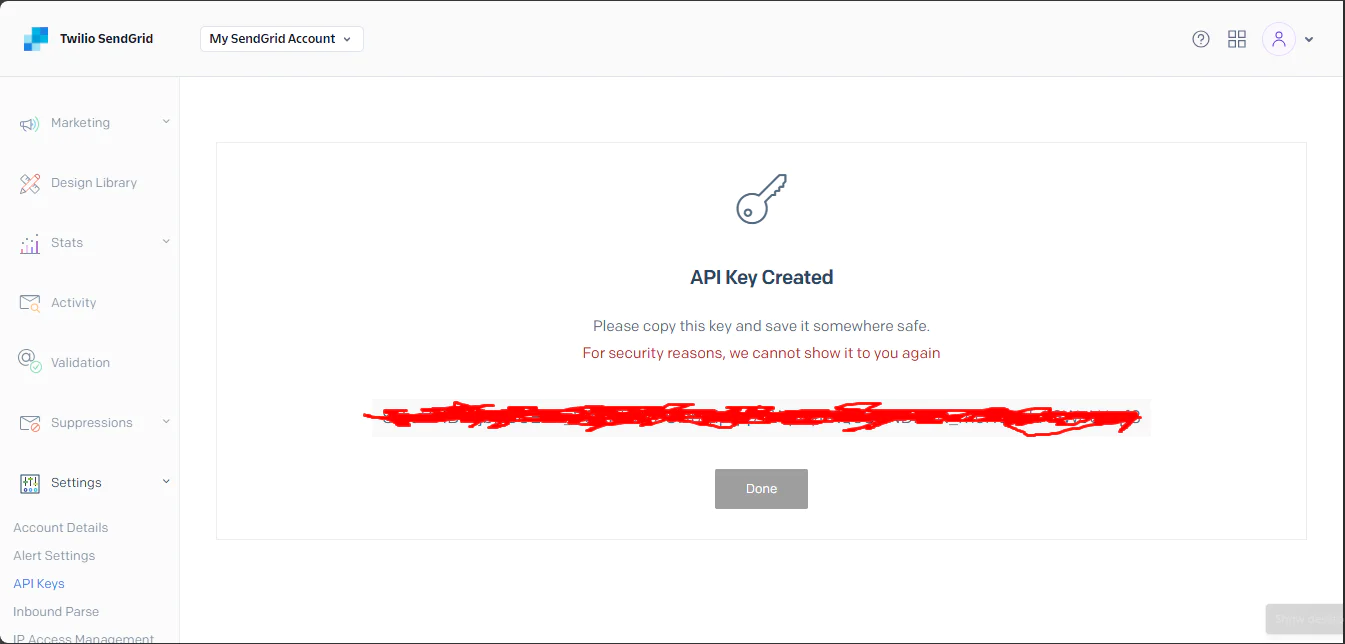
After obtaining the API key, the next step is to verify your sender email. To do this, on your dashboard, go to Settings > Sender Authentication. Click Verify a Single Sender. Enter an email address you control, your name, and any required details. Click Create.
The last step is obtaining your dynamic template ID. In the SendGrid dashboard, navigate to Email API > Dynamic Templates, which allows you to create reusable email templates that support dynamic content insertion. Click Create a Dynamic Template, enter the name customer-discount or choose a name of your liking, and click Create.
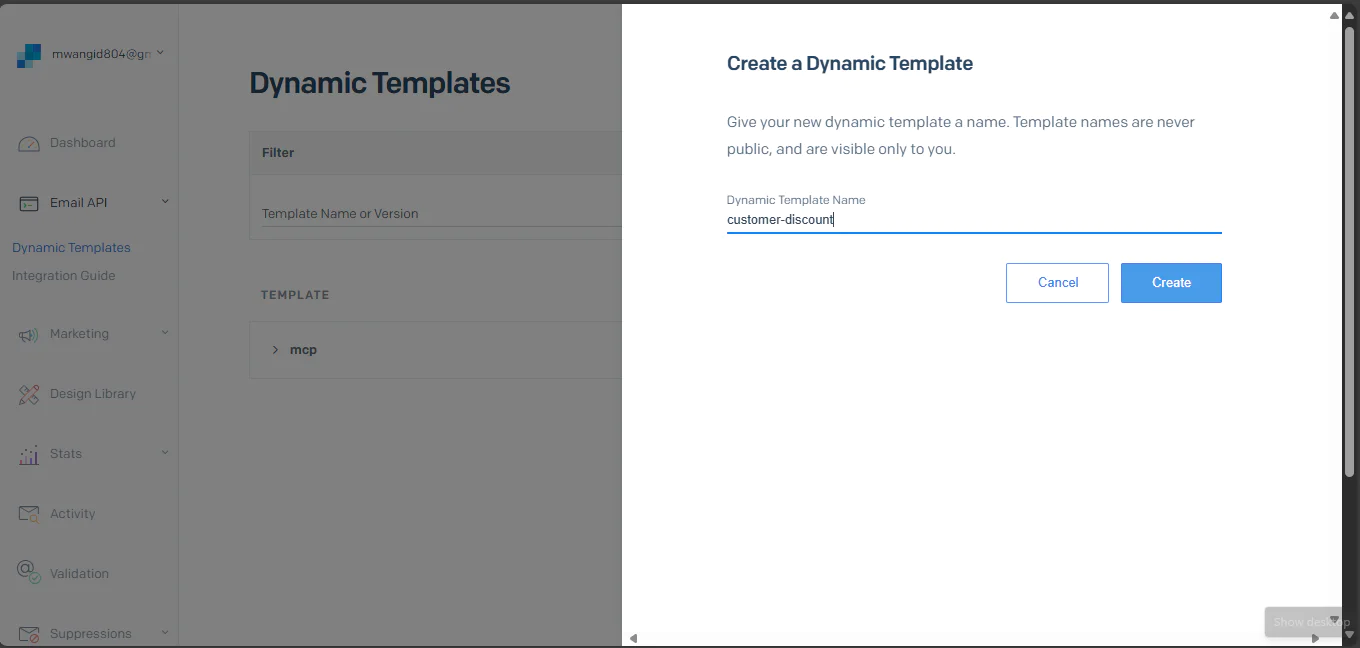
Next, select the template from the list and click Add Version.
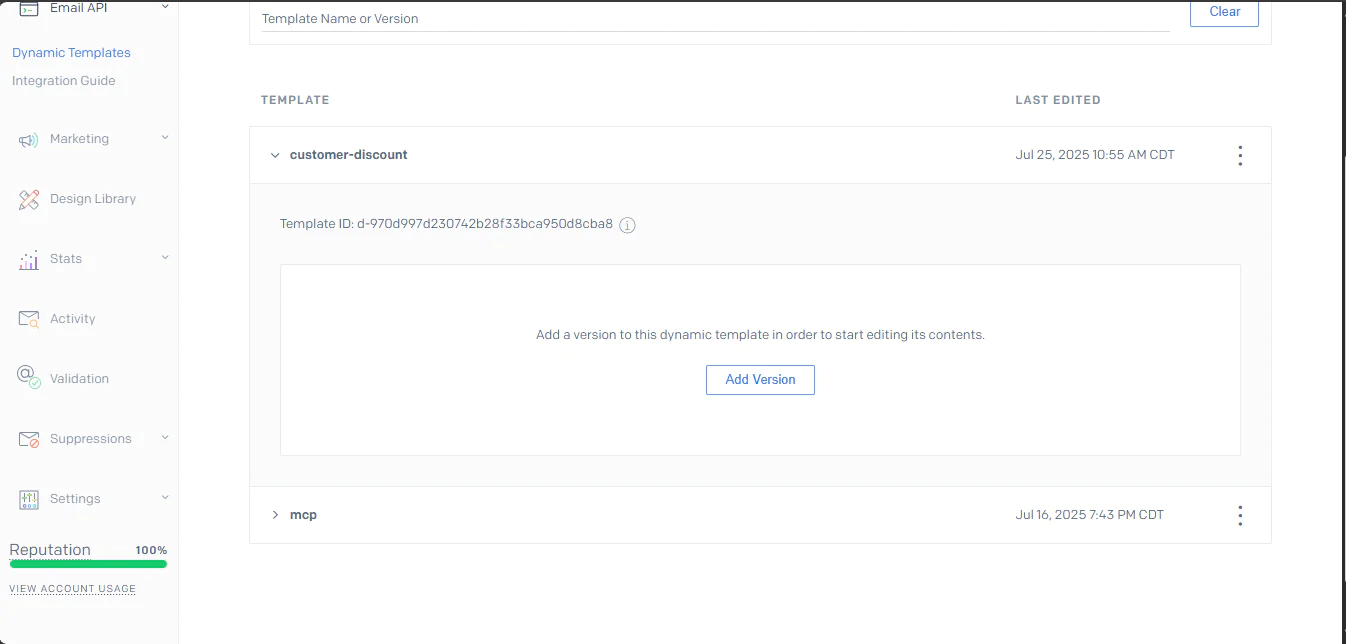
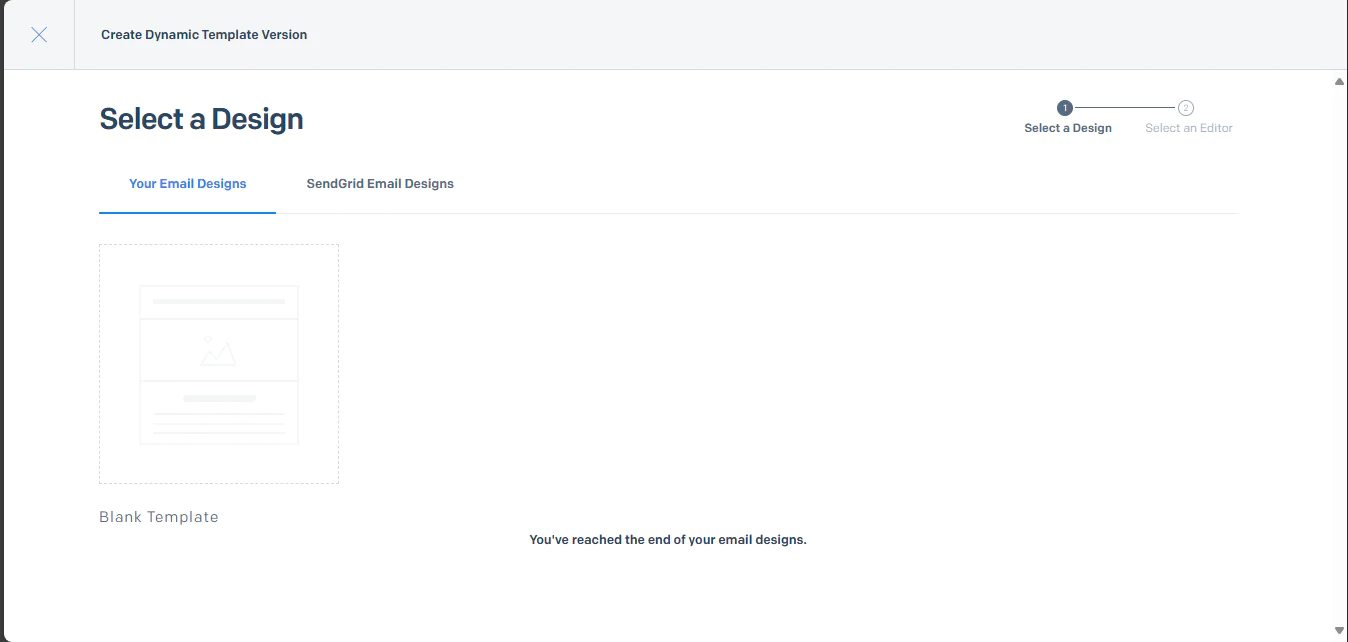
Then, choose a design such as Blank Template, and click Continue.
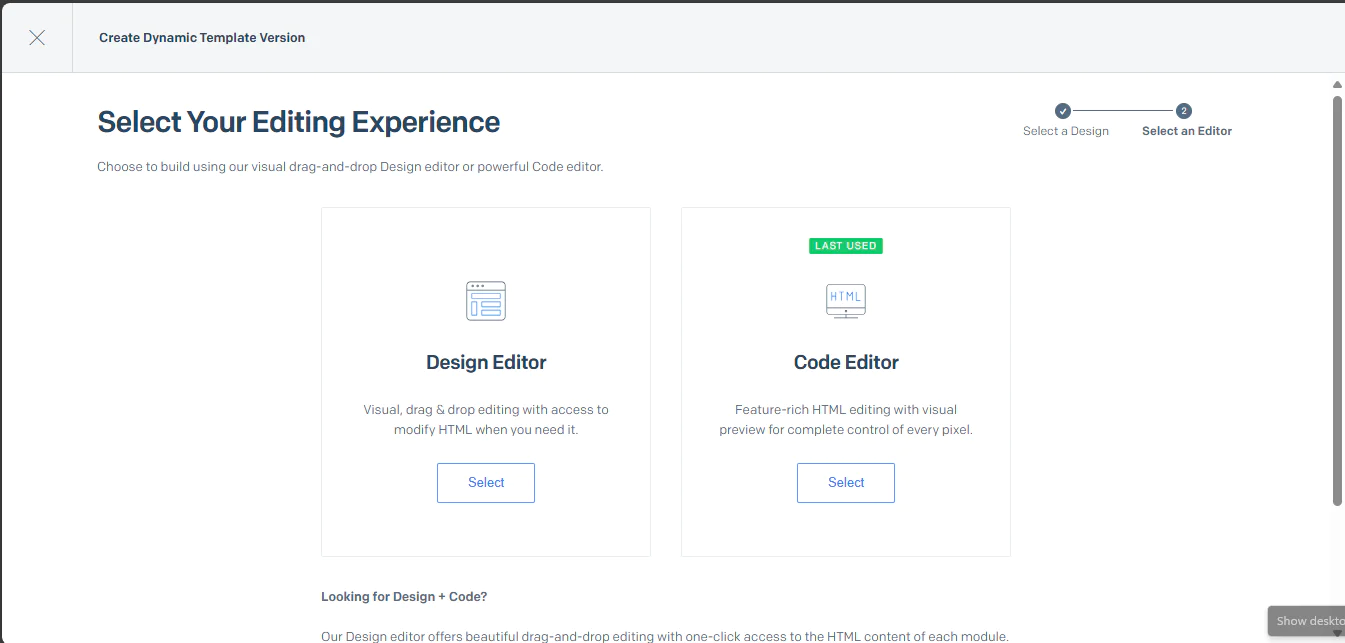
Then, select Select Your Editing Experience, choose the Code Editor to edit the HTML content.
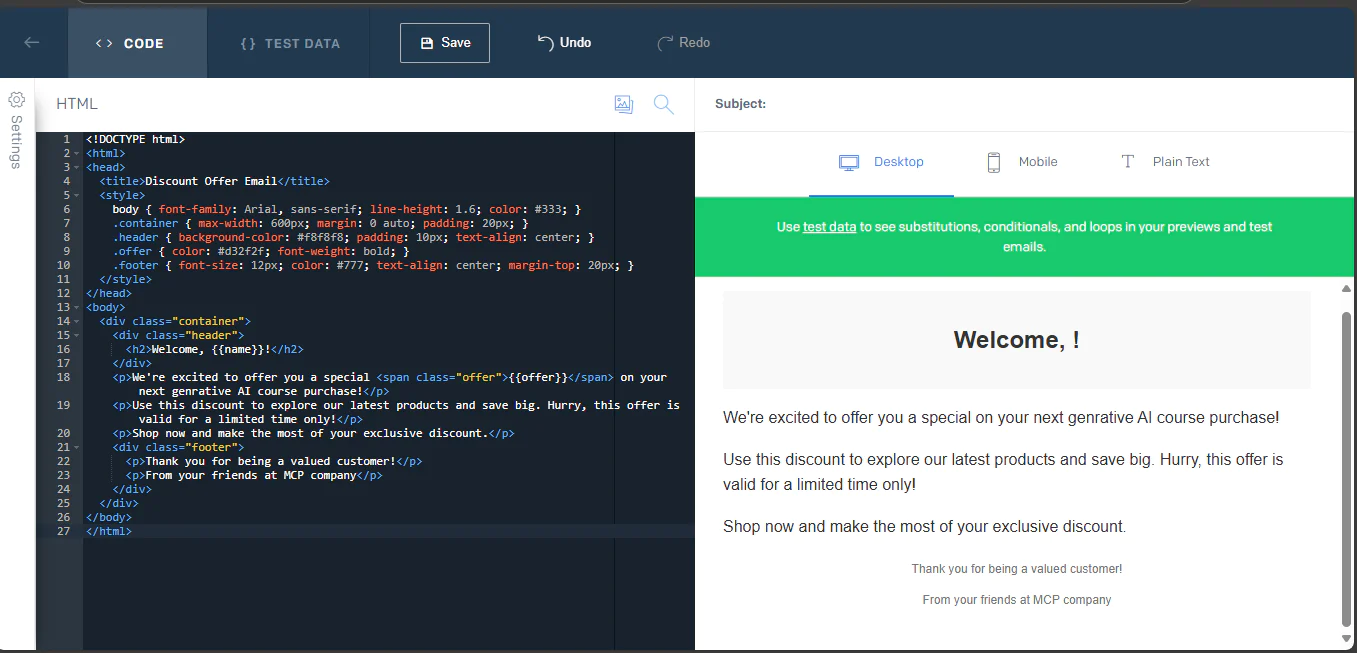
Paste this sample HTML code in the opened editor.
You can change this code to suit your purpose or liking. The variables enclosed by {{ }} will be replaced dynamically with data when sending emails.
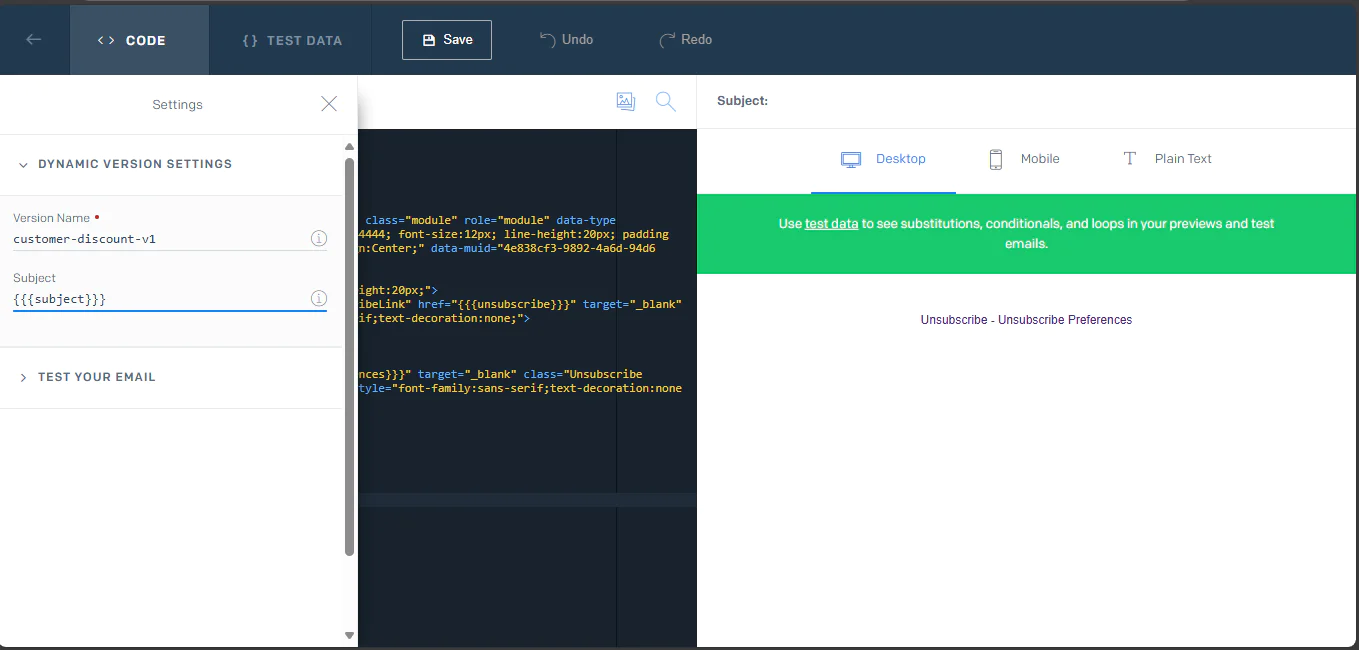
Then name the version as customer-discount-v1 and set the subject line to {{subject}}, click Save.
Finally, copy the dynamic Template ID from the template details.
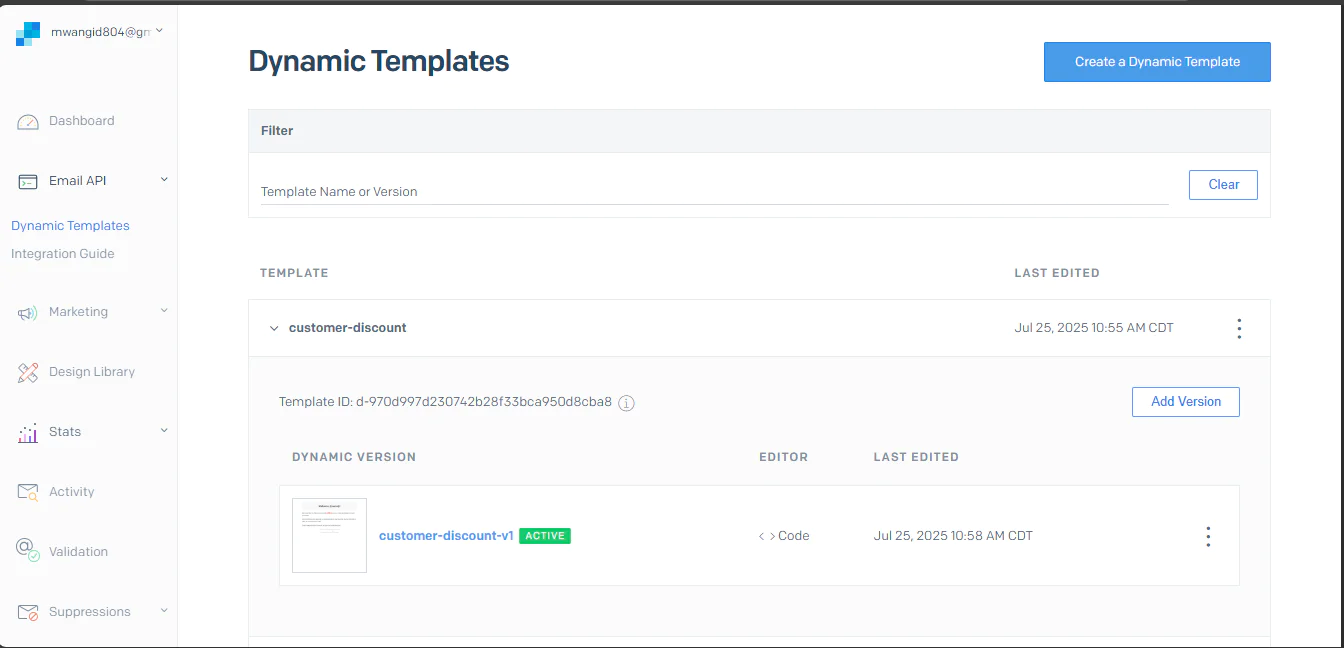
Return to your .env file and replace the placeholders of SENDGRID_API_KEY, DEFAULT_FROM_EMAIL, DEFAULT_FROM_NAME, and DEFAULT_TEMPLATE_ID with the actual values obtained from SendGrid.
Your environment is now ready, and you can start writing your SendGrid MCP server code.
Developing the MCP Server
In this section, you will build the MCP server that connects to SendGrid and responds to requests from AI systems. These requests include sending emails and managing contacts. The server listens for instructions and carries them out using SendGrid’s services.
Creating the Configuration Module
The first step in building the MCP server is creating a configuration module. Even though you did store your settings in the .env file, the server still needs a way to organize these values, check they are usable during startup, and provide a single place for the rest of the code to access them. This helps prevent the server from crashing later due to missing or invalid settings.
Create a new file called config.py in the sendgrid-mcp directory. Then open it and begin importing the required modules, functions, and classes.
The os module will help read environment variables. On the other hand, the Optional module will help mark settings that can be empty, and dotenv library will help load your .env file settings into the program.
With the imports ready, load the variables from your .env file so they can be accessed in the configuration:
Then define a class to organize and validate settings.
The SendGridConfig class organizes all settings in one place. When the class starts, the __init__ method runs automatically and pulls values from environment variables. Each setting checks the environment first, then applies fallbacks if nothing is found. For the API key and sender details, the fallback is None since these can be provided later during authentication. The rate limit setting defaults to 10 requests per second if not specified. The last setting handles text-to-boolean conversion by checking if the value matches common true indicators.
After defining the configuration class, create a global instance to make the settings accessible throughout your project.
This instance loads all settings immediately when the module is imported, allowing access to configuration values.
Setting up Authentication
Now that the configuration is ready, the server needs a way to handle authentication securely. This is where the authentication module comes in. It will bridge the gap between your configured API key and the actual SendGrid requests, while also supporting clients who want to provide their own API keys.
Create a file named auth.py in the sendgrid-mcp directory. Then, open it and paste this code:
In the above code, you start by importing the necessary modules: The TokenVerifierprovides the authentication interface. The configuration module that you created earlier supplies the default API key that was loaded from the environment.
Then, you create the SendGridTokenVerifier class. The verifier checks that API keys match SendGrid's format, meaning they start with SG and are exactly 69 characters long. It also accepts the default token from your configuration for backward compatibility. This means clients can authenticate with their own valid SendGrid keys, or the server falls back to your configured key when no client token is provided.
Creating the SendGrid API Client
With authentication in place, the next step is building a SendGrid API client that handles the actual communication with SendGrid's services. This is different from the MCP clients that will connect to your server. It is what your MCP server uses internally to send emails and make SendGrid API requests.
Create a file named client.py in the sendgrid-mcp directory. Then open the file and begin by setting up the imports and initializing a logger instance:
After this, define the SendGridClient class:
The SendGridClient checks for an API key from either the constructor or the configuration file. If it finds a valid key, it sets up the official SendGrid client and prepares rate-limiting variables with the current timestamp at zero, to prevent overwhelming SendGrid's API.
After this, connect the SendGrid client to your authentication system using a factory method.
In the above method, if an MCP client provides a SendGrid API key via FastMCP'sBearer token authentication, the method creates a client instance using that key. If no token is present, the method falls back to the server’s default configured key.
Next, add the rate-limiting mechanism that manages request flow:
This method runs before every API request to ensure enough time has passed since the last call. If requests come too quickly, it forces the code to wait. This protects your SendGrid quota and prevents API throttling. You can adjust the wait time to suit your needs.
Since you have the authentication and rate limiting in place, now create a method named send_email. It will be used by the MCP tools to send both regular and SendGrid's dynamic template emails.
This method handles the email sending workflow. It first applies await self._rate_limit_request() to apply the rate limiting you set up. Then it chooses between template-based emails and regular content emails based on the provided parameters. It falls back to your configured defaults for sender information when not provided. It then validates that required fields exist, converts single recipient strings to lists for consistent processing, and creates SendGrid's Mail object using their helper classes.
For template emails, it sets mail.template_id and passes dynamic_template_data for variable substitution, while for regular emails, it uses mail.add_content() with the specified content type. The method supports attachments and sends the constructed email through self.client.send(mail). It then returns a structured response from SendGrid containing the status code, success message, unique message ID for tracking, and the final recipient list. It also provides detailed error logging to help with debugging when issues occur.
The last step in creating the SendGrid API client is creating a generic make_api_request method. This handles all non-email SendGrid API calls. It will make it easy later to add or change endpoints outside email sending without rewriting endpoints each time:
The make_api_request method applies the same rate limiting as the email method. It sets proper authentication headers and handles GET, POST, PUT, and DELETE requests asynchronously using httpx.AsyncClient(). This async approach ensures your MCP server doesn't block while waiting for API responses, allowing it to handle multiple concurrent requests from different MCP clients. It also maintains error handling, rate limiting, and authentication.
Building the MCP Tools
Now that you have created the means for your MCP server to talk to the Sendgrid API, it's time to create MCP tools. These are callable functions that allow AI models to interact with external systems like SendGrid. They transform your client's methods into structured interfaces that AI can understand and use.
Each MCP tool follows a specific pattern: it registers with a name, description, and input schema, then AI models can discover and call these tools to perform actions. Start by creating the email tools that will handle sending emails.
Creating the Email Tools
Create a folder named tools inside the sendgrid-mcp directory. This folder will hold all the code files related to MCP tools. Then, inside the tools folder, create a file named email_tools.py, which will contain the code for the email tool.
Open tools/email_tools.py in your code editor and start by adding the importations and instantiating the logger as you did in earlier sections.
Now create the basic email sending tool using the @mcp.tool() decorator. A decorator is a function that takes another function as input and returns a new version with added functionality.
The above code creates your first email tool named send_email. The @mcp.tool() decorator registers the send_email function as an MCP tool that AI models can discover and call. Its parameters include a name for the tool identifier, a description that helps AI understand what the tool does, and tags for categorization.
The function accepts email parameters and a Context object that provides MCP-specific functionality like logging messages back to the AI client. It then parses comma-separated email addresses into a list, creates a SendGridClient using the context for authentication, calls the client's send_email method with the provided parameters, and handles errors by logging them through the context and raising appropriate exceptions.
Next, create a second email tool that will be a helper function to support the third tool you’ll create for sending dynamic template emails.
This tool fetches template information from SendGrid's /v3/templates/{template_id} API endpoint. It uses the make_api_request method to do this. The returned response from SendGrid allows AI models to understand template structure and required variables before sending template-based emails.
Finally, create the template email sending tool:
This tool performs template-based email operations. It validates the template ID, processes comma-separated recipient lists, and provides real-time progress feedback through context logging. The dynamic_template_data parameter expects a dictionary mapping template variables like {{name}} to actual values for substitution. The content string is empty because template-based emails derive their content from the specified template rather than the content parameter. This allows for reusable email designs with personalized data.
Creating Contact Management Tools
The contact management tools will allow AI models to work with SendGrid's contact database. Create a file named contact_tools.py inside the sendgrid-mcp directory. This will store the contact management tools code.
Then open the file and begin by importing necessary modules and setting up logging the same way you did in the email tools section.
After that, develop a contact creation tool.
This tool will help add contacts to SendGrid through the add_contact function. The function starts by building a basic contact with just the email. It then conditionally adds optional fields like names when provided. The custom fields handling works by first checking if the data comes in as text or as already organized data. If it receives text data (JSON format), the code uses json.loads() to convert it into usable information. Then, contact_data.update() combines all the custom field data with the basic contact information. The function also handles mailing list assignments by parsing comma-separated list IDs. It then adds contacts to those specific lists through a PUT request to SendGrid’s /marketing/contacts endpoint.
But what if you want to retrieve the contacts that already exist in your account? For this, you need to create a get_contact_lists tool.
This tool fetches all the contacts from your SendGrid account by making a GET request to the /marketing/contacts endpoint. The get_contact_lists function provides progress updates through context logging and returns information about all contacts, including their email addresses, names, and list memberships. The tool counts the returned contacts in result.get("result") and reports back how many contacts were found, giving the AI client clear feedback about the operation's success.
For the purpose of this article, we will cover those five tools. But you can add as many tools to your MCP server as you wish.
Registering Your Tools with FastMCP
Now that you have created your tools, you need to bring all your individual MCP tools together so the FastMCP server can find and use them. To do this, create a file named __init__.py inside the tools folder. Then open it and paste the following code:
This code works like a central organizer for your MCP tools. First, the mcp variable stores a reference to your FastMCP server so all your tools can access it. When init_tools runs, it saves the server instance globally, then imports your email and contact tool modules. It then proceeds to load each of these modules. This makes all the functions decorated with @mcp.tool() automatically register themselves with the FastMCP server. This leads to your server discovering and making available all the tools without you having to manually add them.
Assembling the MCP Server
Now that all the server components are ready, the final touch is to bring everything together. Create a file named main.py inside the sendgrid-mcp directory. Then open it and start by importing all the components you have built. These are the configuration system, authentication handler, and tools initialization function.
Then, configure logging to use your config settings.
The code will show debug information if DEBUG in .env is set to TRUE, if not it will output regular info messages.
Then, initialize the authentication system and create the FastMCP server instance:
The FastMCP server gets configured with your authentication handler and detailed instructions that help AI clients understand how to use your server. The duplicate handling settings control how the server responds when tools or resources are registered multiple times. As for the init_tools(mcp) call, it registers all your email and contact management tools with the server.
Finally, add the server startup logic:
This startup section provides helpful logging about the server configuration, including rate limit settings and whether a default API key is available. The mcp.run() call starts the server and waits for connections from AI clients.
Testing Your SendGrid MCP Server
Now that you have completed developing your MCP server, test it locally to ensure all components work correctly before connecting it to AI clients.
Running Your MCP Server Locally
First, start your server to verify that it initializes properly. Open your terminal in the project directory and run:
You should see an output similar to this:
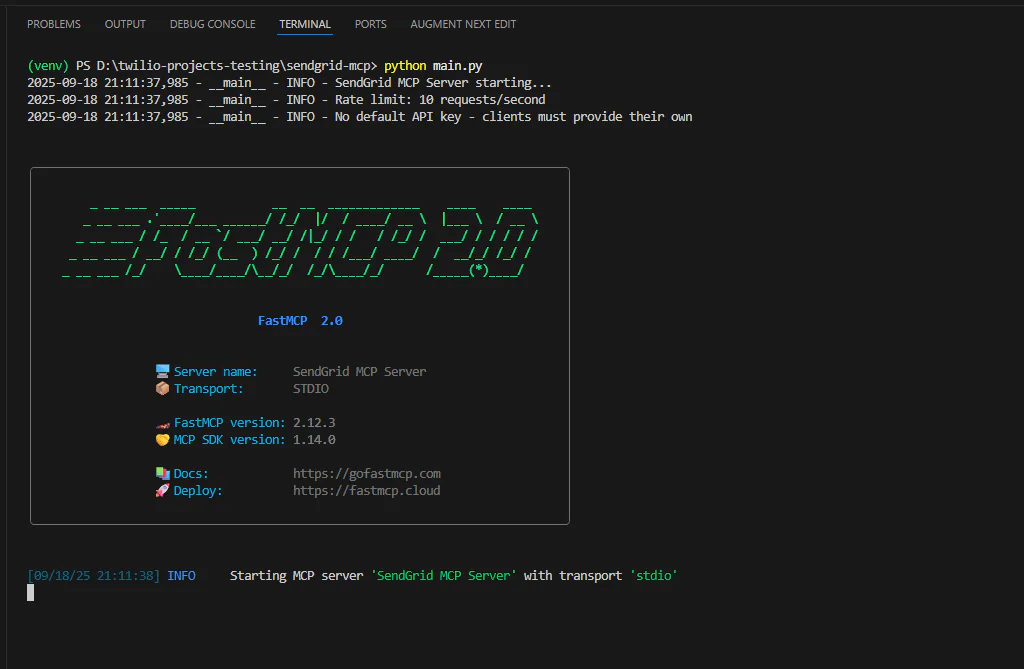
If you see error messages, verify whether all required packages are installed.
Testing Your Server Using Claude Desktop
Start by connecting the server to Claude Desktop by following these steps:
Open Claude Desktop and navigate to the configuration settings. You can access this through the Claude Desktop menu:
- On macOS: Click Claude in the menu bar, then Settings
- On Windows: Click the Settings icon in the application
From the settings window, select Developer and then Edit Config. This opens the claude_desktop_config.json file in your default editor.
Then, add the following SendGrid MCP server configuration to the file while replacing placeholders with the actual values.
For macOS/Linux users, use paths like:
The server name sendgrid-mcp is the identifier that Claude Desktop uses to reference your server. env should contain your SendGrid API key if you don’t want to set it in your .env file.
After updating the file, save it and restart Claude Desktop. The restart allows Claude to load your new MCP server configuration. Once Claude restarts, look for the hammer or tools icon at the bottom-right of the chat window. Click this icon to see all available MCP servers as shown below:
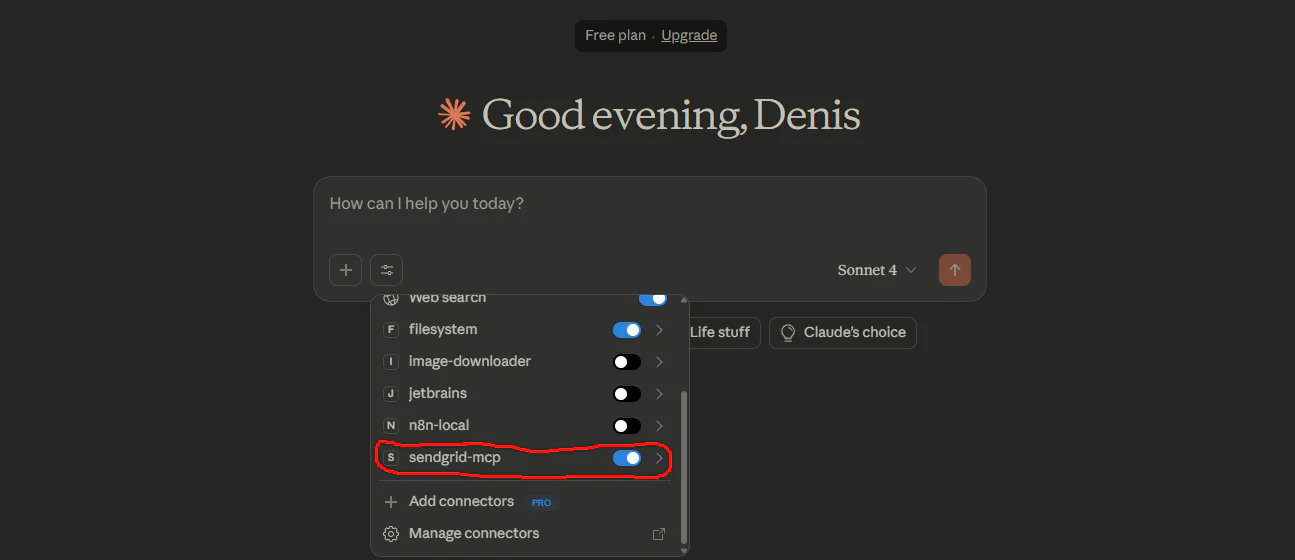
You can see the sendgrid-mcp server is listed and ready to use. If you want to see the available tools, expand the server:
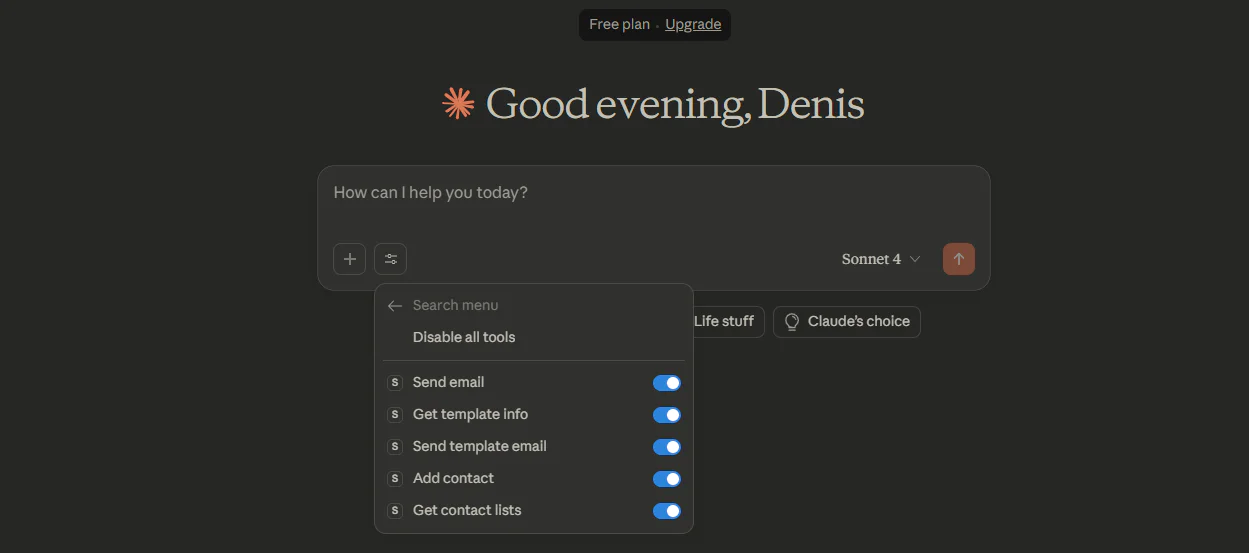
This means the setup is ready for testing. Use this prompt or any other to test:
The results should be as shown:
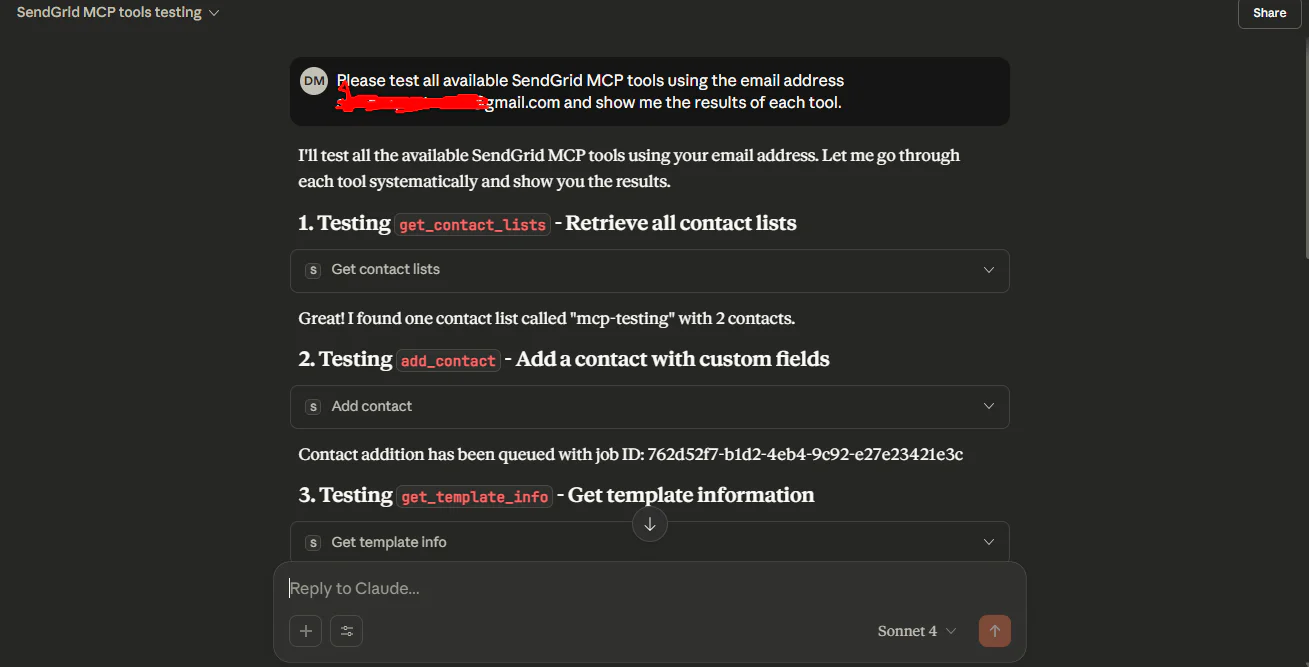
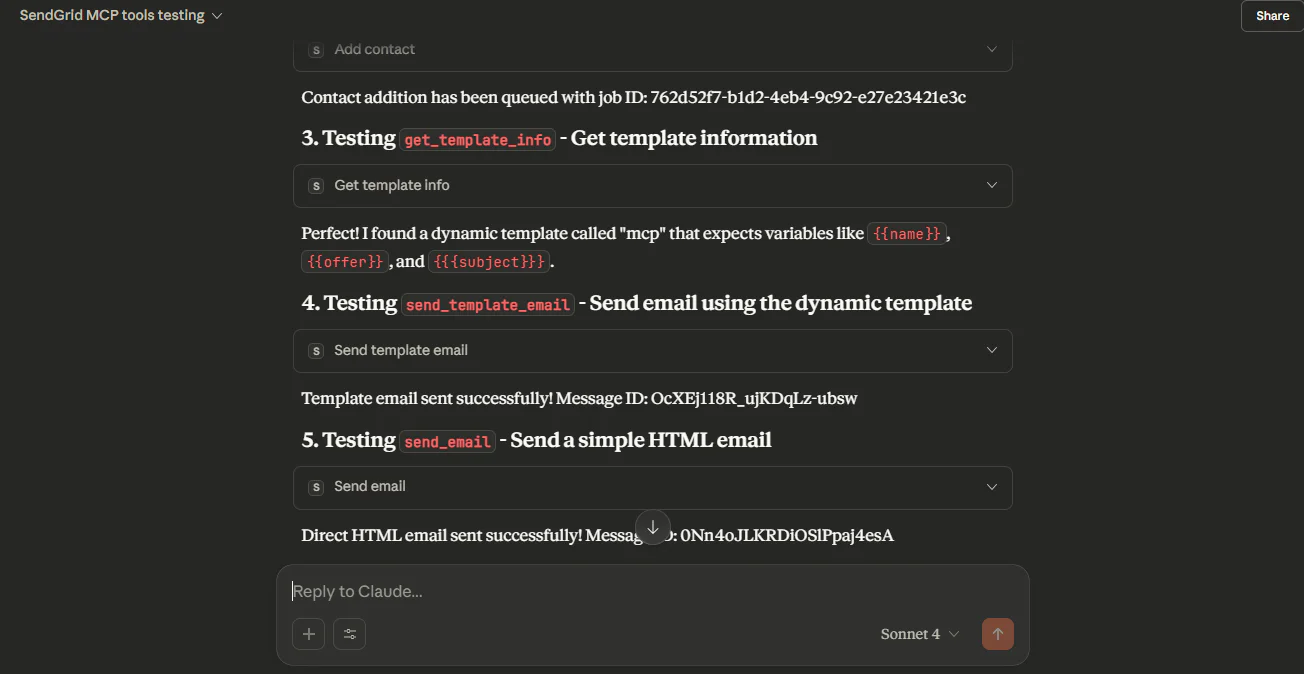
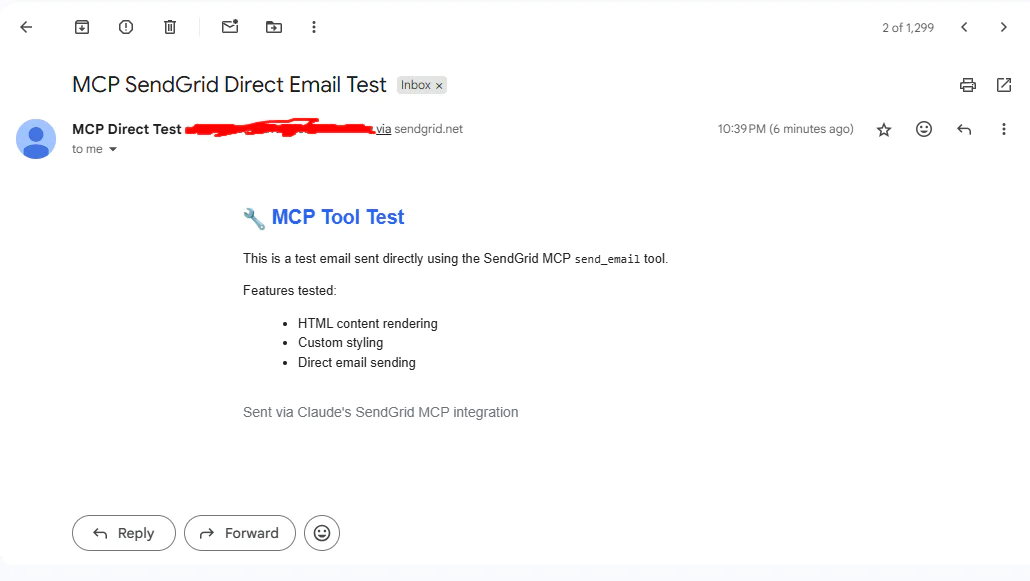
You should also have received both the normal email and the template-based email as shown below:
Here is the template-based email:
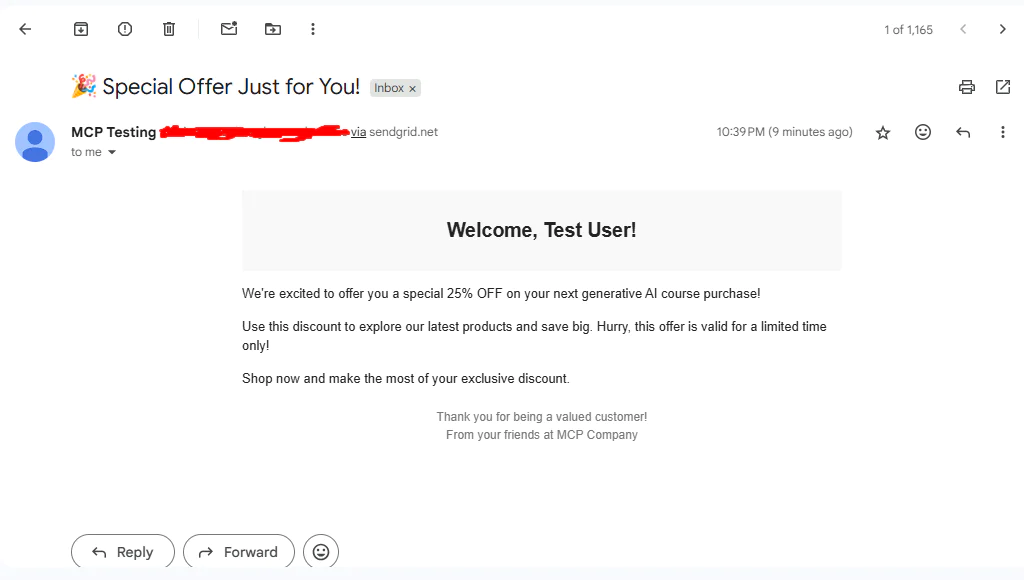
This completes the tests. You can see the MCP server is working as expected. Continue testing it with more cases.
Conclusion
You've built a complete SendGrid MCP server that connects AI to email automation. Your server now lets models like Claude send personalized emails and manage contacts through SendGrid's API. Now, experiment more by adding new tools to your server and enhancing its capabilities with custom templates or integrations. Happy coding!
Denis works as a machine learning engineer who enjoys writing guides to help other developers. He has a bachelor's in computer science. He loves hiking and exploring the world.

Related Resources
Twilio Docs
From APIs to SDKs to sample apps
API reference documentation, SDKs, helper libraries, quickstarts, and tutorials for your language and platform.
Resource Center
The latest ebooks, industry reports, and webinars
Learn from customer engagement experts to improve your own communication.
Ahoy
Twilio's developer community hub
Best practices, code samples, and inspiration to build communications and digital engagement experiences.