How to Create WhatsApp Voice Transcripts with Rust
Time to read:
December 09, 2025
Written by
Reviewed by
AI generated summary
- Create a Rust server to handle WhatsApp voice messages via Twilio API for transcription.
- Set environment variables for Twilio and AssemblyAI credentials for media handling and transcription.
- Use dependencies like actix-web, reqwest, and serde for efficient handling and processing of audio messages.
This summary was generated by AI and reviewed by the Twilio team.
How to Create WhatsApp Voice Transcripts with Rust
Creating transcripts of WhatsApp voice messages unlocks powerful capabilities such as customer support, transcription, analytics, and automation. Twilio makes it easy to receive these messages via webhooks, while Rust provides the performance and reliability required for efficient media handling.
In this tutorial, you’ll learn how to build a Rust server that receives audio messages from WhatsApp through Twilio's WhatsApp Business API, downloads the media, converts it into a usable format, and prepares it for further processing-like transcription.
Prerequisites
To complete this tutorial, you should have the following:
- Rust v1.87 or higher installed
- Ngrok installed and linked to an active account
- A Twilio account (free or paid). Click here to create one, if you don't have one already.
- An AssemblyAI account
- A mobile/cell phone with WhatsApp installed and an active WhatsApp account
Create a new Rust project
To get started, open your terminal, navigate to your desired directory, and run the following commands to initialize a new Rust project with Cargo.
Once the project has been successfully created, open the project folder in your preferred IDE or code editor, such as NeoVIM or RustRover.
Add the application's dependencies
Next, let’s add the necessary dependencies for the application. To do this, open the Cargo.toml file in the project’s root directory and add the following under the [dependencies] section.
Here's a breakdown of the dependencies:
- actix-web: A web framework for building HTTP servers and APIs
- dotenv: Loads environment variables from a .env file
- reqwest: A HTTP client for sending requests and handling responses
- serde: A library for serializing and deserializing Rust data structures
- tempfile: Securely creates temporary files for media processing
- tokio: An asynchronous runtime used by Actix and other async libraries
- tracing: A structured, event-based logging for diagnostics
- tracing-subscriber: Formats and collects tracing log data
- uuid: Generates unique identifiers, useful for tracking and filenames
Create the environment variables
Now, let’s create a .env file to store the application credentials. To do this, inside the project’s root folder, create a new file named .env, and add the following environment variables to it.
Retrieve your Twilio credentials
Let’s retrieve the Twilio Account SID and Auth Token. Log in to your Twilio Console dashboard, where you’ll find them under the Account Info section, as shown in the screenshot below.
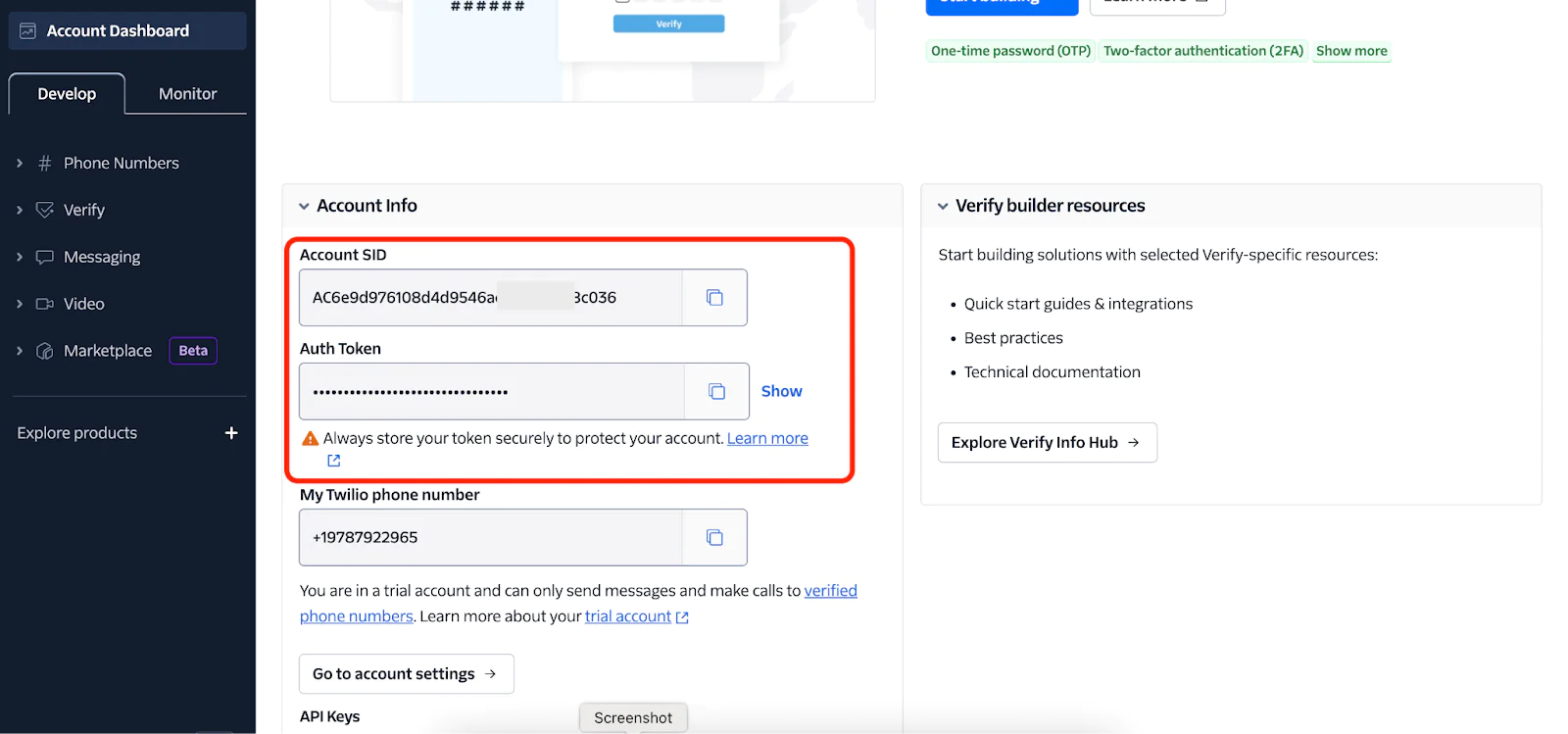
Copy the Account SID and Auth Token, and replace the <TWILIO_ACCOUNT_SID> and <TWILIO_AUTH_TOKEN> placeholders in the .env file accordingly with those values.
Retrieve your AssemblyAI API key
To transcribe incoming WhatsApp audio messages, log in to your AssemblyAI dashboard and click on API Keys in the left-hand side navigation menu to access your API key, as shown in the screenshot below.
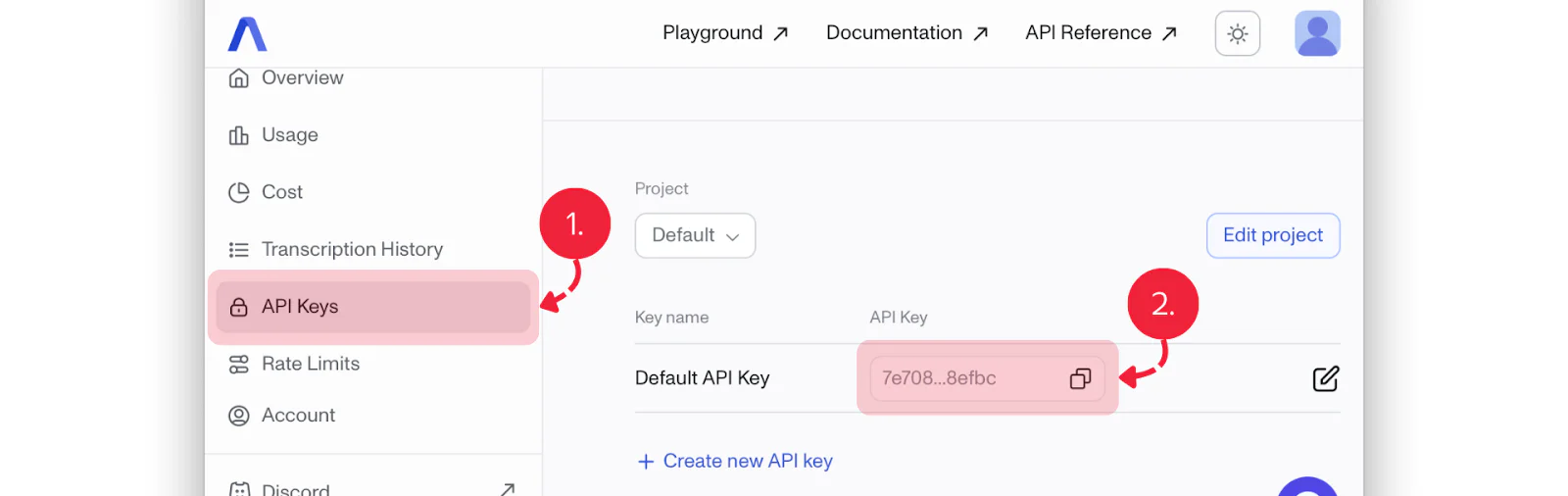
Copy the API key and replace the <ASSEMBLYAI_API_KEY> placeholder in the .env file with it.
Create the data models
Let’s now create the application's data models. To do this, navigate to the src folder, open the main.rs file, and replace its contents with the following code.
In the code above, we:
- Imported all the necessary crates for web handling, environment variables, serialization, logging, and UUID generation
- Created the
TwilioWebhookmodel to represent the incoming webhook payload from Twilio, mapping Twilio field names to Rust fields using Serde - Create the
TwilioResponsemodel, which defines the structure of the response sent back to Twilio - Create the
AudioProcessingErrormodel as a custom error type that handles potential failures, including downloading, transcription, environment variables, HTTP requests, and file system operations
Create the application's functions
Next, let’s create a function to handle and process incoming Twilio WhatsApp audio messages. To do this, add the following code to the end of main.rs.
In the code above:
- The
handle_webhook()function processes incoming Twilio WhatsApp messages by checking whether the request includes an audio file, based on the media URL and content type. If valid, it calls theprocess_audio_message()function and returns an XML response containing either the transcription or a specific error message. - The
process_audio_message()function downloads the audio file from Twilio, temporarily saves it, and passes it to thetranscribe_audio()function for transcription - The
transcribe_audio()function uploads the audio file to AssemblyAI and returns the transcribed text
Add the application's entry-point function
Let’s add a main() function to serve as the application’s entry point. To do this, add the following code to the end of main.rs.
The main() function initializes the Actix Web server, loads environment variables, and starts an HTTP server that listens on the specified address, handling POST requests to the "/webhook" endpoint with the handle_webhook() function.
Start the application
To start the application, by running the command below.
Make the application accessible over the internet
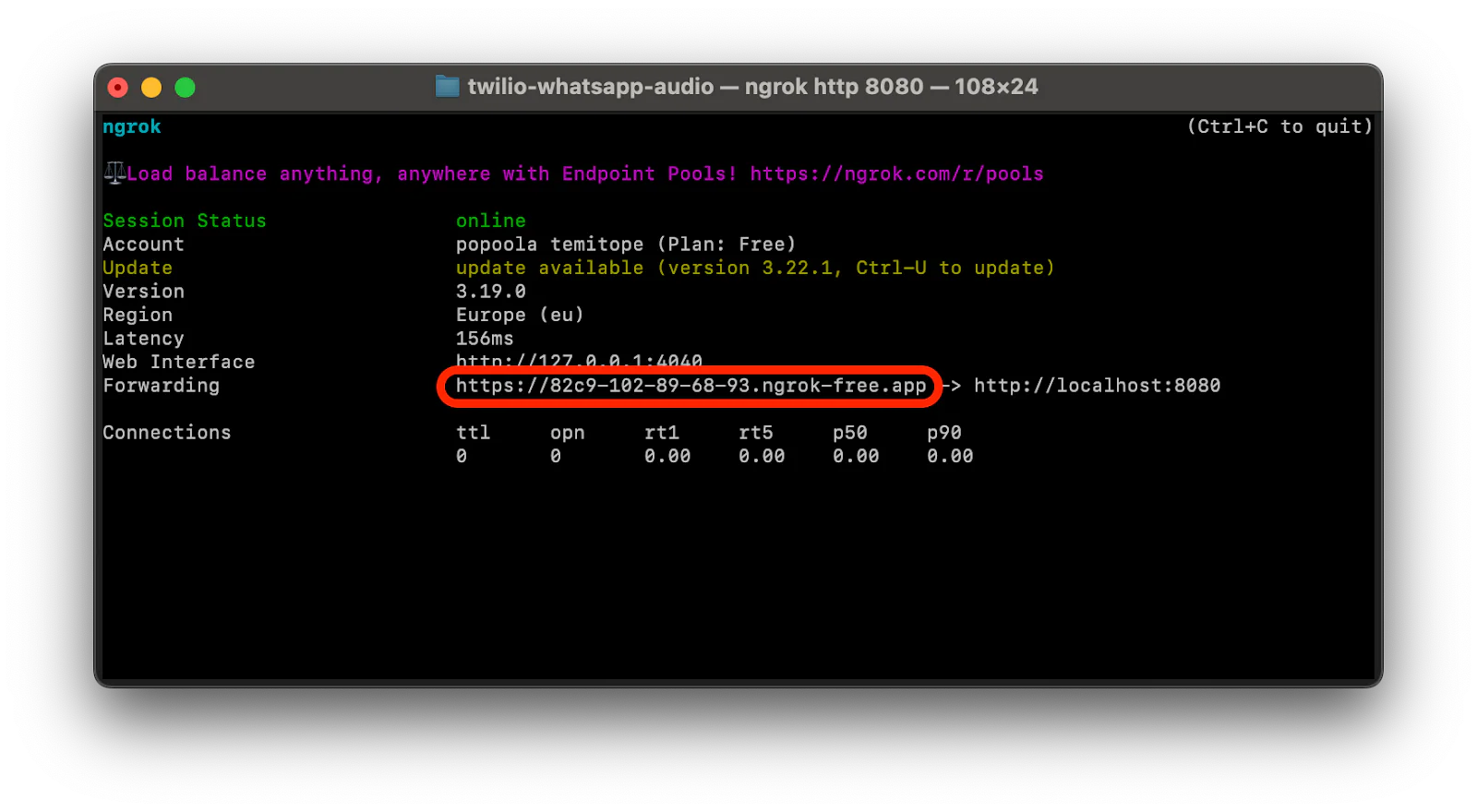
Now, let’s make the application accessible over the internet using ngrok. To do this, open a new terminal tab or window and run the command below.
The command above will generate a F orwarding URL in your terminal, as shown in the screenshot below. Copy it and keep it handy for the next step.
Connect the app to Twilio's WhatsApp Sandbox
To connect your WhatsApp to the Twilio WhatsApp Sandbox, navigate from the Twilio dashboard to Explore Products > Messaging > Try it Out > Send a WhatsApp Message, as shown in the screenshot below.
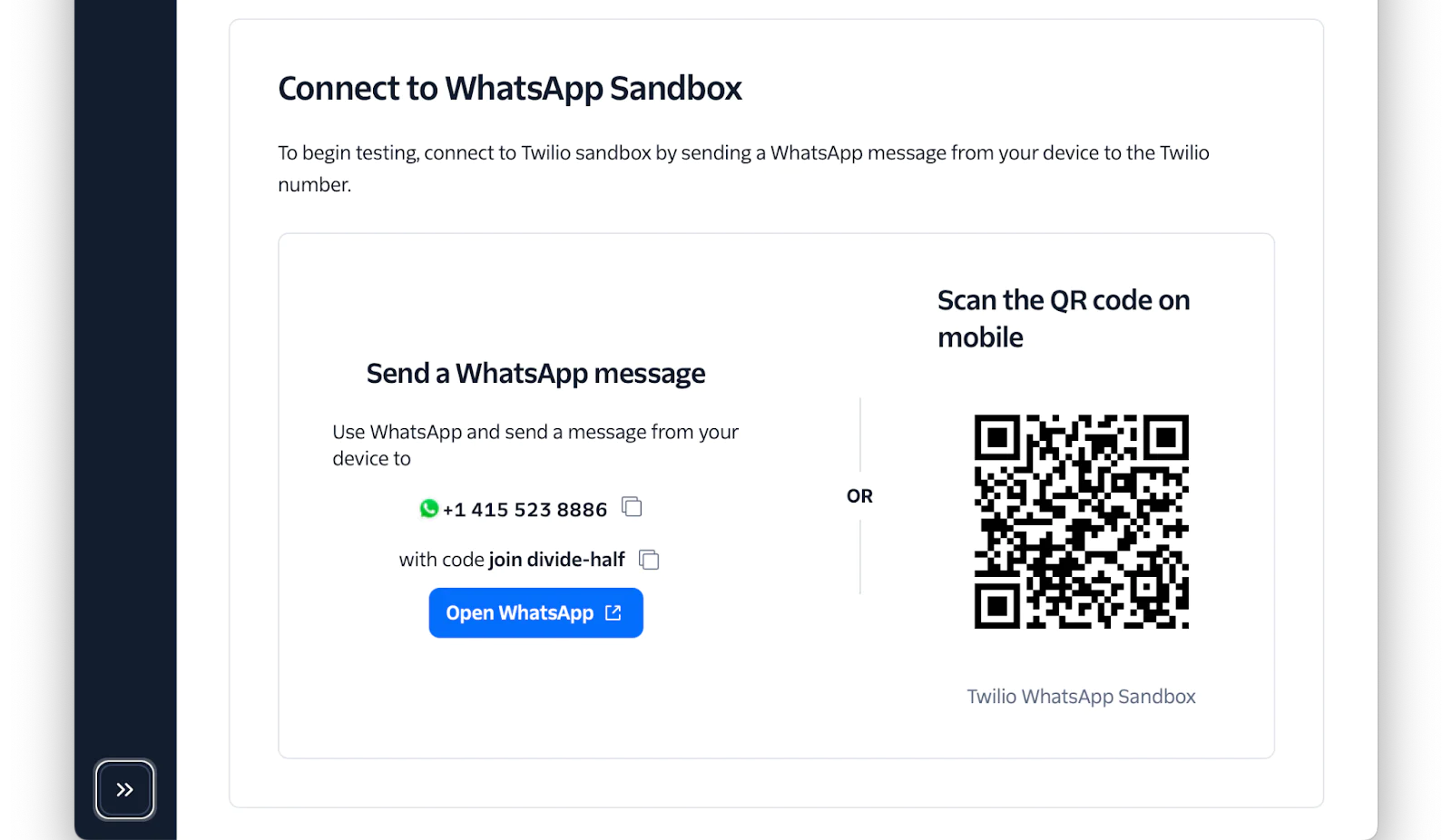
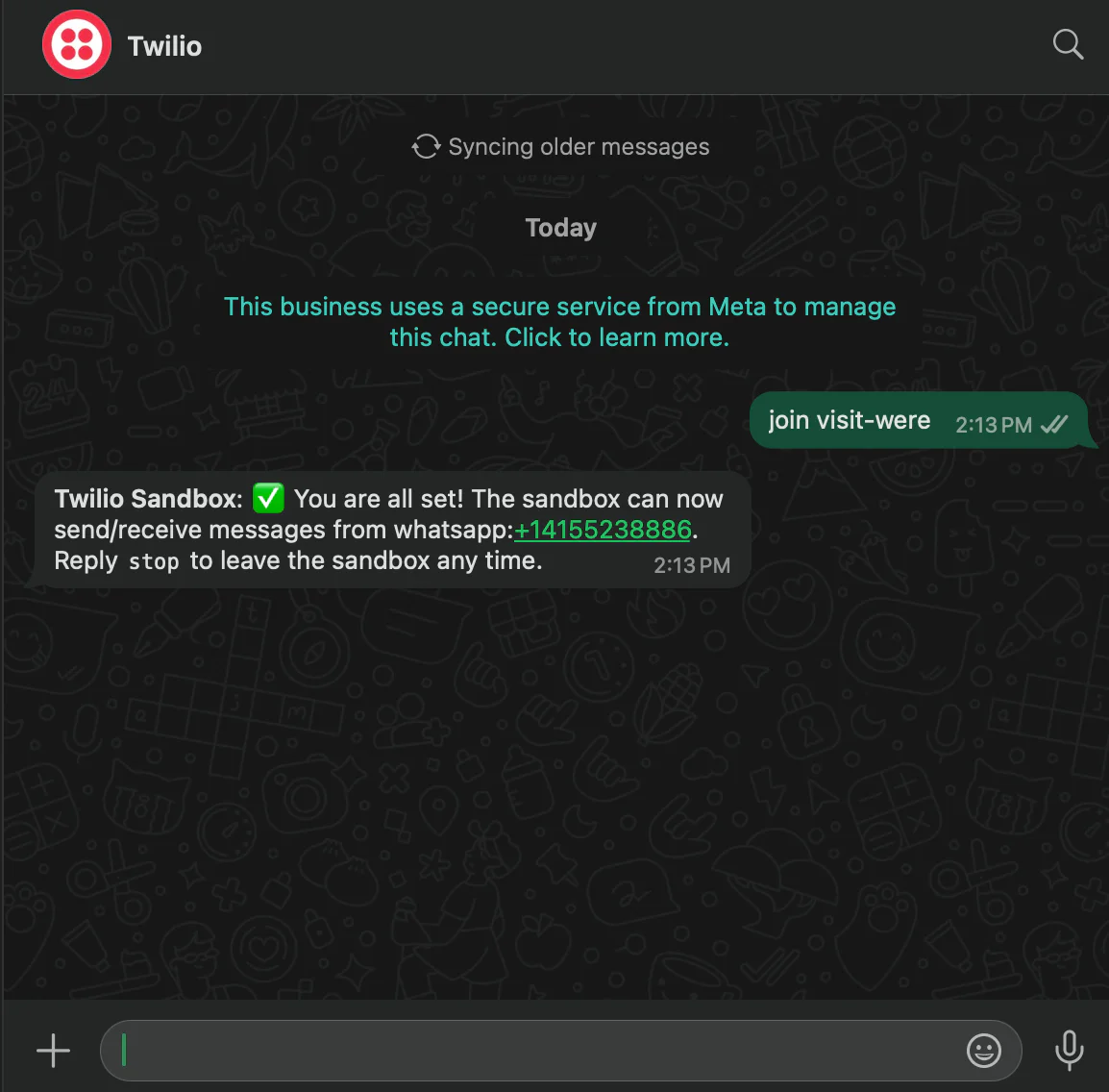
Next, on the Try WhatsApp page, copy your Twilio WhatsApp number and send the displayed join message to that number, as shown in the screenshot below.
Configure the Twilio WhatsApp webhook
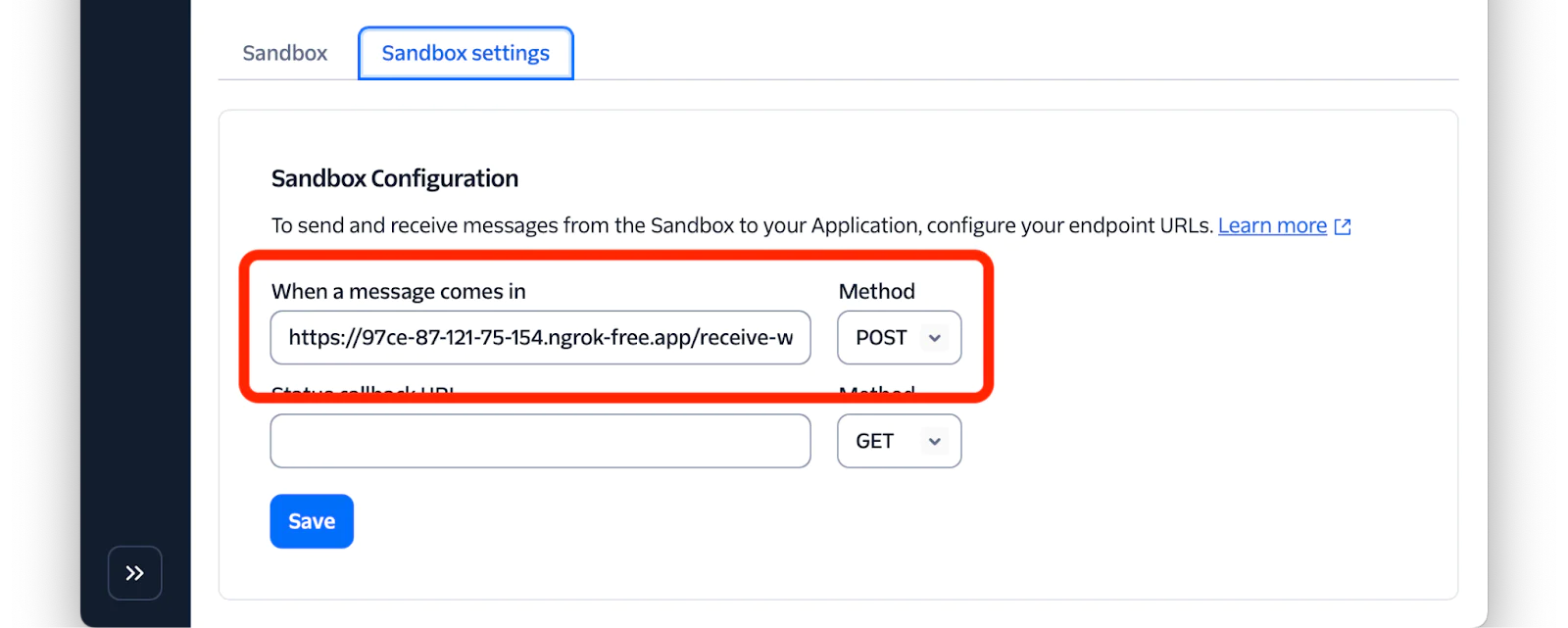
For the application to receive incoming WhatsApp messages, you need to add the application endpoint to the Twilio WhatsApp webhook. To do this, go to the Twilio Try WhatsApp page, click on Sandbox Settings, and configure the settings as follows.
- When a message comes in: add the generated ngrok forwarding URL and append "/webhook" to the end of the URL
- Method: POST
After configuring the settings, click the Save button to apply your changes, as shown in the screenshot below.
Test the application
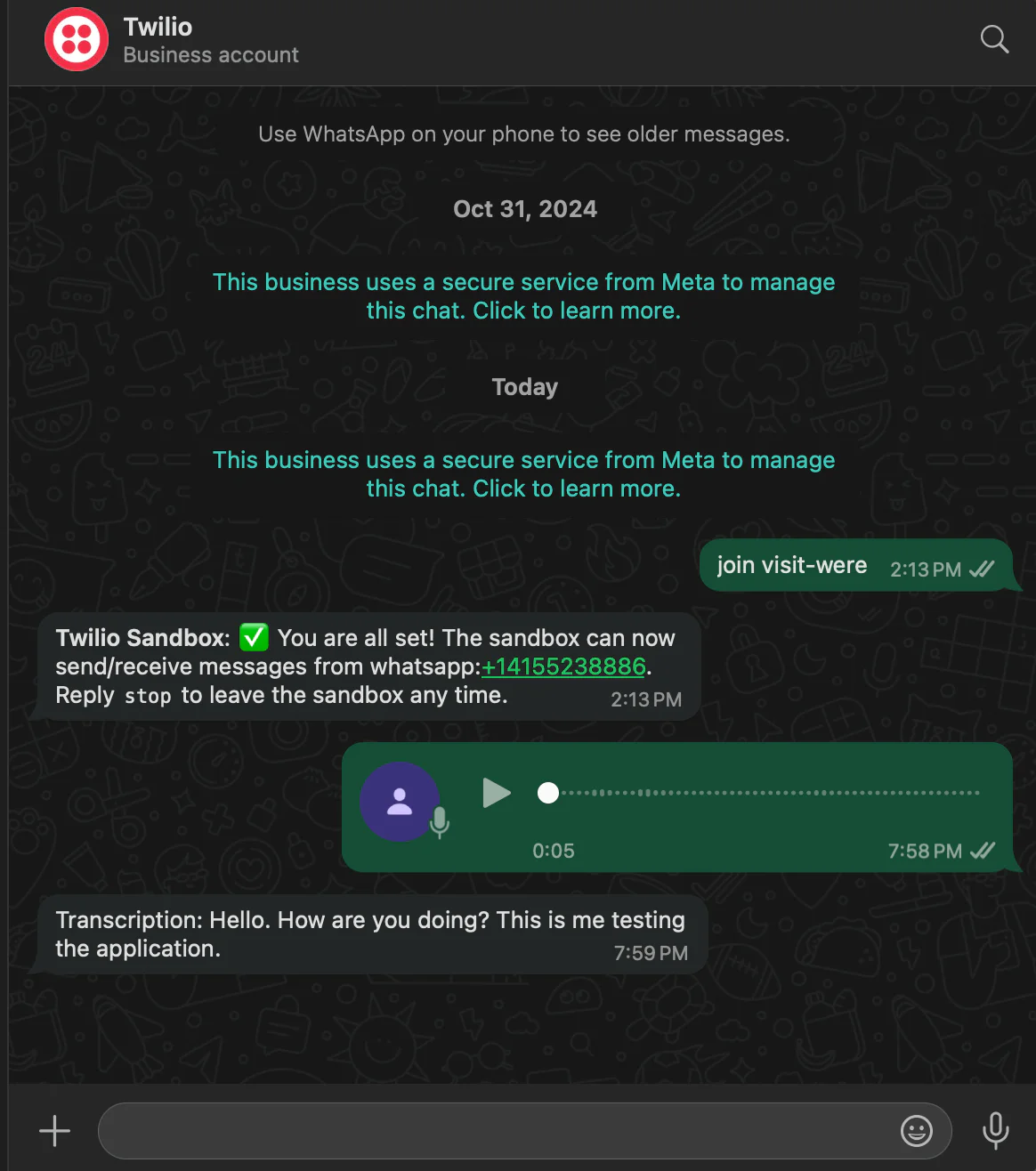
From your WhatsApp number, send a voice note to the Twilio WhatsApp number. You should then receive the transcribed text of your message, as shown in the screenshot below.
That’s how to create WhatsApp voice transcripts with Rust
In this tutorial, you learned how to create transcripts of Twilio WhatsApp voice messages using Rust, Twilio's WhatsApp Business API and AssemblyAI. Whether you’re building a WhatsApp customer service bot or a voice-driven analytics system, handling voice messages can significantly enhance customer engagement by enabling users to send voice notes to interact with your services.
Popoola Temitope is a mobile developer and a technical writer who loves writing about frontend technologies. He can be reached on LinkedIn .


Related Resources
Twilio Docs
From APIs to SDKs to sample apps
API reference documentation, SDKs, helper libraries, quickstarts, and tutorials for your language and platform.
Resource Center
The latest ebooks, industry reports, and webinars
Learn from customer engagement experts to improve your own communication.
Ahoy
Twilio's developer community hub
Best practices, code samples, and inspiration to build communications and digital engagement experiences.