Build An Interactive Voice Response System With PHP
Time to read:
April 09, 2026
Written by
Reviewed by
AI generated summary
- Building an IVR with PHP lets callers handle many tasks without waiting.
- Use Twilio's TwiML for input collection and text-to-speech capabilities.
- Properly designed IVRs improve user experience and efficiency.
This summary was generated by AI.
Build An Interactive Voice Response (IVR) System With PHP And Twilio
IVRs or Interactive Voice Response menus, otherwise known as Phone Trees, are extremely common when you call up a business, government department, or non-profit organisation, regardless of its size.
When well designed, they:
- Let callers complete a large part of their call without having to wait in a queue for someone to answer
- Let callers provide key details which the receiving organisation will need to assist them
- Reduce the time required for call center consultants to gather the details required to assist callers
- Provide an overall better experience for the caller
However, not all IVRs are designed well.
So, in this tutorial, you'll learn how to build an IVR in (almost) plain old PHP, one designed with usability guidelines baked in.
Specifically, the Phone Tree will:
- Provide language options at the start of the call
- Provide an option to repeat technical information
- Use consistent terms and controls
- Allow callers to undo selections
- Help callers capture detailed information
- Front-load menu options with task-related information
Prerequisites
Before you begin, make sure you have the following:
- A Twilio account (free or paid). Sign up today if you don't have one already.
- PHP 8.4 or above
- Composer installed globally
- Ngrok or a similar tool
- Your favourite text editor or IDE
- SQLite's Command Line Shell, or a similar database utility, such as DB Browser for SQLite
- Some prior experience building TwiML (the Twilio Markup Language) with PHP would be handy, but isn't essential. Check out the examples in the documentation if you're not too experienced with it.
IVR overview
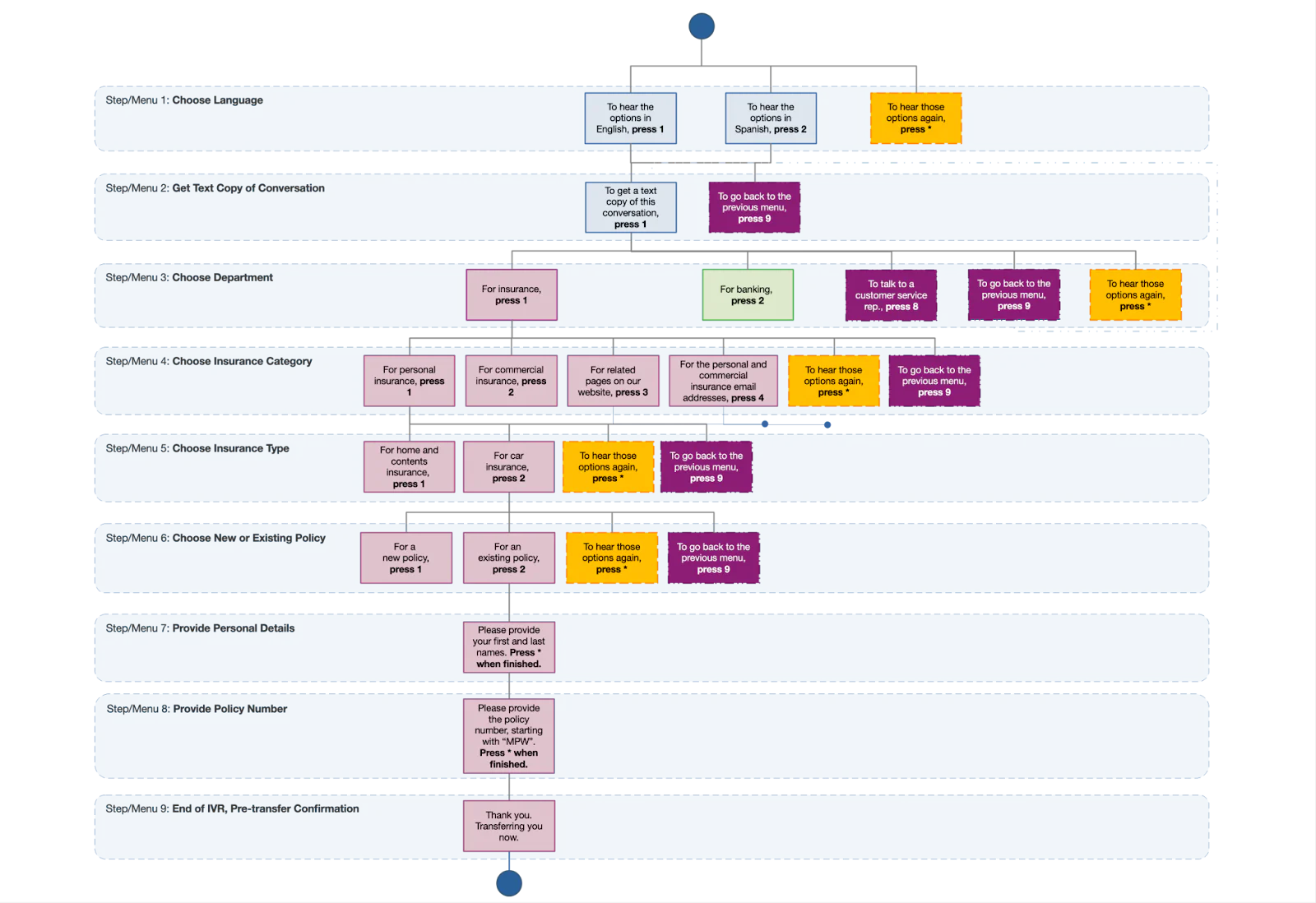
The IVR has nine steps from start through to completion, where the caller will be connected to a call center operator. It starts off asking the caller for their preferred language, offering the menu in either English or Spanish. By doing this, the caller doesn't have to listen to any steps in a language that they are not familiar with.
This step also gives the caller the opportunity to listen to the options again, an option you'll see repeated in a number of the other steps. This is another usability guideline. As callers may not always hear each option or hear them clearly, such as because of intermittent low call quality, the caller can repeat a given step as often as they'd like so that they choose the next step with confidence.
Then, the caller is asked if they would like a text copy of the conversation for their records. This lets them chase up the call in the future, should they need to. They'll be sent this by SMS at the end of the call.
After that, the caller can then choose which department to talk to. They have two options: "Insurance" and "Banking". For this simple tutorial, the caller will need to choose "Insurance" to continue further. If they choose "Banking", the call will end.
The caller can also choose to talk to a customer service representative, to hear the options again, or to go back to the previous menu.
This final choice is another helpful practice. How often have you been midway through an IVR and wished you could correct an earlier choice, only to have to hang up and call again? This option gets the user around this frustration.
From this point on, the caller can progressively narrow down the type of insurance that they need to talk about, then provide the core details that a call center agent would need to know to help them with their request.
Application overview
There are a few details you should know before you dive in and build. Whenever a phone call is made to your Twilio phone number, Twilio will make a POST request to the application's default route and receive a TwiML response telling it how to handle the call.
TwiML(the Twilio Markup Language), is a set of instructions you can use to tell Twilio what to do when you receive an incoming call or SMS.The TwiML returned by the application to Twilio will tell Twilio the input to gather from the caller and how to do so: such as the language to use for the call, whether they want to talk to the insurance or banking department, which type of insurance they're ringing about, and some initial details about their insurance policy, if they have one.
Below, you can see an example of the TwiML returned to Twilio to tell it to gather which department the caller would like to talk to:
You can see that it's composed of two TwiML verbs: <Gather> and <Say>. Gather collects input during a call, input which can include speech, digits pressed on the keypad, or both. Say allows your application to programmatically speak dynamic text over a call using Text-to-Speech.
In this case, it first gives the caller three choices. They can:
- Press 1 to hear the remainder of the menus in English
- Press 2 to hear the remainder of the menus in Spanish
- Press * to hear those options again
If the caller presses "1", "2", or the star or asterisk key ("*") on their phone keypad, Twilio will send a POST request to the application's "/menu/step/choose-language/respond" route, with their choice contained in the request's body, along with a number of other details about the call.
That route's handler will record their input in the application's SQLite database and return the TwiML for the next step if there is one.
If the caller does not respond within five seconds, the text inside the second <Say> verb ("We didn't receive any input. Goodbye.") is spoken to the caller and the call ends.
This example demonstrates the TwiML used to gather input from the user using their number pad. This kind of TwiML will be used for steps one through six, and TwiML using only the <Say> verb will be used for the final step. The TwiML for steps seven and eight will be slightly different.
You can see an example of this TwiML below.
This TwiML uses a combination of the <Say> verb, which we've already seen, and the <Record> verb. The <Record> verb lets the application record the caller's voice, which is helpful for more complex or sophisticated input. In this case, it will let Twilio record the caller's first and last names.
After the caller presses the star (*) key to indicate that they're finished, Twilio will then make a POST request to the URL specified in the verb's transcribeCallback attribute. This request will contain a link to an audio recording of the user's spoken input as well as a text transcription of the call.
That route's handler will add the text transcription of their input, again, in the application's SQLite database in the record for the call. This request does not change call flow. Following this, Twilio will make a second POST request to the route in the <Record> verb's action attribute, retrieving the TwiML for the next menu in the IVR.
Set up the base PHP project
The next thing that you need to do is to set up the base PHP project. To save time and effort, you'll use twilio-slim-base-project, which I created to save time and effort building Twilio-centred PHP projects. Run the following command.
If you're not familiar with Composer's create-project command, it cloned the "twilio-slim-base-project" repository locally, installed the project's PHP dependencies, and copied .env.example as .env. Now, you have a small PHP-powered web application based on the Slim framework, ready to build upon.
The next thing to do is to run the following commands to change into the newly created project directory, and set up the additional directory structure required by the application.
If you're using Microsoft Windows, the above command will not work as it uses globbing pathnames. So, swap the second command above for the following version if that's the case:
Here's what the directories are for:
- data/log: This directory will store the application's log file
- data/database: This directory will store the application's SQLite database
- data/menus: This directory will store a series of text files containing the text to speak to the caller in each step using the
<Say>verb - data/templates: This directory will store the Twig template for rendering the call center agent's dashboard
Set up the application's database
The first thing to do is to set up the application's SQLite database. To do that, create a new file in the data/database directory named dump.sql and paste the SQL, below, into it.
The SQL will create a schema with a single table named "ivr_input", which has a column for the caller's response to each menu in the IVR, plus columns for the call's SID (the call's unique 34 character identifier) and the caller's phone number. This structure allows for a simple, yet effective way of storing the caller's feedback so that it can be retrieved at the end of the IVR when the caller is connected to an agent.
Next, provision a new database named database.sqlite3 in the data/database directory, by running the command below:
Install the required packages
You need a number of packages to create the application. These are:
- laminas-config-aggregator and laminas-servicemanager. These packages will be used instead to provide the application's DI (Dependency Injection) container. The project currently uses PHP-DI, but PHP-DB's a lot easier to integrate with laminas-servicemanager.
- laminas-filter. This package will help retrieve the correct TwiML, which will be used to generate IVR step instructions in the application.
- Monolog. This package, PHP's de facto logging package, will let us easily log the call's SID to the application's log file.
- PHP-DB and its SQLite adapter. PHP-DB is a feature-rich database and SQL abstraction layer for PHP, which lets us avoid hand-crafting SQL when interacting with the application's database.
- PHP Dotenv. This package loads environment variables from .env, making them available via getenv, and the $_ENV and $_SERVER superglobals.
- Slim's Twig View integration. This package simplifies integrating the Twig templating package with Slim.
- Twilio's Helper Library for PHP. This package will be used to simplify sending text copies of calls via MMS if the caller chooses to receive a copy.
To install the above packages and remove PHP-DB, run the following commands:
Set up laminas-servicemanager as the application's DI Container
In my Twilio tutorials, I normally use PHP-DI as it's a simple to use DI (Dependency Container) for PHP. As we say in Australia "no muss, no fuss". It's what's already set up and ready to be configured with the sample project.
My preferred way of working with databases in PHP is PHP-DB. However, it's easier to configure to integrate the package when you're using laminas-servicemanager, as it has a series of ConfigProvider classes that require you to do almost nothing to integrate it.
So, you're going to replace PHP-DI with laminas-servicmanager. To do that, open public/index.php in your text editor or IDE of choice and update it with the following code:
The new configuration uses laminas-config-aggregator to retrieve configuration in PHP-DB's ConfigProvider class and the database configuration settings, which we'll create shortly. It then initialises a new (laminas) ServiceManager instance with the retrieved configuration and passes that when initialising the Slim App object.
This change passes a TableGateway object as the third parameter to the Application object's constructor. We'll refactor the Application object's constructor, shortly.
If this is your first time hearing about the TableGateway object, it's a subcomponent which provides an object-oriented representation of a database table. The class has methods that mirror the most common table operations you'd expect to run, such as select(), insert(), update(), and delete().
The class is an implementation of the TableGateway or Table Data Gateway pattern. Quoting Martin Fowler:
[Table Data Gateway is] an object that acts as a gateway to a database table. One instance handles all the rows in the table. Mixing SQL in application logic can cause several problems. Many developers aren't comfortable with SQL, and many who are comfortable may not write it well. Database administrators need to be able to find SQL easily so they can figure out how to tune and evolve the database. A Table Data Gateway holds all the SQL for accessing a single table or view: selects, inserts, updates, and deletes. Other code calls its methods for all interaction with the database.
So, it's a great way of managing interactions with a database table while not having to know much, if any, SQL.
Finally, in the config directory, create a new file named database.local.php, and in that file paste the code below:
This tells PHP-DB to use PHP's PDO SQLite driver to connect to a SQLite database named database.sqlite3 in the project's data/database directory.
No magic. Just plain, clear, and easily maintainable configuration files!
Write the IVR code
Now that you've migrated from PHP-DI to laminas-servicemanager, it's time to implement the IVR code. To do that will require a combination of refactoring some of the existing code and adding some new code.
You'll start by refactoring src/Application.php by replacing the existing code with the version below.
The class' constructor has been changed in two key ways. Firstly, it now takes four additional parameters:
$twimlServicewhich is aTwiMLServiceobject. This object generates the TwiML returned by the application to Twilio, based on the IVR's current step. You'll learn about it shortly.$tablewhich is aTableGatewayInterfaceobject (this is the interface which theTableGatewayimplements). This will be used to store the caller's input in the SQLite database at the end of the call.- An optional
LoggerInterfaceobject. This will be used to log call SIDs to the application's log file ( /data/log/ivr.log). - An optional Twilio Rest
Clientobject. This will be used to send a text copy of the conversation to the caller, if they want to receive a copy.
Secondly, it uses Slim's TwigMiddleware class, part of Slim's Twig-View component, which simplifies rendering Twig templates in the application. It does this by registering a Twig object as a request attribute.
By doing this, the Agent Dashboard's request's handler function can retrieve the Twig object from the request and use it to render the dashboard template. You'll see this in more detail, later in the tutorial.
Then, the setupRoutes() function has been updated to define four new routes:
- /menu/step/{step}: The first one is where Twilio will make POST requests to retrieve the TwiML for each of the steps or menus in the IVR. Requests to this route are handled by the
getMenu()function. - /menu/step/{step}/respond: This route is where the touchtone input will be sent, when the user responds at each step in the IVR, e.g., if the caller presses "1" for insurance, or "2" for banking. Requests to this route are handled by the
processCallerInput()function. - /menu/step/{step}/record: This route is where the caller's voice response will be sent when they provide their personal details and existing policy number, toward the end of the IVR. Requests to this route are handled by the processCallerVoiceResponse() function.
- /caller-input/{callSid}: This route renders a dashboard where a call center agent can see all of the input that the caller has provided, when the caller is finally connected to them. The call is identified by the call's SID (the call's unique identifier). This is stored in the
{callSid}route placeholder. Requests to this route are handled by thegetAgentDashboard()function. - /conversations/{callSid}: This route renders a text copy of a call, based on the value of the
{callSid}route placeholder. The formatting isn't special. It just lists the columns and their values in a table-like layout. This route is called by Twilio if/when it sends a text copy of a call to the user. Requests to this route are handled by thegetTextCopyOfConversation()function.
If you're not familiar with the Slim Framework, the routes might look a little odd, as they each have a path component surrounded by curly braces, e.g., "{step}" and "{callSid}". These are named route placeholders. These named placeholders can be replaced with a freeform string, e.g., "choose-department", "choose-language".
By doing this, the application only needs to define a small routing table, yet still be capable of routing requests for all of the IVR steps, e.g, "/menu/step/choose-department". This allows the user to:
- Pick the department they need to work with, and "/menu/step/choose-language"
- Retrieve the menu for the step where the user can specify their preferred language
The string in that segment of the path is then passed to the called function in an array called $args with the placeholder's name, i.e., "step" or "callSid".
The getRoutes() and run() functions are as before.
Then we come to the getMenu() function. This function does three things:
- It logs the call's SID to the file's log file (data/log/ivr.log) if the current step is "choose-language".
- If the current step is the final step of the IVR, the step before connecting the caller to a call center agent ("pre-transfer-confirmation"), it checks if the user wants a text copy of the conversation. If so, it sends an MMS to the caller. The "mediaUrl" property of the array passed to
$this->client->messages->create()tells Twilio where to get the text copy of the conversation to send to the caller. This URL has to be publicly accessible. Note that it's the "/conversations/{callSid}" route. - Uses the class'
TwiMLServiceobject$twimlServiceto generate and return TwiML for the required IVR step. We'll dive into itsgetMenu()function later, when we work through that class.
The next new function is getTextCopyOfConversation(). This function, as mentioned before, retrieves the call SID from the body of the request and uses it to retrieve the details for that call from the SQLite database. The call's details are then rendered as the response body. Finally, a content type header, set to "text/plain", is added to the response.
The body looks similar to the following example:
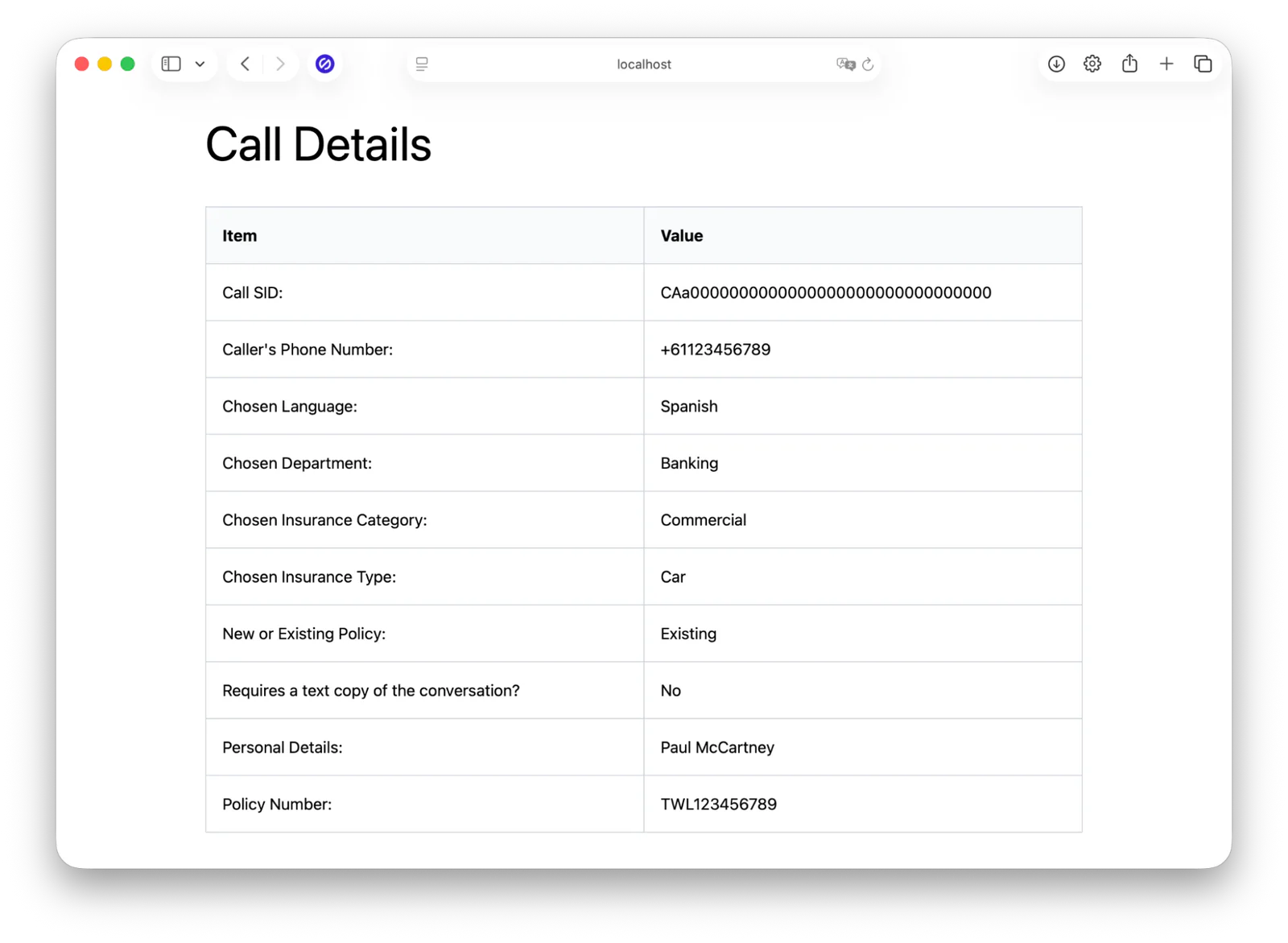
Then comes another new function: getAgentDashboard(). This function retrieves the call's SID from the $args array; this is a call's unique identifier, generated by Twilio when the call starts. With that, it uses $table to retrieve the call's input left by the caller. It then passes that information to Twig's render() render method, setting it as template variables. The rendered template is then returned as the body of the response.
Here's an example of what it looks like.
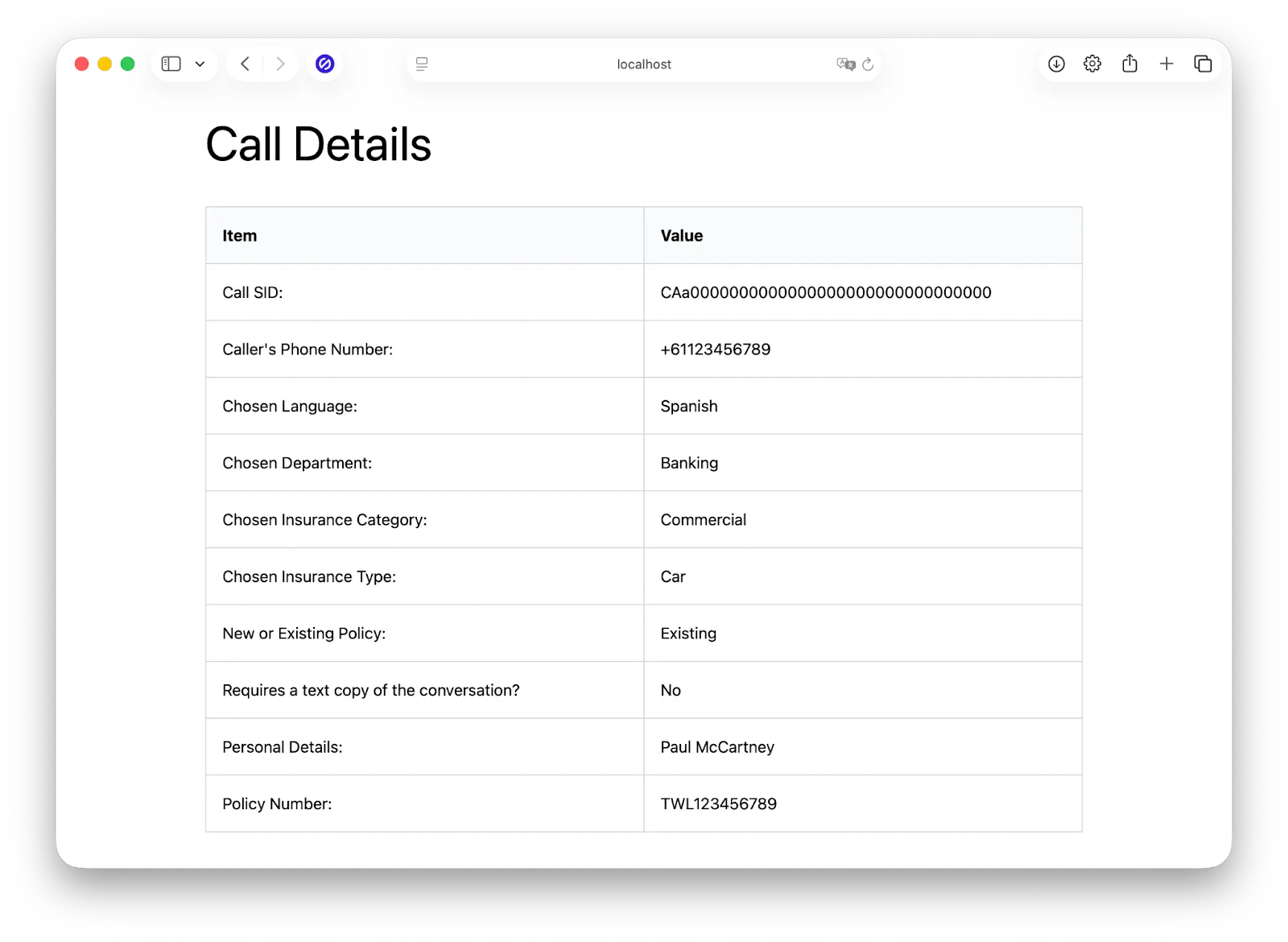
The next function is processCallerInput(). This function does three things:
- Processes the user's input to a step in the IVR and persists it to the database, linked against the call's SID
- Returns the next IVR step based on the response to the current step
It does this by using:
- The step that the caller's responded to, which is stored in the
$argarray's "step" element - The button that the user pressed on their phone's number pad, stored in the
Digitselement of the request's POST data
The next function, processCallerVoiceResponse(), persists the text transcription of a caller's step input to the application's database, using the class' persistCallerData() function. The step is identified by the "step" element of the function's $args array, and the call is identified by the POST data's CallSid element.
The final new function in the class is persistCallerData(). This function persists input from the user, whether from their phone's number pad or a text transcription of their voice to the application's database. A call's record is identified by a combination of the related call's SID and the caller's phone number.
Create the Agent's Dashboard template
During the discussion of the changes to Application.php, we covered the agent's dashboard which renders dashboard.html.twig in the data/templates directory. Create that file and then paste the content below into the new file.
With that done, download the application's stylesheet to the public/css directory, naming it styles.css.
Create the TwiMLService class
Now, it's time to create the class that generates the TwiML that's returned to Twilio for the creating the IVRs steps. In the src/Services directory, create a file named TwiMLService.php. In that new file, paste the code below.
The class starts off with a series of constants, which store common elements used by the class. It then defines a menu matrix, a linked list of sorts, containing all of the available IVR steps, linked to the step that precedes and follows them. The intention is to simplify traversal of the IVR menu.
The class' constructor takes a VoiceResponse object, which simplifies generating TwiML used to tell Twilio what to do when you receive an incoming call (or SMS), and a string ($menuLanguage). This will be the default language for the IVR. I've said that it's English throughout the tutorial so far.
This is based on the assumption that the default language set in your Twilio Console is "US English". If it's not and you'd like to change it to "US English", or you'd prefer to either use a language other than English or a different English dialect, here's how you can change it.
Change your account's default Voice
Log in to the Twilio Console. In the left-hand side navigation menu, click Explore Products, then click Voice. After that, (again) in the left-hand side navigation menu, under Voice click Settings then click Text-to-speech.
There, either scroll through the list until you find your preferred language and dialect, or filter the available options by using the Search by locale field. Copy the value between parenthesis at the end of the LANGUAGE column.
For example, in the screenshot below, it's "en-AU".
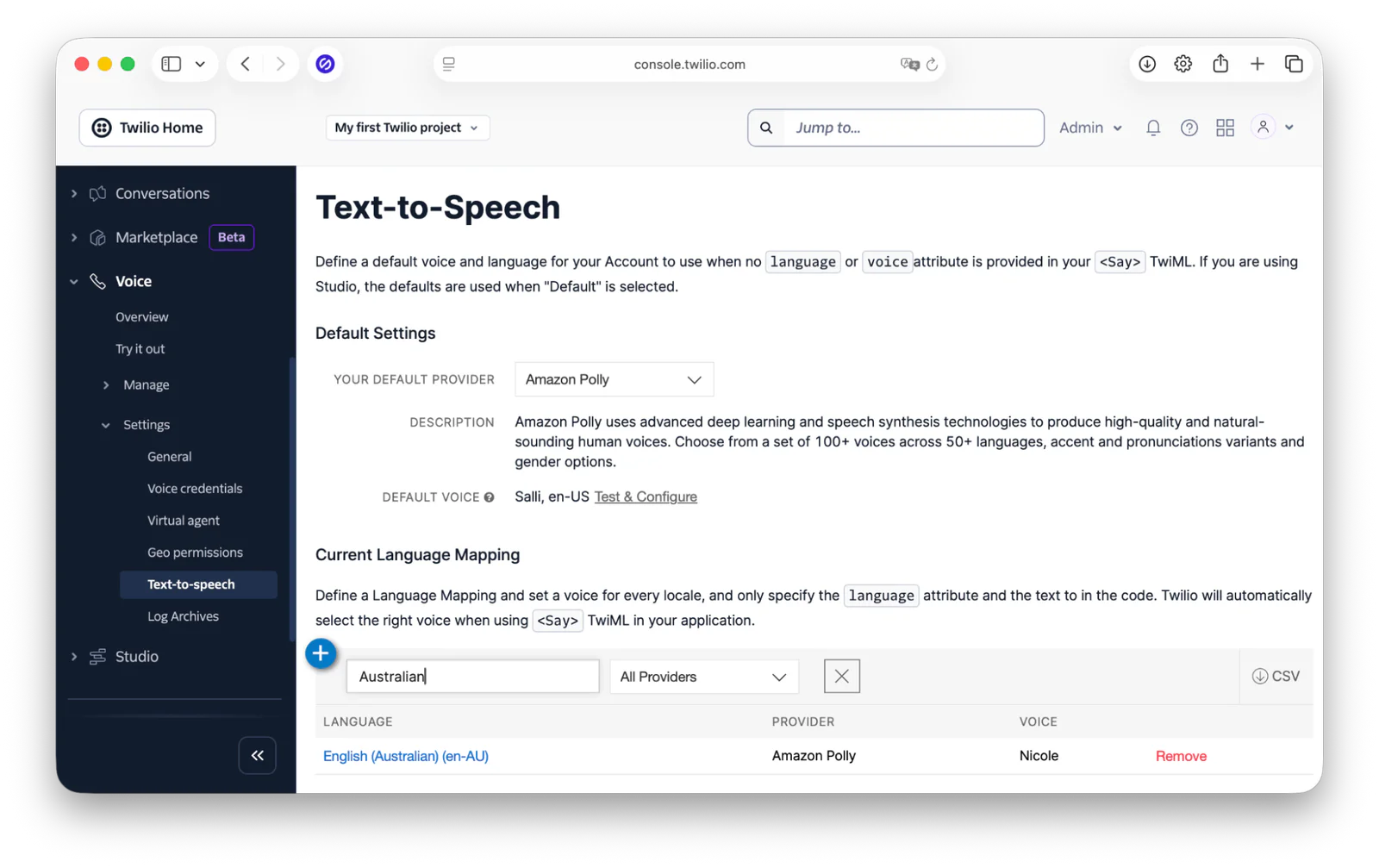
Then, either accept the default provider and voice, or change them as suits you. After that, click Save to confirm the change.
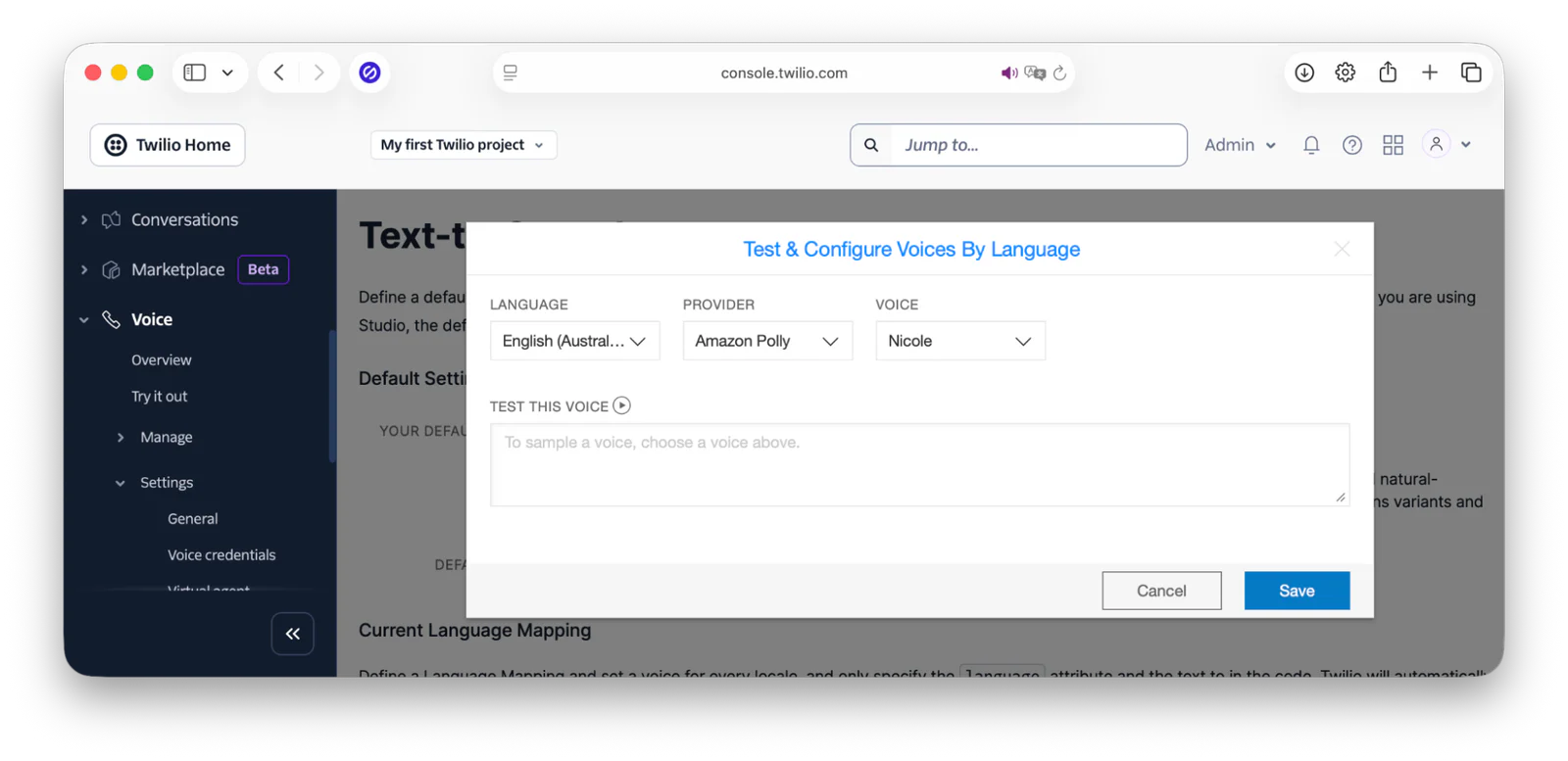
On success, you'll see the text "You have successfully updated your text to speech configuration." near the top of the Text-to-Speech section of the Console.
Then, add a new environment variable named DEFAULT_LANGUAGE to the end of .env. Set its value to the value between parenthesis at the end of the LANGUAGE column which you copied earlier.
Continuing with my Australian English example, I'd set the environment variable as below:
What this will do is set the <Say> verb's language attribute in the TwiML generated for the steps in the IVR so that instructions are spoken in your preferred language and dialect.
Then comes the getRedirectToCustomerServiceRepMenu() function. This function returns TwiML that uses the <Say> verb telling the caller that they're being transferred to a customer service agent.
Next, comes the getSayMainContent() function. This function returns the contents for a step's TwiML <Say> verb, from a file in the application's data/menus directory. The $menu tells it which file in the directory to use. This is a small utility function used in a number of places throughout the class.
After that is the getMenu() function. This returns the relevant TwiML for the requested application menu, based on the value of $menu. You can see what the TwiML for each IVR step will be in the XML files in the test/data/menu directory.
Then comes addGatherVerb(). This is a small utility function used by getMenu() for generating a <Gather> verb with an nested <Say> verb.
Finally, there are a series of handle*() functions, which return the required TwiML based on the caller's input for each of the IVR's steps. These are invoked by processCallerInput().
Create the step instruction files
Now, you need to create a series of text files that provide the core instructions for each menu. These could have been directly included in TwiMLService.php as a variable or constant. However, during development, it is both easier and more maintainable to store them in text files, all of which are stored in the data/menus directory.
First, create a file in data/menus named choose-language.txt, and in that file, paste the text below.
If the default language in your Twilio Console is not English or you've changed it from English to another language, replace "English" in data/menus/choose-language.txt with that language. Feel free to include the dialect as well, e.g., Australian English.
Then, create a second file in data/menus, this time named get-text-copy-of-conversation.txt, and paste the text below into the file.
Now, create a file named choose-department.txt and paste the text below into it.
Then create one named choose-insurance-category.txt and paste the text below into it.
After that, create a file named choose-insurance-type.txt and paste the text below into it.
Then, create a file named choose-new-or-existing-policy.txt and paste the text below into it.
After that, create a file named provide-personal-details.txt and paste the text below into it.
Now, create a file named provide-policy-number.txt and paste the text below into it.
Then, there are two final files to create. The first is named pre-transfer-confirmation.txt. This provides the text that will be spoken to the caller just before they're transferred to a call centre employee, when they've provided all of their details.
The other is named thank-you-goodbye.txt. This contains the text that will be spoken to the caller if they pick a menu which has no further steps. This is a nice, simple way of ending the flow at that point, instead of abruptly ending the call. Naturally, in a production IVR, the process would continue further, capturing the required information from the caller.
So, in thank-you-goodbye.txt paste the text below.
Set the required environment variables
Go back to the Twilio Console in your browser. There, copy the Account SID, Auth Token, and Twilio phone number from the Account Info dashboard, which you can see in the screenshot below.
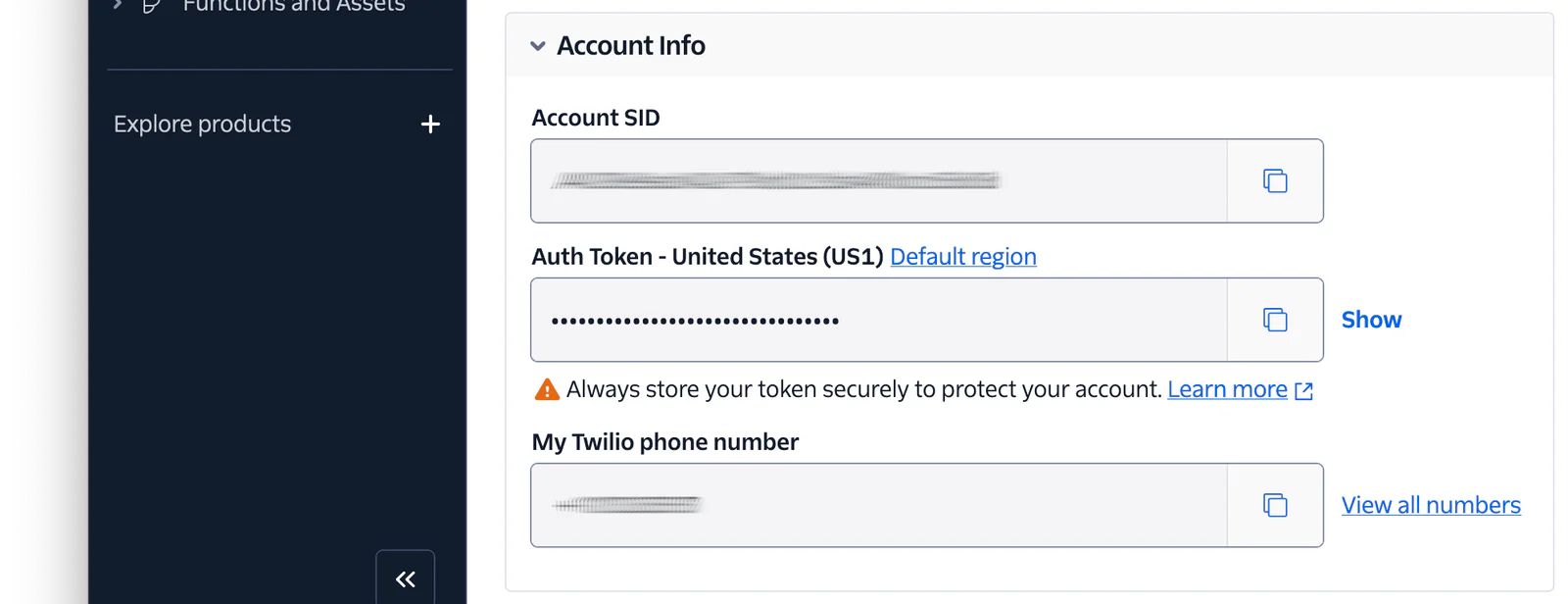
Then, set those values as the values of TWILIO_ACCOUNT_SID, TWILIO_AUTH_TOKEN, and TWILIO_PHONE_NUMBER, respectively, in .env.
Start the application
Now that the application's built, it's time to start it and expose it to the public internet. To start it with PHP's in-built webserver (using a Composer script that comes with the default project), run the command below in a new terminal tab or session.
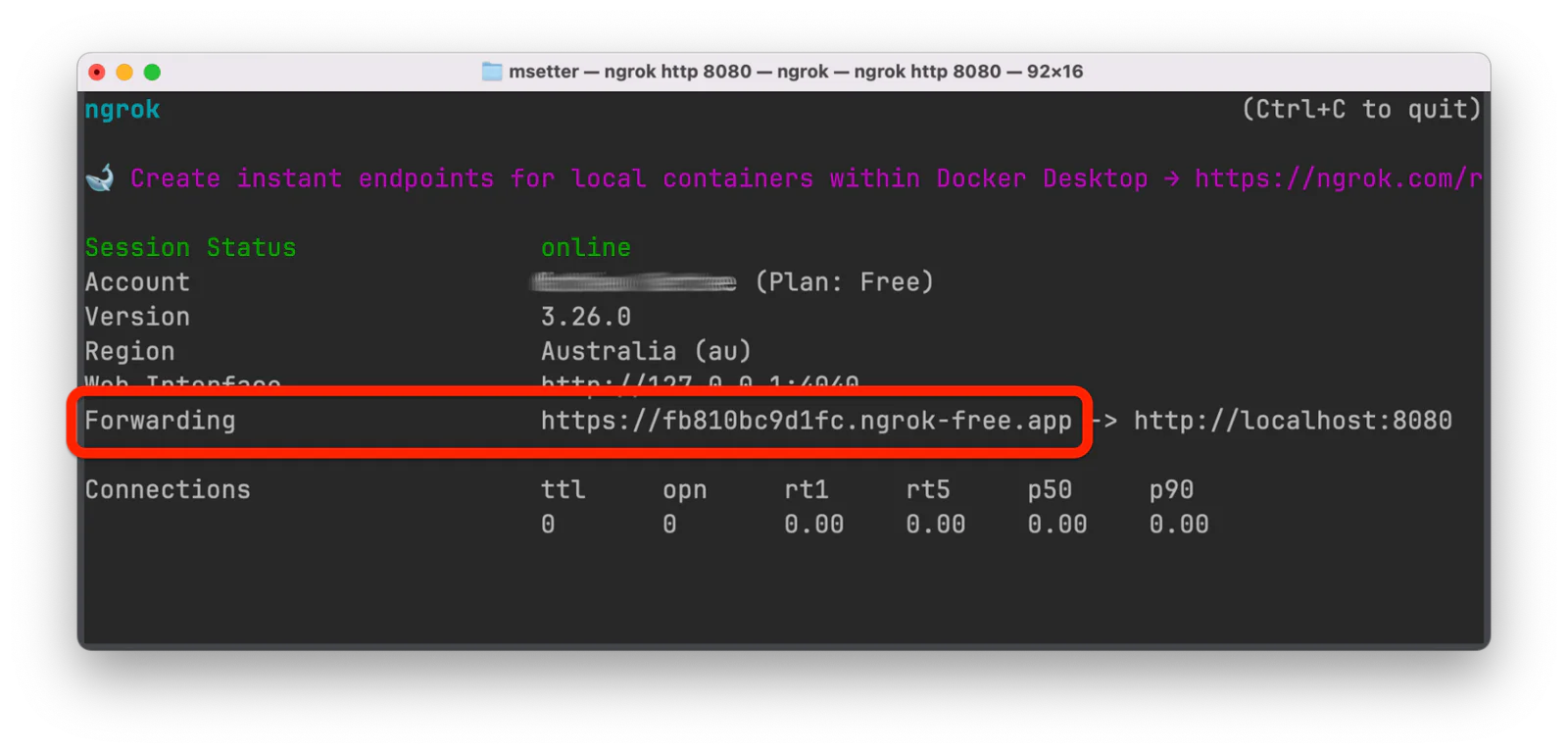
Next, create a secure tunnel between the locally running application and the public internet with ngrok, so that Twilio can send POST requests to it, by running the command below in a new terminal tab or session.
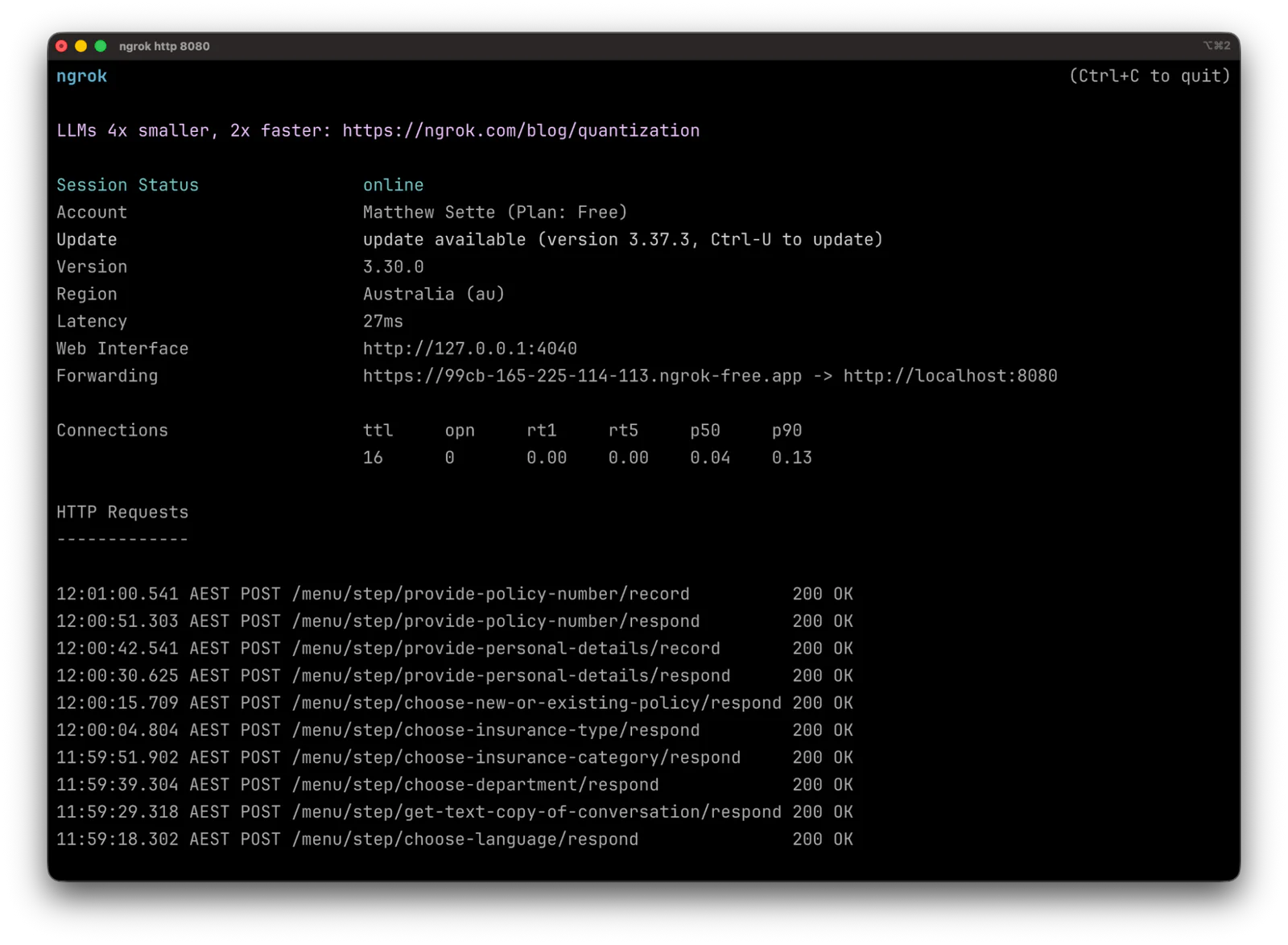
After ngrok starts, you'll see it prints output to the terminal, similar to the screenshot below. Make a copy of the Forwarding URL, as you'll need it shortly.
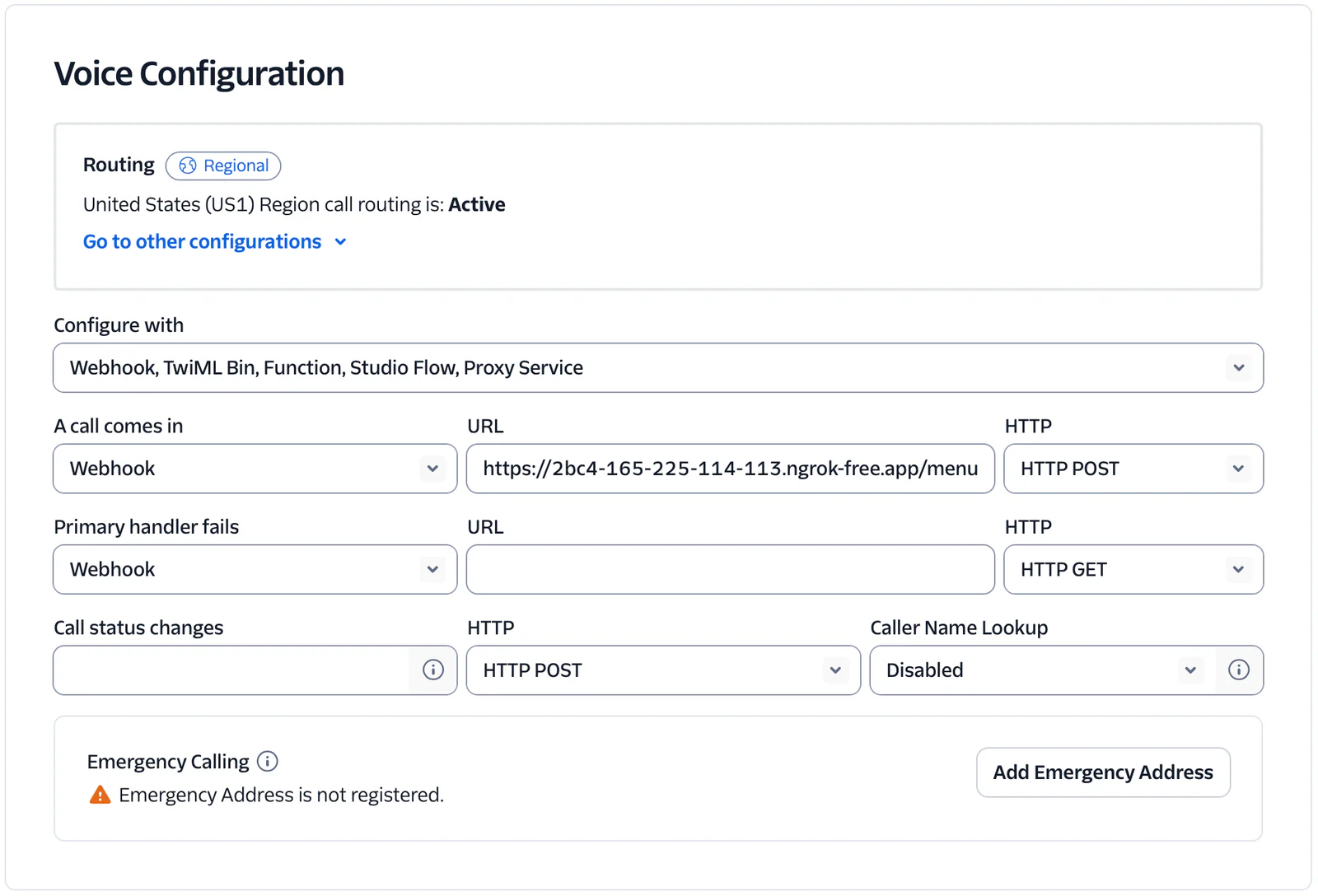
Now, go back to the browser tab where you were logged in to the Twilio Console, and in the left-hand side navigation menu, navigate through Phone Numbers > Manage > Active Numbers. There, click on your Twilio phone number, followed by the Configure tab. In Voice Configuration, set:
Configure with to "Webhook, TwiML Bin, Function, Studio Flow, Proxy Service"
A call comes in to "Webhook"
Its URL field to the ngrok Forwarding URL that you copied earlier, and add "/menu/step/choose-language" at the end
Its HTTP field to "HTTP POST"
Then, scroll to the bottom of the page and click Save configuration.
Finally, in .env add a new variable named NGROK_FORWARDING_URL and set its value to the ngrok Forwarding URL that you copied.
Test that the application works as expected
Now that everything's ready, it's time to use the IVR. To do that, with the IVR Overview Diagram ready (you can find it at the top of the tutorial), make a call to your Twilio phone number and move your way through the IVR, checking that it works correctly. If you chose to receive a text copy of the conversation, after the call ends, you should receive an MMS with a copy of it.
Regardless of the input that you give, when the call ends, open data/log/ivr.log and copy the call's SID, e.g., "CAa0000000000000000000000000000000". Then, in your browser of choice, open http://localhost:8080/caller-input/{callSid}, replacing {callSid} with the call SID that you just copied.
You should see the agent dashboard looking similar to the screenshot below.
Then, if you check the terminal tab/session where ngrok is running, you'll see output similar to the example below showing the POST requests to the application's endpoints and the HTTP response status codes returned from each request.
What to do when something goes wrong
Sometimes, things go wrong. So, it's helpful to know how to troubleshoot them when that happens. Should the application not be working as stated by this point in the tutorial, here are some basic debugging steps that you can take, to help you find out what's going wrong.
View PHP's errors
The first thing to do is to look in the terminal tab/window where PHP's built-in webserver is running. There, you'll see if there were any PHP-related errors, such as the following one which occurred while testing the code.
Naturally, the above only works during development.
View ngrok's output
In addition to checking PHP's output, you can also check the terminal tab/session where ngrok is running. Look in the HTTP Requests to see if any requests were received.
Assuming that they were, you can get a high-level overview of whether the request went to the correct endpoint, and then an indication of what might have gone wrong based on the response's HTTP status code.
Use the Twilio Console
There's only so much that you can find out on your local development machine. To find out more, you'll need to use the Twilio Console. From the Account Dashboard, click Monitor in the left-hand side navigation panel. Then, navigate through Logs > Calls. You'll then see the call logs for your account, where you should see an entry for the call that you just made to your Twilio phone number.
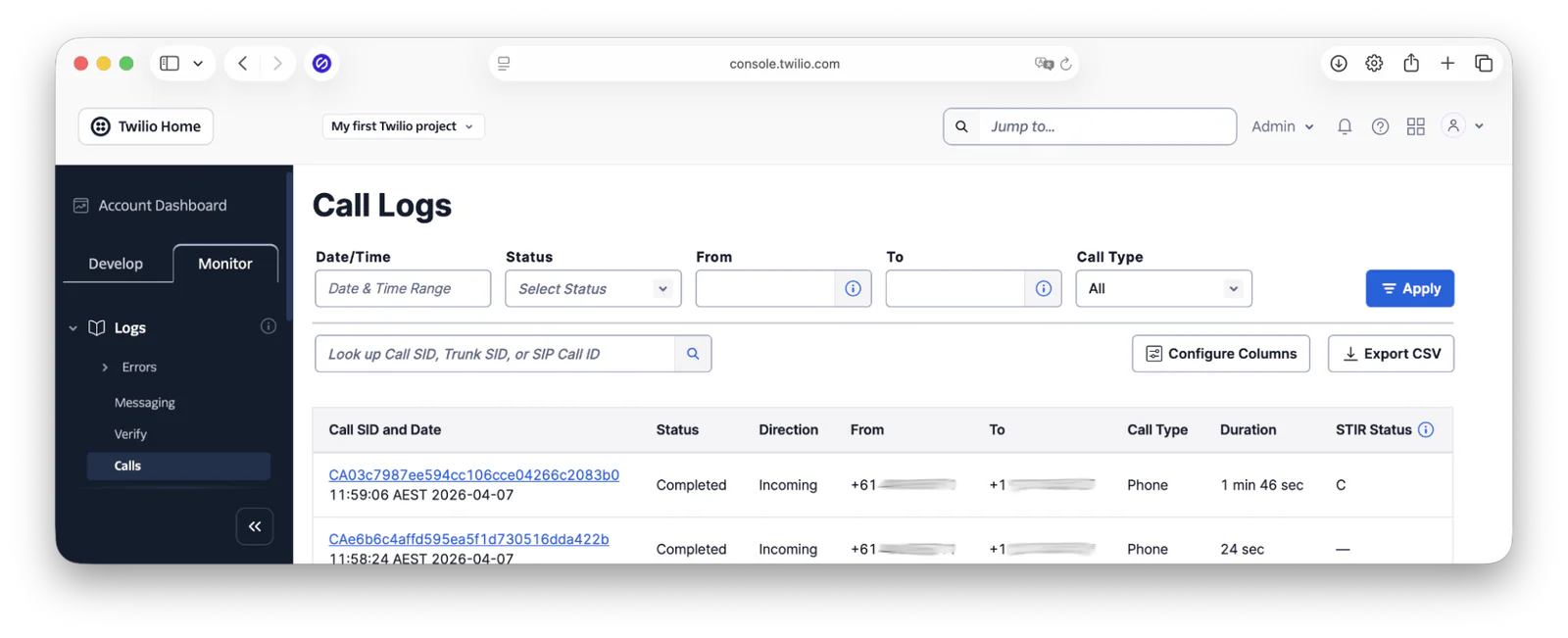
Click on the call's SID in the Call SID and Date column to find out more details about the call.
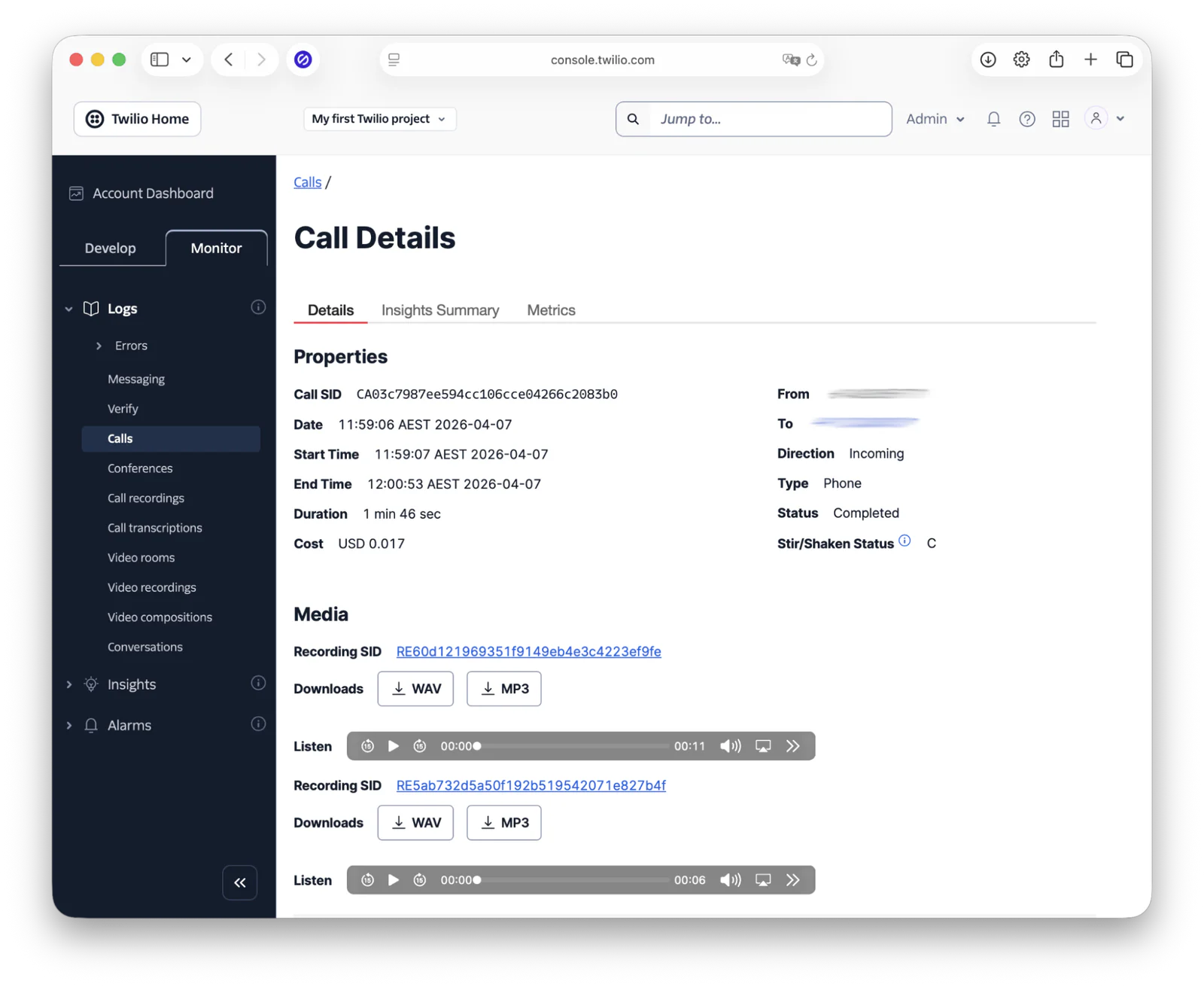
This section of the Console has three tabs, but, for the purposes of this tutorial, only Details is relevant. In it, you'll see the core call properties, followed by any voice recordings made during the call. The first one will be with your personal details. The second one will be with your policy number.
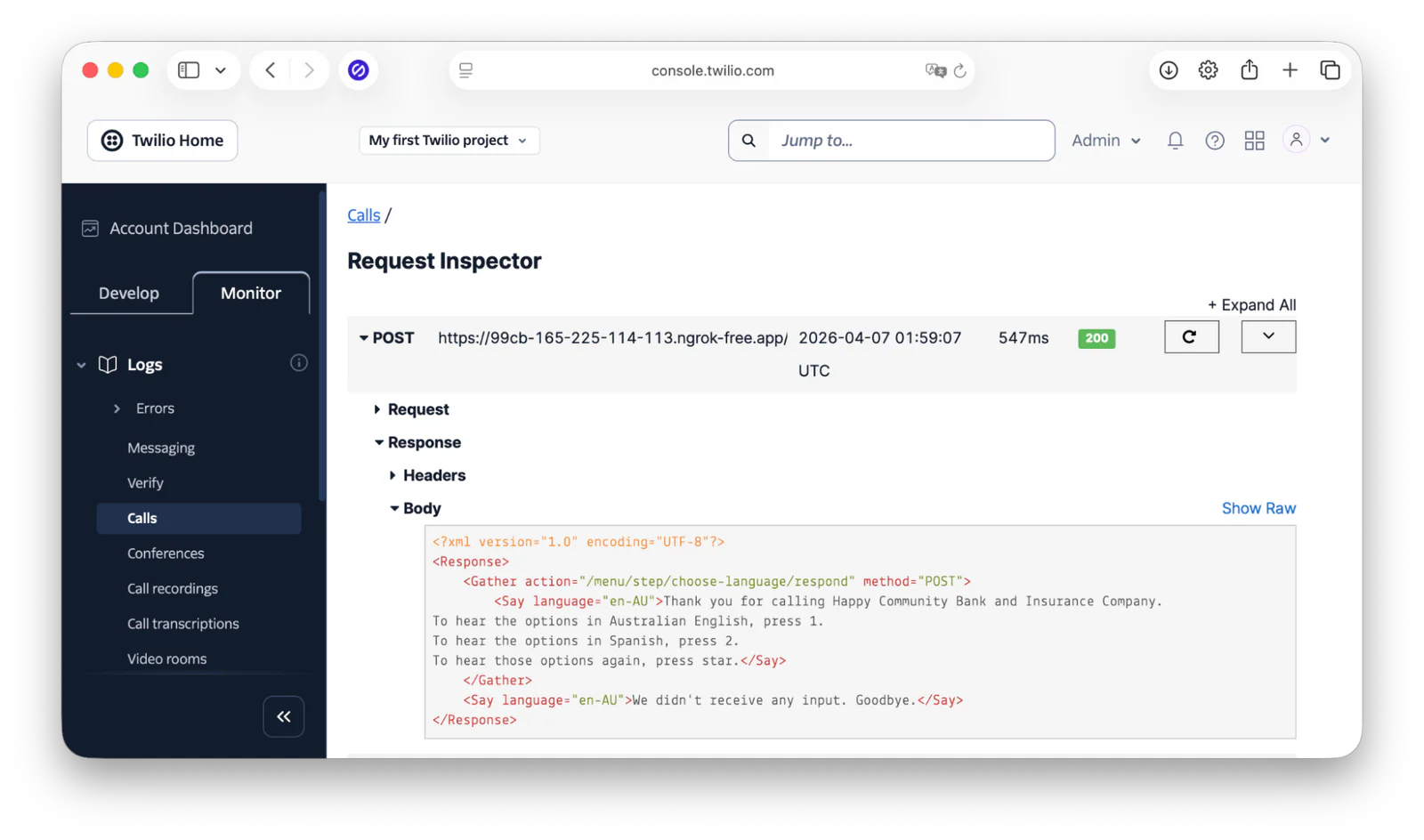
Scrolling down further, you'll see the Request Inspector. This lists each of the HTTP requests that Twilio made to the application as part of the call, with the details of the first one expanded. For example, you can see the URI that was requested, the time and date of the request, the HTTP response status code, and the TwiML returned in the response's body.
This section of the Twilio Console should provide you with ample information to help you debug what went wrong, should something have gone wrong.
Check the Error Logs
Keep in mind that the call logs will only record entries for calls that were made. For failed calls, you'll need to check the error logs. Similar to Call Logs, you can find Error Logs in the Monitor tab of the Account Dashboard, under Logs > Errors > Error logs.
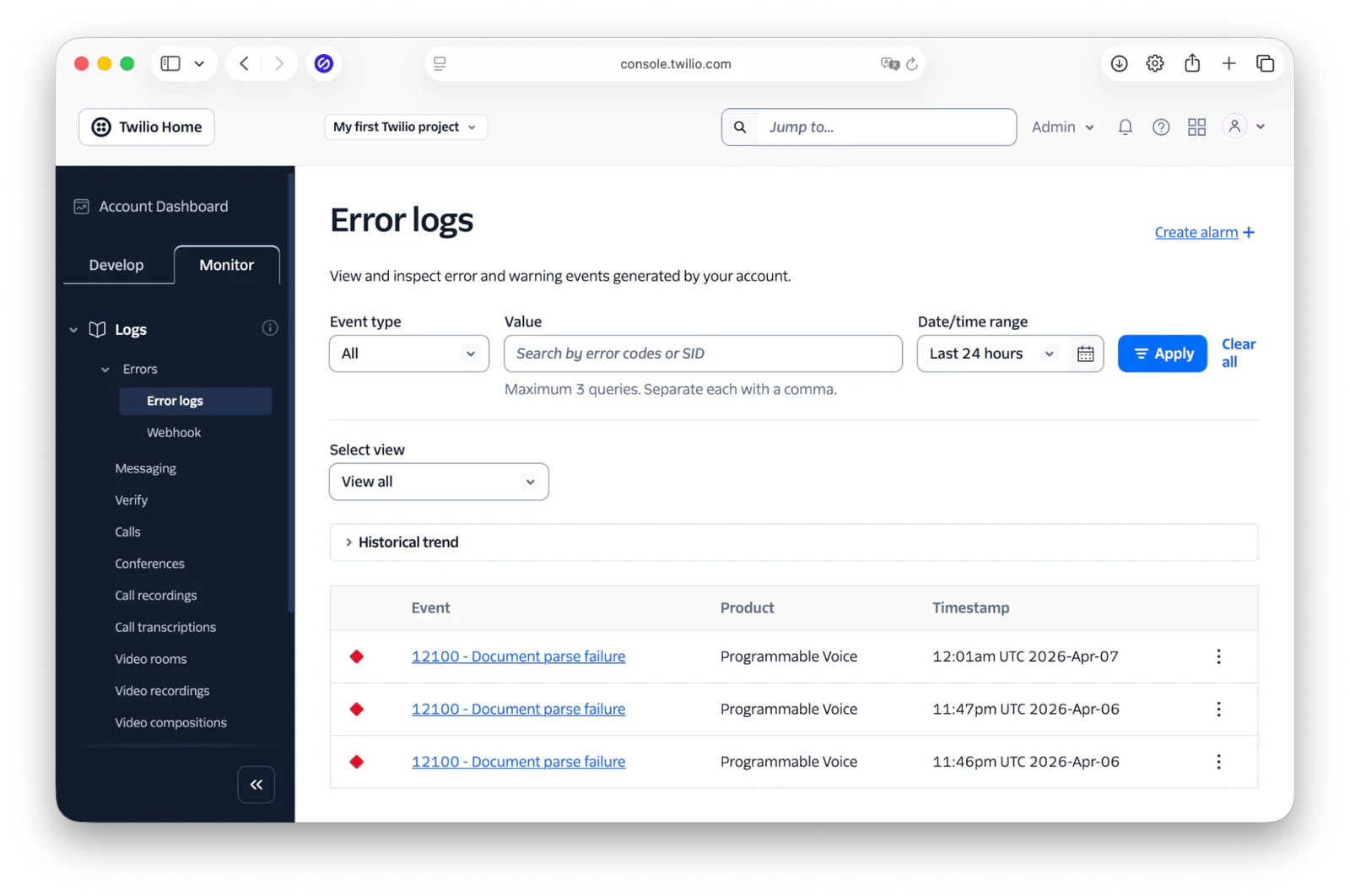
Once there, look for entries where the Product column has the value "Programmable Voice". You can see three of these in the screenshot above.
To view the specifics of what went wrong, click on the link in the Event column. Then, you'll see comprehensive information about it, such as the timestamp, the error code, a detailed error description and some possible solutions.
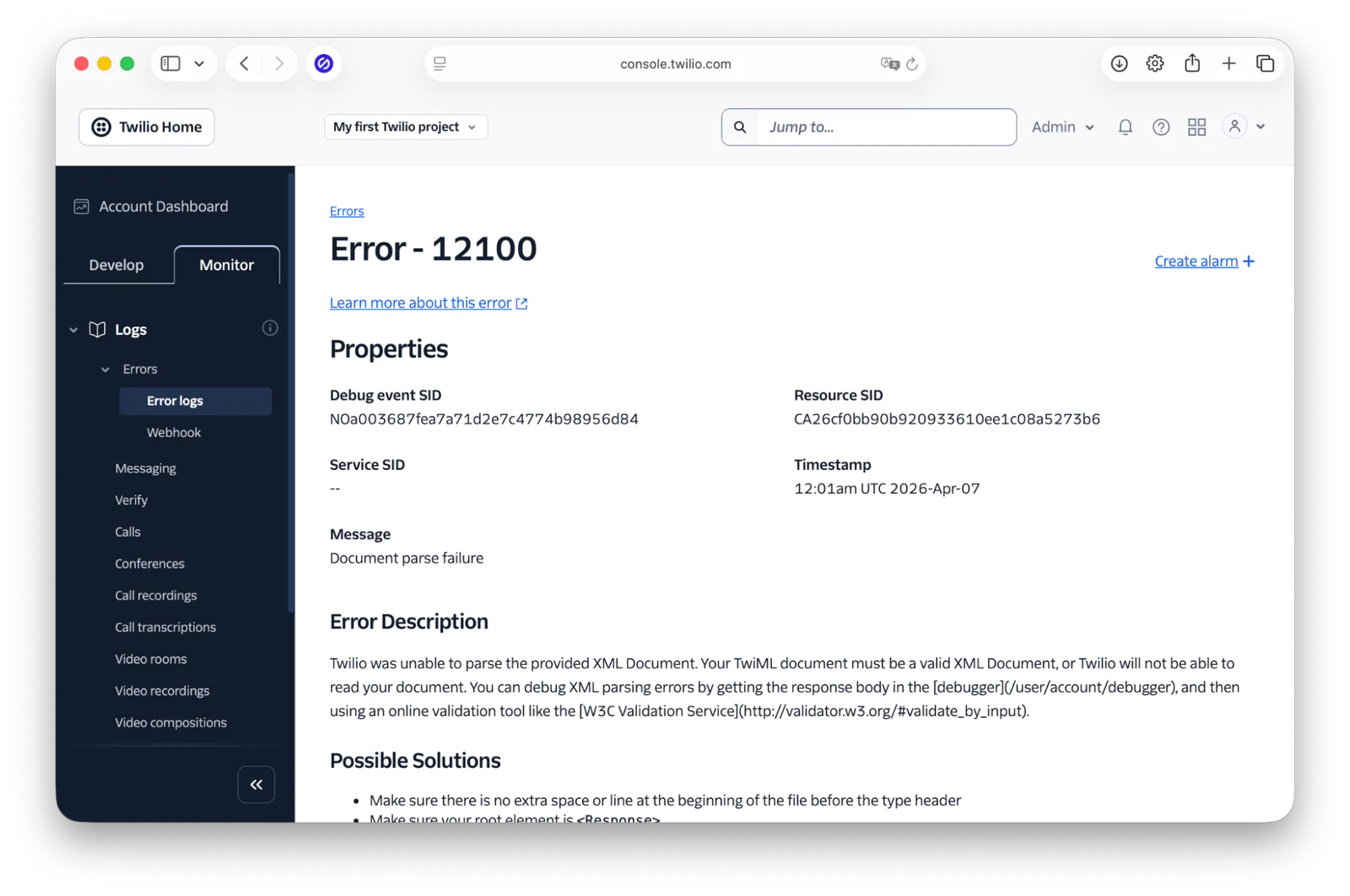
To know exactly what caused the error, scroll down to and expand the Response dropdown. In the screenshot below, you can see that instead of returning properly formed TwiML, the application returned the output of a fatal error.
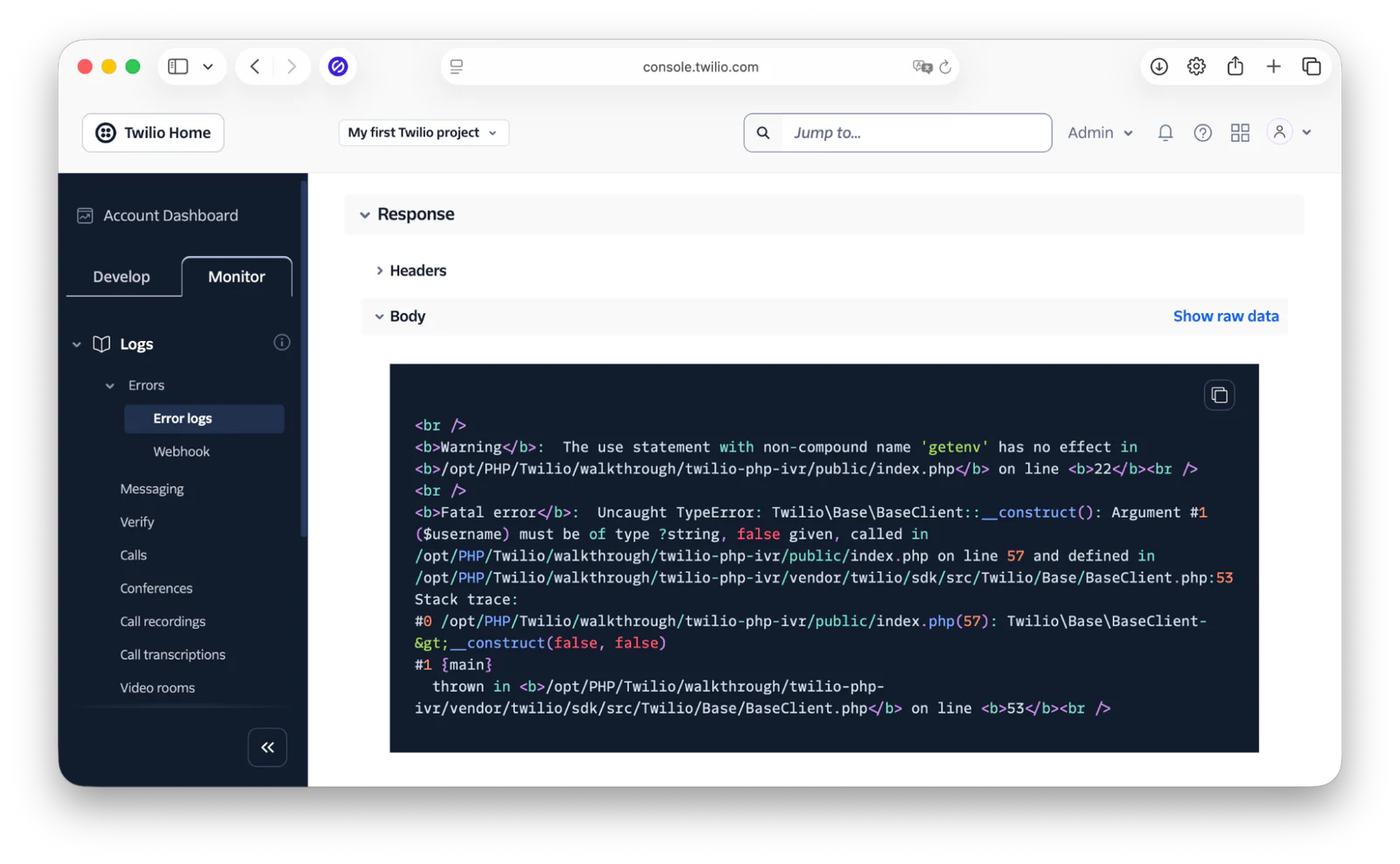
I strongly encourage you to familiarise yourself with this section of the Console, so that you can quickly and effectively debug problems when integrating with Twilio.
That's how to build an Interactive Voice Response system with PHP and Twilio
I hope you see that regardless of whether they're simple or more sophisticated, they're readily buildable in PHP thanks to the power of TwiML. I hope that you also took the opportunity to learn about some usability guidelines, so that your customers get more out of your next IVR, and want to do more business with you.
What's next?
While the IVR that you just built was reasonably sophisticated, there is so much more that you can do. To learn more, check out the links below. I hope that they help you design a best-in-class IVR for your business or organisation — one that wows every caller.
Matthew Setter is the PHP, Go, and Rust editor on the Twilio Voices team, and a developer in each of these languages. He’s also the author of Mezzio Essentials and Deploy with Docker Compose. You can find him at msetter[at]twilio.com, and on LinkedIn and GitHub.
Related Resources
Twilio Docs
From APIs to SDKs to sample apps
API reference documentation, SDKs, helper libraries, quickstarts, and tutorials for your language and platform.
Resource Center
The latest ebooks, industry reports, and webinars
Learn from customer engagement experts to improve your own communication.
Ahoy
Twilio's developer community hub
Best practices, code samples, and inspiration to build communications and digital engagement experiences.