Build a Twilio + Monday.com Integration for SMS/Messaging
Time to read:
December 08, 2025
Written by
Reviewed by
AI generated summary
- Connect Twilio SMS and Monday.com for instant, two-way project updates.
- Receive SMS notifications for board changes; create board items from incoming texts.
- Ideal for field teams, customer support, and key stakeholders needing real-time updates.
This summary was generated by AI.
Build a Twilio + Monday.com Integration for SMS/Messaging
Overview
This integration connects Twilio's SMS platform with M onday.com to enable two-way communication between your project management board and text messages. When items are created or updated in Monday.com, your team gets instant SMS notifications. When someone sends a text to your Twilio number, a new item automatically appears on Monday.com.
There are various scenarios when this integration will be useful:
- Field teams that need updates without checking apps
- Customer support scenarios where speed matters
- Any situation where key stakeholders need to stay informed but aren't always at their desks.
You'll build this using Monday.com webhooks to detect changes, Twilio Functions to handle the logic, and the Monday.com API to create items programmatically.
Prerequisites
Before you begin, make sure you have:
- A Twilio account with an active phone number
- A Monday.com account (Standard Plan or higher) with API access
- Admin permissions on your Monday.com board
High-Level Architecture/What You'll Build
The integration works in two directions, each with its own data flow:
Use Case #1 - SMS Notifications
When something changes in Monday.com, a webhook fires and sends data to your Twilio Function. The function processes that data and uses Twilio's API to send an SMS notification to your team.
Monday.com item created/updated ➜ Monday.com Webhook ➜ Twilio Function ➜ Twilio SMS
Use Case 2 - Item Creation
When someone texts your Twilio number, Twilio routes that message to your function. The function extracts the message content and makes an API call to Monday.com to create a new item on your board.
Incoming SMS ➜ Twilio Phone Number ➜ Twilio Function ➜ Monday.com API
Use Case 1: Send SMS Notifications for Monday.com Updates
Step 1: Get Your Monday.com API Token
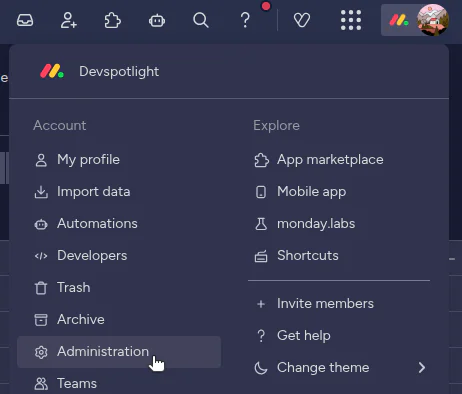
Log in to Monday.com, click your profile picture, and select Administration.
On the Administration page, navigate to Connections > Personal API token. Click Generate to generate the personal API token. Then, copy it and save it.
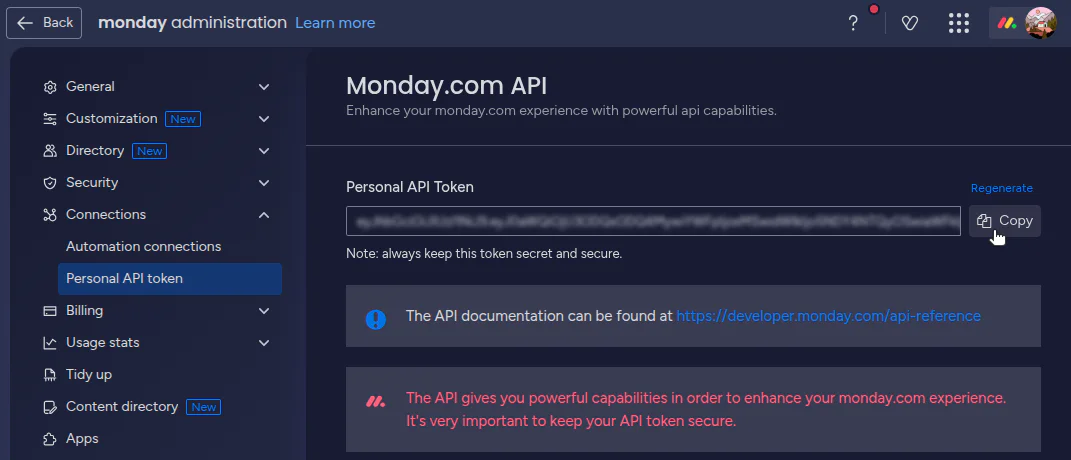
You'll need the API token to authenticate API requests from your Twilio Function to Monday.com.
Step 2: Get Your Monday.com Board ID
Open the board you want to monitor. The Board ID is the number at the end of the URL. For example, in https://yourcompany.monday.com/boards/1234567890, the Board ID would be 1234567890. Save this ID—you'll use it to tell Monday.com which board to watch and where to create new items.
Step 3: Create a Twilio Function for Challenge Verification
In the Twilio Console, go to Functions and Assets > Services. Click Create Service.
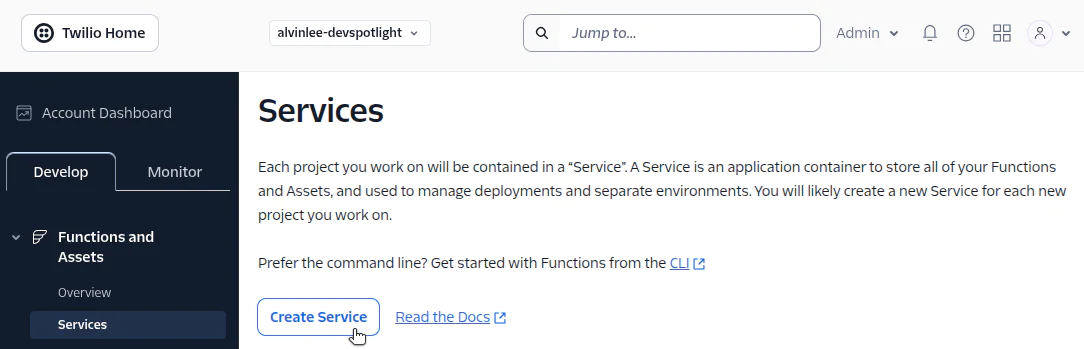
Give the new service a name (Example: "Monday-SMS-Integration"). Then, add a new function named /send-notification.
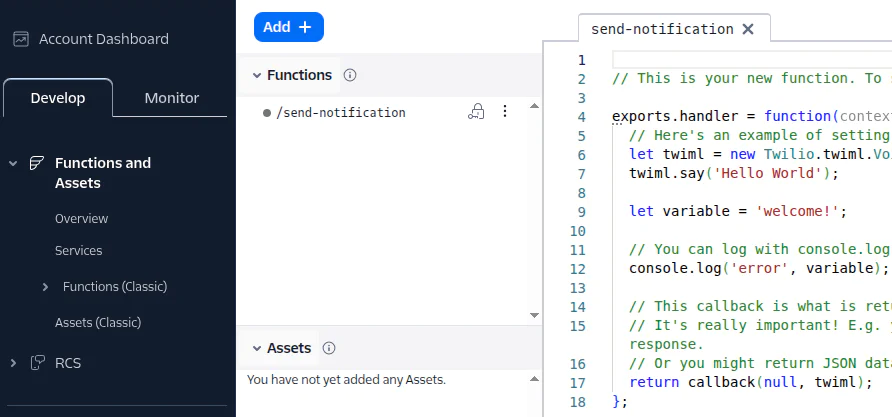
First, we need to handle Monday.com's webhook verification. When you create a webhook, Monday.com sends a one-time challenge request to verify you control the endpoint. Your function needs to respond by echoing back the challenge token they send. This is a security measure to prevent unauthorized webhooks from being created.
Modify the function code to echo back the challenge token. Replace the code in the editor window with the following:
The event in the Twilio Function signature contains the request parameters that are passed to your Twilio Function. The payload from Monday.com is an object with two sub-objects, called request and event. The challenge request from Monday.com requires the entire payload to be returned, which is why you call response.setBody(event). However, the information you will be interested in for your webhook logic is in event.event, which is why you capture it (as mondayEvent) and log it to the console.
Step 4: Deploy Your Twilio Function
Click Save to save your updated function. Next, change the visibility of the function to Public.
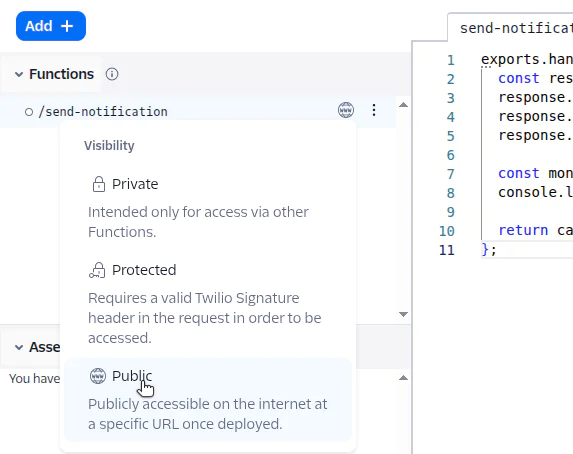
Then, click Deploy All and copy the function URL. For example, the function URL may look like this:
Step 5: Create a Monday.com Webhook
Back at Monday.com, open your profile menu and navigate to Automations. Either via the search bar or on the Sync sub page, find the webhooks integration.
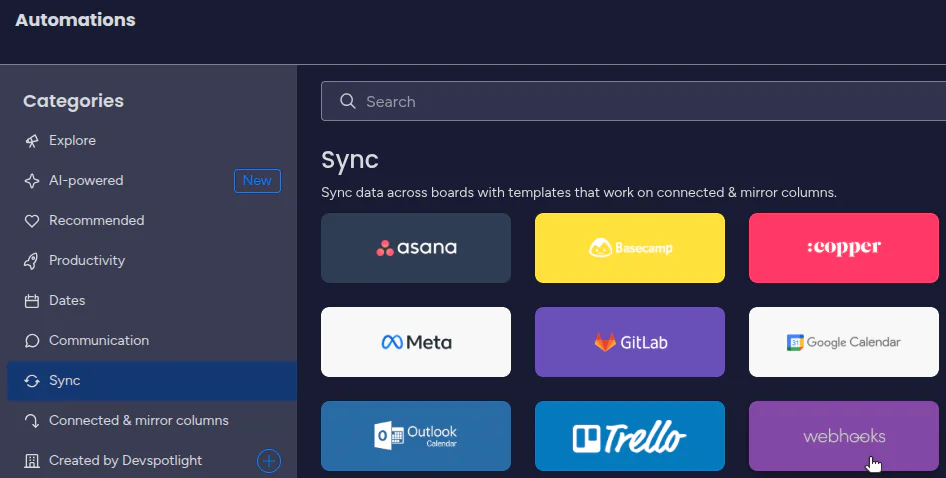
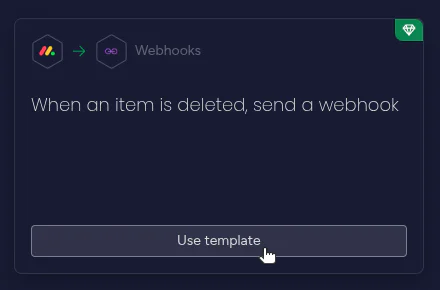
Choose your webhook template. For example: "When an item is deleted, send a webhook."
Enter your Board ID or select from your existing, available boards. Provide your Twilio Function URL. Click Connect.
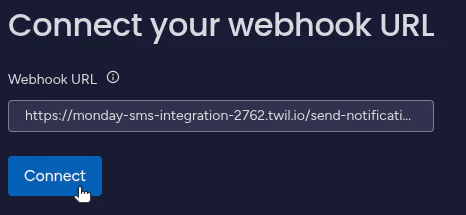
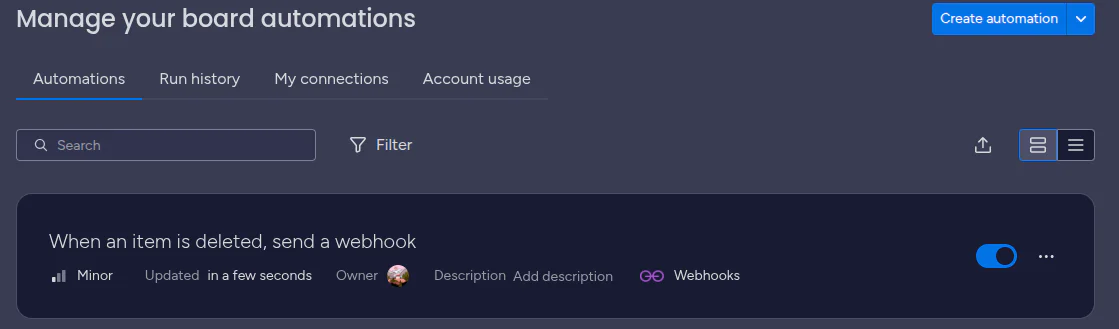
Monday.com will immediately send a challenge request to verify your endpoint. If your function is set up correctly from Step 3, the webhook will be created successfully and show up in the list of automations for your board.
Step 6: Update Your Function with SMS Logic
Now that the webhook is created and verified, go back to your Twilio Function and replace the challenge verification logic with the complete SMS notification logic.
Documentation from Monday.com shows examples of the payload from various webhooks. However, you can see the payload of a webhook request in your Twilio Console by turning on "Live logs."
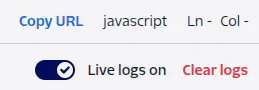
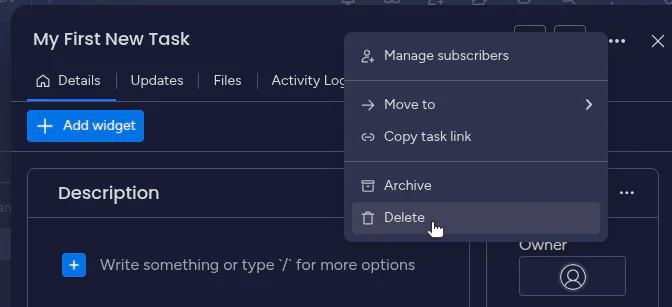
Then, delete an item from your Monday.com board. The current version of your Twilio Function code will log the payload's event sub-object to the console.

Examining the payload more closely, you'll see that the information you're interested in for your SMS notification is the type(delete_pulse), itemId, and itemName. Based on this, update your Twilio Function to parse this payload to extract the important information, then compose and send an SMS notification. Your updated Twilio Function code will look like this:
To keep this demonstration simple, we have not implemented any authentication in our Twilio Function code. Monday.com does offer the option of authenticating webhook requests with a signed JWT. You would simply need to implement some logic in your Twilio Function code to verify the authenticity of webhook requests.
Step 7: Configure Environment Variables
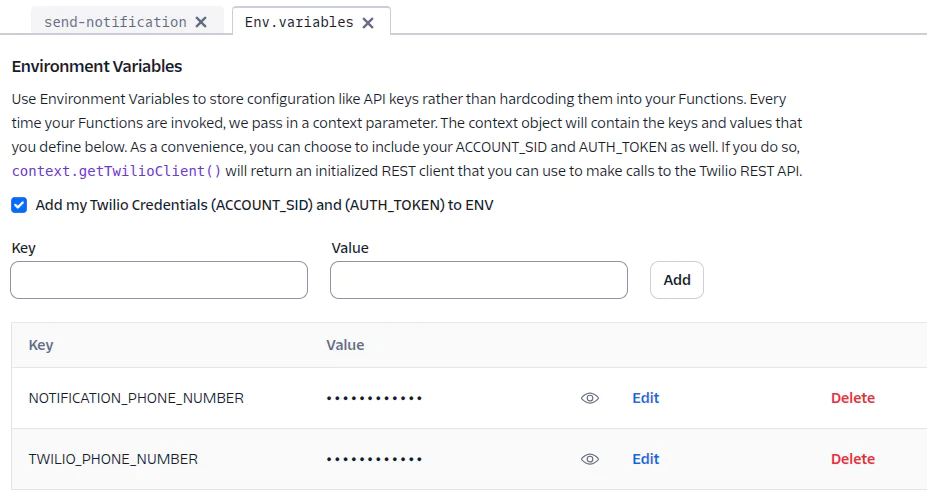
Navigate to your function's Environment Variables. Add these environment variables to your Twilio Service:
TWILIO_PHONE_NUMBER: Your Twilio phone number (Example: +18881234567)NOTIFICATION_PHONE_NUMBER: Where to send notifications (Example: +13102222222)
To use Twilio Programmable Messaging from your Twilio Function, you need access to your Twilio ACCOUNT_SID and AUTH_TOKEN. Ensure that these values are attached to the context by checking the box to "Add my Twilio Credentials to ENV."
Step 8: Deploy and Test
Click Deploy All again to update your function with the new code. Create an item in Monday.com. Then, delete it.
You should receive an SMS within seconds with details about the change.
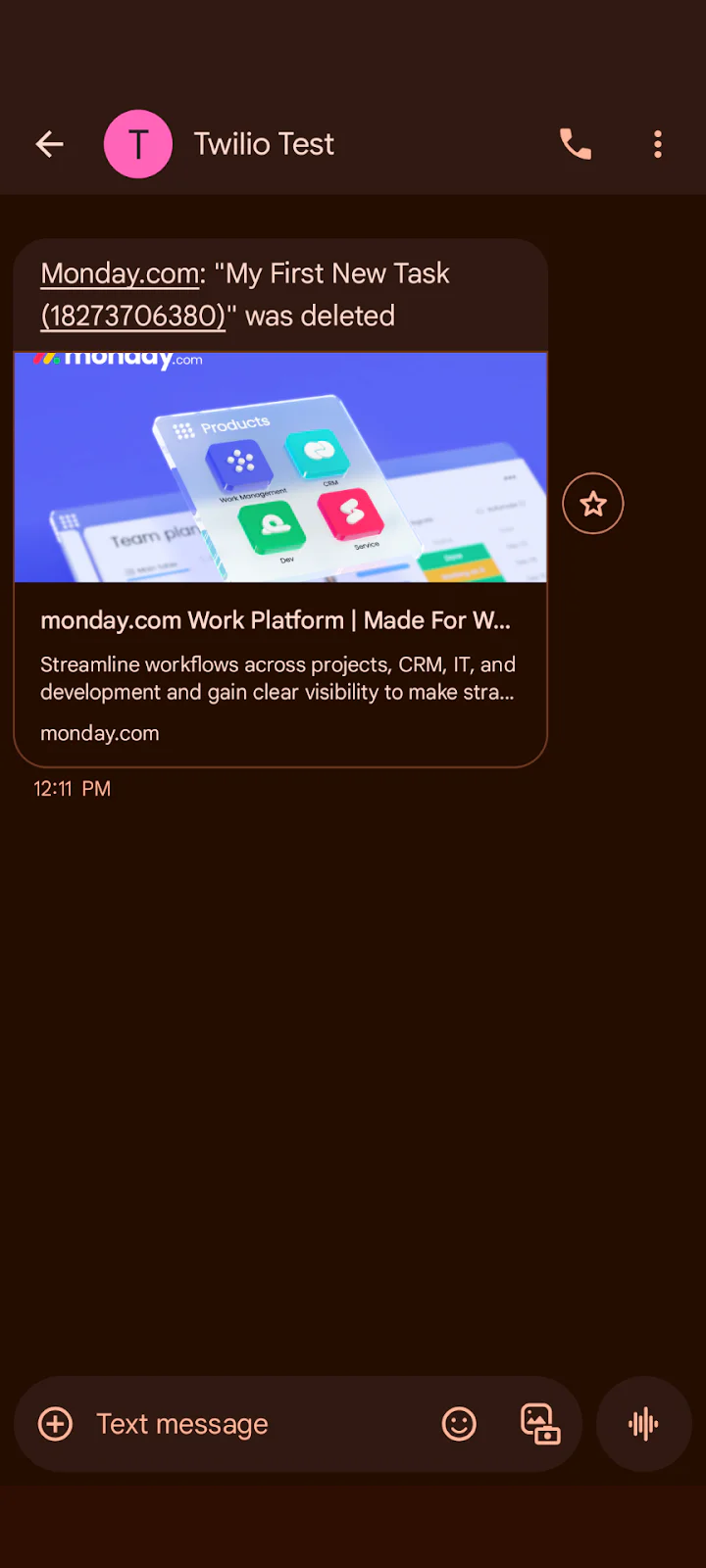
Congratulations! The first part of your integration was successful!
Use Case 2: Create Monday.com Items from Incoming SMS
Step 1: Create a Second Twilio Function
In your Twilio Service, add another function called /create-item. This function will handle incoming SMS messages and use the Monday.com API to create items. Unlike webhooks, which push data to you, this function needs to make an outbound API call to Monday.com.
Save your function. Change the visibility of the function to Public.
Step 2: Add Monday.com Environment Variables
Add these to your environment variables:
MONDAY_API_TOKEN: Your Monday.com API token from Part 1, Step 1MONDAY_BOARD_ID: Your Board ID from Part 1, Step 2
These tell your function how to authenticate with Monday.com and which board should receive new items.
Step 3: Deploy the Updated Service
Click Deploy All again.
Step 4: Configure Your Twilio Phone Number
In the Twilio Console, go to Phone Numbers > Manage > Active Numbers. Select your number. Under Messaging Configuration, set "A message comes in" to your Function, Service, and the /create-item function.

This tells Twilio to route all incoming SMS messages to your function rather than the default SMS handler.
Click Save Configuration.
Step 5: Test the Item Creation Flow
Send an SMS to your Twilio number.
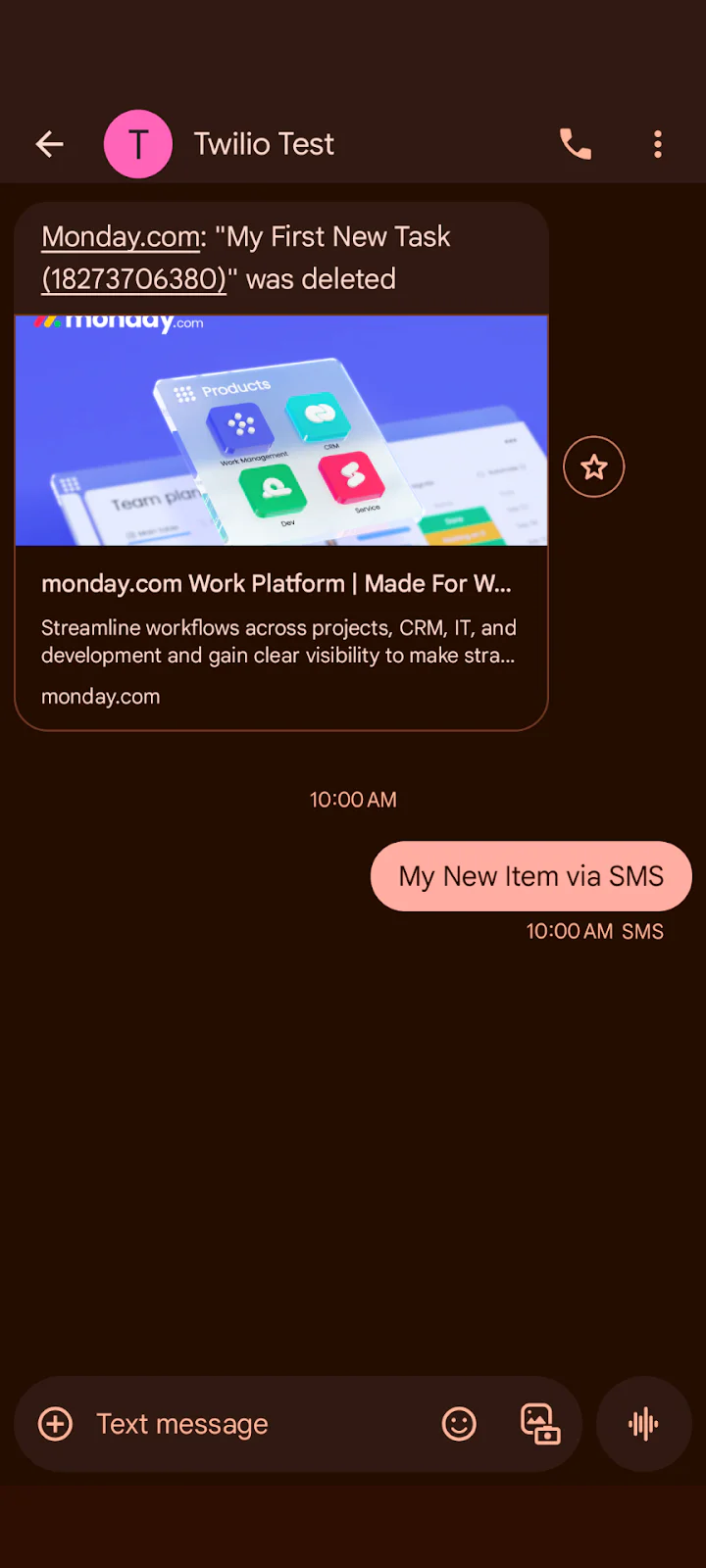
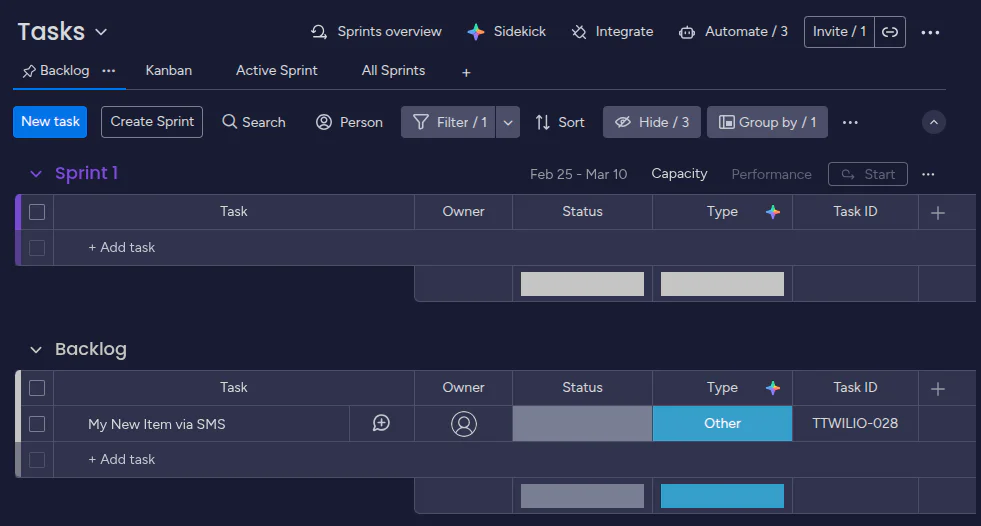
A new item will appear on your board in Monday.com. You should also receive an SMS reply confirmation (assuming your Twilio Phone Number is configured correctly to send outgoing messages).
What's Next?
Expand your integration with:
- Custom column values for priority, assignees, or status
- Parsing the SMS body for keywords to route messages to different boards
- Phone number authentication to control who can create items
- Richer notifications with more Monday.com details
Summary
You've built a two-way integration between Twilio and Monday.com. Your team gets SMS notifications when items change, and anyone can create items by sending a text. This is perfect for teams that need to stay connected without constantly checking apps.



Related Resources
Twilio Docs
From APIs to SDKs to sample apps
API reference documentation, SDKs, helper libraries, quickstarts, and tutorials for your language and platform.
Resource Center
The latest ebooks, industry reports, and webinars
Learn from customer engagement experts to improve your own communication.
Ahoy
Twilio's developer community hub
Best practices, code samples, and inspiration to build communications and digital engagement experiences.